
How it works
The integration holds the connection to one Sumo Logic HTTP Source. A workflow decides what goes through it:- Findings: add a Sumo Logic action to a workflow, and the findings that match its finding conditions are sent each night.
- Tenant audit logs: tick Send tenant audit logs on that action, and the tenant’s audit logs are sent as they happen.
- It uses finding conditions only. Asset and vulnerability conditions are turned off while a Sumo Logic action is on the workflow.
- A workflow whose only action is Sumo Logic does not create alerts. The findings go to Sumo Logic directly.
Steps to create a Sumo Logic HTTP Source
1
In Sumo Logic, open the collection settings
- Go to
Manage Data>Collection. In newer Sumo Logic accounts, this isData Management>Collection. - Choose a Hosted Collector, or create one.
2
Add an HTTP Logs & Metrics source
- Select
Add Sourcenext to the collector. - Choose HTTP Logs & Metrics.
- Enter a Name, for example
plerion. - Optionally, set a Source Category, for example
security/plerion. - Select
Save.
3
Copy the source URL
Copy the URL Sumo Logic shows for the new source. It looks like
https://endpoint4.collection.us2.sumologic.com/receiver/v1/http/....The URL contains the source’s token. Anyone who has it can post to your source, so treat it like a password.
Steps to integrate Sumo Logic with Plerion
1
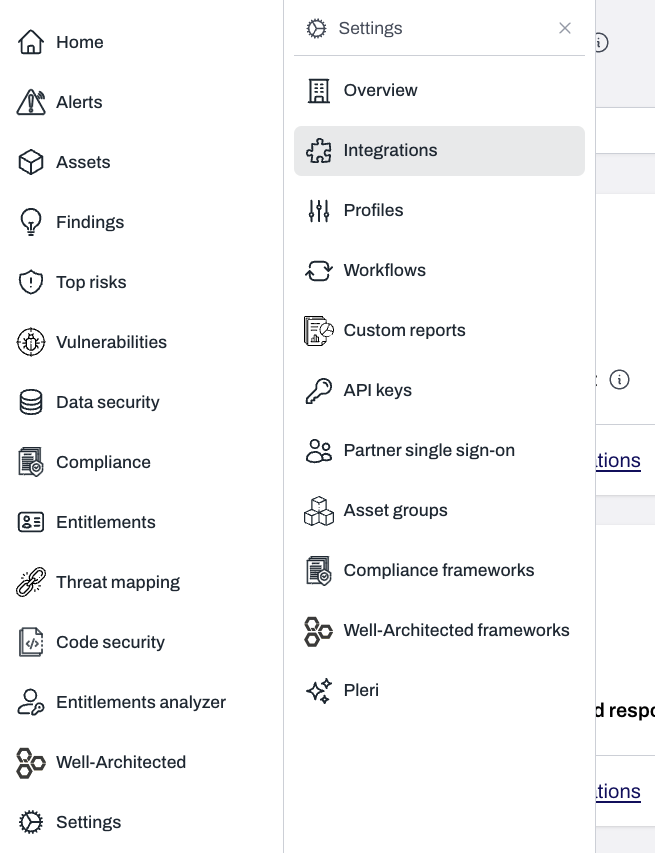
On the Plerion dashboard, go to Settings > Integrations
2
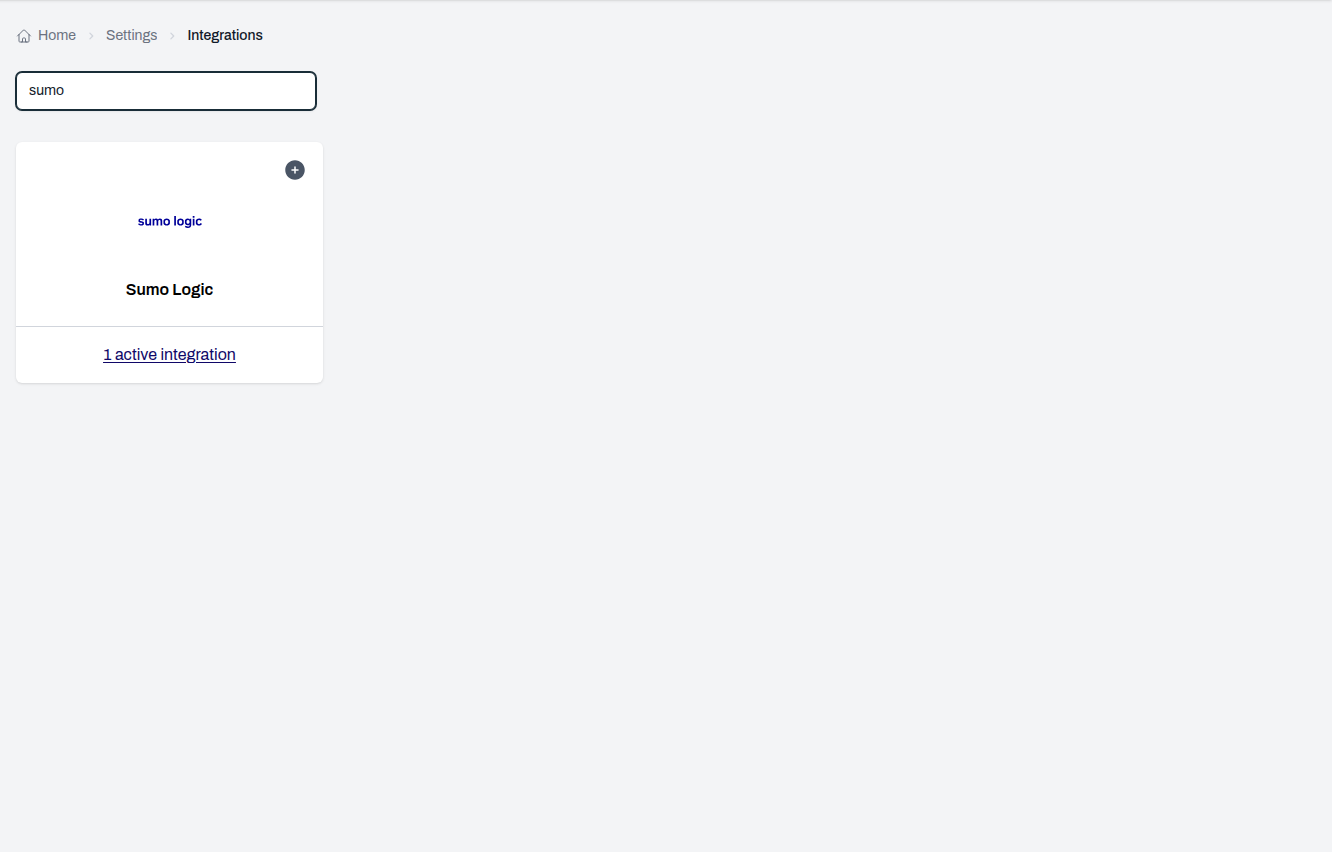
Find Sumo Logic and click the + button
3
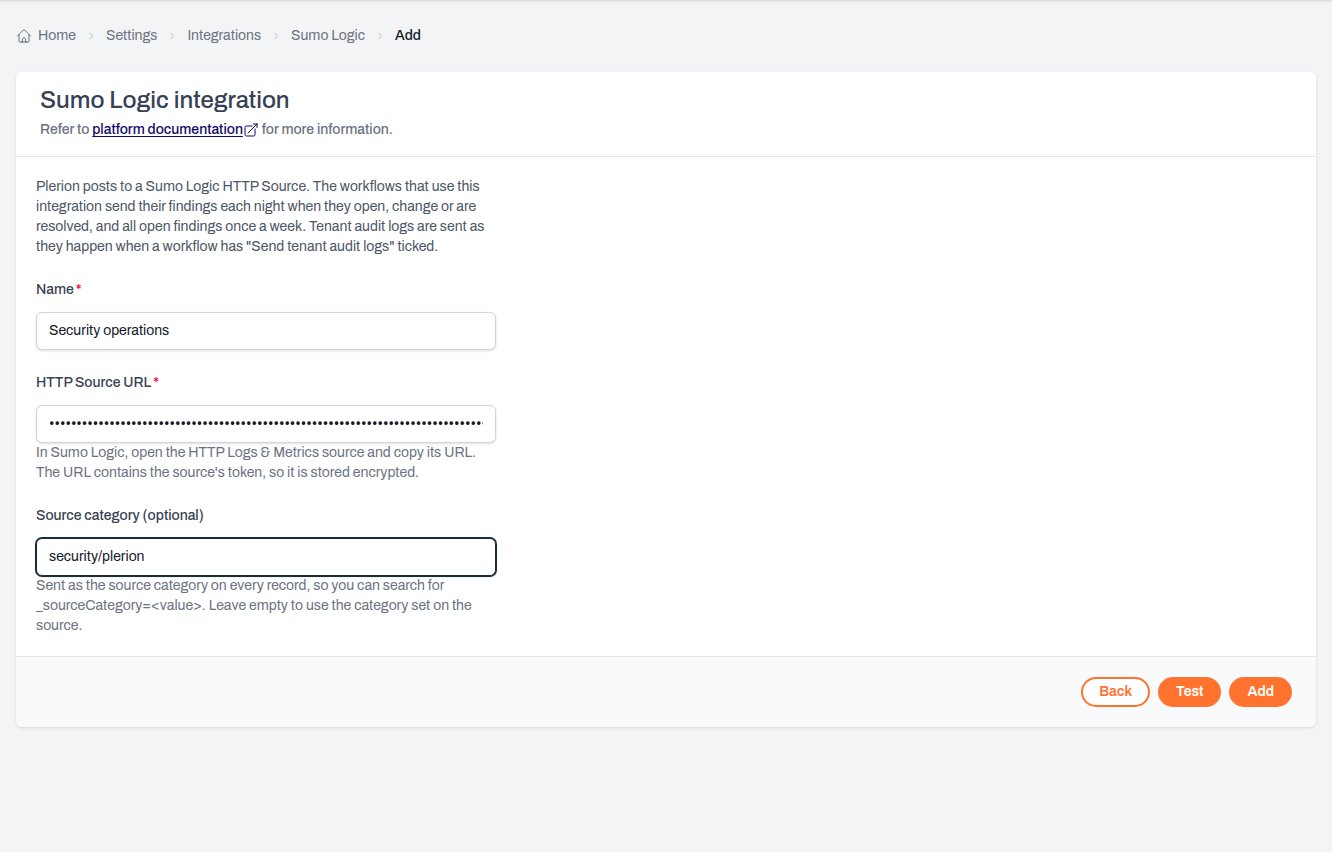
Enter the connection details
- Name: a name for this destination, for example
Security operations. - HTTP Source URL: the URL you copied from Sumo Logic. Plerion stores it encrypted and never shows it again.
- Source category (optional): sent as the source category on every record, so you can search for
_sourceCategory=<value>. Leave it empty to use the category set on the source.
4
Test the connection
Click
Test. Plerion posts one test event to the source. In Sumo Logic, search for _sourceName="Plerion test" or open Live Tail to see it.If Sumo Logic refuses the event, Plerion shows its answer, for example 401 Unauthorized when the source was deleted or the URL is incomplete.5
Finalize the setup
Click 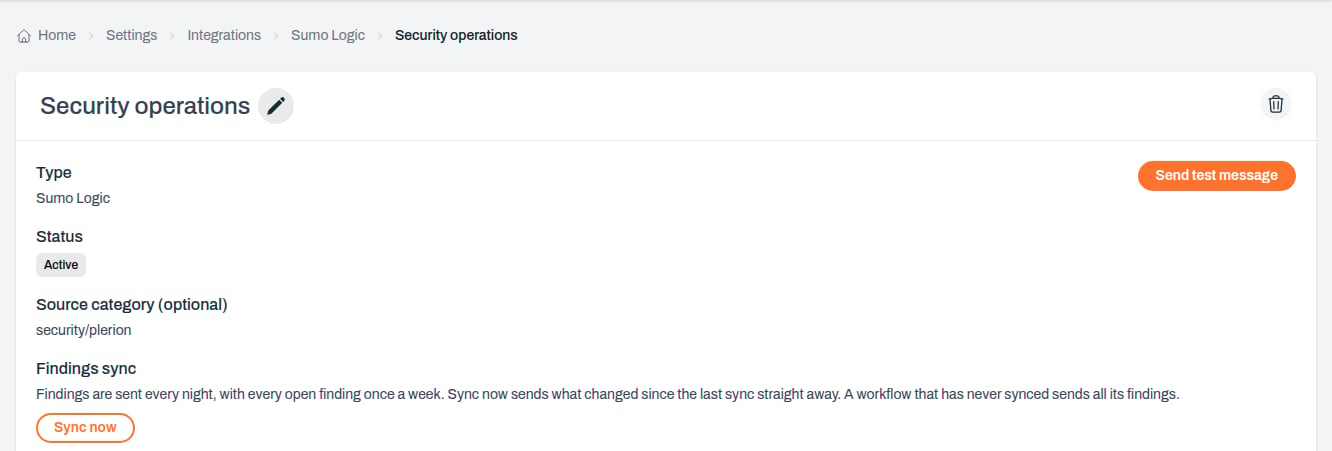
Add. The integration page opens, with Send test message and Sync now.Steps to send findings and audit logs
1
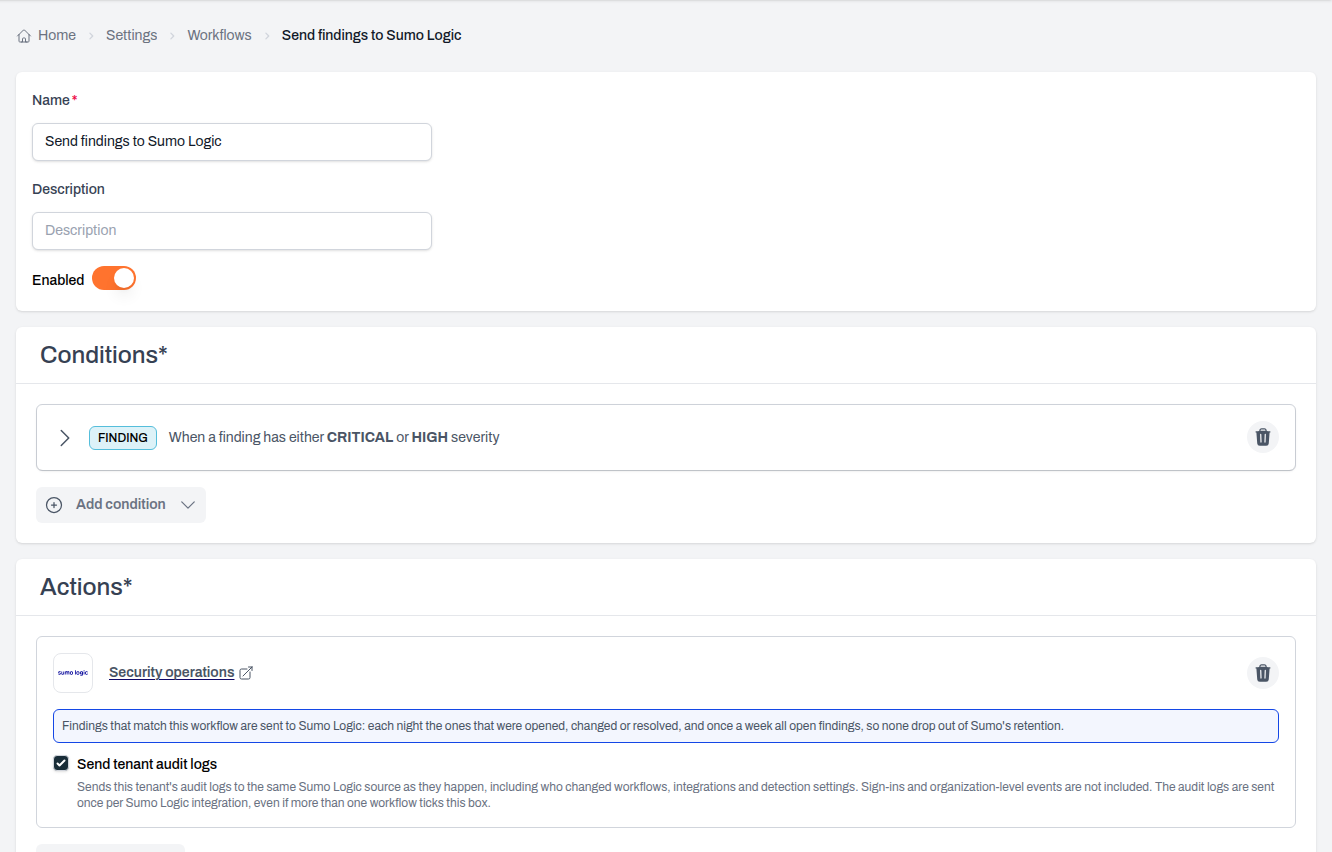
Go to Settings > Workflows and create or open a workflow
Give the workflow a name, for example
Send findings to Sumo Logic.2
Add the findings you want to send
Add one or more finding conditions, for example Severity is Critical or High. Each condition selects findings on its own, and a finding that matches any of them is sent.
3
Add a Sumo Logic action
- Under Actions, add an action and choose your Sumo Logic integration.
- Tick Send tenant audit logs to also send the tenant’s audit logs to the same source.
- Select
Save.
4
Wait for the first sync, or start it now
The first sync sends every finding the workflow selects that night. To start it straight away, open the integration under
Settings > Integrations > Sumo Logic and click Sync now.What Plerion sends
Every record is one JSON object. Plerion sets the source name on each request, so you can tell the streams apart:Finding records
Each finding record has anevent field that says why it was sent:
Finding records carry, among others,
id, detectionId, message, status, severityLevel, provider, providerAccountId, region, resourceType, resourceId, resourceName, resourceTags, isExempted, exemptionReason, slaDueAt, factCheck, firstObservedAt, lastObservedAt, lastChangedAt and plerionUrl, a link that opens the finding in Plerion. Every record also has syncId, workflowId and sentAt.
A finding is sent only when something that matters about it changes. A scan that sees the same finding again does not resend it.
Keeping an up-to-date list of open findings
To track which findings are open:- Take the latest record for each finding
id.opened,changedandsnapshotmean it is open, andresolvedorleftmean it is not. - Once a week, compare against the newest snapshot that has a
snapshot_completerecord. Drop any finding that is missing from that snapshot. It has left the workflow’s selection, for example because it was deleted or exempted.
Audit log records
Audit log records haveevent set to audit, and carry id, operation, operationTime, operatorEmail, operatorUserId, ip, userAgent, location, tenantId and organizationId. They use the same fields as the list audit logs API.
Sign-ins and organization-level events are not sent. If more than one workflow ticks Send tenant audit logs for the same integration, each audit log is still sent once.
Sync now
Sync now on the integration page sends what changed since the last sync for every enabled workflow that uses the integration, without waiting for the night.
- A workflow that has never synced sends every finding it selects.
- The weekly snapshot stays with the nightly sync.
- After a sync starts,
Sync nowis available again after 15 minutes. Plerion shows the time you can try again. - If no enabled workflow sends findings to the integration, Plerion says so and nothing is sent.
Stopping the integration
- Remove the Sumo Logic action from a workflow, or disable the workflow, to stop sending its findings. A sync already running stops at its next step.
- Untick Send tenant audit logs on every workflow that uses the integration to stop sending audit logs.
- Delete the integration to stop everything that goes through it.