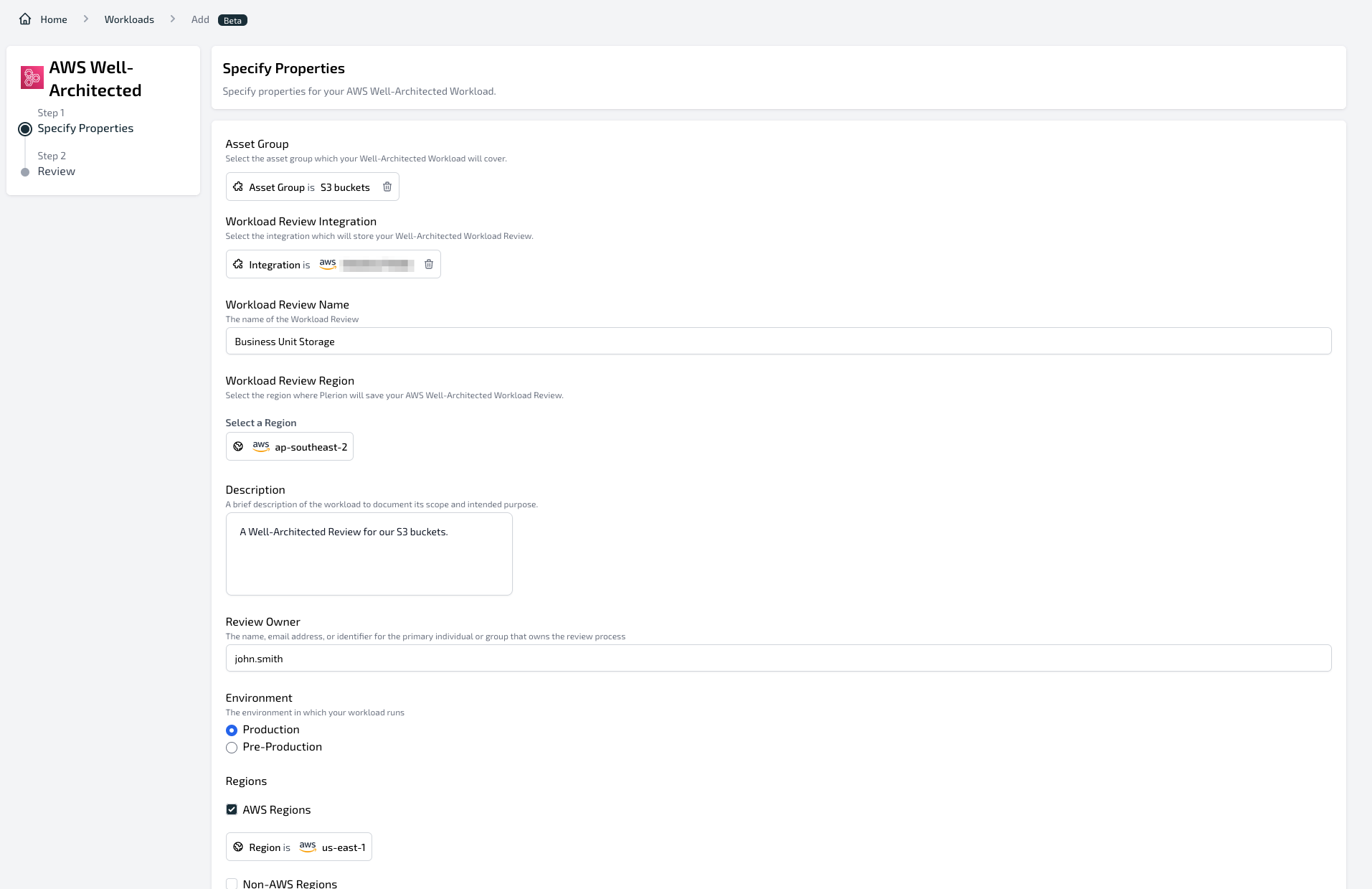
Currently only the AWS Well-architected framework is supported.
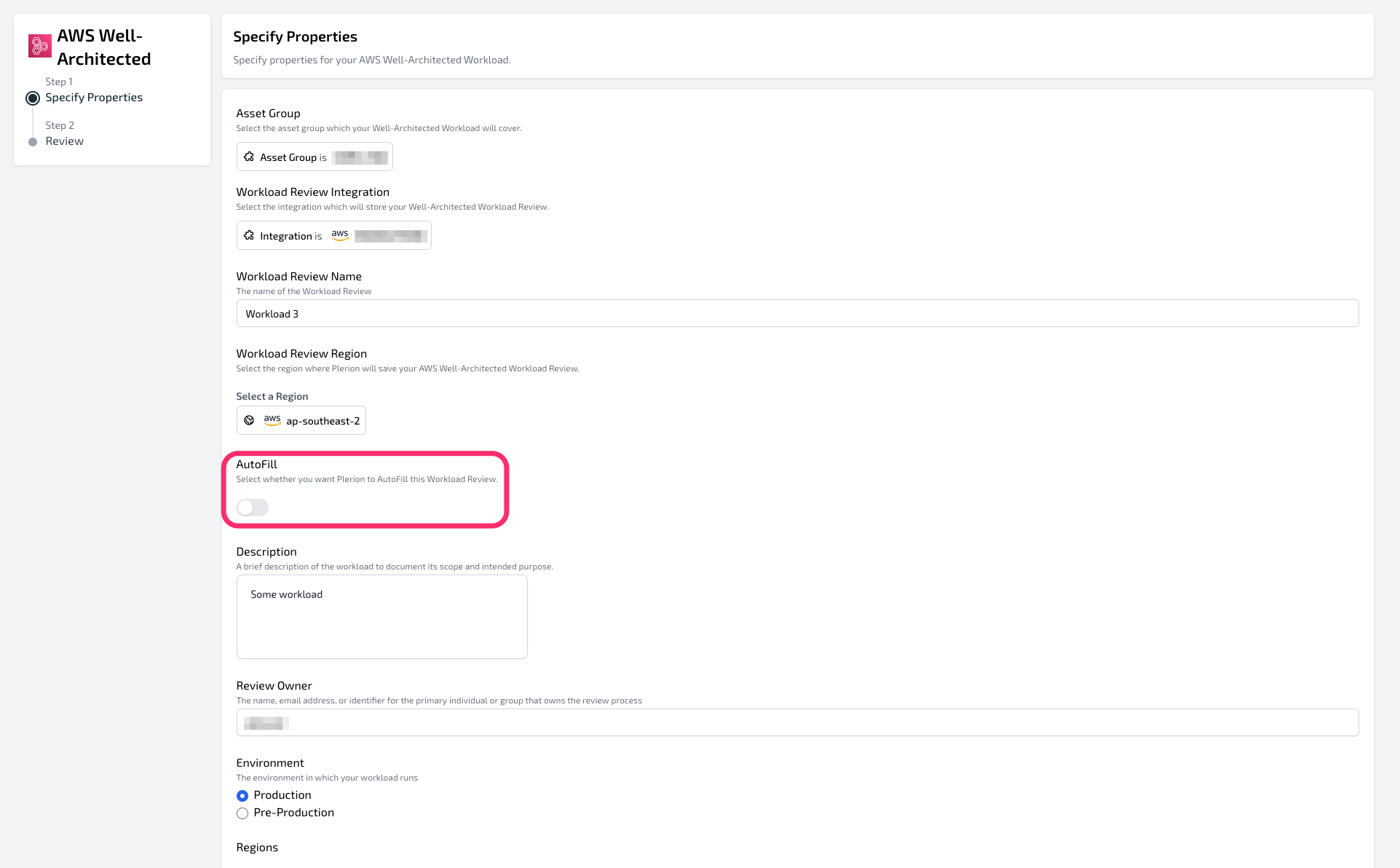
AutoFill
Plerion automatically fills answers for Well-architected workloads if AutoFill is enabled. By default, AutoFill is turned on for new workloads.- If AutoFill is enabled, Plerion updates workload answers daily using the most recent findings from the associated Asset group.
- If AutoFill is disabled, workload answers are not updated automatically.
- To disable AutoFill for a workload, open the workload, click
Edit, and toggle AutoFill off.
- To disable AutoFill for a workload, open the workload, click
Plerion currently limits the number of workloads with AutoFill enabled to 20. Contact support if you need more.
How Plerion fills answers
Each AWS Well-architected question maps to one or more choices listed in the Lens table of your workload page. Plerion evaluates each choice using the following rules:- If all findings for a choice are passed or exempted → Check the answer
- If at least one finding is passed or exempted and the rest are undefined → Check the answer
- If all findings are failed → Uncheck the answer
- If at least one finding is failed and the rest are undefined → Uncheck the answer
- If results are mixed (failed, passed/exempted, undefined) → Uncheck the answer

Steps to create an AWS Well-architected workload
1
Ensure your integration is up to date
Confirm your AWS integration is using the latest Plerion Policy.
2
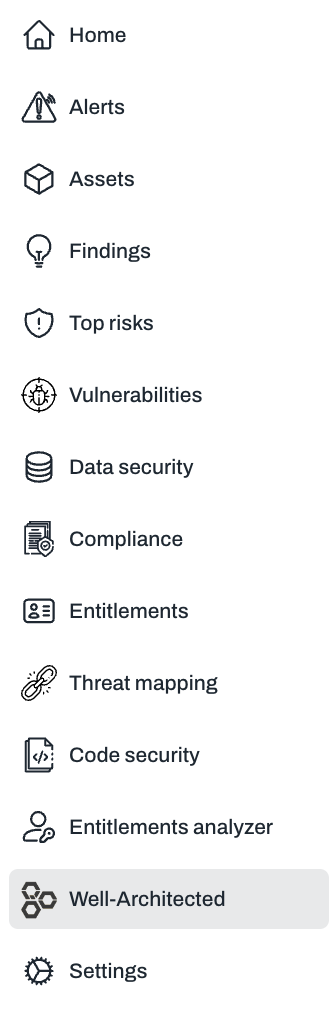
On the Plerion dashboard, click Well-architected in the left navigation
3
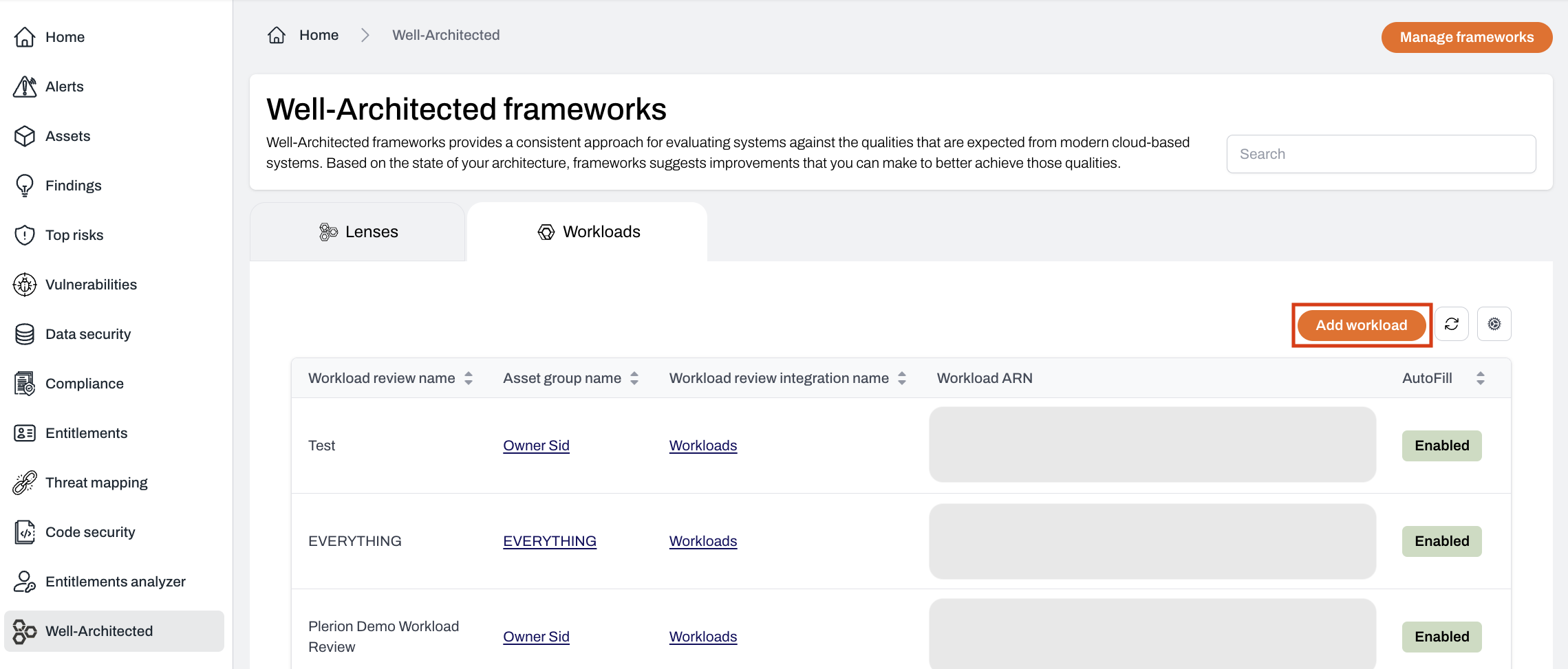
Click the Workloads tab
4
Click Add workload
5
Specify the properties for your AWS Well-architected workload
- Complete the following mandatory fields:
- Asset Group the workload review should cover
- AWS integration where the review will be created
- Workload review name
- AWS region (e.g. selecting
us-east-1creates the workload in the US East Virginia region) - Description of the workload
- Review owner (name, email address, or identifier)
- Environment: Production or Pre-production
- Regions: AWS or non-AWS regions
- When finished, click
Nextto create the workload.