
Continuous scanning is off by default and is available for AWS account integrations only.
How continuous scanning works
- A change happens in your AWS account. For example, someone opens a security group to the internet or turns off encryption on a bucket. AWS records the call as a CloudTrail management event.
- CDR sends the event to Plerion. Plerion works out which resource changed.
- Plerion re-scans the changed resource. It runs Plerion checks against the resource’s current configuration. Findings for that resource update within minutes of Plerion receiving the event.
- Deleted resources leave your inventory. When an event shows a resource was deleted, Plerion removes it from your assets.
Prerequisites
- An AWS account integration.
- A CDR integration for the same AWS account, deployed and receiving events. If you don’t have one yet, follow the Cloud Detection and Response integration guide.
- Permission to modify the integration.
us-east-1 in your CDR regions to cover them.
Steps to turn on continuous scanning
1
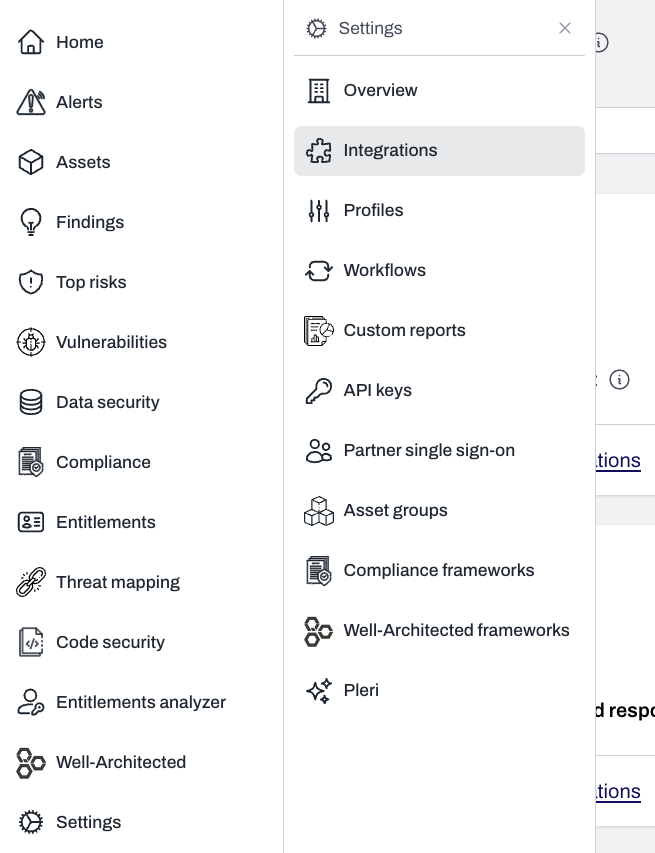
On the Plerion dashboard, go to Settings > Integrations
2
Open the AWS account integration
On the AWS panel, click the active integrations link and select the AWS account you want to scan continuously.
3
Find the Continuous scanning panel
The panel is labeled Continuous scanning. It reads: “Scan this account’s resources soon after they change, using the CloudTrail events CDR receives. Scheduled scans continue as before.”
4
Switch it to Enabled
Plerion confirms with Continuous scanning turned on. Changes made in the account from then on are re-scanned as Plerion receives them.
What continuous scanning covers
Continuous scanning covers AWS resources whose changes appear as CloudTrail management events: 166 resource types across more than 50 AWS services. It re-scans cloud configuration only. It doesn’t cover workload scanning (CWPP) yet, so vulnerabilities, secrets and software packages on your workloads update on their usual workload scanning schedule.AWS services with resource types covered
AWS services with resource types covered
- Compute and containers: EC2 (instances, AMIs, volumes, snapshots, launch templates and default EBS encryption), Auto Scaling, Lambda, ECS, EKS, ECR
- Networking: VPCs, subnets, security groups, network ACLs, route tables, internet gateways, VPC endpoints, flow logs, Elastic IPs, prefix lists, transit gateways, VPN connections, Elastic Load Balancing, CloudFront, API Gateway, AppSync, Network Firewall, AWS WAF
- Storage: S3 (buckets and account-level Block Public Access), EFS, S3 Glacier
- Databases: RDS, DynamoDB, DocumentDB, Neptune, ElastiCache, MemoryDB, Redshift, OpenSearch Service
- Identity and access: IAM (users, groups, roles, policies, instance profiles, server certificates, the account password policy, account summary and credential report), Organizations service control policies, IAM Access Analyzer
- Encryption and secrets: KMS, Secrets Manager, ACM, Systems Manager (parameters and documents)
- Messaging and streaming: SNS, SQS, EventBridge (event buses and schema registries), Kinesis Data Streams, Amazon Data Firehose, Amazon MSK, Amazon MQ, Amazon SES
- Logging and security services: CloudTrail, CloudWatch alarms, CloudWatch Logs (metric filters and resource policies), AWS Config, GuardDuty, Security Hub, Amazon Inspector, Amazon Macie
- AI and machine learning: Amazon Bedrock, Amazon Bedrock AgentCore, Amazon SageMaker
- Data and analytics: AWS Glue, Amazon EMR (block public access)
- Developer and management tools: CloudFormation, CodeBuild, CodeConnections, Resource Groups, Compute Optimizer
- Changes to resource types that continuous scanning doesn’t cover.
- Changes in regions where CDR isn’t deployed.
- Resources that AWS creates in the background, where the CloudTrail event doesn’t name the new resource.
- Findings that depend on several resources at once, when only some of them changed.
Plerion units
Each continuous asset scan uses 3 Plerion units. Scheduled CSPM scans stay at 1 unit per asset.- A re-scan that finds a change is billed. Every one counts, including repeated changes to the same resource.
- A re-scan that finds nothing changed is not billed. If an event leaves the resource exactly as it was, no units are used.
- Changes made close together can count once. When the same resource changes several times in quick succession, Plerion may cover them with a single re-scan.
Settings > Subscription, separate from scheduled CSPM usage.
Accounts whose resources keep changing use more units. Automation that keeps changing the same resources, such as autoscaling, deployment pipelines or scripts that rewrite tags with new values, can add up quickly. Check your usage after turning continuous scanning on, and turn it off for accounts where the cost outweighs the faster findings.
Steps to turn off continuous scanning
1
Open the AWS account integration
Go to
Settings > Integrations, click the active integrations link on the AWS panel, and select the AWS account.2
Switch Continuous scanning to Disabled
Plerion confirms with Continuous scanning turned off. Changes are no longer re-scanned as they happen, and scheduled scans continue as before.
Frequently asked questions
Do I need CDR to enable continuous scanning?
Do I need CDR to enable continuous scanning?
Yes. Continuous scanning runs on the CloudTrail events that the CDR integration sends to Plerion. Set up CDR for the AWS account first, and make sure it is receiving events. Without CDR, the setting can’t be turned on.
Does it replace scheduled scans?
Does it replace scheduled scans?
No. Scheduled scans continue as before. Continuous scanning adds re-scans of the resources that changed between them.
How quickly do findings update?
How quickly do findings update?
Findings for a changed resource update within minutes of Plerion receiving the CloudTrail event for the change. The time AWS takes to deliver CloudTrail events varies, so the total time from the change to the updated finding varies too.
Which resources are covered?
Which resources are covered?
AWS resources whose changes appear as CloudTrail management events: 166 resource types across more than 50 AWS services. See What continuous scanning covers for the list of services. Anything not covered is still picked up by the scheduled scan.
What does it cost in Plerion units?
What does it cost in Plerion units?
Each continuous asset scan uses 3 Plerion units. Every re-scan that finds a change counts, and a re-scan that finds nothing changed costs nothing. Scheduled CSPM scans stay at 1 unit per asset. Continuous scanning shows as its own type on the usage chart under
Settings > Subscription. See Plerion units.Why is one of my accounts using a lot of units?
Why is one of my accounts using a lot of units?
The account’s resources keep changing. Each re-scan that finds a change uses 3 units, including repeated changes to the same resource. Automation is the usual cause, for example autoscaling, deployment pipelines, or scripts that give the same resources new values again and again. Automation that only re-applies identical settings costs nothing, because the re-scan finds no change. Filter the usage chart under
Settings > Subscription to Continuous scanning to see how much it uses. If the cost is too high for an account, turn continuous scanning off for that account.Does it cover workload scanning (CWPP)?
Does it cover workload scanning (CWPP)?
Not yet. Continuous scanning re-scans cloud configuration only. Vulnerabilities, secrets and software packages on your workloads update on their usual workload scanning schedule.
How do I turn it off?
How do I turn it off?
Use the same setting. Open the AWS account integration under
Settings > Integrations and switch Continuous scanning to Disabled. See Steps to turn off continuous scanning.Does it work for Azure or GCP?
Does it work for Azure or GCP?
Not yet. Continuous scanning is available for AWS account integrations only. If you’re interested in it for Azure or GCP, contact support@plerion.com.
Does it read CloudTrail data events?
Does it read CloudTrail data events?
No. It uses management events only, the calls that create, change or delete resources. Data events, such as S3 object reads and writes, are not used.
What happens if I remove CDR while continuous scanning is on?
What happens if I remove CDR while continuous scanning is on?
Plerion stops receiving the account’s CloudTrail events, so nothing is re-scanned between scheduled scans. Scheduled scans continue as before. You can still switch continuous scanning off on the integration page.