
- To show encrypted resource details, such as an Amazon Bedrock guardrail’s filters, let the Plerion access role decrypt with the key. See Read encrypted resource details.
- To scan encrypted workloads, such as volumes and images, give the Plerion appliance role access to the key. See Workload scanning.
Read encrypted resource details
Some AWS services encrypt parts of a resource’s settings with the resource’s KMS key, and return those parts only to callers that can decrypt with the key. Amazon Bedrock and Amazon Bedrock AgentCore do this, for example for an AgentCore policy’s Cedar statement, a memory’s custom prompts, a guardrail’s filters, or an agent’s instructions. Amazon SageMaker does it for model cards and model packages. When the key is a customer managed key, AWS refuses to show these parts to the Plerion access role. Plerion still lists the resource, but its asset page says that Plerion can’t read part of it, and the checks that need those parts are skipped. To see those parts in Plerion, let the Plerion access role decrypt with the key. Otherwise nothing changes, and Plerion keeps showing the resource in part.Let the Plerion access role decrypt with a key
First, copy the ARN of the Plerion access role. In the IAM console, open Roles, find the role whose name ends inPlerionAccessRole, and copy its ARN.
For a key that encrypts Bedrock or AgentCore resources, add these two statements to the Statement list of the key’s policy. Replace <plerion-access-role-arn> with the ARN you copied, <account-id> with your AWS account ID, and <region> with the key’s region.
- In the AWS KMS console, open Customer managed keys and choose the key.
- On the Key policy tab, choose Switch to policy view if the console shows the default view, then choose Edit.
- Add the statements to the
Statementlist, and choose Save changes.
Workload scanning
With this guide, you can grant Plerion appliances access to your customer managed AWS KMS (Key Management Service) keys. This access allows the Cloud Workload Protection Platform (CWPP) appliance to scan encrypted resources. For steps to enable or update the CWPP integration, see:Access modes
You can grant access in two modes, either during onboarding or when updating the AWS integration:- All KMS keys
- Selected KMS keys
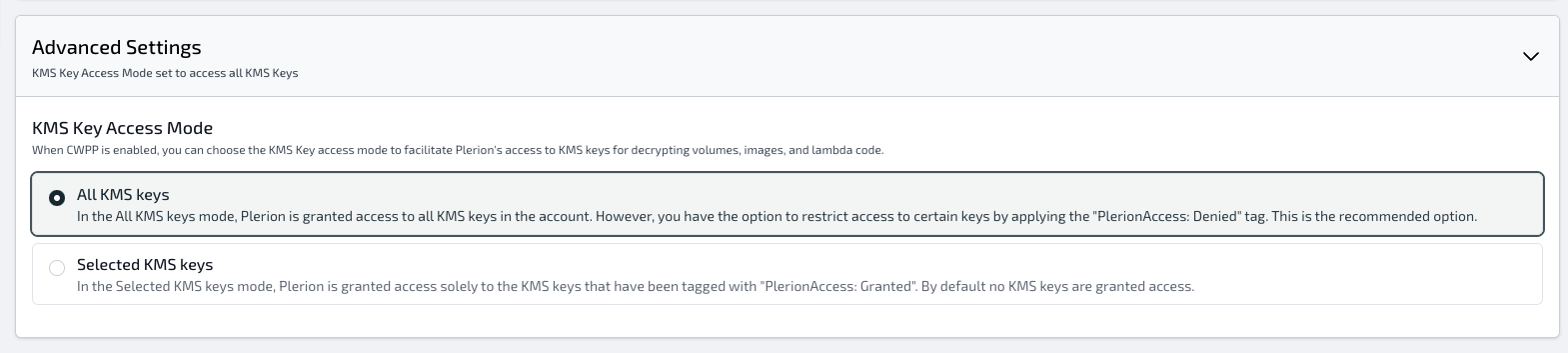
All KMS keys mode
In this mode, the Plerion appliance is granted access to all KMS keys in the account. You can restrict specific keys by tagging them withPlerionAccess: Denied.
This is recommended if your account has a large number of KMS keys.
Example IAM policy statement added to the PlerionApplianceRole: