
The Access tab shows what your policies allow. A principal can hold access it has never used.
Open the Access tab
1
Open an asset
Go to Assets and click an AWS asset of a supported type.
2
Select the Access tab
In the asset details, click the 
Access tab. The tab opens on the graph. Click List for the same answer as cards.The questions the Access tab answers
The tab answers one question at a time. When an asset has more than one question, pick one with the switch in the top-left corner of the graph.
A workload can access what its role can access. For example, a Lambda function’s answer includes everything its role can access.
Read the graph
The asset sits in the graph with the answer drawn around it. Principals that can access the asset are on its left. What the asset can access is on its right. A path can have several steps, such as a user who assumes a role that reads a bucket.Groups
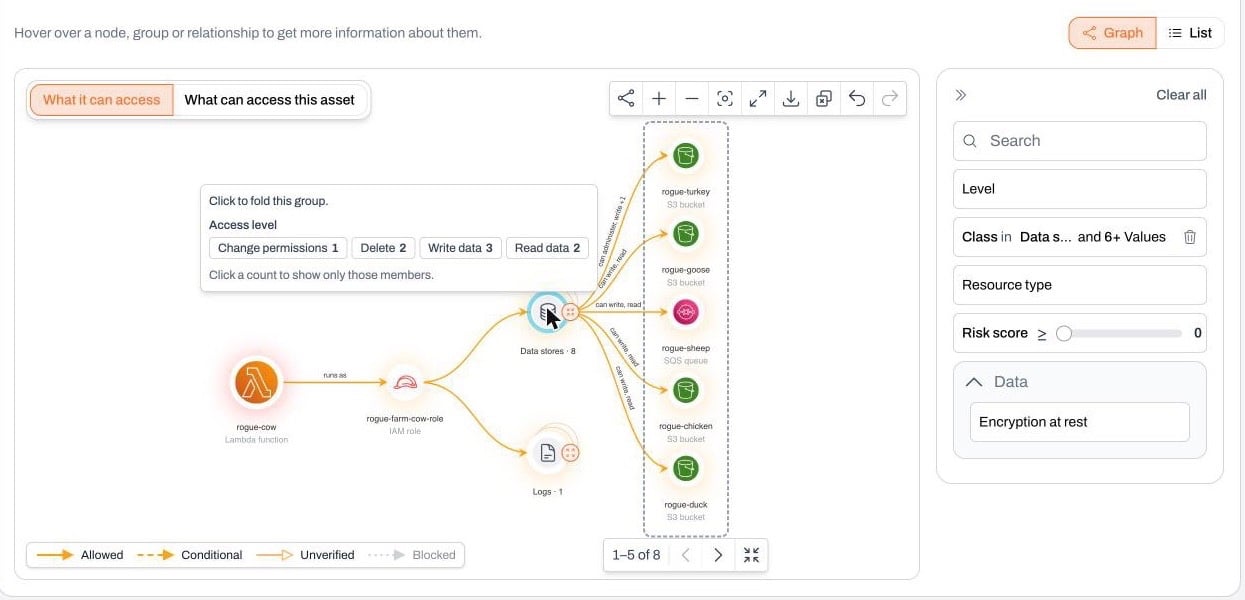
When many assets sit at the same step, Plerion puts them in a group, such as Roles, Data stores or Other accounts. Click a group to open it, and click it again to fold it.- An open group with more than five members shows five at a time. Use the bar under the group to see the other members, or click
Fold group. - Use the toolbar to close every group, or to go back and forward through the groups you opened.
Special nodes
Some nodes stand for more than one asset:- Anyone in the account: any role or user in the account whose own policy allows the action. The resource’s policy trusts the whole account, so each principal’s own policy must also allow the action.
- Account settings: settings of the AWS account itself that belong to no single resource, such as its password policy, S3 Block Public Access or EBS default encryption.
- Anyone, labeled Public: anyone at all, including callers with no AWS credentials.
- Every type in the account: a grant on every resource of one type, such as every SQS queue in the account.
Relationships
Each relationship is labeled with what the source can do to the target. Its line style shows whether access is allowed, is allowed conditionally, is unverified or is blocked.What an identity or workload can access
For an IAM role, user or group, the tab opens on What it can access. It also opens on this view for a workload such as a Lambda function. The asset is on the left and what it can access is on its right.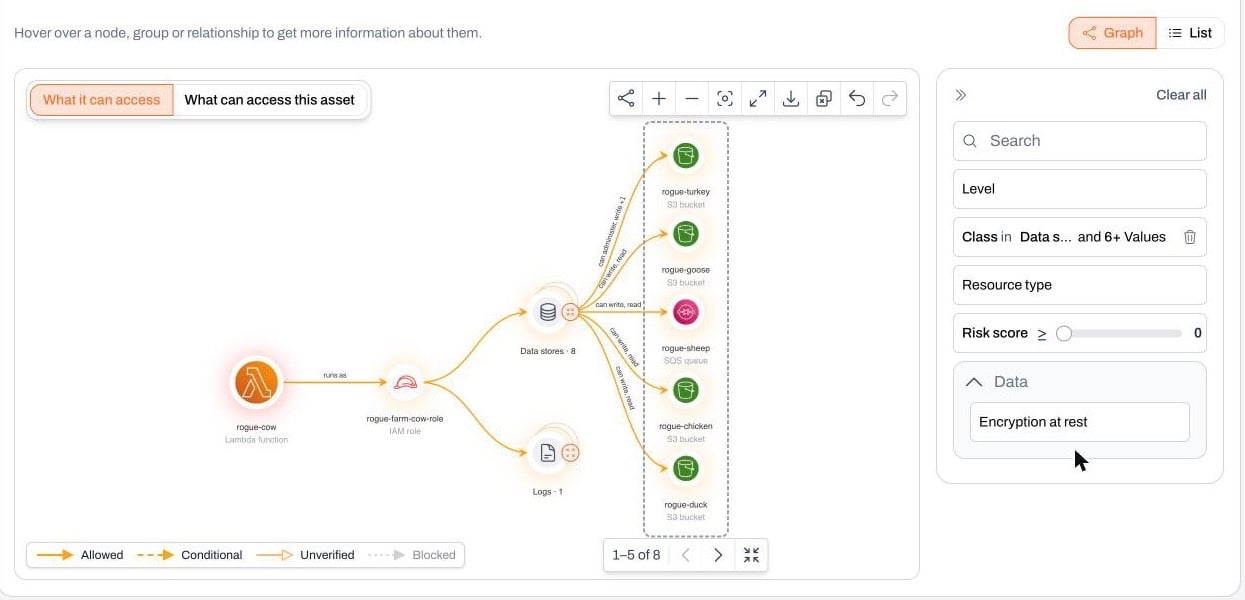
How targets are grouped
Plerion groups the targets of a step by what they hold:- Data stores, such as S3 buckets, DynamoDB tables, SQS queues, EFS file systems and RDS databases
- Backups, such as EBS and RDS snapshots and Backup vaults
- Logs: CloudWatch Logs log groups and CloudTrail trails
- Keys and secrets: KMS keys, Secrets Manager secrets and Systems Manager parameters
- Identities: IAM roles, users and groups, instance profiles and managed policies
- Workloads, such as Lambda functions, EC2 instances and ECS task definitions
- Other
How a workload gets to its targets
A workload acts through its role. Its first step is a relationship to the role, which reads one of two ways:- runs as: the workload runs as the role, so it can access everything the role can access. Lambda functions, EC2 instances and the other compute types show this relationship.
- can use role: commands run on the workload can use the role for a few named actions, so whoever can run them gets the role’s access for those actions alone. Hover over the relationship to see the actions. A Redshift cluster shows this relationship for its COPY and UNLOAD roles, a Neptune cluster for its bulk-load role, and a Bedrock agent for its agent role.
Who can gain an identity’s permissions
Can be assumed by shows who can gain the role’s permissions:- Principals allowed by its trust policy to assume it
- Principals that can pass it to a service
- Principals that can change its policies
- Principals that can run code on a workload that runs as the role
Access levels
Plerion groups the actions a relationship allows into four access levels and shows the levels that apply, strongest first.
A relationship names its levels, for example “can write, read”. With more than two levels, it names the two strongest and a count, for example “can administer, write +1”.
Other relationships show how one asset leads to another:
- can assume: the principal can assume the role.
- can pass: the principal can pass the role to an AWS service, which then runs as that role.
- can change policies: the principal can change the identity’s policies and so gain its permissions.
- can run code: the principal can run code on the workload and use its role.
- member of: the user is in the IAM group.
- runs as and can use role: the workload acts through the role. See How a workload gets to its targets.
- calls: the workload calls the target, such as a Bedrock agent calling a Lambda function as a tool.
See the policies behind a relationship
Hover over a relationship to see its details. A relationship that starts at a closed group stands for many, so open the group first.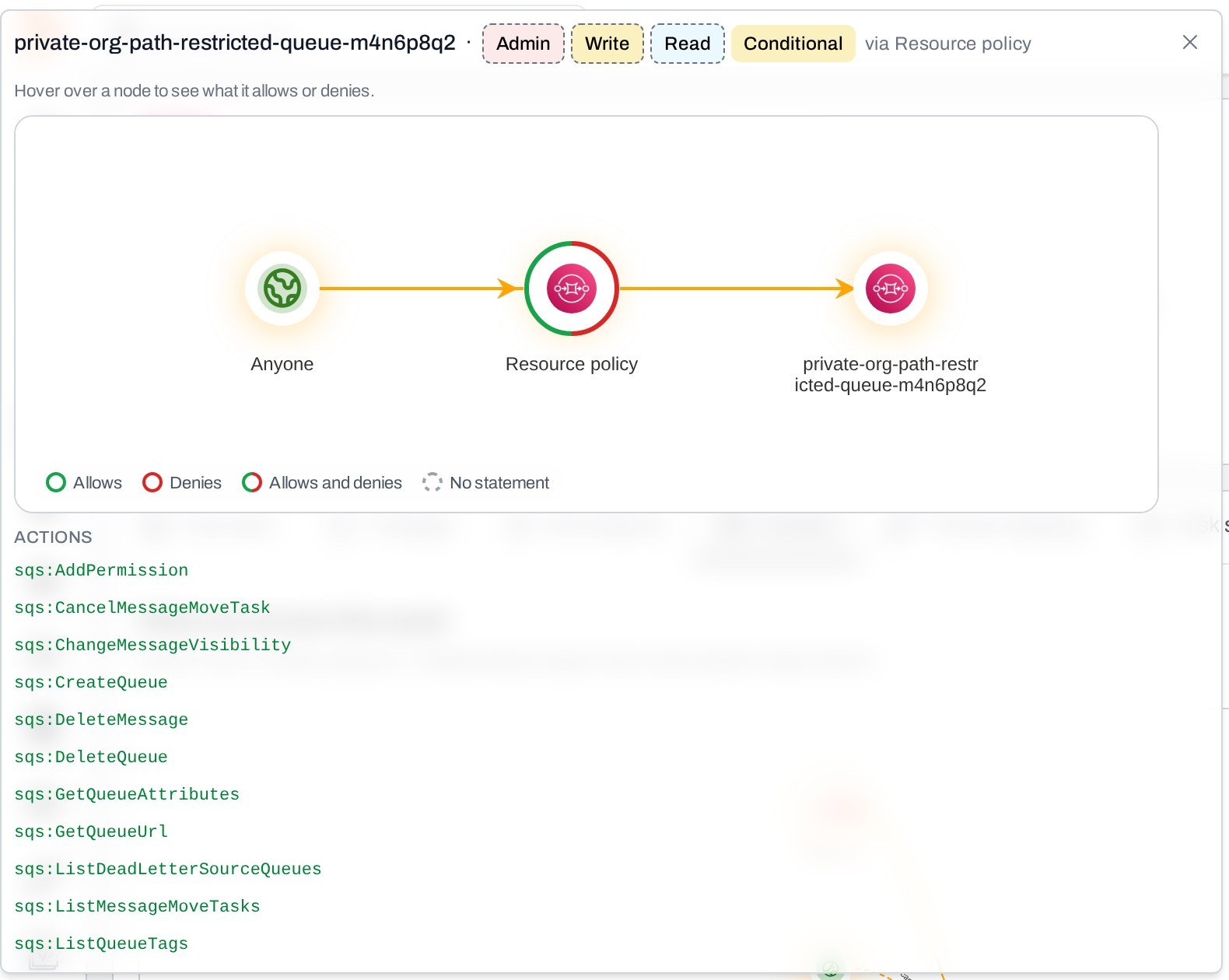
- The access levels, and the actions the relationship allows. A level that only a condition grants is marked.
- How the access is granted, such as an identity policy, a resource policy, a trust policy, a group membership, a workload role or a KMS grant.
- A small graph of the policy layers on the path, from the source to the target.
Policy layers
The policy layer graph has a node for each layer that applied to the path:- Identity policy
- Permission boundary
- Service control policy (SCP)
- Resource control policy (RCP)
- Resource policy
- Trust policy
- KMS grant
- Inbound authorizer
Use the list view
ClickList to see the same answer as cards. Click Graph to go back.
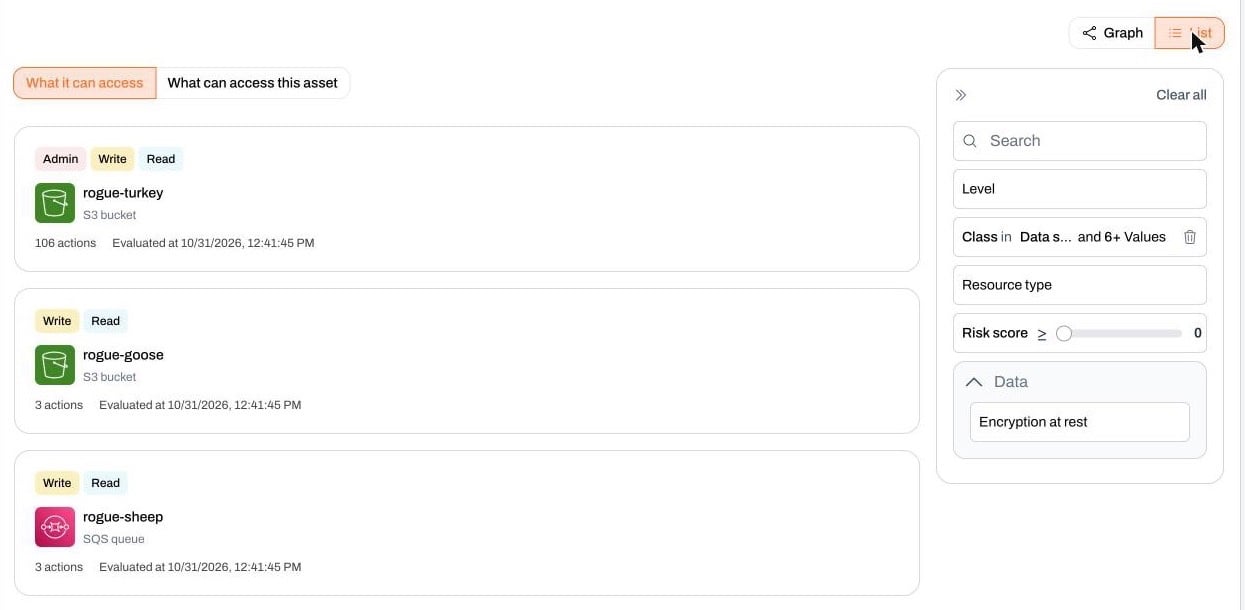
Filter the answer
The filters apply to both the graph and the list.- Search: find a principal or target by name.
- Level: Admin, Write, Read and Use. A row matches when any of its paths has that level, including levels allowed only under a condition.
- Class: the kind of principal or target, such as roles and other accounts, or data stores and logs. AWS services are hidden at first.
What Plerion evaluates
Plerion evaluates access in AWS accounts only. It rebuilds the access graph from the policies it collects in each scan of the account. For each path, Plerion checks every policy layer listed in Policy layers. A path is allowed only when the layers together allow it. When a principal in one account accesses a resource in another, AWS requires the policies in both accounts to allow it.When access is outside the graph
Some access isn’t decided by IAM, so Plerion can’t evaluate it. When this applies to an asset, a notice under the answer says Some access to this asset is outside the graph and names what is missing:- Who can invoke it: a Bedrock AgentCore runtime or gateway with a JSON Web Token (JWT) authorizer. Who holds a valid token is decided outside IAM.
- Who can use its data: something other than IAM decides who reaches the data. This applies to:
- A Bedrock AgentCore gateway whose tool calls are decided by a policy engine or an interceptor
- An EFS file system whose policy allows any Network File System (NFS) client, as the default policy does. Any client with network access to a mount target can mount it.
- An OpenSearch domain inside a VPC with an open domain policy. Any client the security groups let through can call it.
- A Neptune cluster with IAM database authentication off. Any client with a network path can query it.
- Sign-in inside the service: the service has users of its own that IAM never sees. This applies to:
- An OpenSearch domain with fine-grained access control
- A Redshift cluster, where database users sign in with a password
- A DocumentDB cluster, where database users sign in with a password or as an IAM identity mapped to a database user
- An ElastiCache replication group, where users sign in with a password or an AUTH token
Limits by asset type
These types also have access the graph does not read. The answer is complete for IAM and may miss what is listed here.- OpenSearch domain: the network path a principal needs to reach a domain inside a VPC, cross-cluster search connections, and Cognito authentication for OpenSearch Dashboards. A grant scoped to some indexes shows as a path to the whole domain. With fine-grained access control, role mappings inside the domain can refuse a principal the graph shows.
- Kinesis stream: a stream that is being created or deleted. A writer to a stream encrypted with a customer managed key also needs
kms:GenerateDataKey, which the graph does not check. - Redshift cluster: the COPY and UNLOAD commands database users run through the cluster’s roles, the Data API called with a Secrets Manager secret, and snapshots shared with another account. A
GetClusterCredentialscall that names a database needs both the database user and the database allowed; the graph shows the cluster as reachable when either is allowed. - ElastiCache replication group: serverless caches and Memcached clusters. A role allowed to connect to the replication group shows as a path, although AWS also needs the connect allowed on the cache user.
- DocumentDB cluster: snapshots shared with another account.
- Neptune cluster: Neptune ML’s use of the cluster’s role, and snapshots shared with another account.
When an asset is not evaluated
If the tab says This asset is not evaluated, the access graph has no record of the asset. Either its account hasn’t been evaluated since the asset was collected, or its type isn’t supported. Check again after the next scan.Large answers
If an answer is very large, Plerion stops reading at a limit and the tab says This answer is incomplete. The lists and counts then show part of the answer.Supported asset types
The Access tab is available on these AWS asset types.
A Redshift cluster and a Neptune cluster are both a data store and a workload. They hold data and can use the IAM roles attached to them, so the tab asks both questions of them.
Plerion adds asset types over time. To see which external sharing Plerion evaluates, see Resource access grants.