
What a resource access grant is
A resource access grant is how Plerion describes one way a single resource gives access to a single principal.- The resource is something in your environment, such as an S3 bucket, a Key Management Service (KMS) key, or an IAM role.
- The principal is whoever the resource lets in: an AWS account, a role or user, an AWS service, or a federated identity such as an OpenID Connect (OIDC) or Security Assertion Markup Language (SAML) provider.
Plerion evaluates what is granted (configured to be allowed), not what is used (observed in logs). A principal can hold a grant it never exercises.
What Plerion evaluates
Access grants cover the AWS resource types that can be shared outside their own account, and that list grows over time. A resource can be missing from the inventory because its type is not evaluated yet, not only because it grants nothing. Absence is not evidence that a resource grants no access, so check Coverage for what is evaluated today.
- Resource-based policies: The policy attached directly to a resource, such as an S3 bucket policy, a KMS key policy, or an SQS queue policy.
- IAM role trust policies: The policy that controls which principals can assume an IAM role, including federated principals such as OIDC and SAML identity providers.
- AWS Resource Access Manager (RAM) shares and cross-account share attributes, such as an Amazon Machine Image (AMI) launch permission or a snapshot restore permission.
Where to find access grants
Access grants live on the Entitlements page.1
Open the Entitlements page
In the Plerion side navigation, go to Entitlements.
2
Select the Access grants tab
The Access grants tab is the first tab on the page and opens the Resource access grants inventory.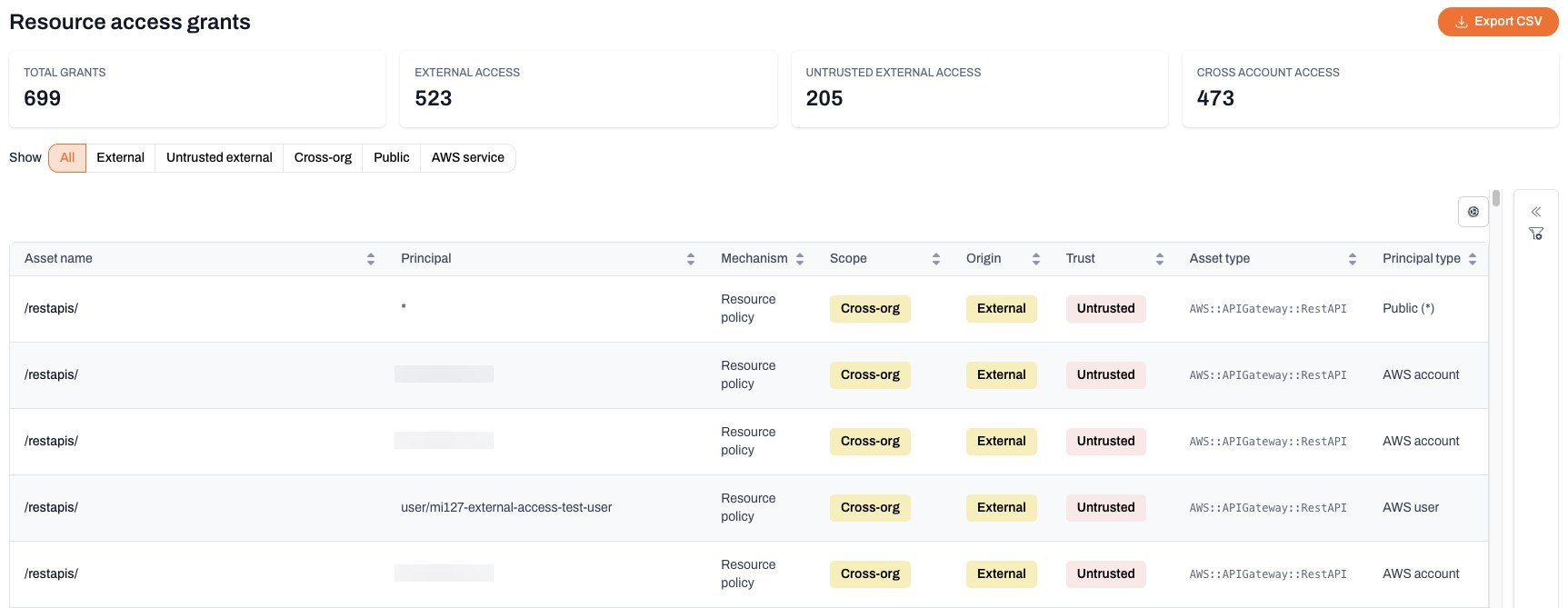
How Plerion classifies each grant
Every grant is described by three independent attributes so you can judge it at a glance.Scope
Scope describes how far the access reaches.Origin
Origin says whether the access leaves your AWS organization.External: The principal is outside your AWS organization.Internal: The principal is inside your AWS organization, or the access is already blocked by an RCP.
Cross-org and Public grants are always external, and Same-org, Same-account, and AWS service grants are always internal. Federated depends on where the identity provider lives:
- An OIDC principal is always external.
- A SAML principal is internal when the SAML provider sits in the resource’s own account or another account in your organization, which is the case for AWS IAM Identity Center. A SAML provider in an outside account is external.
Trust
Trust says whether an external grant is expected. It has two sources: your trusted principals list, and a reviewer’s trust window on a single grant. The Trust badge shows five values.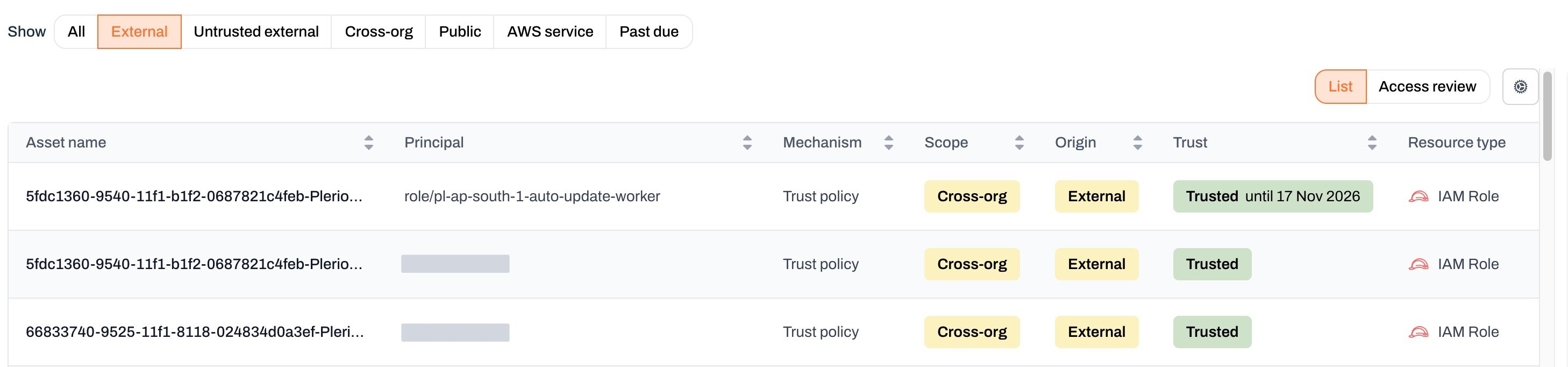
Working through the grants table
Summary tiles
The Resource access grants view summarizes your grants in four tiles:- Total grants: Every grant in the tenant. When a filter is applied, this tile also shows the filtered count.
- External access: Grants whose origin is
External. - Untrusted external access: External grants whose trust is
Untrusted. - Cross account access: Grants that cross an AWS account boundary, whether or not they leave your organization. This covers the
Cross-org,Same-org, andPublicscopes.
Federated is left out of the cross-account count because the principal is an identity provider rather than an account. A grant an RCP partly blocks is counted once here, even though it appears as two rows in the table.
Select any of the last three tiles to filter the table to what it counts.
Only Total grants reflects the filters you have applied. The other three tiles always count the whole tenant, so you can see a filtered table beside your overall position.
Preset views
Use the Show chips above the table to jump to a common slice of the data:Filters
Open the filter panel to refine the table. You can also select any badge in a row to filter by that value.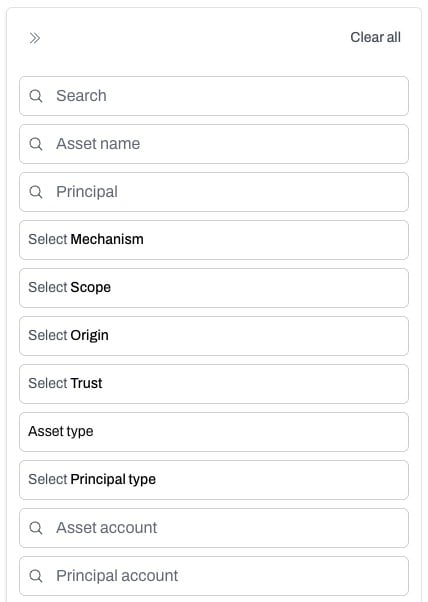
The Trust filter covers
Trusted and Untrusted only, and the two review-driven badges fall under those values: a grant trusted until a review date is Trusted, and a Needs re-review grant is Untrusted. Unclassified is the absence of a trust decision rather than a value, so it cannot be filtered on.
For the review filters, see Finding the grants that need attention.
Export
SelectExport CSV to download every grant that matches your current filters, not only the rows on screen. The file holds the raw field values behind each grant, including several with no column in the table: the trust window end date, why a trust window lapsed, and whether an RCP blocks the grant.
API access
Use the Public API to read the grant inventory and record review decisions programmatically. This is the practical route for a large backlog.Inspecting a grant
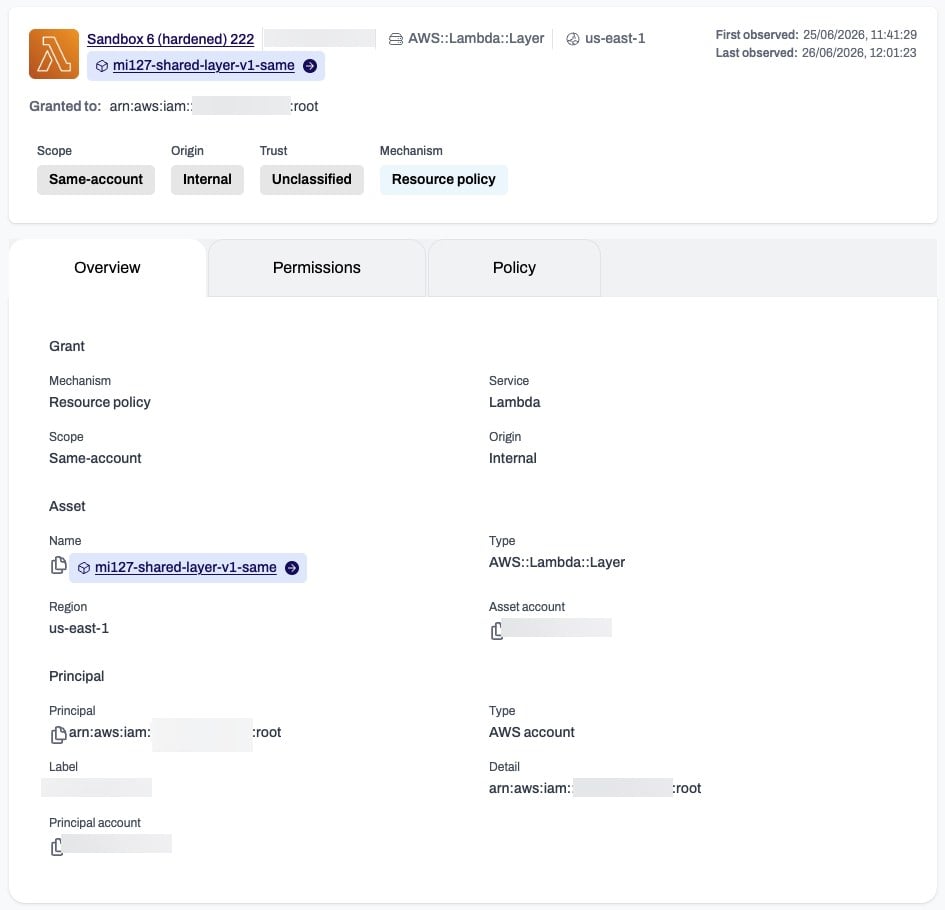
Select any row to open a slide-over with the full detail of that grant, organized into tabs:- Overview: The grant, asset, and principal in full, including the mechanism, service, scope, origin, principal type, and when the grant was first and last observed.
- Permissions: The actions the grant allows, any
NotActions, and any conditions that restrict it. - Policy: The raw policy document the grant came from. This tab appears only for mechanisms that carry a policy document, so it is not shown for RAM shares or share attributes.
- Access review: The grant’s grantee, decision, comment, and next-review date, plus the review history. See Access review.
Related pages
- External access: The grants that reach principals outside your organization.
- Access review: Assign grantees, record decisions, and keep an audit history over time.
- Trusted principals: Confirm which external principals are expected.
- Untrusted external access findings: How unconfirmed external grants surface as findings.
- Coverage: The AWS resource types and sharing mechanisms Plerion evaluates.