
The package filter reads the software bill of materials (SBOM) Plerion builds when it scans a workload or a code repository. An asset that has not been scanned has no SBOM, so it cannot match. See SBOM scanning coverage for what each scan includes.The package filter is available to roles that can read vulnerabilities.
Steps to find assets by package
1
Open Find by package
- Go to Assets.
- Click
Find by packagein the header, or click the Package row at the top of the filter panel. Both open the same picker.
2
Search for the package
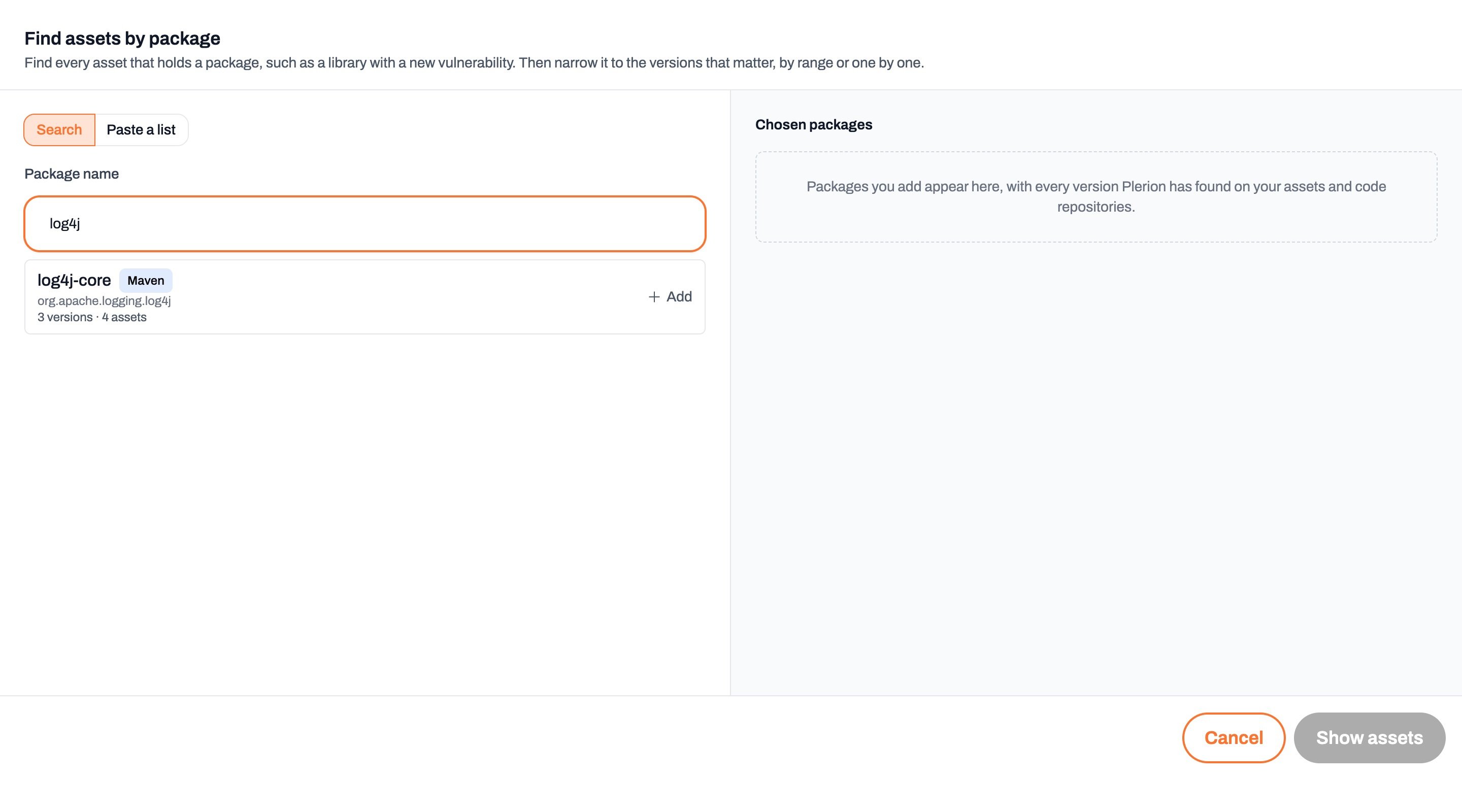
- Type the package name in Package name. From three characters, Plerion lists every package whose name contains what you typed; one or two characters look up that exact name only.
- Each result shows its ecosystem, its group or namespace, and how many versions, assets and code repositories hold it.
- Click
Addon a result, or pressEnterto add the top result. Add as many packages as you need.
3
Choose the versions that matter
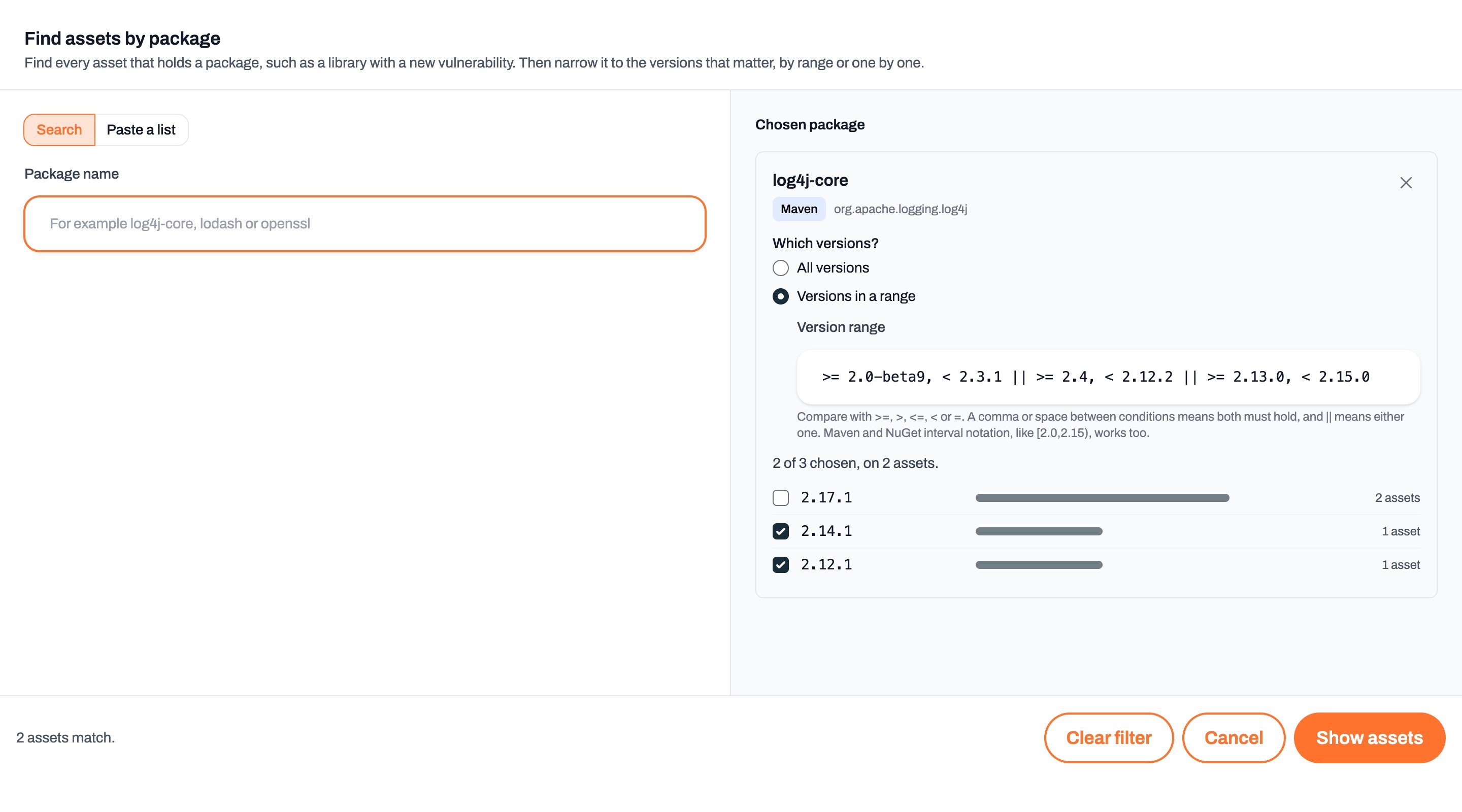
- Each chosen package lists every version Plerion has found, newest first, with how many assets hold it.
- All versions is selected by default.
- Choose Versions in a range and type the affected range. Versions inside it are ticked as you type.
- Tick or clear any version by hand to include or exclude it, whatever the range says.
4
Click Show assets
The asset inventory shows only the assets holding a chosen version. The count in the header says what it counts, the Package row in the filter panel shows the package and its range, and each card names the version that asset holds.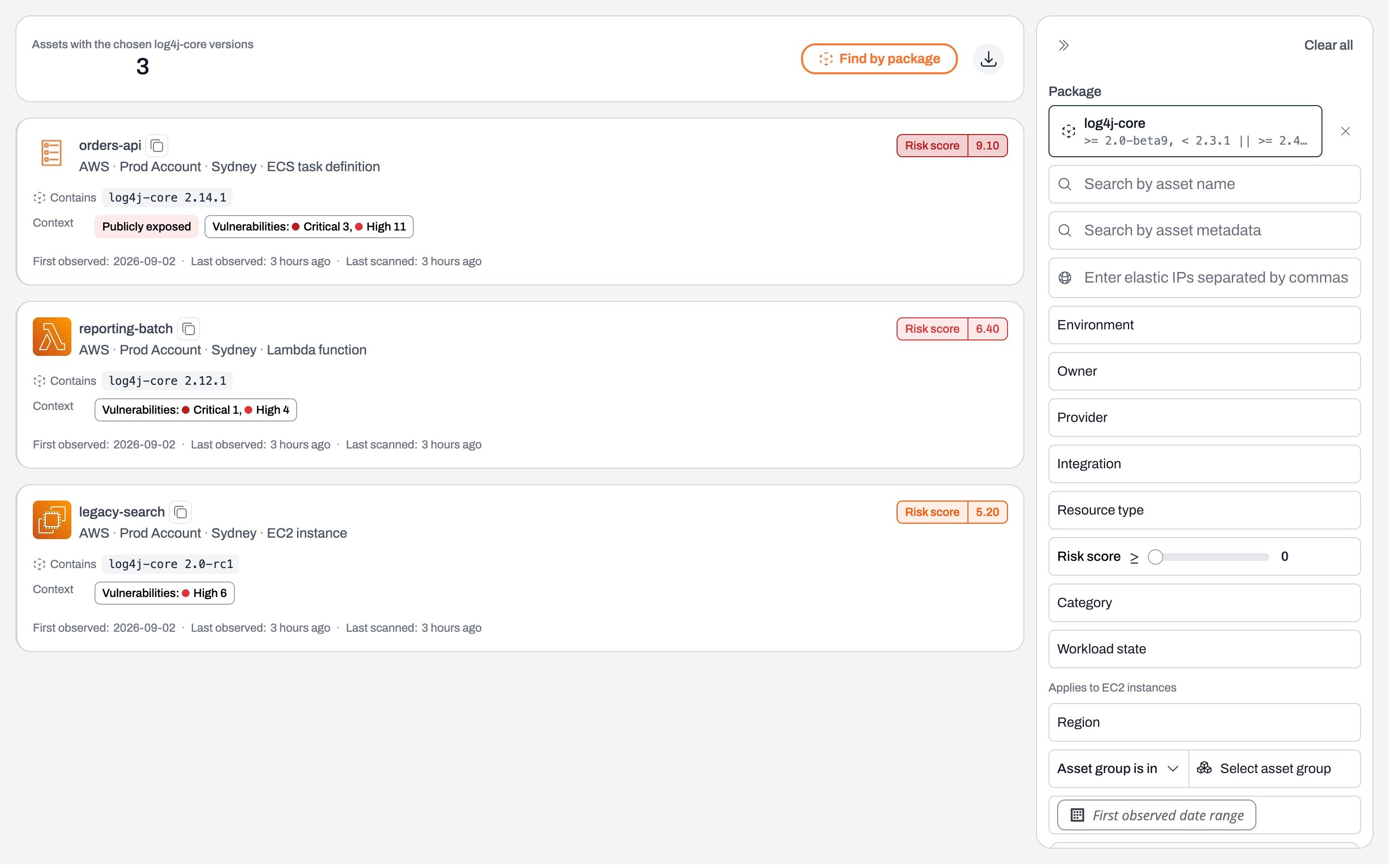
× on the Package row or Clear all.
Write a version range
Ranges use the syntax advisories publish, so you can paste the affected versions from a GitHub, Open Source Vulnerabilities (OSV) or vendor advisory.- Conditions that must all hold:
>= 2.0.0, < 2.15.0selects versions from 2.0.0 up to, but not including, 2.15.0. Separate conditions with a comma or a space, and use>=,>,<=,<or=. - Alternatives:
< 2.3.1 || >= 2.13.0, < 2.15.0selects versions in either part. Separate alternatives with||or a new line. - Exact versions:
1.14.1, 0.30.4selects exactly these versions. A list with no operators is a list of exact versions. - Intervals:
[2.0,2.15.0)uses Maven and NuGet interval notation, and(,1.0],[1.2,)is two intervals.
2.0-beta9 and 2.0-rc1 sort where the ecosystem puts them. A version that does not follow its ecosystem’s rules is listed as Cannot compare and left out until you tick it.
Operating system packages and other ecosystems
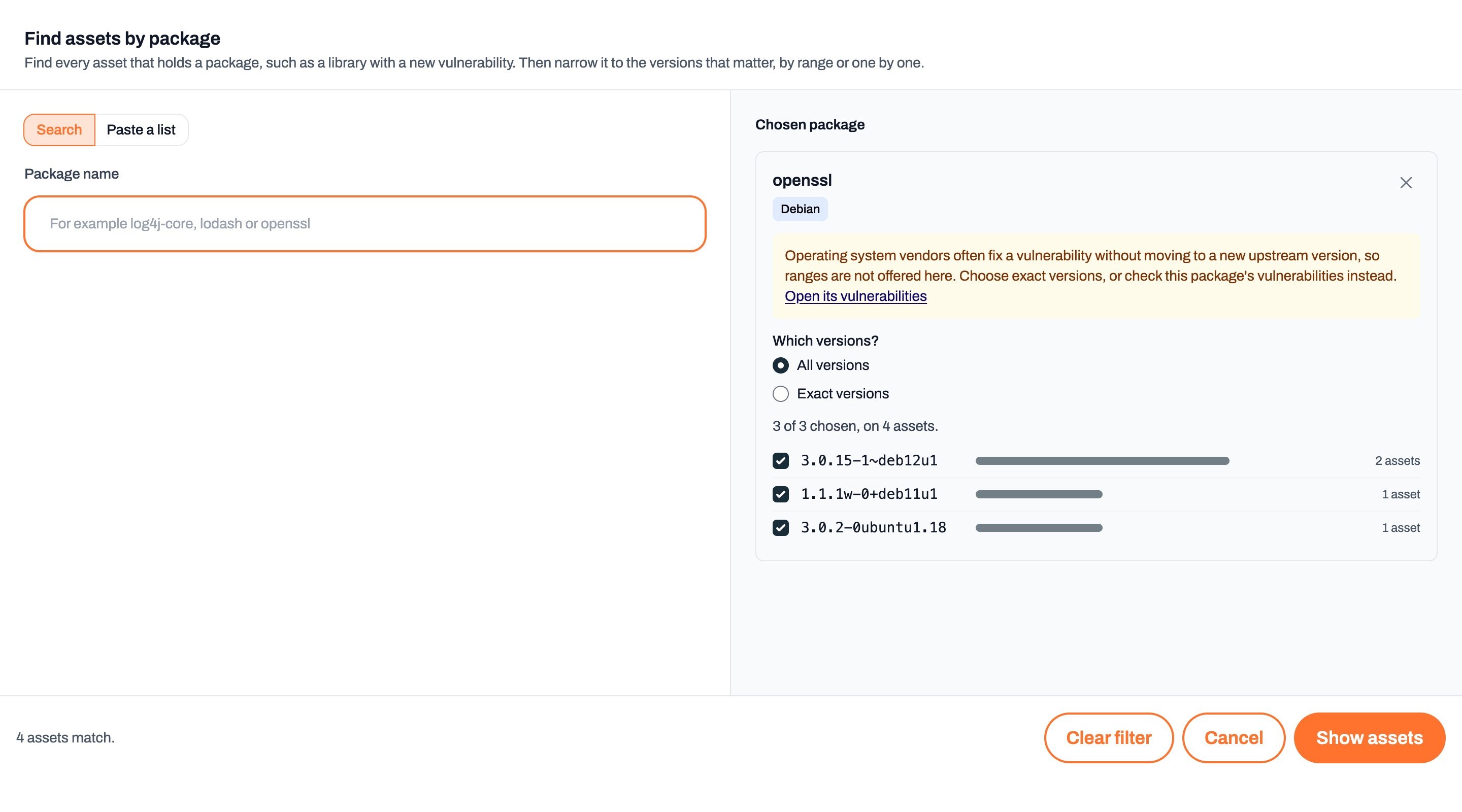
Debian, RPM and Alpine packages offer Exact versions instead of a range. Distributions fix vulnerabilities in the version they already ship, so1.1.1w-0+deb11u1 can be patched against a flaw that upstream fixed in a later release, and a range would give a confident wrong answer. List the exact versions that matter, or use Open its vulnerabilities to see which assets are actually affected.
RubyGems, NuGet, Composer and Conan versions are not compared yet, so these packages also take exact versions.
Paste a list of packages
When an advisory or a supply chain alert names many packages, paste the whole list instead of searching for each one.1
Click Paste a list
In the picker, switch from Search to Paste a list.
2
Paste the packages, one per line
Up to 100 lines, in any of these forms:
- A package URL:
pkg:npm/%40ctrl/tinycolor@4.1.1 name@version:lodash@4.17.19name==version:requests==2.31.0- Maven coordinates:
org.apache.logging.log4j:log4j-core:2.14.1 - A name with no version, to take every version of it
# are ignored.3
Click Look up
Each line says what Plerion found: the ecosystem and how many assets hold that version, the other versions present when that exact version is not, or that nothing scanned holds the package.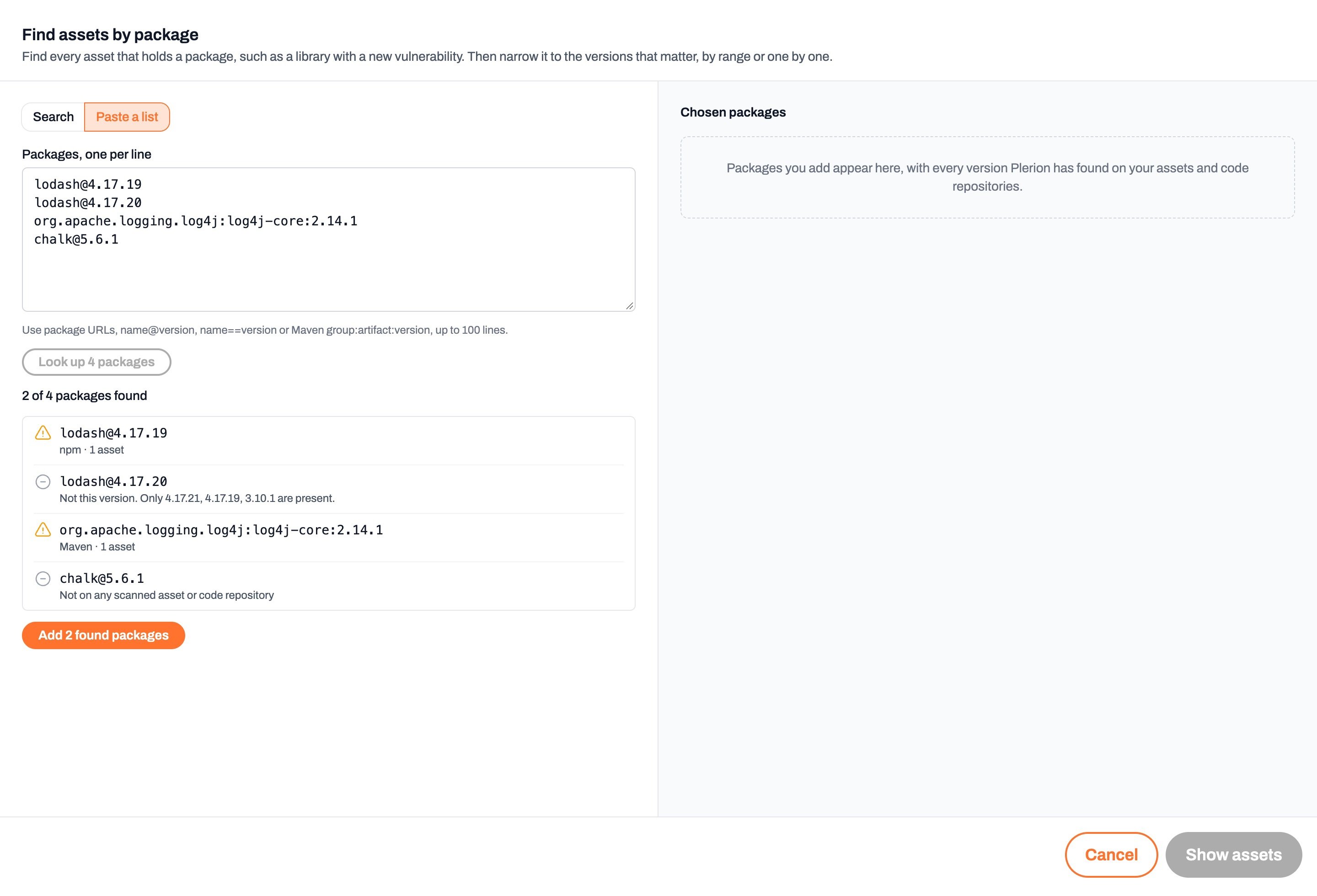
4
Click Add found packages, then Show assets
Every package that was found is added to Chosen packages, pinned to the exact versions on your list. Lines that found nothing are left out.
Read an empty result
When no asset matches, the inventory says why instead of showing an empty list:- No asset holds the package. Plerion has not found it in any scanned asset. This covers only assets Plerion has scanned, so it is not proof that an unscanned asset is free of it.
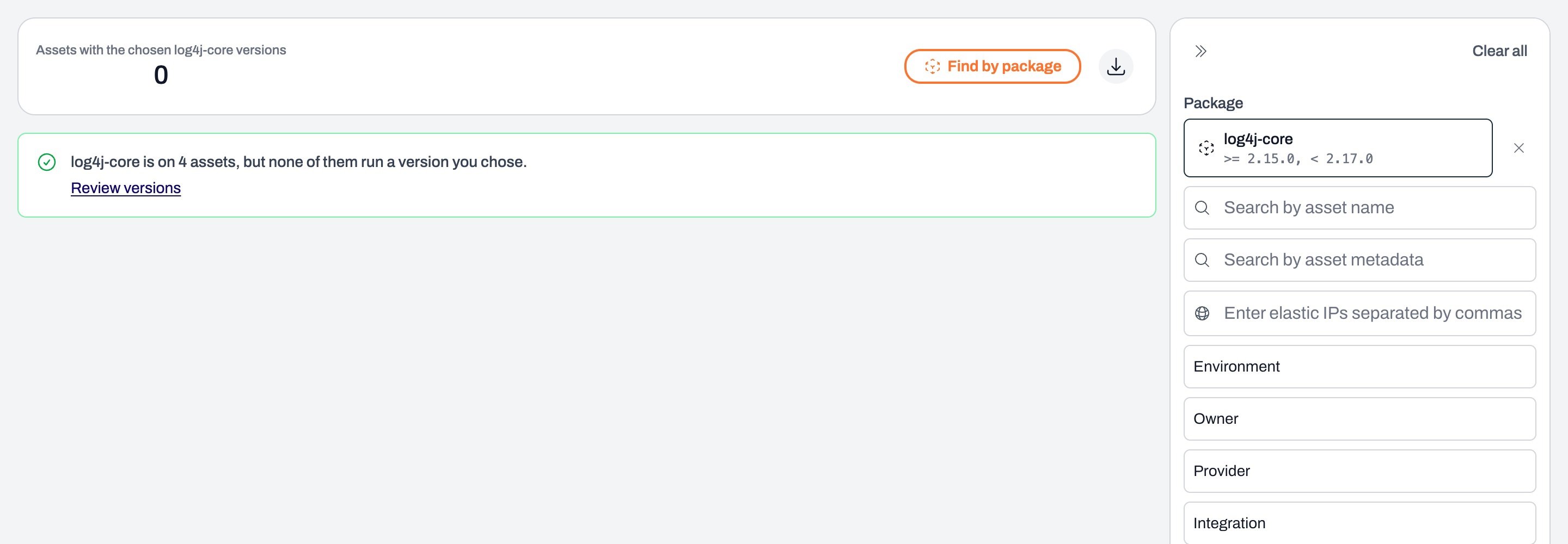
- The package is present, but none of the assets run a version you chose. For a vulnerability check, this is the answer you want. Click
Review versionsto see which versions are present. - Assets hold the chosen versions, but your other filters hide them. Clear or widen the other filters.
- Only code repositories that have not been scanned since they became assets hold it. They join the asset inventory, and this result, when they are next scanned.
Find a package from an asset’s SBOM
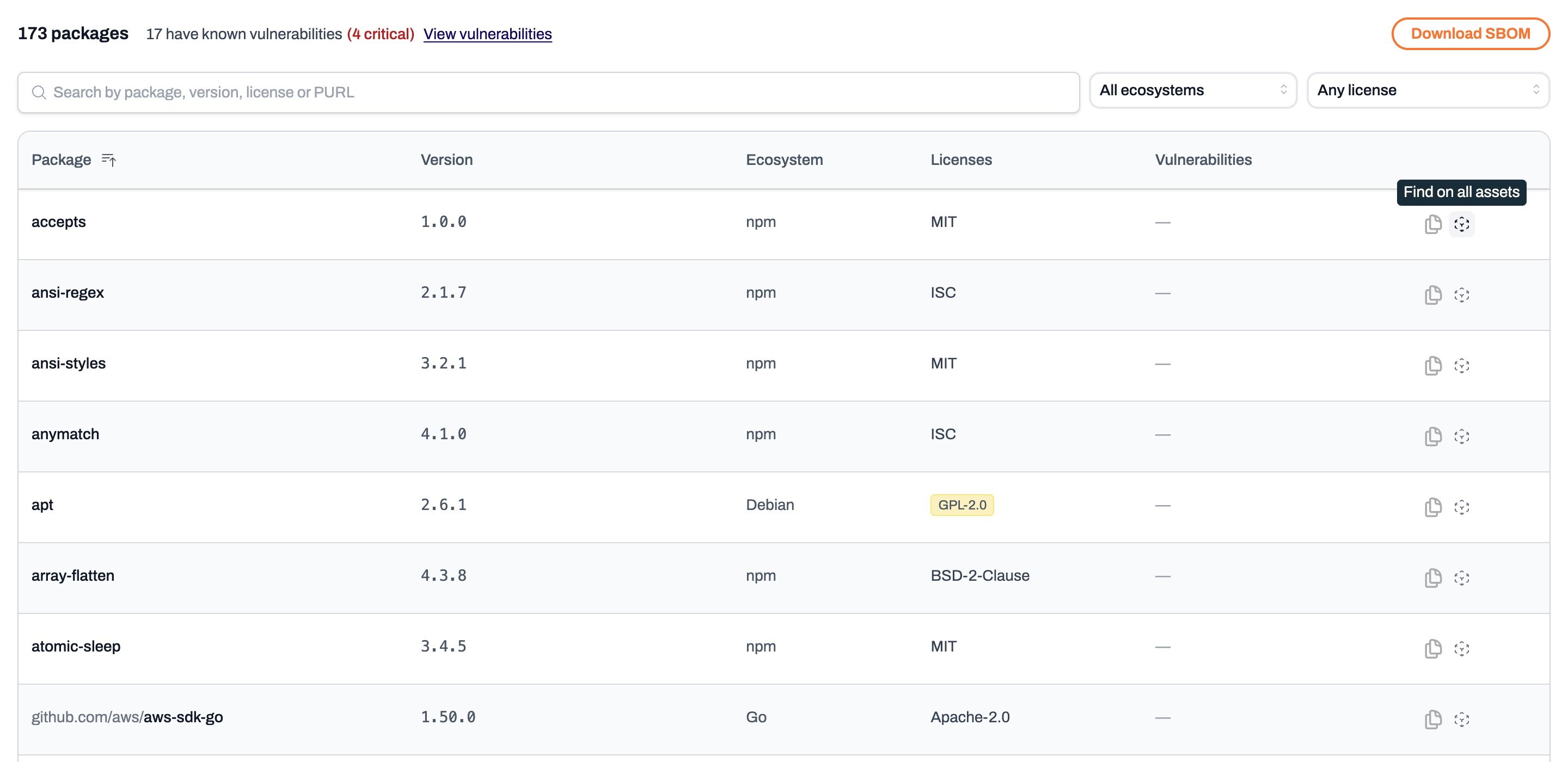
On an asset’s SBOM tab, each package has aFind on all assets icon beside its copy button. It opens the asset inventory, filtered to that package, in a new tab, so the asset you are reading stays open.
Share and export the result
- The package filter is part of the page address, so copying the link shares exactly what you see, including the range and any versions ticked by hand. Anyone who opens it sees the result for the versions present when they open it.
- The download button in the header exports the filtered assets as a comma-separated values (CSV) file, with a Matched package versions column naming the package and version each asset holds.