
Why ownership matters
Cloud accounts grow quickly, and many people create resources in them. When Plerion finds a problem on a storage bucket or a virtual machine, the hard part is often not the fix but finding the person who can make it. Security teams lose time asking around, and findings sit open because nobody knows they are theirs. Asset ownership answers “who fixes this?” on every asset, and shows how many assets nobody owns yet, so you can close the gaps.What an owner is
An owner is a team or a person. Each one has:- A name, such as
PaymentsorJane Doe. - An email (optional).
- Aliases: other names your tags use for the same owner, such as
payments-teamorjane.doe@example.com.
How assets get their owners
There are four ways, and you can use any mix of them.Plerion finds owners in your tags
This is on by default. Many teams already tag their cloud resources with tags liketeam, owner or service-owner. Plerion looks at the tags on your assets, turns on the ones that name owners, and makes each value a team or a person. There is nothing to set up. Plerion looks again when you add an integration and once a week.
To keep the list tidy, Plerion also:
- Joins owners that are clearly the same, such as
Jane Doeandjane.doe@example.com. You can undo any of these from the owner’s history. - Adds the usual way of writing a person’s name as an alias, such as
jane.doeforjane.doe@example.com. - Skips values that name nobody, such as
n/a,TBCorshared, and the names of tools that create resources, such asTerraform,CloudFormationorcdk. Each tag shows the values it skips and why. - Decides whether each name is a team or a person. When it can only tell from the name, it marks the owner Guessed so you can confirm it in one click.
You choose which tags count
Under Owner tags you can remove a tag Plerion picked, add a tag of your own, and say whether a tag’s values name teams, people, or either. To pick every tag yourself, turn offLet Plerion automatically find owner tags.
Each owner tag is read from the asset’s own tags, from its integration’s tags (such as the tags on an AWS account), or both. An integration tag gives an owner to every asset in that integration, unless the asset’s own tags name one.
You add additional rules
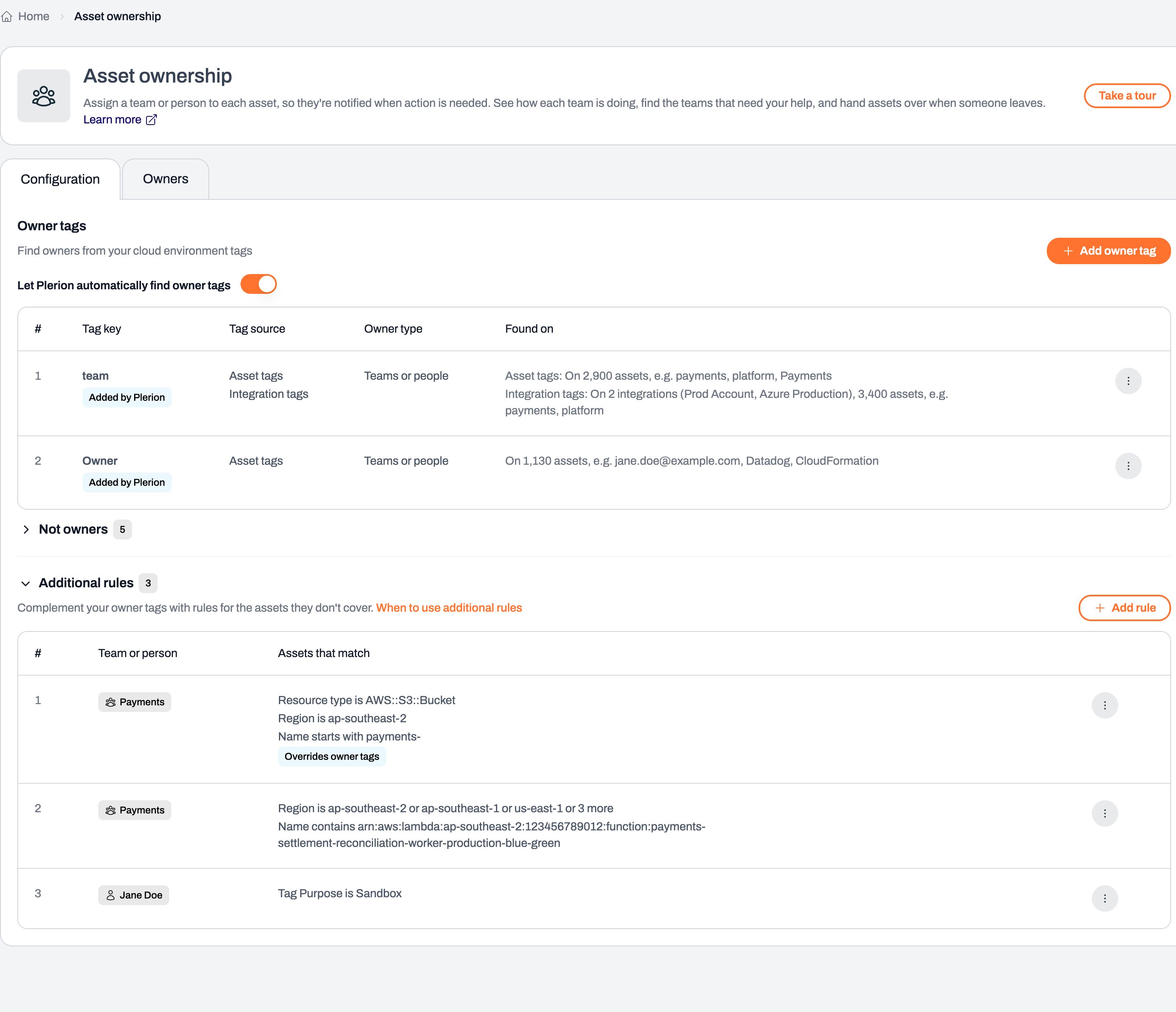
Additional rules are for the assets your owner tags miss. A rule gives every asset that matches its conditions to one team or person. Conditions can be on a tag, the integration, the resource type, the region or the name. For example, every S3 bucket inap-southeast-2 whose name starts with payments- belongs to the Payments team, or every asset tagged Purpose: sandbox belongs to Jane Doe.
When an owner tag already names someone, the tag wins. To make a rule win anyway, tick Override owner tags on the rule.
Your team sets owners directly
Your security team can add teams and people, and set an owner on an asset. An owner set directly always comes first, so later tag changes don’t move it. When an asset has more than one possible owner, Plerion picks in this order, for the team and for the person separately:- An owner set directly on the asset.
- Additional rules with Override owner tags, top rule first.
- Owner tags read from the asset’s own tags, top tag first.
- Owner tags read from the integration’s tags.
- Other additional rules, top rule first.
Anyone who can see assets can see their owners. Changing owners and tags needs the Manage tenant configuration permission.
See who owns what
Go to Settings > Asset ownership. It has two tabs: Configuration (the owner tags Plerion reads, your additional rules, and values that are never owners) and Owners. The Owners tab shows how many assets have an owner and how many have none. Click either number to see those assets. Below, Teams and People list every owner with their aliases and how many assets they own. Search finds an owner by any name or email they go by.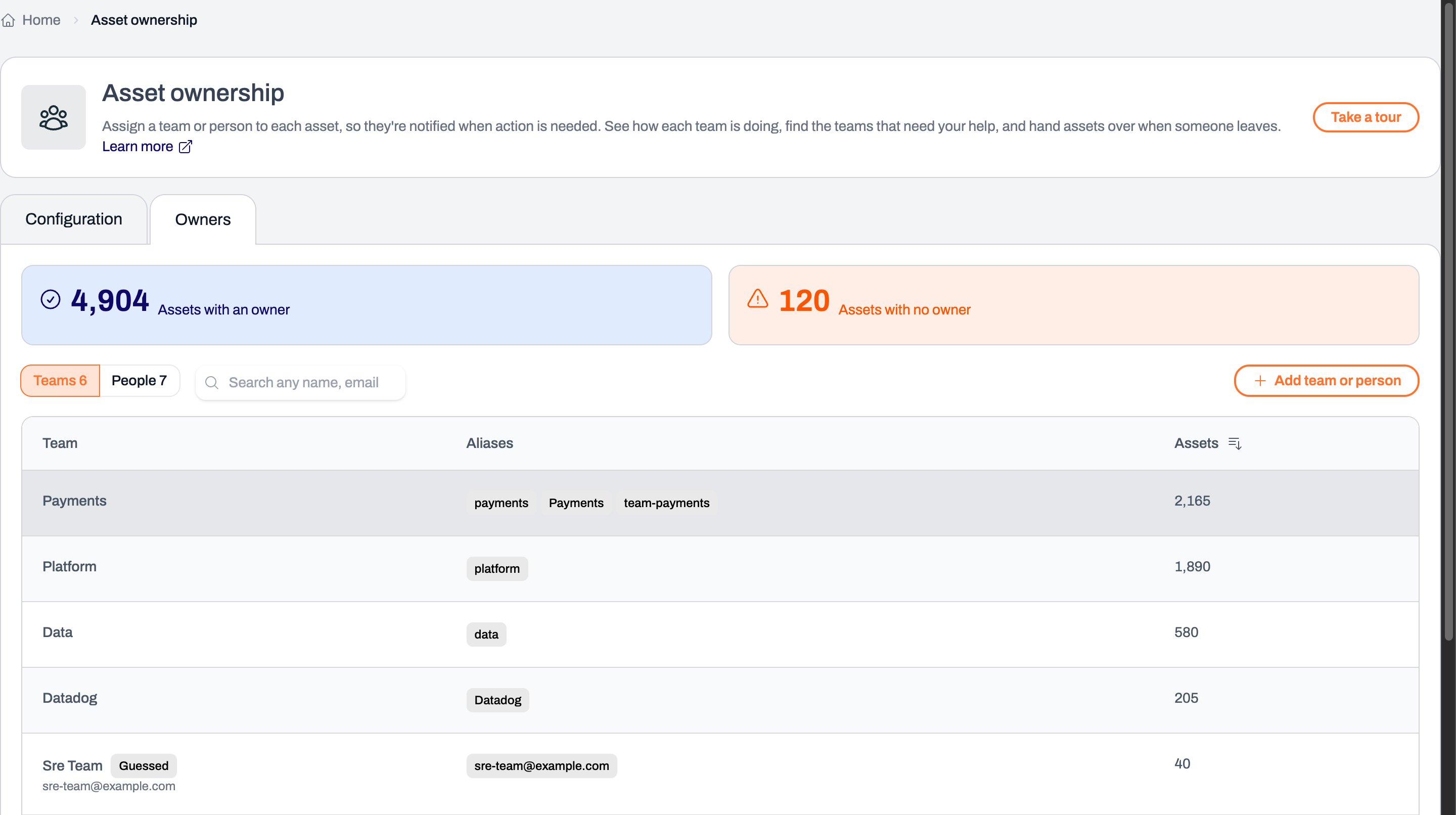
Check an owner
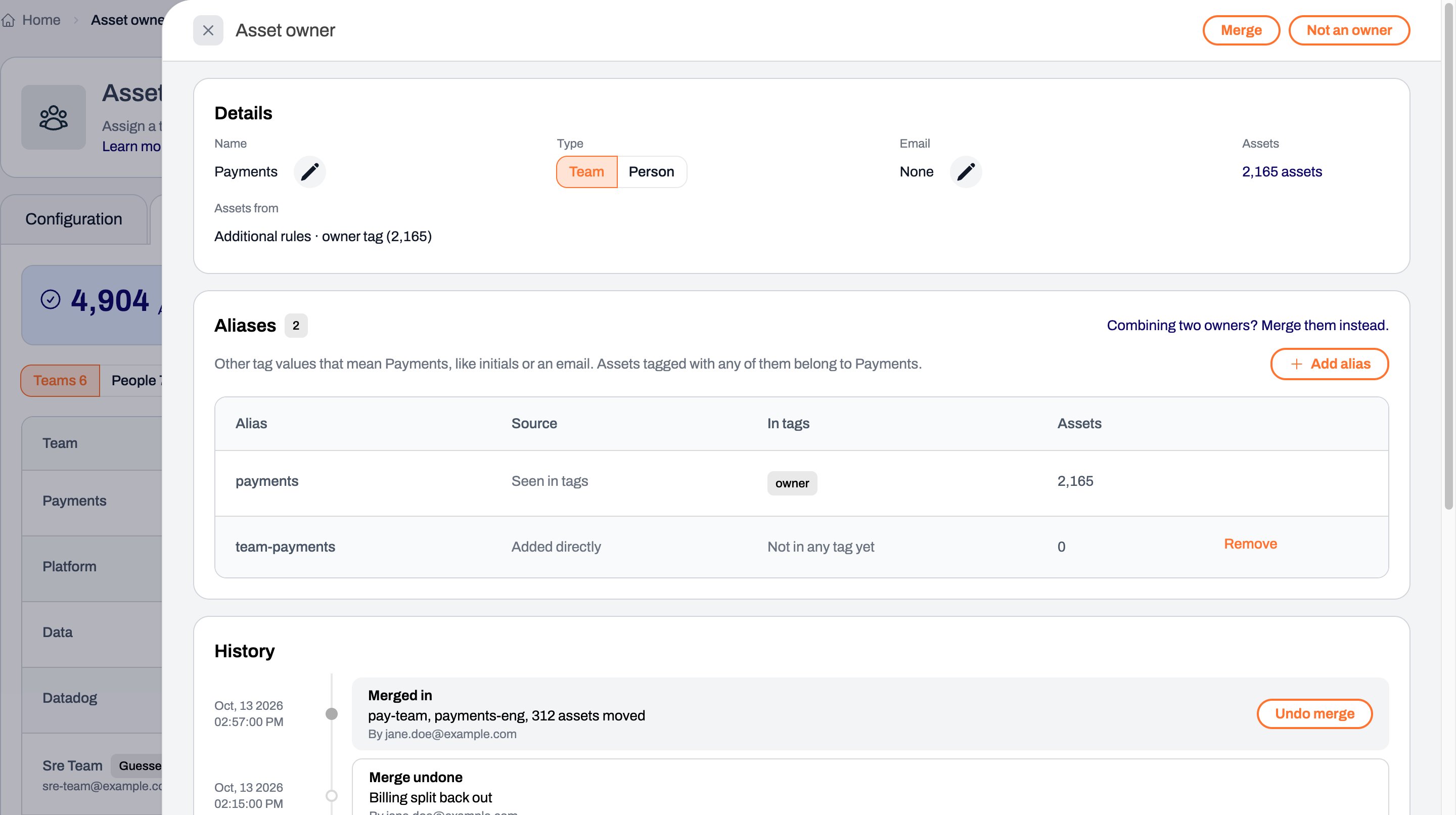
Click an owner to open it. Merge and Not an owner are at the top. You’ll see:- Details: the name, team or person, email, and how many assets they own. Click the pencil next to the name or email to change it, or click Team or Person to switch.
- Assets from: which rules and tags give the owner their assets, and how many were set directly.
- Aliases: every name that means this owner, where each came from, which tags use it, and on how many assets.
- History: when the owner was added, renamed or merged, and by whom.
Confirm a guessed team or person
An owner marked Guessed in the list shows a short question under its type, such as “A team?”. ClickYes if it’s right, or click the other option to change it.
Add a team or person
1
Click Add team or person
The button is on the Owners tab of Settings > Asset ownership. It opens a page to add the owner.
2
Fill in the owner
- Choose Team or Person.
- Enter the Name.
- Enter an Email (optional).
3
Click Add
You go back to the Owners tab with the new owner open, so you can add the aliases your tags use for them.
Set an owner on assets
On one asset
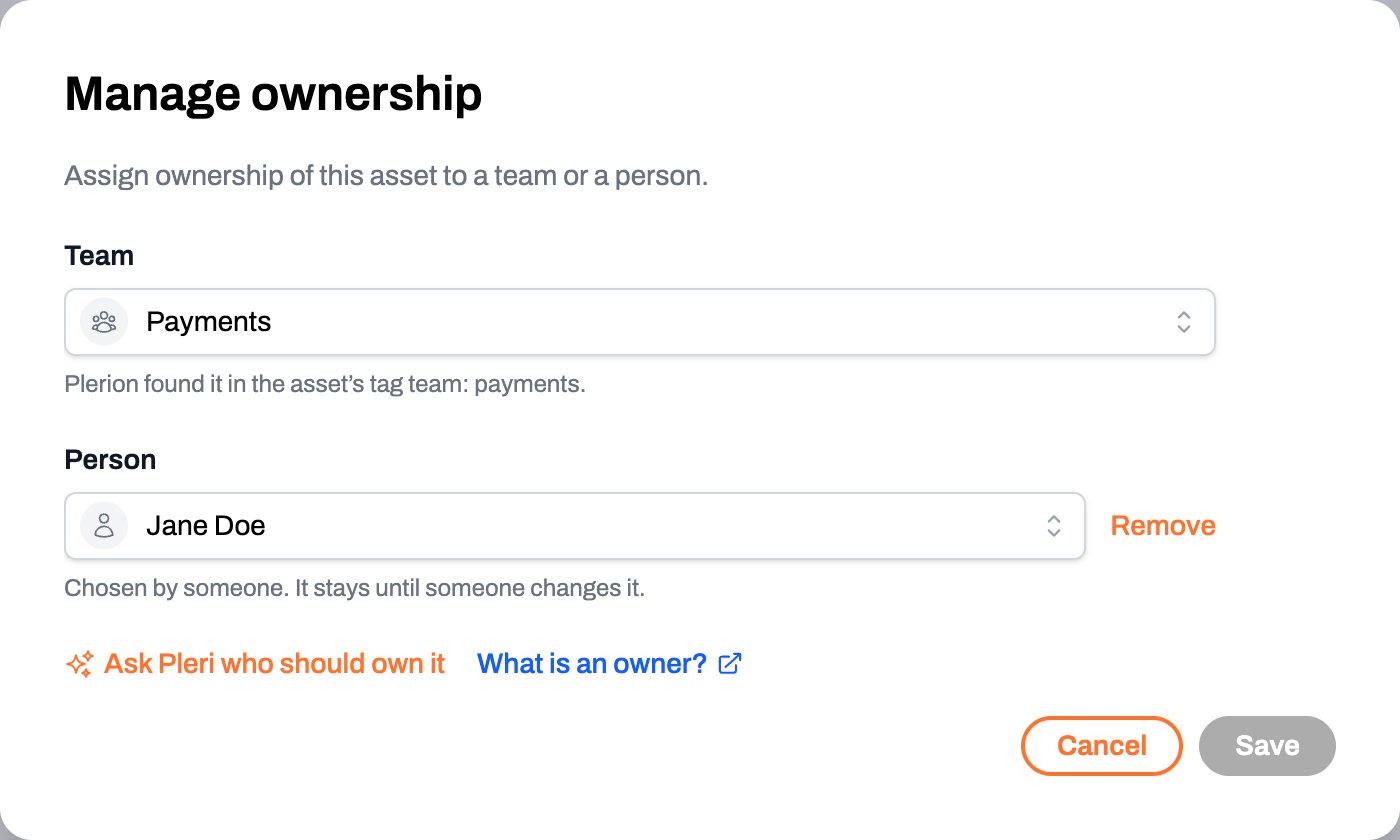
Open the asset. Its owner shows under its tags; hover one to see whether it is a team or a person, and click it to open the owner.- Click
Manage ownershipat the top of the asset, then choose a team, a person, or both. Either one is enough. ClickAsk Pleri who should own itfor a suggestion. - Click
Removenext to an owner you set directly. The owner then comes from the asset’s tags again.
On many assets
Ask Pleri, for example “set Payments as the team on every asset in the Prod account”, or use the API. For assets that share something, such as an integration, a resource type or a region, a rule is usually better: it also covers assets added later. Pleri and the API set owners on up to 1,000 assets at a time.Choose the tags Plerion uses
The Configuration tab lists your Owner tags in a table, in the order Plerion tries them. Tags Plerion turned on are marked Added by Plerion. For each tag the table shows where it is read from, what its values name, how many assets carry it, and how many of those still have no owner and why.Let Plerion automatically find owner tags sits above the table.
Click a tag to open its page:
- Read from: tick Asset tags, Integration tags, or both. A tag read from both is tried on the asset first, and on its integration only when the asset has no value.
- What its values name: choose Teams, People, or Teams or people. Choose Teams or People when every value names the same kind, and Plerion stops guessing for that tag.
Check assets to see how many assets the tag decides before you save. Click Save to apply the change, or Cancel to go back without one.
To add a tag, click Add owner tag, pick a Tag key from the list (keys that look like they name owners come first), then click Add. The list is read from a sample of your assets, so a key can be missing from it: type the key and pick Use "your key", then click Check assets to see which assets carry it. A new tag is read from asset tags; tick Integration tags to read it there too. You can have up to 20 owner tags.
From the menu next to a tag you can also:
- Move up or Move down: when an asset has more than one, the higher tag wins. Tags read only from integration tags always come after the others.
- Remove: Plerion won’t turn on a tag you removed again.
Values that are never owners
Under Not owners, below the owner tags, are the tag values that name nobody, such asshared or TBC, and why. Plerion finds most of them, and marking an owner Plerion found in your tags Not an owner adds its names here.
- Add values that should never become an owner in any tag. Pick from the values your tags carry, or type one.
- Click
Removenext to a value you added to let tags read it again. - Click
It is an ownernext to a value Plerion skipped when it really is a team or person.
Keep owners accurate
Add an additional rule
Additional rules are listed under Additional rules on the Configuration tab, with the team or person and the conditions of each. ClickWhen to use additional rules for examples. You can have up to 200 rules.
1
Click Add rule
The rule’s page opens.
2
Choose the team or person
Pick them under Team or person.
3
Add the conditions
Under Assets that match, choose what to match on: Tag, Integration, Resource type, Region or Name, then pick the values. Click
Add condition for another, up to 10.An asset must match every condition. With more than one name condition, matching any one is enough. Tag values match as written, ignoring case.To match a tag key that isn’t in the list, type it and pick Use "your key". A key you already use as an owner tag is marked Used as owner tag: Plerion already reads owners from it, so add a rule on it only to override those owners.4
Choose whether it overrides owner tags
Leave
Override owner tags off for a rule that fills gaps: assets whose owner tags name someone keep that owner. Tick it when the rule should win even then.5
Check, then add
Click
Check assets to see how many assets the rule decides, how many it takes from another owner, and up to 10 of the matching assets. Then click Add.Save. The menu next to a rule moves it up or down, or removes it. Rules are tried in order, and the first one an asset matches gives it its owner.
Add an alias
When your tags spell an owner another way, open the owner and clickAdd alias under Aliases, type the name, then click Add. Tags with that name now point to this owner. If another owner already goes by it, the name moves here with its assets.
Merge two owners
When one team or person shows up as two owners, open one and clickMerge. Choose the other owner and which name to keep. The other one’s names become aliases of the one you keep, and its assets move over. To undo, click Undo merge in the history.
When someone leaves
Merge them into whoever owns their assets now. Their names become aliases, so the tags that still name them keep pointing at the new owner, and no asset is left without one. ClickFix the tags on the owner to see which tags to change in each account.
Not an owner
For a name that is a tool or a placeholder, such asshared, TBC or terraform-bot, open it and click Not an owner. This can’t be undone: the owner is removed with its aliases, its additional rules, the assets set to it directly and its history, and its assets go to the next owner tag. If Plerion found it in your tags, its names go on Not owners so tags don’t make it an owner again. Removing a name from Not owners lets tags make a new owner from it; what was removed doesn’t come back.
A real team or person who is gone is merged, not marked not an owner, so their assets still have an owner.
Use owners across Plerion
- Assets: filter by Owner to see a team’s or person’s assets, or by No owner to find assets nobody owns.
- Asset groups: add an Asset owner condition to group a team’s assets, so workflows and reports can target them.
- Pleri: ask who owns an asset, which assets have no owner, to set an owner, or to add an additional rule. Pleri asks before it changes anything.
Related pages
Assets
Browse and filter your cloud inventory.
Asset groups
Group assets, including by owner.
Top risks
See the risks that matter most, and who owns the assets behind them.
Workflows
Send findings to the right people automatically.