
Steps to integrate Azure DevOps with Plerion
1
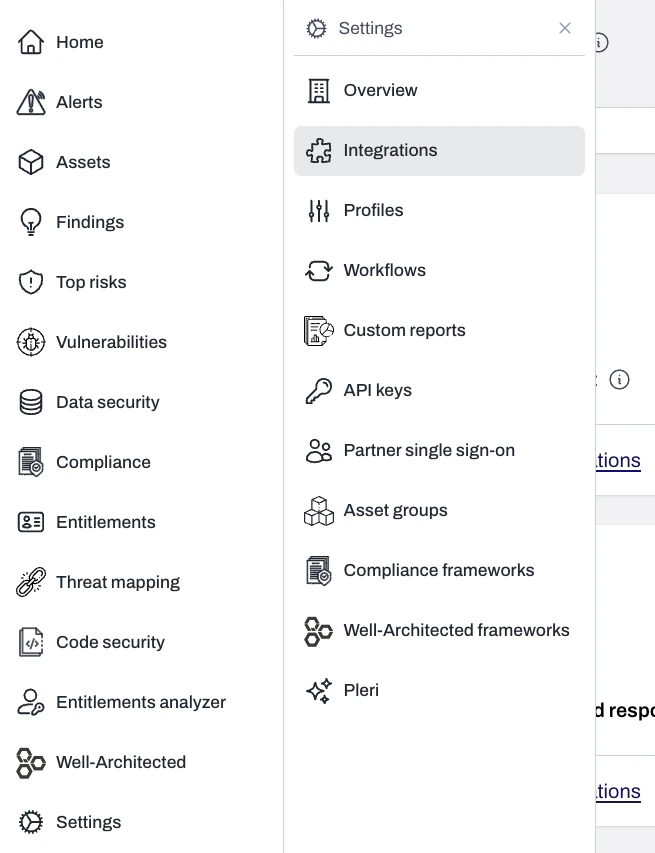
On the Plerion dashboard, go to Settings > Integrations
2
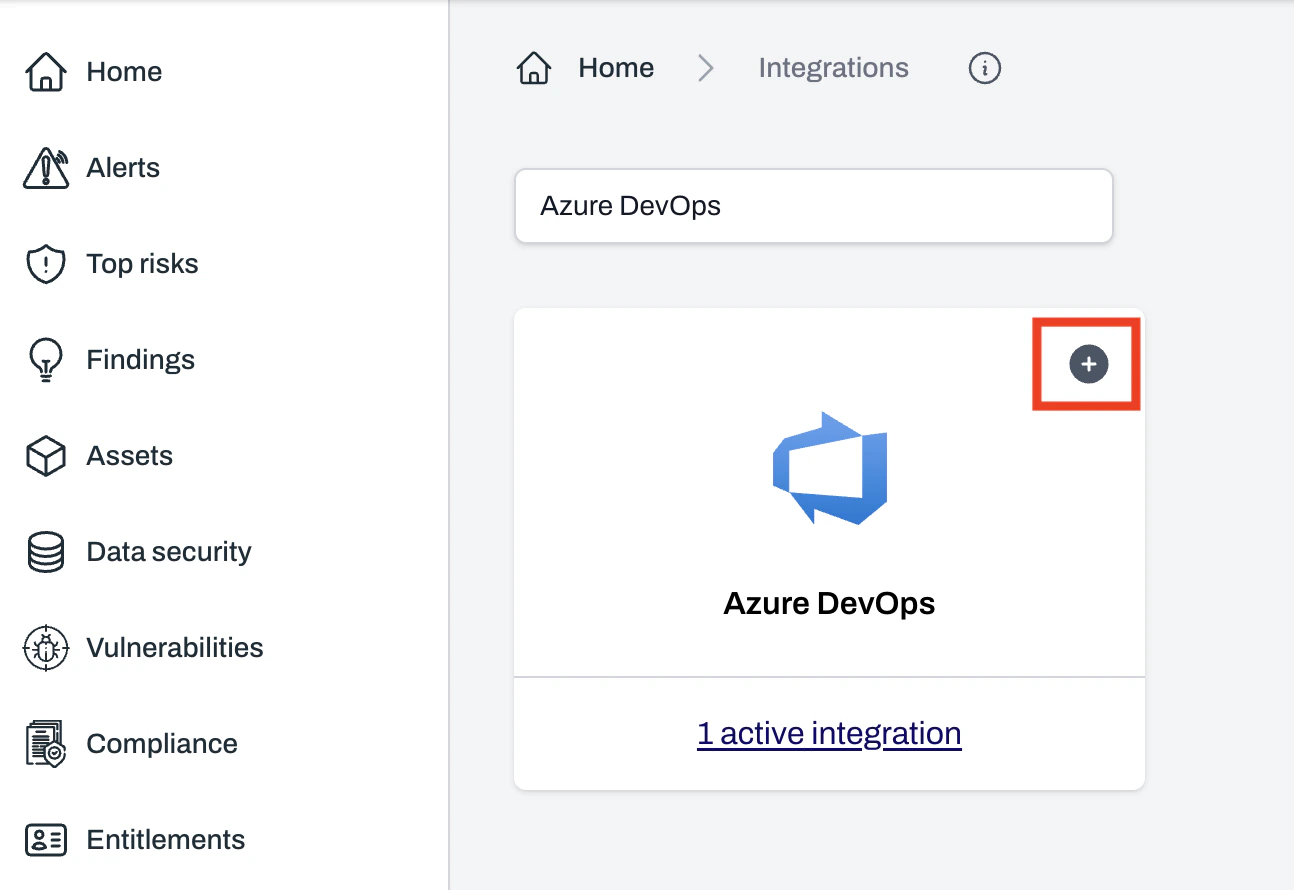
Find Azure DevOps and click the + button
3
Select a connection option and click Continue
Plerion connects to Azure DevOps using a service principal. Select Connect with service principal and click 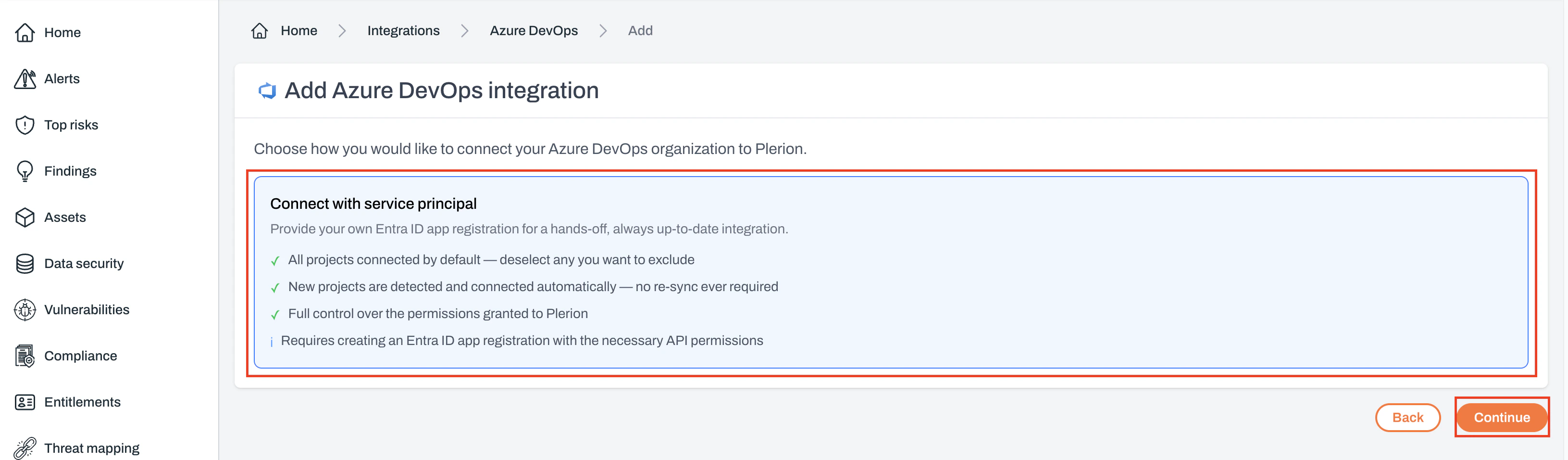
Continue.4
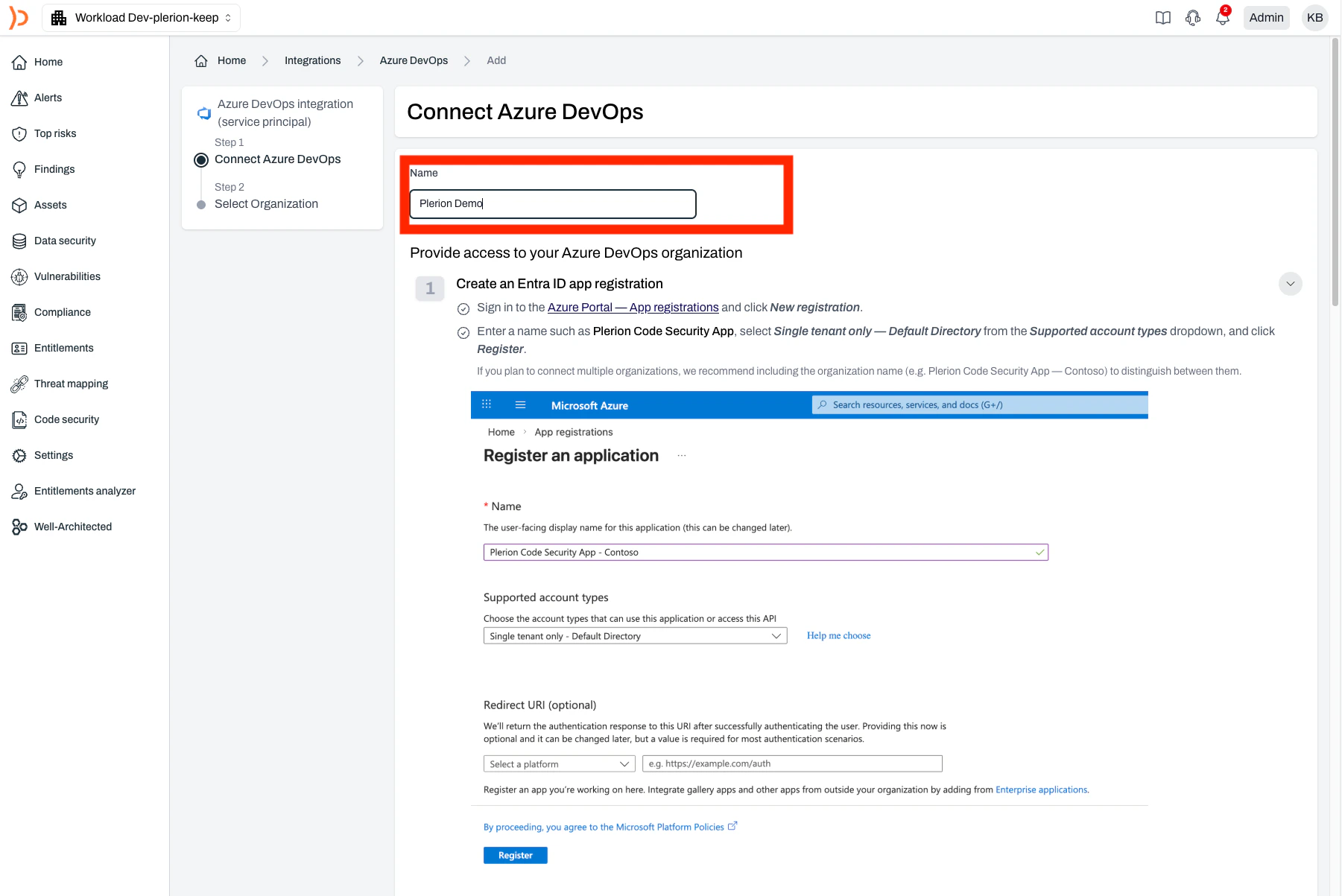
Enter a name for your integration
5
Enter your Application (client) ID and Directory (tenant) ID
These values come from your Azure app registration.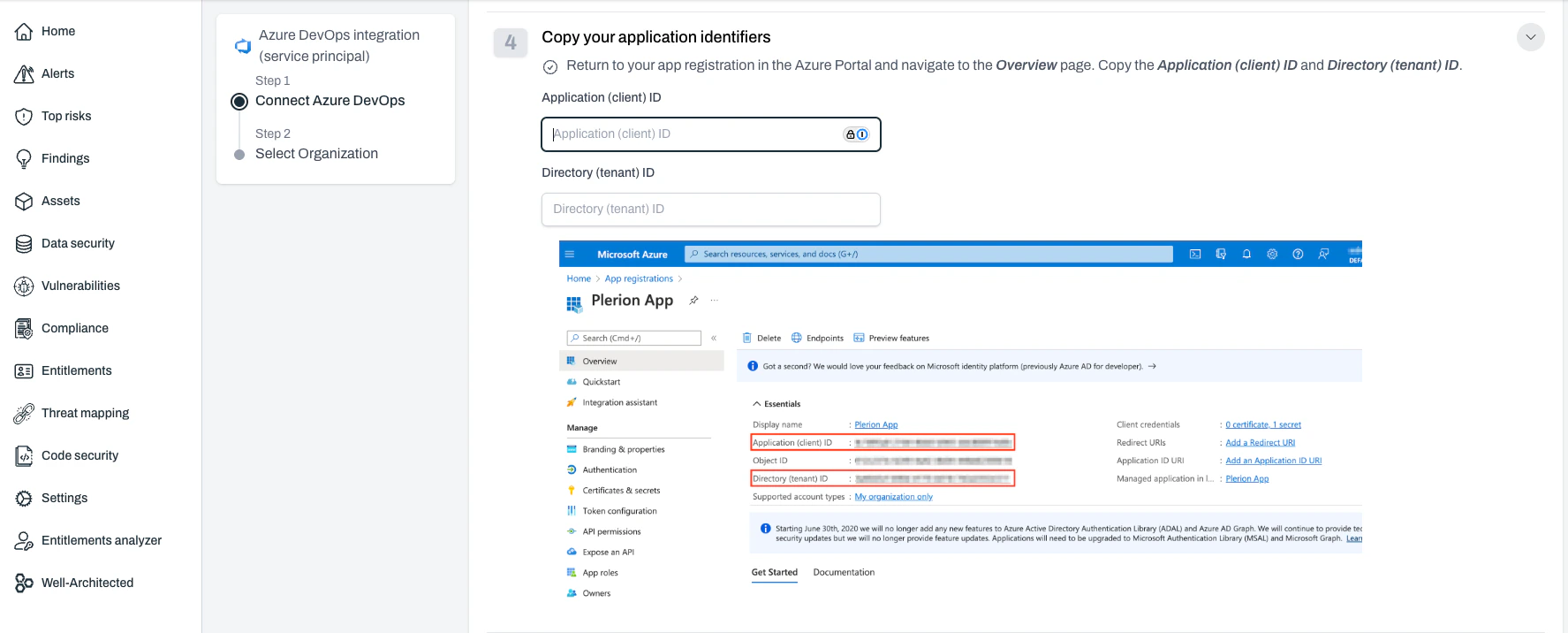
6
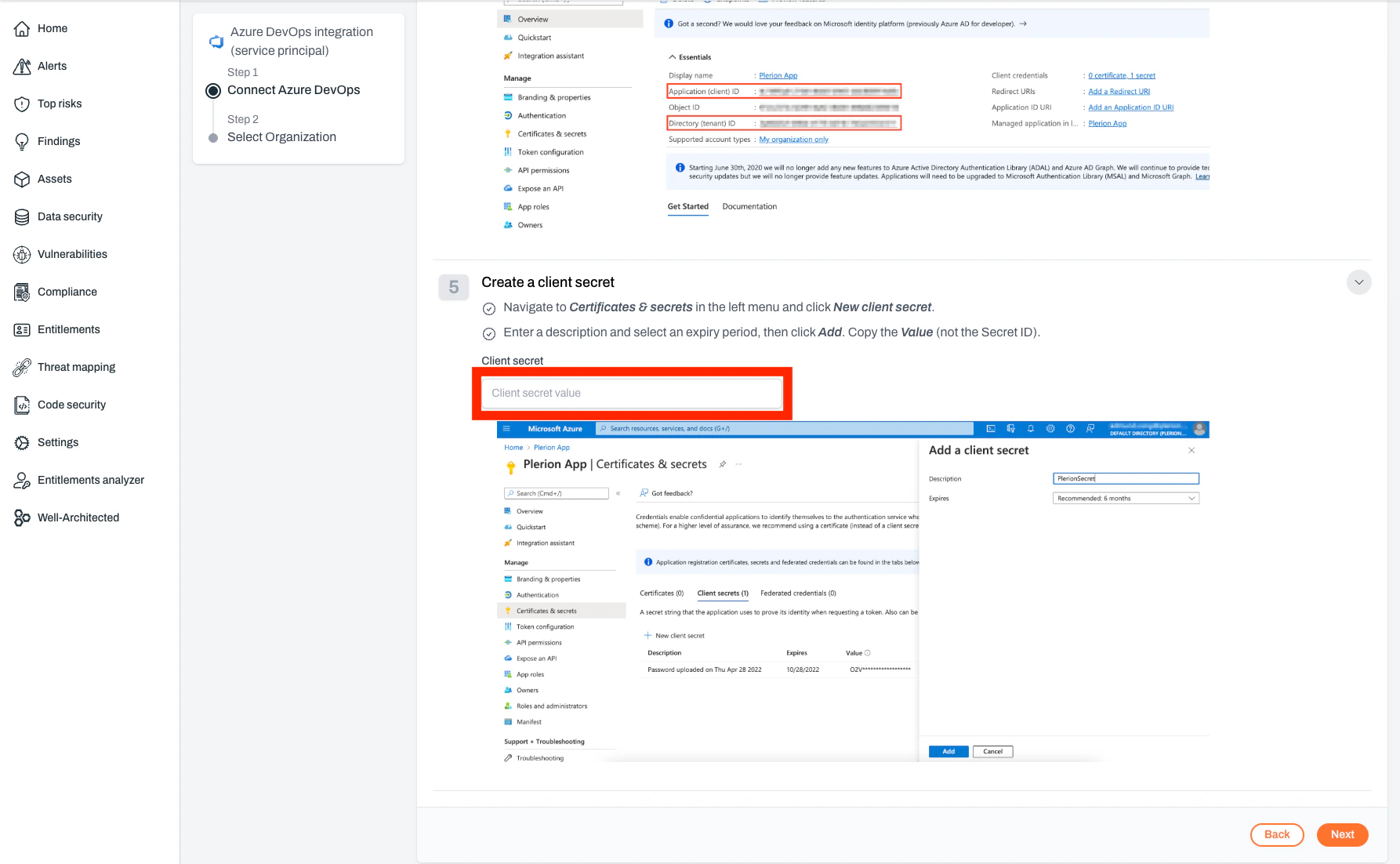
Enter your client secret and click Next
7
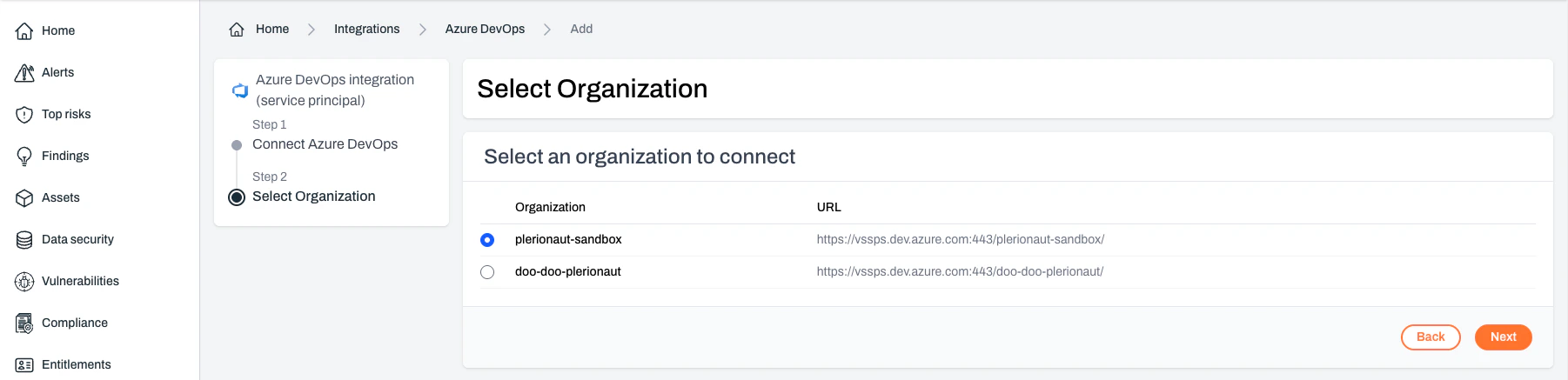
Select the organization and click Next
If the Entra app has access to a single Azure DevOps organization, this step is skipped.
8
After setup, you will be redirected to the Plerion platform
Your Azure DevOps integration is now active and ready to configure.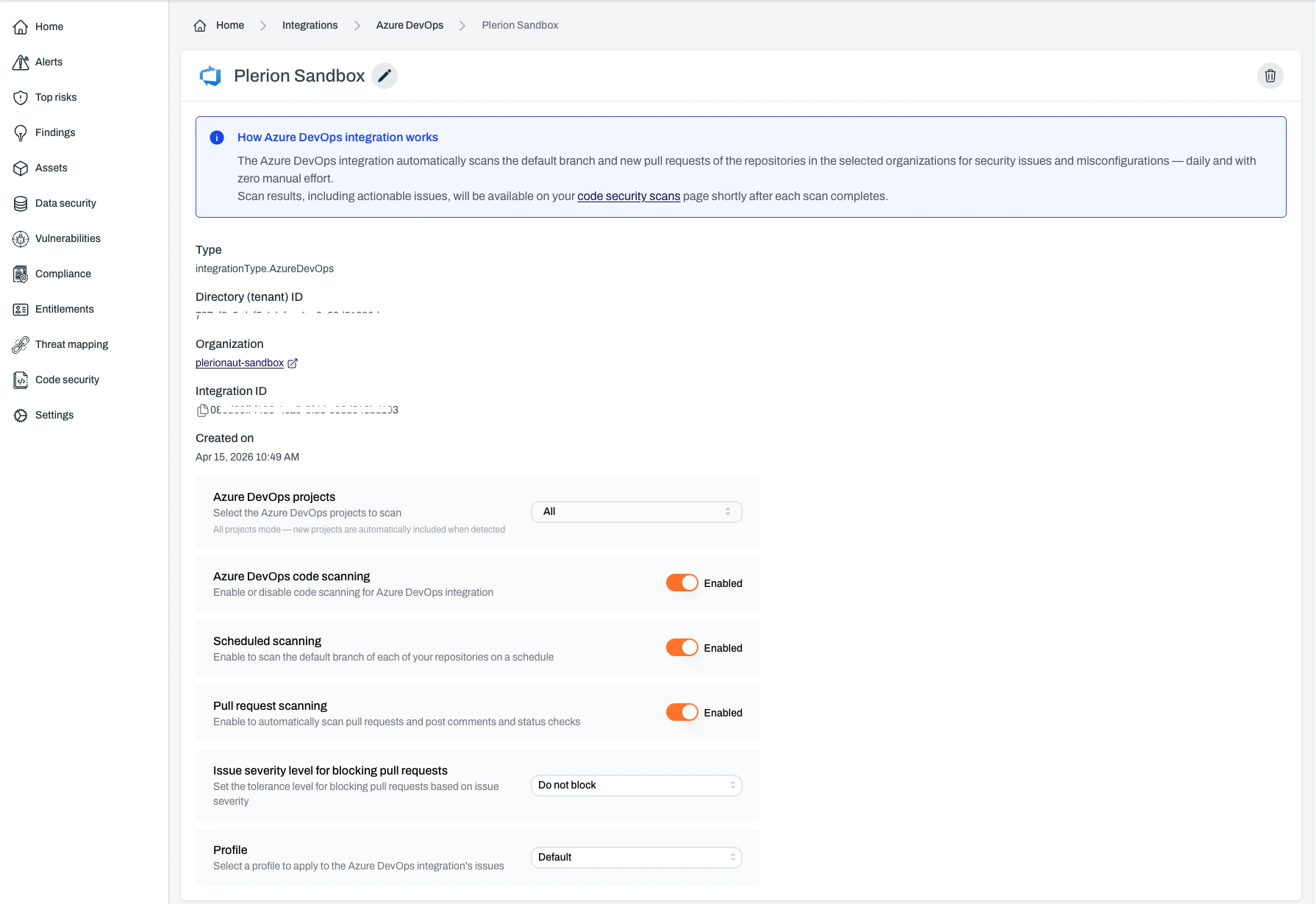
Configuring your Azure DevOps integration
Once installed, you can configure the Azure DevOps integration to suit your workflows. These options control when and how scans run, how findings are handled, and what rules apply.Integration status
Controls whether Plerion Code Security is active.- Default: Enabled
- When disabled: Pauses all scanning activities, including scheduled and pull request scans
- Recommendation: Keep enabled unless there is a specific need to pause

Scheduled scans
Runs automatic daily scans of your main branches.- Default: Enabled
- Purpose: Ensures continuous monitoring of production-ready code
- Key points:
- No manual input required
- Helps identify risks over time
- Best for stable branches

Pull request scanning
Scans code in new and updated pull requests.- Default: Enabled
- What it does:
- Scans only changes in the pull request
- Posts findings as comments in Azure DevOps
- Uses Azure DevOps status checks to block insecure merges
- Supported file types: YAML, Terraform, JSON, and other IaC files
- Why it matters: Prevents findings from merging, encourages secure practices, and improves developer awareness

Dismiss behavior
Controls how Plerion handles existing pull request comments when new commits are pushed.
Tolerance for blocking pull requests
Controls when pull requests are blocked based on severity.- Default: Do not block pull requests
- Options:
- Only block for critical findings
- Block for high and critical findings
- Block for medium and above findings
- Block for any finding
- Do not block pull requests
- Best use: Choose based on your team’s risk tolerance, development velocity, and compliance needs

Profile
Defines which detection rules are used during scans.- Default: Organization’s default profile
- Options: Use an existing profile or create a new one
- Where to manage: Detection Settings
- Best use: Align with coding standards, risk tolerance, and compliance needs

Fixing issues with Pleri
Once the integration is connected, you can ask Pleri to fix an issue in an Azure DevOps repository and open a pull request for it, then manage that pull request without leaving Plerion. Pleri can:- Open a pull request containing a fix for a high or critical IaC issue
- Report the status of a pull request, including reviewers and branch policy evaluations
- Request a review from a person in the Azure DevOps project
- Remove a reviewer
- Abandon a pull request, posting the reason as a comment first
Opening a pull request
Ask Pleri to fix a high or critical IaC issue in a connected repository. Plerion pushes the fix to a new branch namedplerion-code-security-<id> and opens a pull request against the repository’s default branch.
The pull request is created asynchronously, so it can take a minute to appear. Pleri picks it up on your next message.
Fixes are available for high and critical IaC issues only. Low and medium issues, and other issue types, are not fixed automatically.
Requesting and removing reviewers
Azure DevOps pull requests have reviewers rather than assignees, so ask Pleri to request a review instead of assigning the pull request. Name reviewers individually. Two conditions apply:- The reviewer must be a member of a team in the Azure DevOps project. Plerion resolves names against project team membership, so a person who has never been added to a team cannot be found.
- The reviewer must have access to the repository. If they are in the project but not on the repository, Azure DevOps refuses the request and Plerion tells you it is repository access rather than the name.
Abandoning a pull request
Azure DevOps has no “close” for pull requests. A pull request retired without merging is abandoned, and that is the word Plerion uses. Ask Pleri to abandon the pull request and give a reason. The reason is posted as a comment on the pull request before it is abandoned, so the history records why. Abandoning a pull request that is already abandoned succeeds and changes nothing.Best practices
- Keep the integration enabled for continuous coverage
- Use scheduled scans to secure long-term branches
- Enable PR scanning to prevent insecure code from merging
- Set PR blocking tolerance based on your security posture
- Select a detection profile that matches your organization’s needs
- Add reviewers to a team in the Azure DevOps project so Pleri can find them by name
Limitations
- Azure DevOps Services (dev.azure.com) is supported. Azure DevOps Server, the self-hosted product, is not.
- Reviewers must be named individually. Requesting a review from an Azure DevOps team is not supported.
- Pull requests cannot be assigned, because Azure DevOps has no assignee field.