
Steps to integrate GitHub with Plerion
1
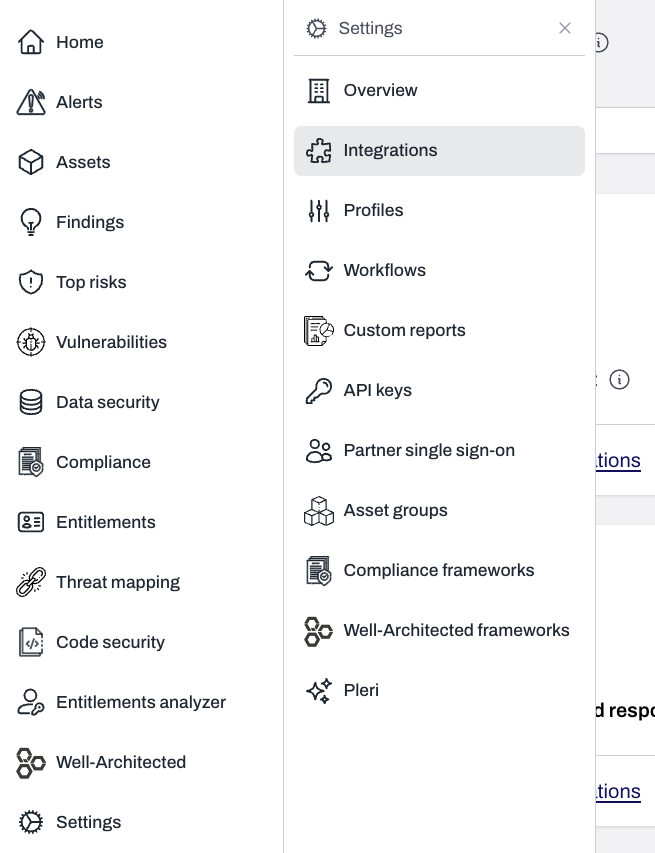
On the Plerion dashboard, go to Settings > Integrations
2
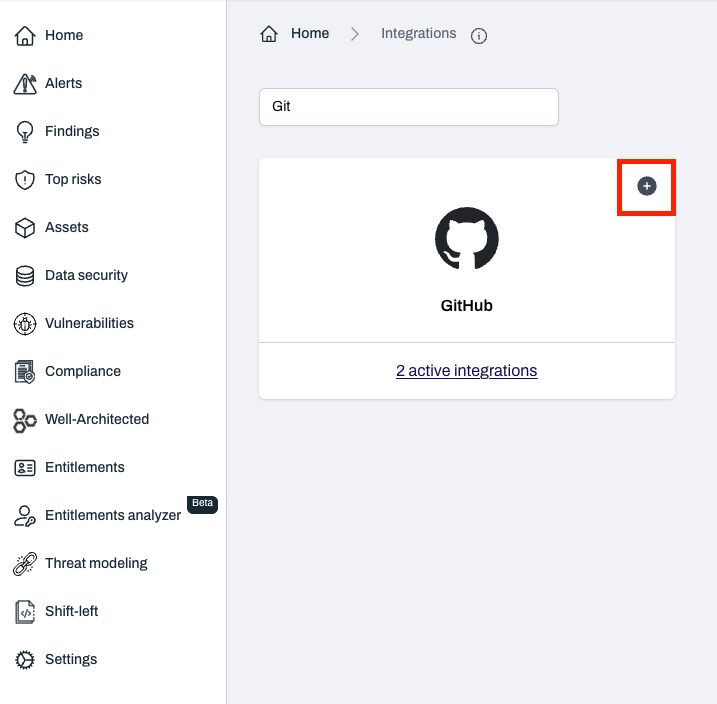
Find GitHub and click the + button
3
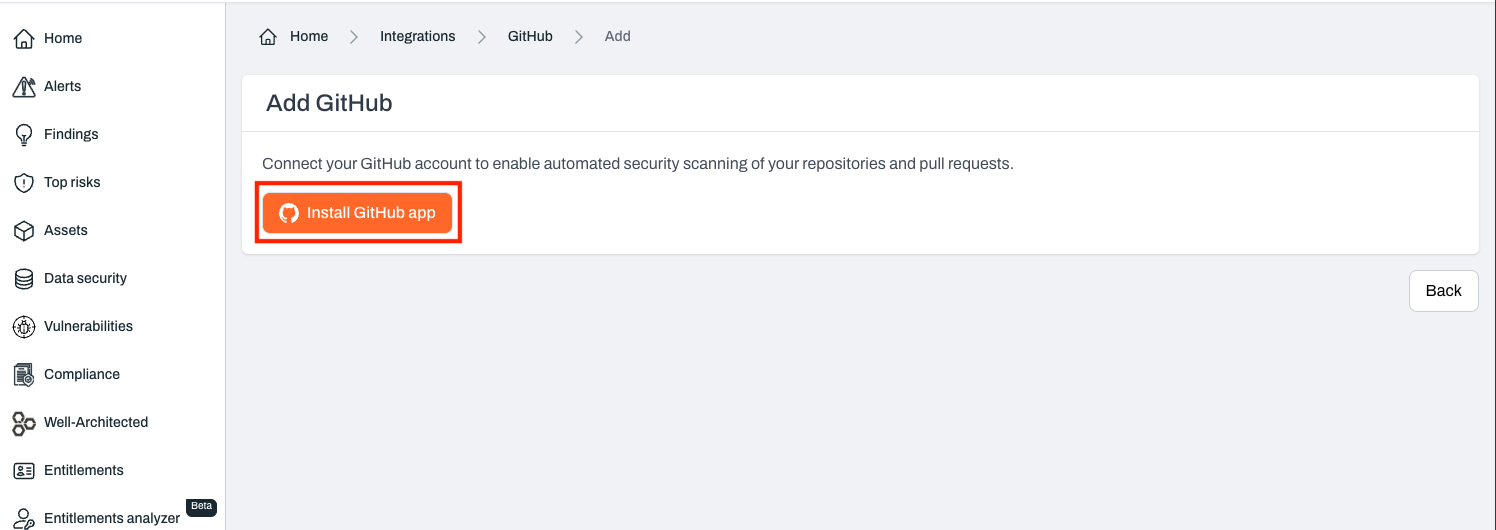
Click on Install GitHub app
4
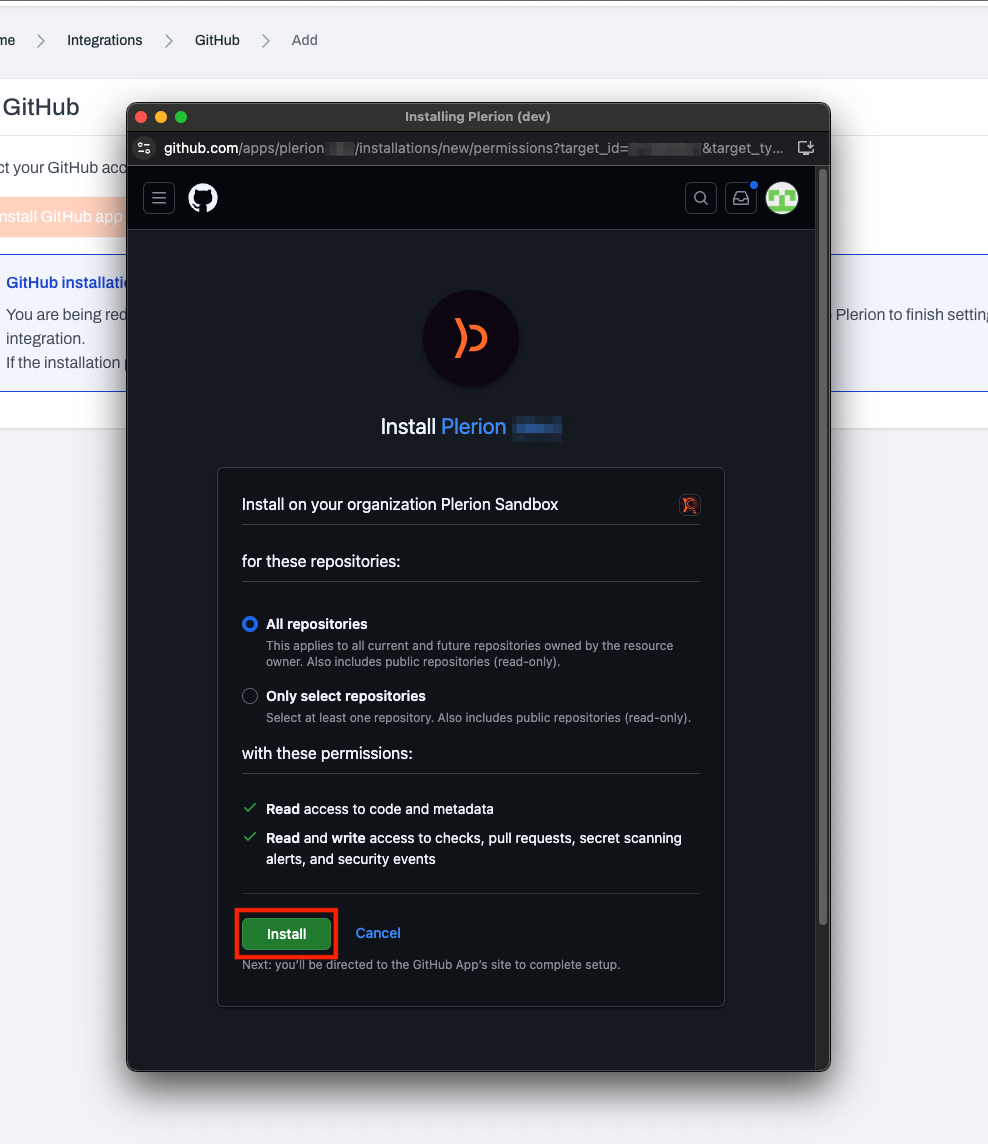
Select the repositories to monitor and click Install
5
After installation, you will be redirected to the Plerion platform
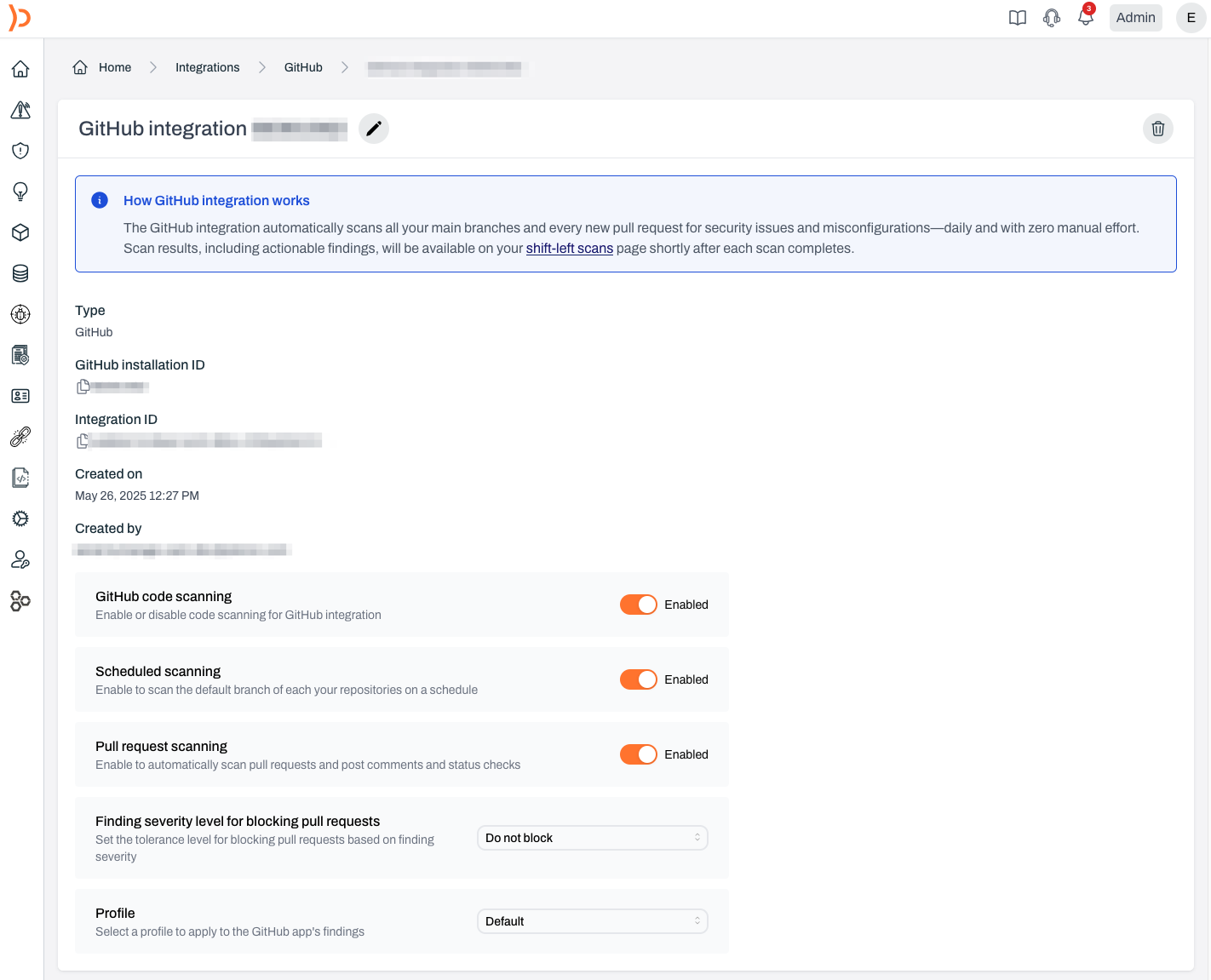
Configuring your GitHub integration
Once installed, you can configure the GitHub integration to suit your workflows. These options control when and how scans run, how findings are handled, and what rules apply.Integration status
Controls whether Plerion Code Security is active.- Default: Enabled
- When disabled: Pauses all scanning activities, including scheduled and pull request scans
- Recommendation: Keep enabled unless there is a specific need to pause

Scheduled scans
Runs automatic daily scans of your main branches.- Default: Enabled
- Purpose: Ensures continuous monitoring of production-ready code
- Key points:
- No manual input required
- Helps identify risks over time
- Best for stable branches

Pull request scanning
Scans code in new and updated pull requests.- Default: Enabled
- What it does:
- Scans only changes in the pull request
- Posts findings as comments in GitHub
- Uses GitHub status checks to block insecure merges
- Supported file types: YAML, Terraform, JSON, and other IaC files
- Why it matters: Prevents vulnerabilities from merging, encourages secure practices, and improves developer awareness

Tolerance for blocking pull requests
Controls when pull requests are blocked based on severity.- Default: Do not block pull requests
- Options:
- Only block for critical findings
- Block for high and critical findings
- Block for medium and above findings
- Block for any finding
- Do not block pull requests
- Best use: Choose based on your team’s risk tolerance, development velocity, and compliance needs

Profile
Defines which detection rules are used during scans.- Default: Organization’s default profile
- Options: Use an existing profile or create a new one
- Where to manage: Detection Settings
- Best use: Align with coding standards, risk tolerance, and compliance needs

Workflow artifact scanning
Scan GitHub workflow artifacts for security issues.- Default: Disabled
- What it does:
- Scans GitHub workflow artifacts uploaded within a pull request
- Posts findings as comments in GitHub
- Uses GitHub status checks to block insecure merges
- Supported frameworks: AWS CDK (Cloud Development Kit), AWS Serverless Application Model (SAM), OpenTofu, and other frameworks that generate a CloudFormation template or a Terraform plan before deployment
- Why it matters: Allows scanning a wider range of IaC framework files for security issues before merging pull requests

SAST scanning
Scan your source code for security vulnerabilities using static application security testing (SAST).- Default: Disabled
- What it does:
- Analyzes source code for common vulnerability patterns such as injection flaws, insecure cryptography, and hardcoded secrets
- Reports findings in the Plerion platform alongside IaC and SCA findings
- Supported languages: TypeScript, JavaScript, Python, Go, Java, Kotlin, Ruby, PHP, C#, C, C++, Rust, Swift, and Scala
- Why it matters: Catches application-layer vulnerabilities earlier in the development lifecycle, before code reaches production

Code to cloud
Connect GitHub repositories to the AWS resources they deploy and manage.- Default: Enabled
- What it does:
- Automatically links deployed AWS resources to the GitHub repository that created them
- Surfaces the source repository on each asset’s detail page in the Plerion platform
- Supported deployment methods: CloudFormation, AWS CDK, and Terraform (via GitHub Actions)
- Works with: Successful workflow runs on the default branch only
- Why it matters: When a security finding surfaces, you can see exactly which repository needs to be fixed — no manual mapping required

Best practices
- Keep the integration enabled for continuous coverage
- Use scheduled scans to secure long-term branches
- Enable PR scanning to prevent insecure code from merging
- Set PR blocking tolerance based on your security posture
- Select a detection profile that matches your organization’s needs
- Enable SAST scanning to catch application-layer vulnerabilities earlier in the development lifecycle
- Enable Code to cloud to trace deployed resources back to their source repository