
Overview
The Workload scanning policy controls the scan frequency for cloud workloads across a tenant. It applies to any integration where workload scanning is enabled, and where workloads and regions are configured. The policy supports three modes:- Daily: Applies daily scanning to all workload categories.
- Recommended: Applies Plerion’s suggested frequencies.
- Custom: Allows frequencies to be set per environment and exposure combination.
A single policy applies across the tenant and can be configured only by organization or tenant administrators.
How Plerion applies the scanning policy
Plerion evaluates workload scanning schedules in two stages:-
CSPM discovery completes.
Each cloud integration runs CSPM scans according to its schedule. -
Workload scanning runs next.
The most recent CSPM inventory is used, and the workload scanning policy determines:- How often each workload category is scanned
- The next scheduled scan window for each category
Supported workload categories
Plerion groups workloads into six categories based on two dimensions:- Environment classification: Production, Non-production, Unclassified
- Public exposure: Public, Private
Environment classification
Environment classification is configured at the integration level using Plerion’s environment classification feature. Integrations can be assigned an environment:- Production: Workloads from the integration are treated as Production workloads.
- Non-production: Workloads from the integration are treated as Non-production workloads.
- Unclassified: Workloads from integrations without an assigned environment appear as Unclassified.
Public vs. private workloads
Workloads are classified by whether they are accessible from the public internet:- Public workloads: Reachable from the public internet.
- Private workloads: Not reachable from the public internet and accessible only through internal networks.
Combined categories
The policy supports frequency settings for:- Production – Public
- Production – Private
- Non-production – Public
- Non-production – Private
- Unclassified – Public
- Unclassified – Private
Frequency options
The following frequency options are available for each workload category:- Daily
- Every other day
- Specific days
Scanning cannot be disabled; all workloads must run on a defined schedule.
Steps to configure the Workload scanning policy
1
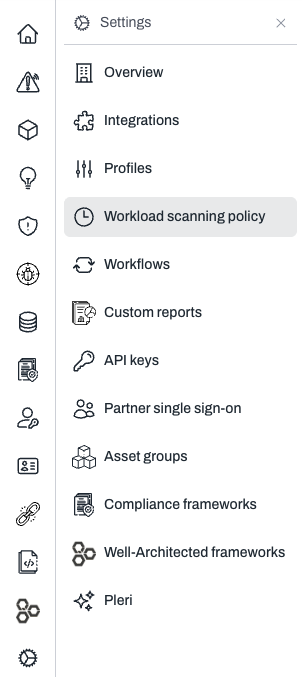
Go to Settings > Workload scanning policy
2
Choose a policy mode
Select Daily, Recommended or Custom.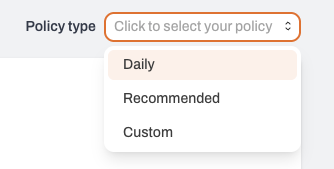
- Daily: One schedule for all categories.
- Recommended: Applies Plerion’s predefined frequencies.
- Custom: Configure frequencies for each category.
3
Set frequencies for each workload category
When using Custom, set the scan frequency for each environment and exposure combination.
A recommended frequency is displayed on each card.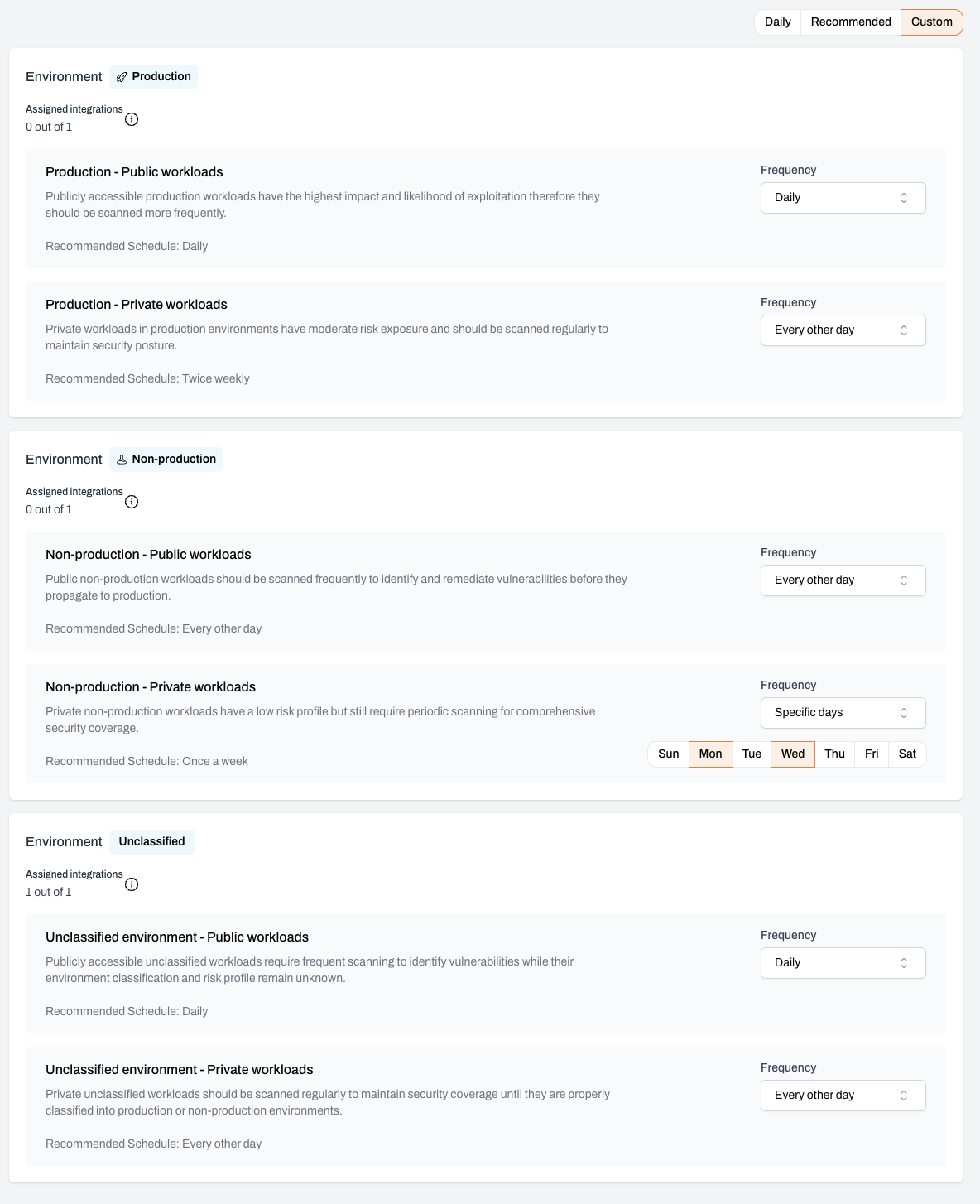
A recommended frequency is displayed on each card.
4
Review and apply the policy
The policy takes effect immediately and is applied after each integration’s next CSPM scan.