> ## Documentation Index
> Fetch the complete documentation index at: https://docs.plerion.com/llms.txt
> Use this file to discover all available pages before exploring further.
# Well-architected workloads
> Use Plerion to create and manage AWS Well-architected workloads, with AutoFill powered by findings from your asset groups.
With [Well-architected workloads](https://app.plerion.com/well-architected?tab=workloads), you can create and manage AWS Well-architected reviews directly in Plerion. Plerion can automatically populate answers based on findings from your associated [Asset groups](/guides/platform/asset-groups), helping you maintain accurate and up-to-date workload reviews.
Currently only the **AWS Well-architected framework** is supported.
## AutoFill
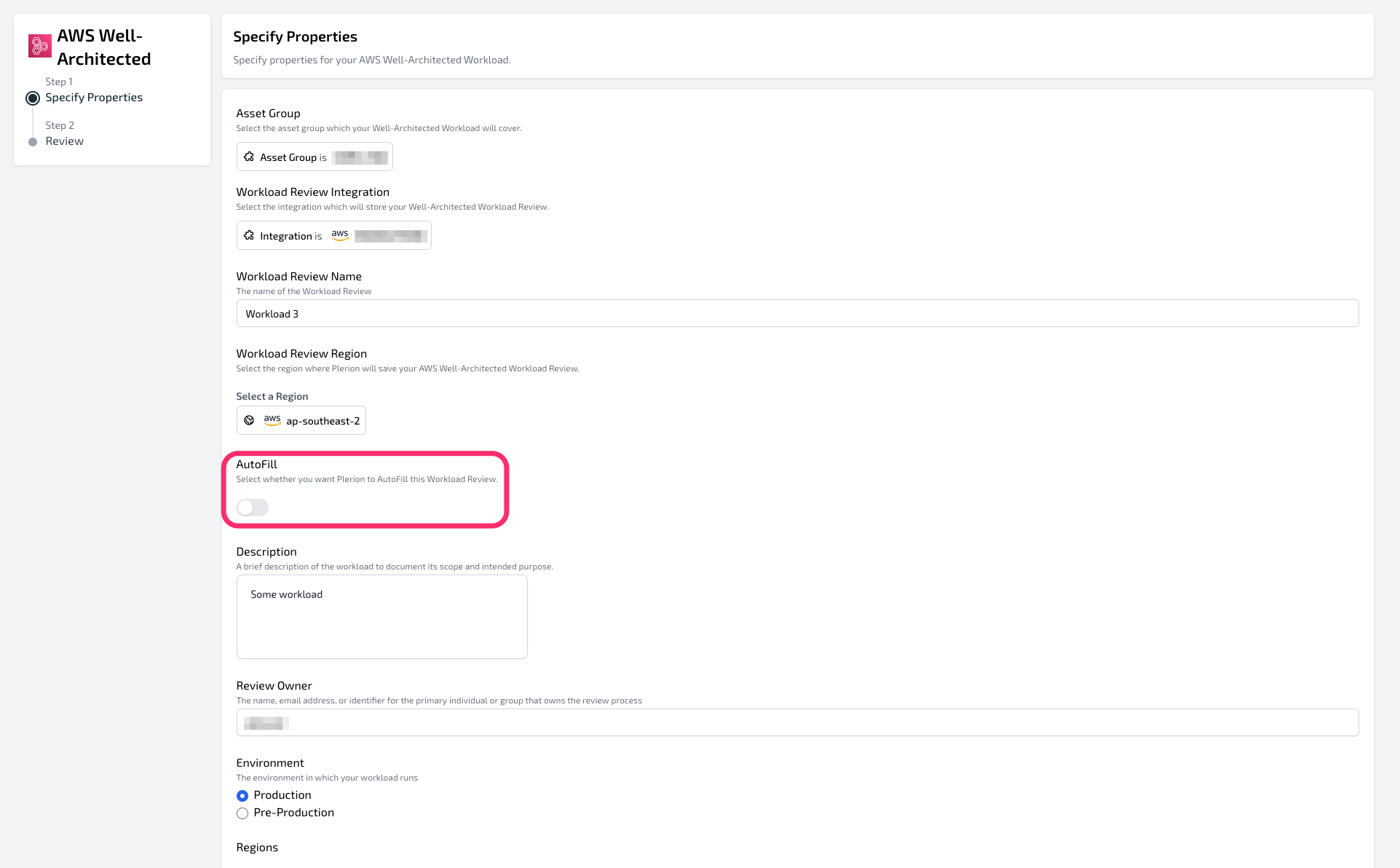
Plerion automatically fills answers for Well-architected workloads if **AutoFill** is enabled. By default, AutoFill is turned on for new workloads.
* If AutoFill is enabled, Plerion updates workload answers daily using the most recent findings from the associated Asset group.
* If AutoFill is disabled, workload answers are not updated automatically.
* To disable AutoFill for a workload, open the workload, click `Edit`, and toggle AutoFill off.
Plerion currently limits the number of workloads with AutoFill enabled to 20. Contact support if you need more.
 ## How Plerion fills answers
Each AWS Well-architected question maps to one or more choices listed in the **Lens** table of your workload page. Plerion evaluates each choice using the following rules:
1. If all findings for a choice are passed or exempted → Check the answer
2. If at least one finding is passed or exempted and the rest are undefined → Check the answer
3. If all findings are failed → Uncheck the answer
4. If at least one finding is failed and the rest are undefined → Uncheck the answer
5. If results are mixed (failed, passed/exempted, undefined) → Uncheck the answer
## How Plerion fills answers
Each AWS Well-architected question maps to one or more choices listed in the **Lens** table of your workload page. Plerion evaluates each choice using the following rules:
1. If all findings for a choice are passed or exempted → Check the answer
2. If at least one finding is passed or exempted and the rest are undefined → Check the answer
3. If all findings are failed → Uncheck the answer
4. If at least one finding is failed and the rest are undefined → Uncheck the answer
5. If results are mixed (failed, passed/exempted, undefined) → Uncheck the answer
 For example, the question **“SEC 3. How do you manage permissions for people and machines?”** will have the answer **“Grant least privilege access”** checked if its associated detections have no failed findings.
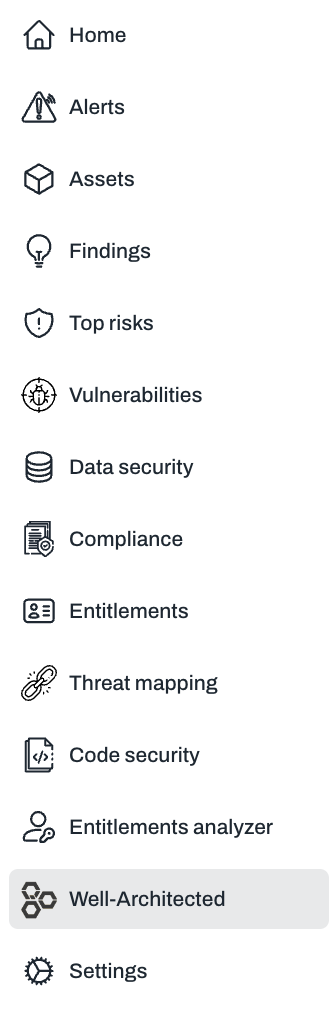
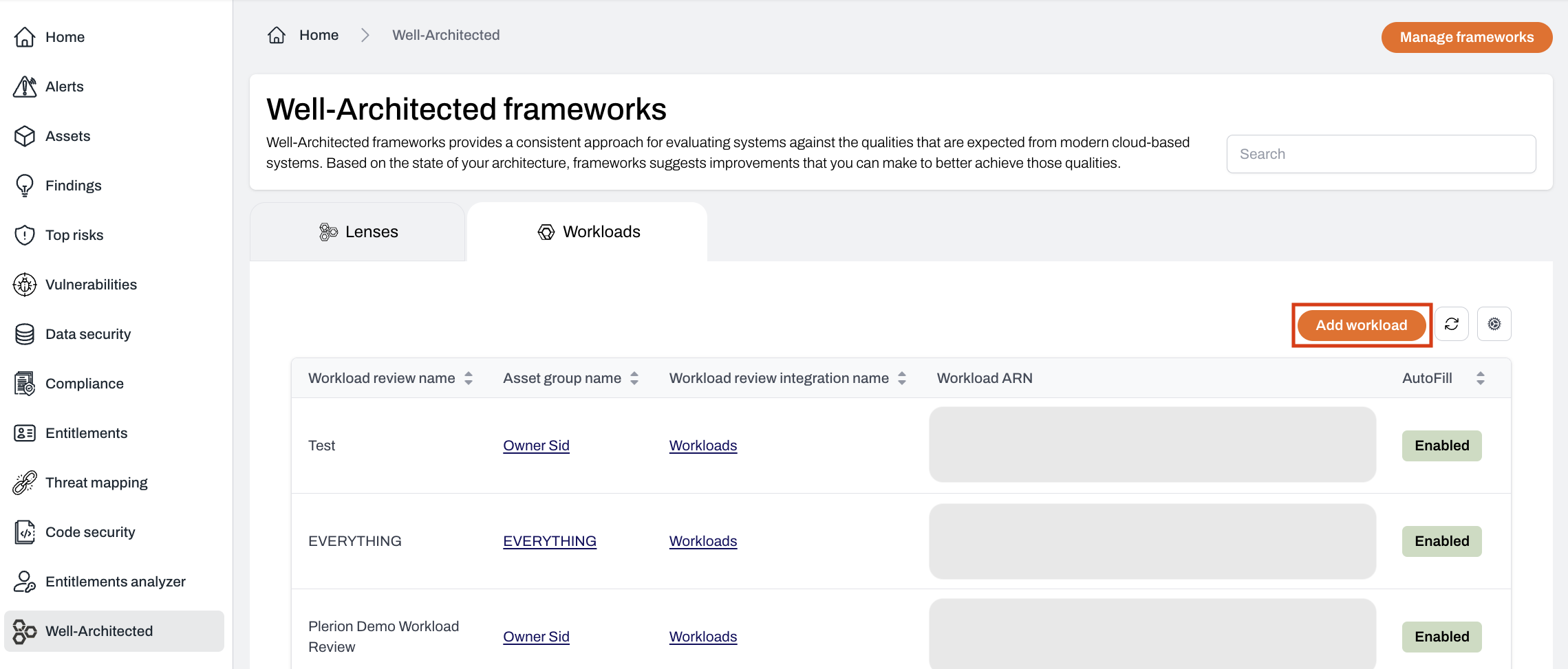
## Steps to create an AWS Well-architected workload
Confirm your AWS integration is using the [latest Plerion Policy](/guides/integrations/aws/aws-account/updating-aws-account).
For example, the question **“SEC 3. How do you manage permissions for people and machines?”** will have the answer **“Grant least privilege access”** checked if its associated detections have no failed findings.
## Steps to create an AWS Well-architected workload
Confirm your AWS integration is using the [latest Plerion Policy](/guides/integrations/aws/aws-account/updating-aws-account).
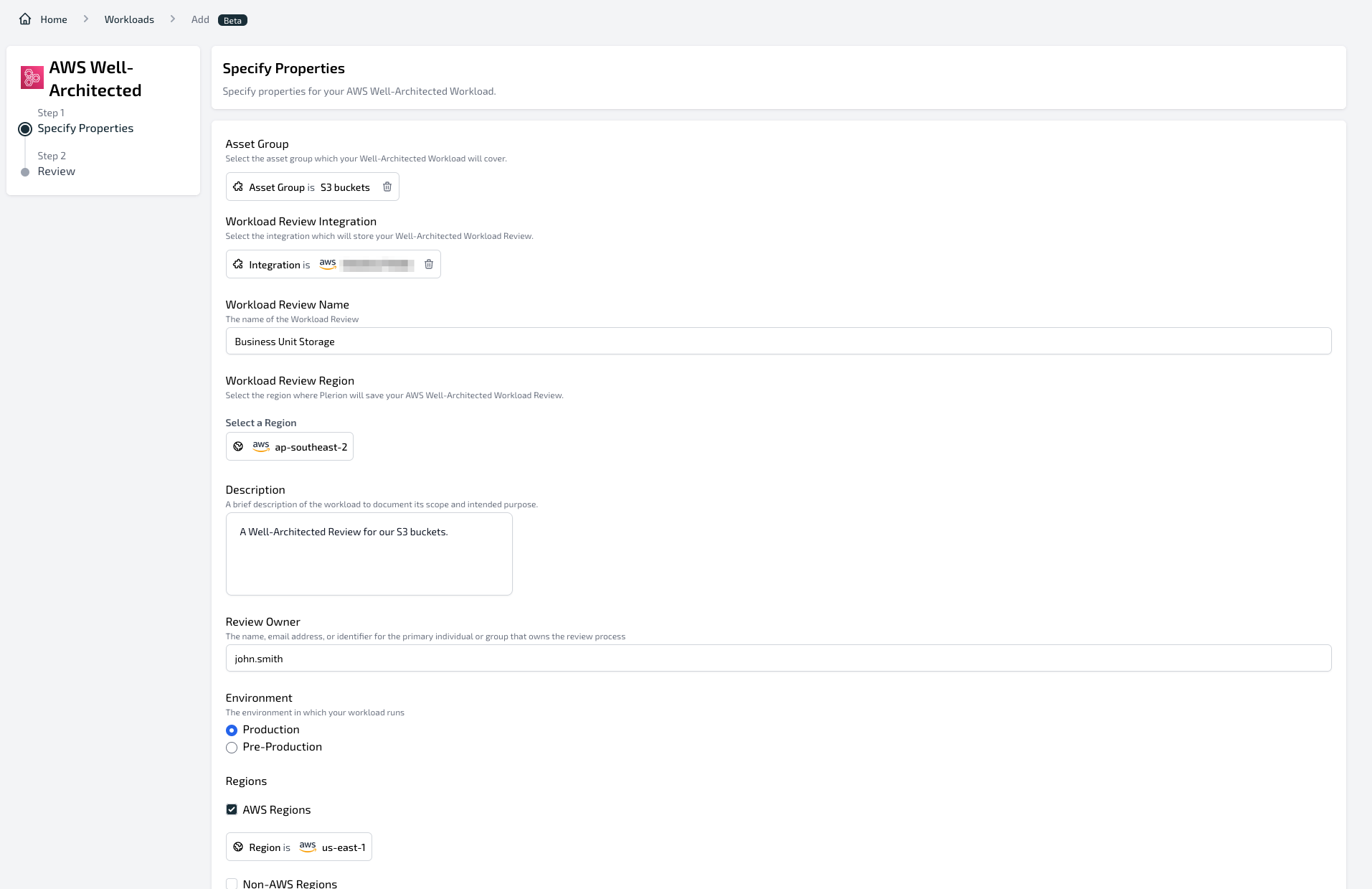
 * Complete the following mandatory fields:
* **Asset Group** the workload review should cover
* **AWS integration** where the review will be created
* **Workload review name**
* **AWS region** (e.g. selecting `us-east-1` creates the workload in the US East Virginia region)
* **Description** of the workload
* **Review owner** (name, email address, or identifier)
* **Environment**: Production or Pre-production
* **Regions**: AWS or non-AWS regions
* When finished, click `Next` to create the workload.
* Complete the following mandatory fields:
* **Asset Group** the workload review should cover
* **AWS integration** where the review will be created
* **Workload review name**
* **AWS region** (e.g. selecting `us-east-1` creates the workload in the US East Virginia region)
* **Description** of the workload
* **Review owner** (name, email address, or identifier)
* **Environment**: Production or Pre-production
* **Regions**: AWS or non-AWS regions
* When finished, click `Next` to create the workload.