> ## Documentation Index
> Fetch the complete documentation index at: https://docs.plerion.com/llms.txt
> Use this file to discover all available pages before exploring further.
# Vulnerabilities
> View, filter, and exempt software vulnerabilities detected across your cloud workloads
With **[Vulnerabilities dashboard](https://app.plerion.com/vulnerabilities/overview)**, you can track software vulnerabilities detected in your cloud workloads, prioritize them by severity and exploitability, and manage exemptions individually or by creating exemption rules that apply across matching vulnerabilities.
Plerion's CWPP (Cloud Workload Protection Platform) scans your workloads — including EC2 instances, Lambda functions, ECS tasks, ECR container images, and AMIs — and surfaces known vulnerabilities (CVEs) in installed packages. The Vulnerabilities dashboard gives you a centralized view of these findings, with tools to filter, group, analyze exploitability, and exempt vulnerabilities that do not require action.
***
## Severity levels
Each vulnerability is assigned a severity level based on its CVSS (Common Vulnerability Scoring System) score, as published by NIST's National Vulnerability Database (NVD). These levels help you prioritize based on potential impact:
* **Critical**
Immediate and significant threats, often exploitable. Require urgent attention and remediation.
* **High**
Severe risks that could lead to major impact. Require prompt action.
* **Medium**
Issues with moderate impact. Should be remediated within a reasonable timeframe.
* **Low**
Minimal impact or unlikely to be exploited. Still recommended to resolve.
***
## Overview tab
The [Overview tab](https://app.plerion.com/vulnerabilities/overview) provides a high-level summary of your vulnerability posture across all scanned workloads.
### Total vulnerabilities
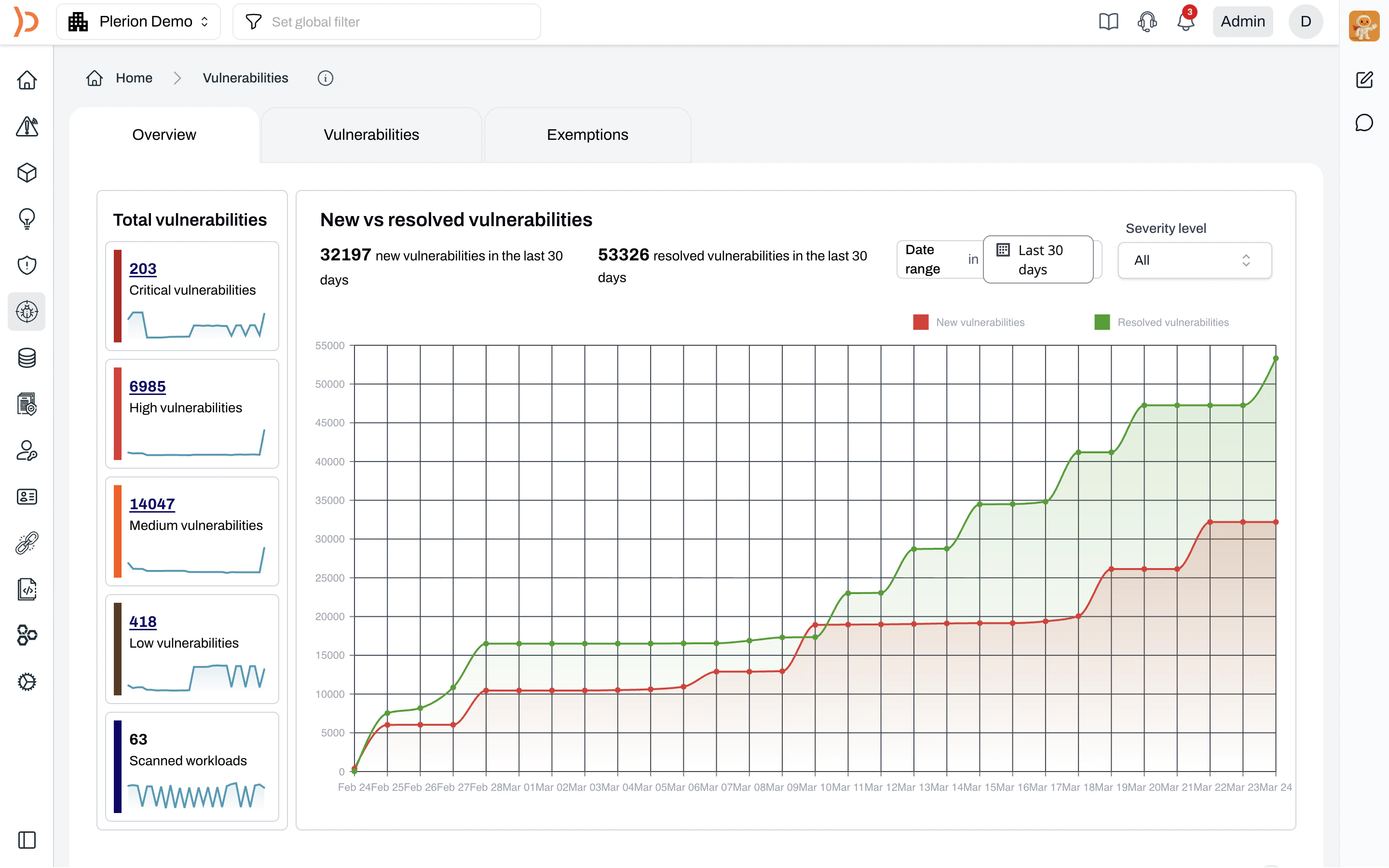
The left panel shows the current count of vulnerabilities broken down by severity — **Critical**, **High**, **Medium**, and **Low** — along with a sparkline trend for each. The total number of **scanned workloads** is also displayed at the bottom.
### New vs resolved vulnerabilities
The main chart tracks the trend of new and resolved vulnerabilities over time. You can adjust the **date range** (last 30 days by default) and filter by **severity level** using the dropdowns above the chart. The red line represents new vulnerabilities detected and the green line represents resolved vulnerabilities.
### Top vulnerabilities
Below the chart, the **Top vulnerabilities** section lists the most significant vulnerabilities across your environment. Each entry shows:
* The CVE ID and description
* Severity level
* The affected asset, including provider, integration, region, and asset group
* Context badges such as **Publicly exposed**, **Exploited vulnerability**, **CVSS exploitable**, and **Fixable**
 ***
## Vulnerabilities tab
The [Vulnerabilities tab](https://app.plerion.com/vulnerabilities/list?groupBy=vulnerabilityId) lists all detected vulnerabilities across your scanned workloads, with options to group, filter, and take action.
### Grouping
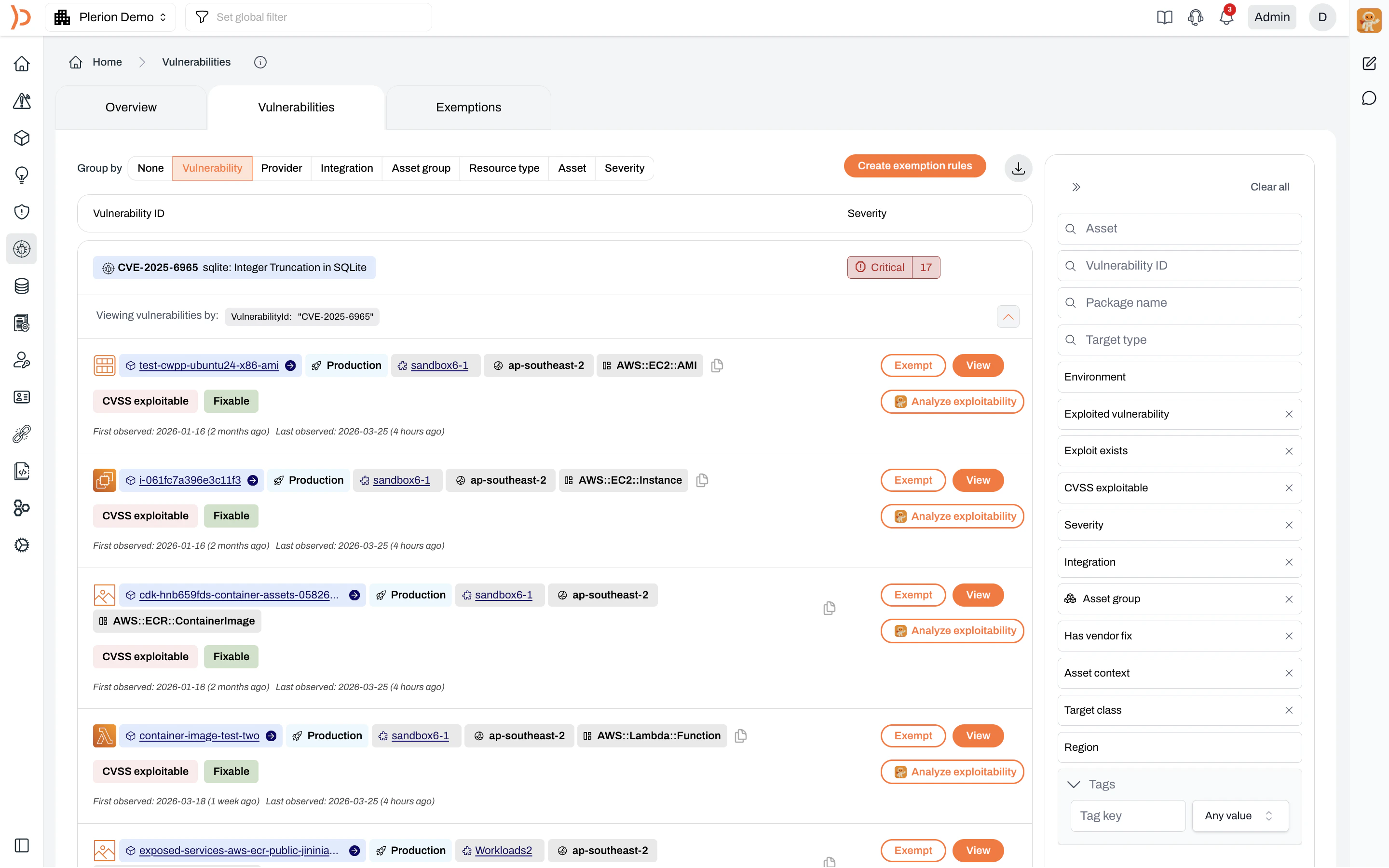
You can group vulnerabilities by **None**, **Vulnerability**, **Provider**, **Integration**, **Asset group**, **Resource type**, **Asset**, or **Severity**. When grouped by **Vulnerability**, each row shows the CVE ID, description, severity, and the number of affected assets. Click the expand arrow to see individual affected assets.
***
## Vulnerabilities tab
The [Vulnerabilities tab](https://app.plerion.com/vulnerabilities/list?groupBy=vulnerabilityId) lists all detected vulnerabilities across your scanned workloads, with options to group, filter, and take action.
### Grouping
You can group vulnerabilities by **None**, **Vulnerability**, **Provider**, **Integration**, **Asset group**, **Resource type**, **Asset**, or **Severity**. When grouped by **Vulnerability**, each row shows the CVE ID, description, severity, and the number of affected assets. Click the expand arrow to see individual affected assets.
 ### Filtering
Use the filter panel on the right to narrow results by:
* **Asset**: Search by asset name
* **Vulnerability ID**: Search by CVE ID
* **Package name**: Filter by affected package
* **Target type**: Filter by package ecosystem
* **Environment**: Production or Non-production
* **Exploited vulnerability**: Whether the vulnerability is known to be exploited in the wild
* **Exploit exists**: Whether a public exploit exists
* **CVSS exploitable**: Whether the vulnerability is CVSS exploitable
* **Severity**: Critical, High, Medium, or Low
* **Integration**: Your connected cloud environments
* **Asset group**: Asset groups you have created
* **Has vendor fix**: Whether a fixed version is available from the vendor
* **Asset context**: e.g., publicly exposed
* **Target class**: e.g., os-pkgs, lang-pkgs
* **Region**: Cloud provider regions
* **Tags**: Filter by tag key and value
### Download
Click the download icon at the top right of the vulnerabilities list to export results as a CSV file.
### Actions per vulnerability
Each vulnerability row includes action buttons:
* `Exempt`: Open the exemption modal for this specific vulnerability and asset
* `View`: Open the vulnerability detail panel
* `Analyze exploitability`: Ask Pleri to assess whether this vulnerability is exploitable in your specific environment
***
## Vulnerability details
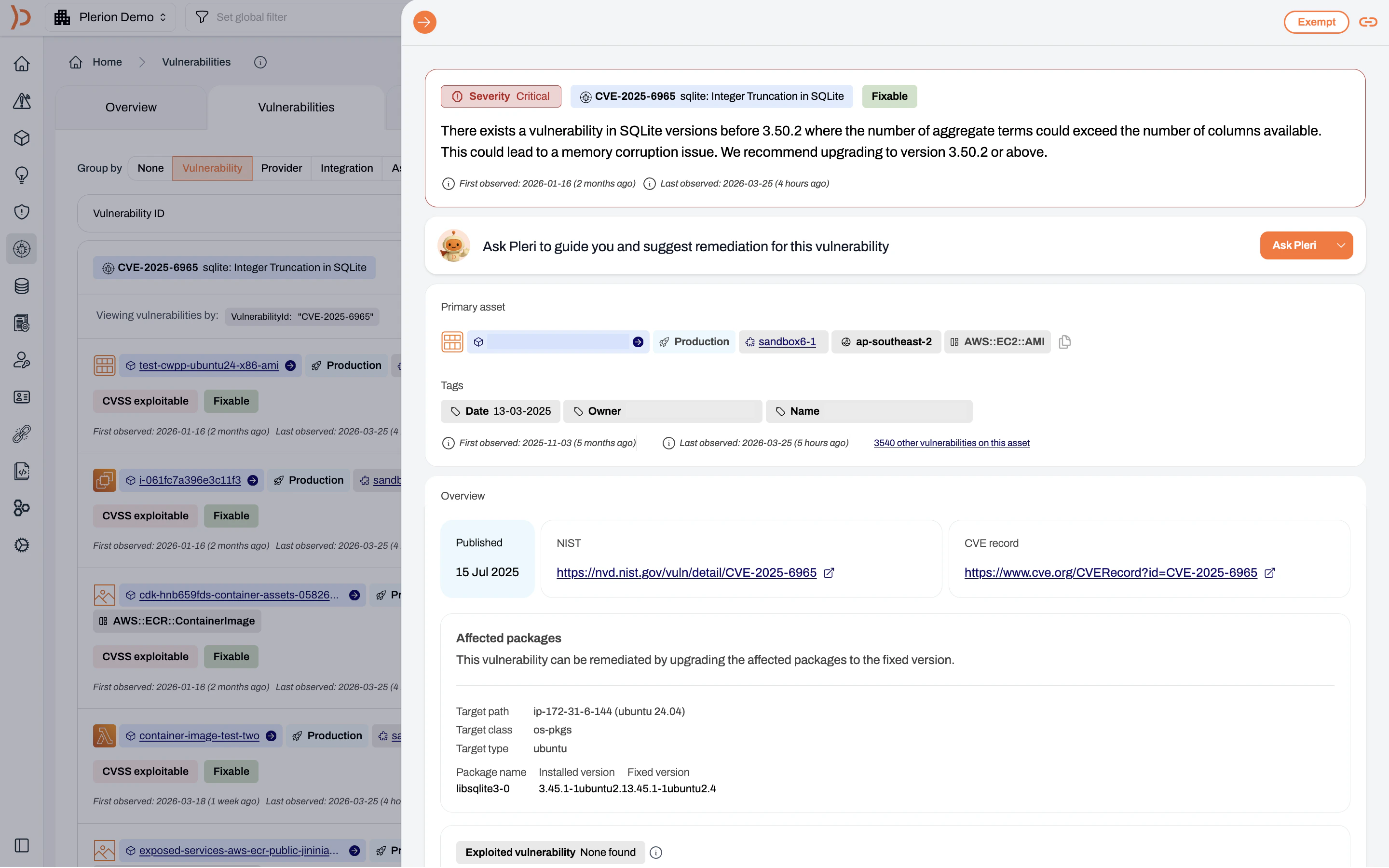
Click `View` on any vulnerability to open a detailed side panel with full context:
* **Severity and status**
The CVE ID, description, severity level (Critical, High, Medium, or Low), and whether a vendor fix is available (**Fixable** badge). First and last observed dates are also shown.
* **Remediation guidance with Pleri**
Click `Ask Pleri` to get step-by-step remediation guidance and suggestions tailored to the vulnerability and affected asset
* **Primary asset**
The affected resource, including the asset name, environment, asset group, region, and resource type (e.g., AWS::EC2::AMI, AWS::ECR::ContainerImage).
* **Tags**
Metadata associated with the asset, such as date, owner, and name.
* **Overview**
The published date, links to the NIST National Vulnerability Database entry and the CVE record.
* **Affected packages**
Details about the vulnerable package, including:
* **Target path**: The scan target (e.g., ip-172-31-6-144 (ubuntu 24.04))
* **Target class**: The package class (e.g., os-pkgs)
* **Target type**: The package ecosystem (e.g., ubuntu)
* **Package name**: The affected package
* **Installed version**: The currently installed version
* **Fixed version**: The version that resolves the vulnerability
* **Exploited vulnerability**
Indicates whether the vulnerability is known to be exploited in the wild.
### Filtering
Use the filter panel on the right to narrow results by:
* **Asset**: Search by asset name
* **Vulnerability ID**: Search by CVE ID
* **Package name**: Filter by affected package
* **Target type**: Filter by package ecosystem
* **Environment**: Production or Non-production
* **Exploited vulnerability**: Whether the vulnerability is known to be exploited in the wild
* **Exploit exists**: Whether a public exploit exists
* **CVSS exploitable**: Whether the vulnerability is CVSS exploitable
* **Severity**: Critical, High, Medium, or Low
* **Integration**: Your connected cloud environments
* **Asset group**: Asset groups you have created
* **Has vendor fix**: Whether a fixed version is available from the vendor
* **Asset context**: e.g., publicly exposed
* **Target class**: e.g., os-pkgs, lang-pkgs
* **Region**: Cloud provider regions
* **Tags**: Filter by tag key and value
### Download
Click the download icon at the top right of the vulnerabilities list to export results as a CSV file.
### Actions per vulnerability
Each vulnerability row includes action buttons:
* `Exempt`: Open the exemption modal for this specific vulnerability and asset
* `View`: Open the vulnerability detail panel
* `Analyze exploitability`: Ask Pleri to assess whether this vulnerability is exploitable in your specific environment
***
## Vulnerability details
Click `View` on any vulnerability to open a detailed side panel with full context:
* **Severity and status**
The CVE ID, description, severity level (Critical, High, Medium, or Low), and whether a vendor fix is available (**Fixable** badge). First and last observed dates are also shown.
* **Remediation guidance with Pleri**
Click `Ask Pleri` to get step-by-step remediation guidance and suggestions tailored to the vulnerability and affected asset
* **Primary asset**
The affected resource, including the asset name, environment, asset group, region, and resource type (e.g., AWS::EC2::AMI, AWS::ECR::ContainerImage).
* **Tags**
Metadata associated with the asset, such as date, owner, and name.
* **Overview**
The published date, links to the NIST National Vulnerability Database entry and the CVE record.
* **Affected packages**
Details about the vulnerable package, including:
* **Target path**: The scan target (e.g., ip-172-31-6-144 (ubuntu 24.04))
* **Target class**: The package class (e.g., os-pkgs)
* **Target type**: The package ecosystem (e.g., ubuntu)
* **Package name**: The affected package
* **Installed version**: The currently installed version
* **Fixed version**: The version that resolves the vulnerability
* **Exploited vulnerability**
Indicates whether the vulnerability is known to be exploited in the wild.
 ***
## Exemptions tab
The [Exemptions tab](https://app.plerion.com/vulnerabilities/exemptions?groupBy=vulnerabilityId) displays all vulnerabilities that have been exempted, whether individually or through exemption rules. Use this tab to review, manage, and audit your exemptions.
***
## Exempting vulnerabilities
You can exempt vulnerabilities that are acceptable risks, mitigated by compensating controls, have no vendor fix available, or are not in use.
Your asset risk score may change after the next scan due to an exemption.
### Exempting an individual vulnerability
Click the `Exempt` button on the row for the specific vulnerability and asset combination. This opens the **Exempt vulnerability** modal.
***
## Exemptions tab
The [Exemptions tab](https://app.plerion.com/vulnerabilities/exemptions?groupBy=vulnerabilityId) displays all vulnerabilities that have been exempted, whether individually or through exemption rules. Use this tab to review, manage, and audit your exemptions.
***
## Exempting vulnerabilities
You can exempt vulnerabilities that are acceptable risks, mitigated by compensating controls, have no vendor fix available, or are not in use.
Your asset risk score may change after the next scan due to an exemption.
### Exempting an individual vulnerability
Click the `Exempt` button on the row for the specific vulnerability and asset combination. This opens the **Exempt vulnerability** modal.
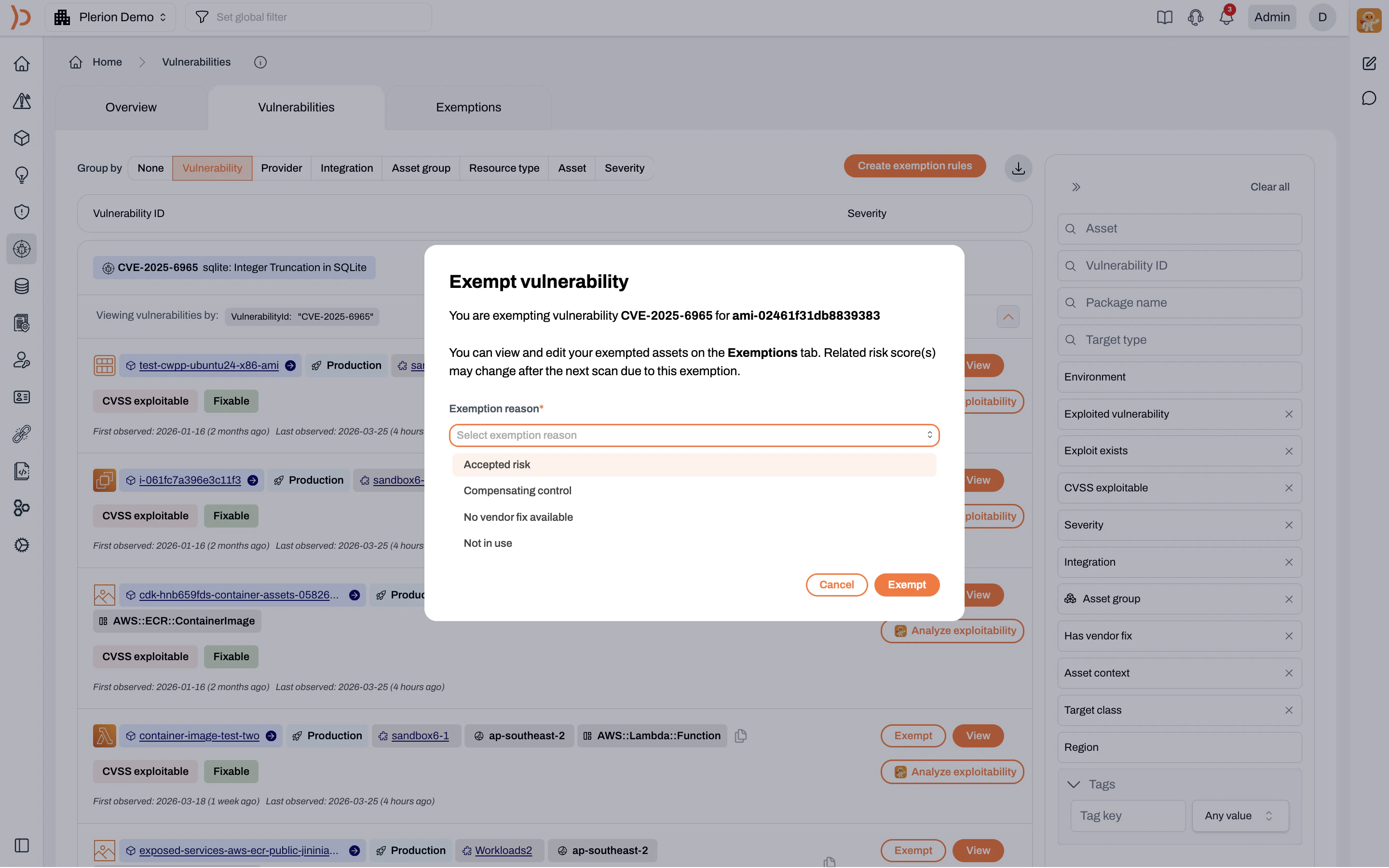 Use the **Exemption reason** dropdown to select one of the following:
* **Accepted risk**: The vulnerability has been reviewed and the risk is accepted
* **Compensating control**: Other controls mitigate the risk
* **No vendor fix available**: No patch or update is available from the vendor
* **Not in use**: The affected package or component is not actively used
Click `Exempt` to confirm. The exemption takes effect after the next scan.
* You can view and manage exempted vulnerabilities on the **Exemptions** tab.
* Related risk scores may change after the next scan due to this exemption.
### Creating exemption rules
For recurring exemptions, you can create exemption rules at the profile level. These rules automatically exempt any vulnerability that matches the defined conditions, so you don't need to exempt each occurrence individually.
On the **Vulnerabilities** tab, click the `Create exemption rules` button in the top right. This takes you to the profile's **Vulnerability exemptions** tab where you can define rules.
Use the **Exemption reason** dropdown to select one of the following:
* **Accepted risk**: The vulnerability has been reviewed and the risk is accepted
* **Compensating control**: Other controls mitigate the risk
* **No vendor fix available**: No patch or update is available from the vendor
* **Not in use**: The affected package or component is not actively used
Click `Exempt` to confirm. The exemption takes effect after the next scan.
* You can view and manage exempted vulnerabilities on the **Exemptions** tab.
* Related risk scores may change after the next scan due to this exemption.
### Creating exemption rules
For recurring exemptions, you can create exemption rules at the profile level. These rules automatically exempt any vulnerability that matches the defined conditions, so you don't need to exempt each occurrence individually.
On the **Vulnerabilities** tab, click the `Create exemption rules` button in the top right. This takes you to the profile's **Vulnerability exemptions** tab where you can define rules.
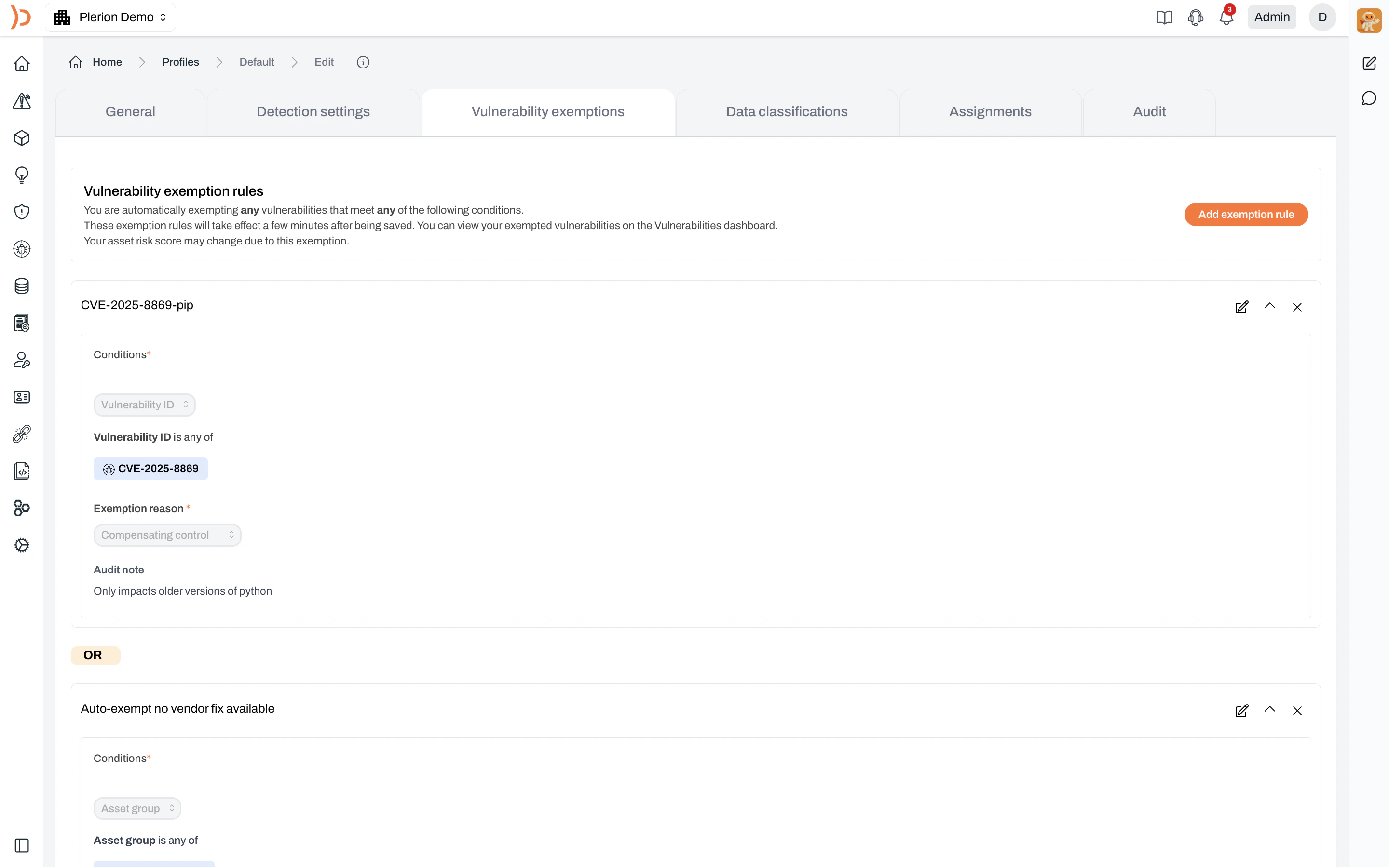 Click the `Add exemption rule` button in the top right to create a new rule.
Each rule requires:
* **Conditions** — Define which vulnerabilities match. Available condition types include:
* Asset group
* Asset name/ID
* Asset region
* Asset tag
* Exploit exists
* Exploited vulnerability
* No vendor fix
* Vulnerability ID
* **Exemption reason** — Select from **Accepted risk**, **Compensating control**, **No vendor fix available**, **Not in use** or **Other reasons**
* **Audit note** — A short explanation for audit purposes
Give the rule a descriptive name (e.g., "CVE-2025-8869-pip" or "Auto-exempt no vendor fix available") to make it easy to identify later.
Multiple exemption rules within a profile are connected with **OR** logic — a vulnerability is exempted if it matches any of the defined rules. Exemption rules take effect a few minutes after being saved.
Profile-based exemption rules apply automatically to all vulnerabilities matching the conditions. Your asset risk score may change due to these exemptions.
Click the `Add exemption rule` button in the top right to create a new rule.
Each rule requires:
* **Conditions** — Define which vulnerabilities match. Available condition types include:
* Asset group
* Asset name/ID
* Asset region
* Asset tag
* Exploit exists
* Exploited vulnerability
* No vendor fix
* Vulnerability ID
* **Exemption reason** — Select from **Accepted risk**, **Compensating control**, **No vendor fix available**, **Not in use** or **Other reasons**
* **Audit note** — A short explanation for audit purposes
Give the rule a descriptive name (e.g., "CVE-2025-8869-pip" or "Auto-exempt no vendor fix available") to make it easy to identify later.
Multiple exemption rules within a profile are connected with **OR** logic — a vulnerability is exempted if it matches any of the defined rules. Exemption rules take effect a few minutes after being saved.
Profile-based exemption rules apply automatically to all vulnerabilities matching the conditions. Your asset risk score may change due to these exemptions.