> ## Documentation Index
> Fetch the complete documentation index at: https://docs.plerion.com/llms.txt
> Use this file to discover all available pages before exploring further.
# Trusted principals
> Manage the external principals you trust so Plerion stops flagging their grants
With **[trusted principals](https://app.plerion.com/settings/profiles)**, you can record which external principals are expected to have access to your environment. Once a principal is trusted, its grants show as `Trusted` in the [resource access grants](/guides/platform/resource-access-grants/overview) inventory and no longer raise [untrusted external access findings](/guides/platform/resource-access-grants/findings).
A **trusted principal** is an external principal you have confirmed is expected to have access. It can be an AWS account, an IAM role or user, or a federated identity such as a GitHub OpenID Connect (OIDC) organization or a Security Assertion Markup Language (SAML) provider.
***
## Where to manage trusted principals
Trusted principals are configured per detection profile, so different parts of your estate can apply different trust decisions.
Go to `Settings` > `Profiles` and select the profile you want to edit.
Open the **Trusted principals** tab to see and edit the principals trusted by that profile.
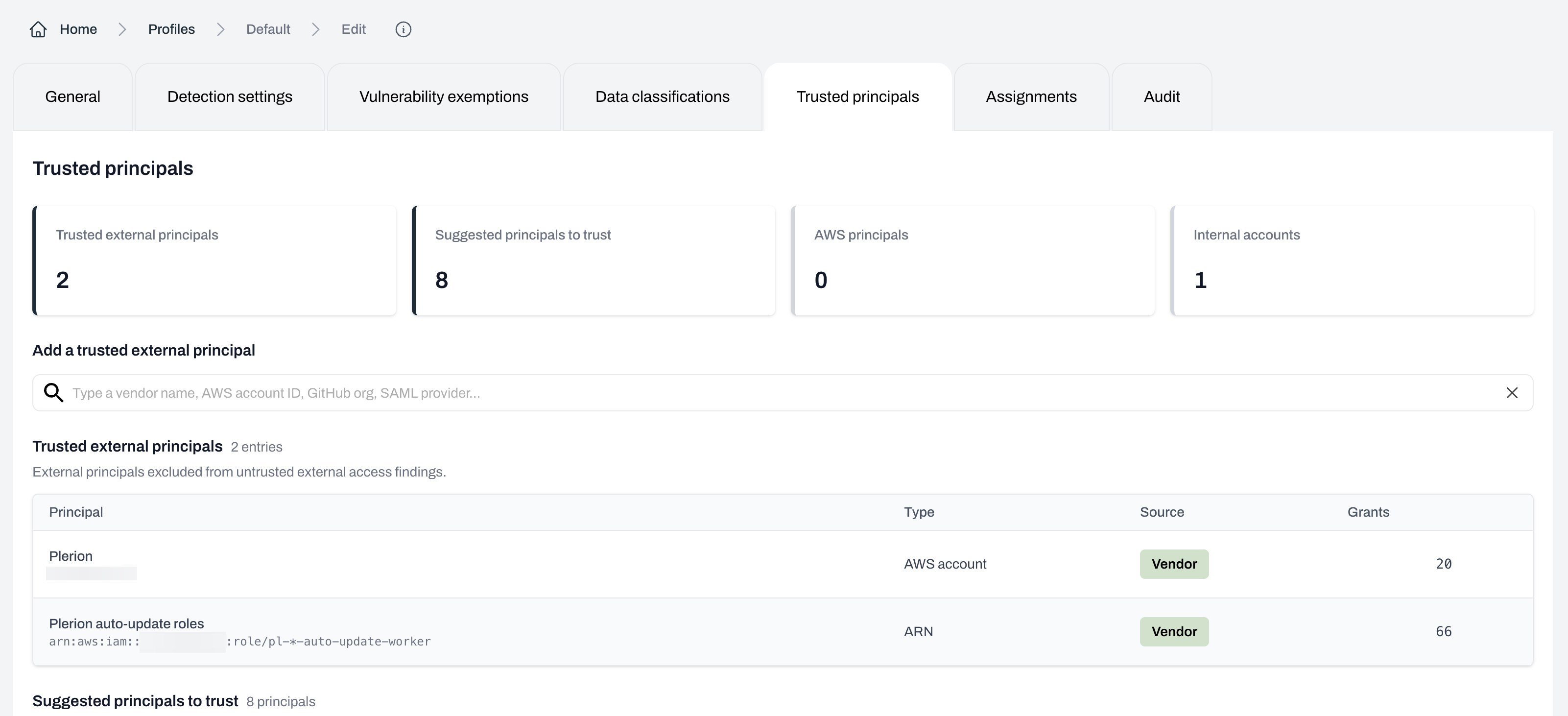 A profile can inherit trusted principals from the default profile. When it does, the table notes how many entries are inherited and from which profile. Only **Organization Admins** and **Tenant Admins** can add or remove principals.
***
## What the tab shows
The tab opens with four summary tiles: **Trusted external principals**, **Suggested principals to trust**, **AWS principals**, and **Internal accounts**.
The **Trusted external principals** table lists the principals this profile trusts. The help text states that these are *"External principals excluded from untrusted external access findings."* Each row shows:
| Column | Description |
| ------------- | --------------------------------------------------------------------------------------------------------------------------------- |
| **Principal** | The principal name and its identifier, such as an AWS account ID, an Amazon Resource Name (ARN), or an OIDC subject and audience. |
| **Type** | `AWS account`, `ARN`, `OIDC`, or `SAML`. |
| **Source** | How the entry was added: `Vendor`, `Manual`, `Cross-account`, `OIDC org`, or `Workforce IdP`. |
| **Grants** | How many active access grants currently match this principal. |
| **Actions** | A `Remove` button on entries you can edit. |
***
## Adding a trusted principal
Use the **Add a trusted external principal** field to search for and add a principal. The field accepts several formats, shown by its placeholder: *"Type a vendor name, AWS account ID, GitHub org, SAML provider…"*
* **A known vendor**: Start typing a software-as-a-service (SaaS) vendor name, such as `Datadog`, and select it from the catalog. Plerion fills in the vendor's AWS account ID for you.
* **An AWS account ID**: Type a 12-digit account ID and select **Add AWS account**.
* **An IAM ARN**: Type a role or user ARN and select **Add ARN**. Wildcards (`*`) are supported, so you can trust a family of roles, for example `arn:aws:iam::123456789012:role/pl-*-auto-update-worker`.
* **A federated identity**: Type the provider shorthand and select the suggestion. Plerion recognizes GitHub, GitLab, Buildkite, HCP Terraform, CircleCI, and Bitbucket, for example `github.com/myorg` or `gitlab.com/mygroup/myproject`.
A profile can inherit trusted principals from the default profile. When it does, the table notes how many entries are inherited and from which profile. Only **Organization Admins** and **Tenant Admins** can add or remove principals.
***
## What the tab shows
The tab opens with four summary tiles: **Trusted external principals**, **Suggested principals to trust**, **AWS principals**, and **Internal accounts**.
The **Trusted external principals** table lists the principals this profile trusts. The help text states that these are *"External principals excluded from untrusted external access findings."* Each row shows:
| Column | Description |
| ------------- | --------------------------------------------------------------------------------------------------------------------------------- |
| **Principal** | The principal name and its identifier, such as an AWS account ID, an Amazon Resource Name (ARN), or an OIDC subject and audience. |
| **Type** | `AWS account`, `ARN`, `OIDC`, or `SAML`. |
| **Source** | How the entry was added: `Vendor`, `Manual`, `Cross-account`, `OIDC org`, or `Workforce IdP`. |
| **Grants** | How many active access grants currently match this principal. |
| **Actions** | A `Remove` button on entries you can edit. |
***
## Adding a trusted principal
Use the **Add a trusted external principal** field to search for and add a principal. The field accepts several formats, shown by its placeholder: *"Type a vendor name, AWS account ID, GitHub org, SAML provider…"*
* **A known vendor**: Start typing a software-as-a-service (SaaS) vendor name, such as `Datadog`, and select it from the catalog. Plerion fills in the vendor's AWS account ID for you.
* **An AWS account ID**: Type a 12-digit account ID and select **Add AWS account**.
* **An IAM ARN**: Type a role or user ARN and select **Add ARN**. Wildcards (`*`) are supported, so you can trust a family of roles, for example `arn:aws:iam::123456789012:role/pl-*-auto-update-worker`.
* **A federated identity**: Type the provider shorthand and select the suggestion. Plerion recognizes GitHub, GitLab, Buildkite, HCP Terraform, CircleCI, and Bitbucket, for example `github.com/myorg` or `gitlab.com/mygroup/myproject`.
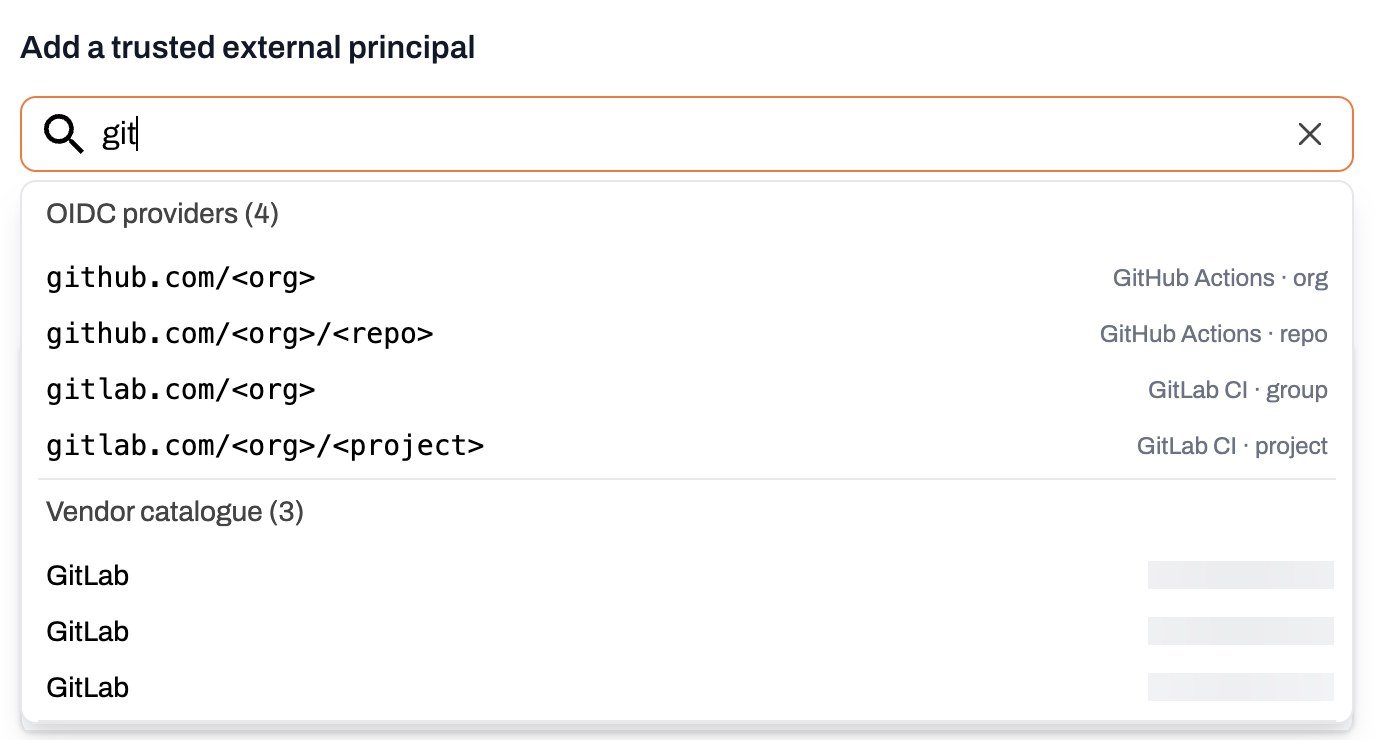 Freeform text that does not match a vendor, account ID, ARN, or recognized provider is not added. Select a suggestion or use one of the formats above.
***
## Suggested principals
The **Suggested principals to trust** table lists *"External principals that have already been granted access multiple times and may be candidates to trust."* For each suggestion you see the principal, its type, how many accounts it has access in, and its total number of grants.
Select **Add** next to a suggestion to move it into your trusted principals list. The button changes to **Added** once selected.
***
## Implicitly trusted principals
Two groups are always trusted and cannot be edited:
* **AWS principals**: *"AWS-owned service principals (\*.amazonaws.com). Implicitly trusted and cannot be edited."*
* **Internal accounts**: *"AWS accounts in your Organization or integrated with Plerion. Implicitly trusted and cannot be edited."*
Expand either section to review what Plerion has classified this way.
***
## Removing a trusted principal
Select **Remove** on the principal's row in the **Trusted external principals** table. Inherited and implicitly trusted entries cannot be removed.
Changes to trusted principals are not saved until you select **Update** at the bottom of the profile. After you save, classifications and findings update on the next scan.
***
## Related pages
* [Resource access grants](/guides/platform/resource-access-grants/overview): The inventory of every grant to a principal.
* [External access](/guides/platform/resource-access-grants/external-access): The grants that reach outside your organization.
* [Untrusted external access findings](/guides/platform/resource-access-grants/findings): What happens to external grants that are not yet trusted.
Freeform text that does not match a vendor, account ID, ARN, or recognized provider is not added. Select a suggestion or use one of the formats above.
***
## Suggested principals
The **Suggested principals to trust** table lists *"External principals that have already been granted access multiple times and may be candidates to trust."* For each suggestion you see the principal, its type, how many accounts it has access in, and its total number of grants.
Select **Add** next to a suggestion to move it into your trusted principals list. The button changes to **Added** once selected.
***
## Implicitly trusted principals
Two groups are always trusted and cannot be edited:
* **AWS principals**: *"AWS-owned service principals (\*.amazonaws.com). Implicitly trusted and cannot be edited."*
* **Internal accounts**: *"AWS accounts in your Organization or integrated with Plerion. Implicitly trusted and cannot be edited."*
Expand either section to review what Plerion has classified this way.
***
## Removing a trusted principal
Select **Remove** on the principal's row in the **Trusted external principals** table. Inherited and implicitly trusted entries cannot be removed.
Changes to trusted principals are not saved until you select **Update** at the bottom of the profile. After you save, classifications and findings update on the next scan.
***
## Related pages
* [Resource access grants](/guides/platform/resource-access-grants/overview): The inventory of every grant to a principal.
* [External access](/guides/platform/resource-access-grants/external-access): The grants that reach outside your organization.
* [Untrusted external access findings](/guides/platform/resource-access-grants/findings): What happens to external grants that are not yet trusted.