> ## Documentation Index
> Fetch the complete documentation index at: https://docs.plerion.com/llms.txt
> Use this file to discover all available pages before exploring further.
# Integration groups
> Group AWS account integrations by their AWS Organizations account tags and filter by group
With **[Integration groups](https://app.plerion.com/settings/integration-groups)**, you can group integrations whose cloud accounts share a tag, and filter by group instead of selecting accounts one by one.
***
## How integration groups work
An integration group is a set of integrations whose cloud accounts share a tag. Select a tag key, and each of its values becomes a group. For example, the key `Division` collects accounts tagged `Division=payments` into the group **Division:payments**.
Group membership is derived from your account tags:
* Plerion reads account tags when your management account or delegated administrator integration is scanned, and updates group membership automatically.
* Newly onboarded integrations join their groups shortly after registration.
* Plerion recalculates every group at least once a day.
* Matching is case-sensitive: `BusinessUnit:dev` and `BusinessUnit:Dev` are different groups.
Groups are built from the tags on AWS **accounts** in AWS Organizations, not from tags on resources.
***
## Prerequisites
* An integration that can read your AWS organization: your management account, or a member account granted read access by a delegation policy. See [Delegate AWS Organizations read access to a member account](/guides/integrations/aws/additional-aws-configurations/organizations-delegated-administrator).
* The **Organization Admin** role, to configure integration groups.
***
## Steps to select tag keys
The page lists the tag keys collected from your AWS accounts and the groups your current selection produces.
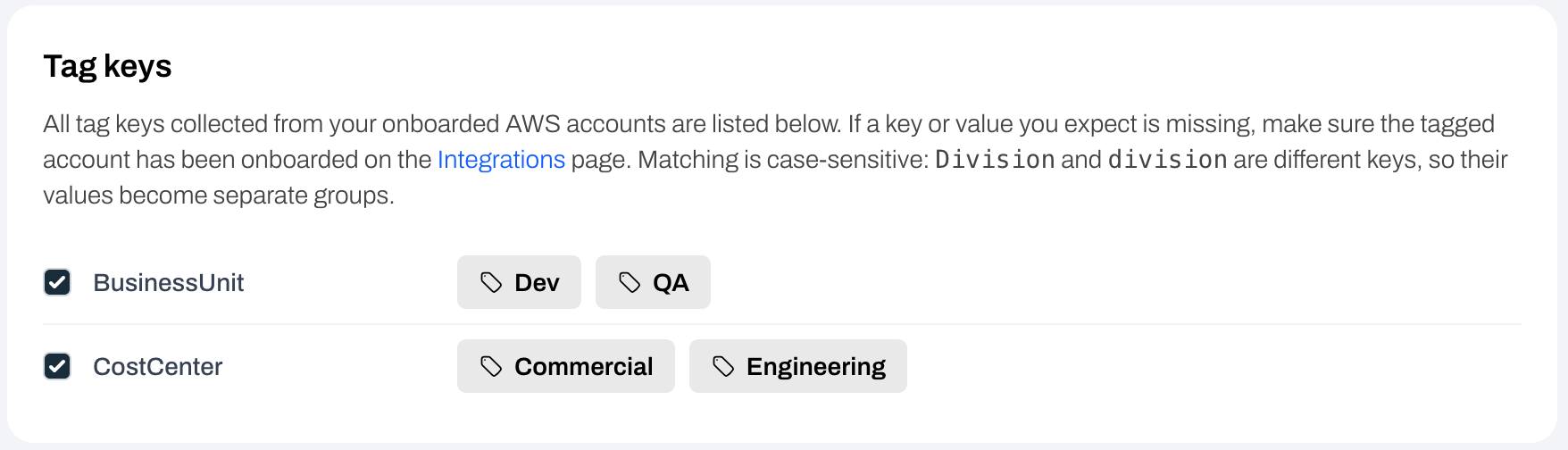
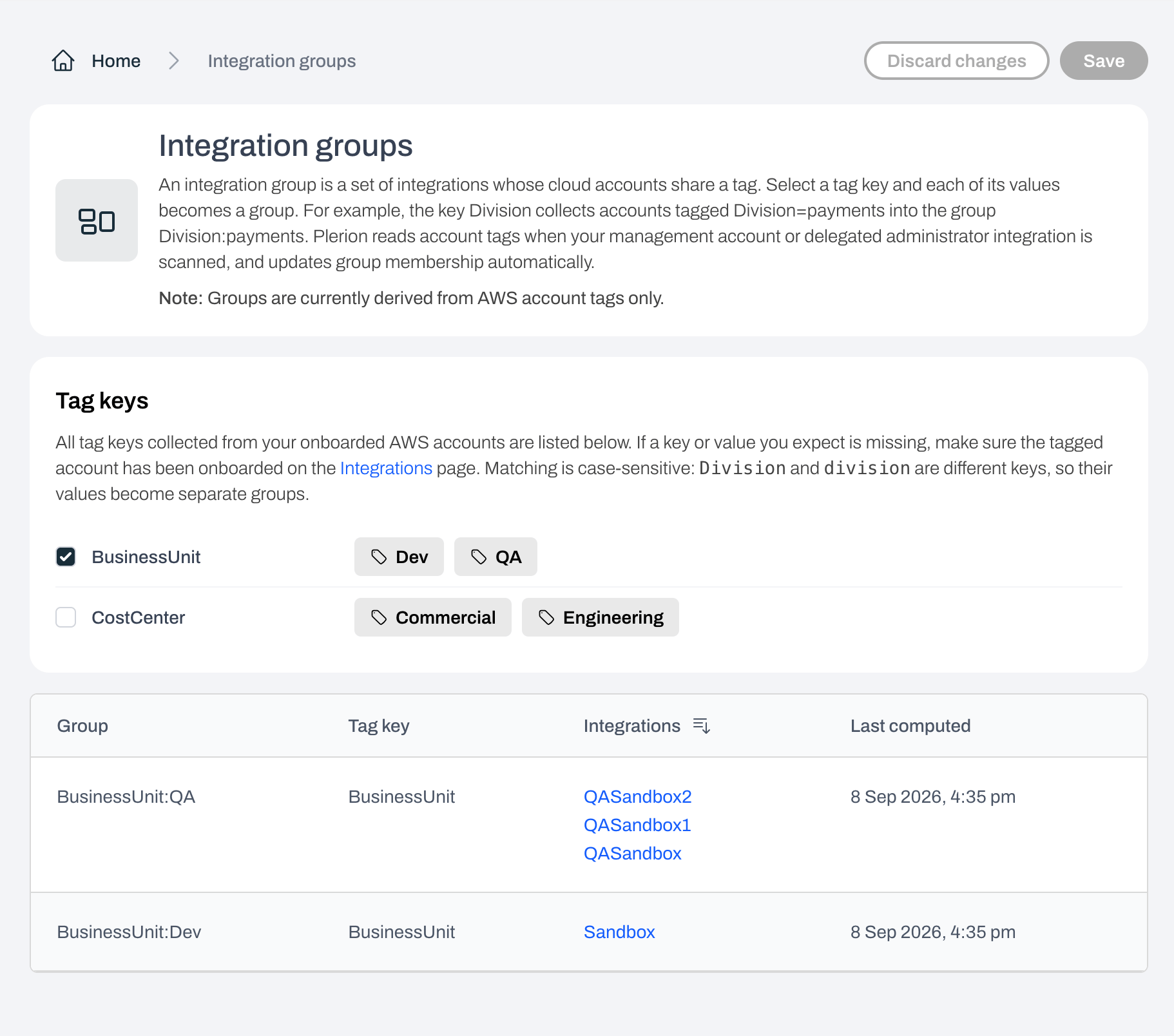 The **Tag keys** card lists every tag key collected from your onboarded AWS accounts, with the values found for each key. Check each key you want to group by, and each of its values becomes a group. You can select up to 20 keys.
If a key or value you expect is missing, make sure the tagged account has been onboarded on the **Integrations** page.
The **Tag keys** card lists every tag key collected from your onboarded AWS accounts, with the values found for each key. Check each key you want to group by, and each of its values becomes a group. You can select up to 20 keys.
If a key or value you expect is missing, make sure the tagged account has been onboarded on the **Integrations** page.
 While you have unsaved edits, the page shows an **Unsaved changes** chip, and **Discard changes** returns to the saved selection. On save, Plerion confirms with **Tag keys saved. Groups are updating now.** The groups table refreshes within a few seconds as the recalculation completes.
The groups table shows each group's tag key and value, the integrations it contains, and when it was last computed. Integration names link to their settings pages.
***
## Removing a tag key
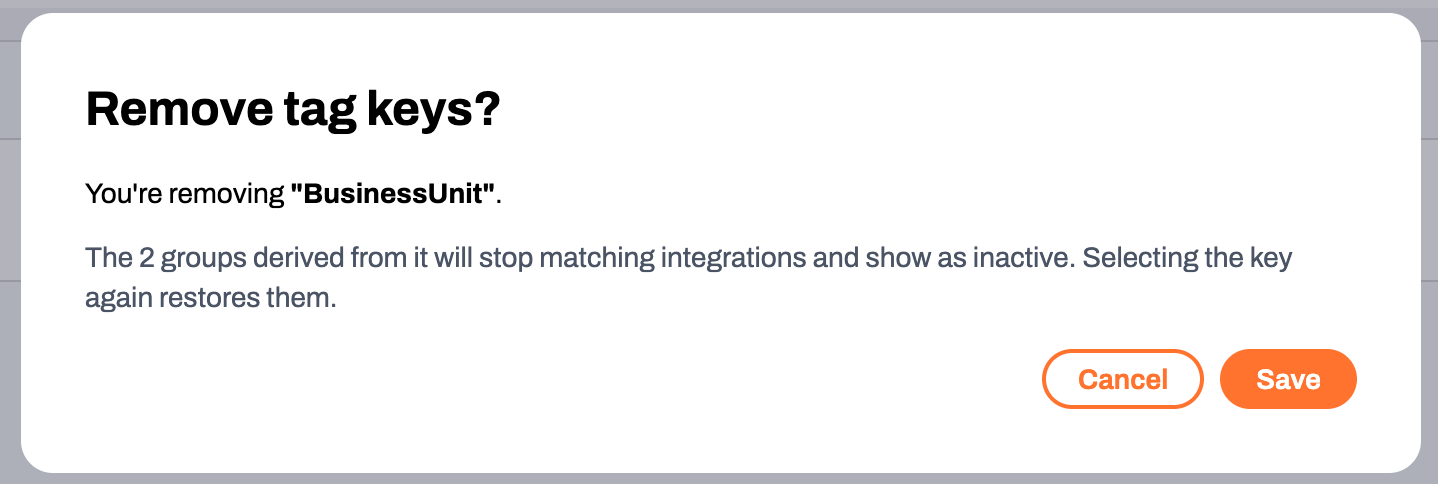
Deselecting a key and clicking `Save` opens the **Remove tag keys?** confirmation. The groups derived from that key stop matching integrations and show as **Inactive**. Reselecting the key restores them.
While you have unsaved edits, the page shows an **Unsaved changes** chip, and **Discard changes** returns to the saved selection. On save, Plerion confirms with **Tag keys saved. Groups are updating now.** The groups table refreshes within a few seconds as the recalculation completes.
The groups table shows each group's tag key and value, the integrations it contains, and when it was last computed. Integration names link to their settings pages.
***
## Removing a tag key
Deselecting a key and clicking `Save` opens the **Remove tag keys?** confirmation. The groups derived from that key stop matching integrations and show as **Inactive**. Reselecting the key restores them.
 ***
## Filter by integration group
The **Integration group** filter narrows results to the integrations currently in the group. It is available on:
* **Findings**, **Assets**, **Vulnerabilities**, and **Alerts**
* **Top risks**, **Compliance**, and **Data security**
* Findings, alerts, and vulnerability widgets in **Custom reports**
* Finding, asset, and vulnerability conditions in **Workflows**
On the **homepage dashboard**, pick an integration group in the global filter to scope every widget to the group.
***
## Filter by integration group
The **Integration group** filter narrows results to the integrations currently in the group. It is available on:
* **Findings**, **Assets**, **Vulnerabilities**, and **Alerts**
* **Top risks**, **Compliance**, and **Data security**
* Findings, alerts, and vulnerability widgets in **Custom reports**
* Finding, asset, and vulnerability conditions in **Workflows**
On the **homepage dashboard**, pick an integration group in the global filter to scope every widget to the group.