> ## Documentation Index
> Fetch the complete documentation index at: https://docs.plerion.com/llms.txt
> Use this file to discover all available pages before exploring further.
# Environment classification
> Use environment classifications to label your cloud integrations as Production or Non-production and filter data across Plerion.
With the Environment classification, you can quickly focus on the integrations and risks that matter most by separating your **Production** and **Non-production** environments across Plerion.
***
## How Plerion uses environment classifications
Environment classifications help you organize and filter data across Plerion. Cloud integrations such as **AWS accounts**, **GCP projects**, and **Microsoft Entra tenants** can be assigned to an environment.
If no classification is set, the integration remains unclassified.
You can use environments to:
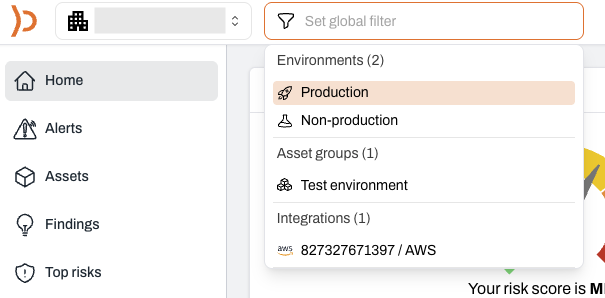
* Filter the **homepage dashboard**
* Filter **assets**, **findings**, and **vulnerabilities**
* [Build workflows](/guides/platform/workflows) using the **Environment** filter
***
## Setting the environment for your cloud integrations
You can assign environments to your cloud integrations from the dedicated [Environments page](https://au.app.plerion.com/environments).
This page provides a centralized view of all connected cloud integrations and lets you to manage environment classifications in one place.
Open the [Environments page](https://app.plerion.com/environments) in Plerion.
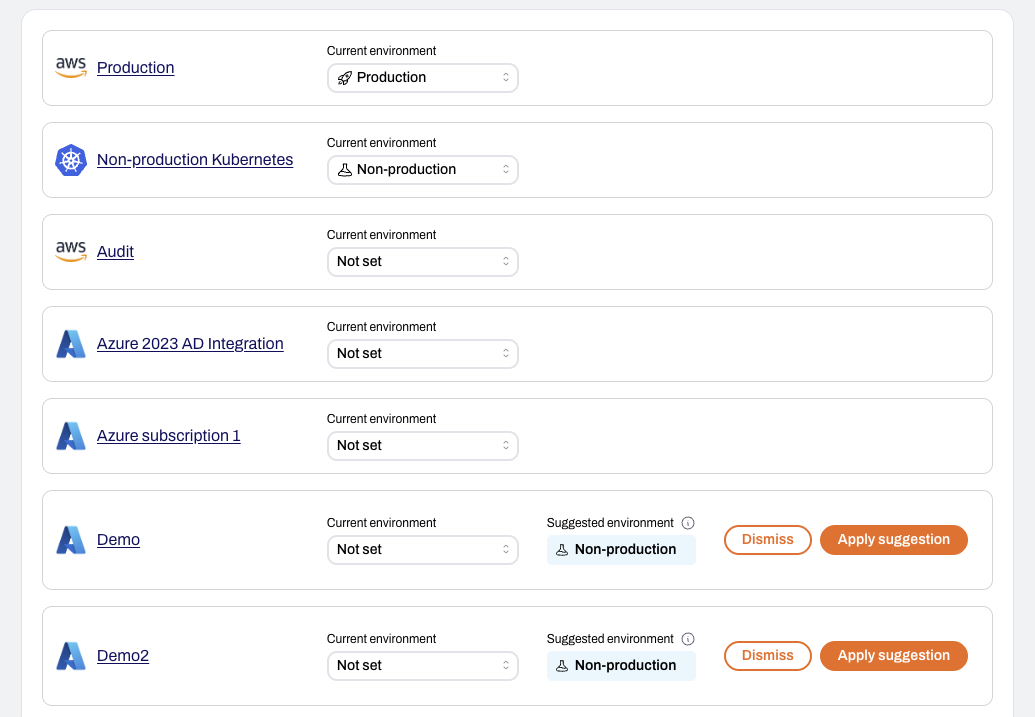 The page lists all connected cloud integrations (including **AWS accounts**, **GCP projects**, **Microsoft Entra tenants**, and **Kubernetes clusters**) along with their current environment status.
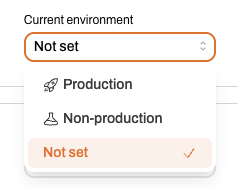
Use the dropdown next to each integration to classify it as **Production**, **Non-production**, or **Not set**.
The page lists all connected cloud integrations (including **AWS accounts**, **GCP projects**, **Microsoft Entra tenants**, and **Kubernetes clusters**) along with their current environment status.
Use the dropdown next to each integration to classify it as **Production**, **Non-production**, or **Not set**.
 If Plerion has high confidence in an integration’s environment, it will suggest a classification.
* Click `Apply suggestion` to accept the recommendation
* Click `Dismiss` to ignore it
Hover over the tooltip next to the suggested environment to see why the suggestion was made, such as signals from account names or tags.
If Plerion has high confidence in an integration’s environment, it will suggest a classification.
* Click `Apply suggestion` to accept the recommendation
* Click `Dismiss` to ignore it
Hover over the tooltip next to the suggested environment to see why the suggestion was made, such as signals from account names or tags.
 ***
You can also assign an environment directly from an individual integration’s page.
***
You can also assign an environment directly from an individual integration’s page.
 Set the integration to **Production** or **Non-production**.
 ***
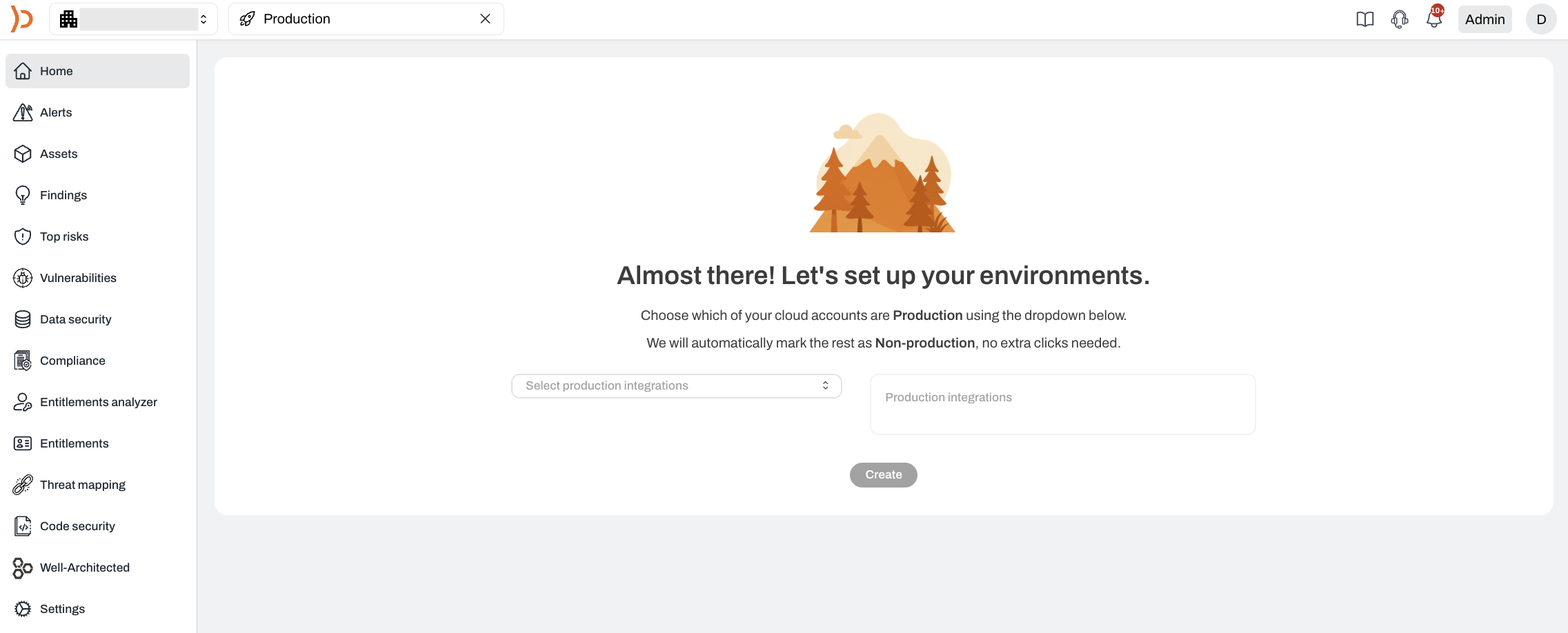
You can also assign environments from the homepage dashboard when no integrations have been classified.
***
You can also assign environments from the homepage dashboard when no integrations have been classified.
 Select the integrations you want to classify as **Production** or **Non-production**.\
Plerion will take a moment to apply these classifications. Once complete, the homepage dashboard will refresh automatically and show the updated Environment filter.
Select the integrations you want to classify as **Production** or **Non-production**.\
Plerion will take a moment to apply these classifications. Once complete, the homepage dashboard will refresh automatically and show the updated Environment filter.