> ## Documentation Index
> Fetch the complete documentation index at: https://docs.plerion.com/llms.txt
> Use this file to discover all available pages before exploring further.
# Entitlements analyzer
> Use Plerion's Entitlements analyzer to gain insights into cloud access permissions and answer the critical question of who has access to what.
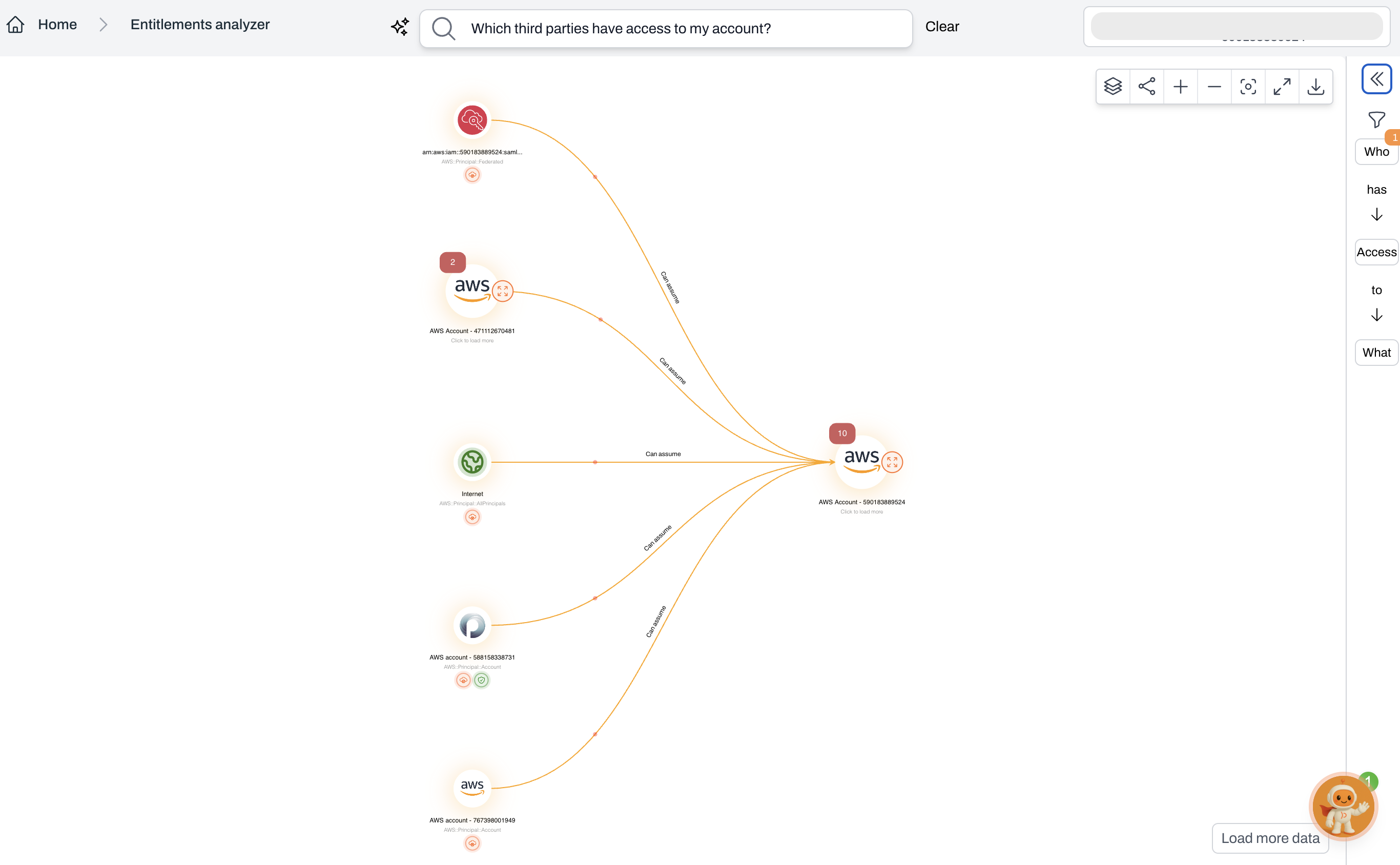
With the [Entitlements analyzer](https://app.plerion.com/entitlements/analyzer), you can analyze and visualize cloud access permissions, highlight sensitive IAM actions, and uncover excessive or risky privileges. This helps you identify potential security gaps and maintain least-privilege access across your environments.
 ***
## AWS access levels
AWS groups IAM actions into five categories:
* **List**: Actions that let you view a list of resources (for example, list all S3 buckets).
* **Read**: Actions that let you view details of individual resources (for example, read objects in a bucket).
* **Tagging**: Actions that let you add, change, or remove tags on resources.
* **Write**: Actions that let you create, update, or delete resources (for example, launch or terminate an EC2 instance).
* **Permissions management**: Actions that let you grant or change access for others (for example, attach a policy to a user or role).
For each category, IAM shows whether the policy provides **Full** (all actions allowed) or **Limited** (only some actions allowed) permissions.
See the [AWS documentation](https://docs.aws.amazon.com/IAM/latest/UserGuide/access_policies_understand-policy-summary-access-level-summaries.html) for more details.
***
## Plerion classifications
Plerion classifications are custom categories for identifying sensitive IAM actions. They provide structure for assessing and managing potential risk:
* **Credential exposure**
* **Data access**
* **Privilege escalation**
* **Resource exposure**
***
## Filters
Use filters to refine results by:
* **User**: Show permissions for a specific identity
* **Role**: Investigate assumed role paths
* **Action**: Highlight sensitive or high-risk operations
* **Resource type**: Narrow the graph to resources like S3 buckets or EC2 instances
***
## AWS access levels
AWS groups IAM actions into five categories:
* **List**: Actions that let you view a list of resources (for example, list all S3 buckets).
* **Read**: Actions that let you view details of individual resources (for example, read objects in a bucket).
* **Tagging**: Actions that let you add, change, or remove tags on resources.
* **Write**: Actions that let you create, update, or delete resources (for example, launch or terminate an EC2 instance).
* **Permissions management**: Actions that let you grant or change access for others (for example, attach a policy to a user or role).
For each category, IAM shows whether the policy provides **Full** (all actions allowed) or **Limited** (only some actions allowed) permissions.
See the [AWS documentation](https://docs.aws.amazon.com/IAM/latest/UserGuide/access_policies_understand-policy-summary-access-level-summaries.html) for more details.
***
## Plerion classifications
Plerion classifications are custom categories for identifying sensitive IAM actions. They provide structure for assessing and managing potential risk:
* **Credential exposure**
* **Data access**
* **Privilege escalation**
* **Resource exposure**
***
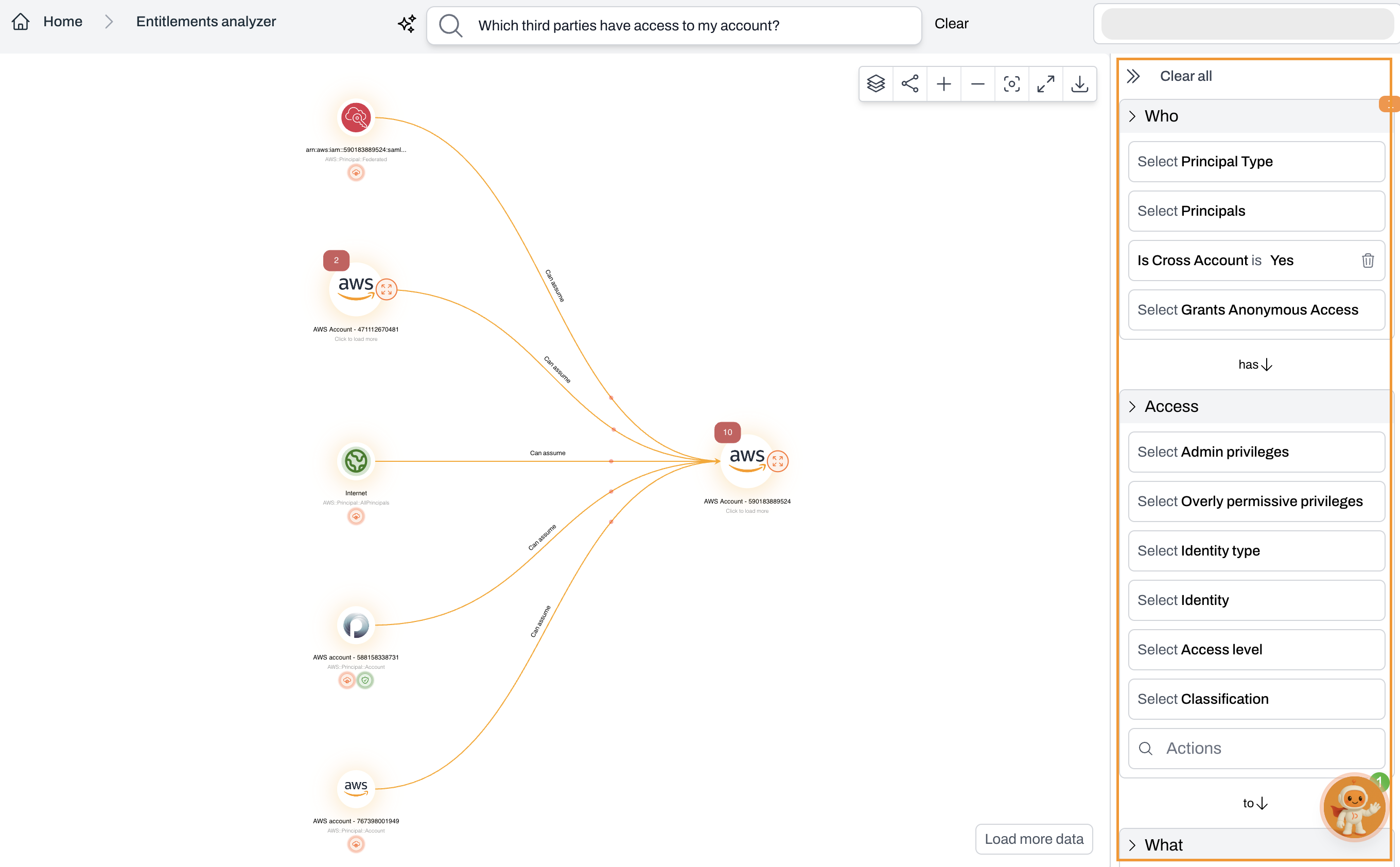
## Filters
Use filters to refine results by:
* **User**: Show permissions for a specific identity
* **Role**: Investigate assumed role paths
* **Action**: Highlight sensitive or high-risk operations
* **Resource type**: Narrow the graph to resources like S3 buckets or EC2 instances
 ***
## Data loading
Entitlement data loads progressively until all results are displayed or the 10,000-relationship limit is reached.
***
## Related pages
* [Coverage](/guides/platform/entitlements-analyzer/coverage): Full scope of what the Entitlements analyzer supports.
***
## Data loading
Entitlement data loads progressively until all results are displayed or the 10,000-relationship limit is reached.
***
## Related pages
* [Coverage](/guides/platform/entitlements-analyzer/coverage): Full scope of what the Entitlements analyzer supports.