> ## Documentation Index
> Fetch the complete documentation index at: https://docs.plerion.com/llms.txt
> Use this file to discover all available pages before exploring further.
# Workload scanning policy
> Configure workload scan frequencies across environments and exposure levels to align scanning with operational needs.
With the [Workload scanning policy](https://app.plerion.com/settings/workload-scanning-policy), you can define how often Plerion scans different categories of cloud workloads, ensuring each receives the appropriate level of security coverage.
***
## Overview
The Workload scanning policy controls the scan frequency for cloud workloads across a tenant. It applies to any integration where workload scanning is enabled, and where workloads and regions are configured.
The policy supports three modes:
* **Daily:** Applies daily scanning to all workload categories.
* **Recommended:** Applies Plerion’s suggested frequencies.
* **Custom:** Allows frequencies to be set per environment and exposure combination.
A single policy applies across the tenant and can be configured only by organization or tenant administrators.
***
## How Plerion applies the scanning policy
Plerion evaluates workload scanning schedules in two stages:
1. **CSPM discovery completes.**\
Each cloud integration runs CSPM scans according to its schedule.
2. **Workload scanning runs next.**\
The most recent CSPM inventory is used, and the workload scanning policy determines:
* How often each workload category is scanned
* The next scheduled scan window for each category
This ensures that new and updated workloads follow the configured scanning schedule.
***
## Supported workload categories
Plerion groups workloads into six categories based on two dimensions:
* **Environment classification:** Production, Non-production, Unclassified
* **Public exposure:** Public, Private
### Environment classification
Environment classification is configured at the integration level using Plerion’s [environment classification feature](https://docs.plerion.com/guides/platform/environments).
Integrations can be assigned an environment:
* **Production:** Workloads from the integration are treated as Production workloads.
* **Non-production:** Workloads from the integration are treated as Non-production workloads.
* **Unclassified:** Workloads from integrations without an assigned environment appear as Unclassified.
Plerion does not assign environments automatically. The environment is determined entirely by how you classify each integration.
### Public vs. private workloads
Workloads are classified by whether they are accessible from the public internet:
* **Public workloads:** Reachable from the public internet.
* **Private workloads:** Not reachable from the public internet and accessible only through internal networks.
### Combined categories
The policy supports frequency settings for:
* **Production – Public**
* **Production – Private**
* **Non-production – Public**
* **Non-production – Private**
* **Unclassified – Public**
* **Unclassified – Private**
***
## Frequency options
The following frequency options are available for each workload category:
* **Daily**
* **Every other day**
* **Specific days**
Changing any category's frequency from the default **Daily** or **Recommended** presets will automatically switches the policy to **Custom** mode.
Scanning cannot be disabled; all workloads must run on a defined schedule.
***
## Steps to configure the Workload scanning policy
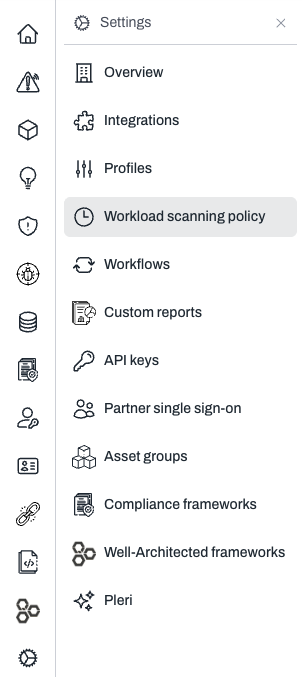 Select **Daily**, **Recommended** or **Custom**.
* **Daily:** One schedule for all categories.
* **Recommended:** Applies Plerion’s predefined frequencies.
* **Custom:** Configure frequencies for each category.
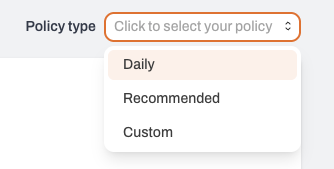
Select **Daily**, **Recommended** or **Custom**.
* **Daily:** One schedule for all categories.
* **Recommended:** Applies Plerion’s predefined frequencies.
* **Custom:** Configure frequencies for each category.
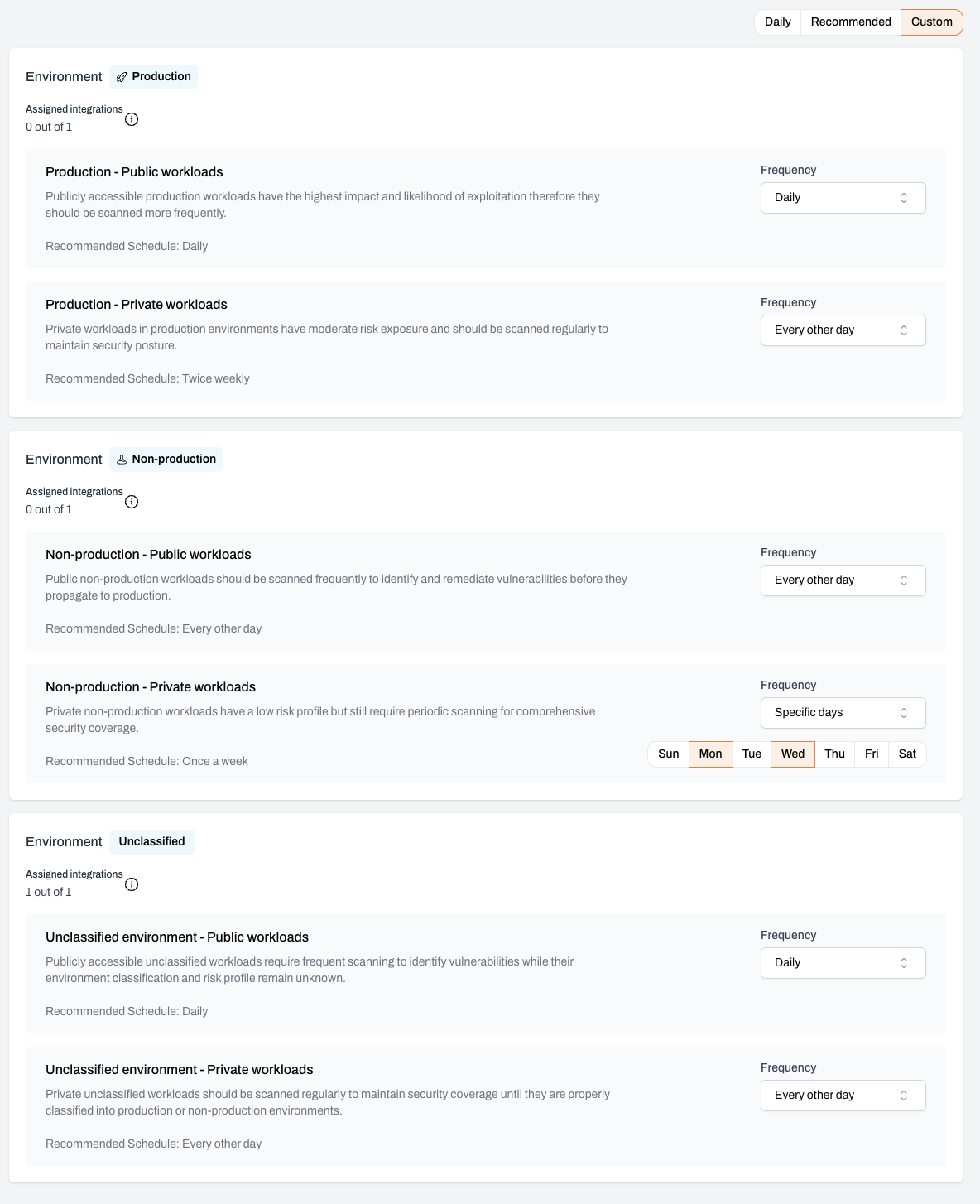
 When using **Custom**, set the scan frequency for each environment and exposure combination.\
A recommended frequency is displayed on each card.
When using **Custom**, set the scan frequency for each environment and exposure combination.\
A recommended frequency is displayed on each card.
 The policy takes effect immediately and is applied after each integration's next CSPM scan.
***
## Additional notes
### Behavior of “Every other day” schedules
**Every other day** runs on a date-based pattern. The schedule always starts on the 1st of each month and scans every second day after that (1, 3, 5, 7, …).
For example, if a scan occurs on 31 December, the next scan will occur on 1 January.
### How Plerion may adjust your scan schedule
Plerion applies the workload scanning policy you configure. However, there may be occasions where scan timing varies. For example, Plerion may run additional scans across all customers to surface urgent security insights, such as a newly discovered critical vulnerability.
If you have any questions about the workload scanning policy, please contact [support@plerion.com](mailto:support@plerion.com).
The policy takes effect immediately and is applied after each integration's next CSPM scan.
***
## Additional notes
### Behavior of “Every other day” schedules
**Every other day** runs on a date-based pattern. The schedule always starts on the 1st of each month and scans every second day after that (1, 3, 5, 7, …).
For example, if a scan occurs on 31 December, the next scan will occur on 1 January.
### How Plerion may adjust your scan schedule
Plerion applies the workload scanning policy you configure. However, there may be occasions where scan timing varies. For example, Plerion may run additional scans across all customers to surface urgent security insights, such as a newly discovered critical vulnerability.
If you have any questions about the workload scanning policy, please contact [support@plerion.com](mailto:support@plerion.com).