> ## Documentation Index
> Fetch the complete documentation index at: https://docs.plerion.com/llms.txt
> Use this file to discover all available pages before exploring further.

# How to create a custom report

> Learn how to create, save, and schedule a custom report in Plerion using widgets, data sources, and filters.

## Steps to build a custom report
<Steps>
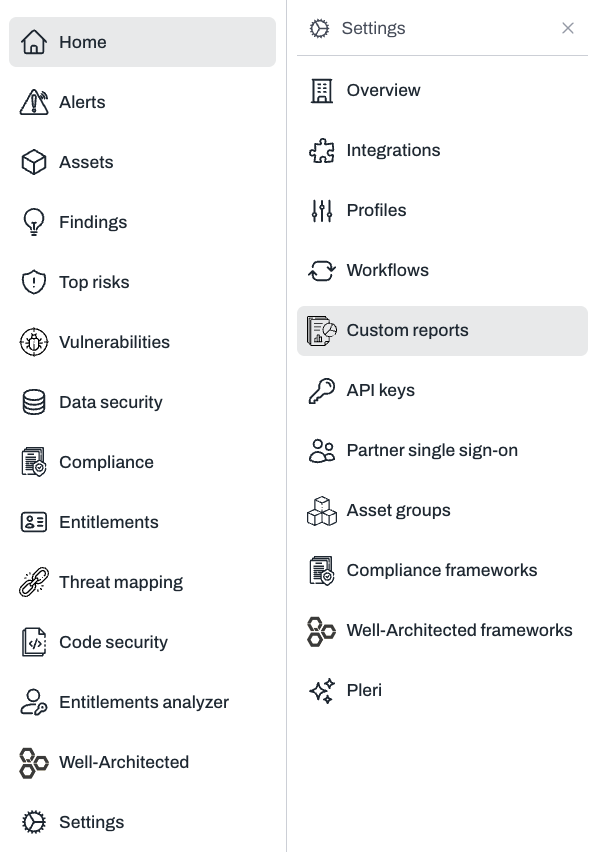
  <Step title="On the Plerion dashboard, go to Settings > Custom reports">
    <Frame>
      <img src="https://mintcdn.com/pleriondocs/pIxUrcNCUW7C7MiP/images/product/custom-reports/sidebar-navigation-custom-reports.png?fit=max&auto=format&n=pIxUrcNCUW7C7MiP&q=85&s=08f02de5c3f37b2a515f3e4238784661" alt="Custom reports section in Plerion settings" width="591" height="852" data-path="images/product/custom-reports/sidebar-navigation-custom-reports.png" />
    </Frame>
  </Step>

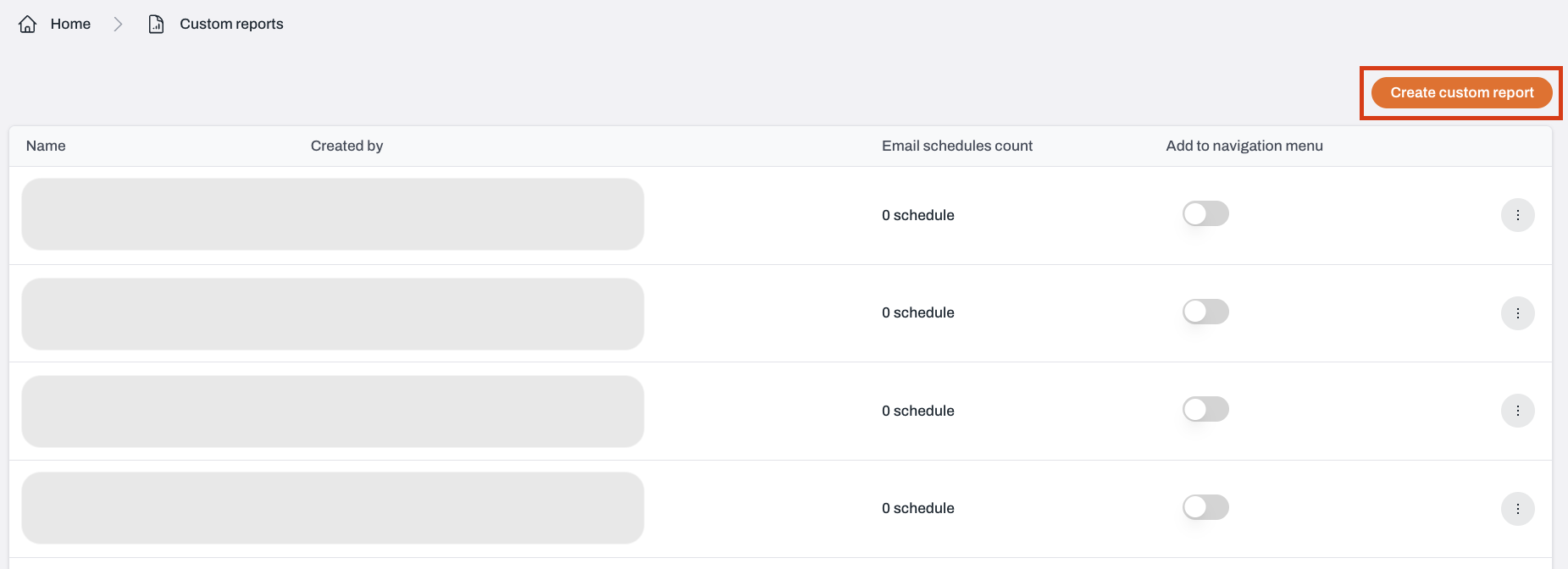
  <Step title="Click the Create custom report button">
    <Frame>
      <img src="https://mintcdn.com/pleriondocs/Zf26FPfL7SnphX_D/images/product/custom-reports/create-custom-report-button.png?fit=max&auto=format&n=Zf26FPfL7SnphX_D&q=85&s=241a1f748459ee301ba53b9b8bf5cc38" alt="Adding a widget in the custom reports builder" width="1851" height="672" data-path="images/product/custom-reports/create-custom-report-button.png" />
    </Frame>
  </Step>

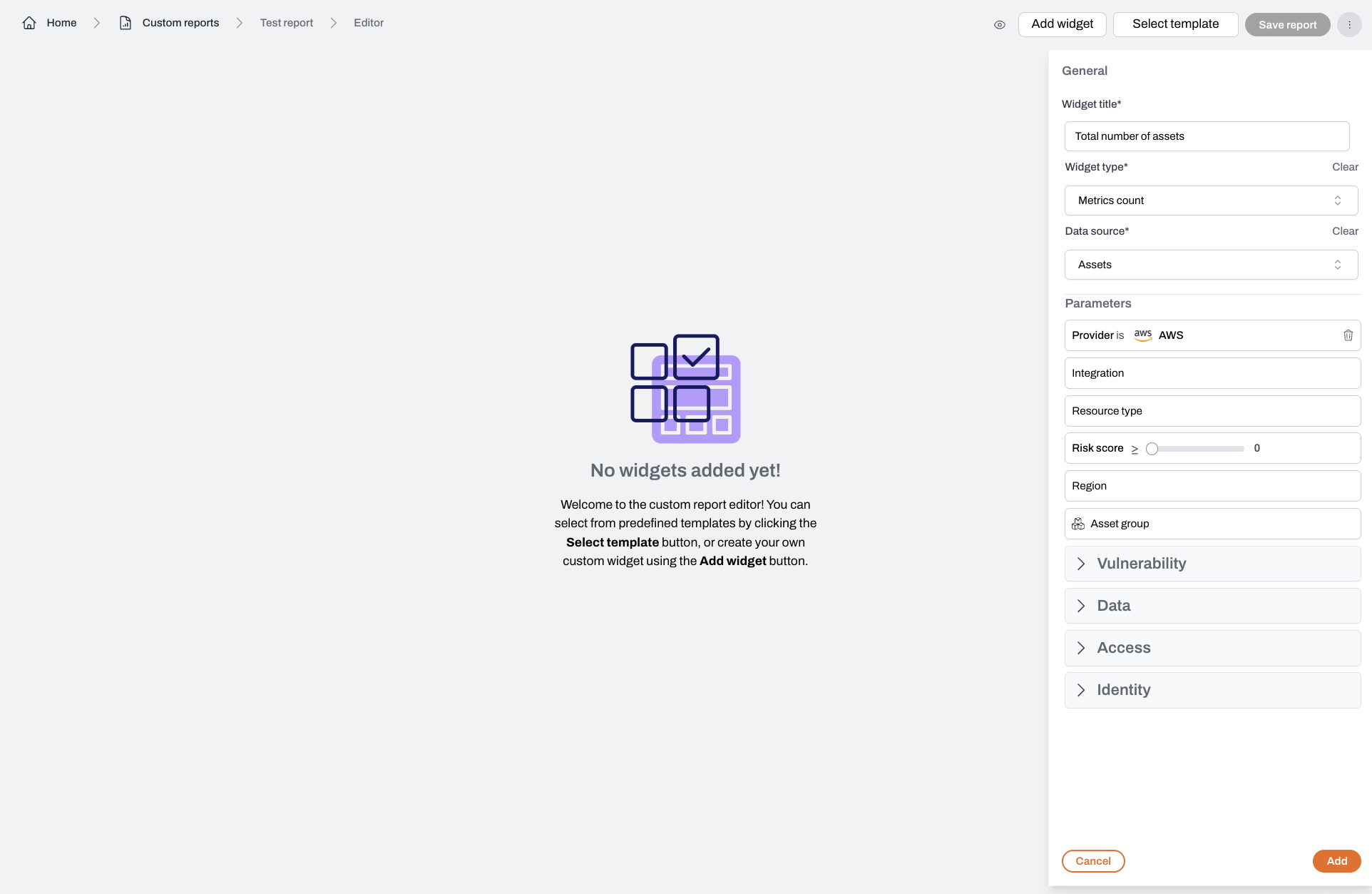
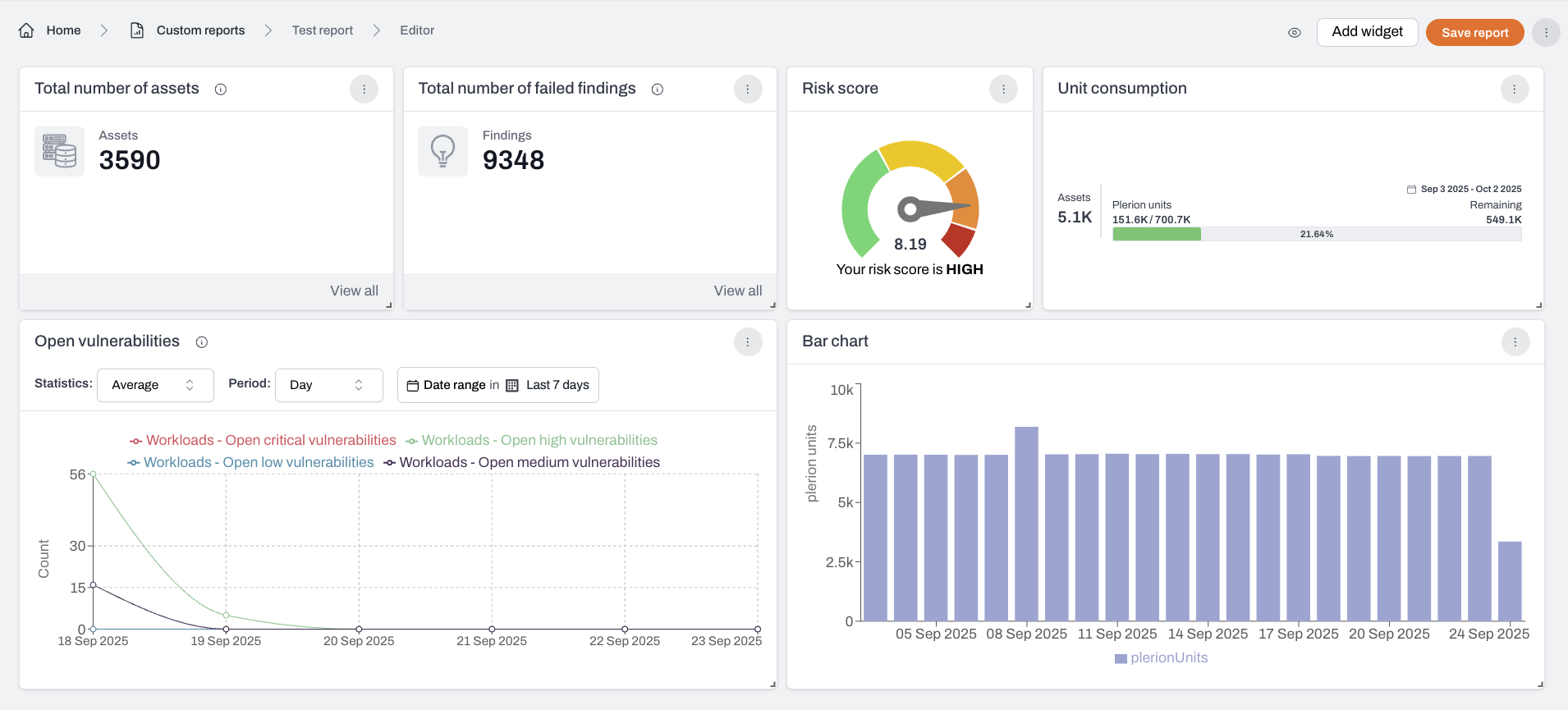
  <Step title="Select your widget types and data sources">
    <Frame>
      <img src="https://mintcdn.com/pleriondocs/pIxUrcNCUW7C7MiP/images/product/custom-reports/empty-custom-report.png?fit=max&auto=format&n=pIxUrcNCUW7C7MiP&q=85&s=20e5a5ce2e0c5a476455f29444bc20da" alt="Adding a widget in the custom reports builder" width="1924" height="1253" data-path="images/product/custom-reports/empty-custom-report.png" />
    </Frame>

    <br />

    <Frame>
      <img src="https://mintcdn.com/pleriondocs/pIxUrcNCUW7C7MiP/images/product/custom-reports/sample-custom-report.png?fit=max&auto=format&n=pIxUrcNCUW7C7MiP&q=85&s=032d446d519942aec27cf5733d523e81" alt="Example of a generated report in Plerion custom reports" width="1910" height="865" data-path="images/product/custom-reports/sample-custom-report.png" />
    </Frame>
  </Step>

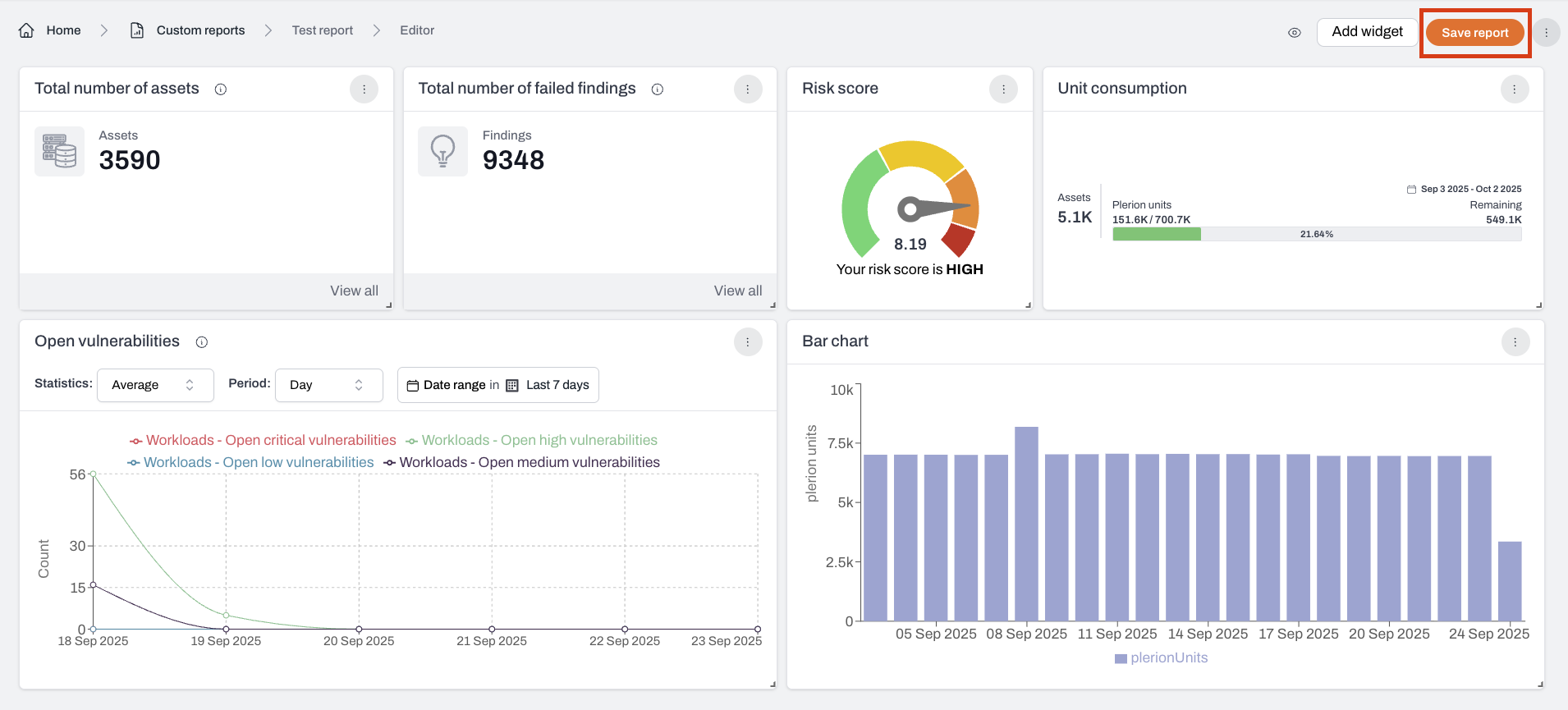
  <Step title="Click the Save report to save your custom report">
    <Frame>
      <img src="https://mintcdn.com/pleriondocs/pIxUrcNCUW7C7MiP/images/product/custom-reports/saving-custom-report.png?fit=max&auto=format&n=pIxUrcNCUW7C7MiP&q=85&s=2a3b54fec187eb75e1530a00250a482a" alt="Saving a custom report in Plerion" width="1910" height="865" data-path="images/product/custom-reports/saving-custom-report.png" />
    </Frame>

    <Warning>
      Your changes will not be saved until you click `Save report`.
    </Warning>
  </Step>

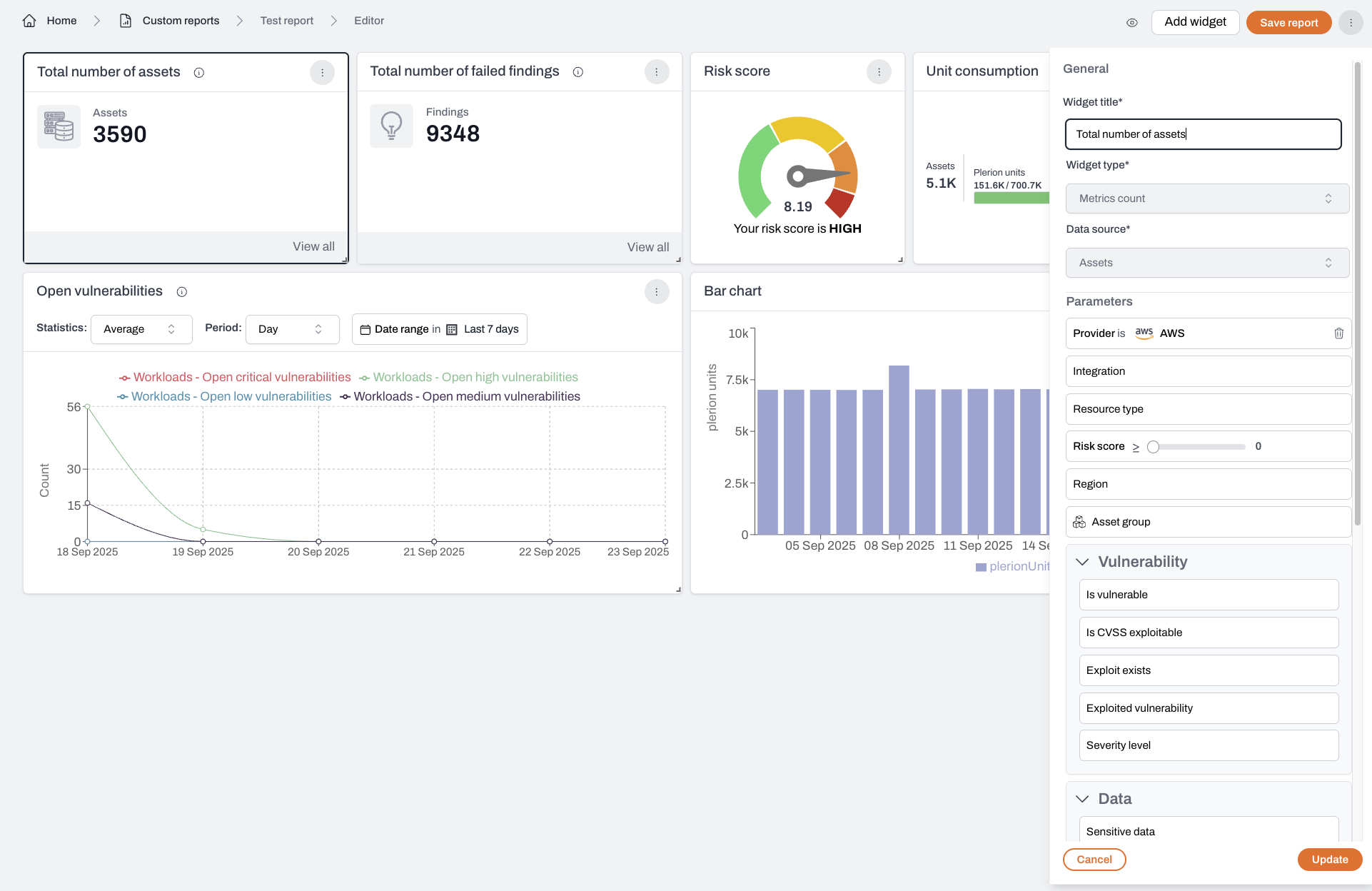
  <Step title="Update your existing reports">
    Click the kebab menu (`⋮`) on a widget and select `Edit` to update it.
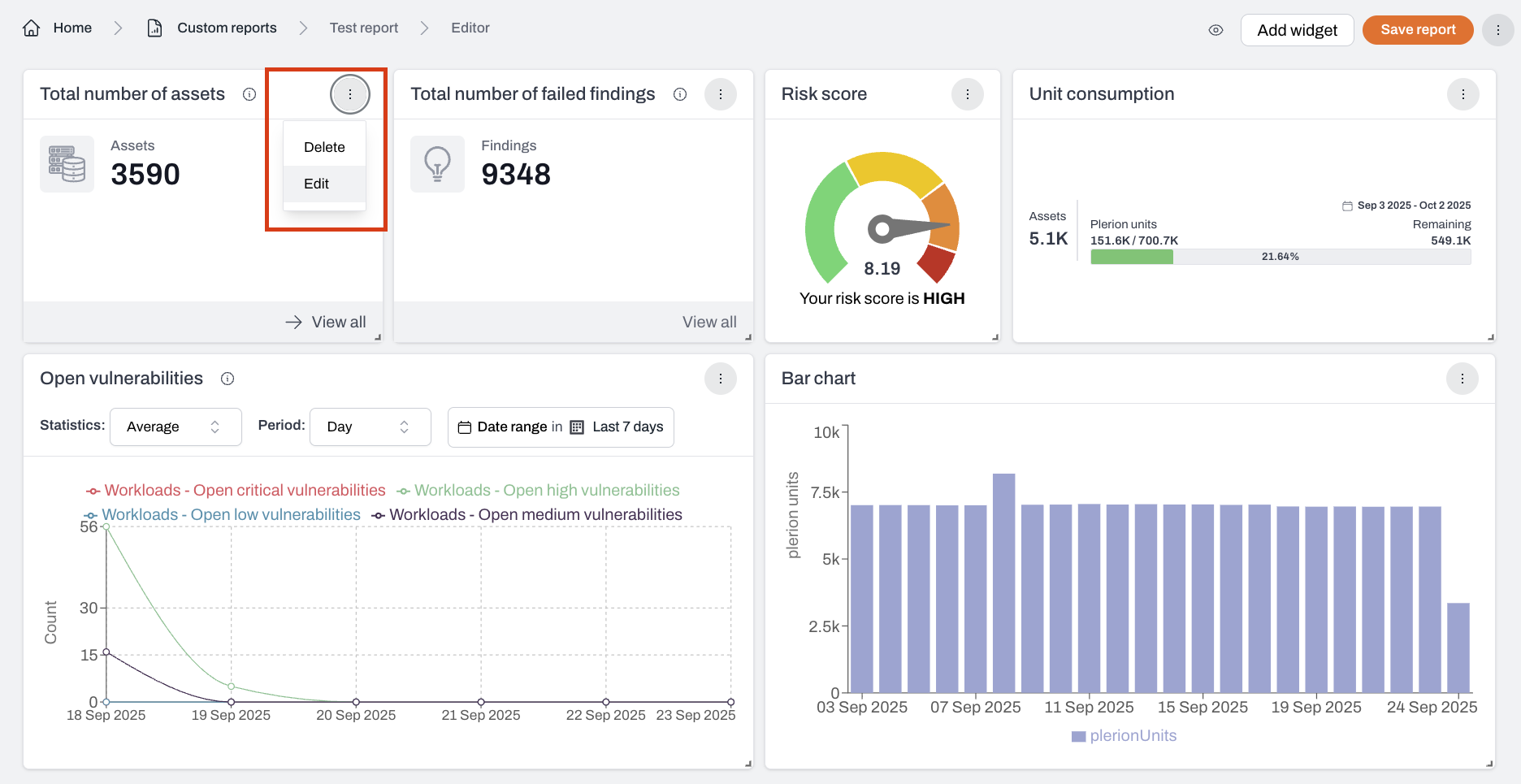
    <Frame>
      <img src="https://mintcdn.com/pleriondocs/Zf26FPfL7SnphX_D/images/product/custom-reports/edit-button-for-widget.png?fit=max&auto=format&n=Zf26FPfL7SnphX_D&q=85&s=90400a56b65b093636556480c0982b13" alt="Editing a widget in custom reports using the kebab menu" width="1872" height="965" data-path="images/product/custom-reports/edit-button-for-widget.png" />
    </Frame>

    <br />

    <Frame>
      <img src="https://mintcdn.com/pleriondocs/Zf26FPfL7SnphX_D/images/product/custom-reports/edit-widget.png?fit=max&auto=format&n=Zf26FPfL7SnphX_D&q=85&s=16de5afd6f338bd5bab92ecd92791cf1" alt="Editing a widget in custom reports" width="1922" height="1248" data-path="images/product/custom-reports/edit-widget.png" />
    </Frame>
  </Step>

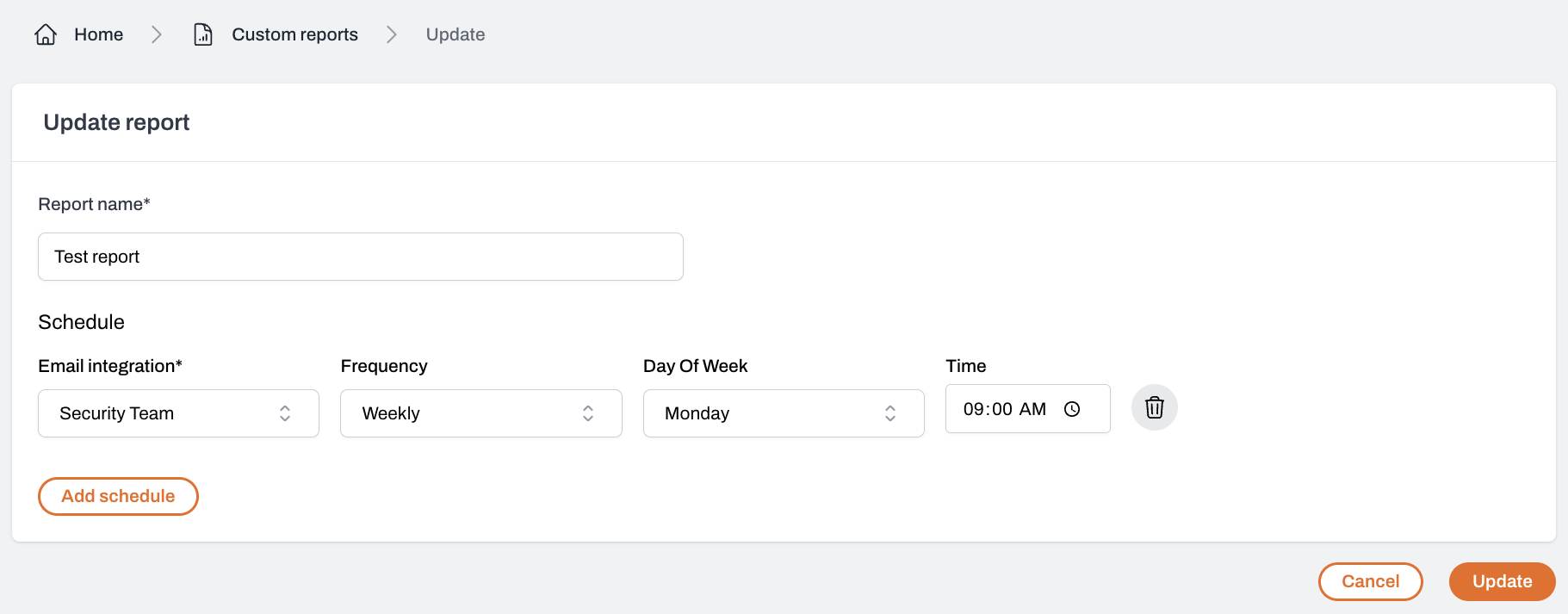
  <Step title="Schedule report delivery by email">
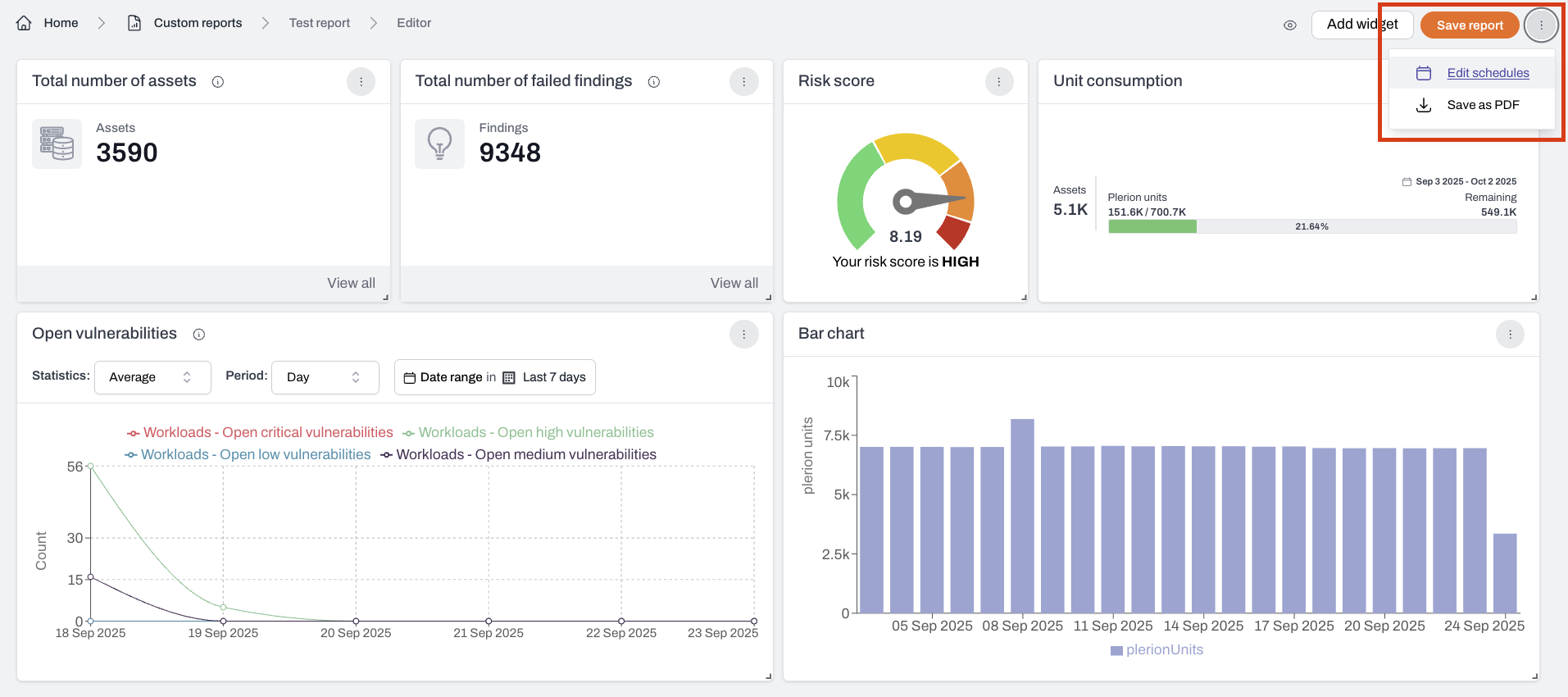
    Click the kebab menu (`⋮`) in the top-right corner of a custom report and select `Edit schedules`.\
    From there, you can configure delivery frequency and recipients.
    <Frame>
      <img src="https://mintcdn.com/pleriondocs/Zf26FPfL7SnphX_D/images/product/custom-reports/edit-schedule-for-custom-report.png?fit=max&auto=format&n=Zf26FPfL7SnphX_D&q=85&s=2bf7a76434cf2019219b310ad5b7e243" alt="Editing report options in custom reports" width="1913" height="850" data-path="images/product/custom-reports/edit-schedule-for-custom-report.png" />
    </Frame>

    <br />

    <Frame>
      <img src="https://mintcdn.com/pleriondocs/pIxUrcNCUW7C7MiP/images/product/custom-reports/setting-schedule-for-custom-report.png?fit=max&auto=format&n=pIxUrcNCUW7C7MiP&q=85&s=8886e57ae6916d1d97beb1c7eba7574a" alt="Adding a schedule for custom reports" width="1821" height="713" data-path="images/product/custom-reports/setting-schedule-for-custom-report.png" />
    </Frame>

    <Warning>
      Before scheduling email delivery, configure the [Email integration](/guides/integrations/email).
    </Warning>
  </Step>
</Steps>

## Using predefined templates

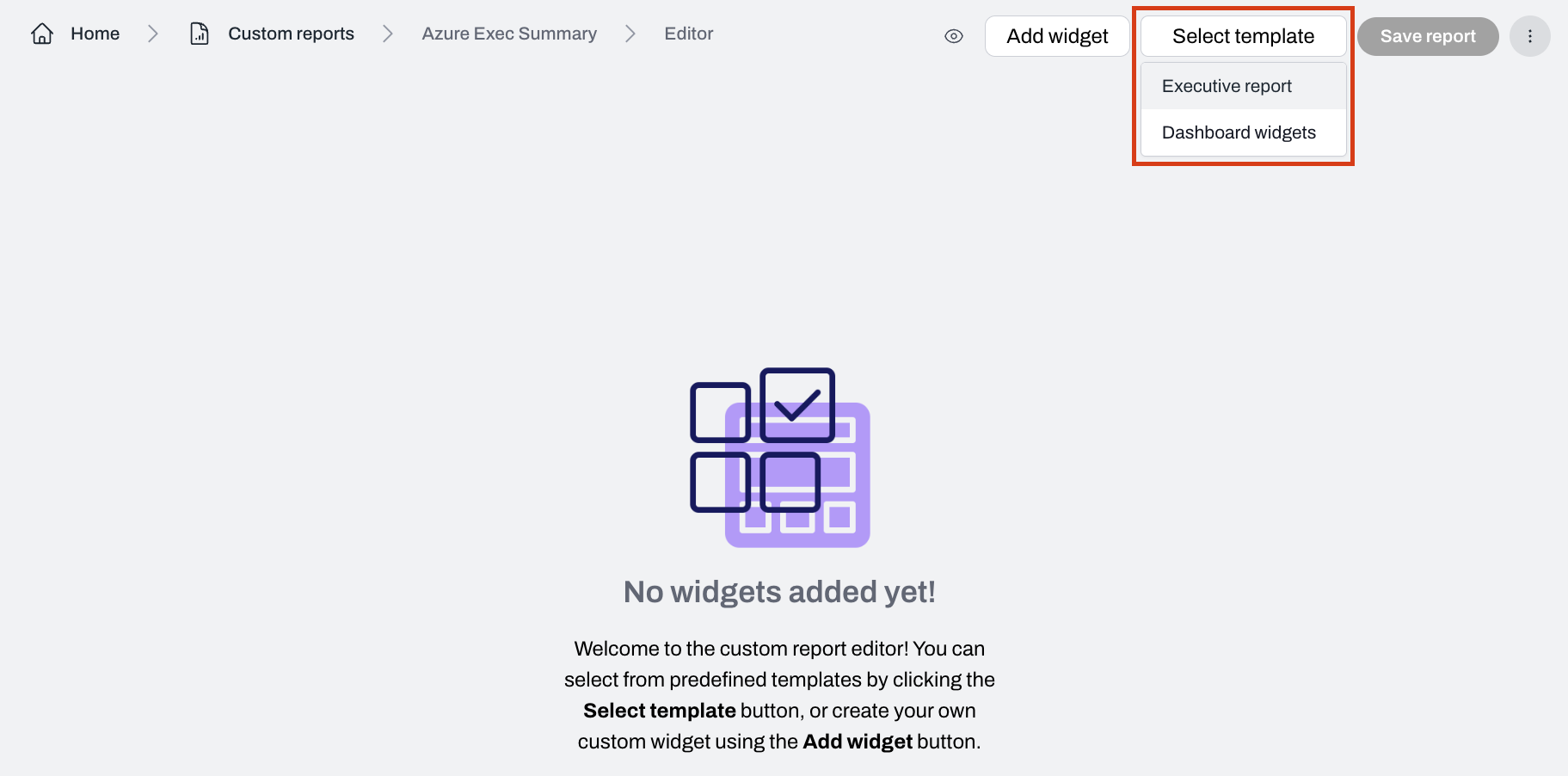
You can also start with predefined templates such as the **Executive report**.\
Templates automatically populate your report with commonly used widgets, saving setup time.
<Frame>
  <img src="https://mintcdn.com/pleriondocs/pIxUrcNCUW7C7MiP/images/product/custom-reports/selecting-custom-report-template.png?fit=max&auto=format&n=pIxUrcNCUW7C7MiP&q=85&s=b8ea596ac9aaf02ffeabcf0dc243e9ca" alt="Predefined Executive report template in Plerion" width="1823" height="902" data-path="images/product/custom-reports/selecting-custom-report-template.png" />
</Frame>