> ## Documentation Index
> Fetch the complete documentation index at: https://docs.plerion.com/llms.txt
> Use this file to discover all available pages before exploring further.
# Assets
> Use the Assets dashboard to view, filter, and investigate all resources discovered across your connected cloud environments.
With **Assets**, you can view a complete inventory of resources discovered across your connected cloud integrations.
## Asset dashboard
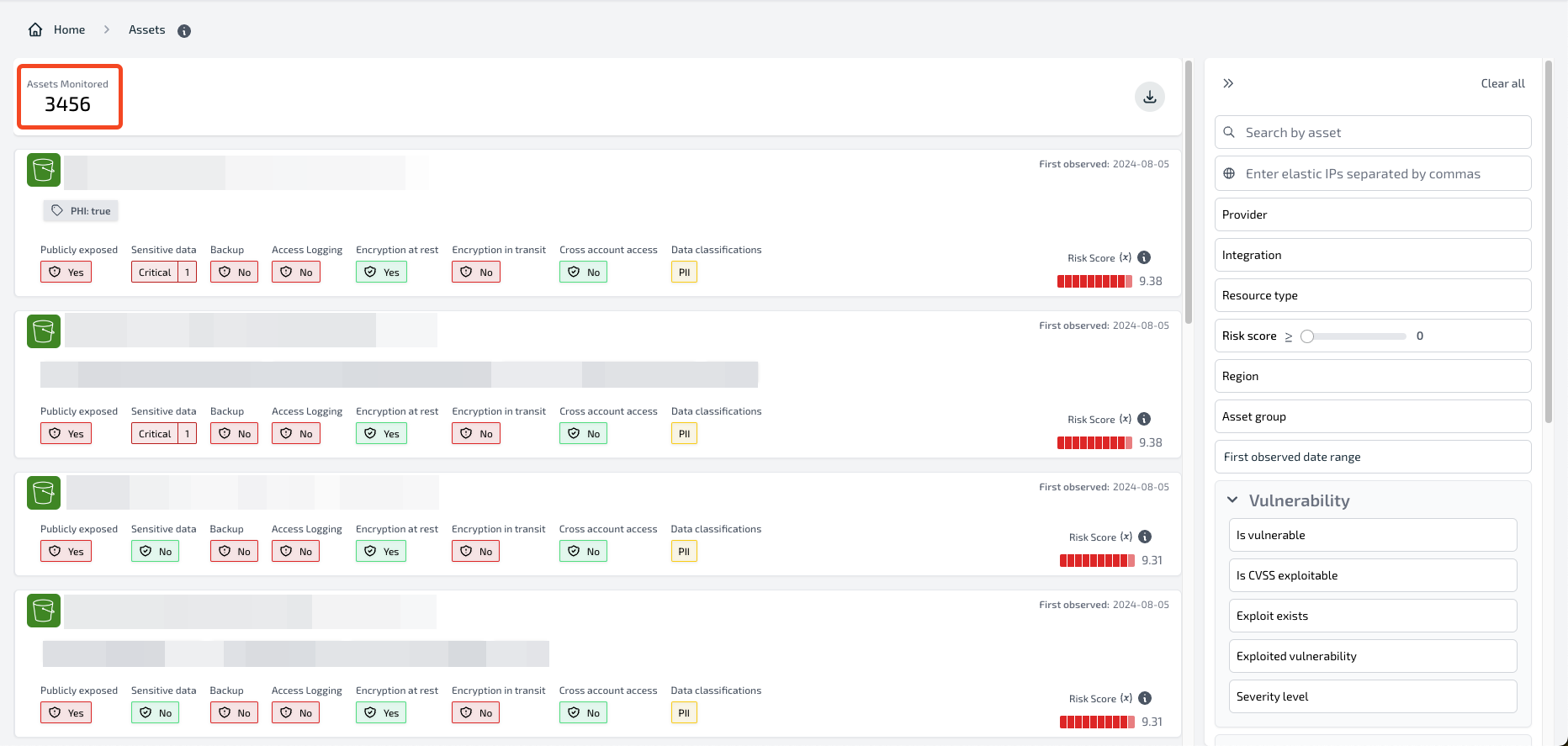
The [Asset dashboard](https://app.plerion.com/assets) provides an overview of all discovered assets. The total number of discovered assets is displayed at the top of the page.
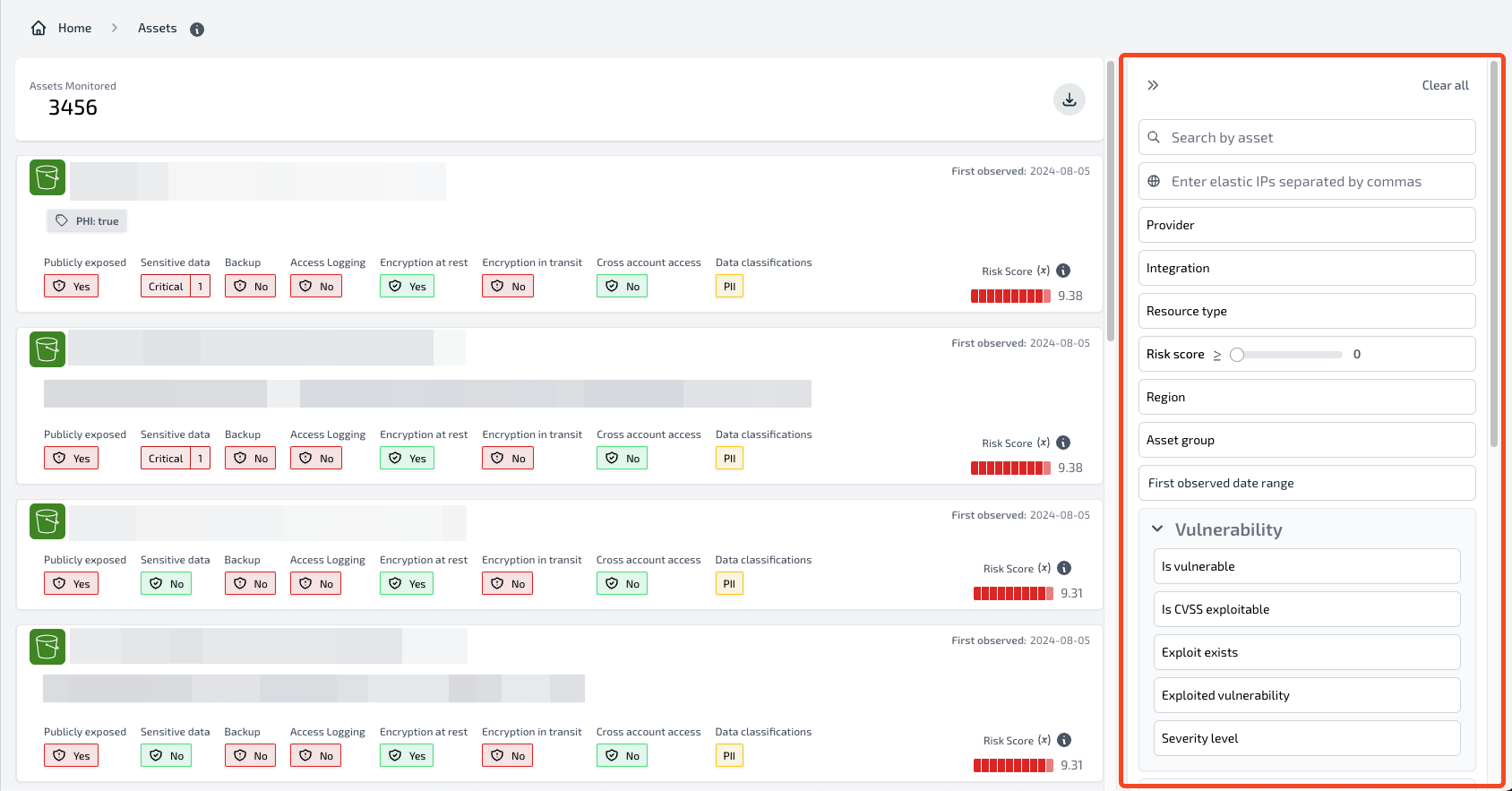
This dashboard gives your team a single place to track misconfigurations, risks, and vulnerabilities across environments.
 ## Asset details
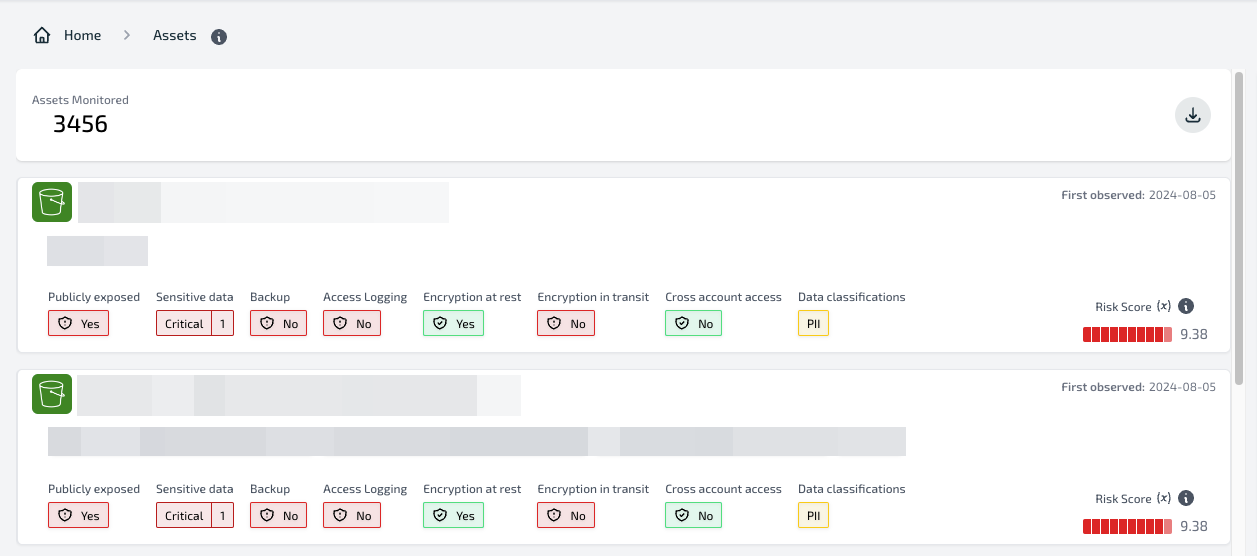
Each asset card shows key information such as:
* **Asset ID/Name**
* **Region**
* **Resource type**
* **Exposure status** (public, vulnerable, sensitive data, excessive permissions)
* **Risk score**
* Direct link to the asset in the cloud provider console
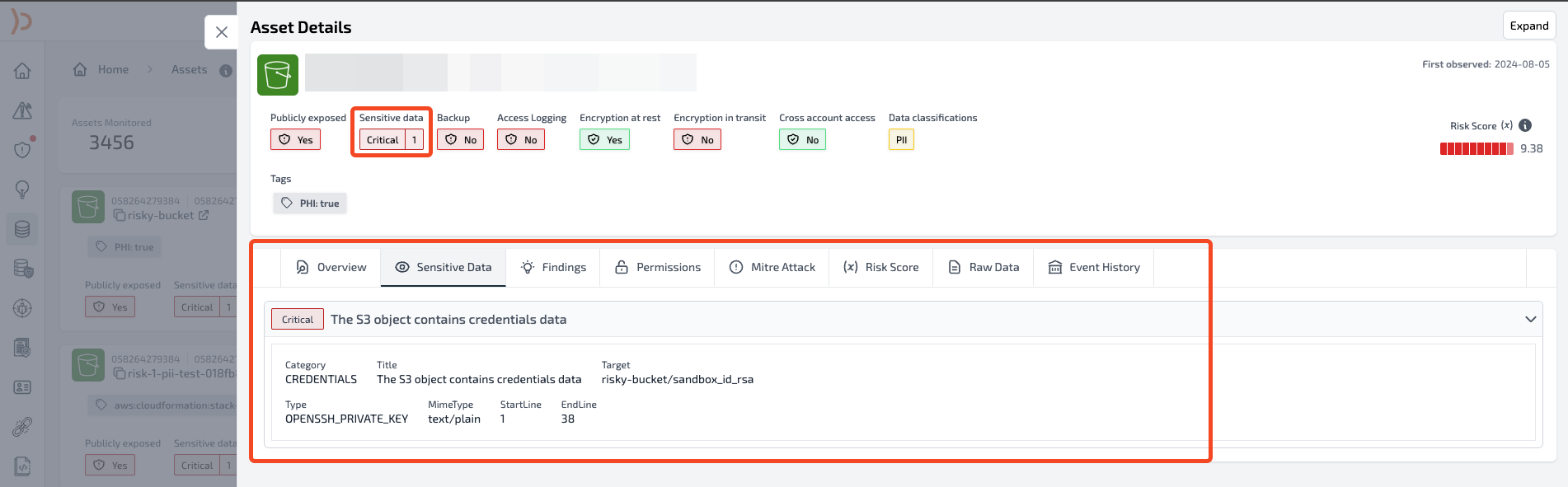
Selecting an asset opens a detailed view, which includes linked findings, vulnerabilities, and sensitive data.
## Asset details
Each asset card shows key information such as:
* **Asset ID/Name**
* **Region**
* **Resource type**
* **Exposure status** (public, vulnerable, sensitive data, excessive permissions)
* **Risk score**
* Direct link to the asset in the cloud provider console
Selecting an asset opens a detailed view, which includes linked findings, vulnerabilities, and sensitive data.
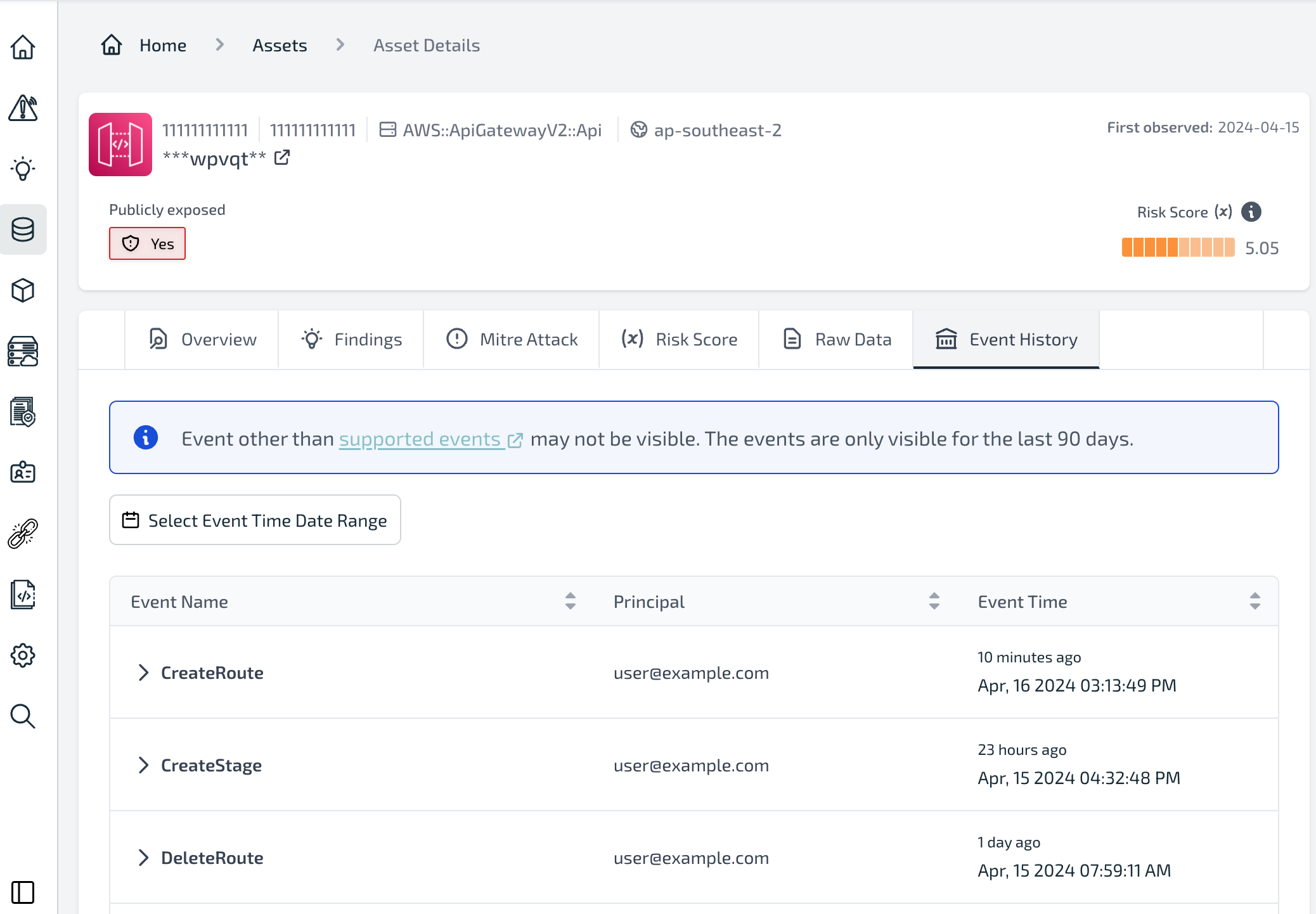
 ## Asset event history
From the asset details page, you can open the `Event history` tab to review all events that have occurred for that resource.\
This includes asset creation, modification, deletion, and other tracked changes.
## Asset event history
From the asset details page, you can open the `Event history` tab to review all events that have occurred for that resource.\
This includes asset creation, modification, deletion, and other tracked changes.
 ### Supported events
The following events are currently supported. Unsupported events may not appear in the `Event history` tab.
### Supported events
The following events are currently supported. Unsupported events may not appear in the `Event history` tab.