> ## Documentation Index
> Fetch the complete documentation index at: https://docs.plerion.com/llms.txt
> Use this file to discover all available pages before exploring further.
# Alerts
> Learn how Plerion alerts work and deliver them through the dashboard, Email, Slack, Jira, or Sentinel.
## Overview
Plerion generates an alert when an asset matches conditions defined in a workflow.\
Each alert provides context on the security issue and recommended remediation steps so your team can respond quickly.
### Features
* Each alert maps to a single asset that matches a workflow condition.
* Alerts update automatically when asset properties change (e.g. vulnerability count, sensitivity etc.).
* Alerts close when the asset no longer matches workflow conditions.
* View alerts in the **Alerts dashboard** or send them through outbound integrations such as Email, Slack, Jira, or Sentinel.
***
## Alerts dashboard
The **Alerts dashboard** centralizes all alerts across your tenant’s environments, helping teams investigate and act on security issues.
 ### Filters
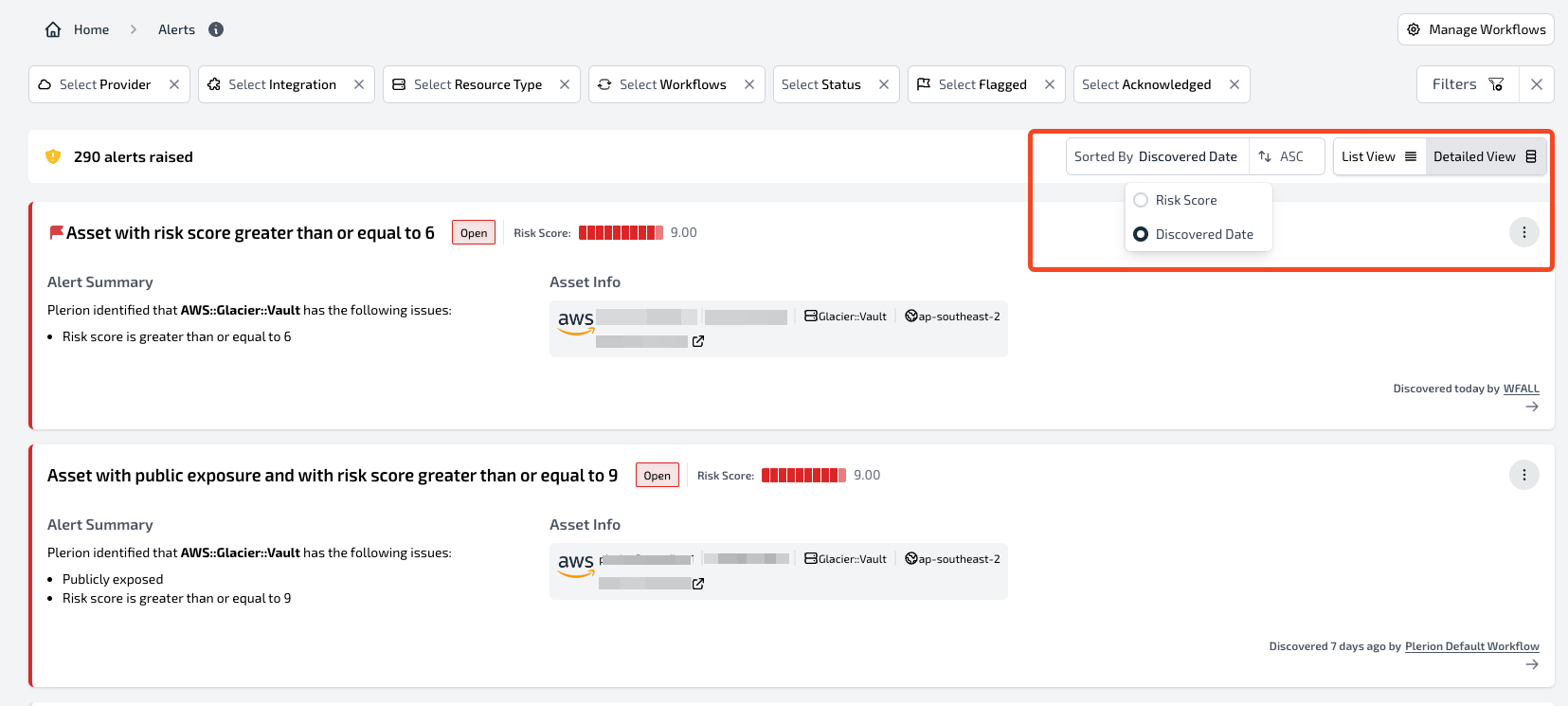
Filter alerts by:
* **Status**: `Open` or `Resolved`
* **Flagged**: Show only flagged alerts
* **Provider**: AWS, Azure, GCP or Kubernetes
* **Integration**: Filter by integration configured in Plerion
* **Resource type**: Such as `AWS::S3::Bucket` or `AWS::Lambda::Function`
* **Workflow**: The workflow that triggered the alert
* **Acknowledged**: Show alerts marked as acknowledged
### Filters
Filter alerts by:
* **Status**: `Open` or `Resolved`
* **Flagged**: Show only flagged alerts
* **Provider**: AWS, Azure, GCP or Kubernetes
* **Integration**: Filter by integration configured in Plerion
* **Resource type**: Such as `AWS::S3::Bucket` or `AWS::Lambda::Function`
* **Workflow**: The workflow that triggered the alert
* **Acknowledged**: Show alerts marked as acknowledged
 ### Sorting and viewing
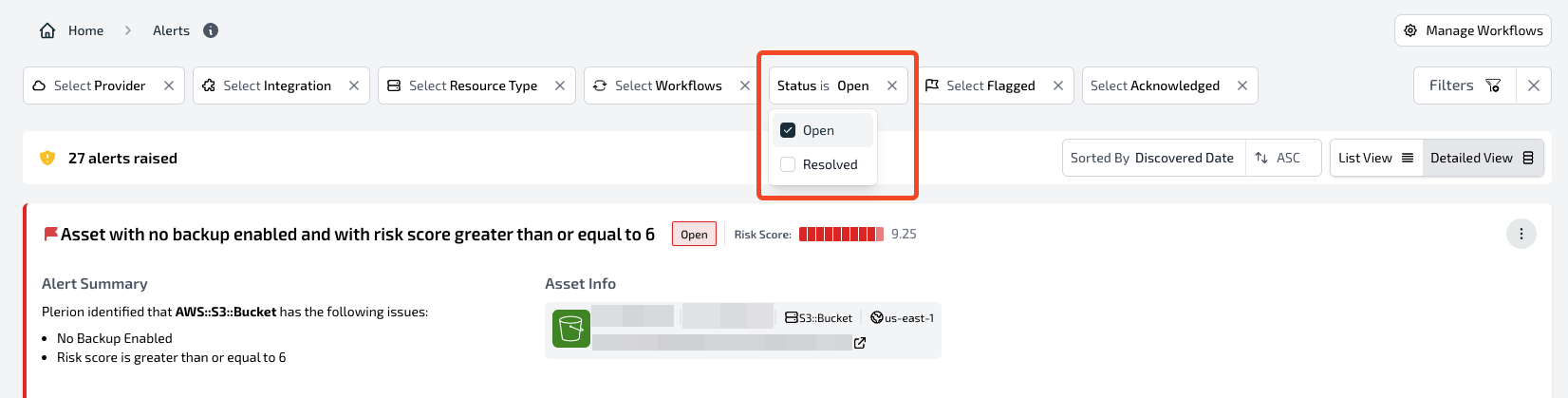
* Sort by **Risk score** or **Discovered date**
* Switch between **List view** for compact tables or **Detailed view** for full context
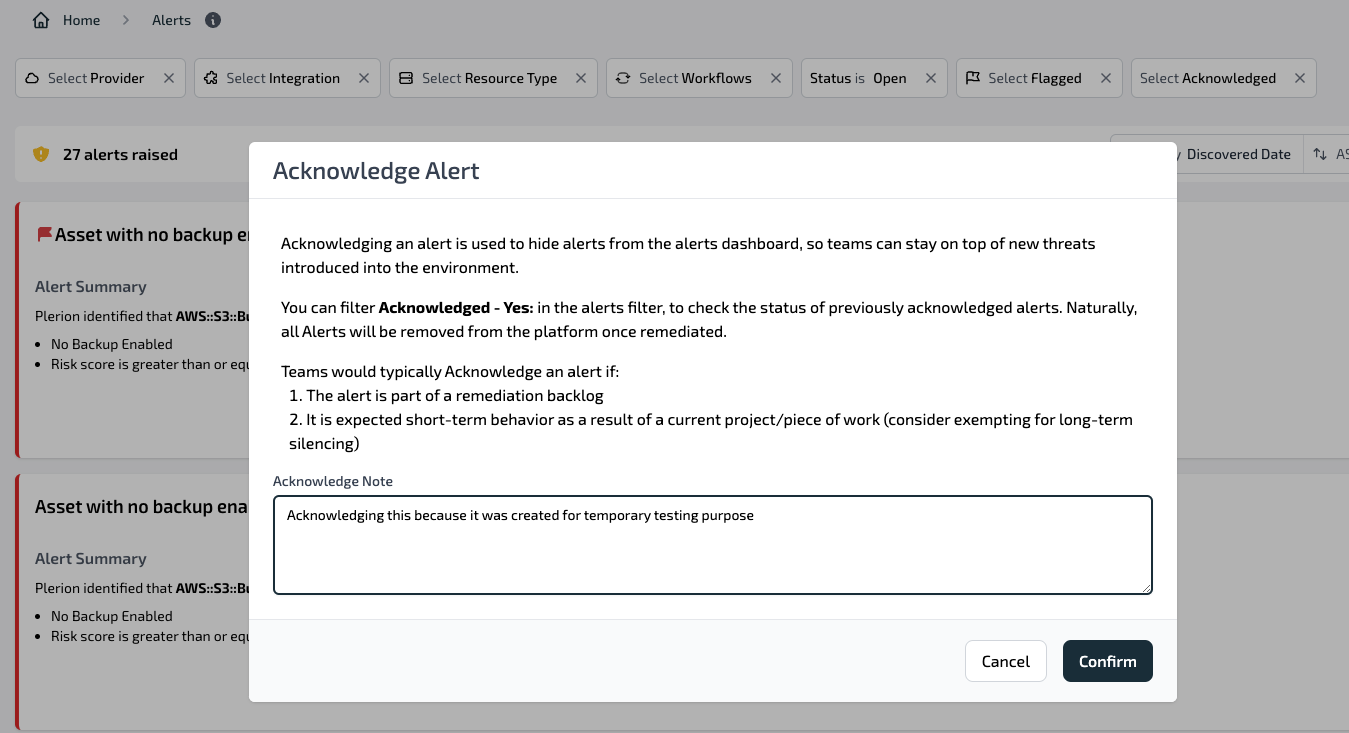
### Acknowledge and un-acknowledge
Click `Acknowledge` to hide an alert from the dashboard and close the related alert in outbound integrations.\
Click `Un-acknowledge` to reopen the alert in both the dashboard and integrations.
### Sorting and viewing
* Sort by **Risk score** or **Discovered date**
* Switch between **List view** for compact tables or **Detailed view** for full context
### Acknowledge and un-acknowledge
Click `Acknowledge` to hide an alert from the dashboard and close the related alert in outbound integrations.\
Click `Un-acknowledge` to reopen the alert in both the dashboard and integrations.
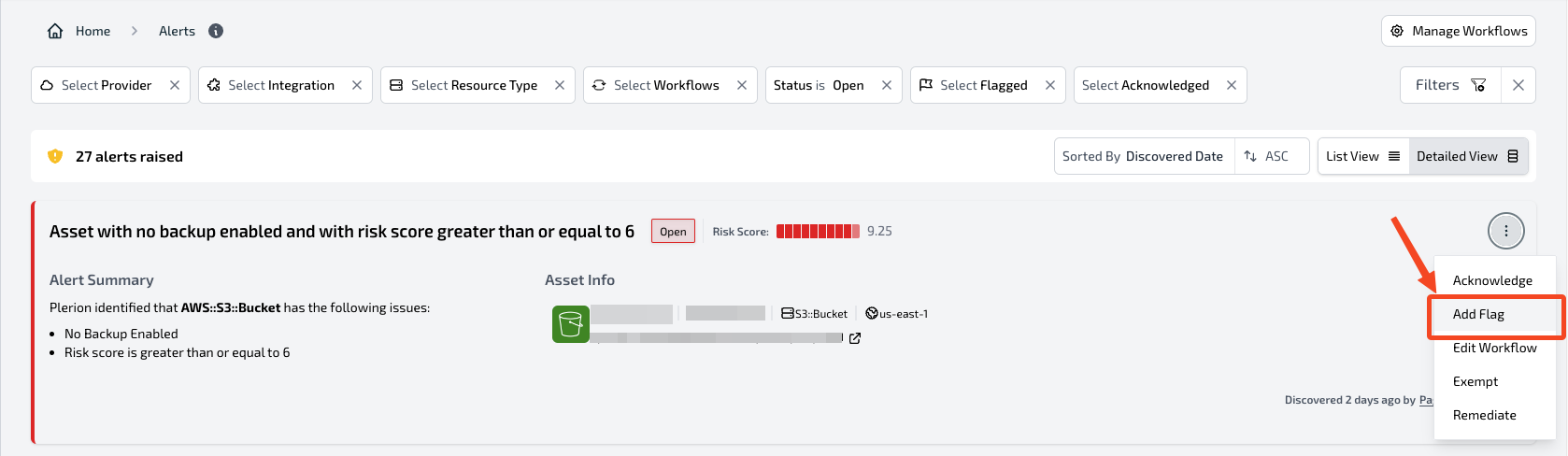
 ### Flag
Click `Flag` to highlight an alert without changing its status. Use flags to help your team prioritize important issues.
### Flag
Click `Flag` to highlight an alert without changing its status. Use flags to help your team prioritize important issues.
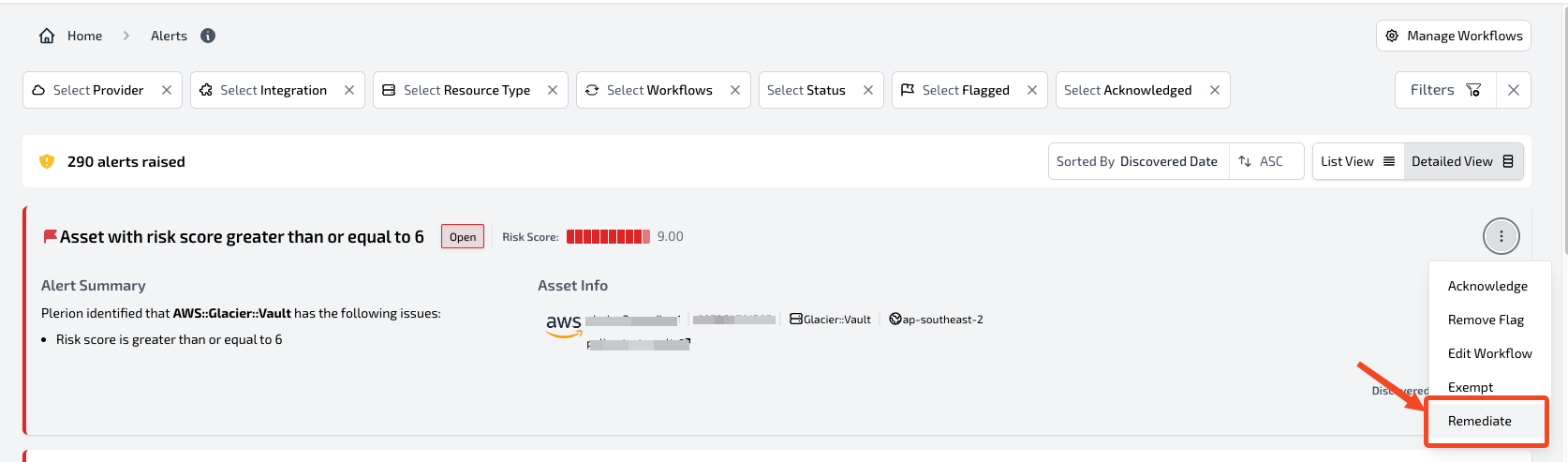
 ### Remediate
Click `Remediate` to view recommended steps for resolving the issue in your environment.
### Remediate
Click `Remediate` to view recommended steps for resolving the issue in your environment.
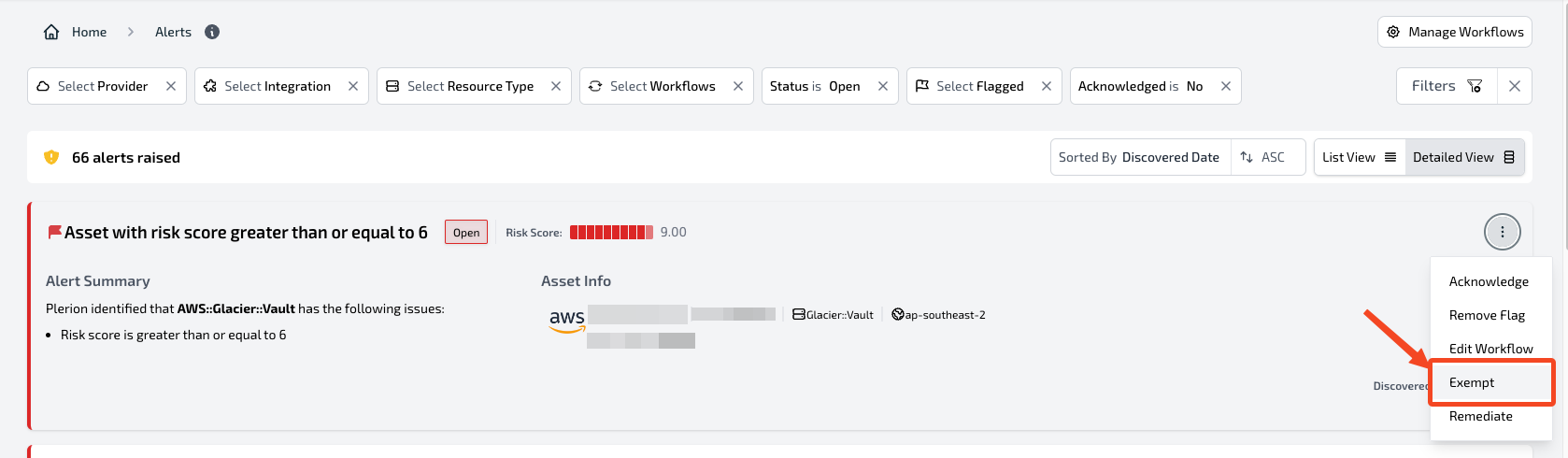
 ### Exempt
Click `Exempt` to ignore detections that are acceptable in your environment. Exemptions apply across all workflows.
### Exempt
Click `Exempt` to ignore detections that are acceptable in your environment. Exemptions apply across all workflows.
 ***
## Email alerts
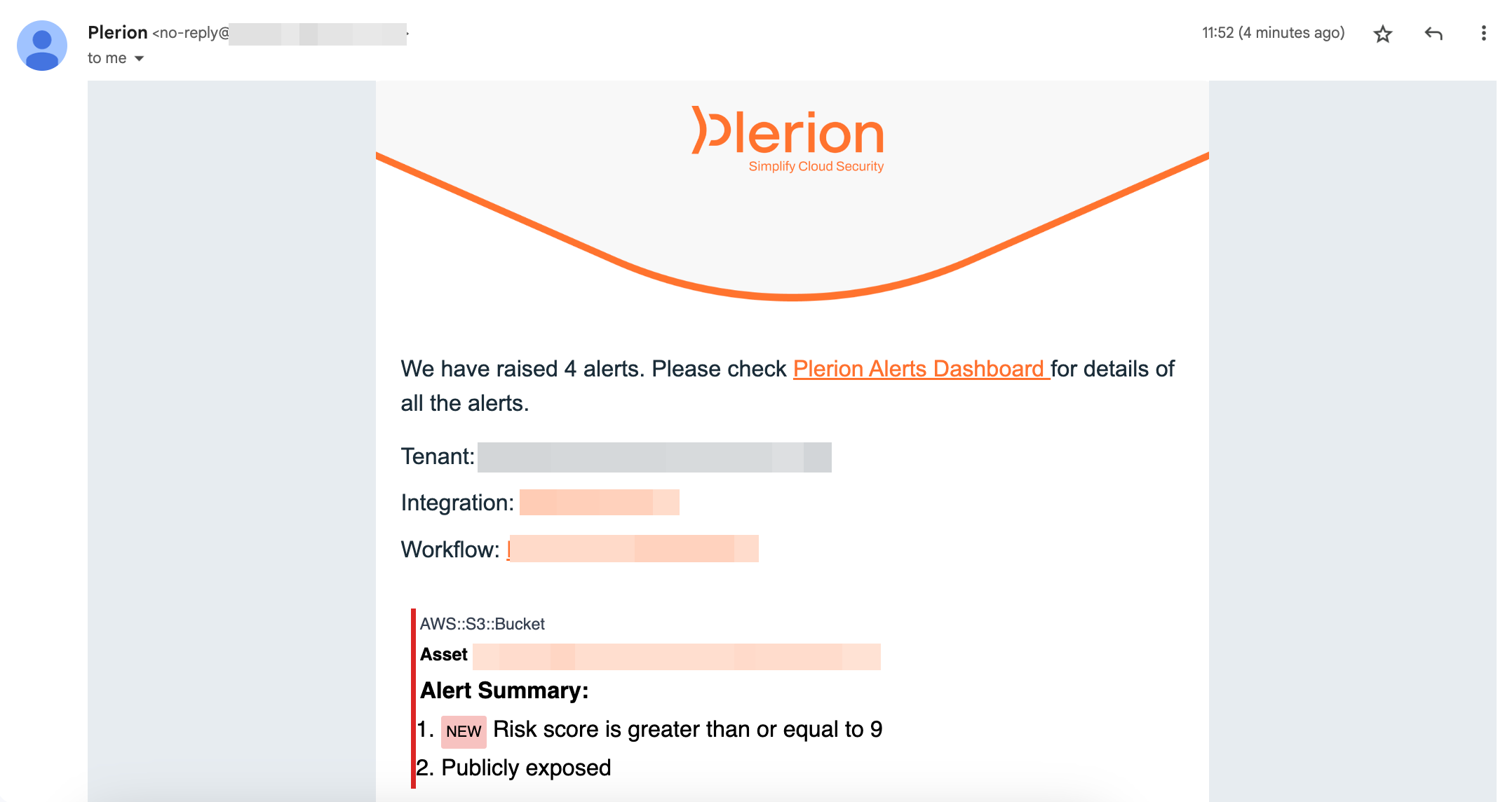
Email alerts are sent to the addresses you configured during the [Email integration setup](/guides/integrations/email).
* Each message includes asset details and workflow conditions.
* Updates trigger new messages.
***
## Email alerts
Email alerts are sent to the addresses you configured during the [Email integration setup](/guides/integrations/email).
* Each message includes asset details and workflow conditions.
* Updates trigger new messages.
 ***
## Slack alerts
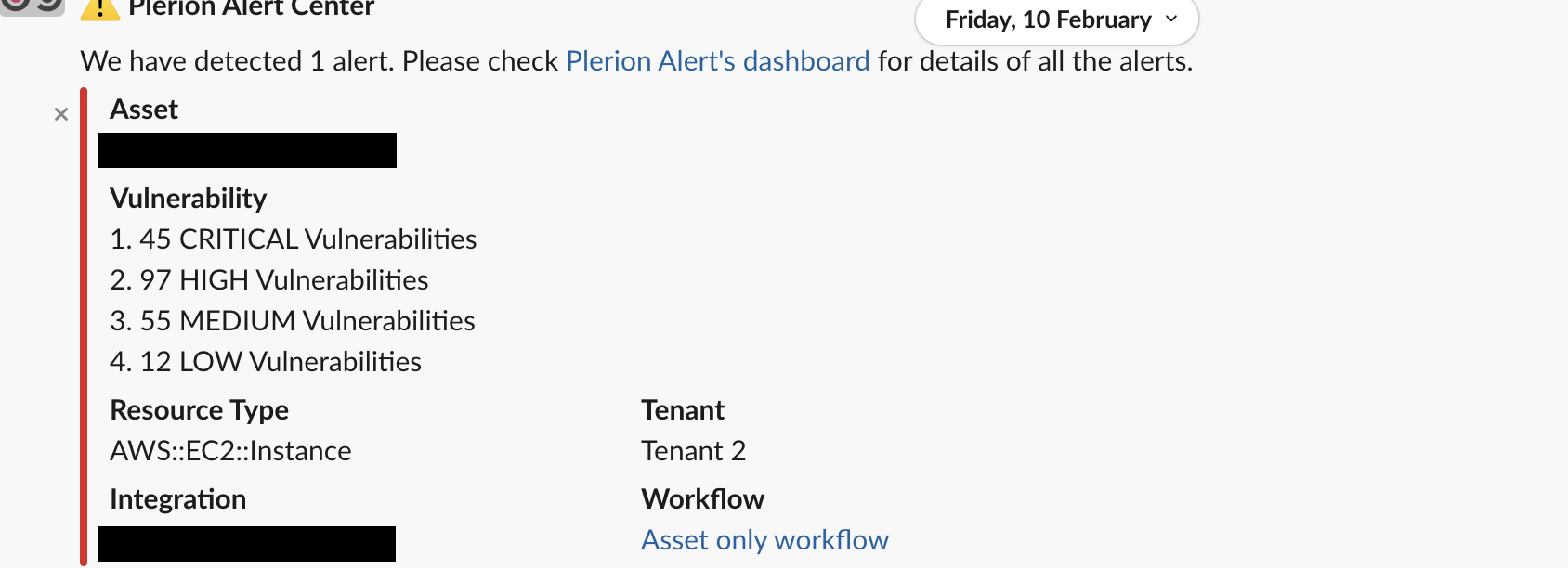
Slack alerts are delivered to the channel you configured during the [Slack integration setup](/guides/integrations/slack).
* They include workflow details and update automatically when asset properties change.
***
## Slack alerts
Slack alerts are delivered to the channel you configured during the [Slack integration setup](/guides/integrations/slack).
* They include workflow details and update automatically when asset properties change.
 ***
## Jira alerts
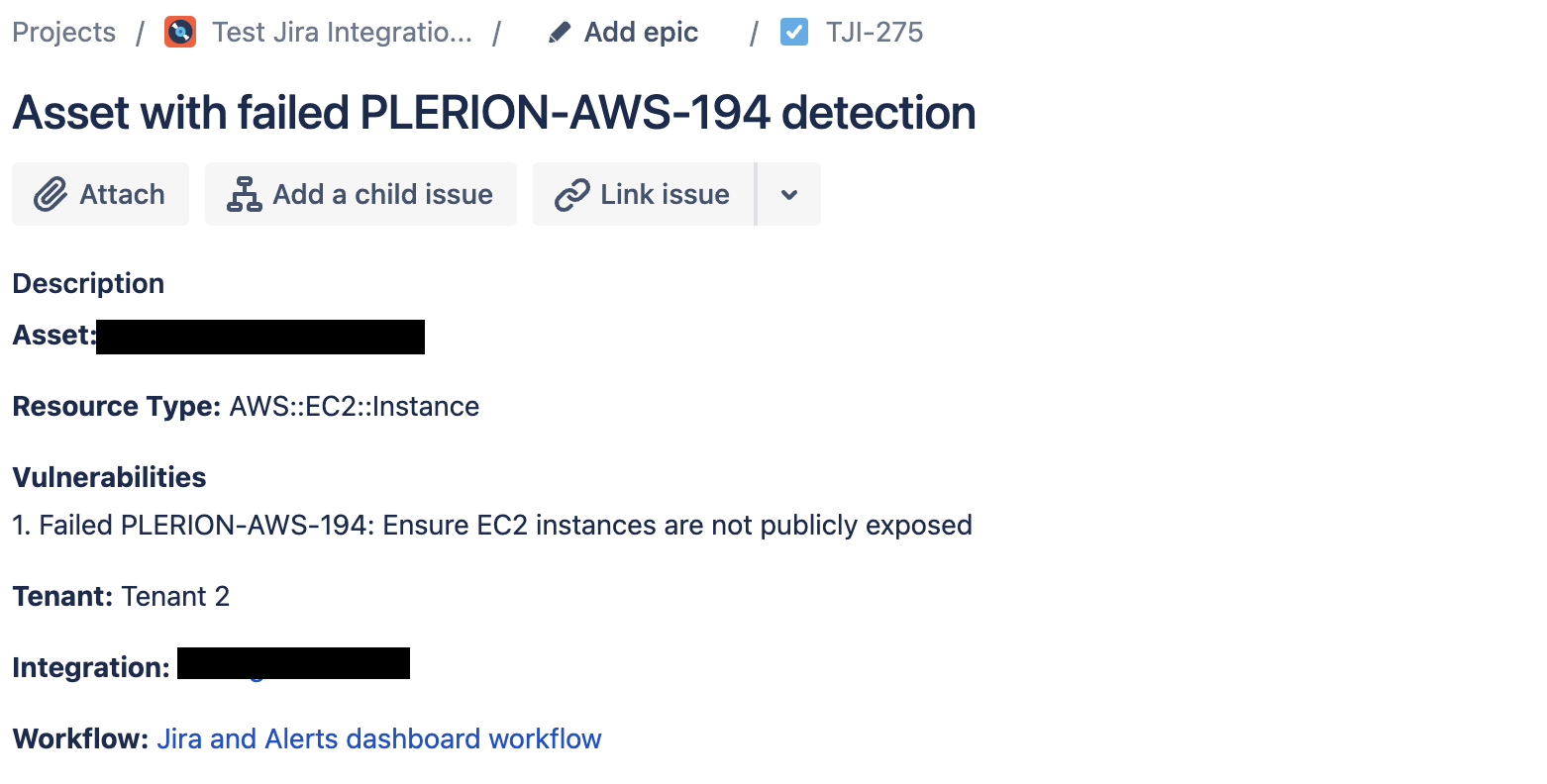
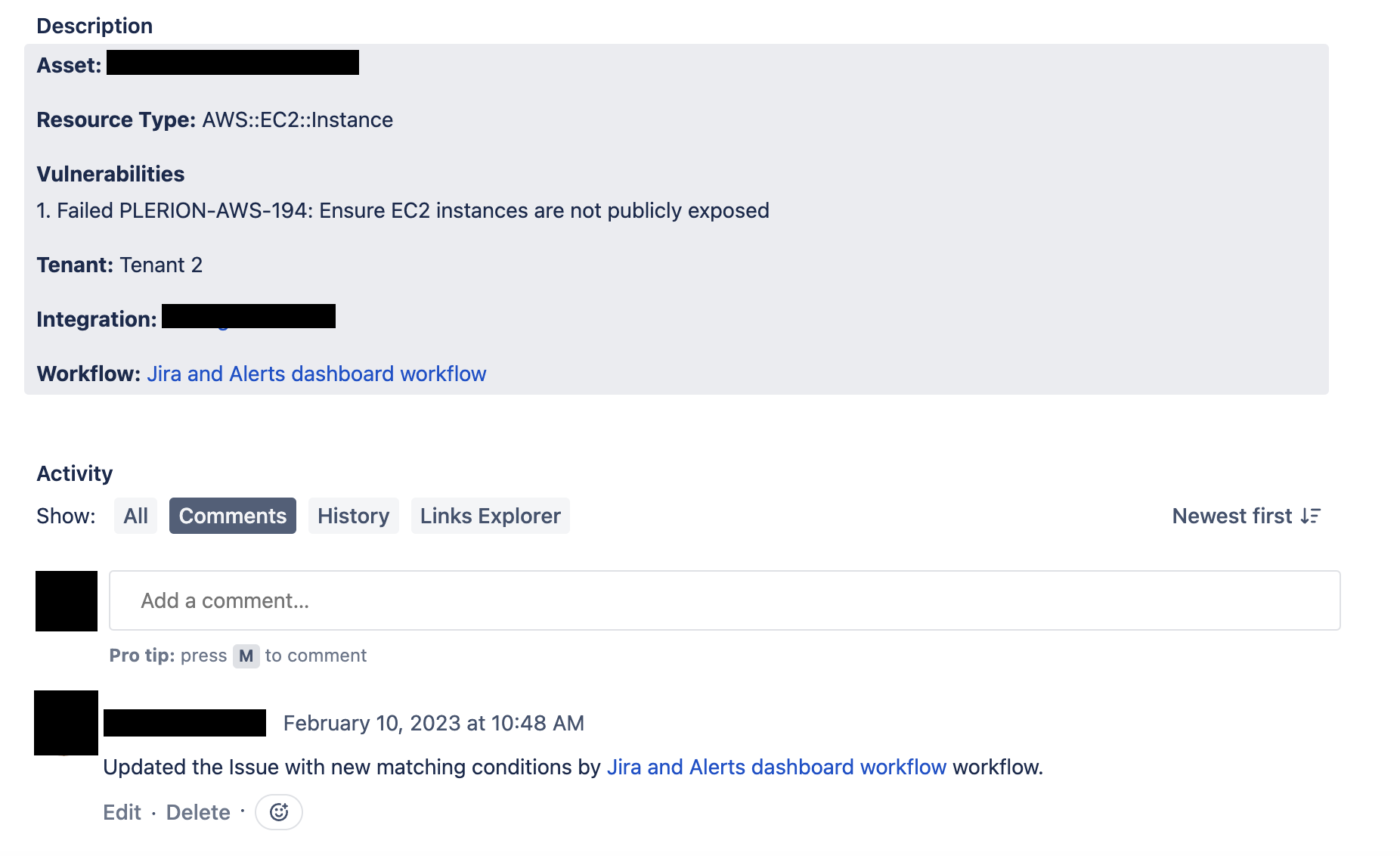
Jira alerts create tickets in the project configured during [Jira integration setup](/guides/integrations/jira).
* Ticket titles summarize the failing conditions.
* Descriptions include resource type, asset, and details.
* Updates to the asset add comments or change ticket status to “Done” (depending on Jira workflow).
***
## Jira alerts
Jira alerts create tickets in the project configured during [Jira integration setup](/guides/integrations/jira).
* Ticket titles summarize the failing conditions.
* Descriptions include resource type, asset, and details.
* Updates to the asset add comments or change ticket status to “Done” (depending on Jira workflow).
 ***
## Sentinel alerts
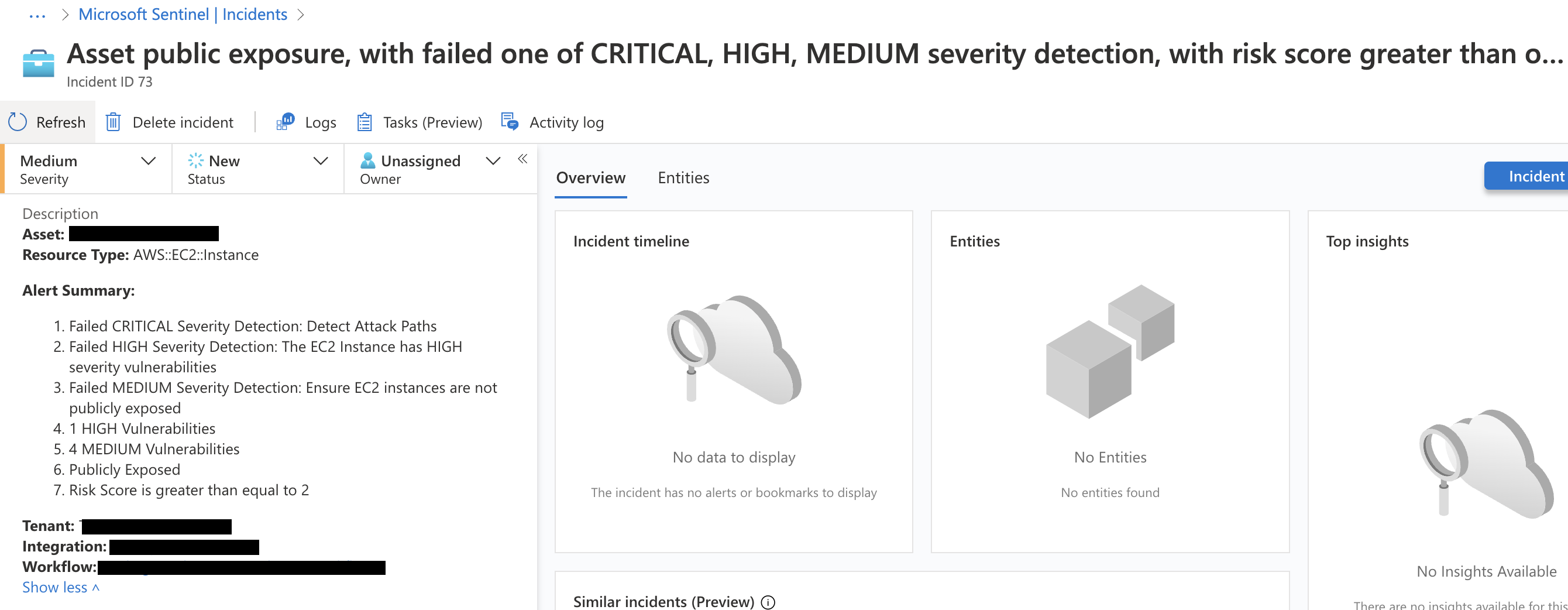
Sentinel alerts create incidents in the project you configured during the \[Sentinel integration setup].(/guides/integrations/sentinel).
* Incidents include full alert details and update automatically.
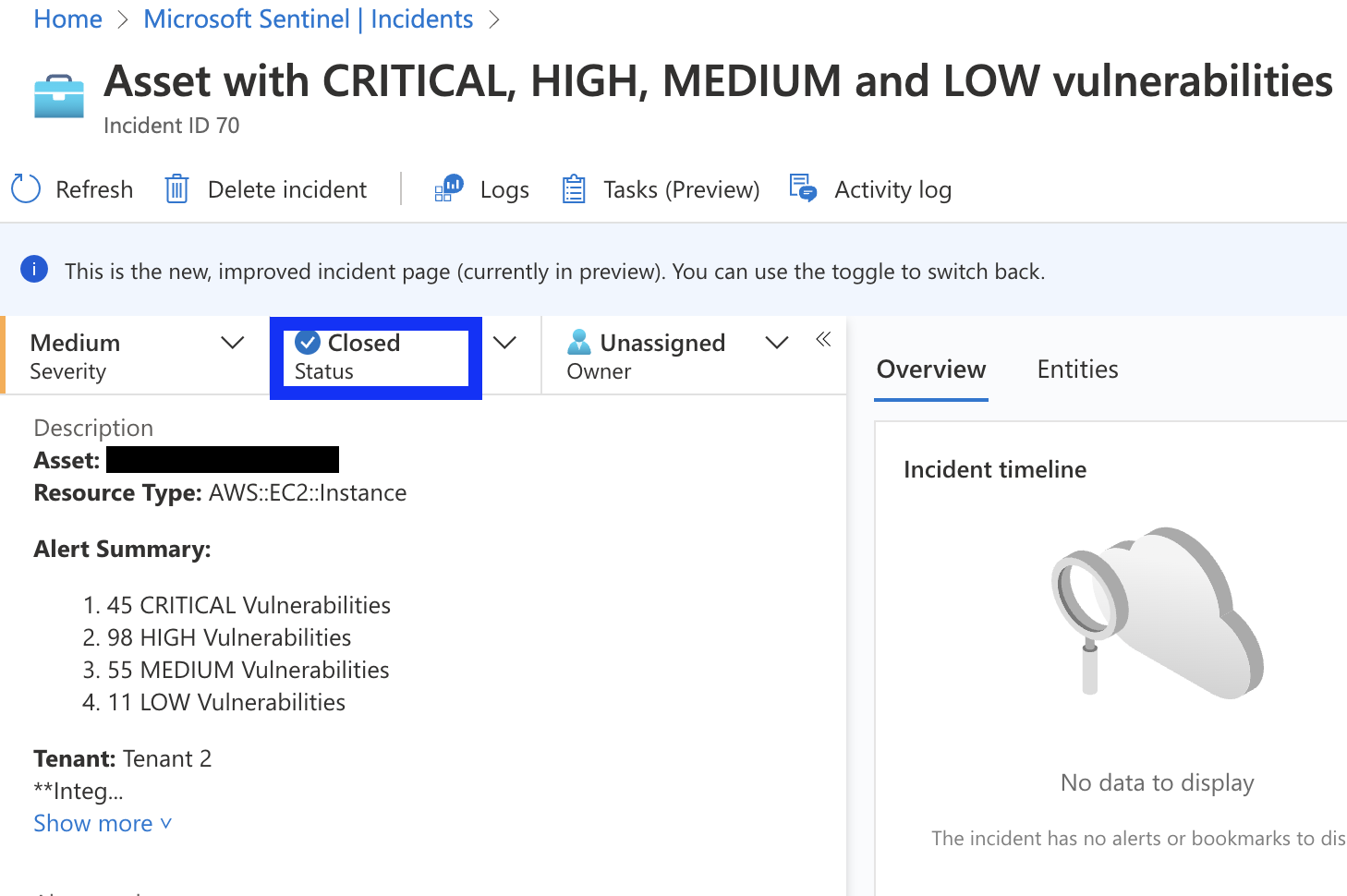
* Resolved assets move the incident to “Resolved” with a comment.
***
## Sentinel alerts
Sentinel alerts create incidents in the project you configured during the \[Sentinel integration setup].(/guides/integrations/sentinel).
* Incidents include full alert details and update automatically.
* Resolved assets move the incident to “Resolved” with a comment.