> ## Documentation Index
> Fetch the complete documentation index at: https://docs.plerion.com/llms.txt
> Use this file to discover all available pages before exploring further.

# Microsoft Teams

> Integrate Plerion with Microsoft Teams to send automated alerts to your channels based on defined triggers and parameters.

With the [Microsoft Teams integration](https://au.app.plerion.com/settings/integrations/add/Teams/Teams), you can automatically send alerts from Plerion into your Teams channels for real-time collaboration. Alerts can include findings and risks based on parameters you define.

<Warning>
  **Note:** This is a one-way outbound integration. Alerts created or updated in Plerion will appear in Microsoft Teams, but changes made in Teams will not sync back to Plerion.
</Warning>

## Steps to integrate Microsoft Teams with Plerion
<Steps>
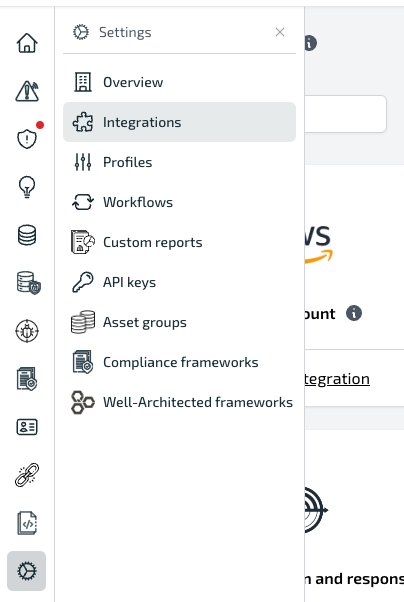
  <Step title="On the Plerion dashboard, go to Settings > Integrations">
    <Frame>
      <img src="https://mintcdn.com/pleriondocs/KcogPGsTmyqY5j98/images/integrations/teams/integrations-menu.png?fit=max&auto=format&n=KcogPGsTmyqY5j98&q=85&s=bc3e479b6c9156eb62fd023c705861ee" alt="Plerion dashboard with Settings expanded and Integrations selected" width="404" height="602" data-path="images/integrations/teams/integrations-menu.png" />
    </Frame>
  </Step>

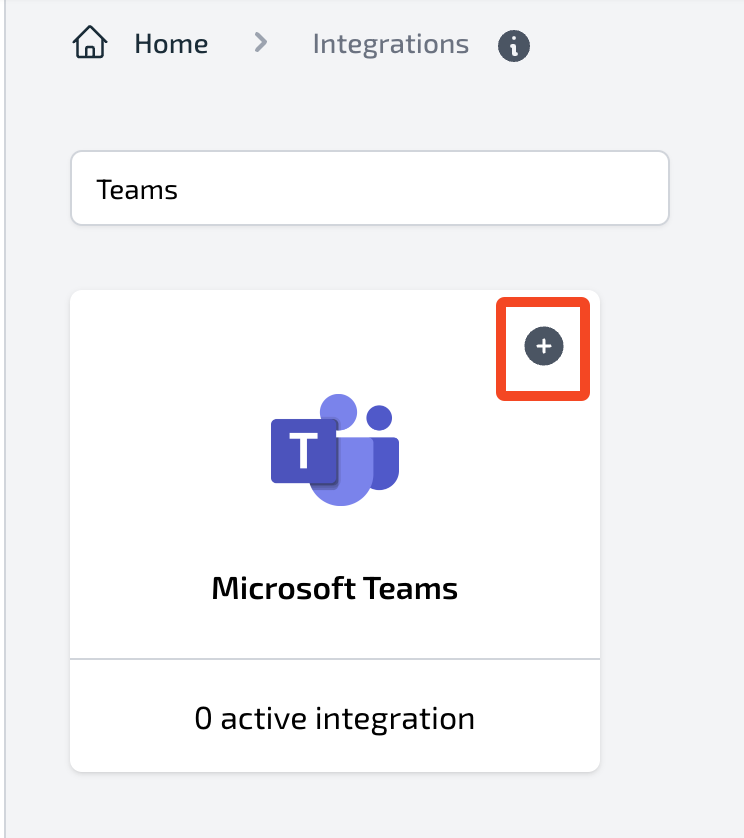
  <Step title="Find Microsoft Teams and click the + button">
    <Frame>
      <img src="https://mintcdn.com/pleriondocs/KcogPGsTmyqY5j98/images/integrations/teams/add-msteams-integration.png?fit=max&auto=format&n=KcogPGsTmyqY5j98&q=85&s=de96a29335be6773e1e5638d2b206a04" alt="Integrations page with Microsoft Teams option and plus button" width="744" height="838" data-path="images/integrations/teams/add-msteams-integration.png" />
    </Frame>
  </Step>

  <Step title="On the Connect Microsoft Teams page, enter your integration details">
    * Provide an **Integration name**
    * Paste the **Webhook URL** generated in Microsoft Teams
    * Click `Add` to complete the setup
    * Optionally, click `Send test message` to confirm the webhook is working

    <Frame>
      <img src="https://mintcdn.com/pleriondocs/KcogPGsTmyqY5j98/images/integrations/teams/msteams-input.png?fit=max&auto=format&n=KcogPGsTmyqY5j98&q=85&s=e415836f98d570111c03b96c66dc4e27" alt="Connect Microsoft Teams page showing fields for Integration name and Webhook URL" width="1835" height="316" data-path="images/integrations/teams/msteams-input.png" />
    </Frame>
  </Step>

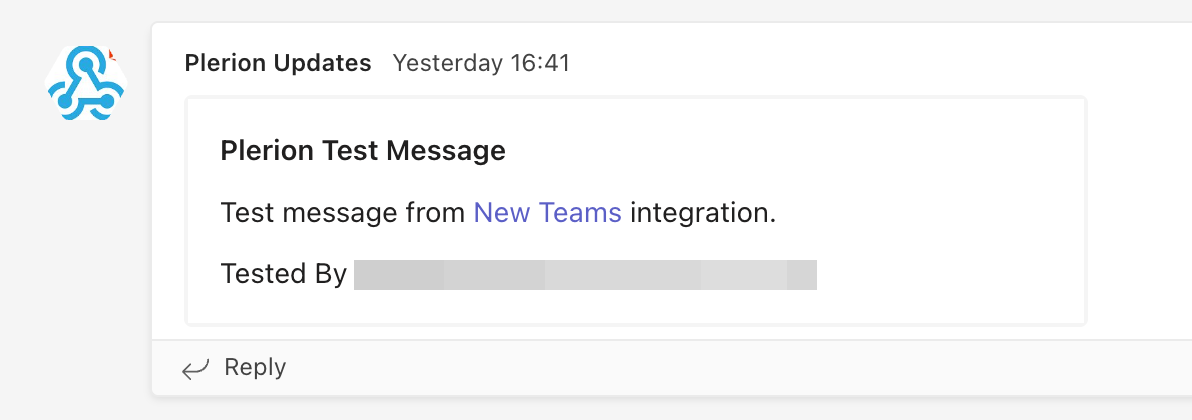
  <Step title="Review your test message in Teams">
    If the test is successful, the alert will appear in your selected Teams channel.
    <Frame>
      <img src="https://mintcdn.com/pleriondocs/KcogPGsTmyqY5j98/images/integrations/teams/msteams-test-message.png?fit=max&auto=format&n=KcogPGsTmyqY5j98&q=85&s=6dbd43249d48652e38796b87d727fa3b" alt="Microsoft Teams channel showing a test alert message from Plerion" width="1192" height="420" data-path="images/integrations/teams/msteams-test-message.png" />
    </Frame>
  </Step>
</Steps>

## Setting up an incoming webhook in Microsoft Teams

Incoming webhooks let Plerion post alerts directly into a Teams channel. Follow these steps to generate your webhook URL:

<Steps>
  <Step title="Sign in to Microsoft Teams">
    Go to [Microsoft Teams](https://teams.microsoft.com) and log in. Create a new channel if one does not already exist for Plerion alerts.
  </Step>

  <Step title="Open workflows">
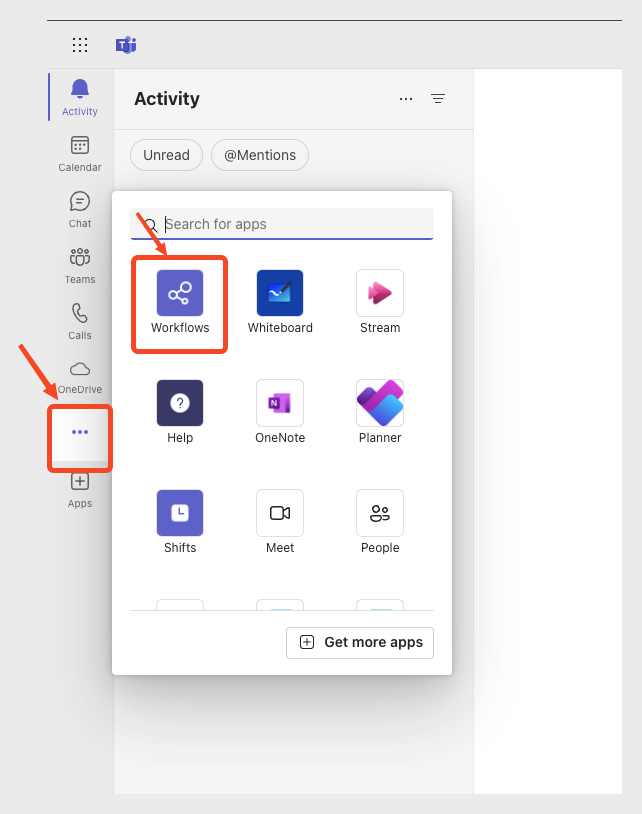
    From the left navigation bar, click the three dots (`...`) and select `Workflows`.
    <Frame>
      <img src="https://mintcdn.com/pleriondocs/KcogPGsTmyqY5j98/images/integrations/teams/msteams-workflows.png?fit=max&auto=format&n=KcogPGsTmyqY5j98&q=85&s=7dc416233dd1db242286734a80d0a354" alt="Microsoft Teams navigation with Workflows option highlighted" width="642" height="814" data-path="images/integrations/teams/msteams-workflows.png" />
    </Frame>
  </Step>

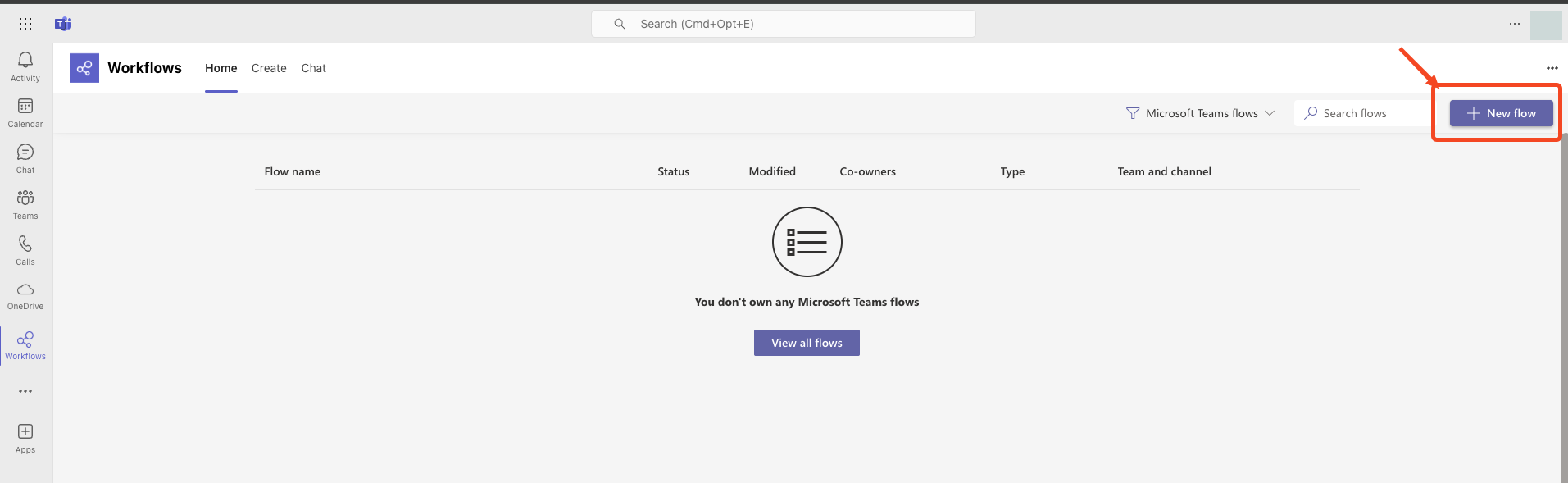
  <Step title="Create a new flow">
    Select **New flow**.

    <Frame>
      <img src="https://mintcdn.com/pleriondocs/KcogPGsTmyqY5j98/images/integrations/teams/msteams-add-flow.png?fit=max&auto=format&n=KcogPGsTmyqY5j98&q=85&s=7189a6ed41052e5ff7e5a0bba1fbe24f" alt="Microsoft Teams Workflows page with New flow option" width="1913" height="589" data-path="images/integrations/teams/msteams-add-flow.png" />
    </Frame>
  </Step>

  <Step title="Select the webhook template">
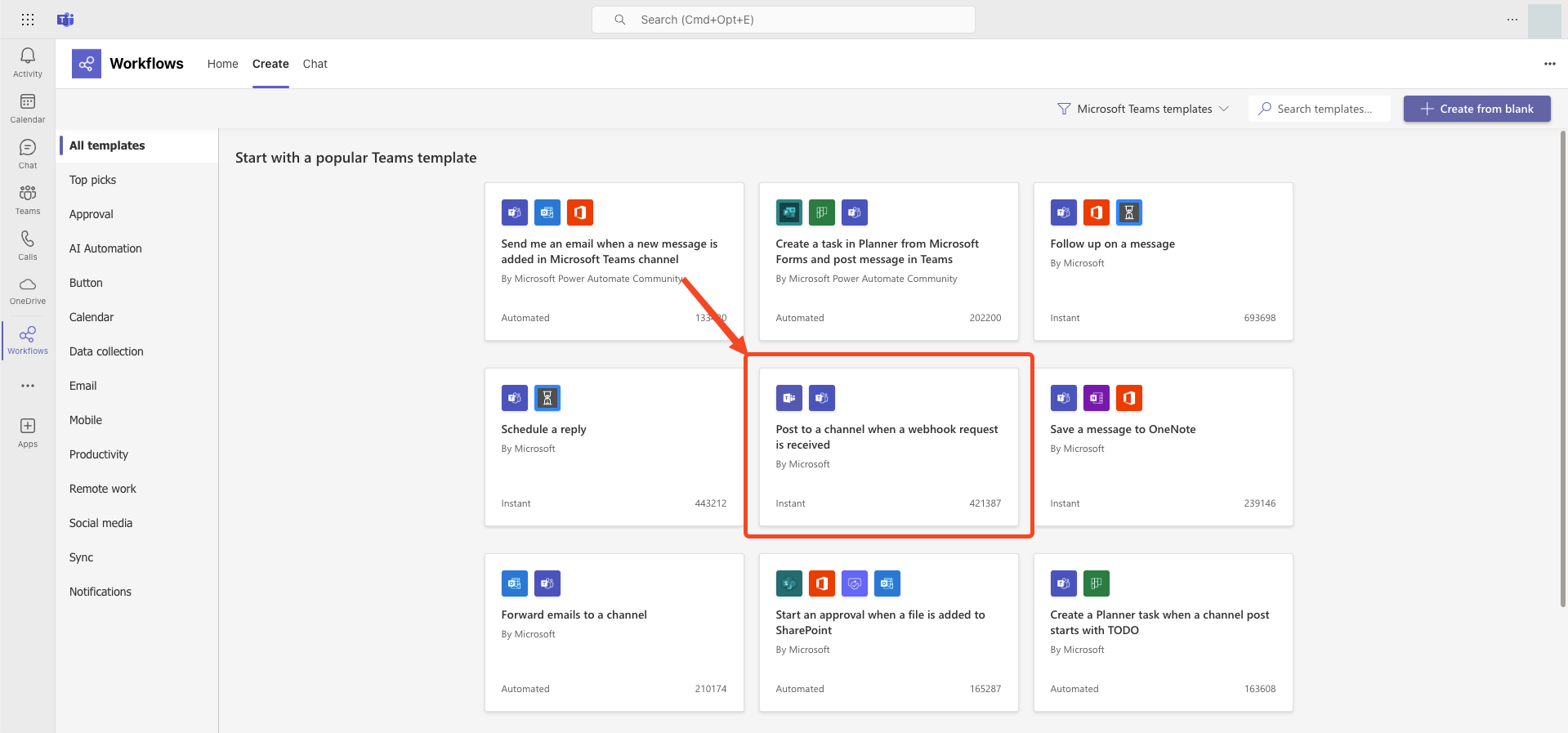
    In the list of templates, choose **Post to a channel when a webhook request is received**. Use the search bar if you do not see it listed.
    <Frame>
      <img src="https://mintcdn.com/pleriondocs/KcogPGsTmyqY5j98/images/integrations/teams/msteams-workflow-template.png?fit=max&auto=format&n=KcogPGsTmyqY5j98&q=85&s=01359b06539ba79e462becca3b3af799" alt="Microsoft Teams workflow templates showing webhook option" width="1919" height="897" data-path="images/integrations/teams/msteams-workflow-template.png" />
    </Frame>
  </Step>

  <Step title="Choose team and channel">
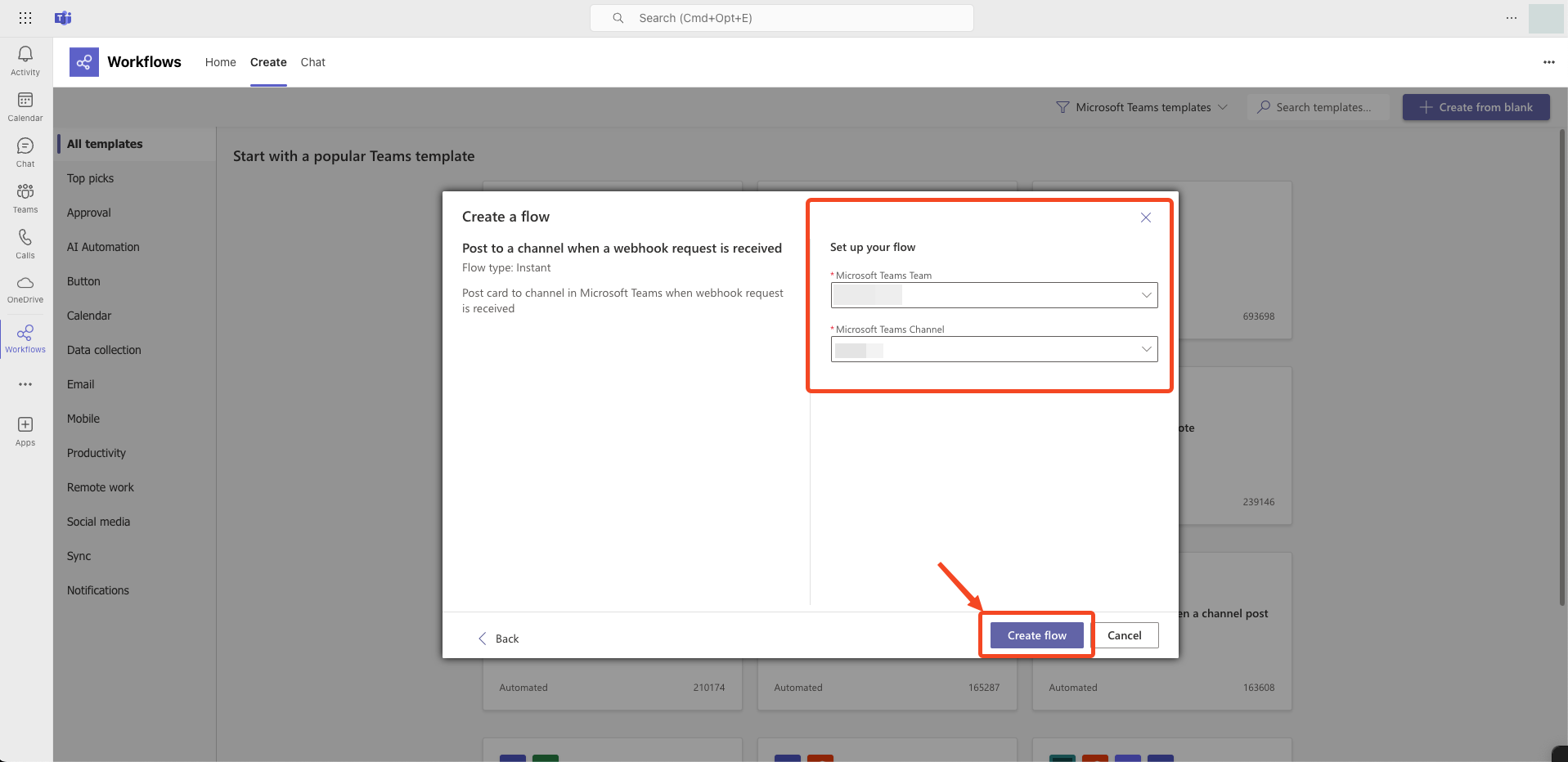
    Continue through the setup until prompted to select the target team and channel, then click `Create flow`.
    <Frame>
      <img src="https://mintcdn.com/pleriondocs/KcogPGsTmyqY5j98/images/integrations/teams/msteams-create-flow.png?fit=max&auto=format&n=KcogPGsTmyqY5j98&q=85&s=05c4251950abeb12435a0865d0dd241a" alt="Microsoft Teams flow setup with team and channel selection" width="1917" height="932" data-path="images/integrations/teams/msteams-create-flow.png" />
    </Frame>
  </Step>

  <Step title="Copy the webhook URL">
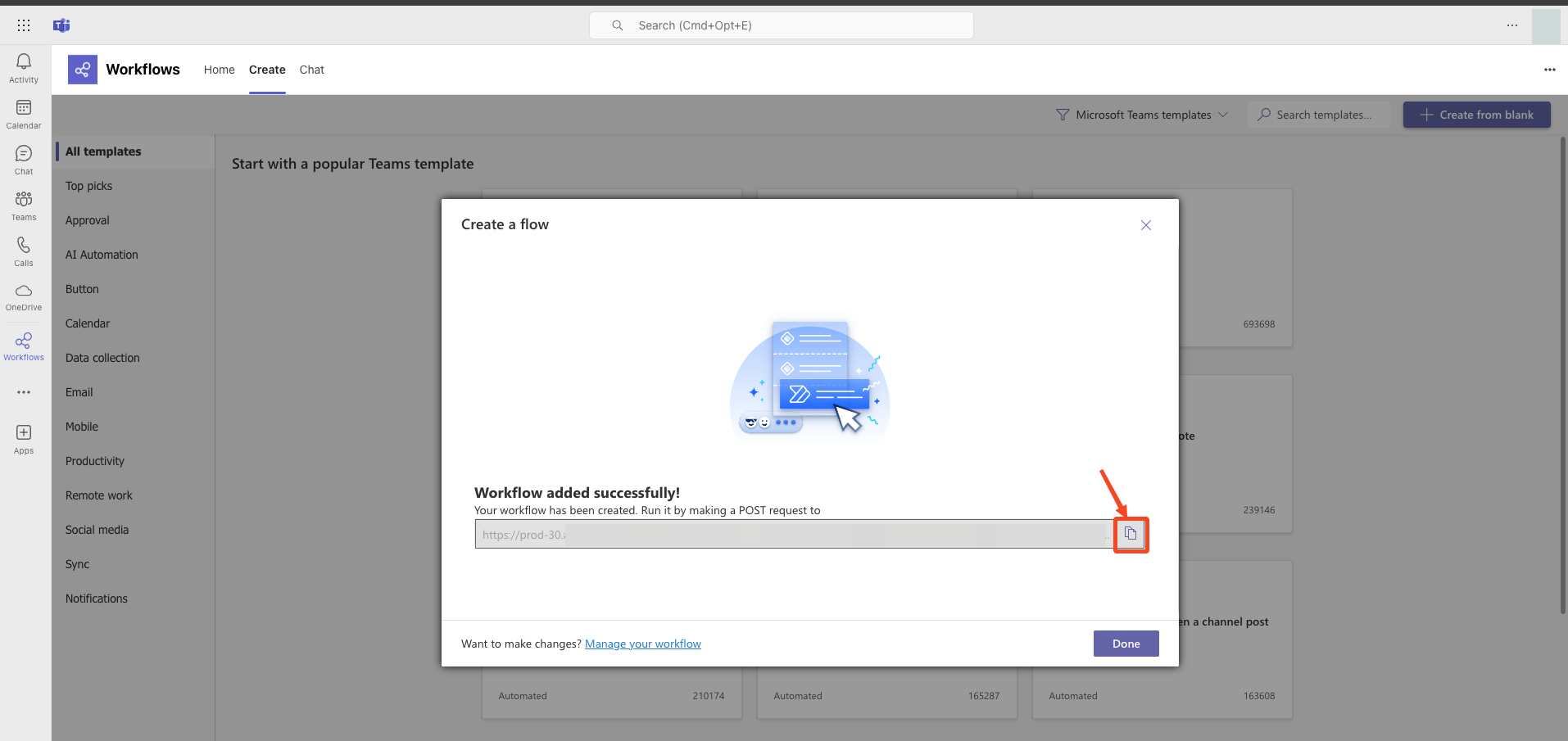
    Copy the unique webhook URL displayed in the dialog. Use this URL in Plerion to complete the Microsoft Teams integration.
    <Frame>
      <img src="https://mintcdn.com/pleriondocs/KcogPGsTmyqY5j98/images/integrations/teams/msteams-copy-workflow.png?fit=max&auto=format&n=KcogPGsTmyqY5j98&q=85&s=fe6dfc7cbaacd16b8f01525770986d72" alt="Microsoft Teams webhook creation dialog showing webhook URL" width="1914" height="905" data-path="images/integrations/teams/msteams-copy-workflow.png" />
    </Frame>
  </Step>
</Steps>