> ## Documentation Index
> Fetch the complete documentation index at: https://docs.plerion.com/llms.txt
> Use this file to discover all available pages before exploring further.

# Amazon SQS

> Integrate Plerion with Amazon SQS to send alerts for reliable, scalable processing with optional KMS encryption.

<Warning>
  **Note:** This is a one-way outbound integration. Alerts created or updated in Plerion will appear in Amazon SQS, but changes made in Amazon SQS will not sync back to Plerion.
</Warning>

## Steps to integrate Amazon SQS with Plerion
<Steps>
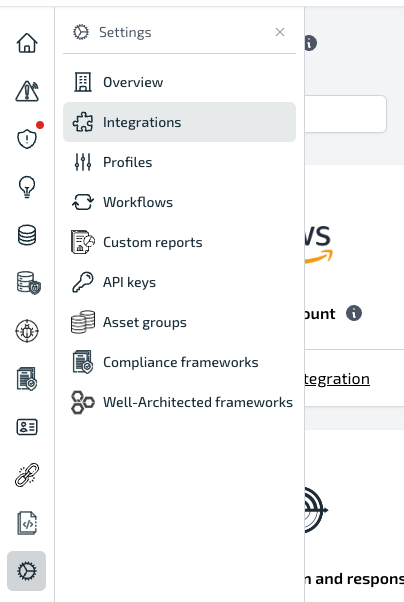
  <Step title="On the Plerion dashboard, go to Settings > Integrations">
    <Frame>
      <img src="https://mintcdn.com/pleriondocs/MtWw050mXF94y7sp/images/integrations/sqs/integrations-menu.png?fit=max&auto=format&n=MtWw050mXF94y7sp&q=85&s=4bd459c3a55efee6ba00e3e3fe47ae97" alt="Plerion dashboard with Settings expanded and Integrations selected" width="404" height="602" data-path="images/integrations/sqs/integrations-menu.png" />
    </Frame>
  </Step>

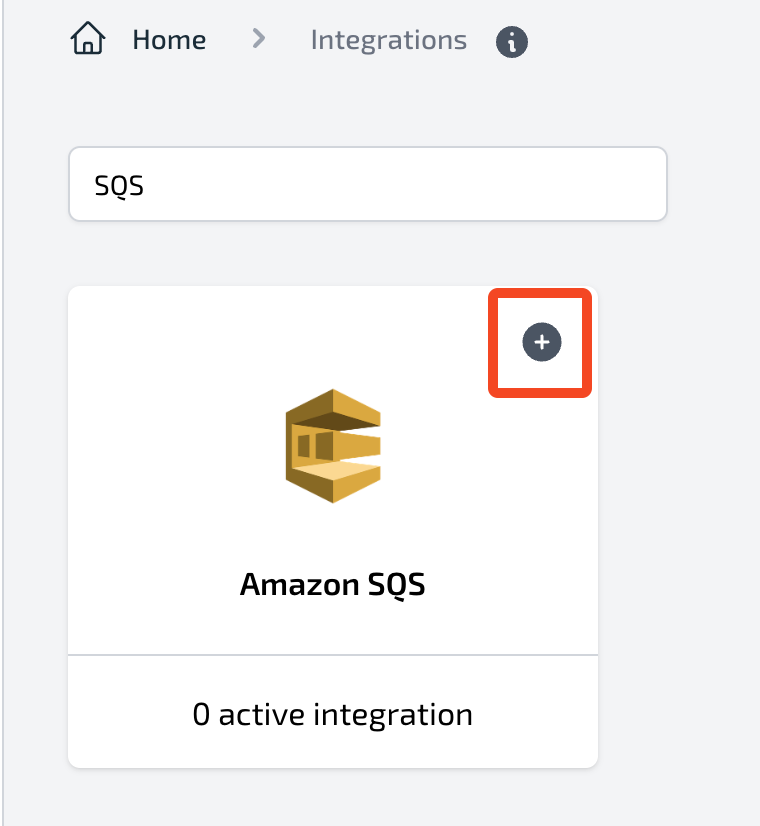
  <Step title="Find Amazon SQS and click the + button">
    <Frame>
      <img src="https://mintcdn.com/pleriondocs/MtWw050mXF94y7sp/images/integrations/sqs/add-sqs-integration.png?fit=max&auto=format&n=MtWw050mXF94y7sp&q=85&s=18c09b8489c71a75e1f9bd44935c192e" alt="Integrations page with Amazon SQS option and plus button" width="760" height="826" data-path="images/integrations/sqs/add-sqs-integration.png" />
    </Frame>
  </Step>

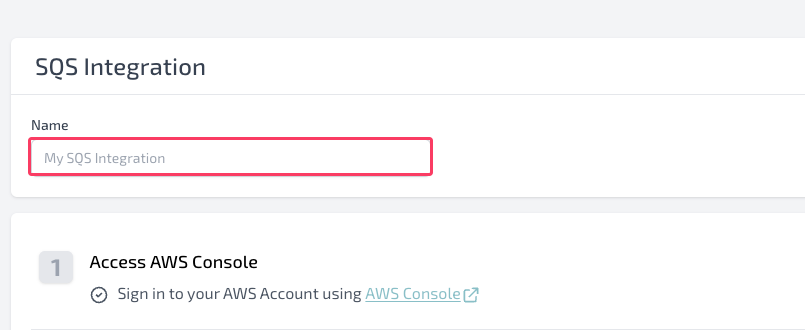
  <Step title="On the Connect Amazon SQS page, enter a name for your integration">
    <Frame>
      <img src="https://mintcdn.com/pleriondocs/MtWw050mXF94y7sp/images/integrations/sqs/add-sqs-integration-input.png?fit=max&auto=format&n=MtWw050mXF94y7sp&q=85&s=04290078262b1484bc1703a583733465" alt="Connect Amazon SQS page showing Integration name field" width="805" height="330" data-path="images/integrations/sqs/add-sqs-integration-input.png" />
    </Frame>
  </Step>

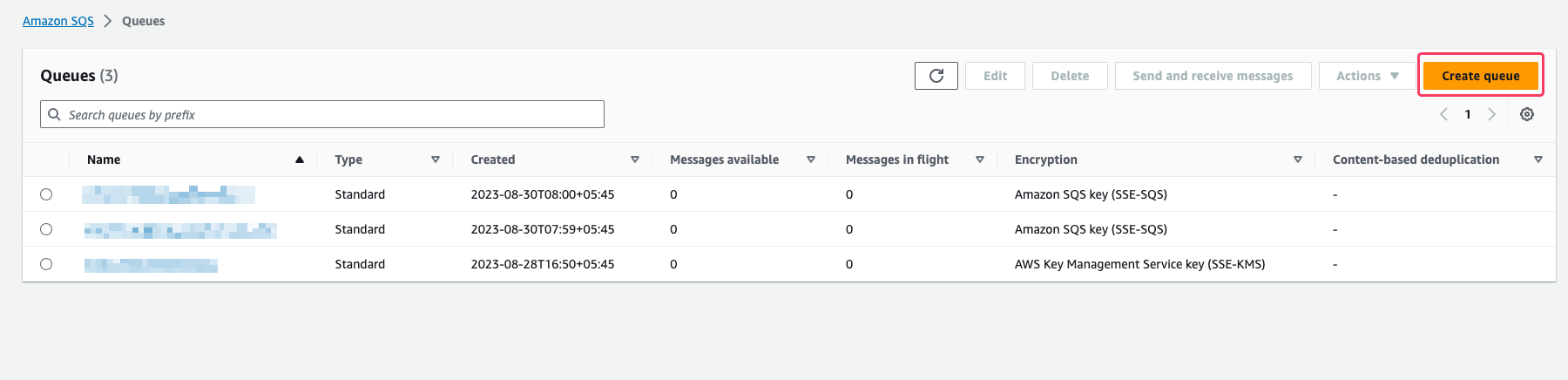
  <Step title="Create your Amazon SQS queue in AWS">
    Sign in to the AWS console, open Amazon SQS in your preferred region, and create a new queue.\
    Optionally, configure encryption using your AWS KMS customer-managed keys (CMKs).
    <Frame>
      <img src="https://mintcdn.com/pleriondocs/KcogPGsTmyqY5j98/images/integrations/sqs/sqs-aws-console.png?fit=max&auto=format&n=KcogPGsTmyqY5j98&q=85&s=60692269f618669c7016aebece3bee45" alt="Amazon SQS console showing new queue setup" width="1800" height="436" data-path="images/integrations/sqs/sqs-aws-console.png" />
    </Frame>
  </Step>

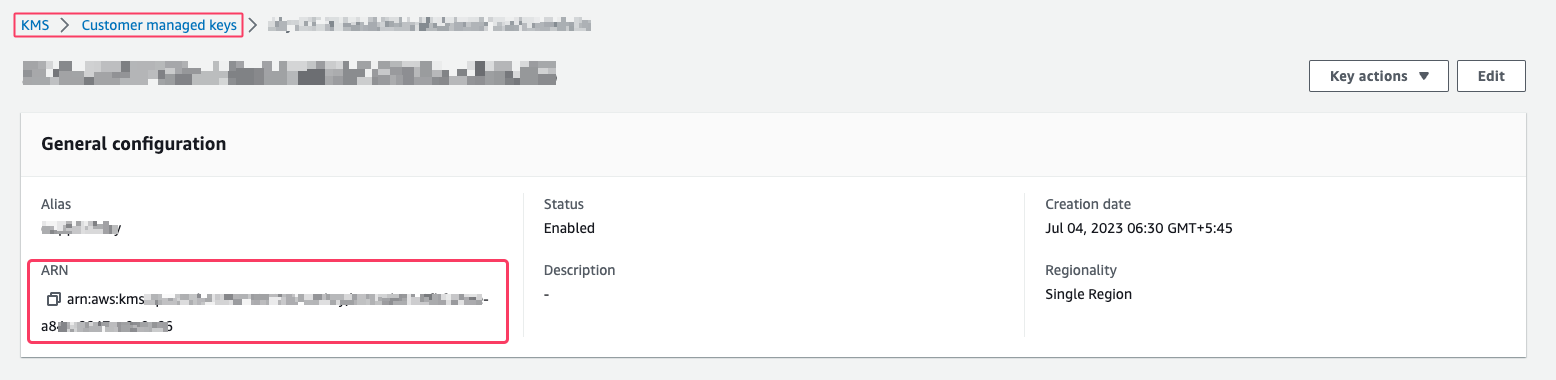
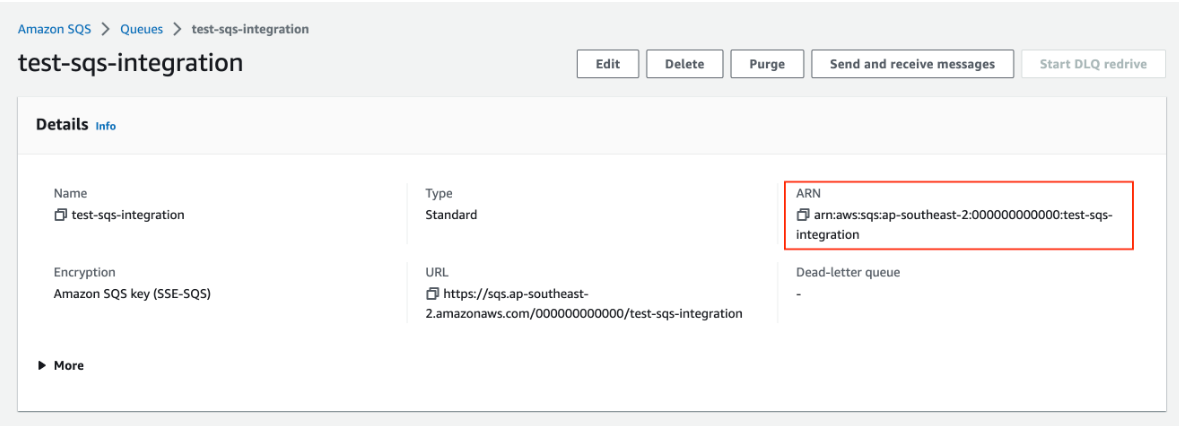
  <Step title="Copy your Amazon SQS ARN and AWS KMS ARN (if used)">
    <Frame>
      <img src="https://mintcdn.com/pleriondocs/MtWw050mXF94y7sp/images/integrations/sqs/kms-aws-arn.png?fit=max&auto=format&n=MtWw050mXF94y7sp&q=85&s=c047bbecf2f30306737e729ff3a4562f" alt="Amazon SQS console showing queue ARN" width="1556" height="380" data-path="images/integrations/sqs/kms-aws-arn.png" />
    </Frame>

    <br />

    <Frame>
      <img src="https://mintcdn.com/pleriondocs/MtWw050mXF94y7sp/images/integrations/sqs/sqs-aws-arn.png?fit=max&auto=format&n=MtWw050mXF94y7sp&q=85&s=647b0f16f9bb757ef4877ab7378508de" alt="AWS KMS console showing CMK ARN" width="1179" height="426" data-path="images/integrations/sqs/sqs-aws-arn.png" />
    </Frame>
  </Step>

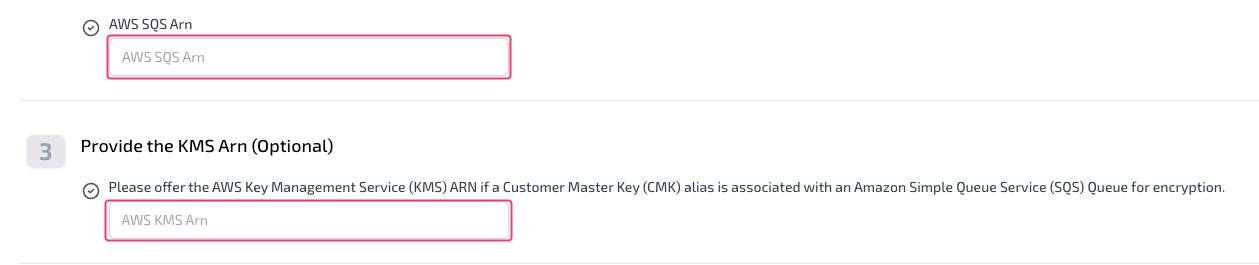
  <Step title="Paste the ARNs into Plerion">
    Back in Plerion, paste your **Amazon SQS ARN** and (if configured) your **AWS KMS ARN**.
    <Frame>
      <img src="https://mintcdn.com/pleriondocs/MtWw050mXF94y7sp/images/integrations/sqs/add-sqs-arn-fields.png?fit=max&auto=format&n=MtWw050mXF94y7sp&q=85&s=a377b6c0ec397ff062ad0c495931877a" alt="Plerion platform showing ARN fields for SQS and KMS" width="1259" height="265" data-path="images/integrations/sqs/add-sqs-arn-fields.png" />
    </Frame>
  </Step>

  <Step title="Generate and paste the Plerion Access Role ARN">
    Click `Launch Stack` to create the access role in AWS.\
    Copy the generated **Plerion Access Role ARN** and paste it into Plerion.
  </Step>

  <Step title="Test your Amazon SQS integration">
    Click `Send test message` in Plerion. If successful, a test alert will appear in your Amazon SQS queue.
  </Step>

  <Step title="Finalize the setup">
    Click `Add` to complete the integration.

    <Frame>
      <img src="https://mintcdn.com/pleriondocs/MtWw050mXF94y7sp/images/integrations/sqs/add-sqs-accessrole-arn.png?fit=max&auto=format&n=MtWw050mXF94y7sp&q=85&s=0ccd6192ad5f5eb52d24e615340ca92a" alt="Amazon SQS integration page showing Add button" width="1818" height="329" data-path="images/integrations/sqs/add-sqs-accessrole-arn.png" />
    </Frame>
  </Step>
</Steps>

## Checking messages in Amazon SQS

<Steps>
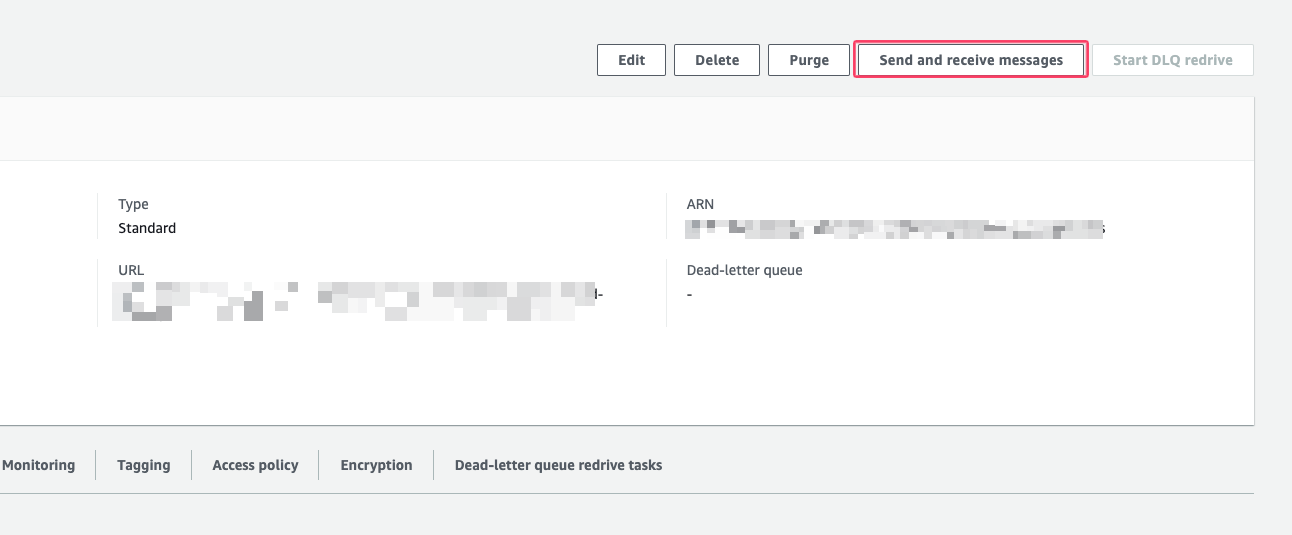
  <Step title="Open your Amazon SQS console">
    Select the queue you connected to Plerion.
  </Step>

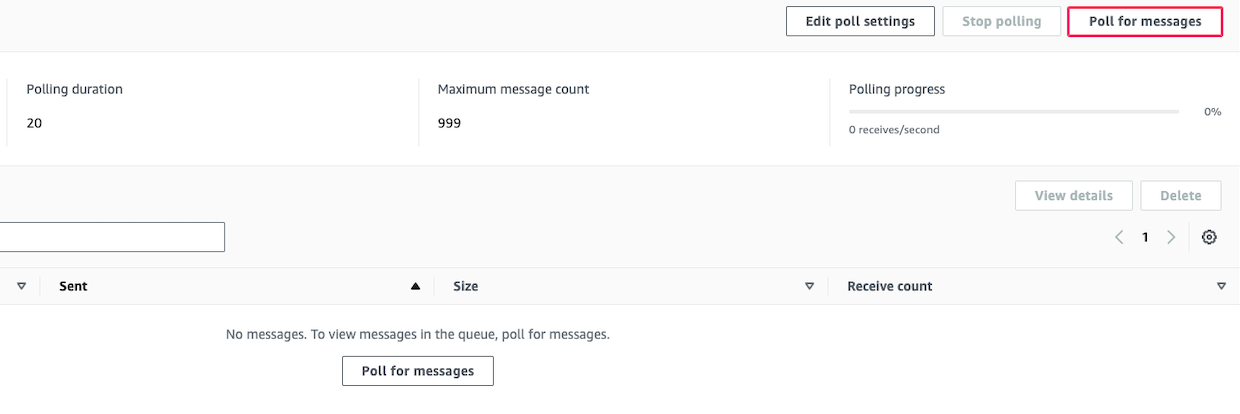
  <Step title="Poll for messages">
    Choose `Send and receive messages`, then select `Poll for messages`. If the integration test was successful, the test message from Plerion will appear.
    <Frame>
      <img src="https://mintcdn.com/pleriondocs/KcogPGsTmyqY5j98/images/integrations/sqs/sqs-aws-sendandreceive-messages.png?fit=max&auto=format&n=KcogPGsTmyqY5j98&q=85&s=d6b7f7a08bc109b5a2b84dc9813a965b" alt="Amazon SQS console showing queue selected" width="1292" height="535" data-path="images/integrations/sqs/sqs-aws-sendandreceive-messages.png" />
    </Frame>

    <Frame>
      <img src="https://mintcdn.com/pleriondocs/KcogPGsTmyqY5j98/images/integrations/sqs/sqs-poll-for-messages.png?fit=max&auto=format&n=KcogPGsTmyqY5j98&q=85&s=51518c3fd57643280cddfb2c444c7f4d" alt="Amazon SQS console showing Poll for messages option" width="1240" height="414" data-path="images/integrations/sqs/sqs-poll-for-messages.png" />
    </Frame>
  </Step>
</Steps>