> ## Documentation Index
> Fetch the complete documentation index at: https://docs.plerion.com/llms.txt
> Use this file to discover all available pages before exploring further.

# Slack

> Integrate Plerion with Slack to send alerts to a channel via Incoming Webhooks, keeping your team informed in real time.

With the [Slack integration](https://app.plerion.com/settings/integrations/add/Slack/Slack), you can route Plerion notifications to the right channels and keep incident context in Slack.

<Warning>
  **Note:** This is a one-way outbound integration. Messages sent from Plerion appear
  in Slack, but changes in Slack do not sync back to Plerion.
</Warning>

## Steps to integrate Slack

<Steps>
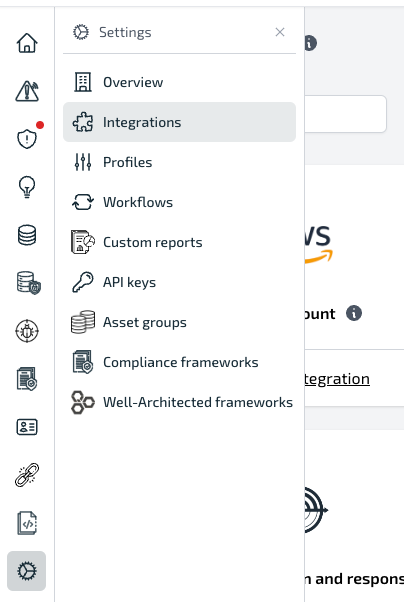
  <Step title="Open Settings > Integrations in Plerion">
    <Frame>
      <img src="https://mintcdn.com/pleriondocs/MtWw050mXF94y7sp/images/integrations/slack/integrations-menu.png?fit=max&auto=format&n=MtWw050mXF94y7sp&q=85&s=89741c1a57b69159cdce02521d2efc8b" alt="Plerion sidebar navigation with Settings expanded and Integrations highlighted" width="404" height="602" data-path="images/integrations/slack/integrations-menu.png" />
    </Frame>
  </Step>

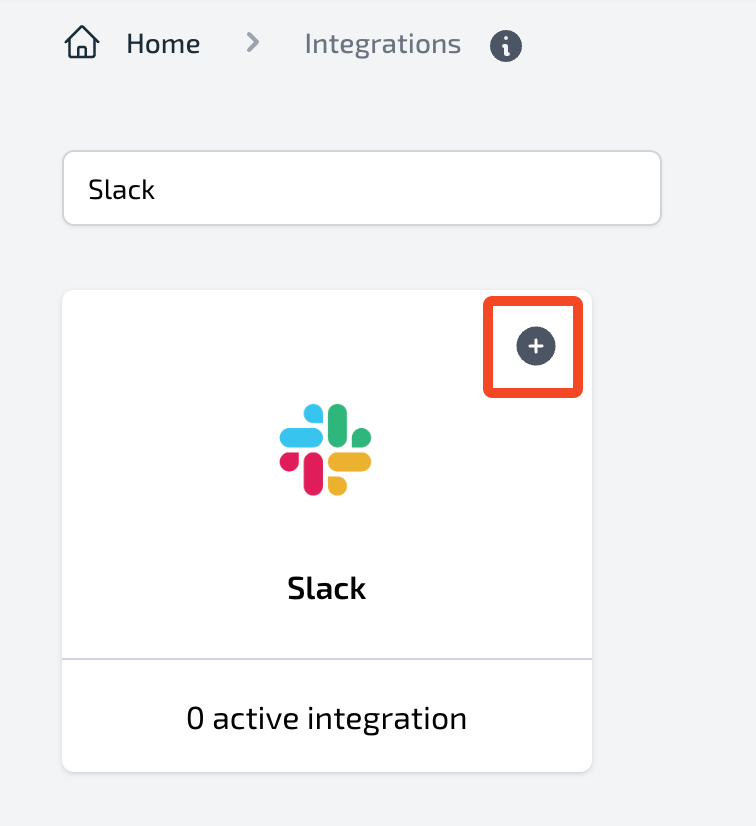
  <Step title="Select Slack and click the + button">
    <Frame>
      <img src="https://mintcdn.com/pleriondocs/MtWw050mXF94y7sp/images/integrations/slack/add-slack.png?fit=max&auto=format&n=MtWw050mXF94y7sp&q=85&s=0e9ad3555ebf0c1998a4ff5176eae72a" alt="Plerion Integrations page showing the Slack tile with a plus button to add the integration" width="756" height="826" data-path="images/integrations/slack/add-slack.png" />
    </Frame>
  </Step>

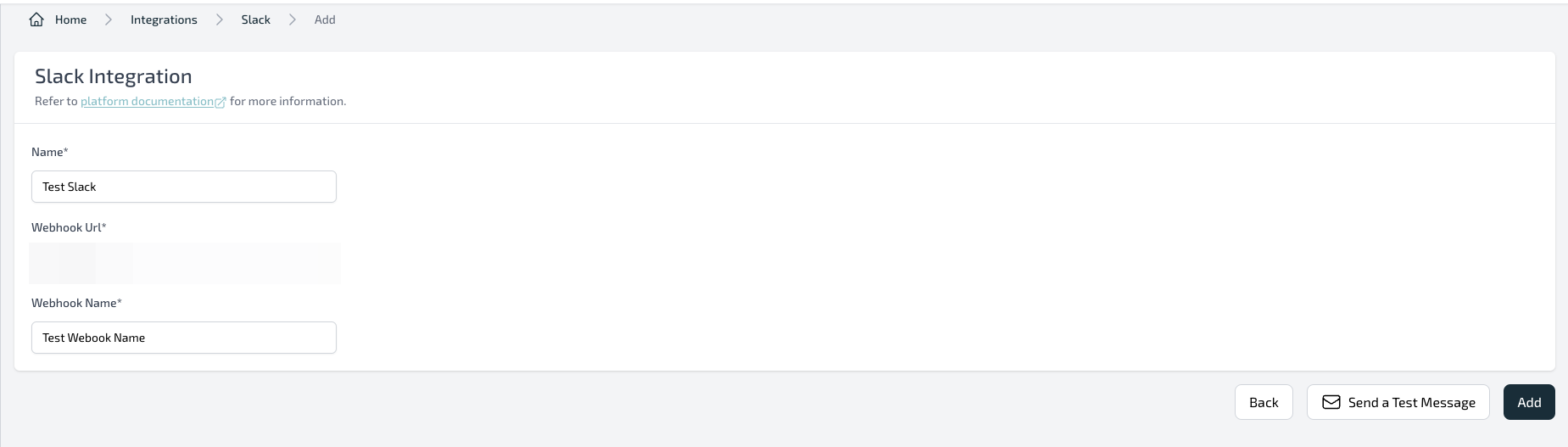
  <Step title="Enter connection details and send a test">
    Provide **Integration name**, **Webhook URL**, and **Webhook name**. Click `Send test message` to verify the webhook posts to the expected channel.
    <Frame>
      <img src="https://mintcdn.com/pleriondocs/MtWw050mXF94y7sp/images/integrations/slack/slack-inputs.png?fit=max&auto=format&n=MtWw050mXF94y7sp&q=85&s=42c148e81864462fcb4c510a2a428e92" alt="Plerion Slack connection form with fields for Integration name, Webhook URL, Webhook name, and a Send test message button" width="1849" height="527" data-path="images/integrations/slack/slack-inputs.png" />
    </Frame>
  </Step>

  <Step title="Finish setup and confirm in Slack">
    Click `Add` to save the integration. Check your Slack channel for the test message.

    <Frame>
      <img src="https://mintcdn.com/pleriondocs/MtWw050mXF94y7sp/images/integrations/slack/slack-test-message.png?fit=max&auto=format&n=MtWw050mXF94y7sp&q=85&s=15ceecc8561c676ece2888dbf76eeed3" alt="Slack channel view showing a test message posted from the Plerion integration" width="1712" height="232" data-path="images/integrations/slack/slack-test-message.png" />
    </Frame>
  </Step>
</Steps>

## Obtaining credentials (Incoming Webhook URL)

Incoming Webhooks allow Plerion to post messages into Slack. Create a webhook URL in Slack, then paste it into Plerion.

<Steps>
  <Step title="Create a Slack app">
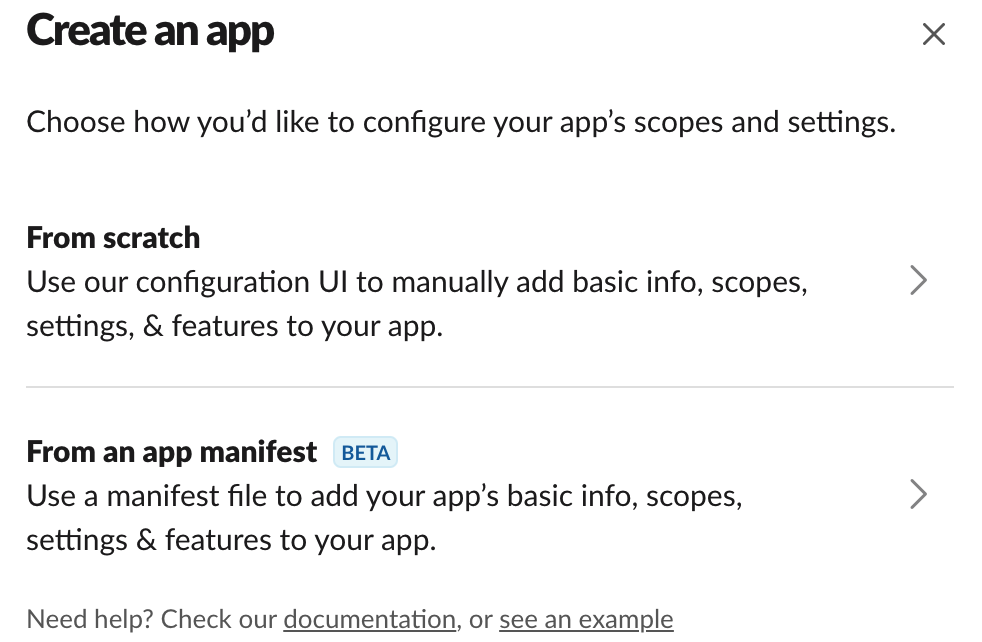
    Open the [Slack API portal](https://api.slack.com/apps?new_app=1) and sign in if prompted. Select `Create New App`.
    <Frame>
      <img src="https://mintcdn.com/pleriondocs/MtWw050mXF94y7sp/images/integrations/slack/slack-create-app.png?fit=max&auto=format&n=MtWw050mXF94y7sp&q=85&s=0daa35a635ae19a8b91e9acda43a2ebf" alt="Slack API portal showing the Create New App entry point" width="982" height="642" data-path="images/integrations/slack/slack-create-app.png" />
    </Frame>
  </Step>

  <Step title="Name the app and choose a workspace">
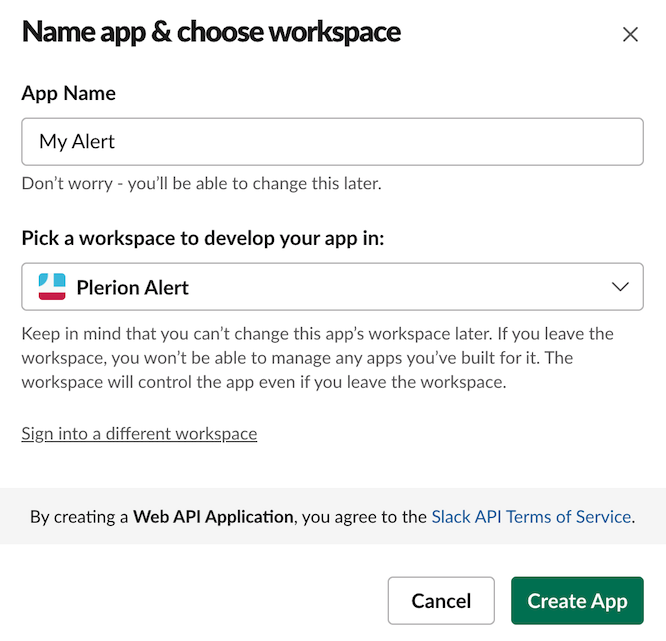
    Enter an app name and select the Slack workspace where it will post. Click `Create App`.
    <Frame>
      <img src="https://mintcdn.com/pleriondocs/MtWw050mXF94y7sp/images/integrations/slack/slack-configure-app.png?fit=max&auto=format&n=MtWw050mXF94y7sp&q=85&s=822dfb6272126c61383c4e4612a4b432" alt="Slack create app screen with fields for App Name and Workspace selection" width="666" height="641" data-path="images/integrations/slack/slack-configure-app.png" />
    </Frame>
  </Step>

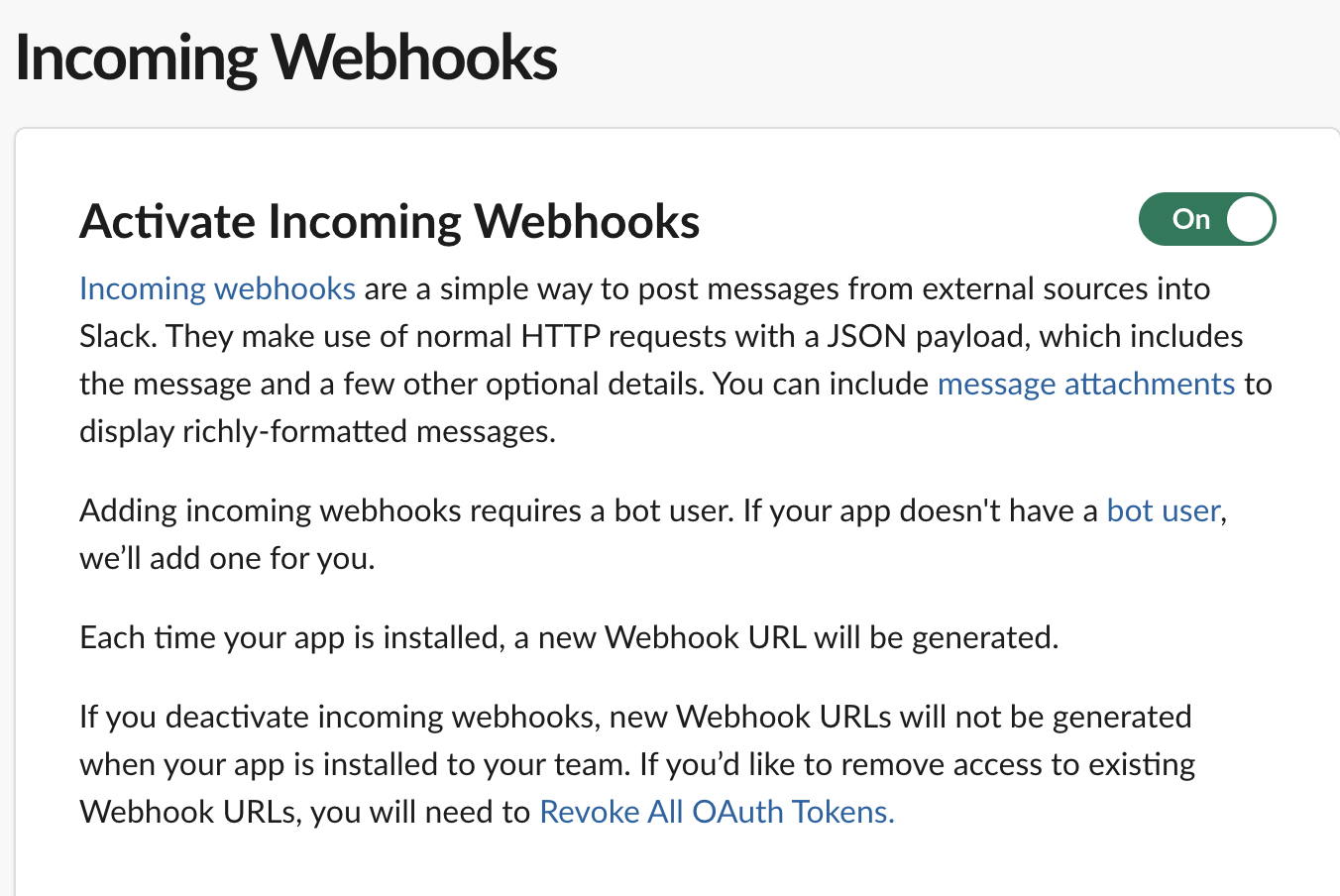
  <Step title="Enable incoming webhooks">
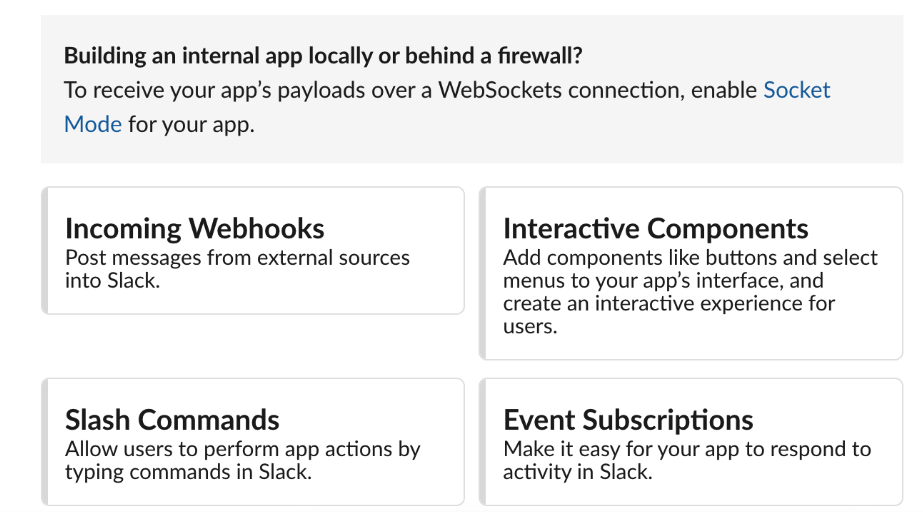
    In the left navigation, select **Incoming Webhooks** and toggle it **On**.
    <Frame>
      <img src="https://mintcdn.com/pleriondocs/MtWw050mXF94y7sp/images/integrations/slack/slack-webhook.png?fit=max&auto=format&n=MtWw050mXF94y7sp&q=85&s=0521f3f771f5ae8f39f46cc36e38e231" alt="Slack app configuration page with Incoming Webhooks section and activation toggle" width="923" height="512" data-path="images/integrations/slack/slack-webhook.png" />
    </Frame>

    <Frame>
      <img src="https://mintcdn.com/pleriondocs/MtWw050mXF94y7sp/images/integrations/slack/slack-webhook-url.png?fit=max&auto=format&n=MtWw050mXF94y7sp&q=85&s=07ab4dc2f7a54d8a3a0092bcdf8219d0" alt="Slack Incoming Webhooks status showing the feature enabled" width="1338" height="896" data-path="images/integrations/slack/slack-webhook-url.png" />
    </Frame>
  </Step>

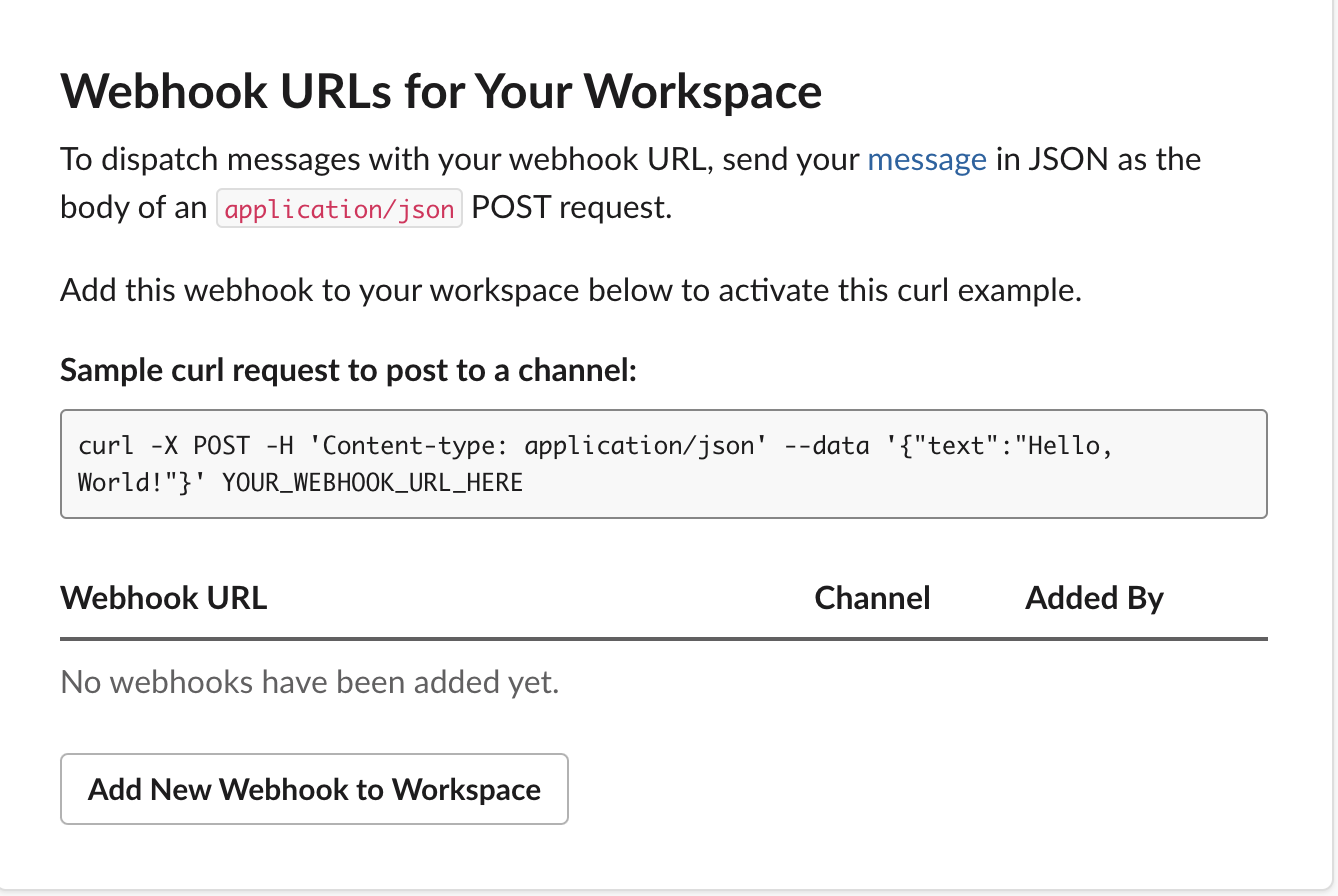
  <Step title="Add a webhook to a channel">
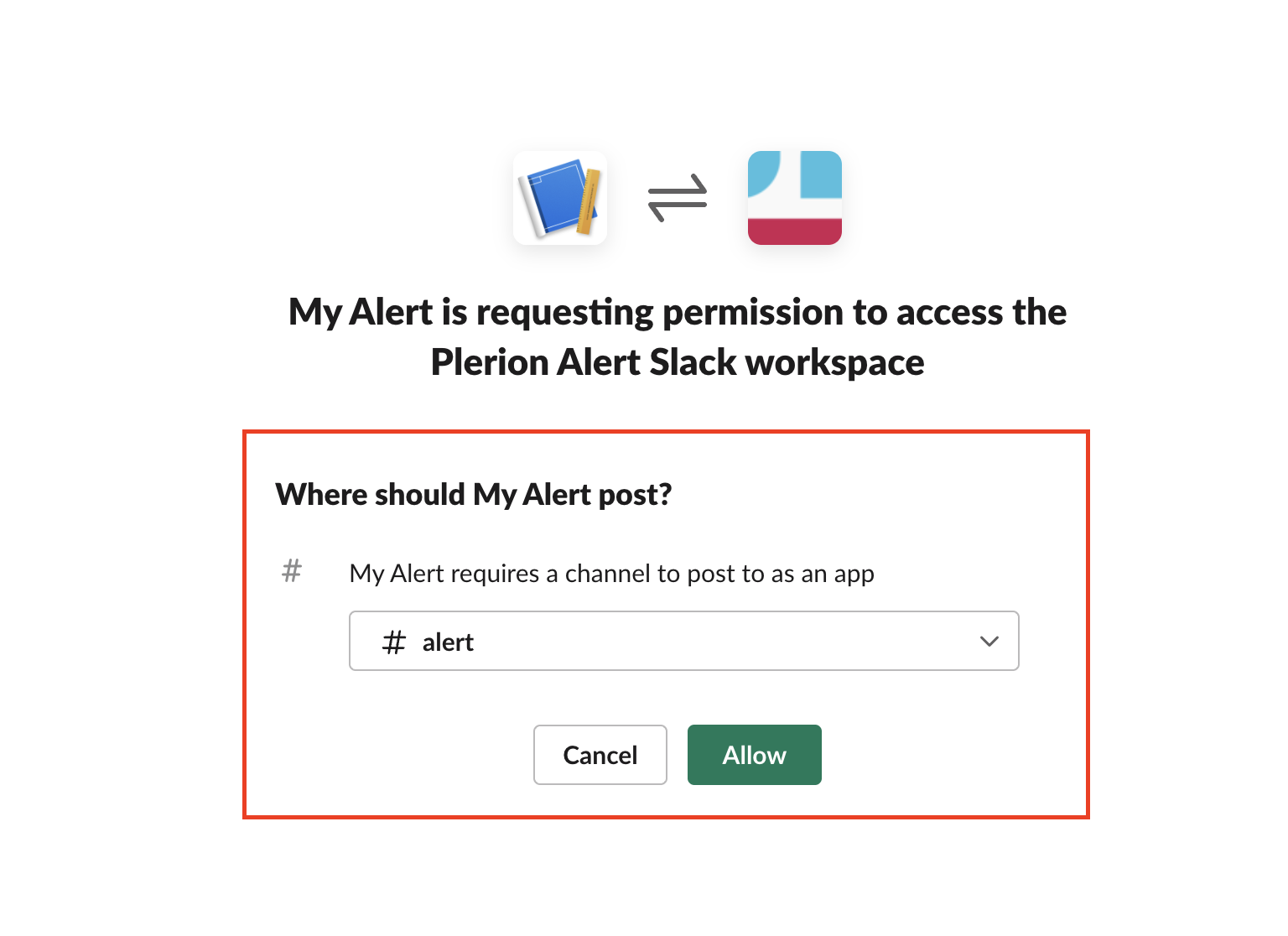
    Click `Add new Webhook to Workspace`, choose the target channel, and click `Allow`.
    <Frame>
      <img src="https://mintcdn.com/pleriondocs/MtWw050mXF94y7sp/images/integrations/slack/slack-permissions.png?fit=max&auto=format&n=MtWw050mXF94y7sp&q=85&s=5309d6cda9c0a196f6b8b9e437f491fc" alt="Slack permission screen prompting to select a channel for the webhook" width="1536" height="1116" data-path="images/integrations/slack/slack-permissions.png" />
    </Frame>

    <Frame>
      <img src="https://mintcdn.com/pleriondocs/MtWw050mXF94y7sp/images/integrations/slack/slack-activate-incoming-webhook.png?fit=max&auto=format&n=MtWw050mXF94y7sp&q=85&s=dcf4e73a9a22277909bfc53b2dd9eb49" alt="Slack channel selection modal showing available channels to post to" width="1352" height="904" data-path="images/integrations/slack/slack-activate-incoming-webhook.png" />
    </Frame>
  </Step>

  <Step title="Copy the webhook URL">
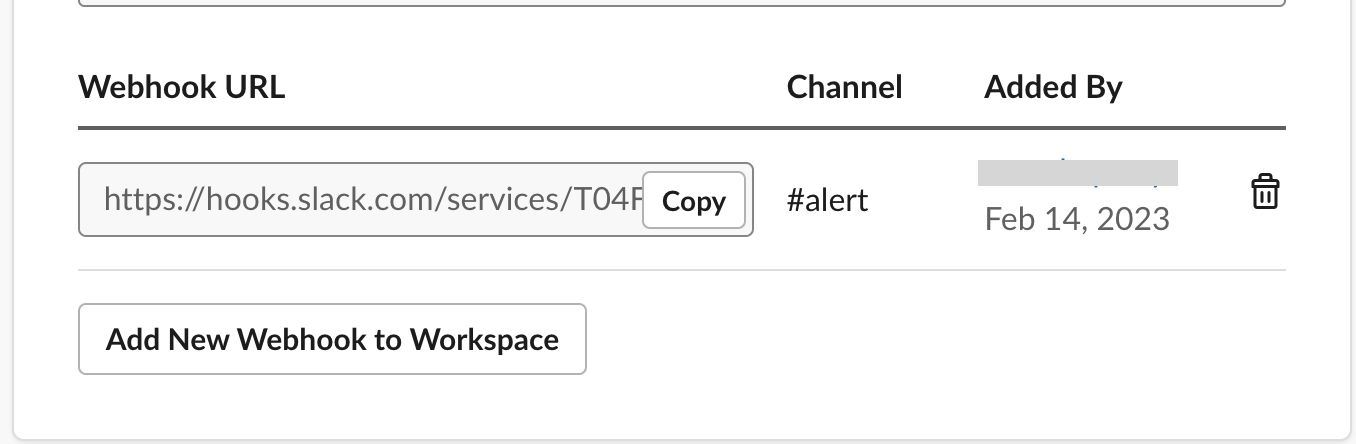
    Click `Copy` to grab the **Webhook URL** and paste it into Plerion's **Webhook URL** field.
    <Frame>
      <img src="https://mintcdn.com/pleriondocs/MtWw050mXF94y7sp/images/integrations/slack/slack-copy-webhook-url.png?fit=max&auto=format&n=MtWw050mXF94y7sp&q=85&s=d04889608315a9bc529b7f133dc3ad46" alt="Slack Incoming Webhooks page showing a generated Webhook URL and Copy button" width="1356" height="444" data-path="images/integrations/slack/slack-copy-webhook-url.png" />
    </Frame>
  </Step>
</Steps>