> ## Documentation Index
> Fetch the complete documentation index at: https://docs.plerion.com/llms.txt
> Use this file to discover all available pages before exploring further.
# ServiceNow
> Integrate Plerion with ServiceNow to automatically create and update incidents, streamlining IT service management (ITSM) workflows and reducing manual effort.
With the [ServiceNow integration](https://app.plerion.com/settings/integrations/add/ServiceNow/ServiceNow), you can create incidents from Plerion alerts directly in ServiceNow, keeping your team in their existing workflows.
**Note:** This is a one-way outbound integration. Alerts created or updated in Plerion will appear in ServiceNow, but changes made in ServiceNow will not sync back to Plerion.
## Steps to integrate ServiceNow with Plerion
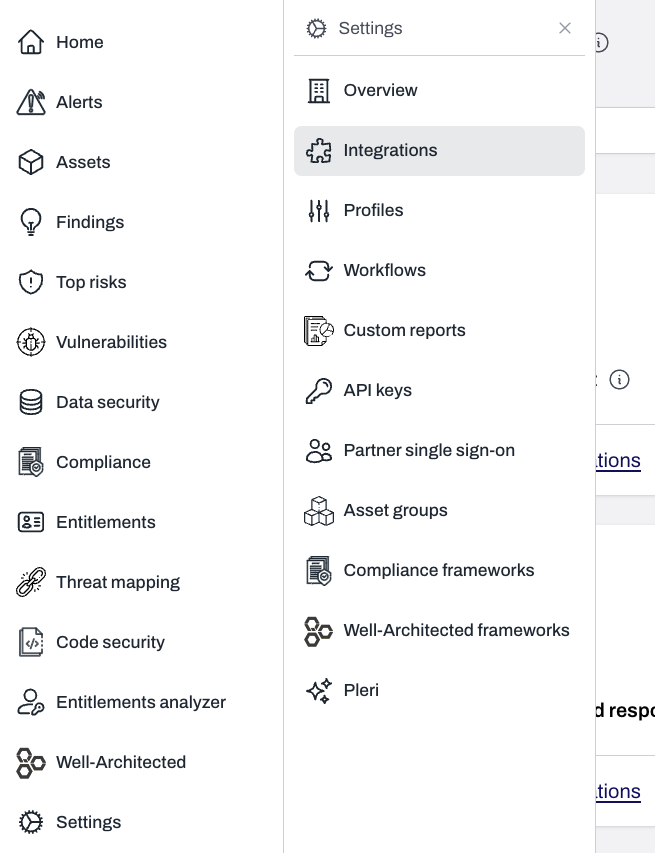
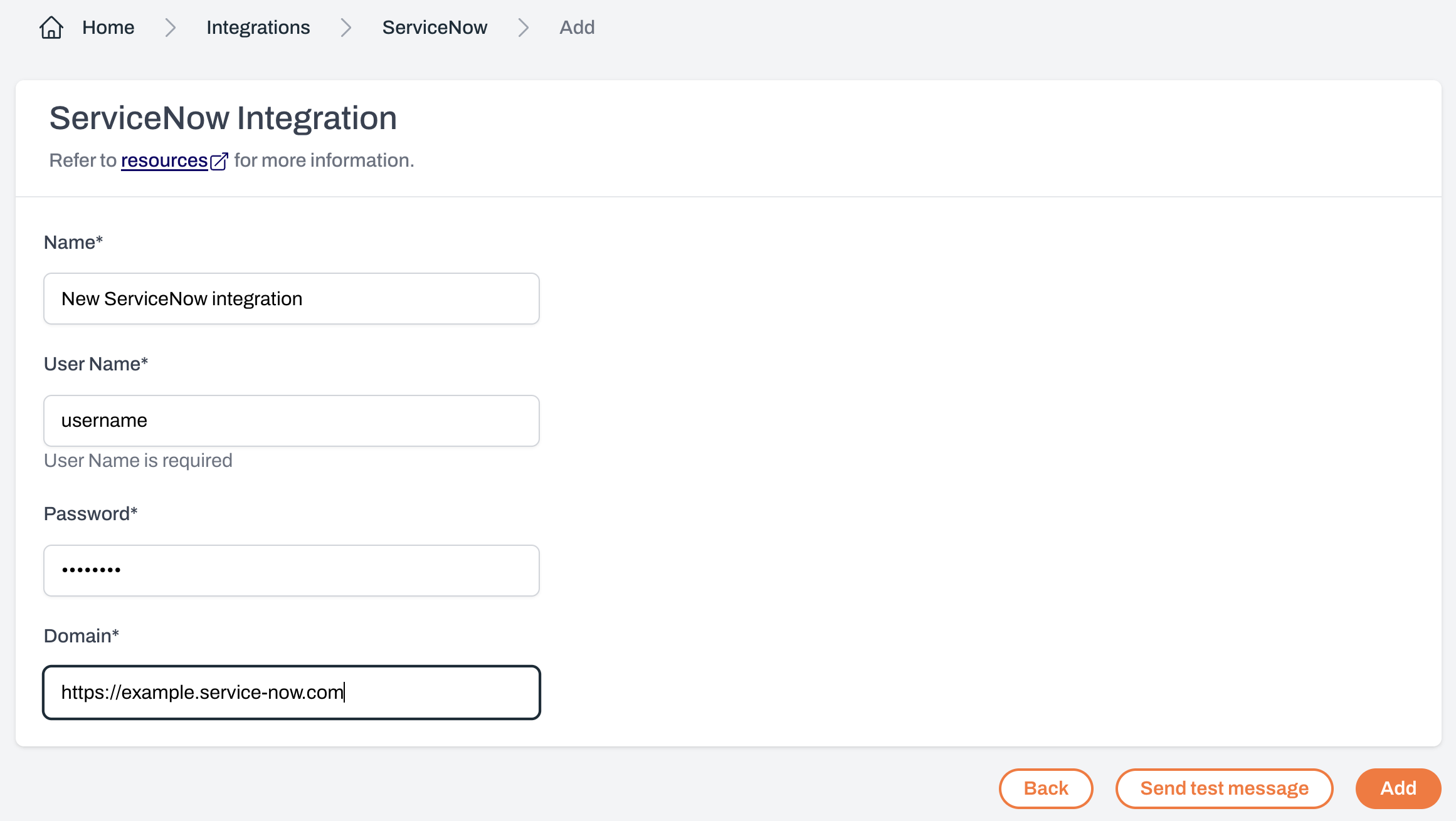
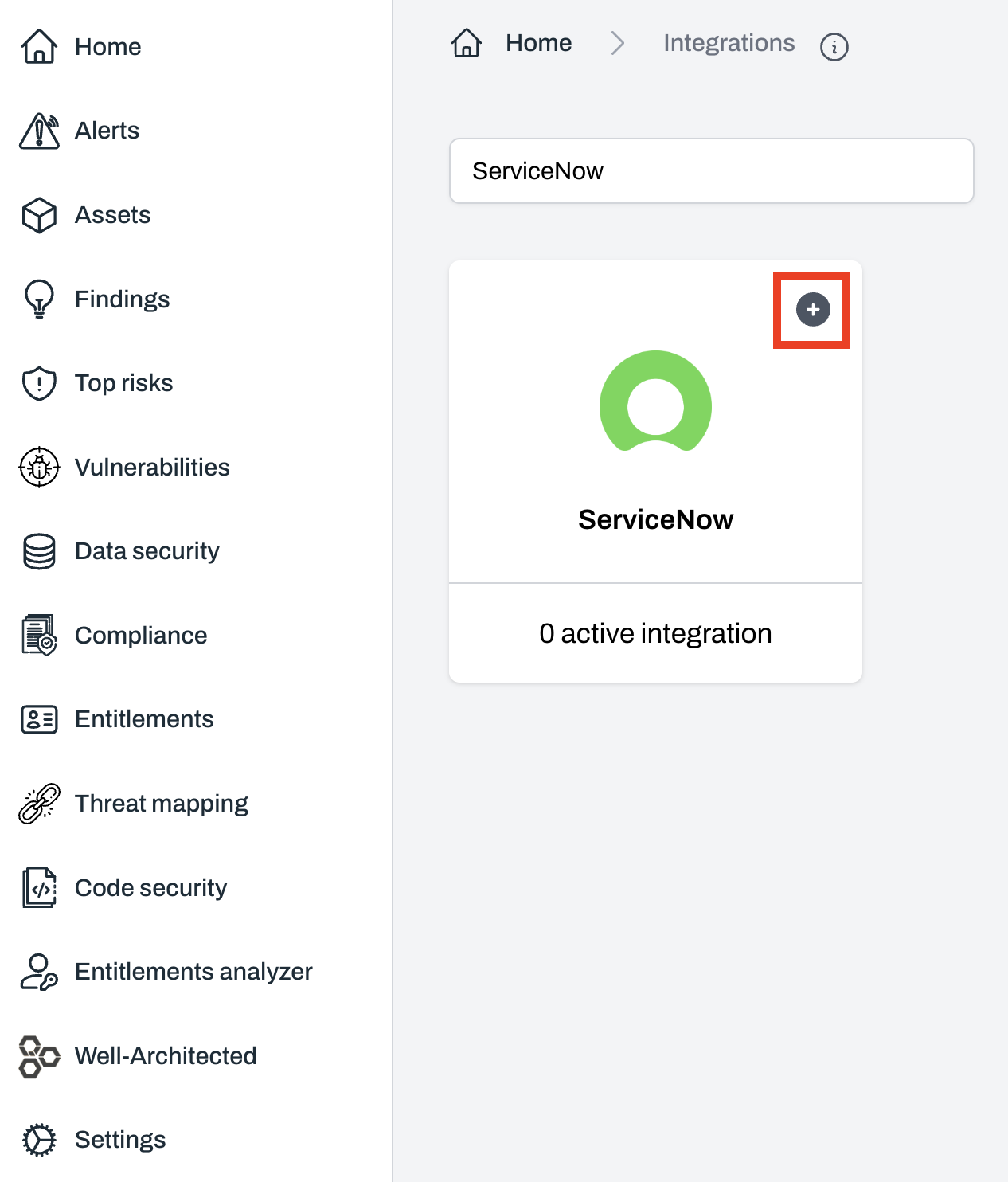 * **User Name:** Your ServiceNow username
* **Password:** Your ServiceNow password
* **Domain:** Your ServiceNow instance URL (e.g. `https://example.servicenow.com`)
* **User Name:** Your ServiceNow username
* **Password:** Your ServiceNow password
* **Domain:** Your ServiceNow instance URL (e.g. `https://example.servicenow.com`)
 After adding ServiceNow, you can send a test message to confirm the setup.\
Click `Send test message` in Plerion.
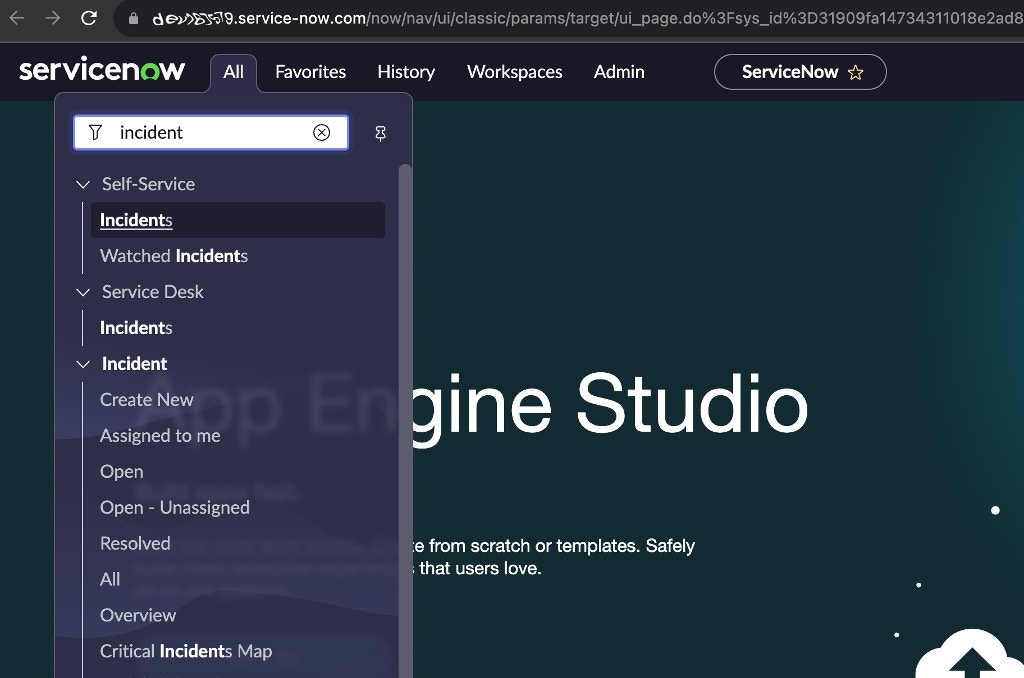
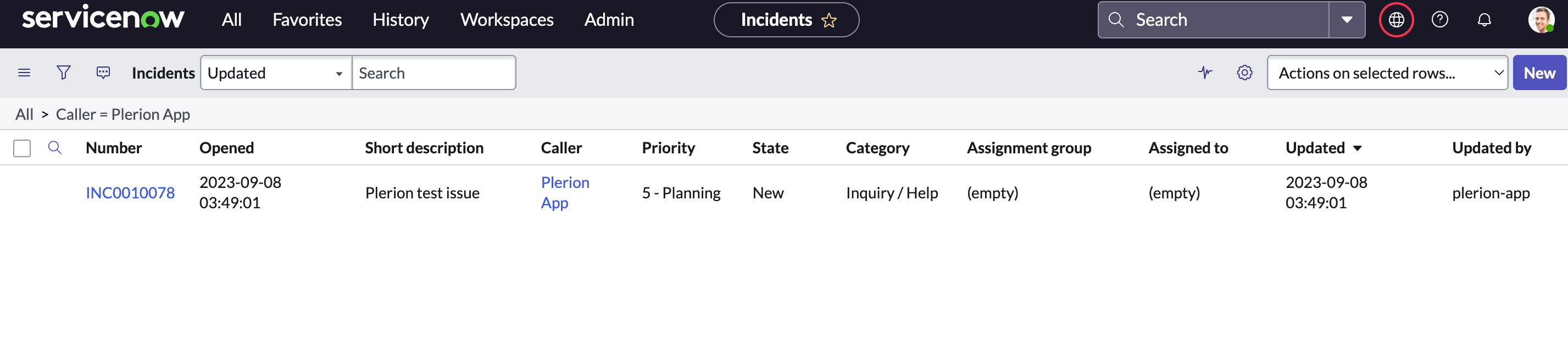
If the test is successful, a new incident will appear in your ServiceNow **Incidents** section.
After adding ServiceNow, you can send a test message to confirm the setup.\
Click `Send test message` in Plerion.
If the test is successful, a new incident will appear in your ServiceNow **Incidents** section.
 ## Obtaining ServiceNow credentials
After logging in, click your profile image in the top-right corner.
## Obtaining ServiceNow credentials
After logging in, click your profile image in the top-right corner.
 This will allow you to generate or reset your credentials.
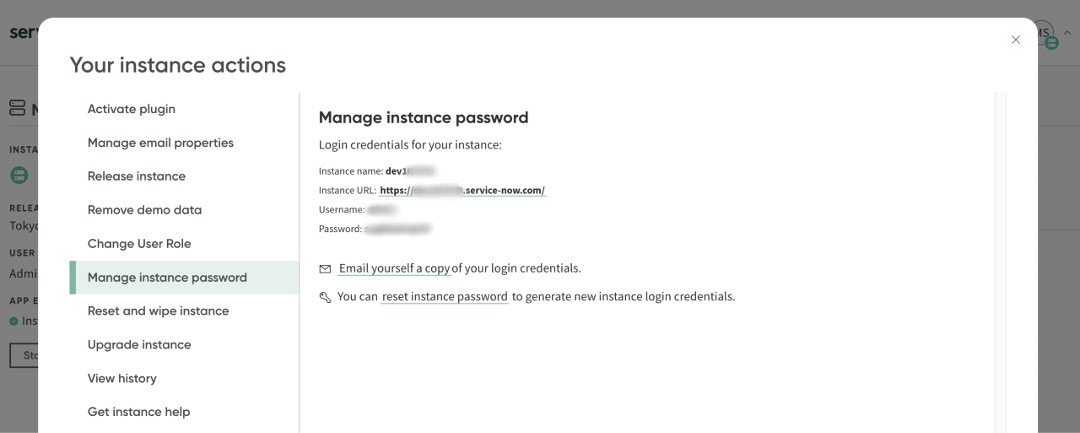 Enter the generated username and password when setting up your ServiceNow integration in Plerion.
We recommend creating a dedicated ServiceNow user account for Plerion.\
See the [ServiceNow documentation](https://docs.servicenow.com/en-US/bundle/vancouver-platform-administration/page/administer/users-and-groups/task/t_CreateAUser.html) for instructions on creating a new user.
## Required roles and permissions
Plerion needs access to create, retrieve, and update fields in your ServiceNow **incident** table, and to read from the **sys\_user** table to populate the caller column.
Assign your ServiceNow user either of the following roles:
* `itil`
* `itil_admin`
These roles include:
* Read access to the `sys_user` table
* Read and write access to the `incident` table
Enter the generated username and password when setting up your ServiceNow integration in Plerion.
We recommend creating a dedicated ServiceNow user account for Plerion.\
See the [ServiceNow documentation](https://docs.servicenow.com/en-US/bundle/vancouver-platform-administration/page/administer/users-and-groups/task/t_CreateAUser.html) for instructions on creating a new user.
## Required roles and permissions
Plerion needs access to create, retrieve, and update fields in your ServiceNow **incident** table, and to read from the **sys\_user** table to populate the caller column.
Assign your ServiceNow user either of the following roles:
* `itil`
* `itil_admin`
These roles include:
* Read access to the `sys_user` table
* Read and write access to the `incident` table