> ## Documentation Index
> Fetch the complete documentation index at: https://docs.plerion.com/llms.txt
> Use this file to discover all available pages before exploring further.

# Microsoft Sentinel

> Integrate Plerion with Microsoft Sentinel to automatically send alerts as incidents for centralized security monitoring and investigation.

With the [Microsoft Sentinel integration](https://app.plerion.com/settings/integrations/add/Azure/Sentinel), you can automatically send Plerion alerts into Microsoft Sentinel as incidents, allowing your security team to investigate and respond within their existing SIEM workflows.

<Warning>
  **Note:** This is a one-way outbound integration. Alerts created or updated in Plerion will appear in Microsoft Sentinel, but changes made in Sentinel will not sync back to Plerion.
</Warning>

## Steps to integrate Microsoft Sentinel with Plerion
<Steps>
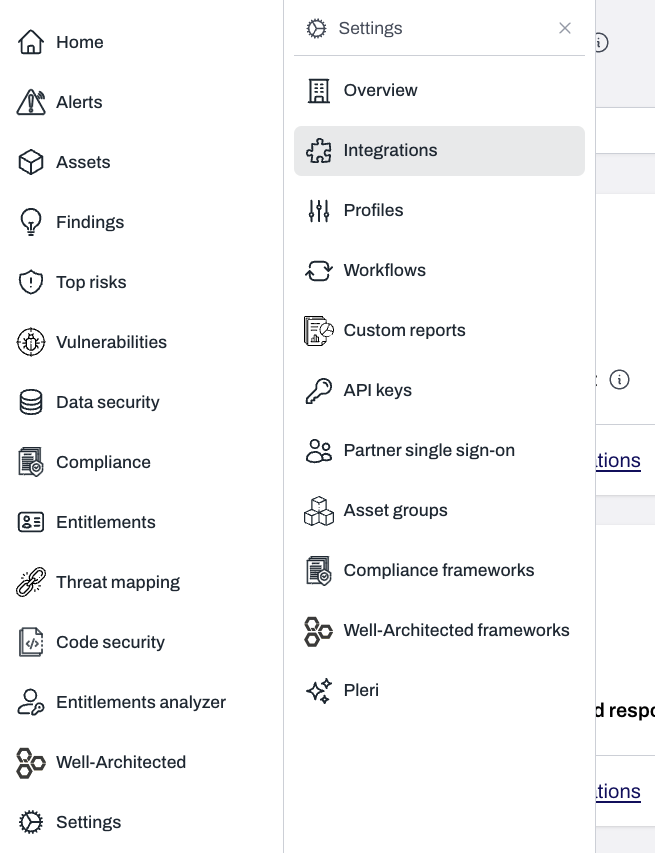
  <Step title="On the Plerion dashboard, go to Settings > Integrations">
    <Frame>
      <img src="https://mintcdn.com/pleriondocs/8xtCYjlATlNqKv2p/images/integrations/jira/settings-integrations-sidenav.png?fit=max&auto=format&n=8xtCYjlATlNqKv2p&q=85&s=2169fd65750b670507500adcfea7a96e" alt="Plerion dashboard with Settings expanded and Integrations selected" width="655" height="853" data-path="images/integrations/jira/settings-integrations-sidenav.png" />
    </Frame>
  </Step>

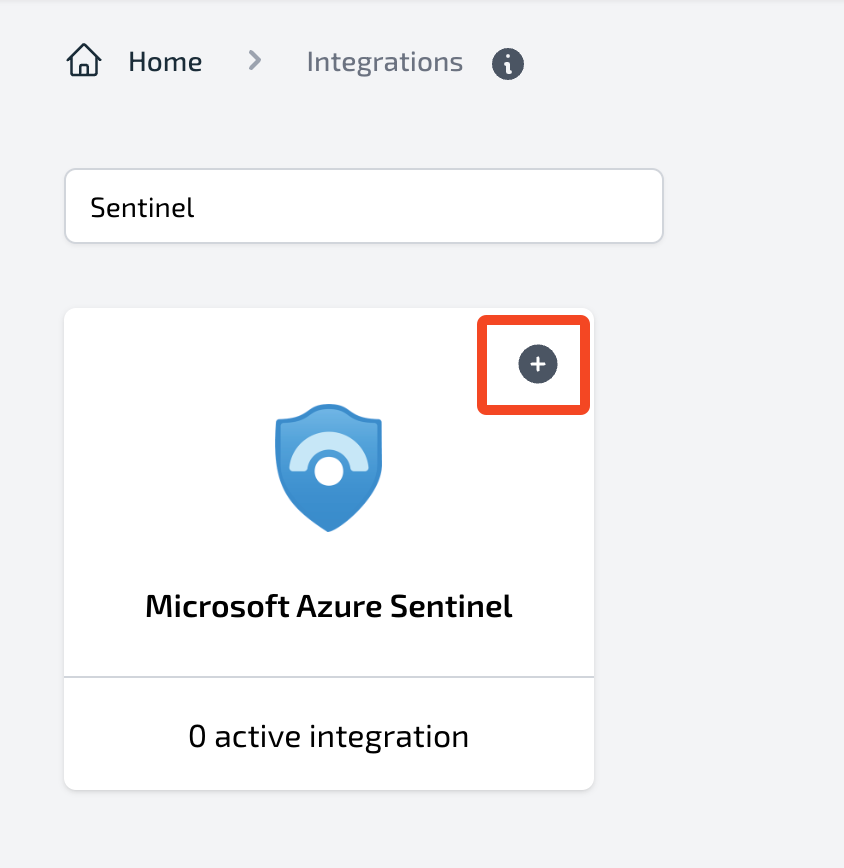
  <Step title="Find Microsoft Sentinel and click the + button">
    <Frame>
      <img src="https://mintcdn.com/pleriondocs/4JQgYRBKQTrkPuuA/images/integrations/sentinel/add-sentinel-integration.png?fit=max&auto=format&n=4JQgYRBKQTrkPuuA&q=85&s=558c1c7aa43139a08c98839fcf9ab0c6" alt="Integrations page with Microsoft Sentinel option and plus button" width="844" height="868" data-path="images/integrations/sentinel/add-sentinel-integration.png" />
    </Frame>
  </Step>

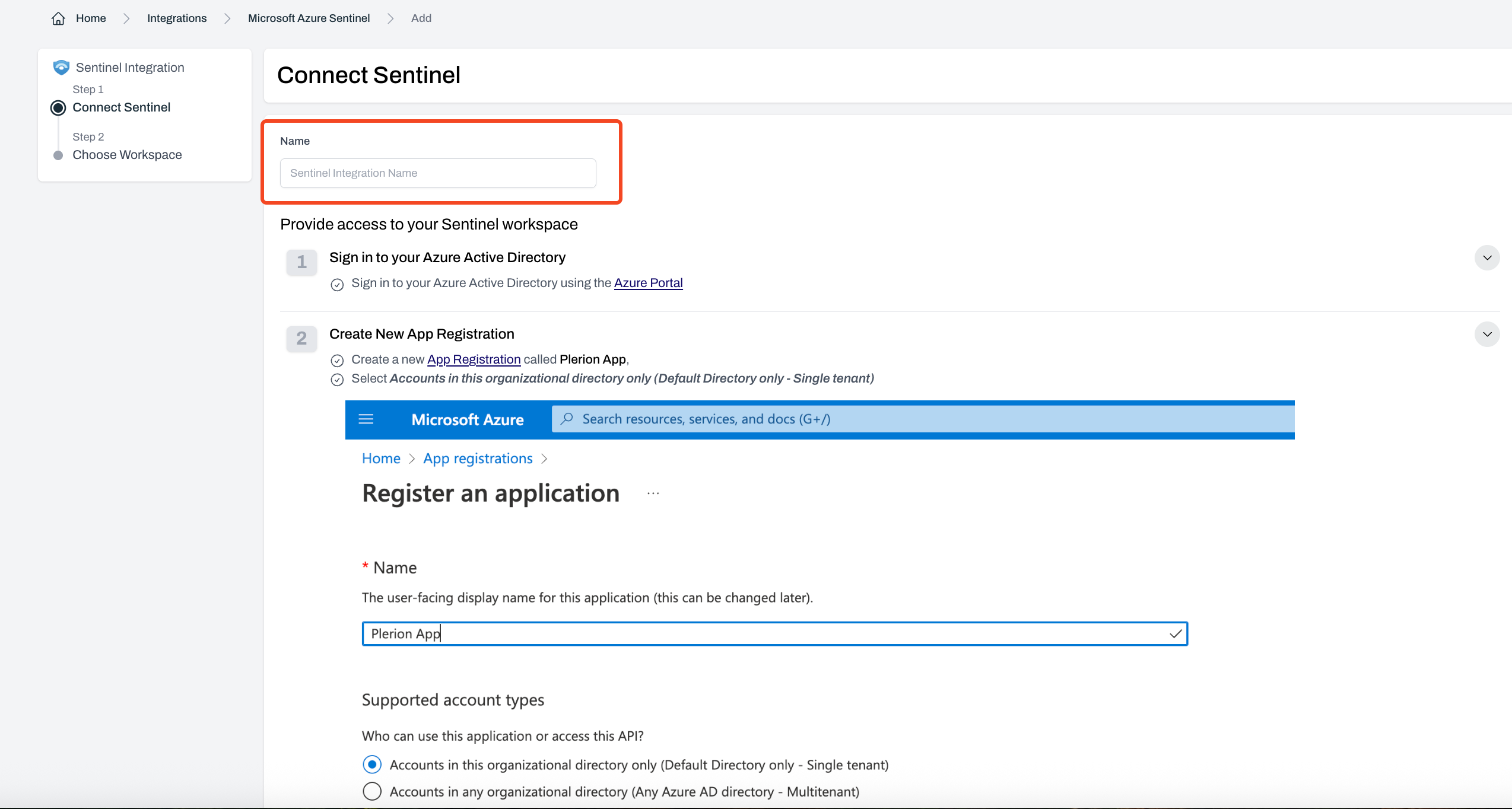
  <Step title="On the Connect Sentinel page, enter a name for your integration">
    <Frame>
      <img src="https://mintcdn.com/pleriondocs/4JQgYRBKQTrkPuuA/images/integrations/sentinel/add-sentinel-integration-name.png?fit=max&auto=format&n=4JQgYRBKQTrkPuuA&q=85&s=f4238b95ec022a7b316640c0a1a541cc" alt="Connect Microsoft Sentinel page showing Integration name field" width="2548" height="1364" data-path="images/integrations/sentinel/add-sentinel-integration-name.png" />
    </Frame>
  </Step>

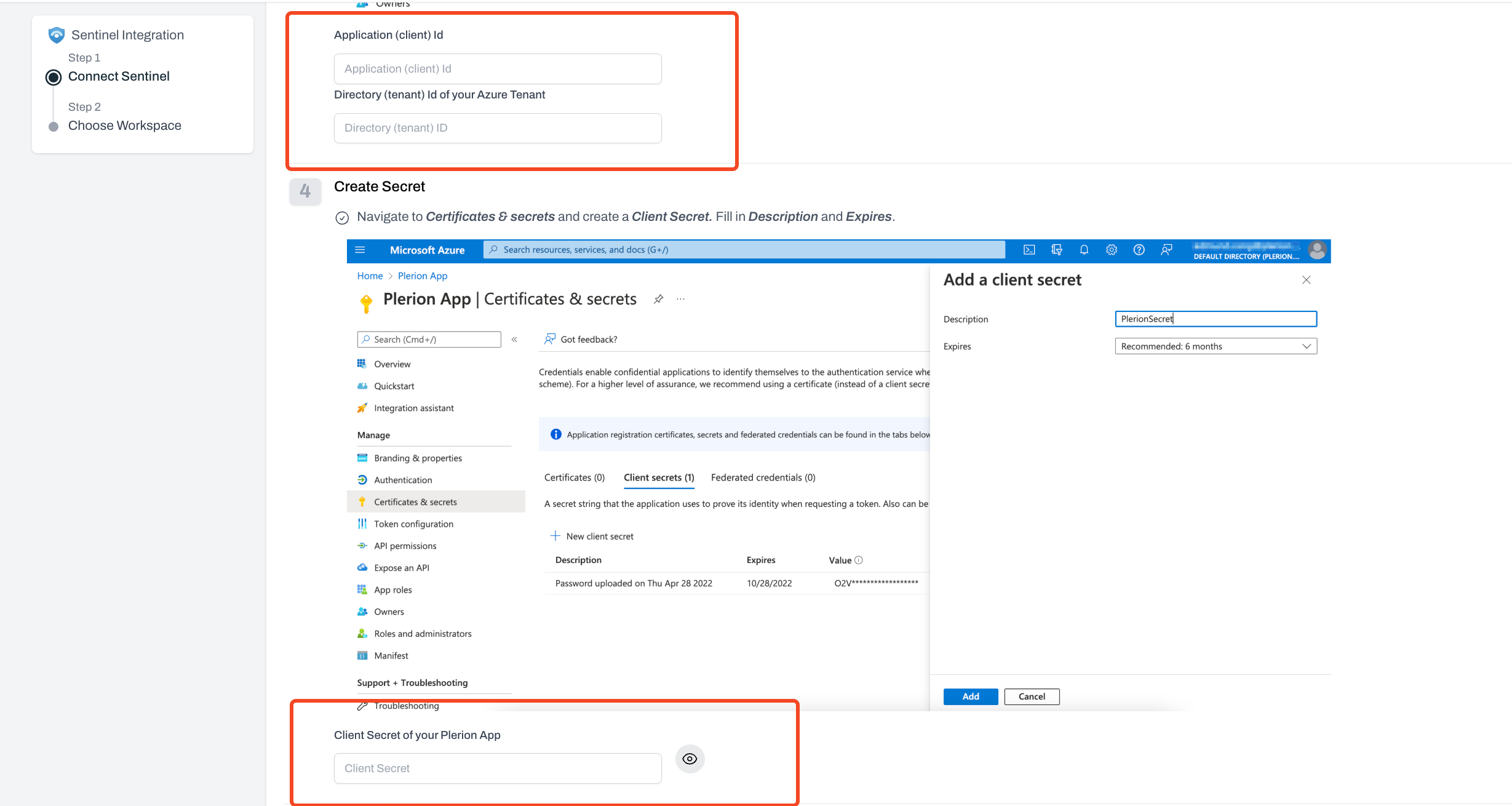
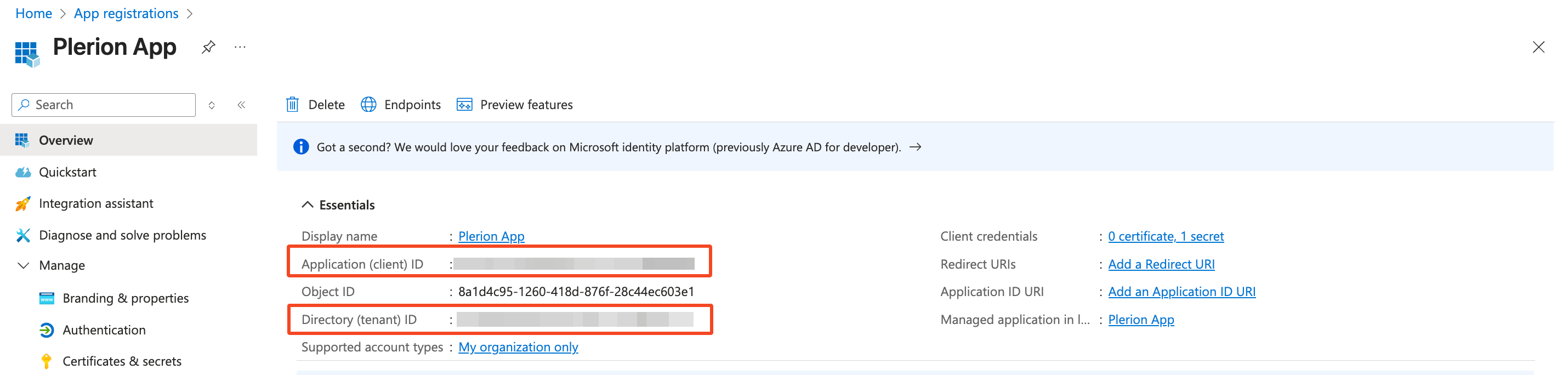
  <Step title="Enter your Microsoft Azure credentials">
    Provide the following details from your Azure environment:

    * **Application ID**
    * **Directory ID**
    * **Client Secret**
    * **Subscription ID**

    Then select `Next`.
    <Frame>
      <img src="https://mintcdn.com/pleriondocs/4JQgYRBKQTrkPuuA/images/integrations/sentinel/add-sentinel-inputs.png?fit=max&auto=format&n=4JQgYRBKQTrkPuuA&q=85&s=4e403dfa5ea6ade33c566ca2f50abdb8" alt="Microsoft Sentinel integration setup fields on Azure" width="2860" height="684" data-path="images/integrations/sentinel/add-sentinel-inputs.png" />
    </Frame>

    <br />

    <Frame>
      <img src="https://mintcdn.com/pleriondocs/4JQgYRBKQTrkPuuA/images/integrations/sentinel/add-sentinel-integration-inputs.png?fit=max&auto=format&n=4JQgYRBKQTrkPuuA&q=85&s=28427ae93e176e5d40d311747cfd0426" alt="Microsoft Sentinel integration setup fields on Plerion" width="2458" height="1310" data-path="images/integrations/sentinel/add-sentinel-integration-inputs.png" />
    </Frame>
  </Step>

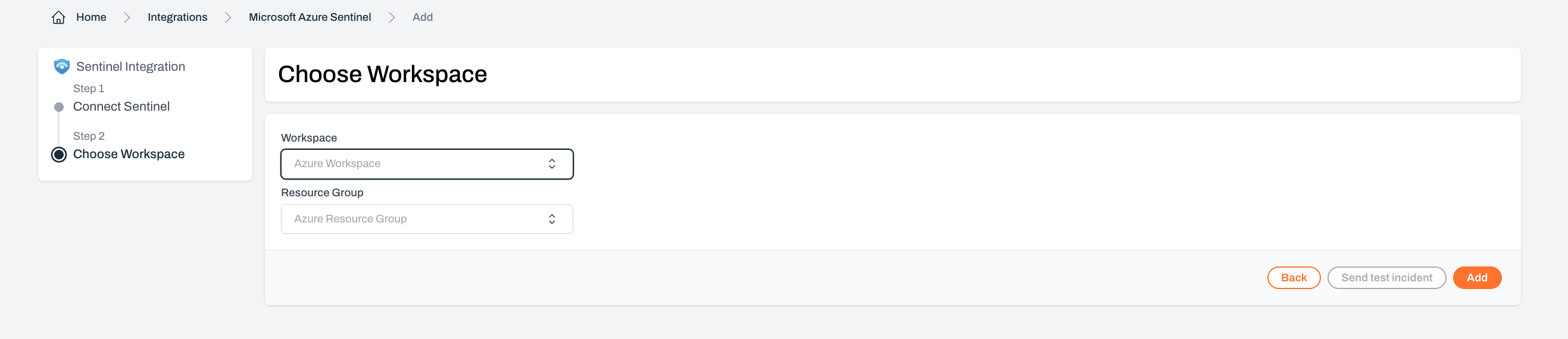
  <Step title="Choose your Sentinel workspace settings">
    Select the **workspace**, **resource group** for Plerion alerts created in Sentinel.
    <Frame>
      <img src="https://mintcdn.com/pleriondocs/4JQgYRBKQTrkPuuA/images/integrations/sentinel/add-sentinel-workspace-resourcegroup.png?fit=max&auto=format&n=4JQgYRBKQTrkPuuA&q=85&s=43b4cddf2b04c169231239050e9bfadb" alt="Add Sentinel workspace and resource group" width="2634" height="570" data-path="images/integrations/sentinel/add-sentinel-workspace-resourcegroup.png" />
    </Frame>
  </Step>

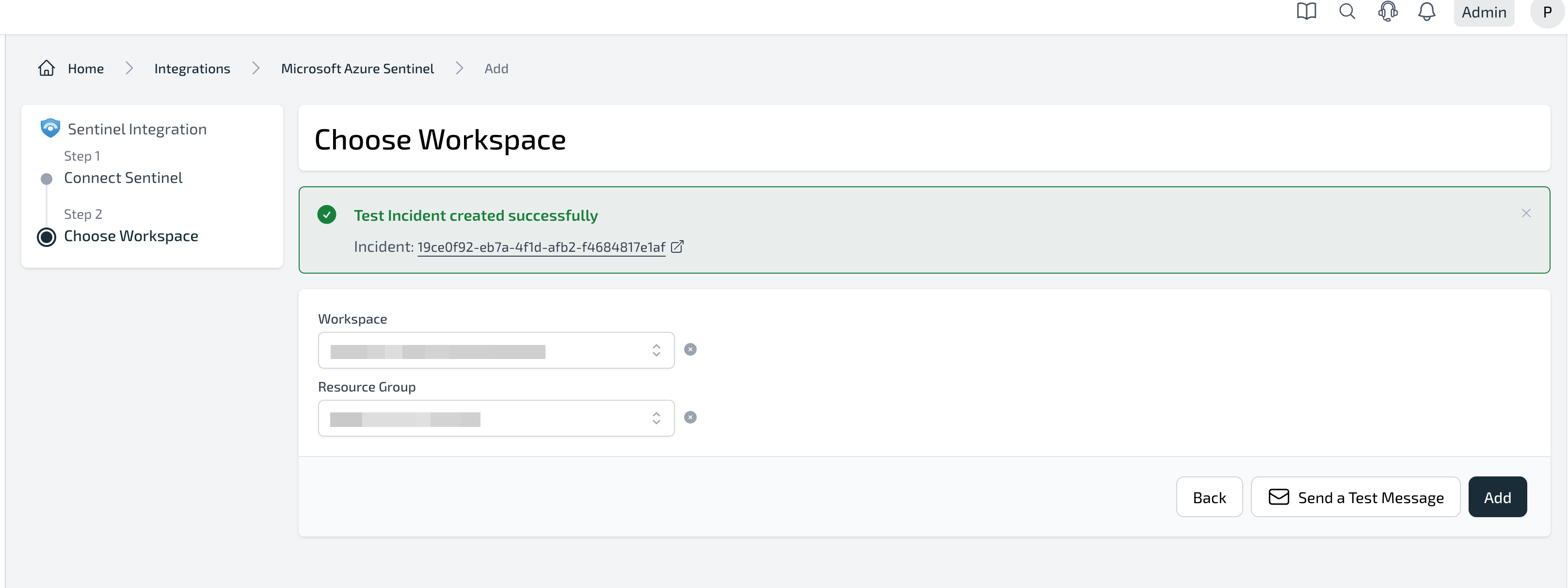
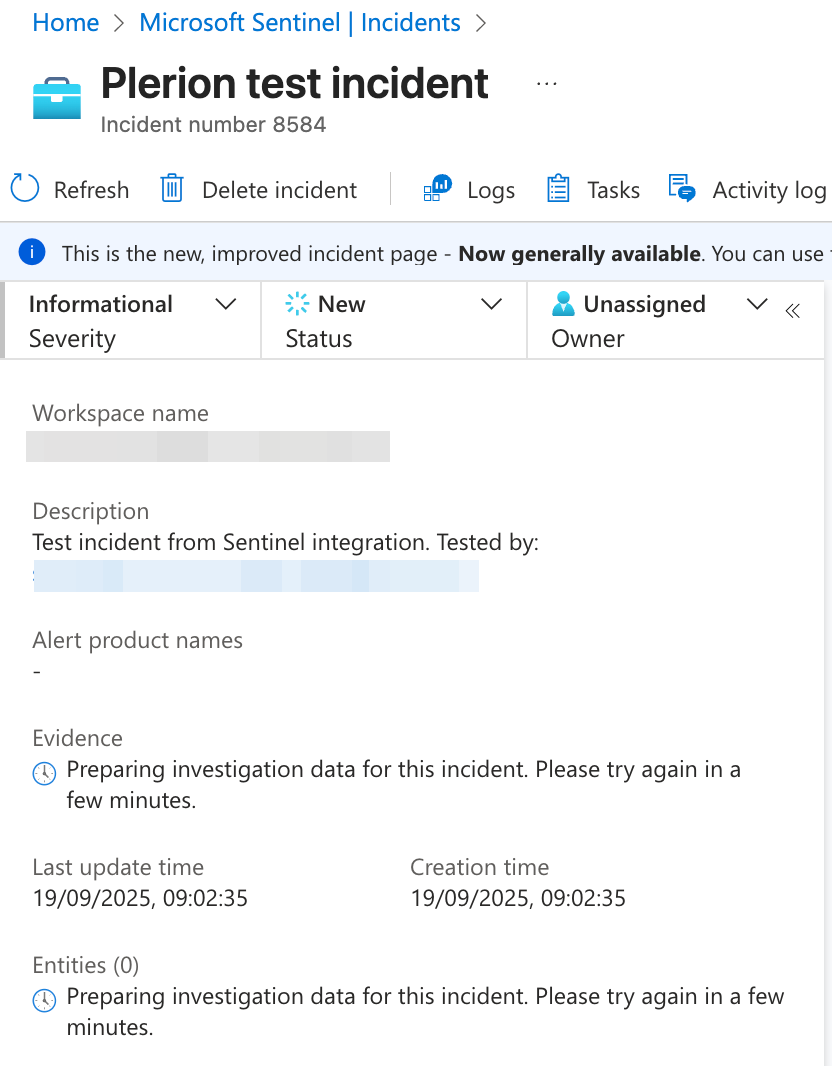
  <Step title="Test your Microsoft Sentinel integration">
    Click `Send test message` to confirm the configuration. A test incident will be created in your chosen Sentinel workspace.
    <Frame>
      <img src="https://mintcdn.com/pleriondocs/4JQgYRBKQTrkPuuA/images/integrations/sentinel/add-sentinel-testmessage.png?fit=max&auto=format&n=4JQgYRBKQTrkPuuA&q=85&s=78d7d54035ee3f0245bc27e3c284ae4b" alt="Plerion platform showing test message creation for Microsoft Sentinel" width="3234" height="1212" data-path="images/integrations/sentinel/add-sentinel-testmessage.png" />
    </Frame>

    <br />

    <Frame>
      <img src="https://mintcdn.com/pleriondocs/4JQgYRBKQTrkPuuA/images/integrations/sentinel/sentinel-test-message.png?fit=max&auto=format&n=4JQgYRBKQTrkPuuA&q=85&s=c13cf56e46f50f2da1eb639acc1bf7a8" alt="Microsoft Sentinel console showing test incident created from Plerion" width="832" height="1066" data-path="images/integrations/sentinel/sentinel-test-message.png" />
    </Frame>
  </Step>

  <Step title="Finalize the setup">
    Click `Add` to complete the integration.
  </Step>
</Steps>