> ## Documentation Index
> Fetch the complete documentation index at: https://docs.plerion.com/llms.txt
> Use this file to discover all available pages before exploring further.
# AWS Security Hub
> Integrate Plerion with AWS Security Hub to send alerts as findings for centralized visibility, compliance, and security posture management.
With the [AWS Security Hub integration](https://app.plerion.com/settings/integrations/add/AWS/SecurityHub), you can automatically send alerts from Plerion into AWS Security Hub. Alerts can include findings based on parameters you define, such as risk score, publicly exposed resources, sensitive data, or administrative privileges.
**Note:** This is a one-way outbound integration. Alerts created or updated in Plerion will appear in AWS Security Hub, but changes made directly in Security Hub will not sync back to Plerion.
## Steps to integrate AWS Security Hub with Plerion
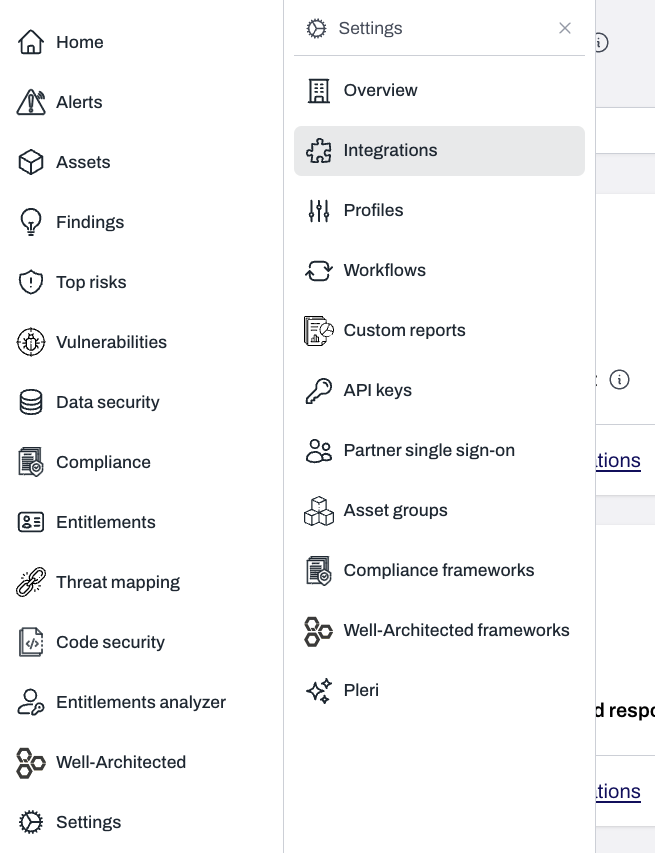
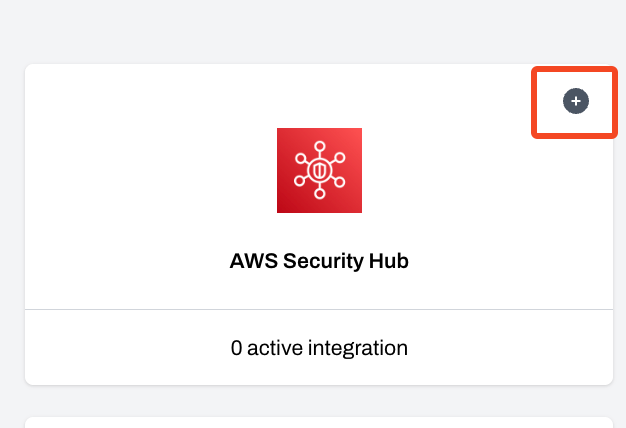
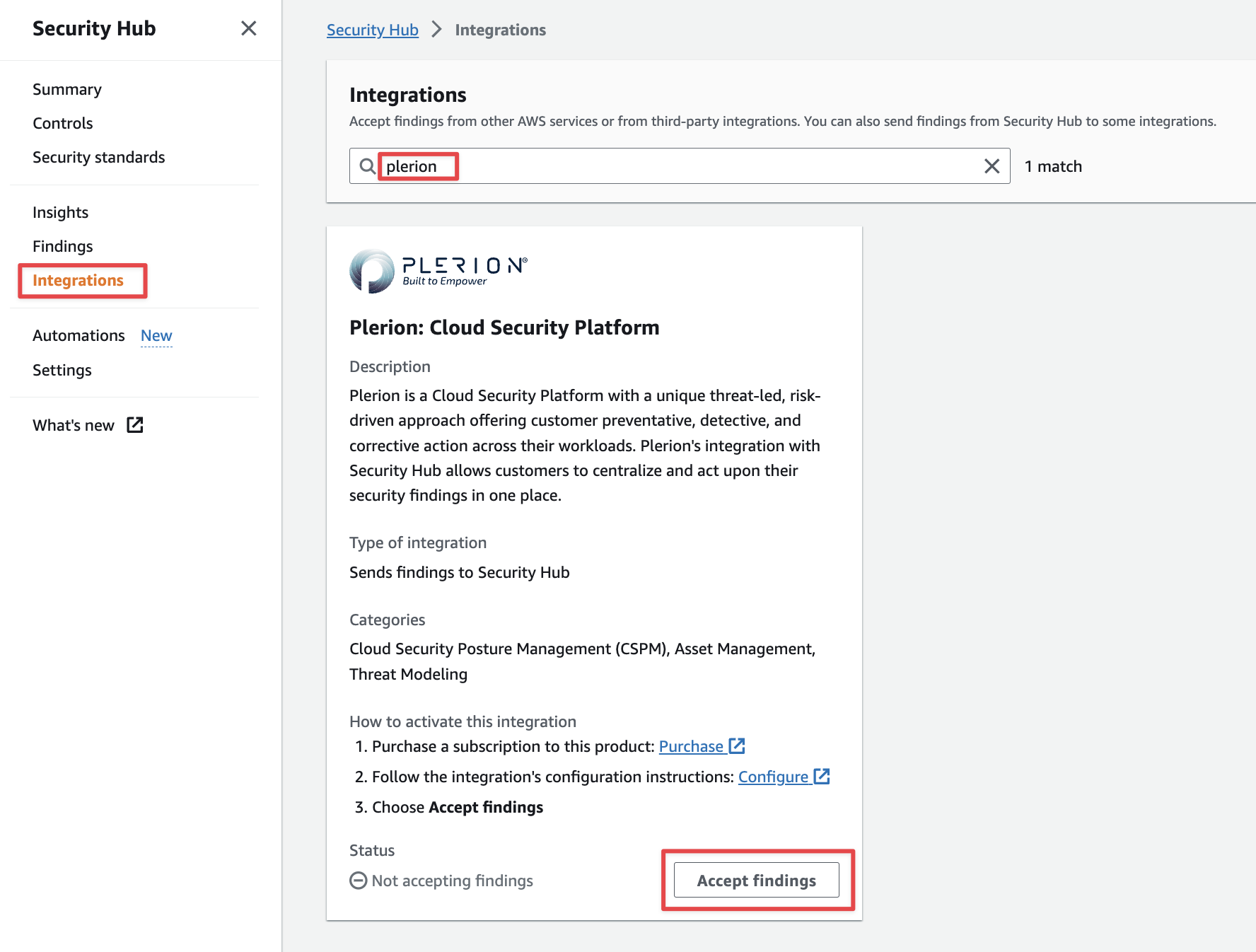
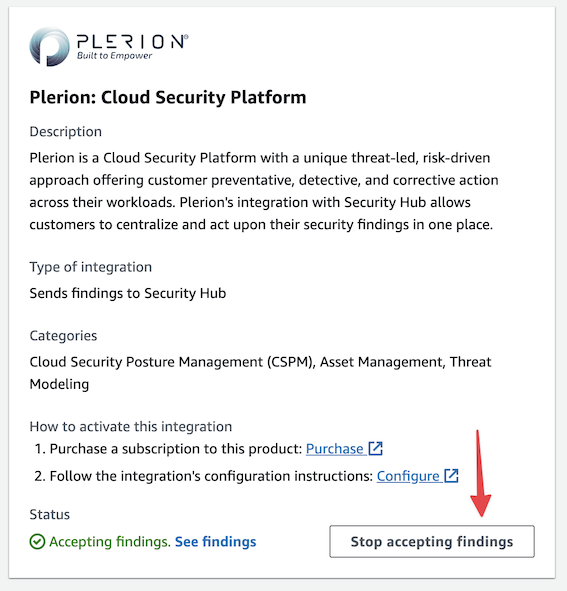
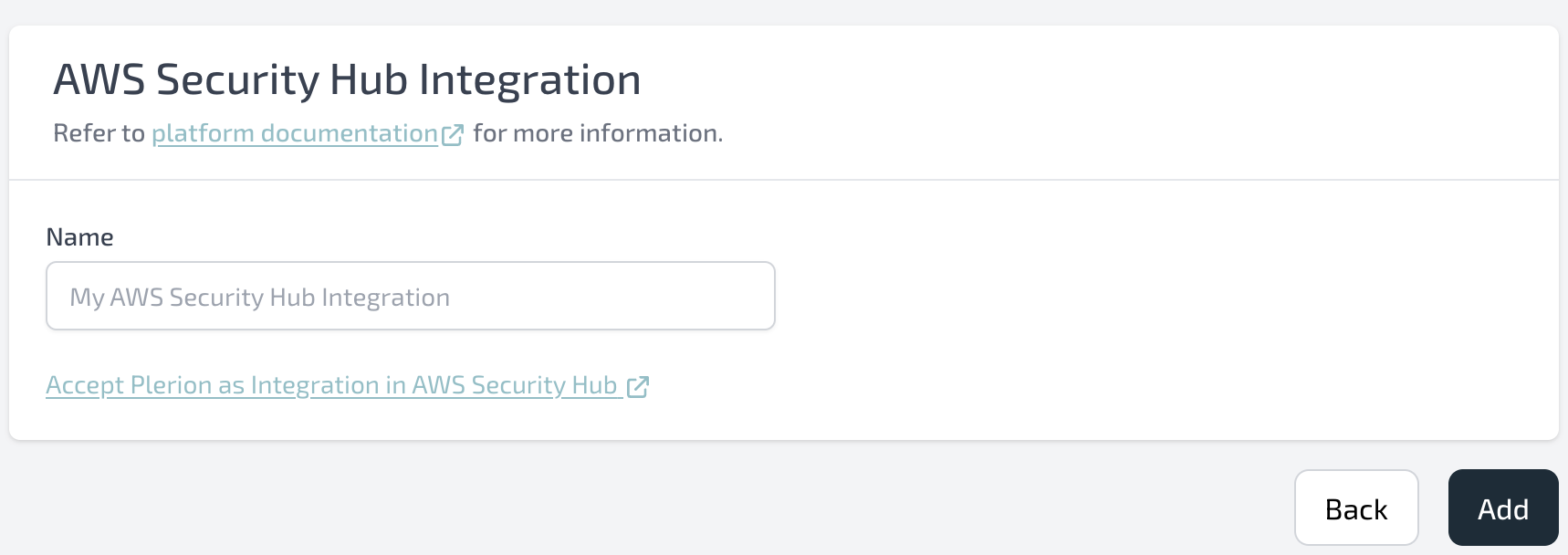 Open the AWS Security Hub console and accept findings from Plerion.
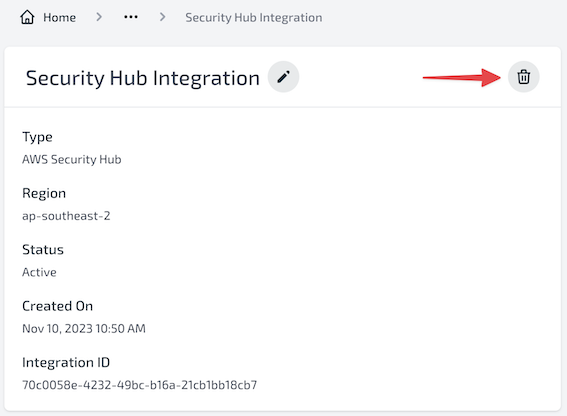
 ## Steps to remove AWS Security Hub integration
Go to the integration information page and click the icon.
## Steps to remove AWS Security Hub integration
Go to the integration information page and click the icon.
 In the AWS Security Hub console, stop accepting findings from Plerion.
 ## Architecture
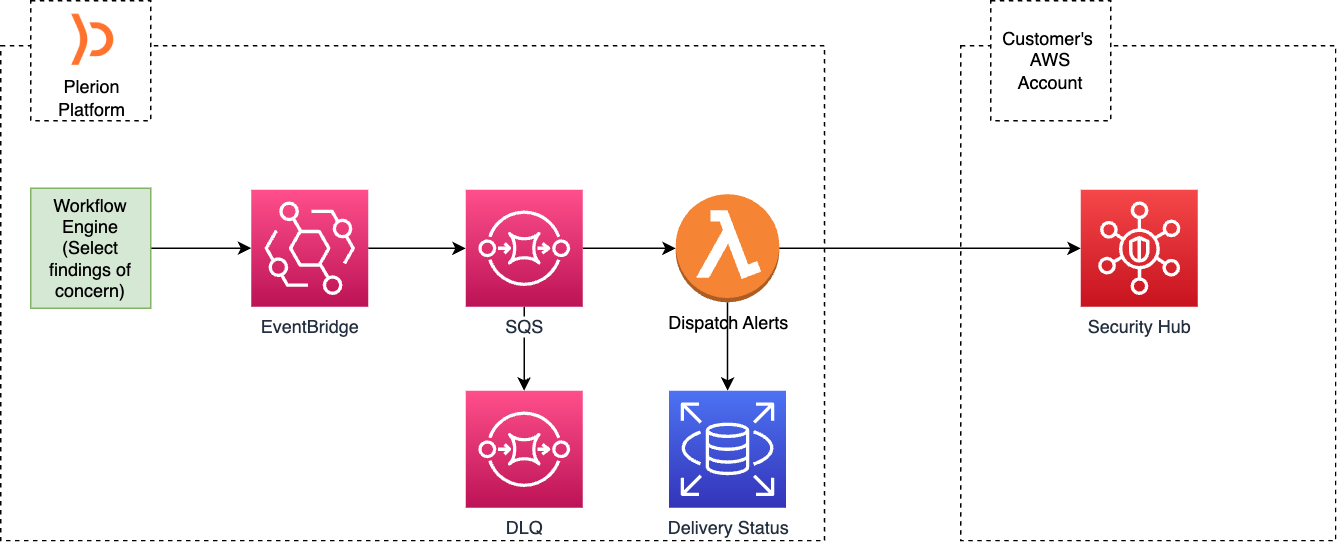 Plerion alerts are routed through Amazon EventBridge and Amazon SQS to an AWS Lambda function. Lambda processes alerts in batches, validates them, and delivers them to Security Hub in **AWS Security Finding Format (ASFF)**.
* Delivery status and alert state are tracked in a database.
* Failed deliveries are stored in a Dead-Letter Queue (DLQ) for review and resubmission.
This ensures reliability and consistency when sending findings to Security Hub.
## FAQ
1. **How long does it take for findings to appear in AWS Security Hub?**\
Findings are delivered within **2–3 minutes** of being generated in Plerion.
2. **How is the Plerion risk score mapped to the ASFF severity label?**
| Risk score | ASFF severity label |
| ---------- | ------------------- |
| 0.0 | INFORMATIONAL |
| 0.1–3.999 | LOW |
| 4.0–6.999 | MEDIUM |
| 7.0–8.999 | HIGH |
| 9.0–10.0 | CRITICAL |
3. **How are alerts mapped to ASFF findings?**\
Alerts are transformed into AWS Security Finding Format (ASFF) objects. Example:
```json theme={"system"}
{
"SchemaVersion": "2018-10-08",
"Id": "//",
"ProductName": "Plerion Workflow Engine",
"CompanyName": "Plerion",
"GeneratorId": "",
"Types": ["Software and Configuration Checks"],
"FirstObservedAt": "",
"Title": "",
"Description": "",
"ProductFields": {
"IntegrationId": "",
"IntegrationName": "",
"WorkflowId": "",
"WorkflowName": "",
"TenantId": "",
"TenantName": ""
},
"Resources": [
{
"Type": "",
"Id": ""
}
],
"Workflow": {
"Status": "NEW"
},
"FindingProviderFields": {
"Severity": {
"Label": ""
}
}
}
```
Plerion alerts are routed through Amazon EventBridge and Amazon SQS to an AWS Lambda function. Lambda processes alerts in batches, validates them, and delivers them to Security Hub in **AWS Security Finding Format (ASFF)**.
* Delivery status and alert state are tracked in a database.
* Failed deliveries are stored in a Dead-Letter Queue (DLQ) for review and resubmission.
This ensures reliability and consistency when sending findings to Security Hub.
## FAQ
1. **How long does it take for findings to appear in AWS Security Hub?**\
Findings are delivered within **2–3 minutes** of being generated in Plerion.
2. **How is the Plerion risk score mapped to the ASFF severity label?**
| Risk score | ASFF severity label |
| ---------- | ------------------- |
| 0.0 | INFORMATIONAL |
| 0.1–3.999 | LOW |
| 4.0–6.999 | MEDIUM |
| 7.0–8.999 | HIGH |
| 9.0–10.0 | CRITICAL |
3. **How are alerts mapped to ASFF findings?**\
Alerts are transformed into AWS Security Finding Format (ASFF) objects. Example:
```json theme={"system"}
{
"SchemaVersion": "2018-10-08",
"Id": "//",
"ProductName": "Plerion Workflow Engine",
"CompanyName": "Plerion",
"GeneratorId": "",
"Types": ["Software and Configuration Checks"],
"FirstObservedAt": "",
"Title": "",
"Description": "",
"ProductFields": {
"IntegrationId": "",
"IntegrationName": "",
"WorkflowId": "",
"WorkflowName": "",
"TenantId": "",
"TenantName": ""
},
"Resources": [
{
"Type": "",
"Id": ""
}
],
"Workflow": {
"Status": "NEW"
},
"FindingProviderFields": {
"Severity": {
"Label": ""
}
}
}
```