> ## Documentation Index
> Fetch the complete documentation index at: https://docs.plerion.com/llms.txt
> Use this file to discover all available pages before exploring further.
# PagerDuty
> Integrate Plerion with PagerDuty to automatically create incidents from alerts, streamline on-call response, and keep teams in their incident management workflow.
With the PagerDuty integration, you can send alerts from Plerion directly to a PagerDuty service as incidents, so your on-call team can triage and resolve issues faster.
**Note:** This is a one-way outbound integration. Incidents created or updated
by Plerion appear in PagerDuty, but changes made directly in PagerDuty do not
sync back to Plerion.
## Steps for adding a PagerDuty integration
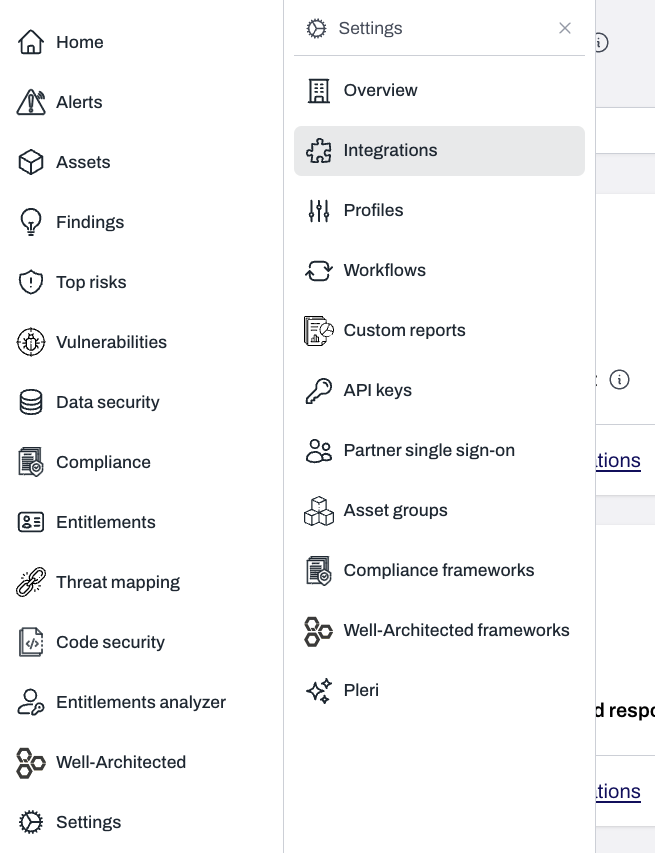
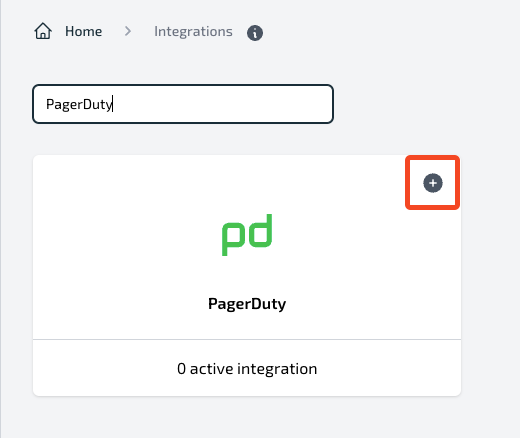 Provide **Integration name**, **Integration key**, and **Severity level**. Click `Send test message` to create a test incident in your PagerDuty service.
* If you do not have an **Integration key**, see [Obtaining the PagerDuty integration key](#obtaining-the-pagerduty-integration-key) below.
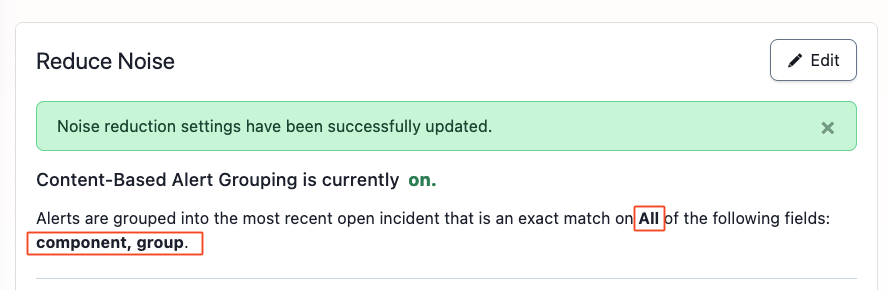
* We recommend configuring **Reduce Noise** in PagerDuty to group related alerts; see [Configure Reduce Noise](#configure-reduce-noise) below.
Provide **Integration name**, **Integration key**, and **Severity level**. Click `Send test message` to create a test incident in your PagerDuty service.
* If you do not have an **Integration key**, see [Obtaining the PagerDuty integration key](#obtaining-the-pagerduty-integration-key) below.
* We recommend configuring **Reduce Noise** in PagerDuty to group related alerts; see [Configure Reduce Noise](#configure-reduce-noise) below.
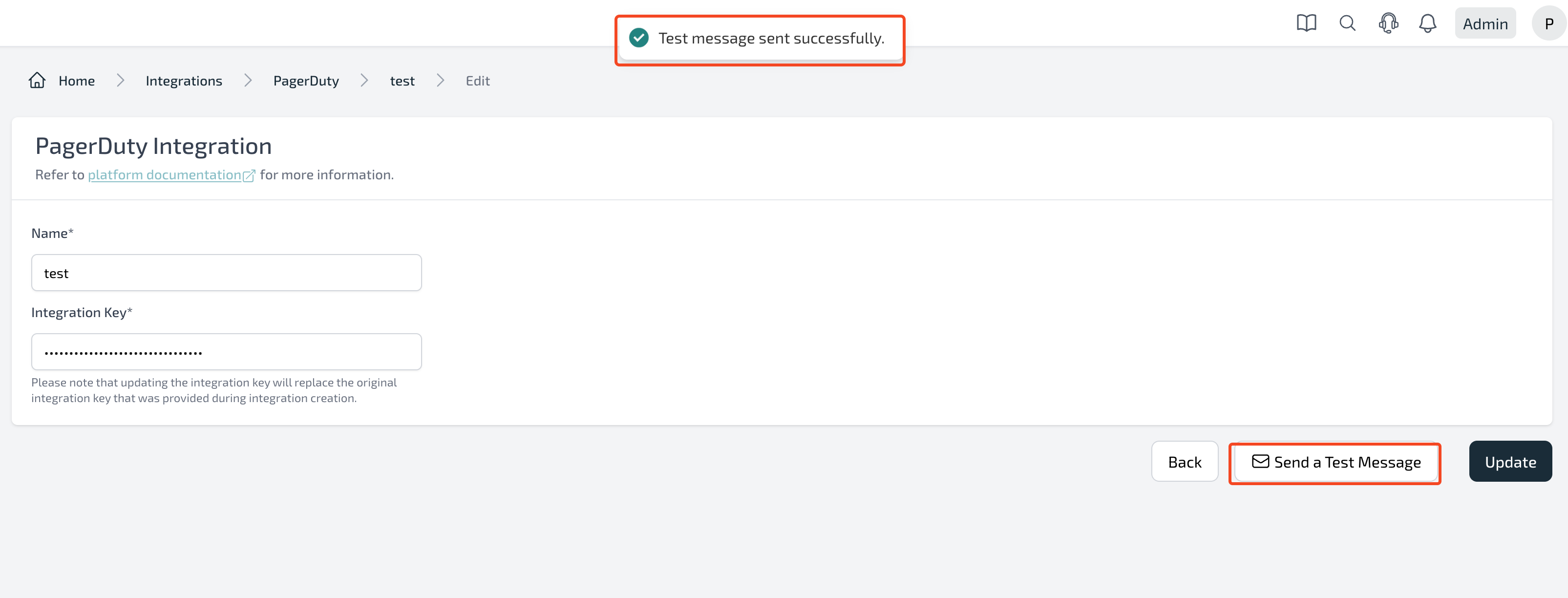 Confirm the test incident appears as expected in your PagerDuty service. Notifications will follow your service's configuration.
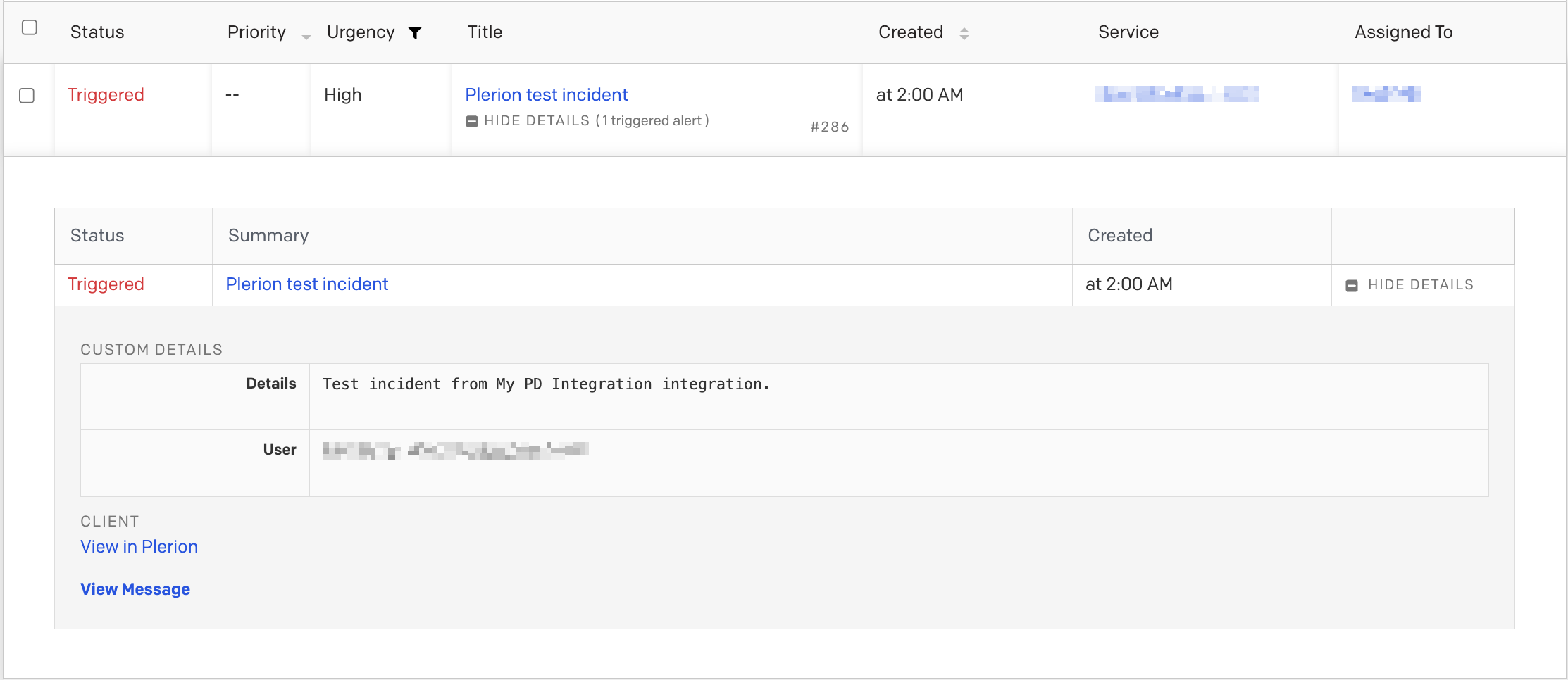 When the test succeeds, click `Add` in Plerion to finish setup.
## Obtaining the PagerDuty integration key
You need a PagerDuty Events API v2 integration key on a service. Create a new service or add the integration to an existing service.
### Create a New Service
PagerDuty will guide you through the service setup steps.
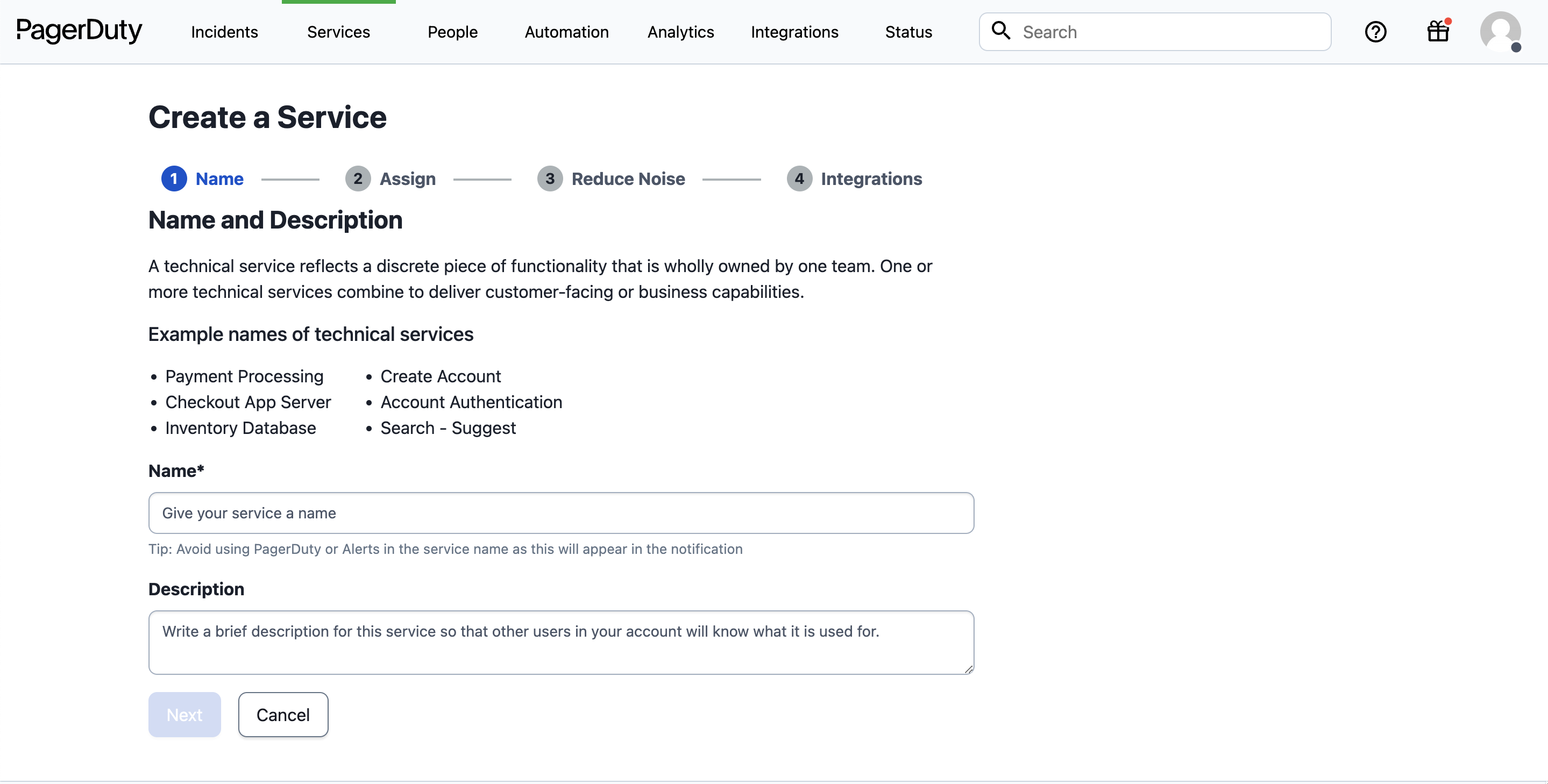
Enter a **Name** and **Description**, then select `Next`.
When the test succeeds, click `Add` in Plerion to finish setup.
## Obtaining the PagerDuty integration key
You need a PagerDuty Events API v2 integration key on a service. Create a new service or add the integration to an existing service.
### Create a New Service
PagerDuty will guide you through the service setup steps.
Enter a **Name** and **Description**, then select `Next`.
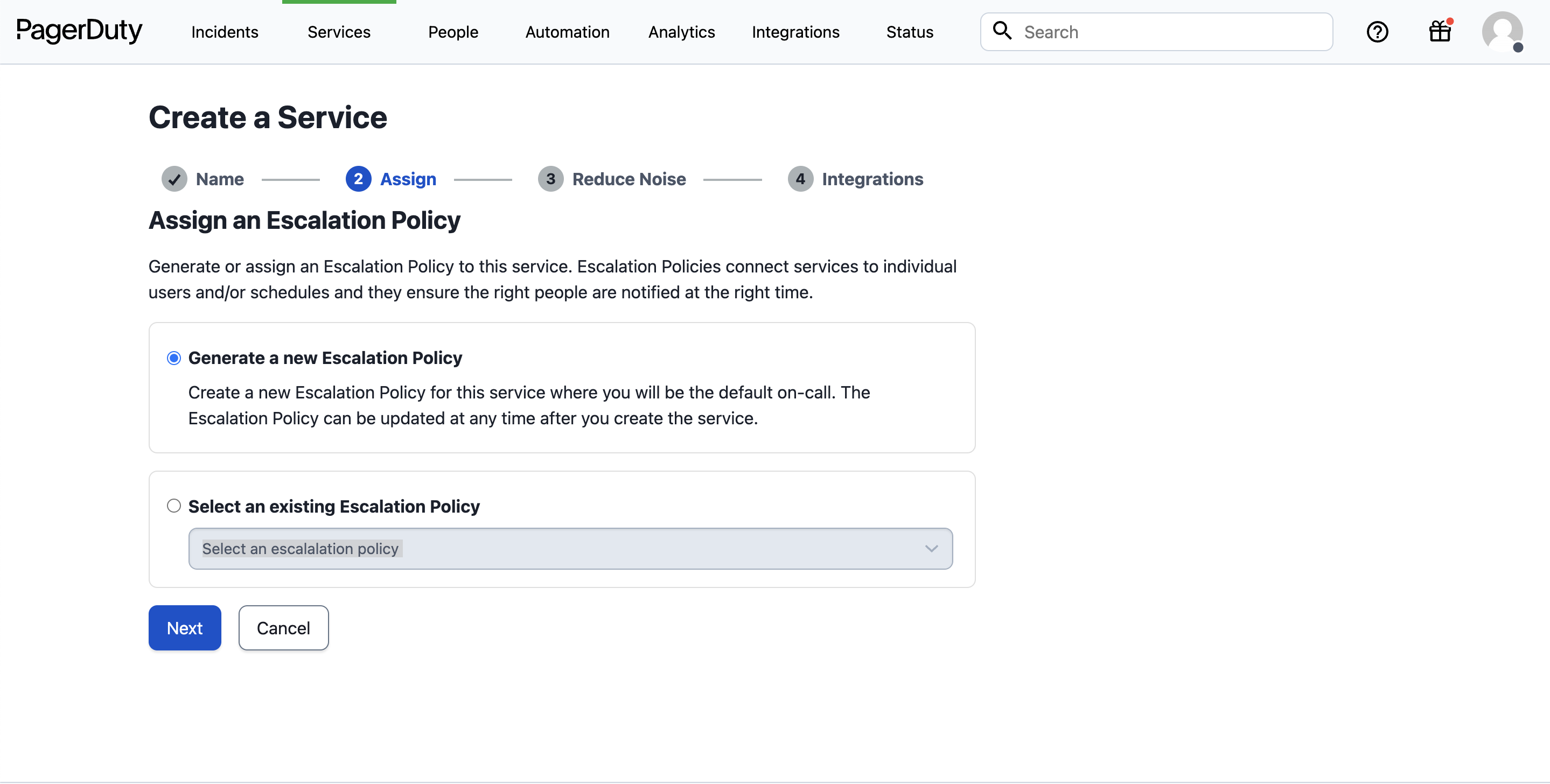
 Choose **Generate a new Escalation Policy** or **Select an existing Escalation Policy**, then select `Next`. You can edit escalation policies later in PagerDuty.
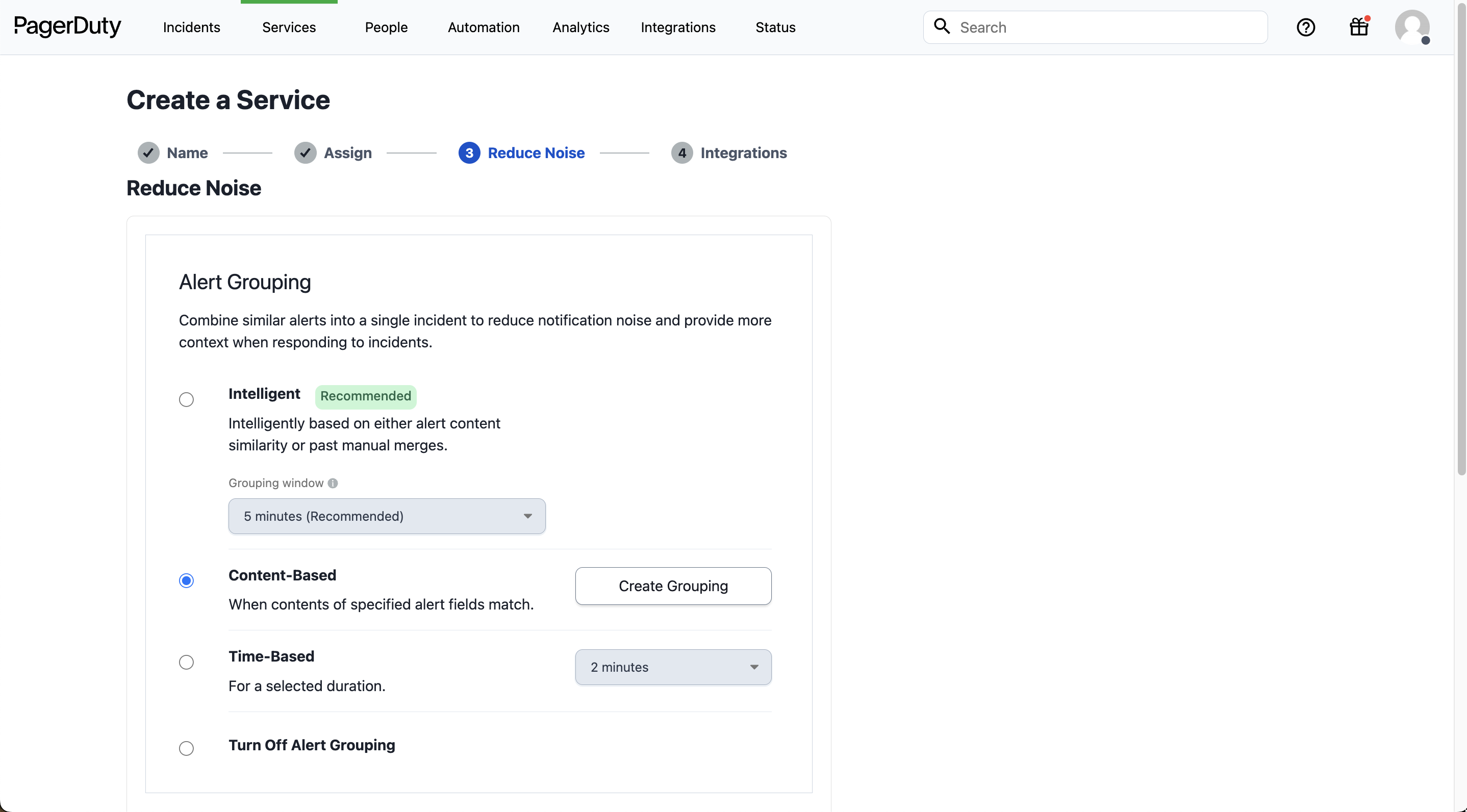
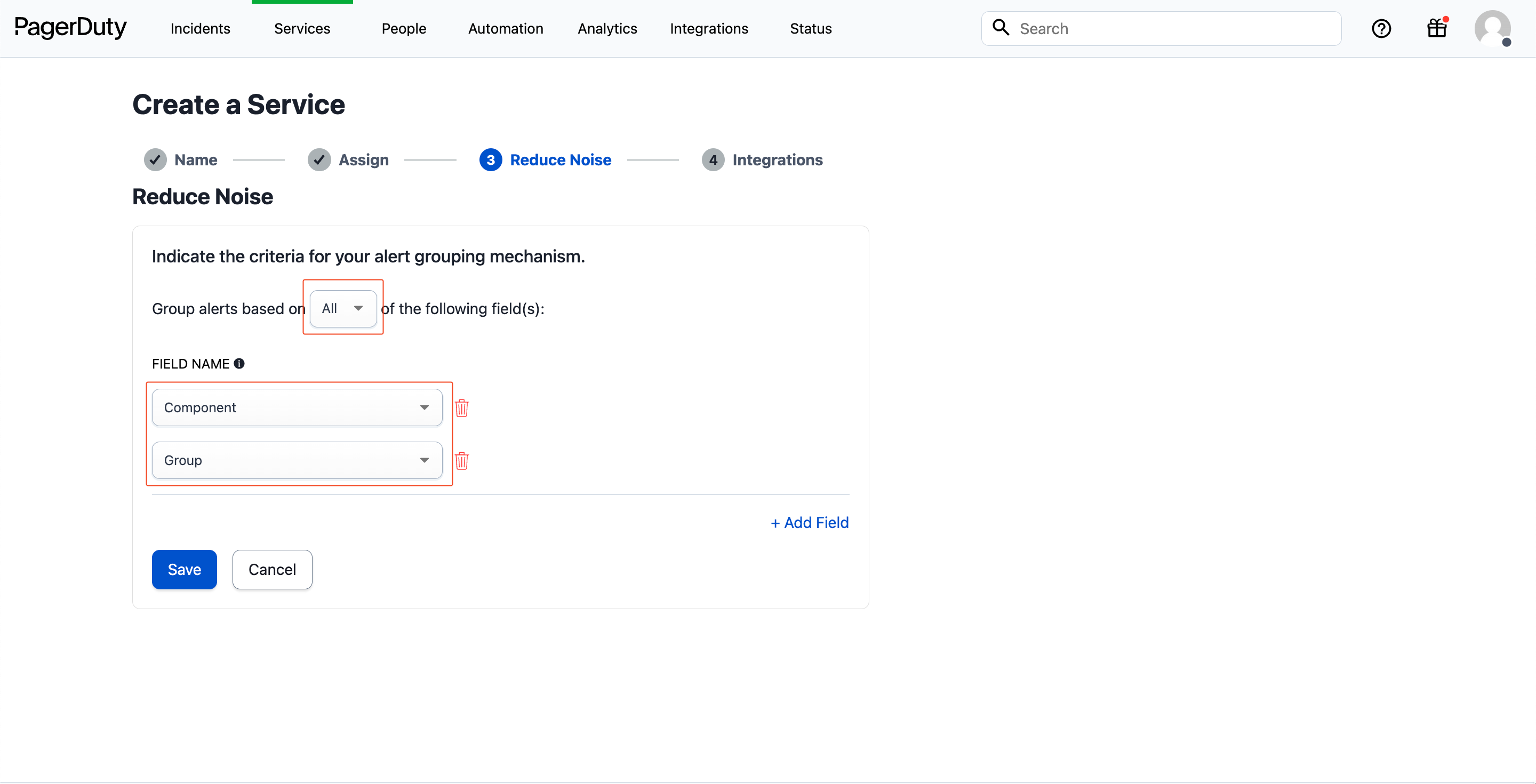
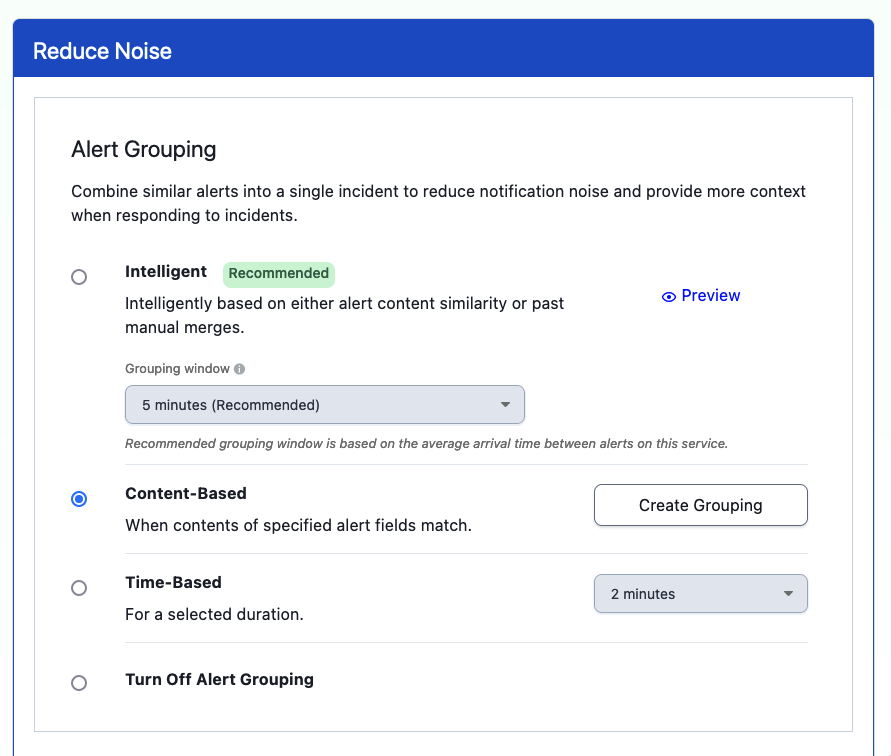
 Select **Content-based** and choose `Create grouping`. Set **Group alerts based on All** of the following fields, and select **Component** and **Group**, then select `Save`. If `Create grouping` is not available, complete service creation and configure Reduce Noise afterward (see **Configure Reduce Noise**).
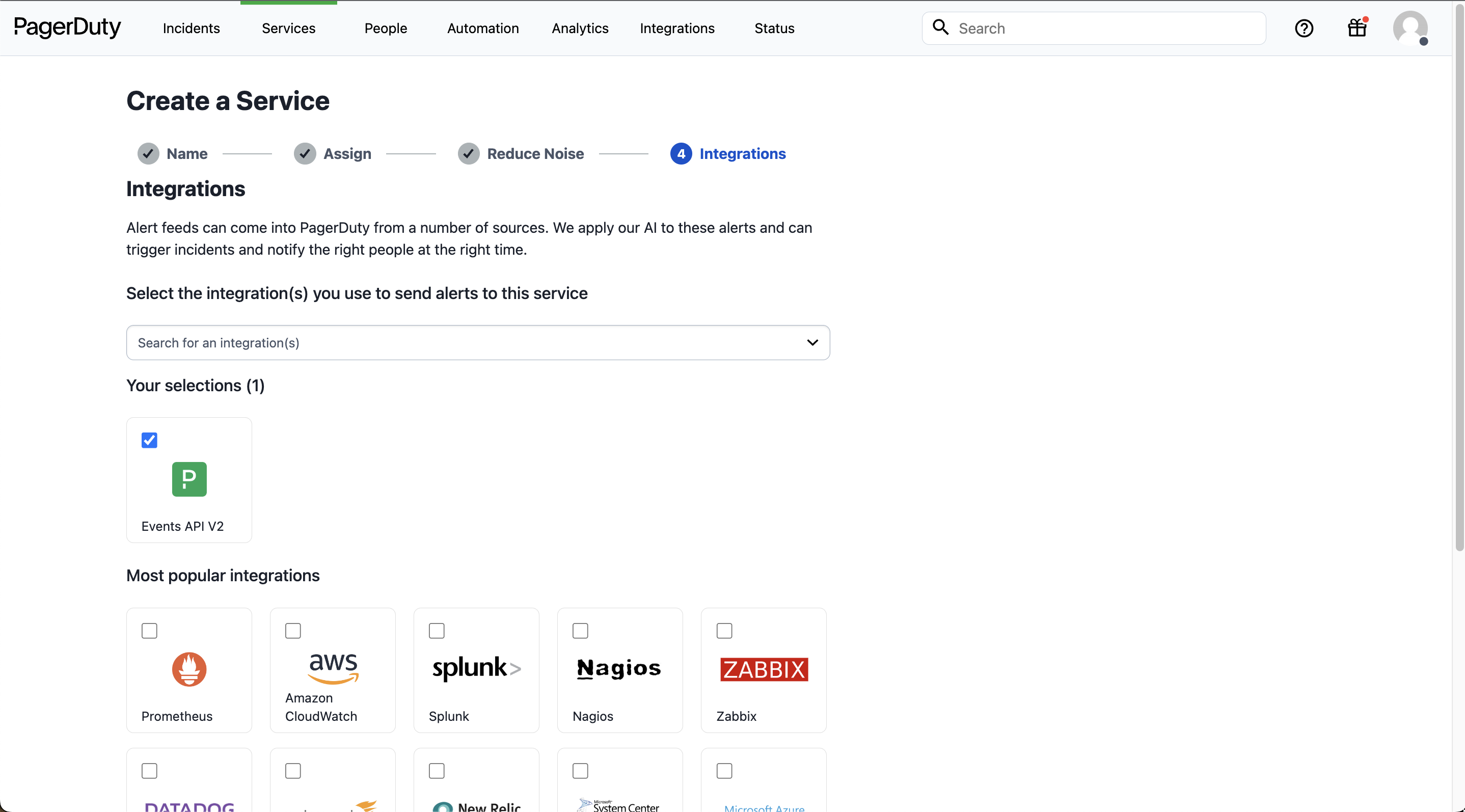
 Select **Events API v2** on the Integrations step and create the service.
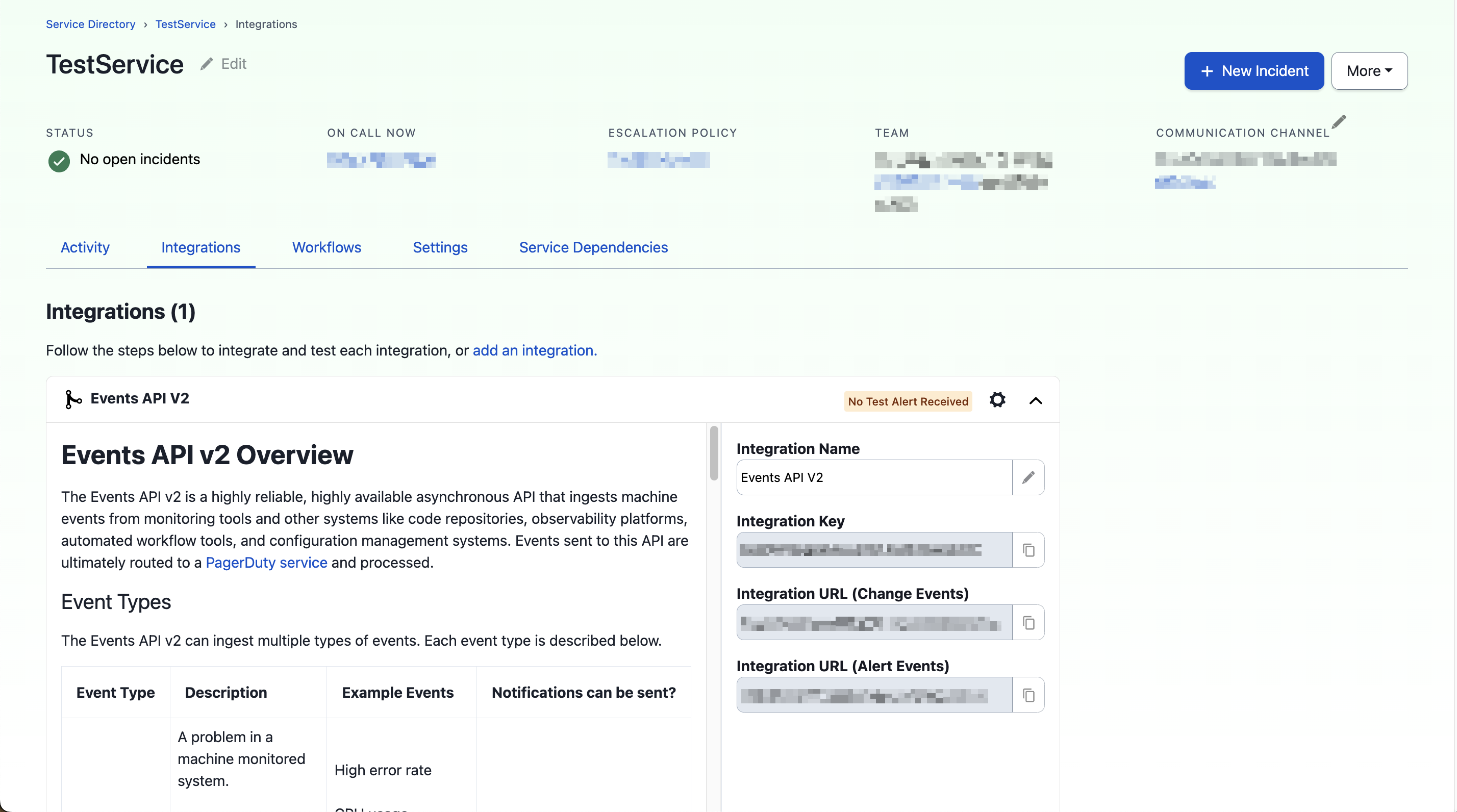
 After creation, you will land on the service **Integrations** tab. Copy the **Integration key** and store it securely for use in Plerion.
 ### Add an integration to an existing service
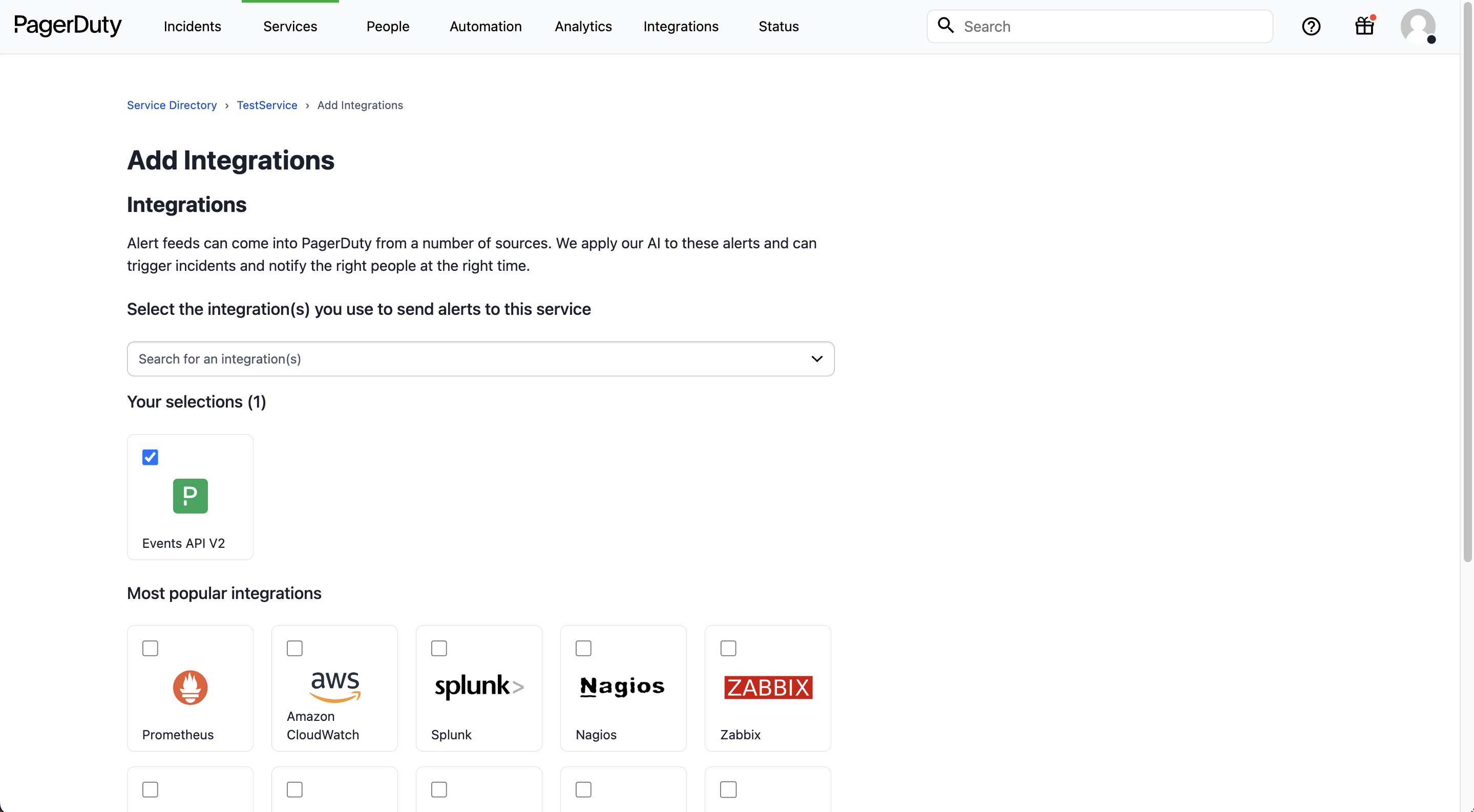
Select **Events API v2**, then select `Add`.
### Add an integration to an existing service
Select **Events API v2**, then select `Add`.
 After adding, copy the **Integration key** from the service **Integrations** tab and use it in Plerion. We also recommend configuring **Reduce Noise** as described below.
### Configure Reduce Noise
Set up Reduce Noise in PagerDuty to group related alerts into a single incident and keep the incident list clean.
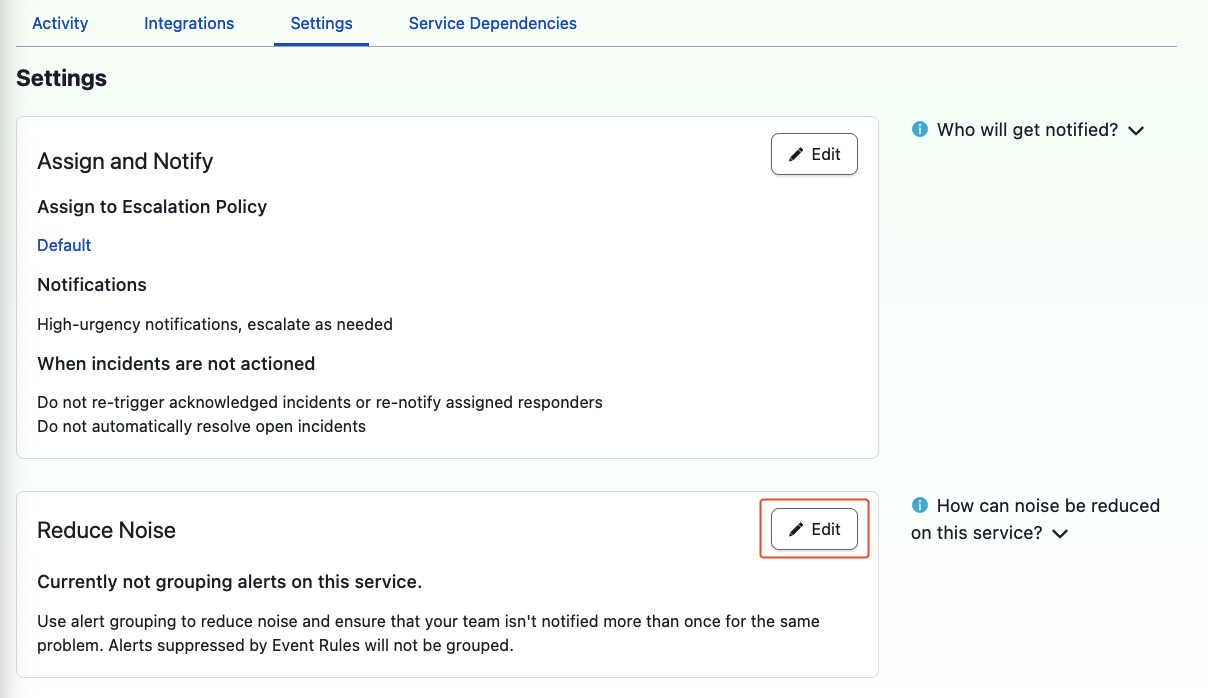
Go to **Services > Service Directory**, select the service, then open the **Settings** tab. Scroll to **Reduce Noise** and select `Edit`.
After adding, copy the **Integration key** from the service **Integrations** tab and use it in Plerion. We also recommend configuring **Reduce Noise** as described below.
### Configure Reduce Noise
Set up Reduce Noise in PagerDuty to group related alerts into a single incident and keep the incident list clean.
Go to **Services > Service Directory**, select the service, then open the **Settings** tab. Scroll to **Reduce Noise** and select `Edit`.
 Select **Content-based**, then choose `Create grouping`. Set **Group alerts based on All** of the following fields and select **Component** and **Group**, then select `Save`. If **Content-based** is unavailable, first send a test from Plerion using `Send test message`, then return to this screen.
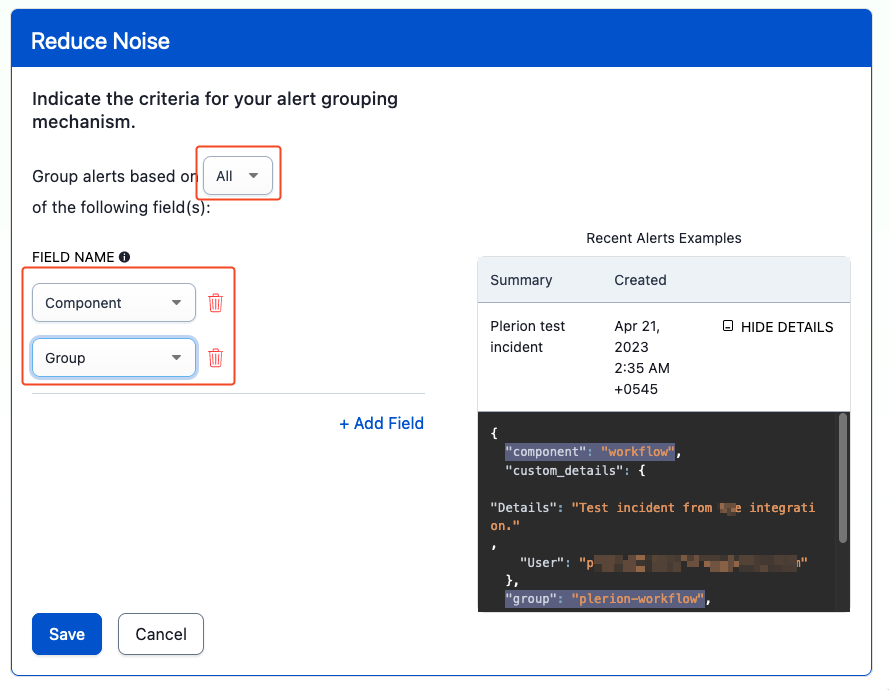 Verify the Reduce Noise configuration displays your grouping rule.