> ## Documentation Index
> Fetch the complete documentation index at: https://docs.plerion.com/llms.txt
> Use this file to discover all available pages before exploring further.

# Linear

> Integrate Plerion with Linear to automatically create and track issues from alerts, helping your team manage work in Linear’s project management  platform.

With the [Linear integration](https://app.plerion.com/settings/integrations/add/Linear/Linear), you can send alerts from Plerion directly into your chosen Linear project, allowing your team to prioritize and resolve issues within your existing workflow.

<Warning>
  **Note:** This is a one-way outbound integration. Alerts created or updated in Plerion will appear in Linear, but changes made directly in Linear will not sync back to Plerion.
</Warning>

***

## Steps to integrate Linear with Plerion
<Steps>
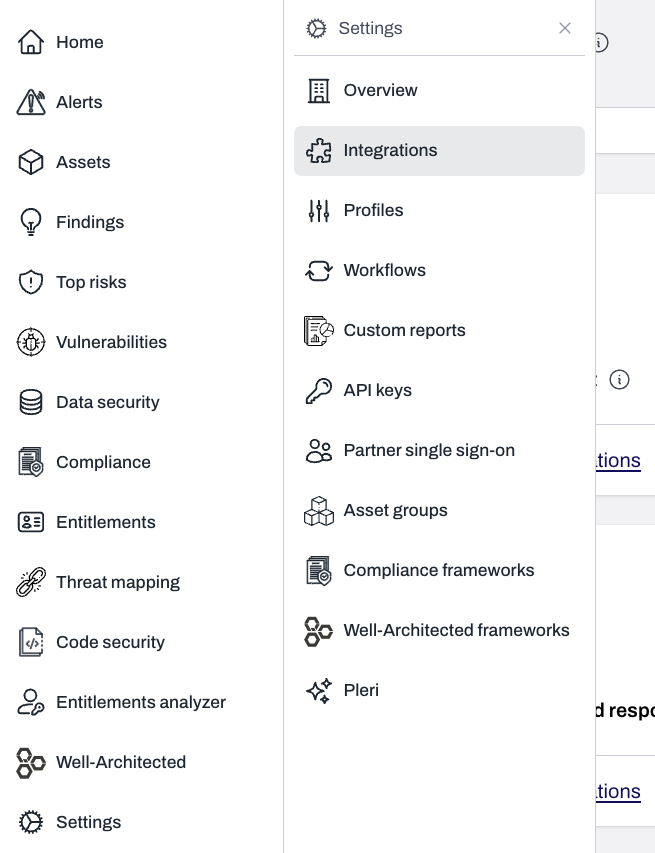
  <Step title="On the Plerion dashboard, go to Settings > Integrations">
    <Frame>
      <img src="https://mintcdn.com/pleriondocs/c4HLLjJWyFTjannU/images/integrations/linear/settings-integrations-sidenav.png?fit=max&auto=format&n=c4HLLjJWyFTjannU&q=85&s=891b8a7f555901851a85d18a0dbf8f34" alt="Sidebar navigation showing Settings expanded with Integrations selected" width="655" height="853" data-path="images/integrations/linear/settings-integrations-sidenav.png" />
    </Frame>
  </Step>

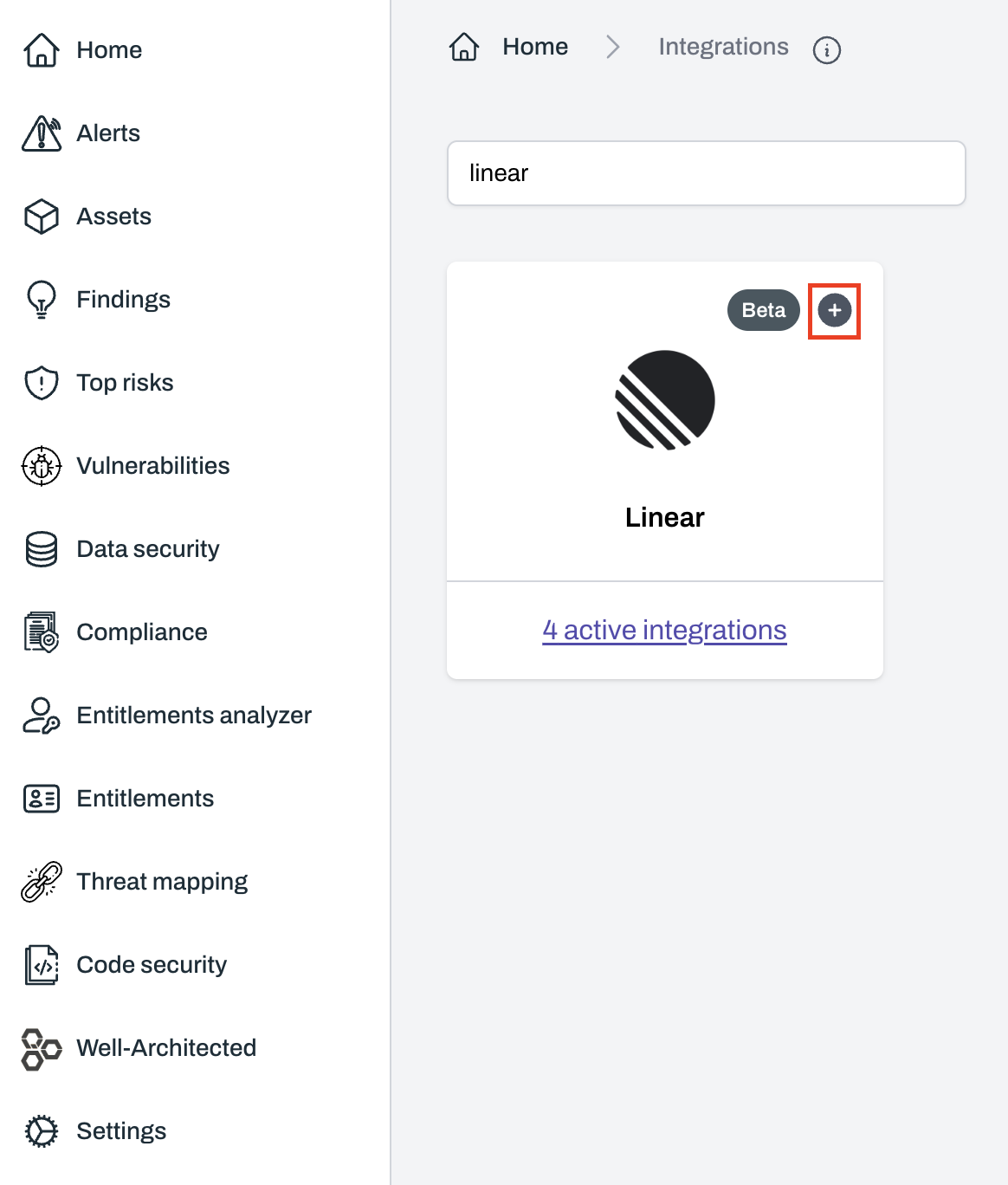
  <Step title="Find Linear and click the + button">
    <Frame>
      <img src="https://mintcdn.com/pleriondocs/c4HLLjJWyFTjannU/images/integrations/linear/add-linear-integration.png?fit=max&auto=format&n=c4HLLjJWyFTjannU&q=85&s=dc6e25a514b9463ca0eb06854aedf8a6" alt="Integrations page with Linear option and plus button to add integration" width="1164" height="1368" data-path="images/integrations/linear/add-linear-integration.png" />
    </Frame>
  </Step>

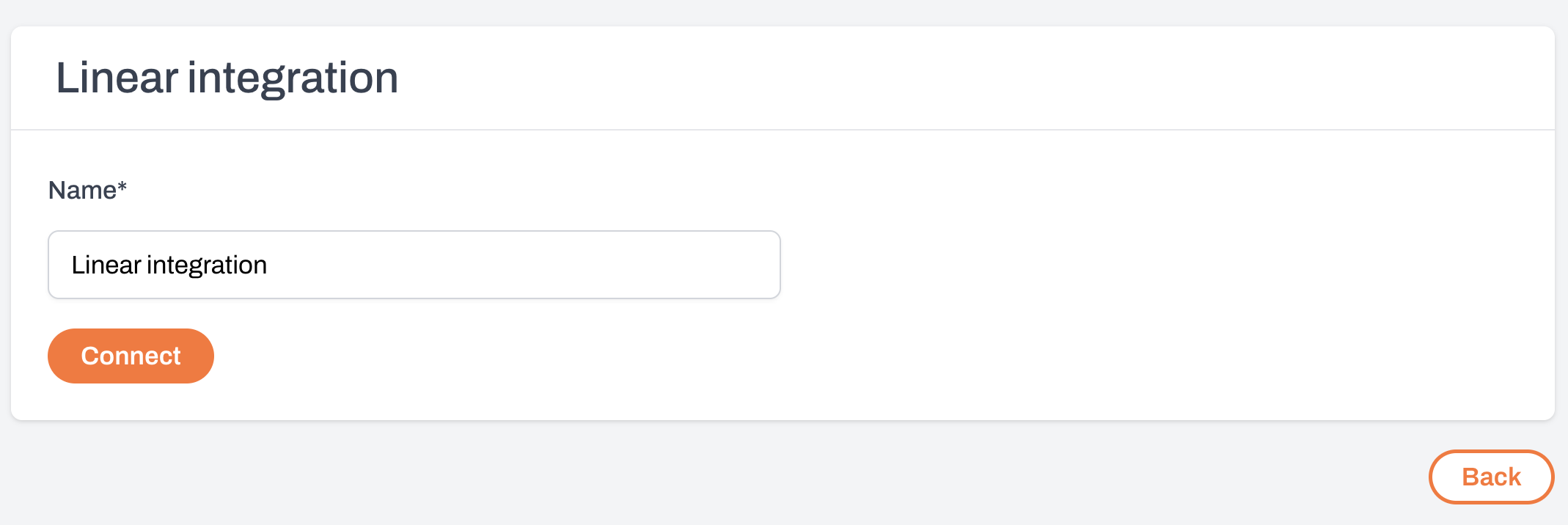
  <Step title="On the Linear integration page, enter a name for your integration and select Connect">
    <Frame>
      <img src="https://mintcdn.com/pleriondocs/c4HLLjJWyFTjannU/images/integrations/linear/connect-linear.png?fit=max&auto=format&n=c4HLLjJWyFTjannU&q=85&s=591613a6089aaa55aba43b43e401afe2" alt="Connect Linear page showing fields for integration name and Connect button" width="2138" height="716" data-path="images/integrations/linear/connect-linear.png" />
    </Frame>
  </Step>

  <Step title="A Linear OAuth pop-up will appear">
    Review the requested permissions and click `Authorize` to authorize the connection.
  </Step>

  <Step title="Test your Linear integration">
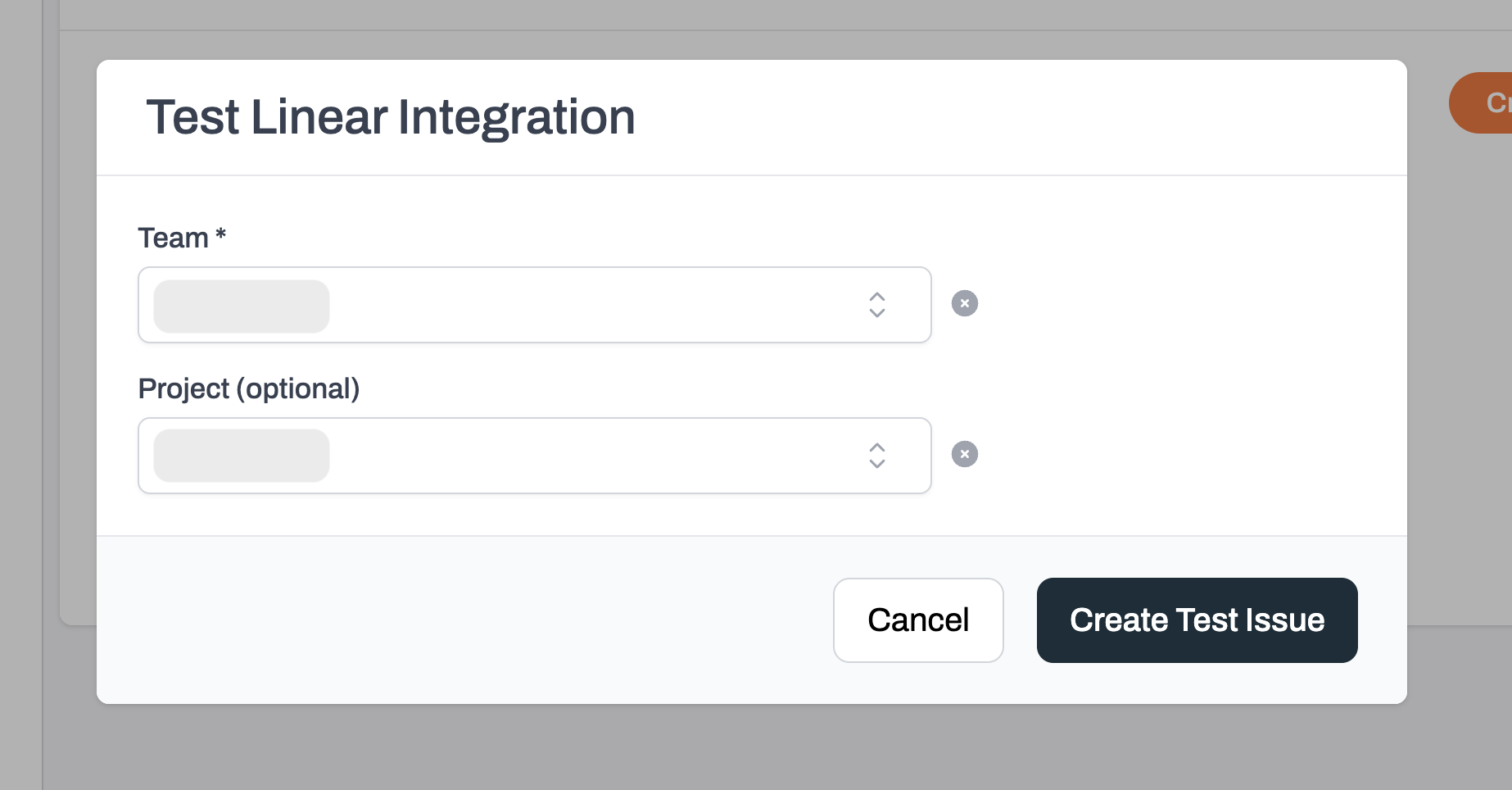
    After connecting Linear, click `Create test issue` to confirm that the integration works.\
    Select the Linear team and, optionally, the project where the test issue should be created.
    <Frame>
      <img src="https://mintcdn.com/pleriondocs/c4HLLjJWyFTjannU/images/integrations/linear/create-test-issue-linear.png?fit=max&auto=format&n=c4HLLjJWyFTjannU&q=85&s=ddaed60caf1de37db72245de4dadb54d" alt="Test issue configuration screen for Linear integration in Plerion" width="1846" height="964" data-path="images/integrations/linear/create-test-issue-linear.png" />
    </Frame>
  </Step>

  <Step title="Review your test issue in Linear">
    If the test is successful, Plerion will display a link to the issue created in Linear.

    <Frame>
      <img src="https://mintcdn.com/pleriondocs/c4HLLjJWyFTjannU/images/integrations/linear/test-issue-created-linear.png?fit=max&auto=format&n=c4HLLjJWyFTjannU&q=85&s=492dd8a876738310becb964e082a1d1f" alt="Plerion confirmation showing link to created Linear issue" width="2108" height="276" data-path="images/integrations/linear/test-issue-created-linear.png" />
    </Frame>

    <br />
  </Step>
</Steps>

***

## Create a workflow on Plerion

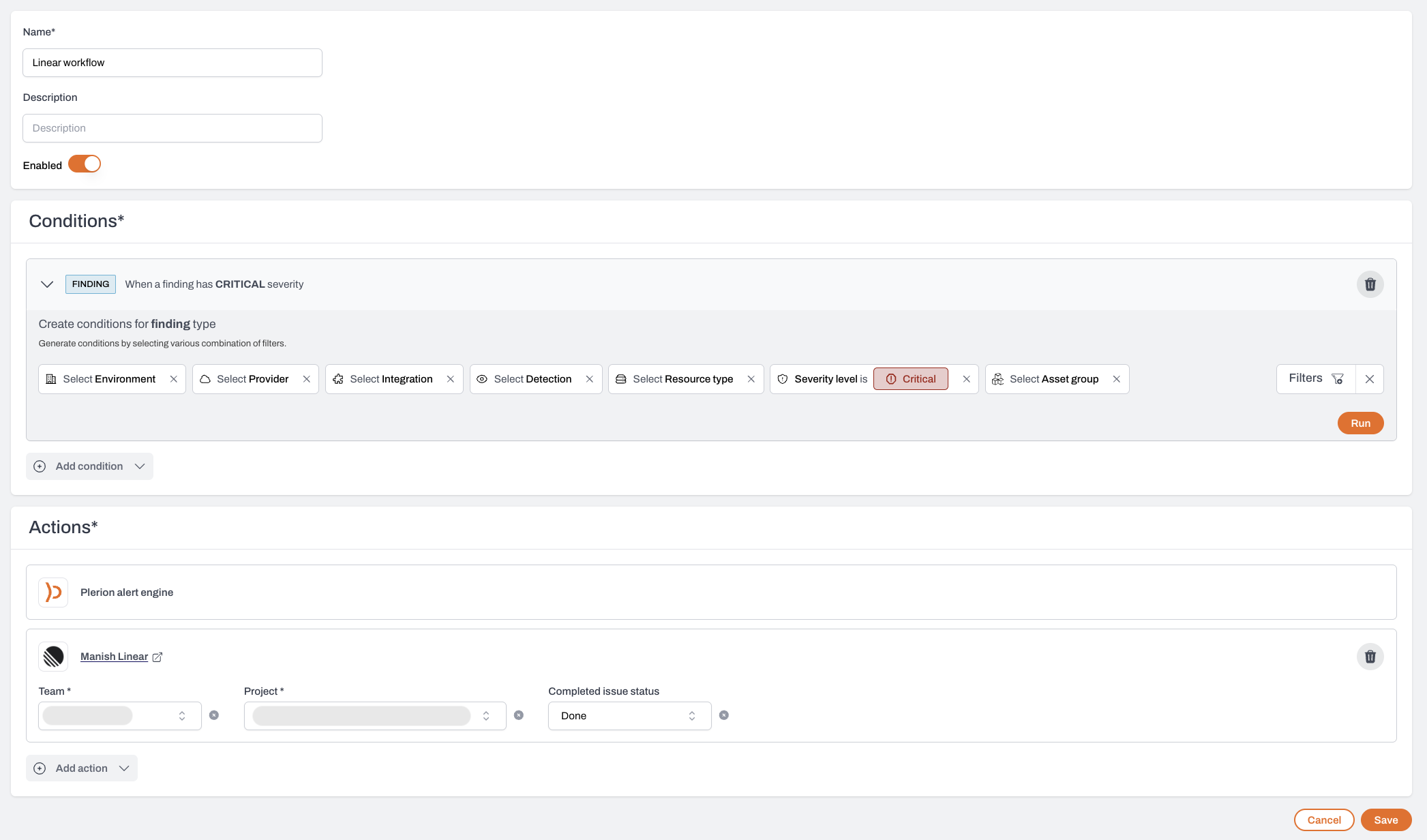
After adding the Linear integration, you must create a workflow for any alerts to be sent to Linear.

<Steps>
  <Step title="Go to Settings > Workflows and click Add a new workflow" />

  <Step title="Enter workflow details">
    Enter a workflow name and ensure the Enabled toggle is turned on.
  </Step>

  <Step title="Add workflow conditions">
    * Under **Conditions**, you can build the workflow using any of the three available condition categories:
      * **Asset**
      * **Findings**
      * **Vulnerabilities**

    Linear supports all three categories, allowing you to send alerts of any type to Linear based on the conditions you define.
  </Step>

  <Step title="Add workflow actions">
    Under **Actions**, click `Add action` and select your Linear integration.\
    Select the team, project, and preferred completed issue status for this workflow.
    <Frame>
      <img src="https://mintcdn.com/pleriondocs/c4HLLjJWyFTjannU/images/integrations/linear/set-up-linear-workflow.png?fit=max&auto=format&n=c4HLLjJWyFTjannU&q=85&s=a9e0c9ea78886313486a4ac7c6a0a4ca" alt="Plerion workflow setup for Linear integration" width="2093" height="1232" data-path="images/integrations/linear/set-up-linear-workflow.png" />
    </Frame>
  </Step>

  <Step title="Save the workflow">
    Click `Save` to finish setting up your workflow.
  </Step>
</Steps>