> ## Documentation Index
> Fetch the complete documentation index at: https://docs.plerion.com/llms.txt
> Use this file to discover all available pages before exploring further.

# Jira Security

> Integrate Plerion with Jira Security to push vulnerabilities directly into the Jira security page, enabling teams to collaborate on issues.

With the [Jira Security integration](https://app.plerion.com/settings/integrations/add/Jira/JiraSecurity), you can send vulnerabilities from Plerion straight into the Jira Security page. This allows your team to triage and track vulnerabilities alongside other Jira security data. To enable this, you must install the **Plerion Security App** from the Jira toolchain.

<Warning>
  **Note:** This is a one-way outbound integration. Vulnerabilities created or updated in Plerion will appear in Jira Security, but changes made in Jira Security will not sync back to Plerion.
</Warning>

## Steps to integrate Jira Security with Plerion
<Steps>
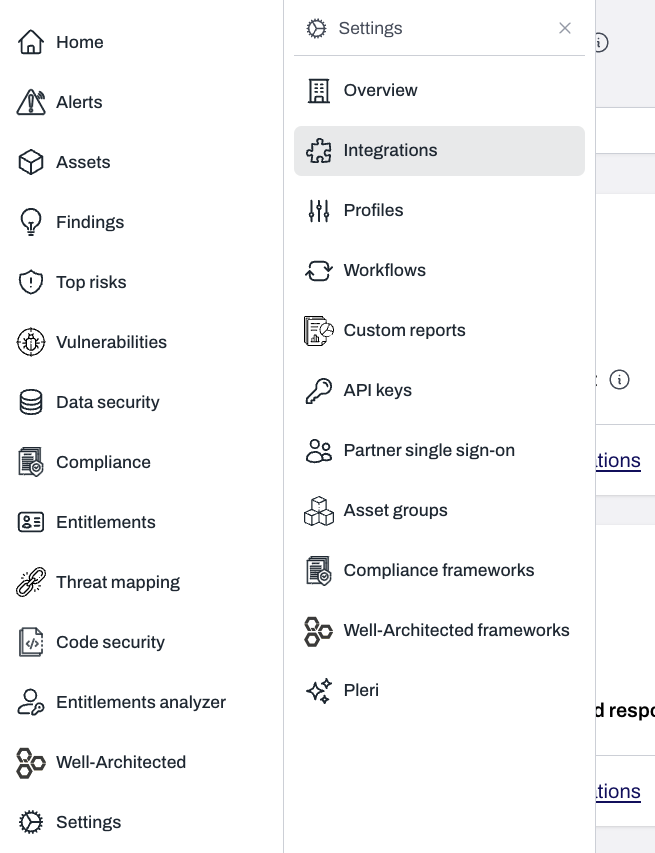
  <Step title="On the Plerion dashboard, go to Settings > Integrations">
    <Frame>
      <img src="https://mintcdn.com/pleriondocs/OjKE2HeIs0g_WQ0R/images/integrations/jira-security/settings-integrations-sidenav.png?fit=max&auto=format&n=OjKE2HeIs0g_WQ0R&q=85&s=4c04d2960023a910fa704e7d140bd773" alt="Plerion dashboard showing Settings expanded with Integrations selected" width="655" height="853" data-path="images/integrations/jira-security/settings-integrations-sidenav.png" />
    </Frame>
  </Step>

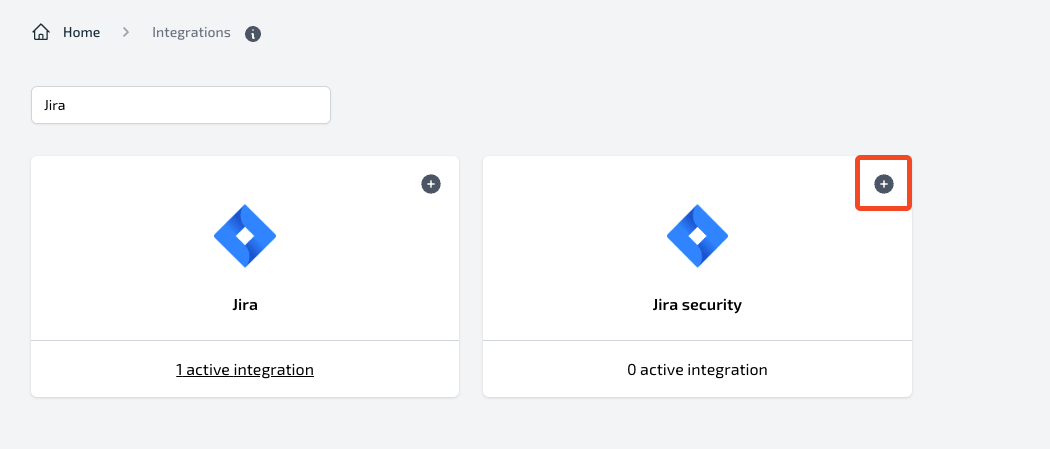
  <Step title="Find Jira Security and click the + button">
    <Frame>
      <img src="https://mintcdn.com/pleriondocs/OjKE2HeIs0g_WQ0R/images/integrations/jira-security/add-jira-security-integration.png?fit=max&auto=format&n=OjKE2HeIs0g_WQ0R&q=85&s=b80dff4ab3e2e05ce50916fa5d4ba301" alt="Integrations page with Jira Security option and plus button to add integration" width="1050" height="449" data-path="images/integrations/jira-security/add-jira-security-integration.png" />
    </Frame>
  </Step>

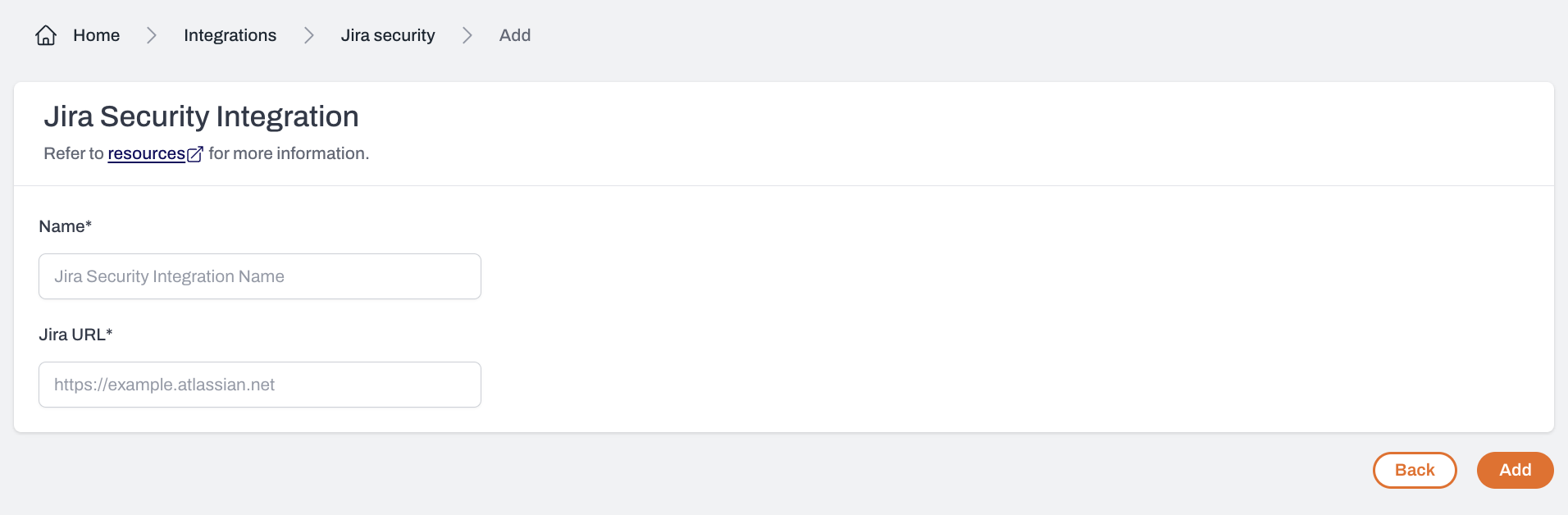
  <Step title="On the Connect Jira Security page, enter a name and Jira URL">
    <Frame>
      <img src="https://mintcdn.com/pleriondocs/OjKE2HeIs0g_WQ0R/images/integrations/jira-security/connect-jira-security.png?fit=max&auto=format&n=OjKE2HeIs0g_WQ0R&q=85&s=981b8d246a1c6e2853ed67b96de0dc11" alt="Jira Security integration setup page with fields for name and Jira URL" width="1912" height="628" data-path="images/integrations/jira-security/connect-jira-security.png" />
    </Frame>
  </Step>

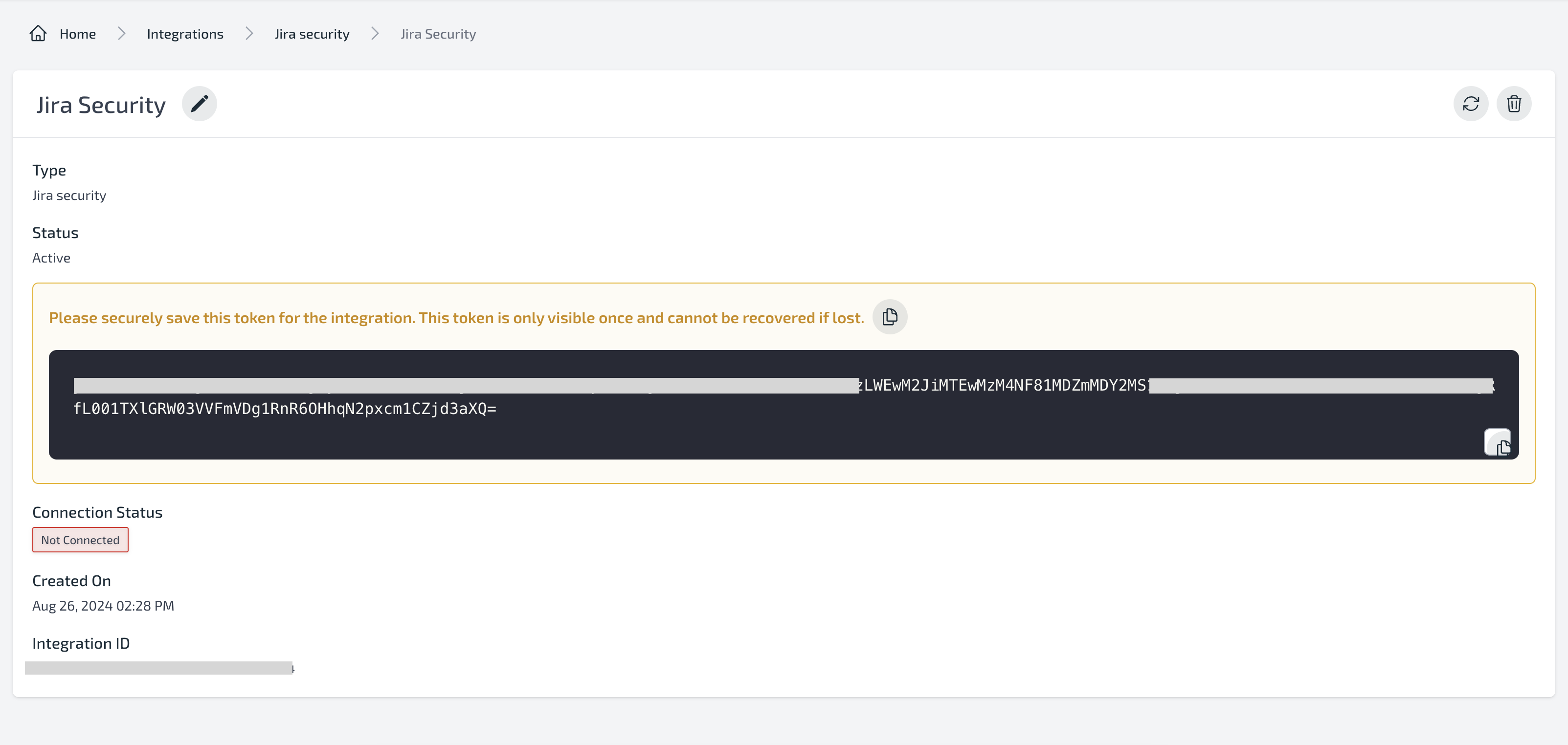
  <Step title="Copy the integration token from the integration detail page">
    You will need this token when configuring the Plerion Security App in Jira.
    <Frame>
      <img src="https://mintcdn.com/pleriondocs/OjKE2HeIs0g_WQ0R/images/integrations/jira-security/jira-security-token.png?fit=max&auto=format&n=OjKE2HeIs0g_WQ0R&q=85&s=c15b223725acaa3274882b7772030a8a" alt="Integration detail page showing generated token" width="3206" height="1524" data-path="images/integrations/jira-security/jira-security-token.png" />
    </Frame>
  </Step>

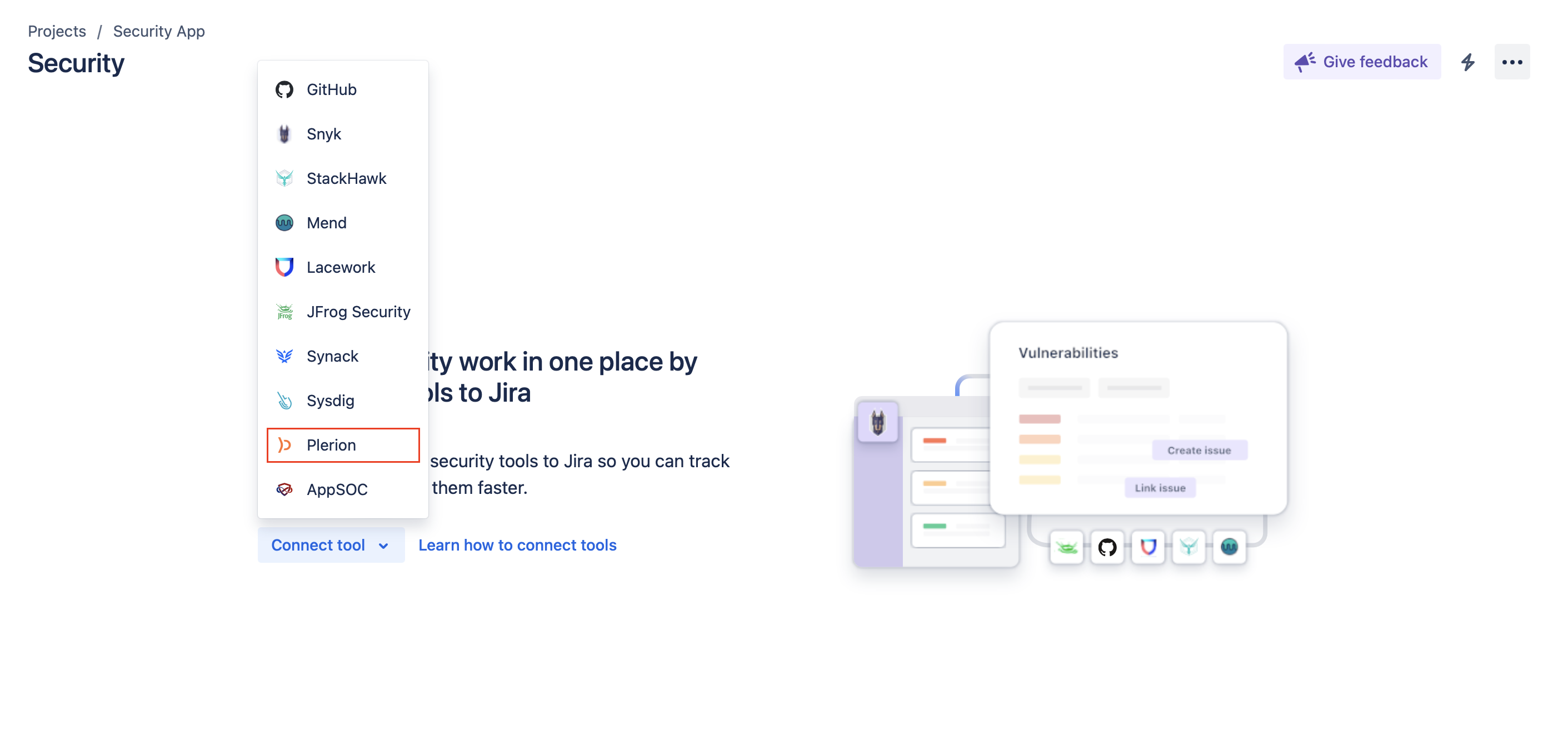
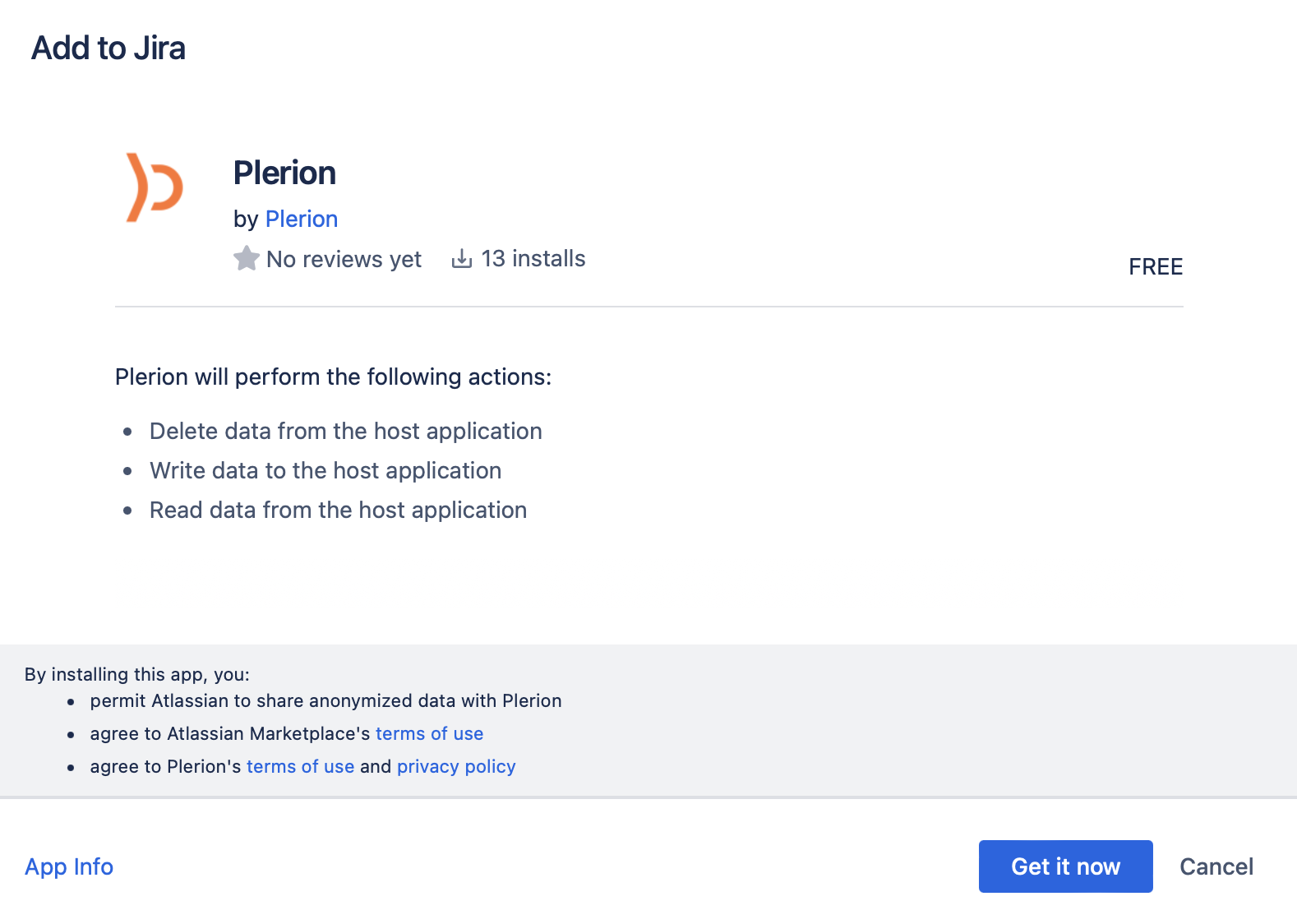
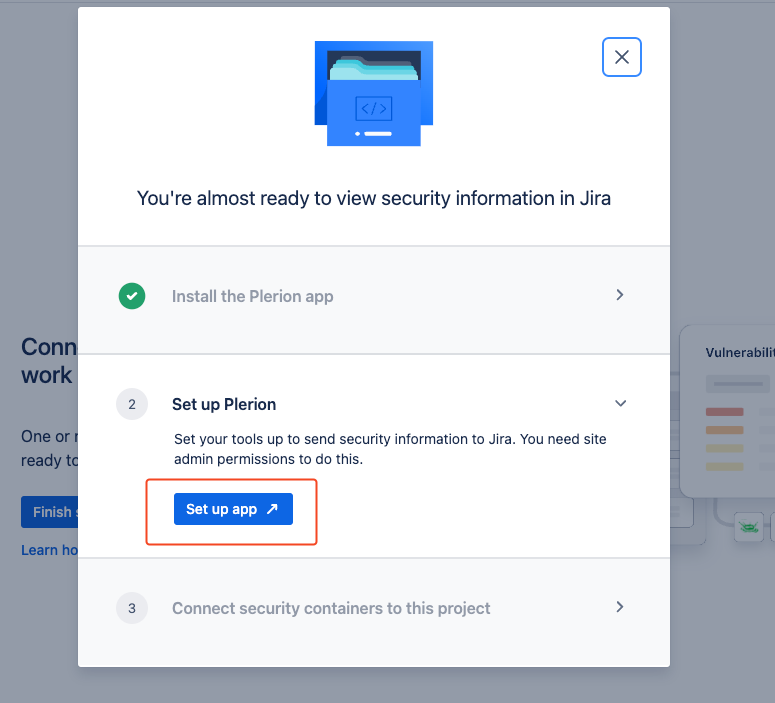
  <Step title="Find and install the Plerion Security App on your Jira Security page">
    <Frame>
      <img src="https://mintcdn.com/pleriondocs/OjKE2HeIs0g_WQ0R/images/integrations/jira-security/list-of-tools.png?fit=max&auto=format&n=OjKE2HeIs0g_WQ0R&q=85&s=74b1773ddbb1d0844c1941bb0441695d" alt="List of available tools with Jira Security" width="2822" height="1332" data-path="images/integrations/jira-security/list-of-tools.png" />
    </Frame>

    <br />

    <Frame>
      <img src="https://mintcdn.com/pleriondocs/OjKE2HeIs0g_WQ0R/images/integrations/jira-security/add-plerion-on-jira.png?fit=max&auto=format&n=OjKE2HeIs0g_WQ0R&q=85&s=ce412d59900ee7ea4939ad65c42c4f2c" alt="Jira security page showing Plerion Security App install option" width="1578" height="1124" data-path="images/integrations/jira-security/add-plerion-on-jira.png" />
    </Frame>

    <br />

    <Frame>
      <img src="https://mintcdn.com/pleriondocs/OjKE2HeIs0g_WQ0R/images/integrations/jira-security/click-set-up-app.png?fit=max&auto=format&n=OjKE2HeIs0g_WQ0R&q=85&s=ba3ffae509c82298a06ff94d5bcc5d4c" alt="Installation progress of Plerion Security App in Jira" width="775" height="703" data-path="images/integrations/jira-security/click-set-up-app.png" />
    </Frame>

    <br />
  </Step>

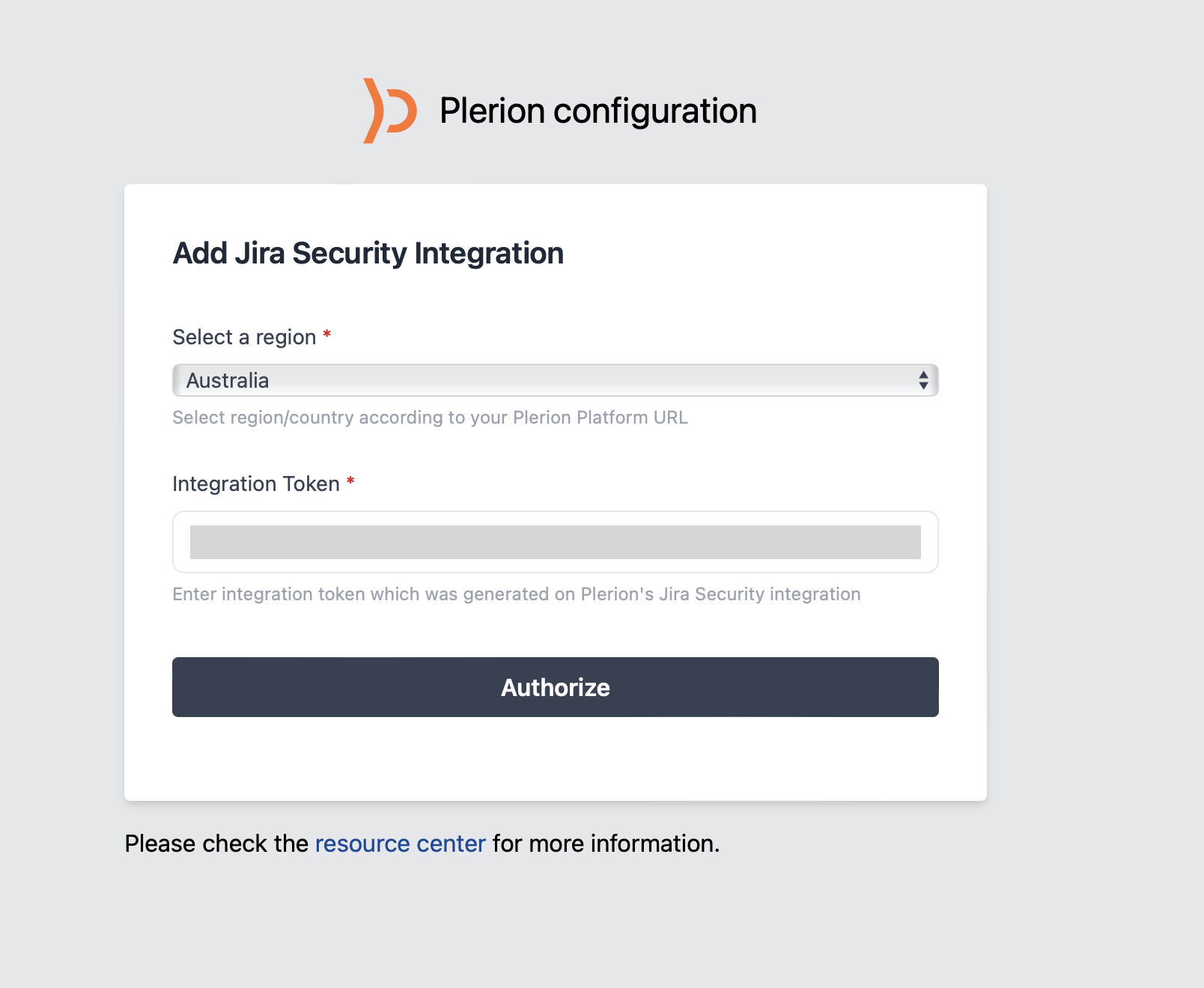
  <Step title="Configure the Plerion Security App">
    * Select the region matching your Plerion Platform URL
    * Enter the integration token generated in Plerion\\
          <Frame>
            <img src="https://mintcdn.com/pleriondocs/OjKE2HeIs0g_WQ0R/images/integrations/jira-security/integration-token.png?fit=max&auto=format&n=OjKE2HeIs0g_WQ0R&q=85&s=6b0b8b765b0ed9333591e8ce91e819a7" alt="Plerion Security App configuration screen in Jira" width="1608" height="1320" data-path="images/integrations/jira-security/integration-token.png" />
          </Frame>
  </Step>

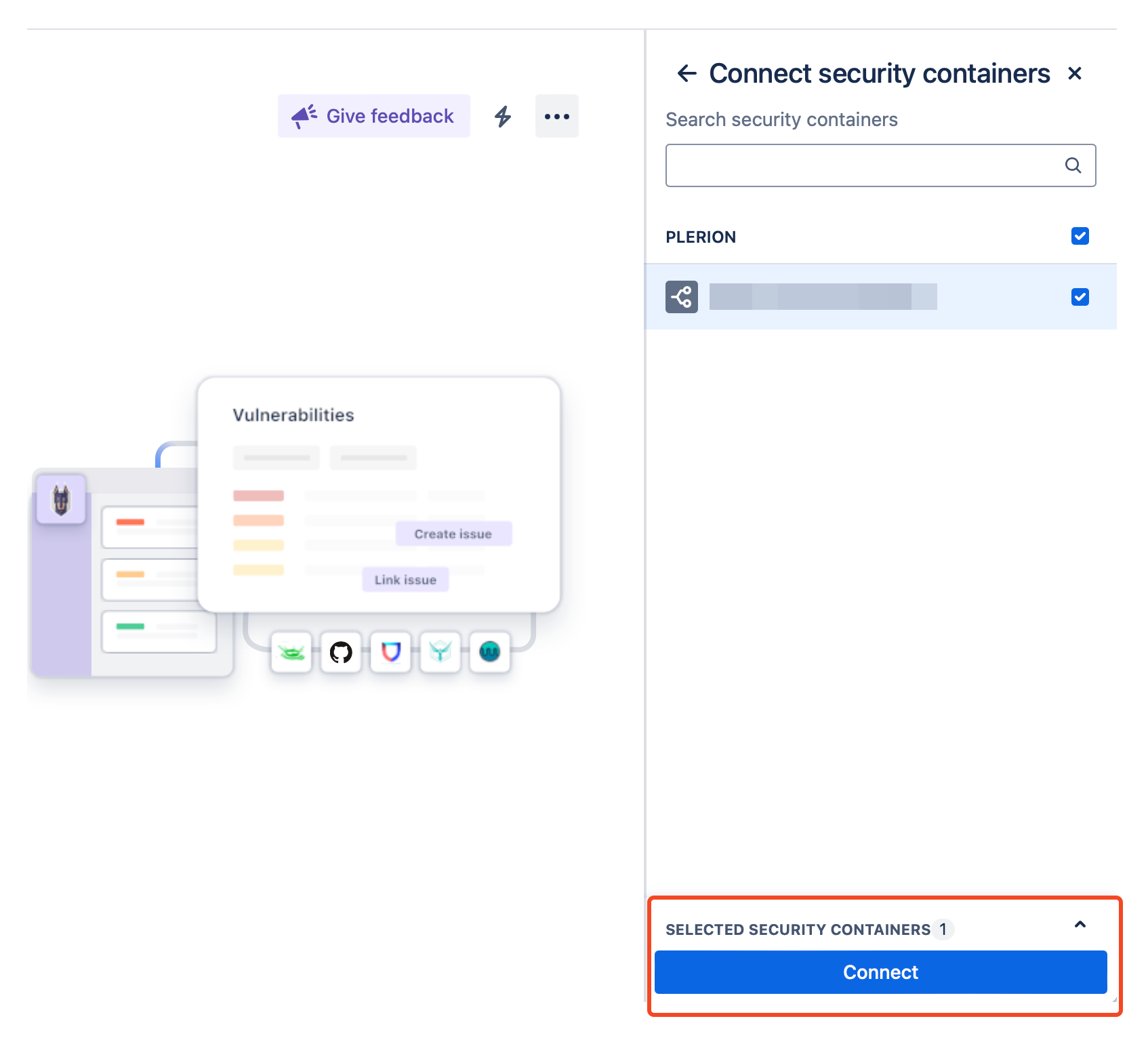
  <Step title="Connect a security container">
    * In Jira Security, go to the **Security page**
    * Click `Finish Setup`, then `Connect security container` on the right side
    * Select the container to connect\
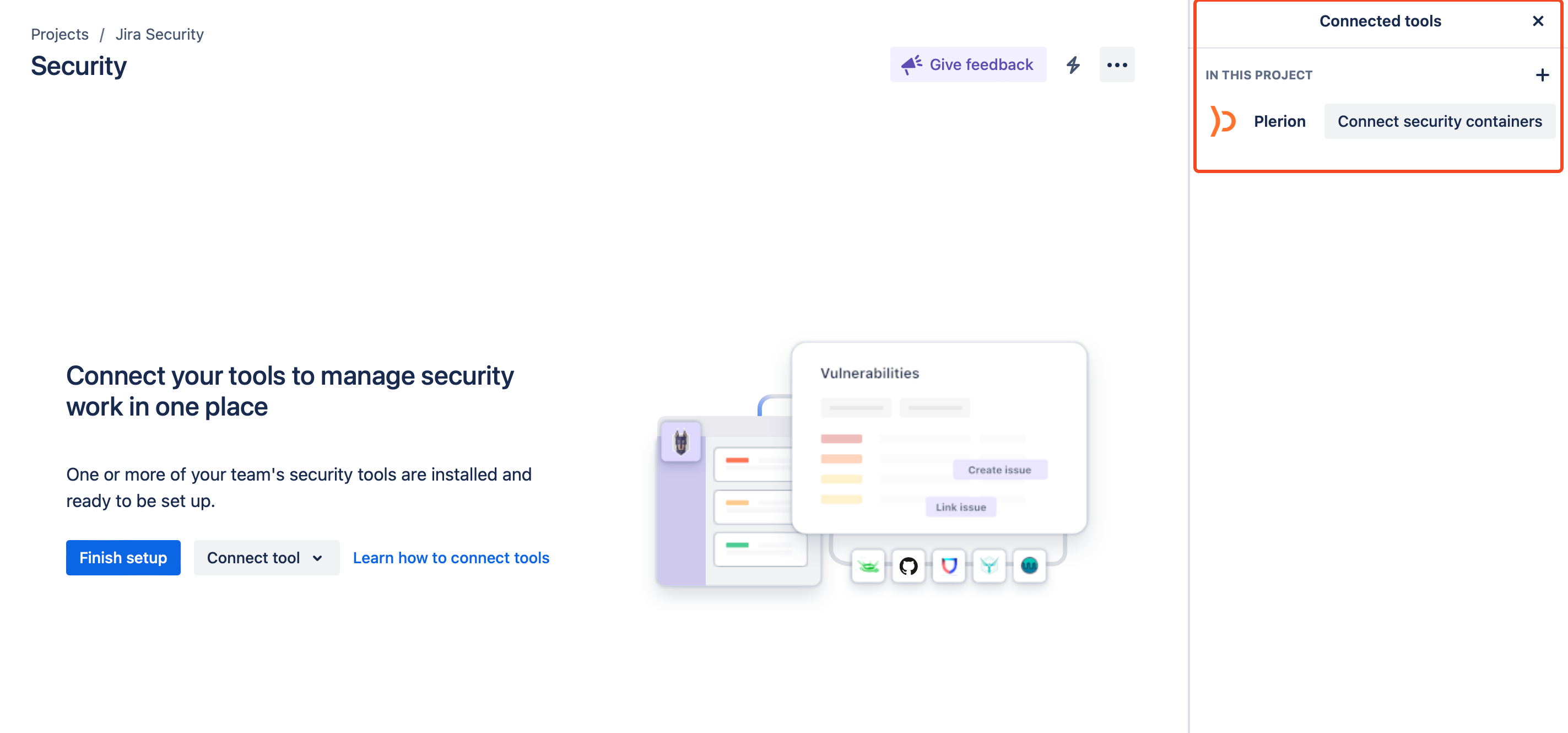
      <Frame><img src="https://mintcdn.com/pleriondocs/OjKE2HeIs0g_WQ0R/images/integrations/jira-security/connect-security-containers.png?fit=max&auto=format&n=OjKE2HeIs0g_WQ0R&q=85&s=b5ed62e317d0254ccbbaf46c3e365ad0" alt="Jira Security page with Connect security container option highlighted" width="2846" height="1330" data-path="images/integrations/jira-security/connect-security-containers.png" /></Frame>\\
          <Frame>
            <img src="https://mintcdn.com/pleriondocs/OjKE2HeIs0g_WQ0R/images/integrations/jira-security/selected-security-containers.png?fit=max&auto=format&n=OjKE2HeIs0g_WQ0R&q=85&s=54b7feff0a353508399d36525a0e81db" alt="Container selection screen in Jira Security" width="1694" height="1537" data-path="images/integrations/jira-security/selected-security-containers.png" />
          </Frame>
  </Step>

  <Step title="Verify the connected container">
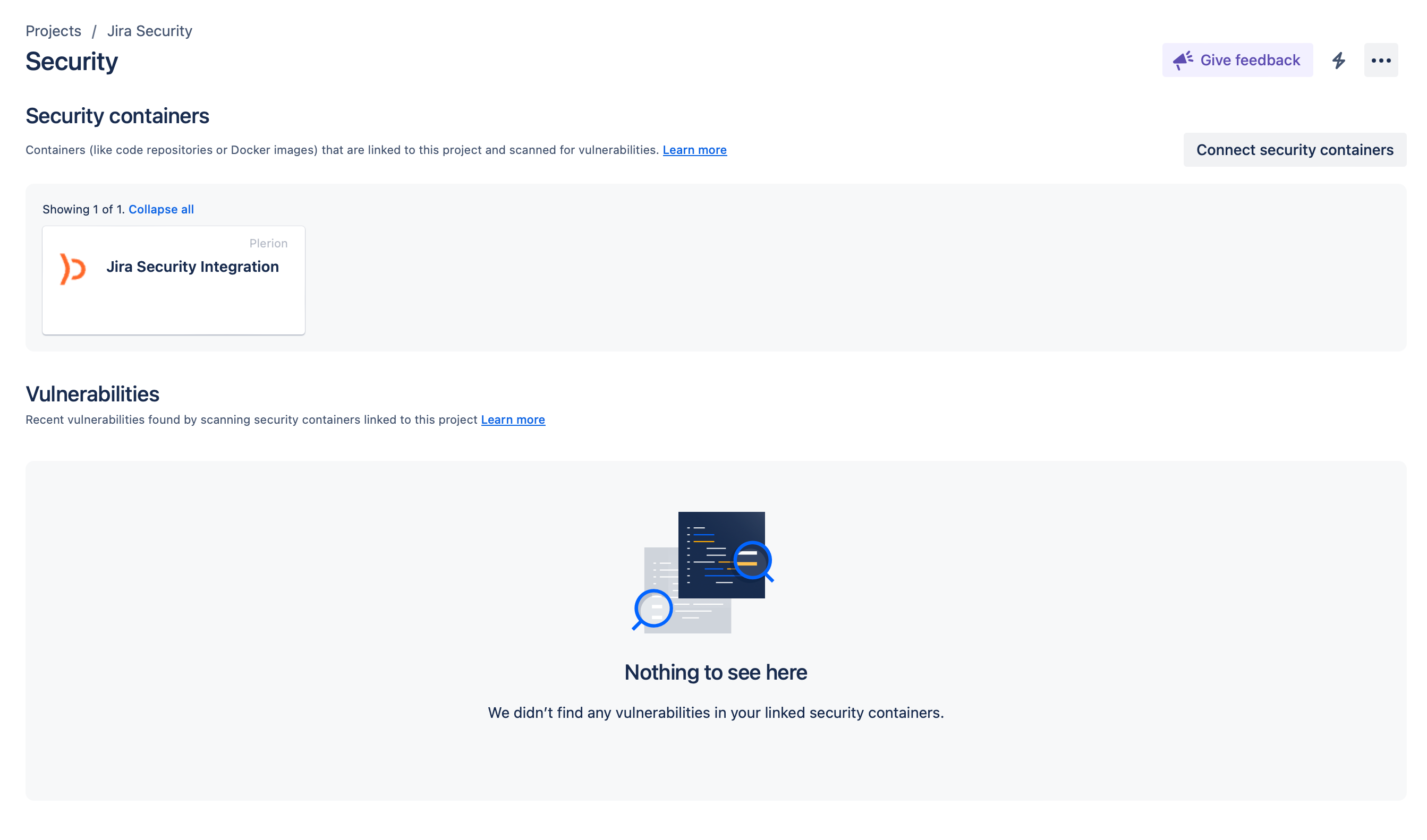
    Once connected, the container will appear in Jira Security with an empty vulnerability list.\\
    <Frame>
      <img src="https://mintcdn.com/pleriondocs/OjKE2HeIs0g_WQ0R/images/integrations/jira-security/empty-security-container.png?fit=max&auto=format&n=OjKE2HeIs0g_WQ0R&q=85&s=2af09e459ca9b38db0552b6d8c935a57" alt="Jira Security page showing connected container" width="2686" height="1582" data-path="images/integrations/jira-security/empty-security-container.png" />
    </Frame>
  </Step>

  <Step title="Test your Jira Security integration">
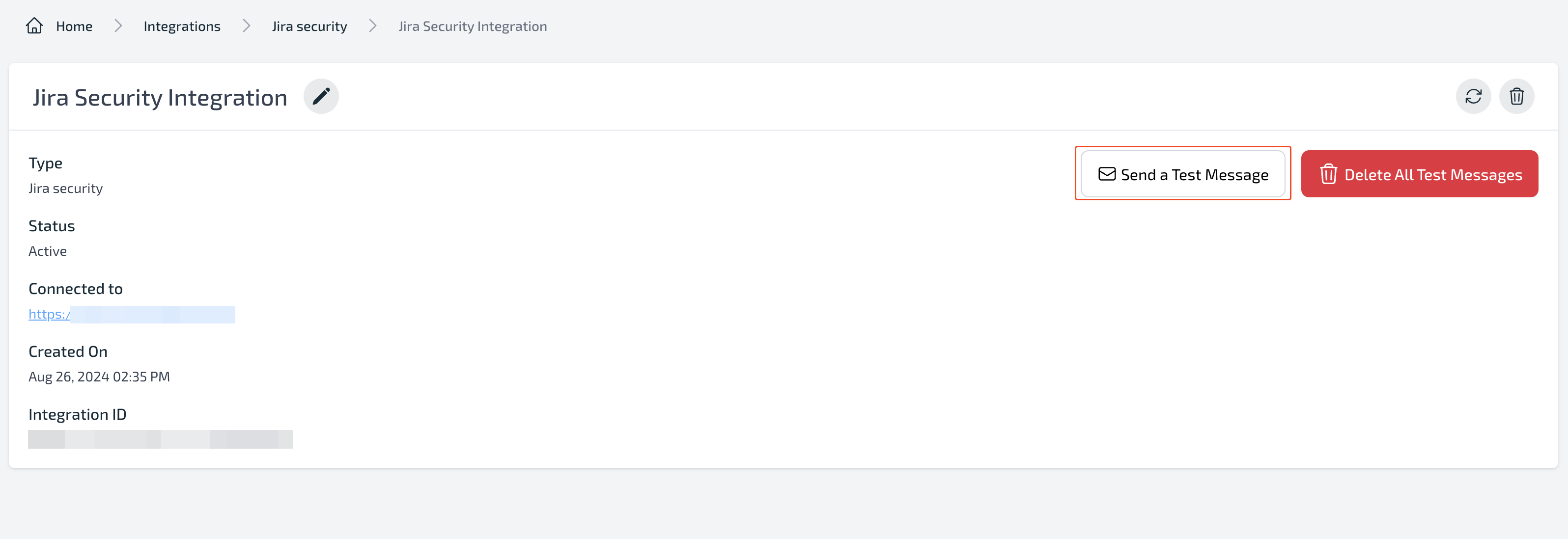
    On the Jira Security integration page in Plerion, verify that it shows `Connected to` your Jira URL.\
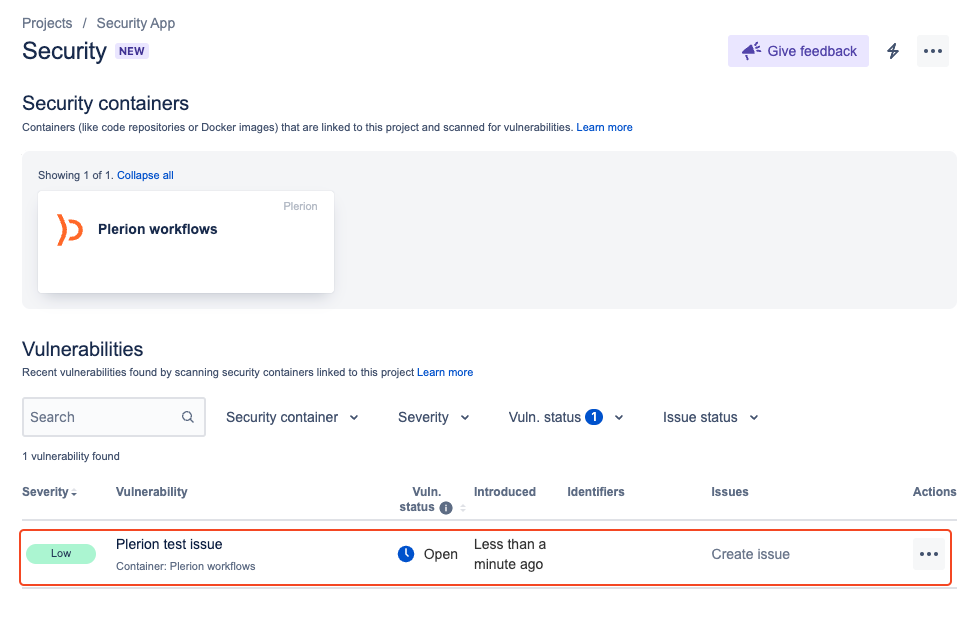
    Click `Send a Test Message` in Plerion to push a test vulnerability. Then check the Jira security page to confirm it appears.
    <Frame>
      <img src="https://mintcdn.com/pleriondocs/OjKE2HeIs0g_WQ0R/images/integrations/jira-security/send-test-message.png?fit=max&auto=format&n=OjKE2HeIs0g_WQ0R&q=85&s=3df26f180087e65cb05b15e3cd0f8ba0" alt="Integration detail page showing connection to Jira URL" width="3192" height="1098" data-path="images/integrations/jira-security/send-test-message.png" />
    </Frame>

    <br />

    <Frame>
      <img src="https://mintcdn.com/pleriondocs/OjKE2HeIs0g_WQ0R/images/integrations/jira-security/test-message-sent-to-jira-security.png?fit=max&auto=format&n=OjKE2HeIs0g_WQ0R&q=85&s=238e1708908b761efa991f4fbbc5e5b4" alt="Jira Security interface with test message from Plerion" width="977" height="635" data-path="images/integrations/jira-security/test-message-sent-to-jira-security.png" />
    </Frame>
  </Step>
</Steps>

## Disconnect the integration

<Steps>
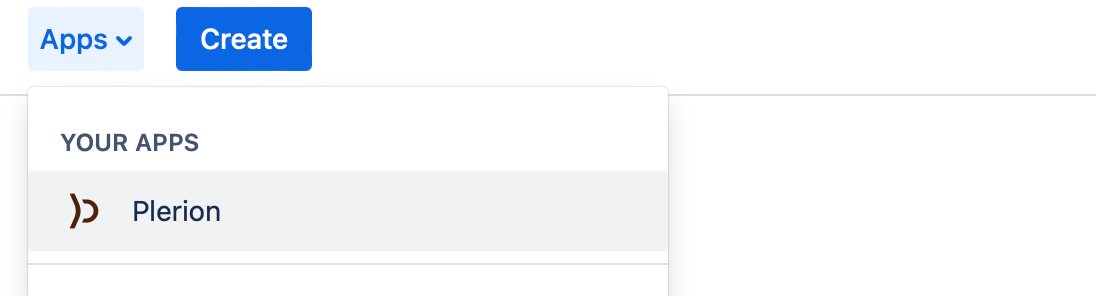
  <Step title="In Jira, go to the top navigation bar and click Plerion">
    <Frame>
      <img src="https://mintcdn.com/pleriondocs/OjKE2HeIs0g_WQ0R/images/integrations/jira-security/plerion-on-jira-security-your-apps.png?fit=max&auto=format&n=OjKE2HeIs0g_WQ0R&q=85&s=48f444c287c0faee608a05be06fd9fed" alt="Jira navigation showing Plerion option" width="1096" height="296" data-path="images/integrations/jira-security/plerion-on-jira-security-your-apps.png" />
    </Frame>
  </Step>

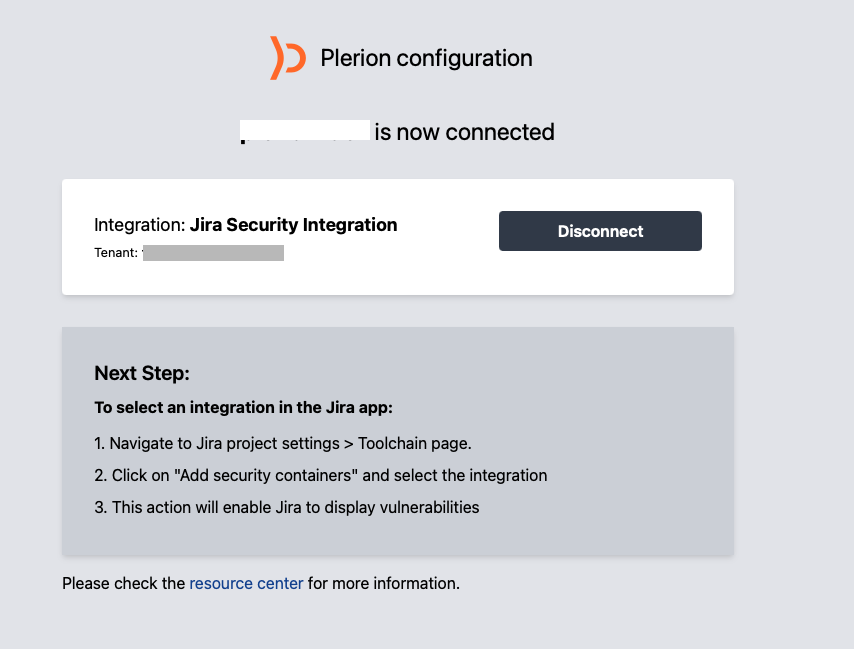
  <Step title="Click Disconnect to remove the integration">
    <Frame>
      <img src="https://mintcdn.com/pleriondocs/OjKE2HeIs0g_WQ0R/images/integrations/jira-security/disconnecting-plerion.png?fit=max&auto=format&n=OjKE2HeIs0g_WQ0R&q=85&s=aef3abf24b5298f21df01c3df1220643" alt="Disconnect button in Jira Plerion app settings" width="854" height="649" data-path="images/integrations/jira-security/disconnecting-plerion.png" />
    </Frame>
  </Step>
</Steps>

## Uninstall the app

<Steps>
  <Step title="Go to Manage Apps in Jira" />

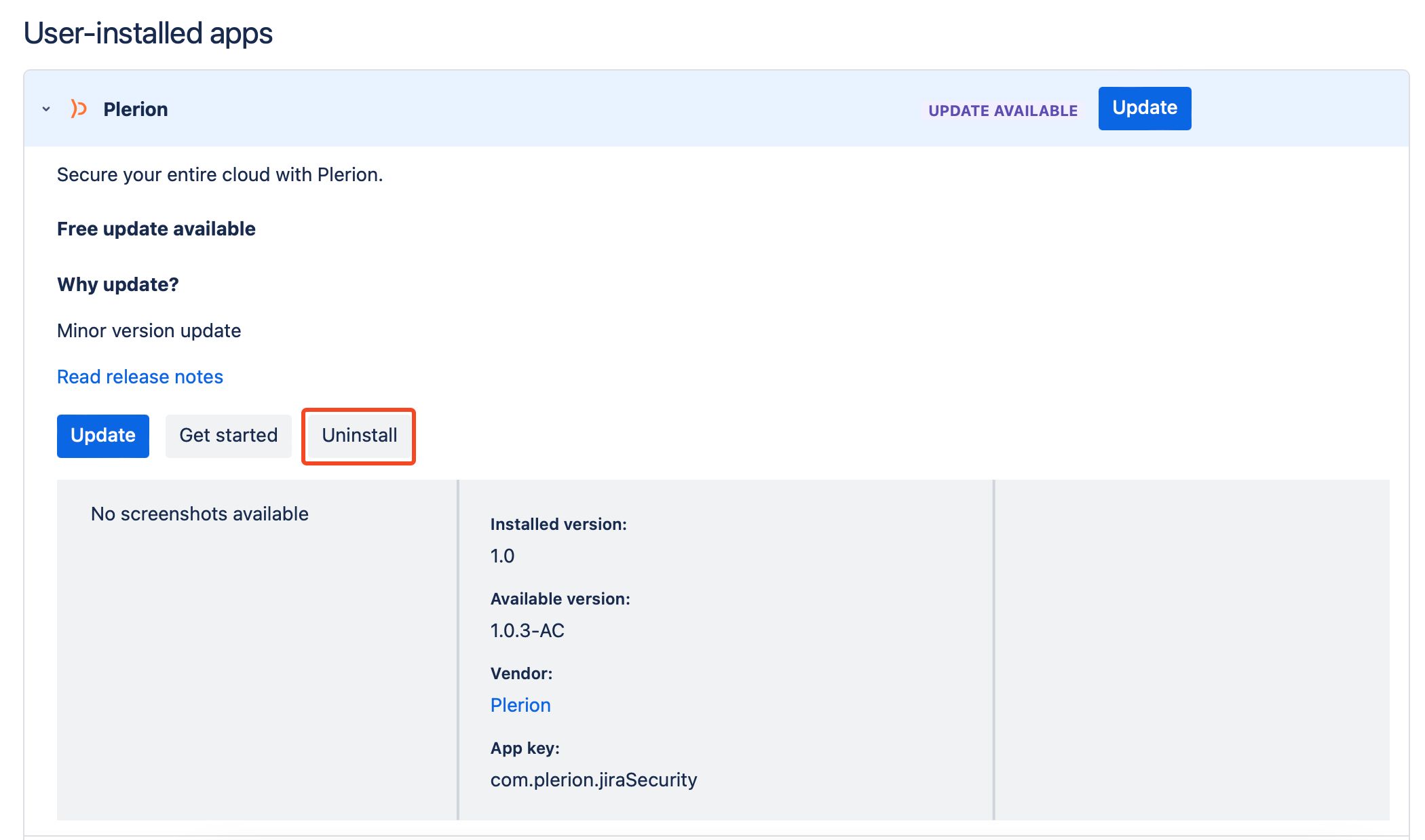
  <Step title=" Find the Plerion Security App and click Uninstall">
    <Frame>
      <img src="https://mintcdn.com/pleriondocs/OjKE2HeIs0g_WQ0R/images/integrations/jira-security/uninstall-plerion-on-jira-security.png?fit=max&auto=format&n=OjKE2HeIs0g_WQ0R&q=85&s=b776ddfc6347e242c6ef57cebae91393" alt="Manage Apps page in Jira showing Plerion app with Uninstall option" width="2100" height="1238" data-path="images/integrations/jira-security/uninstall-plerion-on-jira-security.png" />
    </Frame>
  </Step>
</Steps>