> ## Documentation Index
> Fetch the complete documentation index at: https://docs.plerion.com/llms.txt
> Use this file to discover all available pages before exploring further.
# Drata
> Integrate Plerion with Drata to automatically send daily evidence for your compliance frameworks.
With the [Drata integration](https://app.plerion.com/settings/integrations/add/Drata/Drata), Plerion delivers daily evidence mapped to your compliance framework requirements in Drata, helping your team reduce manual effort and stay audit-ready.
**Note:** This is a one-way outbound integration. Evidence created or updated in Plerion will appear in Drata, but changes made in Drata will not sync back to Plerion.
## What Plerion sends to Drata
### Controls
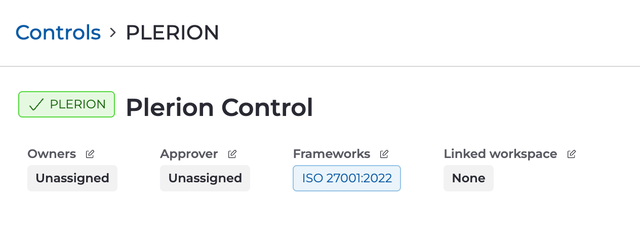
Plerion creates a new control for each compliance framework you select. Each control is mapped to the relevant requirements of the framework.
 ### Evidence
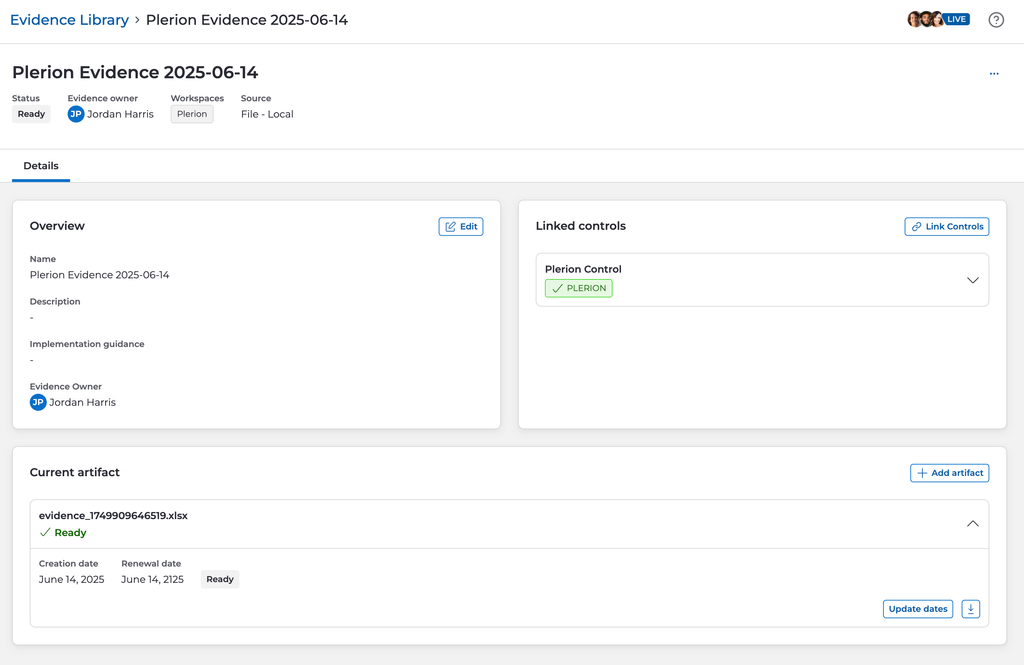
Plerion generates an Excel Spreadsheet (.xlsx) report containing Plerion findings relevant to the framework requirements across your chosen cloud accounts. For example, for the ISO 27001:2022 requirement **A.5.15 Access control**, Plerion includes **S3 bucket Block Public Access** findings in the spreadsheet.
All evidence is reported against the PLERION control in Drata.
### Evidence
Plerion generates an Excel Spreadsheet (.xlsx) report containing Plerion findings relevant to the framework requirements across your chosen cloud accounts. For example, for the ISO 27001:2022 requirement **A.5.15 Access control**, Plerion includes **S3 bucket Block Public Access** findings in the spreadsheet.
All evidence is reported against the PLERION control in Drata.
 ## Evidence delivery schedule
Plerion sends evidence to Drata once per day, based on the most recent scans of your selected cloud accounts.
## Steps to integrate Drata with Plerion
Plerion uses a Drata API key to send evidence. You will first need to create an [API key in Drata](https://app.drata.com/account-settings/api-keys), then connect it in Plerion and finally set up a workflow.
### Create a Drata API key
* **Name:** Plerion
* **Expiration date:** Set an expiration date for your API key
* **Allowed IP addresses:** Leave empty
* **Scope:** Plerion needs the following permissions:
* Read and write access to Controls
* Read and write access to Evidence Library
* Read access to Frameworks
* Read access to Workspaces
* Read access to Users
Copy the generated API key and keep it safe. You will need it for the next step to integrate Plerion with Drata.
### Create a Drata integration on Plerion
## Evidence delivery schedule
Plerion sends evidence to Drata once per day, based on the most recent scans of your selected cloud accounts.
## Steps to integrate Drata with Plerion
Plerion uses a Drata API key to send evidence. You will first need to create an [API key in Drata](https://app.drata.com/account-settings/api-keys), then connect it in Plerion and finally set up a workflow.
### Create a Drata API key
* **Name:** Plerion
* **Expiration date:** Set an expiration date for your API key
* **Allowed IP addresses:** Leave empty
* **Scope:** Plerion needs the following permissions:
* Read and write access to Controls
* Read and write access to Evidence Library
* Read access to Frameworks
* Read access to Workspaces
* Read access to Users
Copy the generated API key and keep it safe. You will need it for the next step to integrate Plerion with Drata.
### Create a Drata integration on Plerion
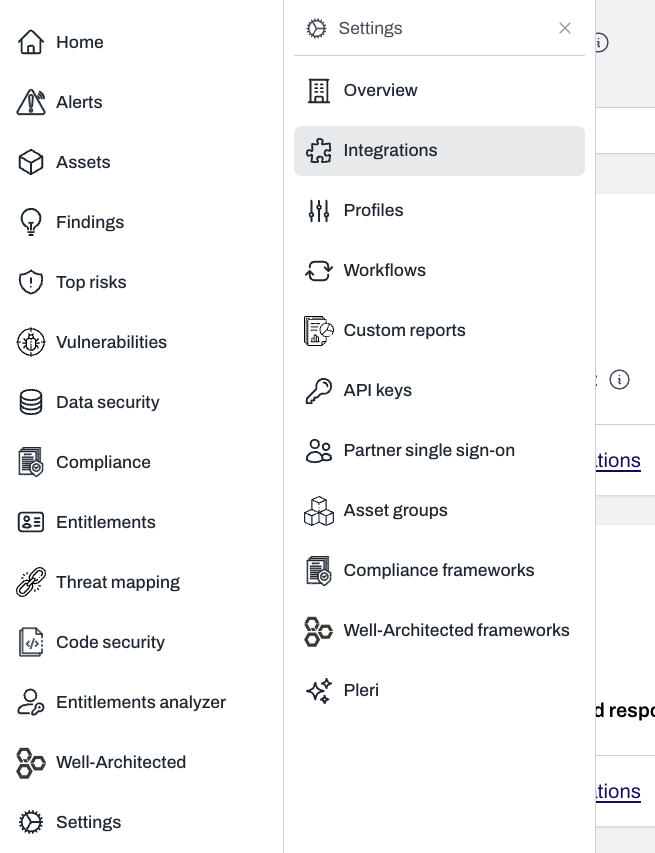
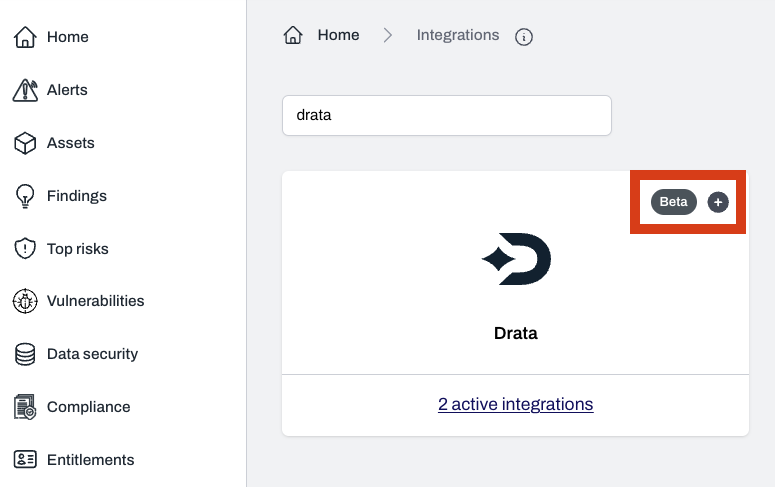 Provide a name for your Drata instance, paste the API key you generated in the previous step, and click `Add` to connect.
### Create a workflow on Plerion
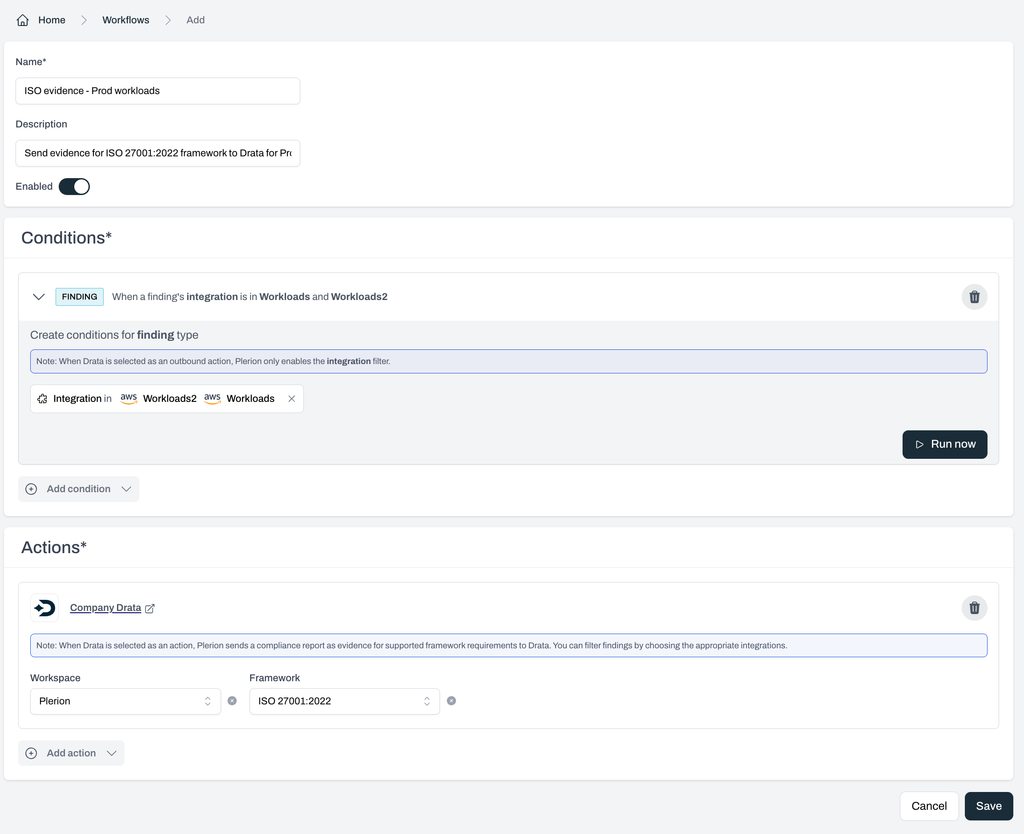
Once you have added your Drata instance, you will need to set up the corresponding workflow.
Enter a workflow name and ensure the Enabled toggle is turned on.
Under Conditions, click `Add conditions > Add findings conditions`.
For Drata workflows, only the Integration dropdown needs to be completed. Other fields such as Provider, Detection, Asset group, Resource type, or Severity level are not supported and can be left blank.
Under Actions, click `Add action` and select your connected Drata instance. Choose your workspace and the relevant framework.
Click `Save` to finish setting up your workflow.
Provide a name for your Drata instance, paste the API key you generated in the previous step, and click `Add` to connect.
### Create a workflow on Plerion
Once you have added your Drata instance, you will need to set up the corresponding workflow.
Enter a workflow name and ensure the Enabled toggle is turned on.
Under Conditions, click `Add conditions > Add findings conditions`.
For Drata workflows, only the Integration dropdown needs to be completed. Other fields such as Provider, Detection, Asset group, Resource type, or Severity level are not supported and can be left blank.
Under Actions, click `Add action` and select your connected Drata instance. Choose your workspace and the relevant framework.
Click `Save` to finish setting up your workflow.
 This integration is currently in beta, and we'd love your feedback! Let us know how it's working for you and what additional frameworks you'd like to see integrated with Drata.