> ## Documentation Index
> Fetch the complete documentation index at: https://docs.plerion.com/llms.txt
> Use this file to discover all available pages before exploring further.

# ClickUp

> Integrate Plerion with ClickUp to automatically create tasks from alerts, helping your team manage tasks without manual effort.

With the [ClickUp integration](https://app.plerion.com/settings/integrations/add/ClickUp/ClickUp), you can automatically turn Plerion alerts into tasks in your ClickUp workspace, so your team can track and respond in the workspace they already use every day.

<Warning>
  **Note:** This is a one-way outbound integration. Alerts created or updated in Plerion will appear in ClickUp, but changes made directly in ClickUp will not sync back to Plerion.
</Warning>

## Steps to integrate ClickUp with Plerion
<Steps>
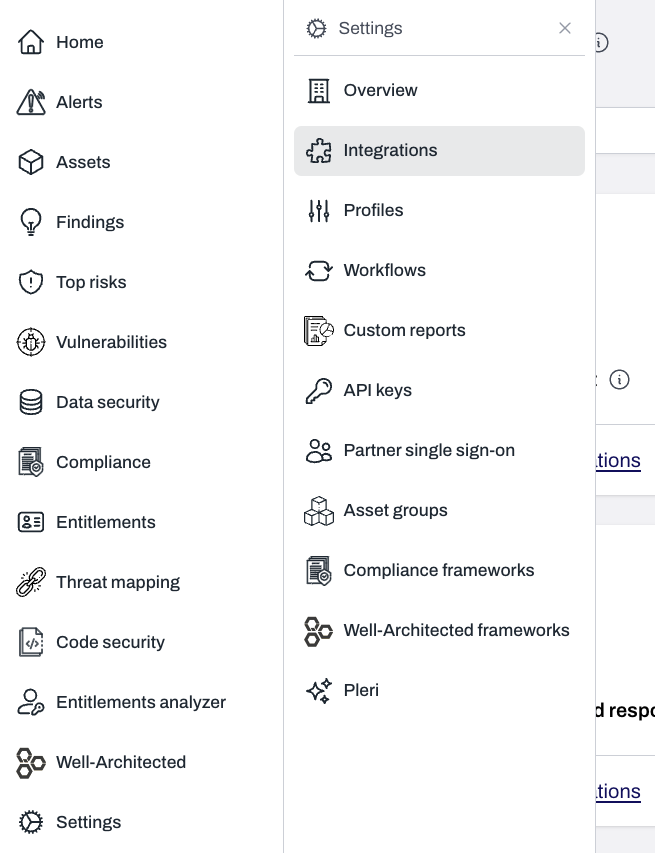
  <Step title="On the Plerion dashboard, go to Settings > Integrations">
    <Frame>
      <img src="https://mintcdn.com/pleriondocs/T53CE2kqlT5w7Tly/images/integrations/clickup/settings-integrations-sidenav.png?fit=max&auto=format&n=T53CE2kqlT5w7Tly&q=85&s=ead8584f1a11bcfb3556c405db8f4bc7" alt="Sidebar navigation with Settings expanded and Integrations highlighted" width="655" height="853" data-path="images/integrations/clickup/settings-integrations-sidenav.png" />
    </Frame>
  </Step>

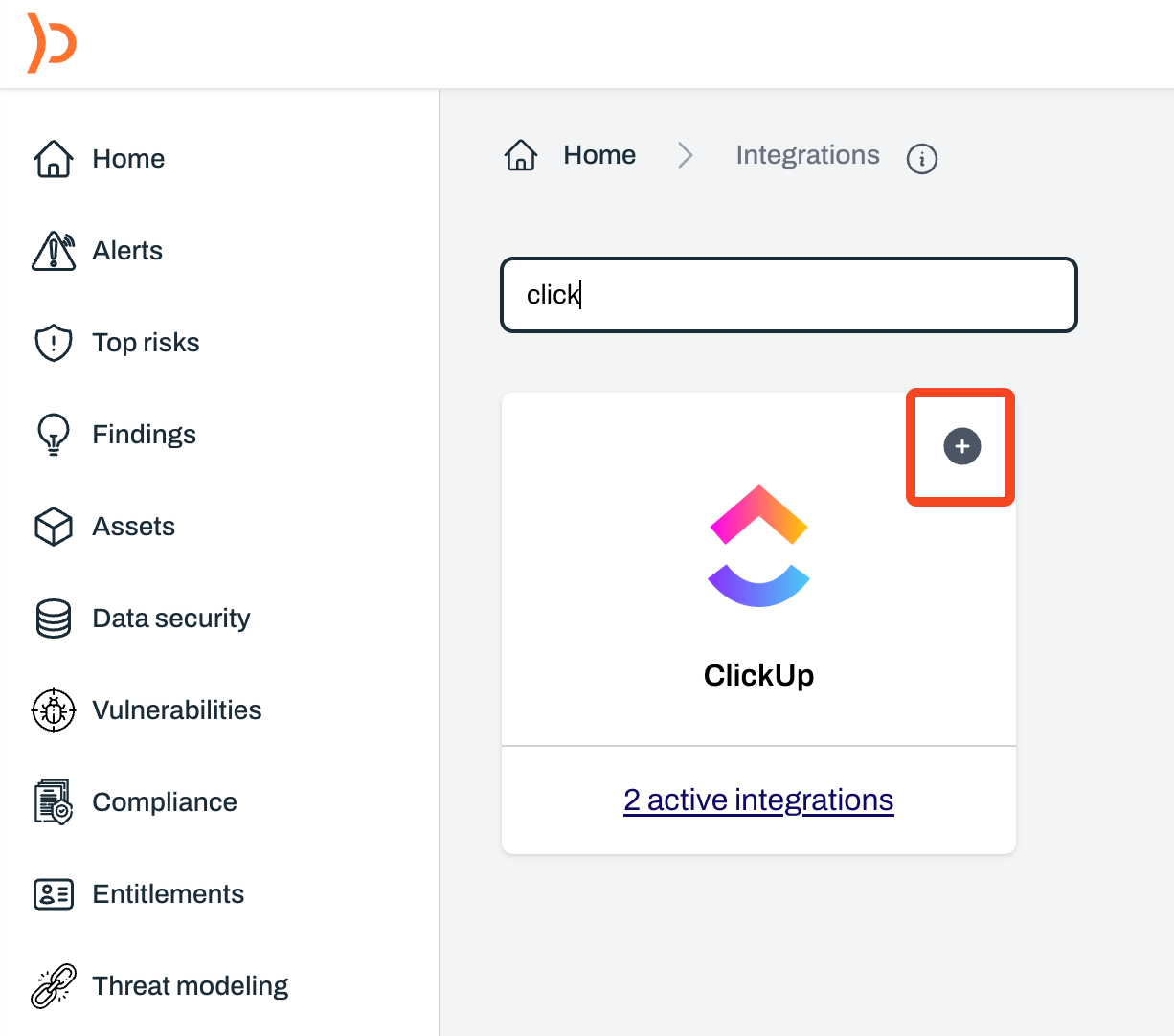
  <Step title="Find ClickUp and click the + button">
    <Frame>
      <img src="https://mintcdn.com/pleriondocs/r7NL-Y_DqNLGivAo/images/integrations/clickup/add-clickup-integration.png?fit=max&auto=format&n=r7NL-Y_DqNLGivAo&q=85&s=86b6e3eae5749001aa43f7f94027d7e4" alt="Integrations page with ClickUp option and plus button to add integration" width="1226" height="1082" data-path="images/integrations/clickup/add-clickup-integration.png" />
    </Frame>
  </Step>

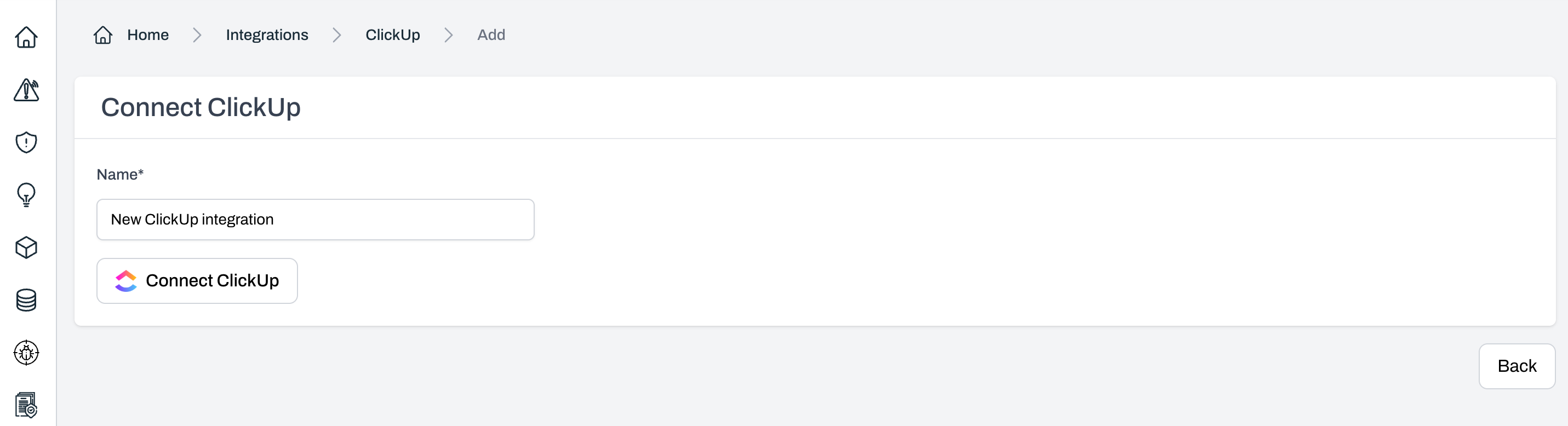
  <Step title="On the Connect ClickUp page, enter a name for your integration and select Connect ClickUp">
    <Frame>
      <img src="https://mintcdn.com/pleriondocs/r7NL-Y_DqNLGivAo/images/integrations/clickup/connect-clickup.png?fit=max&auto=format&n=r7NL-Y_DqNLGivAo&q=85&s=062ee86fbfff661731842b2d2e454560" alt="Connect ClickUp page showing fields for integration name and Connect ClickUp button" width="2862" height="778" data-path="images/integrations/clickup/connect-clickup.png" />
    </Frame>
  </Step>

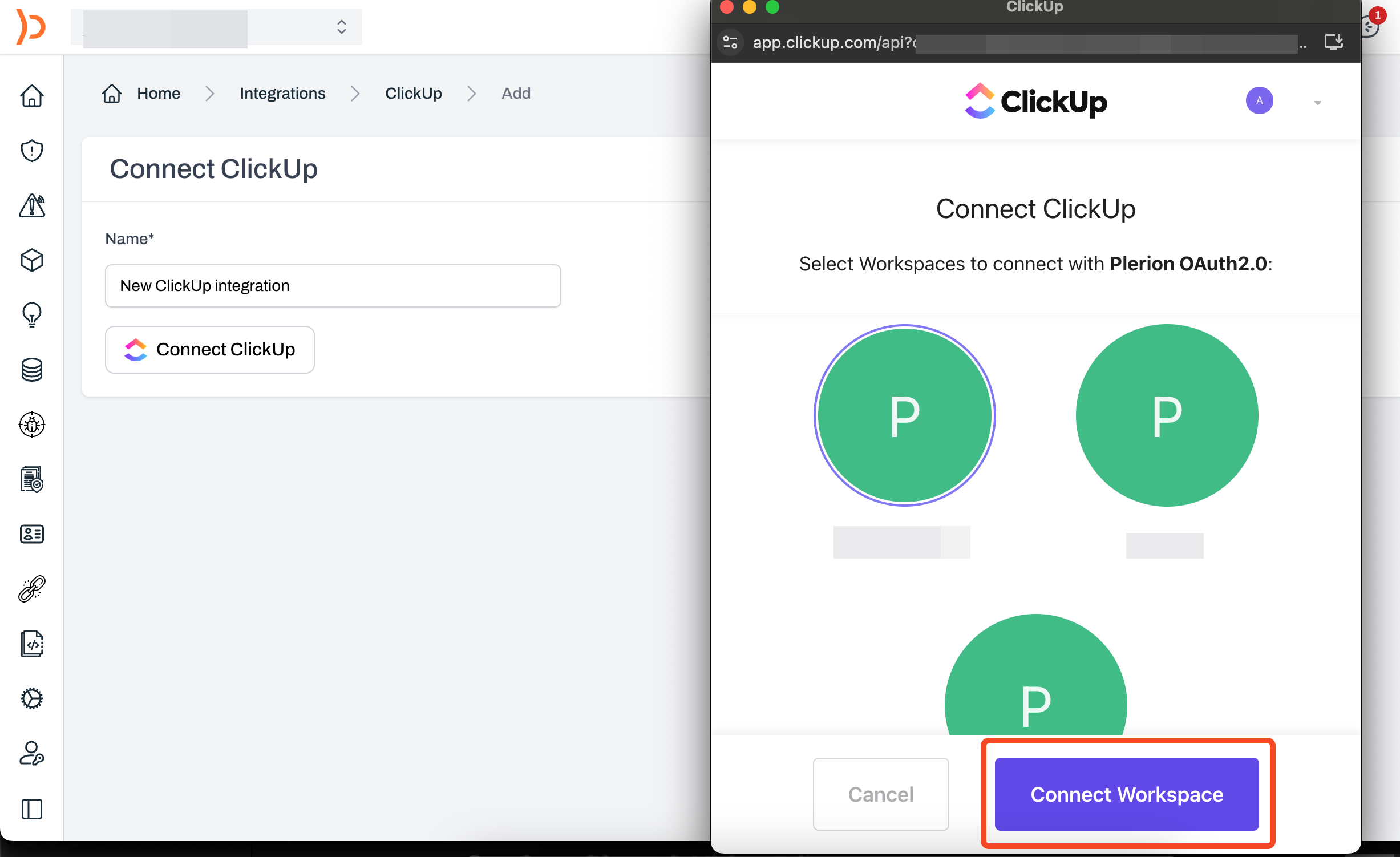
  <Step title="A ClickUp OAuth pop-up will appear">
    Review the requested permissions and click `Accept` to authorize the connection.
    <Frame>
      <img src="https://mintcdn.com/pleriondocs/r7NL-Y_DqNLGivAo/images/integrations/clickup/access-pop-up.png?fit=max&auto=format&n=r7NL-Y_DqNLGivAo&q=85&s=4c61927153e9543c348932240e30b7f7" alt="ClickUp OAuth pop-up requesting access" width="2454" height="1502" data-path="images/integrations/clickup/access-pop-up.png" />
    </Frame>
  </Step>

  <Step title="Test your ClickUp integration">
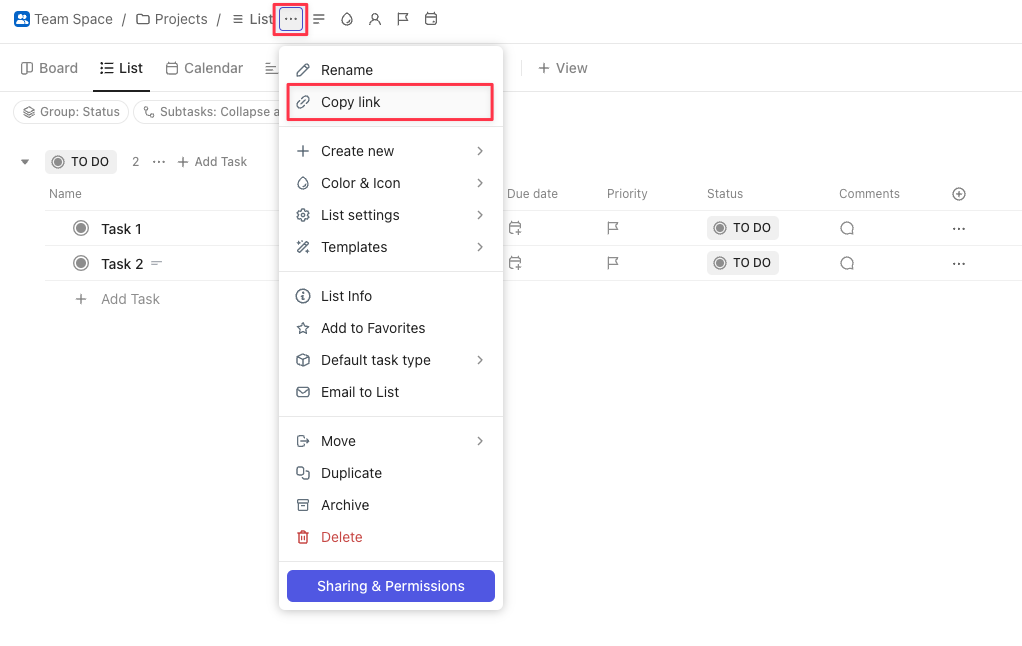
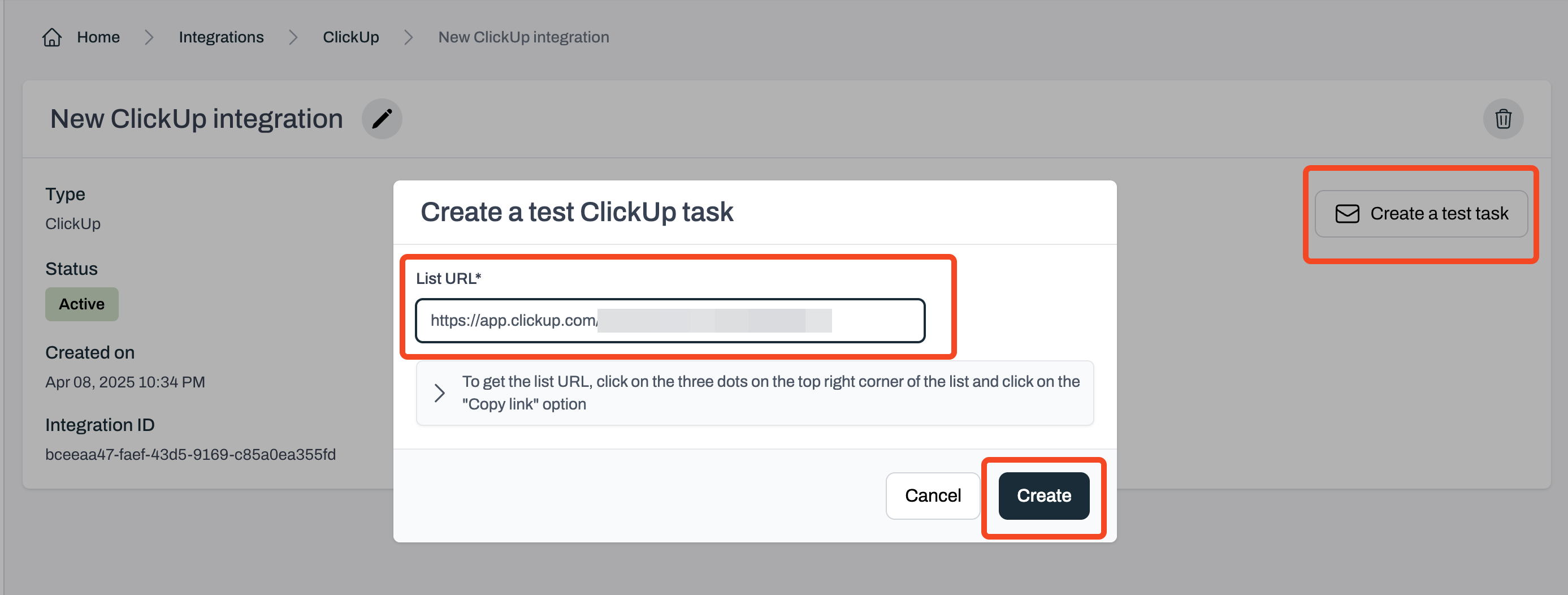
    Enter the list URL where the test task should be created. To find it, open ClickUp, click the three dots in the top-right corner of the list, and click `Copy link`.
    <Frame>
      <img src="https://mintcdn.com/pleriondocs/r7NL-Y_DqNLGivAo/images/integrations/clickup/copy-list-url.png?fit=max&auto=format&n=r7NL-Y_DqNLGivAo&q=85&s=ead363391a974c1fa5f0d2f5f49de3e4" alt="ClickUp app list menu with Copy link option highlighted" width="1022" height="646" data-path="images/integrations/clickup/copy-list-url.png" />
    </Frame>

    <br />

    <Frame>
      <img src="https://mintcdn.com/pleriondocs/r7NL-Y_DqNLGivAo/images/integrations/clickup/send-test-message-clickup.png?fit=max&auto=format&n=r7NL-Y_DqNLGivAo&q=85&s=e89106757bd03b254fd32ccf85e6fa5d" alt="Plerion platform showing test task creation for ClickUp" width="2774" height="1052" data-path="images/integrations/clickup/send-test-message-clickup.png" />
    </Frame>
  </Step>

  <Step title="Review your test task in ClickUp">
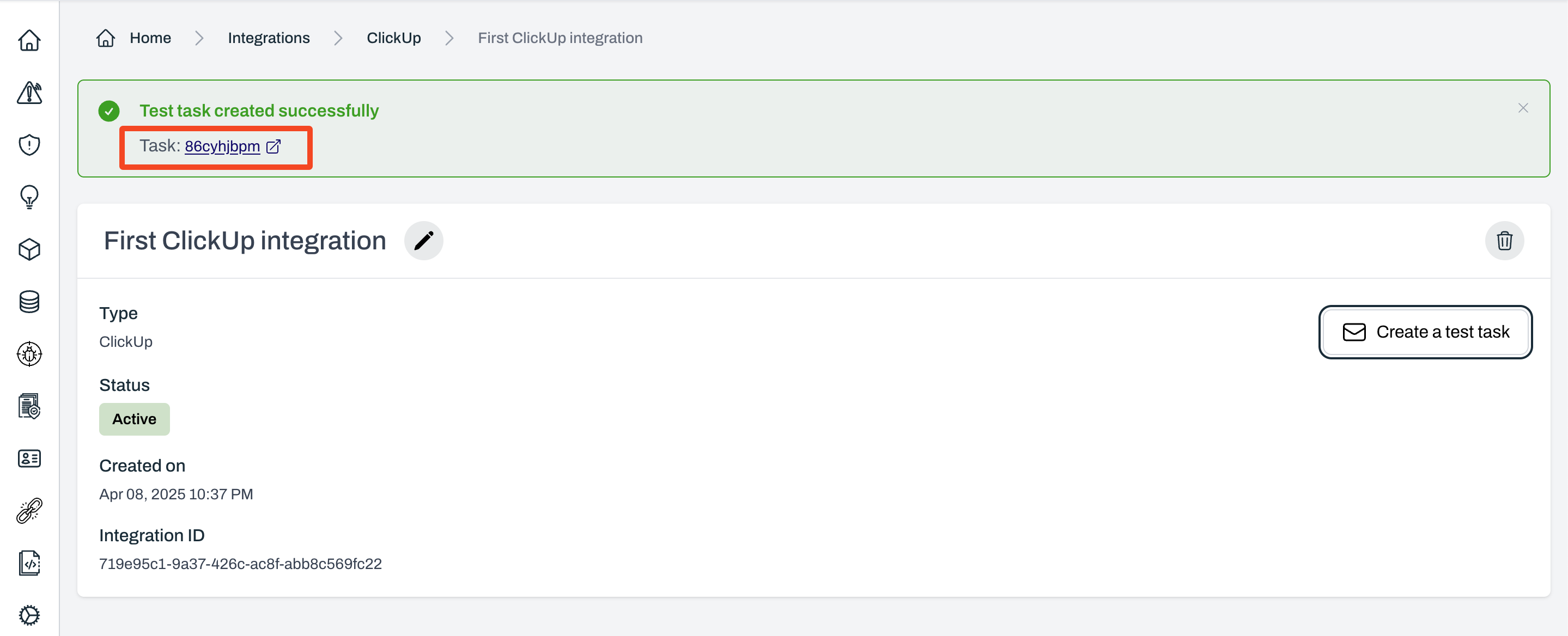
    If the test is successful, Plerion will display a link to the created ClickUp task.
    <Frame>
      <img src="https://mintcdn.com/pleriondocs/r7NL-Y_DqNLGivAo/images/integrations/clickup/test-task-created.png?fit=max&auto=format&n=r7NL-Y_DqNLGivAo&q=85&s=e1ed6af1f946944fe0aa0528cb1563f7" alt="Confirmation message on Plerion with link to created ClickUp task" width="2878" height="1168" data-path="images/integrations/clickup/test-task-created.png" />
    </Frame>
  </Step>
</Steps>

***

## Create a workflow on Plerion

After adding the ClickUp integration, you must create a workflow for any alerts to be sent to ClickUp.

<Steps>
  <Step title="Go to Settings > Workflows and click Add a new workflow" />

  <Step title="Enter workflow details">
    Enter a workflow name and ensure the Enabled toggle is turned on.
  </Step>

  <Step title="Add workflow conditions">
    * Under **Conditions**, you can build the workflow using any of the three available condition categories:
      * **Asset**
      * **Findings**
  </Step>

  <Step title="Add workflow actions">
    Under **Actions**, click `Add action` and select your ClickUp integration.\
    Add your List URL.
  </Step>

  <Step title="Save the workflow">
    Click `Save` to finish setting up your workflow.
  </Step>
</Steps>