> ## Documentation Index
> Fetch the complete documentation index at: https://docs.plerion.com/llms.txt
> Use this file to discover all available pages before exploring further.
# Microsoft Azure subscription
> Integrate Plerion with Microsoft Azure subscriptions to enable Cloud Security Posture Management (CSPM) and optionally Cloud Workload Protection Platform (CWPP).
With the [Microsoft Azure subscription integration](https://app.plerion.com/settings/integrations/add/Azure/AzureSubscription), you can connect Azure subscriptions to Plerion. This enables **Cloud Security Posture Management (CSPM)** for continuous configuration checks, and optionally **Cloud Workload Protection Platform (CWPP)** to scan workloads for vulnerabilities.
Before onboarding Azure subscriptions, ensure you have a [Microsoft Entra ID integration](/guides/integrations/azure/setting-up-azure-active-directory). The subscription integration reuses the same app registration created in Microsoft Entra ID.
***
## Prerequisites
* **Owner role at the subscription scope**\
Needed to grant the Plerion App registration permissions for CSPM, and to create the resource group, managed identity, and role assignments for CWPP.
* **CWPP requirements**\
If you plan to enable CWPP, review the [Azure CWPP prerequisites](/guides/integrations/azure/prerequisites). These are not needed if you only want CSPM.
***
## Steps to add a Microsoft Azure subscription integration
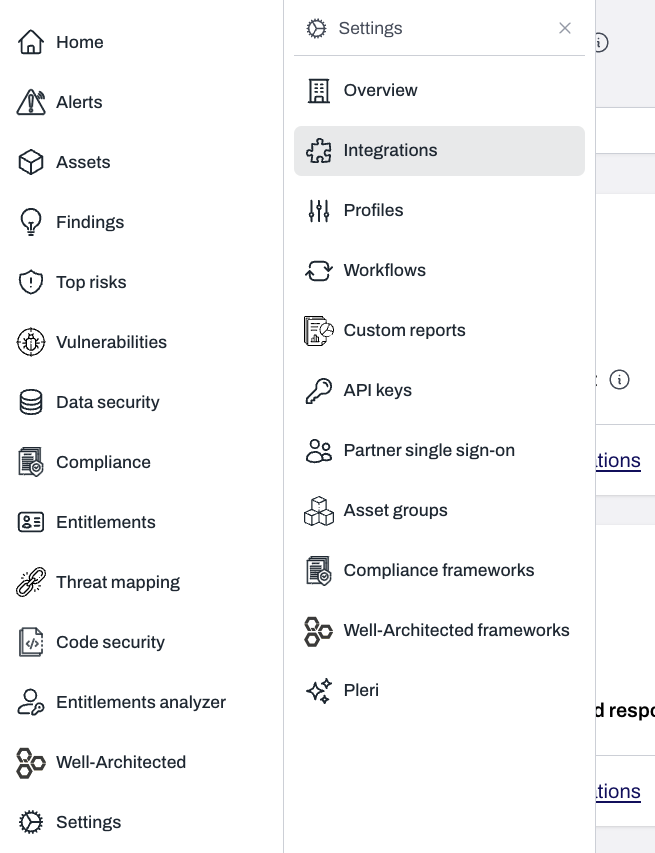
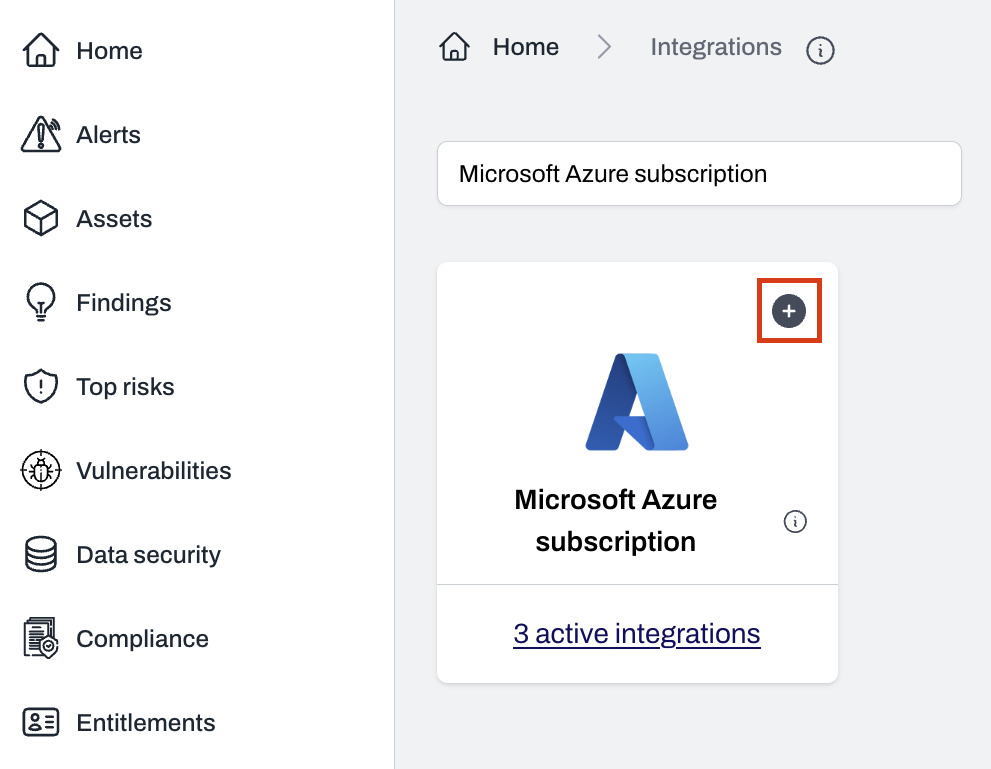 Choose an existing Microsoft Entra ID integration to reuse its app registration.
* Provide access to the App registration using either the Azure CLI or Azure Portal.
* If enabling CWPP, select the default region where Plerion will create a dedicated resource group.
* Download the script and run it in your CLI or [Azure Cloud Shell](https://shell.azure.com).
```bash theme={"system"}
bash ms-azure-install-plerion.sh
```
* This will list the available subscriptions.
* Use the associated number to select one, or press `y` to install on all subscriptions.
Choose an existing Microsoft Entra ID integration to reuse its app registration.
* Provide access to the App registration using either the Azure CLI or Azure Portal.
* If enabling CWPP, select the default region where Plerion will create a dedicated resource group.
* Download the script and run it in your CLI or [Azure Cloud Shell](https://shell.azure.com).
```bash theme={"system"}
bash ms-azure-install-plerion.sh
```
* This will list the available subscriptions.
* Use the associated number to select one, or press `y` to install on all subscriptions.
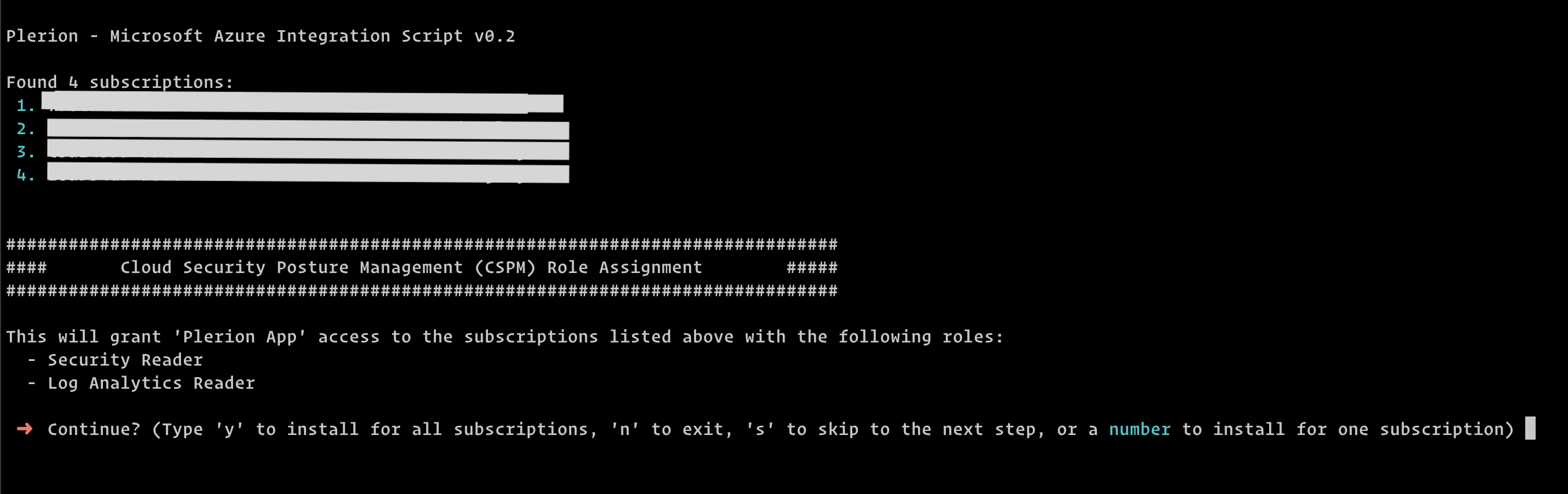 * Press `y` to install CSPM roles on all subscriptions, or enter the subscription number to install on a specific subscription.
* To skip optional CSPM roles, press `s`. To install them, press `y`.
* Press `y` to install CSPM roles on all subscriptions, or enter the subscription number to install on a specific subscription.
* To skip optional CSPM roles, press `s`. To install them, press `y`.
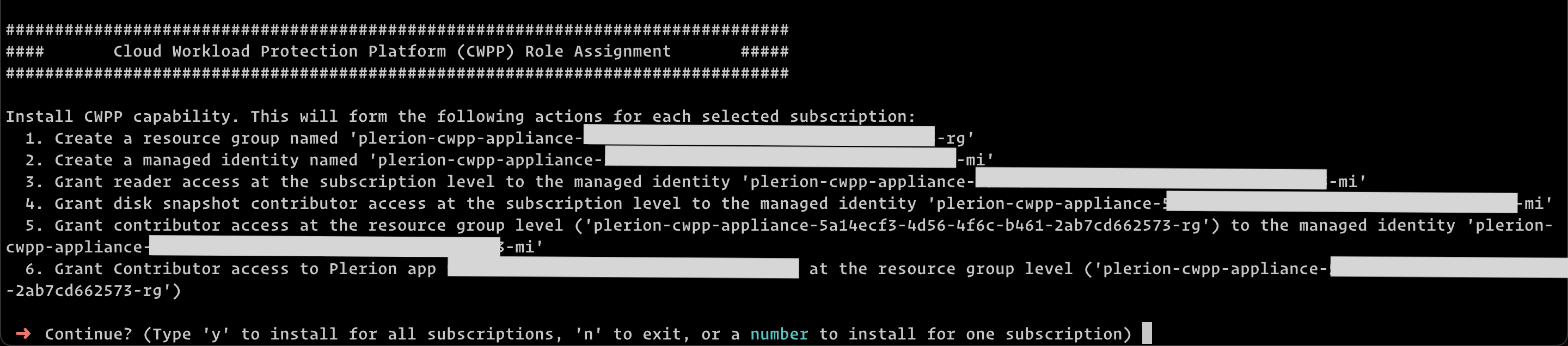
 Press `y` to enable CWPP on all subscriptions, or enter a subscription number to enable it only on that subscription.
 * On the Plerion platform, click `Verify access`.
* Subscriptions with correct permissions will be displayed.
* On the Plerion platform, click `Verify access`.
* Subscriptions with correct permissions will be displayed.
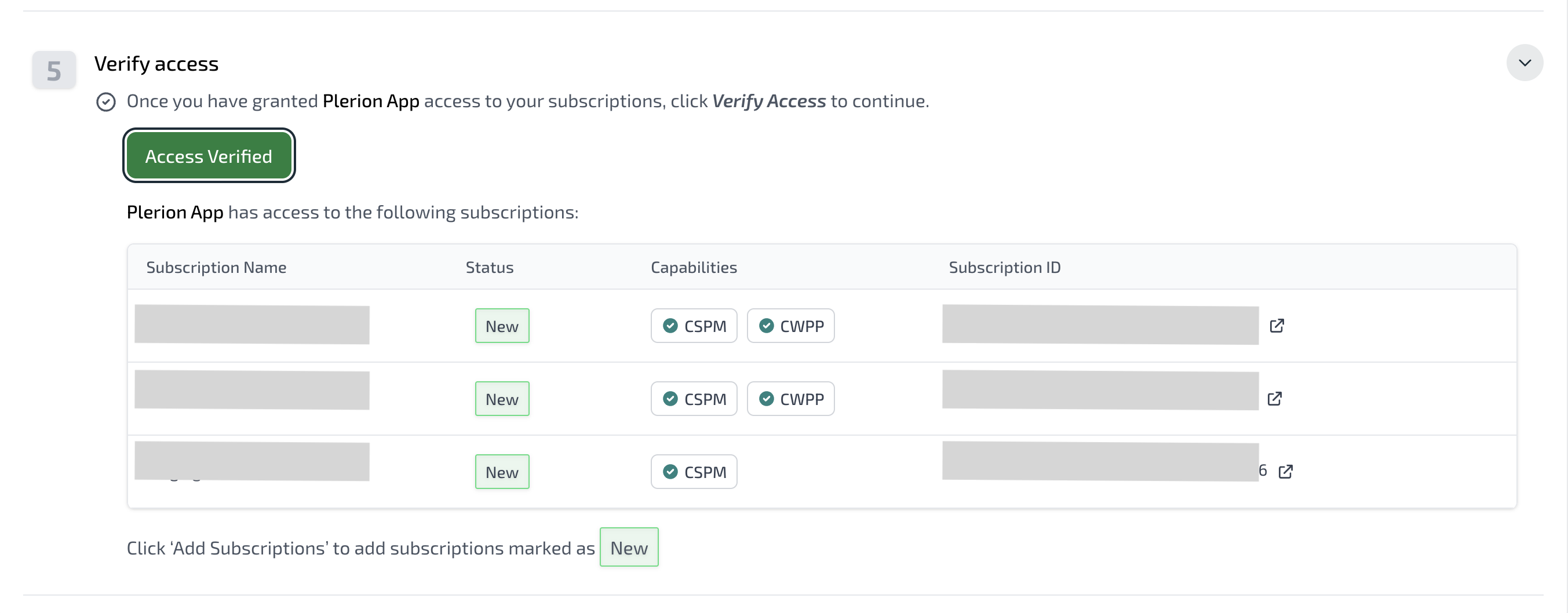 * Select the subscriptions to onboard and click `Add subscriptions`.
* These subscriptions will now be available in Plerion for CSPM and CWPP.
***
## Troubleshooting
See the [Azure subscription troubleshooting guide](/guides/integrations/azure/troubleshooting) for common onboarding errors and solutions.
* Select the subscriptions to onboard and click `Add subscriptions`.
* These subscriptions will now be available in Plerion for CSPM and CWPP.
***
## Troubleshooting
See the [Azure subscription troubleshooting guide](/guides/integrations/azure/troubleshooting) for common onboarding errors and solutions.