> ## Documentation Index
> Fetch the complete documentation index at: https://docs.plerion.com/llms.txt
> Use this file to discover all available pages before exploring further.

# Getting started with Microsoft Entra ID

> Integrate Plerion with Microsoft Entra ID to securely connect subscriptions and enable continuous scanning.

With the [Microsoft Entra ID integration](https://app.plerion.com/settings/integrations/add/Azure/AzureActiveDirectory), you can connect your Azure tenant to Plerion. This enables onboarding of Azure subscriptions for **Cloud Security Posture Management (CSPM)** and other security capabilities.

***

<Tip>
  For a smoother onboarding experience, log in to your **Microsoft Entra ID** using the Azure Portal before starting the setup in Plerion.
</Tip>

## Steps to add a Microsoft Entra ID integration
<Steps>
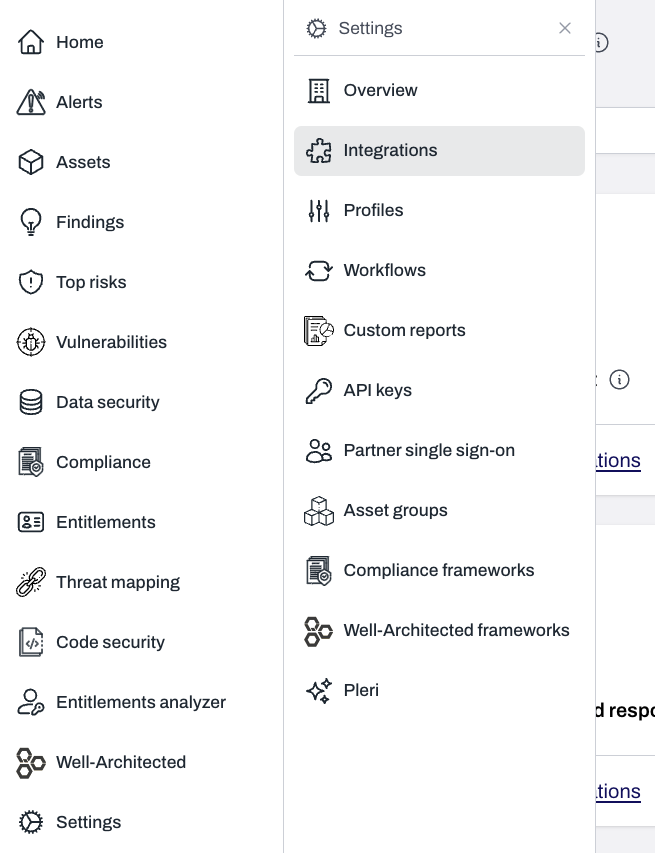
  <Step title="On the Plerion dashboard, go to Settings > Integrations">
    <Frame>
      <img src="https://mintcdn.com/pleriondocs/rDG914-TLqofr4Lz/images/integrations/azure/settings-integrations-sidenav.png?fit=max&auto=format&n=rDG914-TLqofr4Lz&q=85&s=0b7e0fb073ae7b9dfc04066a54acbf87" alt="Sidebar navigation with Settings expanded and Integrations highlighted" width="655" height="853" data-path="images/integrations/azure/settings-integrations-sidenav.png" />
    </Frame>
  </Step>

  <Step title="Find Microsoft Entra ID and click the + button">
    <Frame>
      <img src="https://mintcdn.com/pleriondocs/MF2bvvHG-saj_wNo/images/integrations/azure/add-azure-ad.png?fit=max&auto=format&n=MF2bvvHG-saj_wNo&q=85&s=91884d7ff50ebcd7e8d0bf8e0b48cb28" alt="Integrations page with Microsoft Entra ID option and plus button to add integration" width="1204" height="860" data-path="images/integrations/azure/add-azure-ad.png" />
    </Frame>
  </Step>

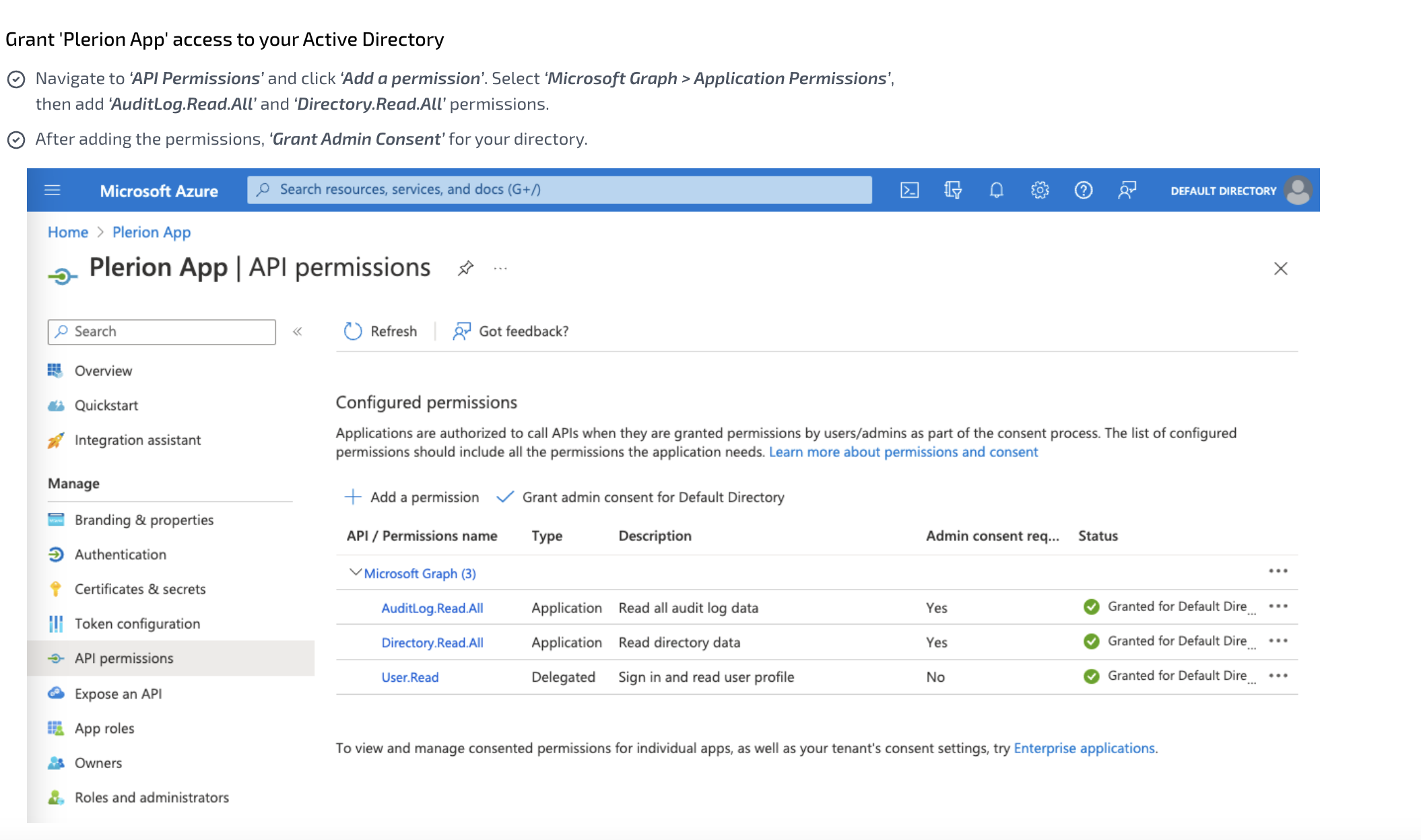
  <Step title="Create a new app registration in Azure">
    * Follow the instructions provided on the Connect Microsoft Entra ID page to register an app in Azure.
    * Ensure the app registration has the required permissions.
    <Frame>
      <img src="https://mintcdn.com/pleriondocs/rDG914-TLqofr4Lz/images/integrations/azure/Add-Azure-AD-integration-appregistration.png?fit=max&auto=format&n=rDG914-TLqofr4Lz&q=85&s=0ff038d1a3d559bad19beb1165f788bf" alt="Example of App registration setup in Azure portal" width="2110" height="1248" data-path="images/integrations/azure/Add-Azure-AD-integration-appregistration.png" />
    </Frame>
  </Step>

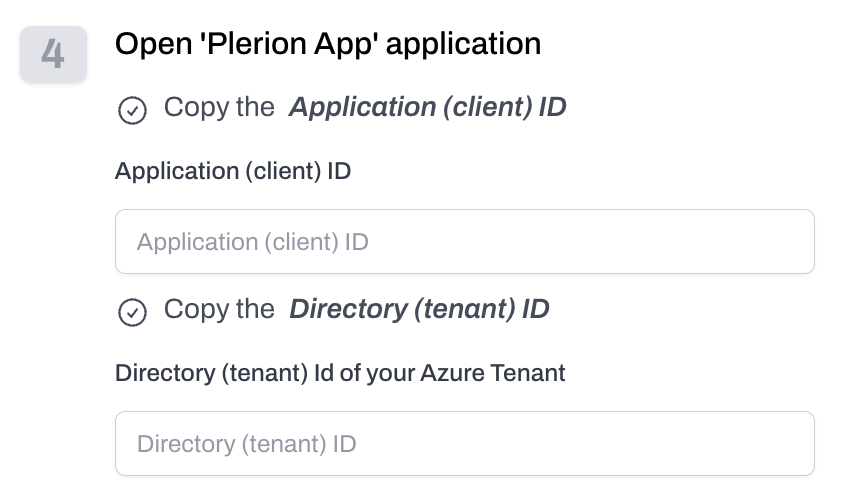
  <Step title="Enter application details in Plerion">
    * Provide the **Application ID**, **Directory ID**, and **Client Secret** from the Azure App registration.
    * Then click `Add`.
    <Frame>
      <img src="https://mintcdn.com/pleriondocs/rDG914-TLqofr4Lz/images/integrations/azure/enter-azure-ad-application-details.png?fit=max&auto=format&n=rDG914-TLqofr4Lz&q=85&s=a272f98ca56ce5e2ae49394cbf2a2876" alt="Fields for entering Microsoft Entra ID details in Plerion" width="848" height="496" data-path="images/integrations/azure/enter-azure-ad-application-details.png" />
    </Frame>

    <br />

    <Frame>
      <img src="https://mintcdn.com/pleriondocs/rDG914-TLqofr4Lz/images/integrations/azure/enter-azure-ad-secret.png?fit=max&auto=format&n=rDG914-TLqofr4Lz&q=85&s=f5005d361aa43e743ae24b96b5294234" alt="CFields for entering Microsoft Entra ID client secret in Plerion" width="1351" height="311" data-path="images/integrations/azure/enter-azure-ad-secret.png" />
    </Frame>
  </Step>

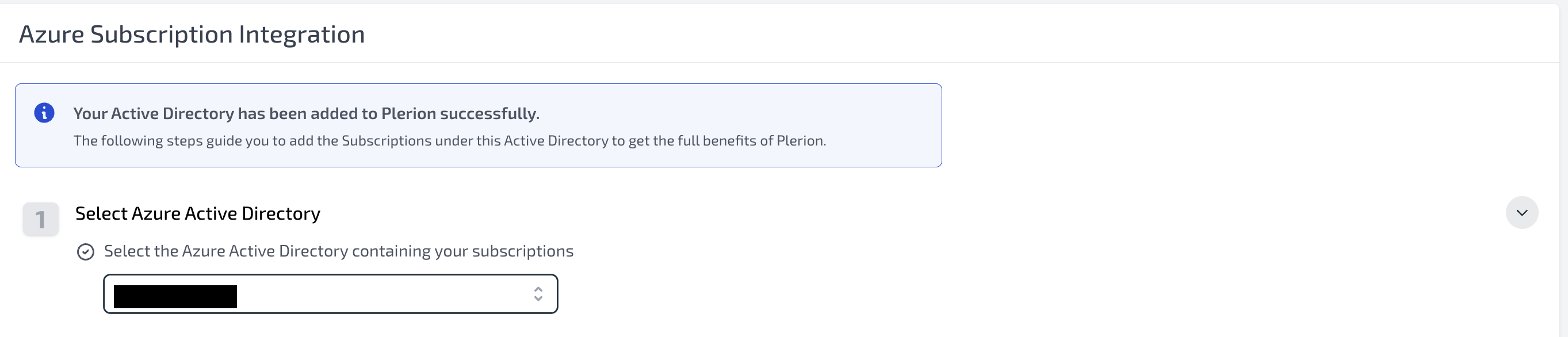
  <Step title="Add Azure subscriptions linked to the directory">
    After Microsoft Entra ID is connected, you will be prompted to add subscriptions linked to that directory.
    <Frame>
      <img src="https://mintcdn.com/pleriondocs/rDG914-TLqofr4Lz/images/integrations/azure/Add-Azure-AD-integration-addazuresubscription1.png?fit=max&auto=format&n=rDG914-TLqofr4Lz&q=85&s=87eff31e85666499b9b9e0fd4f3c6943" alt="Prompt to add Azure subscriptions linked to the directory" width="2726" height="586" data-path="images/integrations/azure/Add-Azure-AD-integration-addazuresubscription1.png" />
    </Frame>
  </Step>

  <Step title="Grant the app registration subscription access">
    Provide the app registration with access to each subscription, using either the Azure CLI or Azure Portal as instructed.
  </Step>

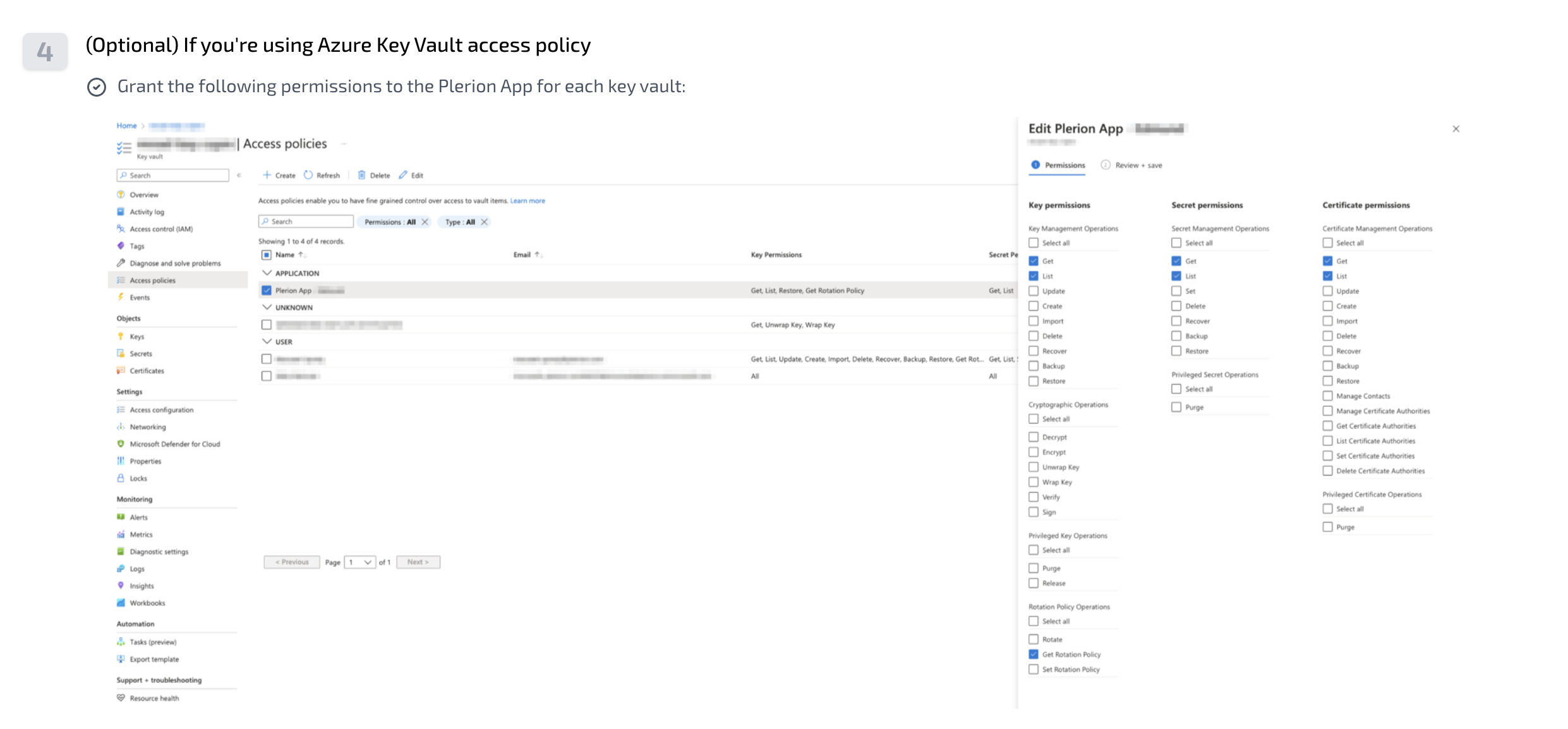
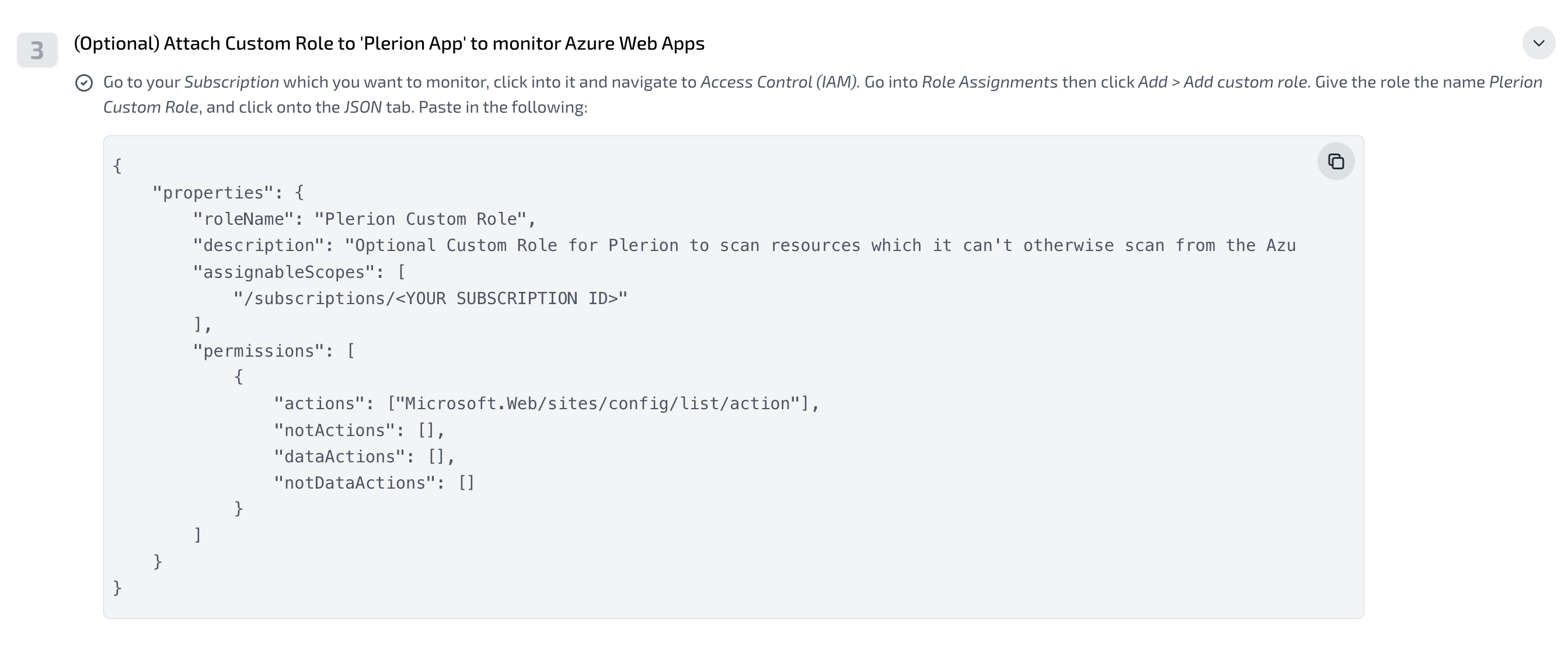
  <Step title="Add extra permissions (optional)">
    You may assign additional permissions if required for advanced use cases.
    <Frame>
      <img src="https://mintcdn.com/pleriondocs/rDG914-TLqofr4Lz/images/integrations/azure/Add-Azure-AD-integration-addazuresubscriptionpermissions1.png?fit=max&auto=format&n=rDG914-TLqofr4Lz&q=85&s=6b7db4b438a066a4eea77f30f0094220" alt="Optional subscription permissions configuration" width="2686" height="1122" data-path="images/integrations/azure/Add-Azure-AD-integration-addazuresubscriptionpermissions1.png" />
    </Frame>

    <br />

    <Frame>
      <img src="https://mintcdn.com/pleriondocs/rDG914-TLqofr4Lz/images/integrations/azure/Add-Azure-AD-integration-addazuresubscriptionpermissions2.png?fit=max&auto=format&n=rDG914-TLqofr4Lz&q=85&s=c9d2648ebe8da6699ab3f53df872af1d" alt="Additional permission options in Azure portal" width="2482" height="1154" data-path="images/integrations/azure/Add-Azure-AD-integration-addazuresubscriptionpermissions2.png" />
    </Frame>
  </Step>

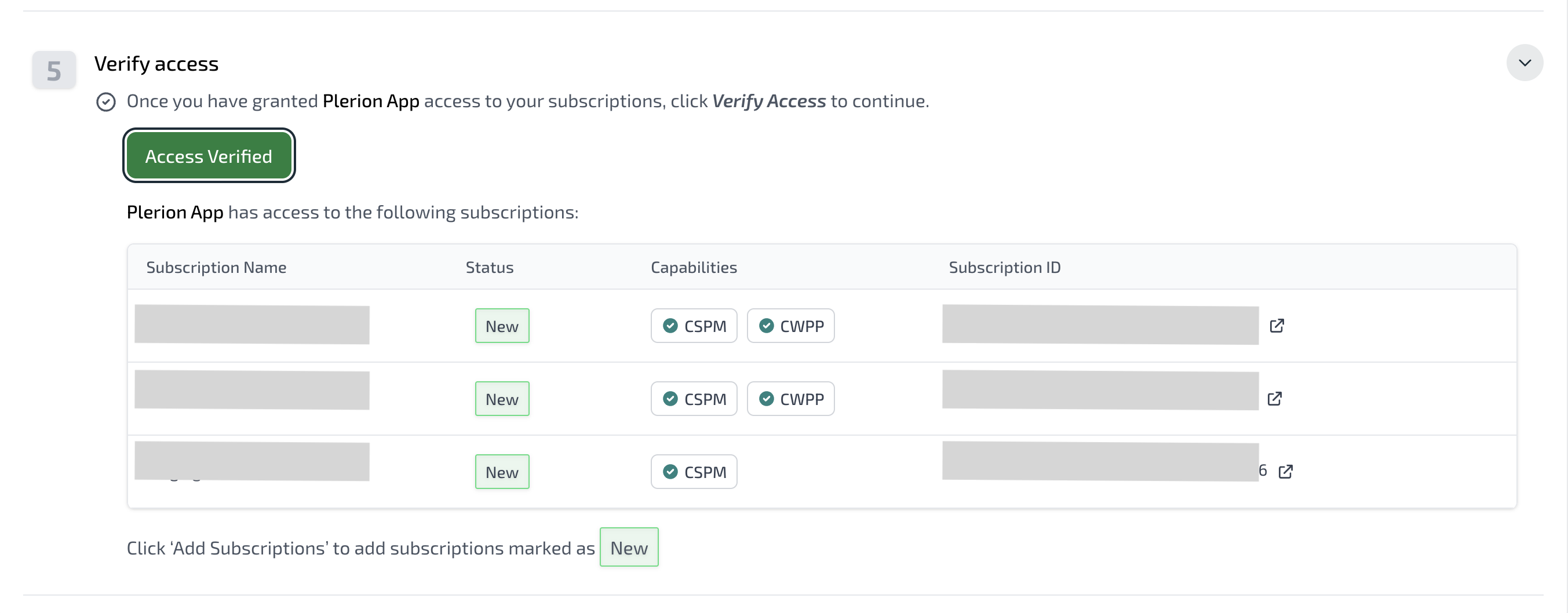
  <Step title="Verify access to subscriptions">
    * Click `Verify access` to confirm that subscriptions are correctly configured.
    * Plerion will display all subscriptions available based on the permissions provided.
    <Frame>
      <img src="https://mintcdn.com/pleriondocs/rDG914-TLqofr4Lz/images/integrations/azure/Add-Azure-AD-integration-addazuresubscriptionverifyaccess.png?fit=max&auto=format&n=rDG914-TLqofr4Lz&q=85&s=eb84bc8a18e9d8e118d64c69d86aa3df" alt="Verification screen showing Azure subscriptions added successfully" width="2706" height="1058" data-path="images/integrations/azure/Add-Azure-AD-integration-addazuresubscriptionverifyaccess.png" />
    </Frame>
  </Step>

  <Step title="Add subscriptions to Plerion">
    * Select the subscriptions you want to add and click `Add subscriptions`.
    * These subscriptions will now be available in your tenant for scanning.

    <Frame>
      <img src="https://mintcdn.com/pleriondocs/rDG914-TLqofr4Lz/images/integrations/azure/Add-Azure-AD-integration-addazuresubscriptionverifyaccess.png?fit=max&auto=format&n=rDG914-TLqofr4Lz&q=85&s=eb84bc8a18e9d8e118d64c69d86aa3df" alt="Subscriptions successfully added to Plerion" width="2706" height="1058" data-path="images/integrations/azure/Add-Azure-AD-integration-addazuresubscriptionverifyaccess.png" />
    </Frame>
  </Step>
</Steps>