> ## Documentation Index
> Fetch the complete documentation index at: https://docs.plerion.com/llms.txt
> Use this file to discover all available pages before exploring further.
# Azure DevOps
> Integrate Plerion Code Security with Azure DevOps to scan repositories for infrastructure as code (IaC) issues and software composition analysis (SCA) issues directly in your development workflow.
With the [Azure DevOps integration](https://app.plerion.com/settings/integrations/add/Azure/AzureDevOps), you can connect your repositories to Plerion Code Security. This enables automatic scanning for IaC and SCA issues, giving developers early feedback and helping teams resolve issues before they reach production.
***
## Steps to integrate Azure DevOps with Plerion
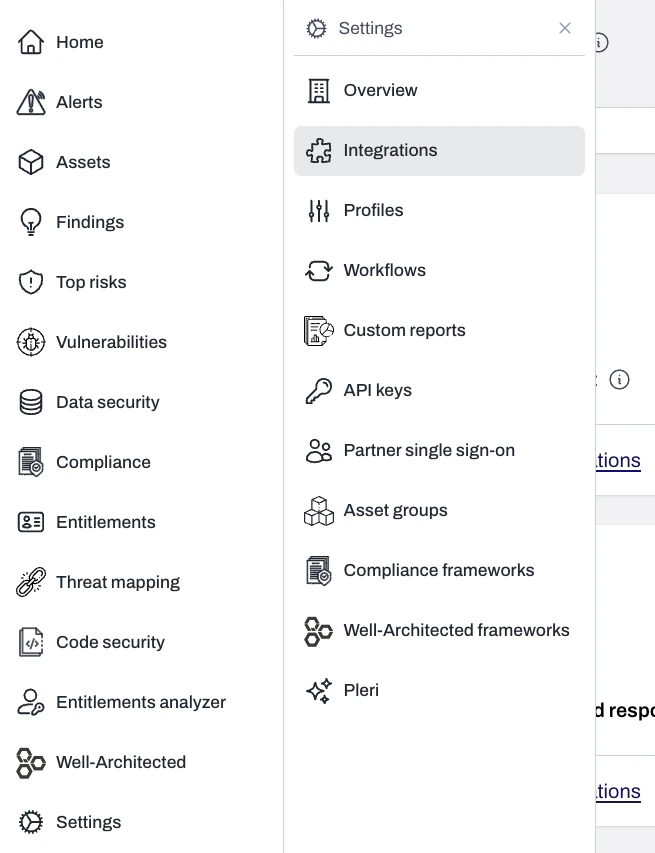
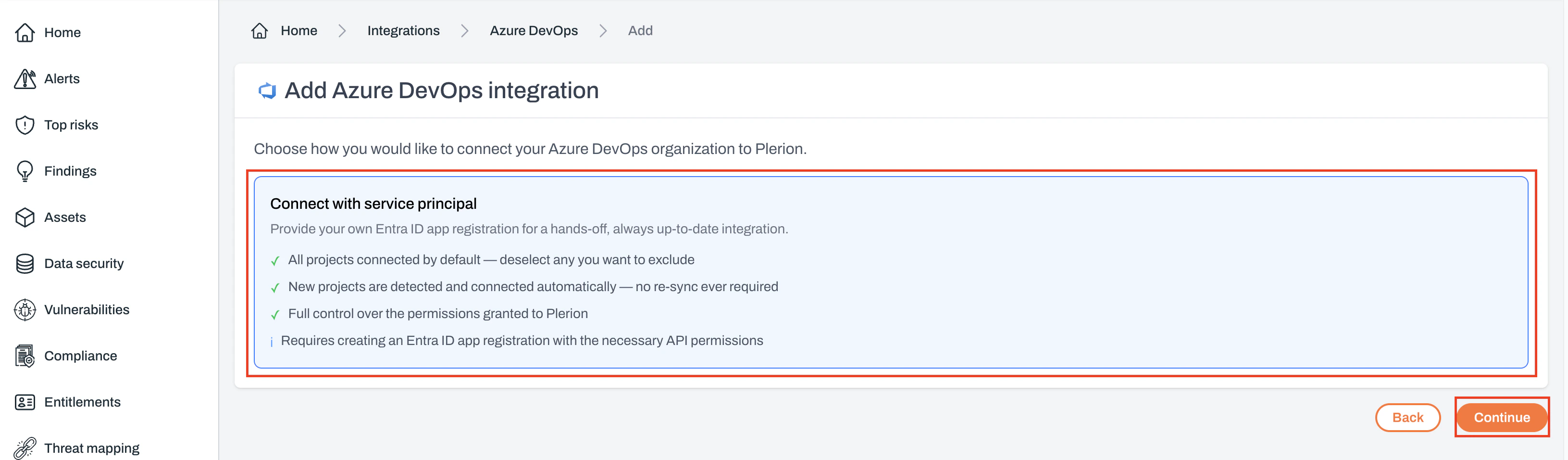
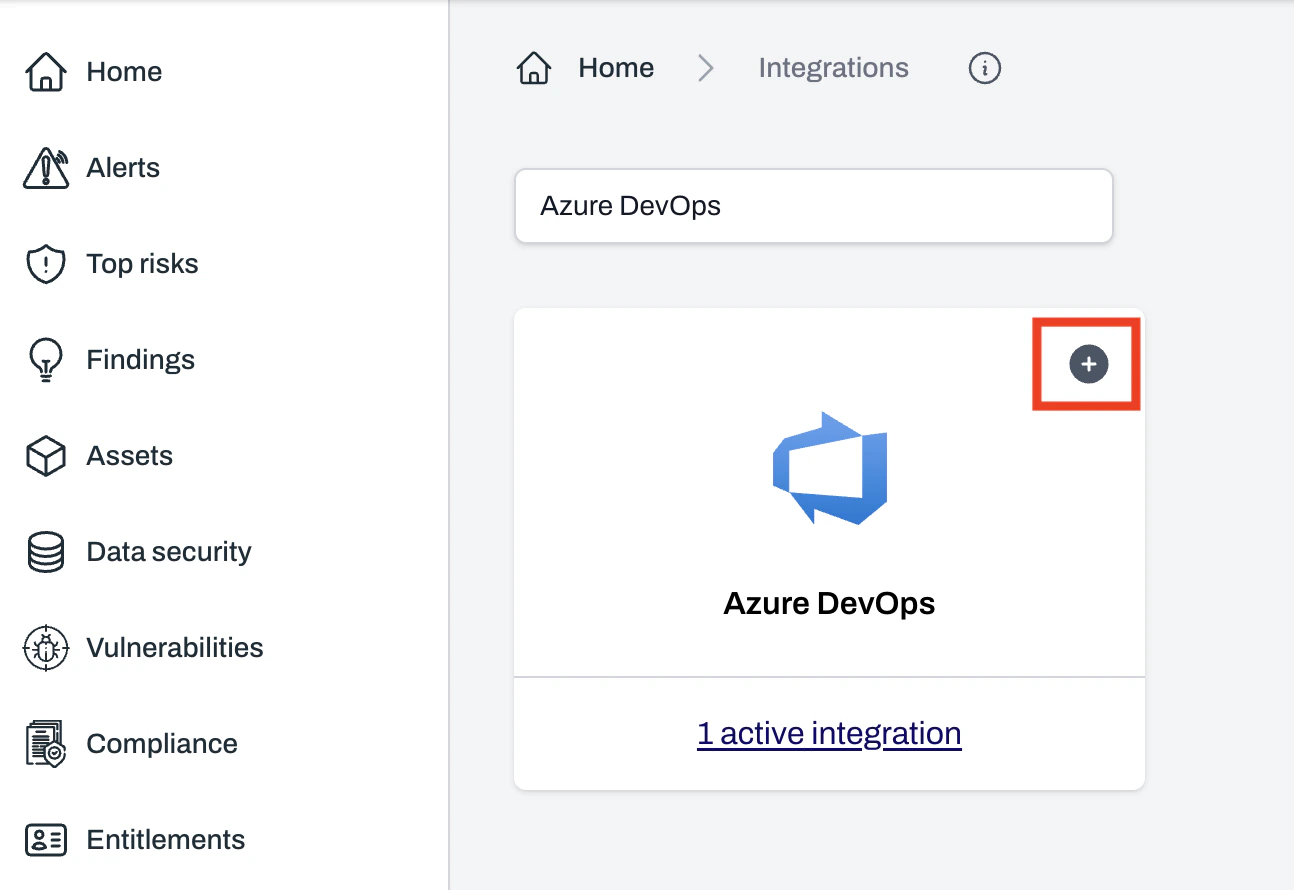 Plerion connects to Azure DevOps using a service principal. Select **Connect with service principal** and click `Continue`.
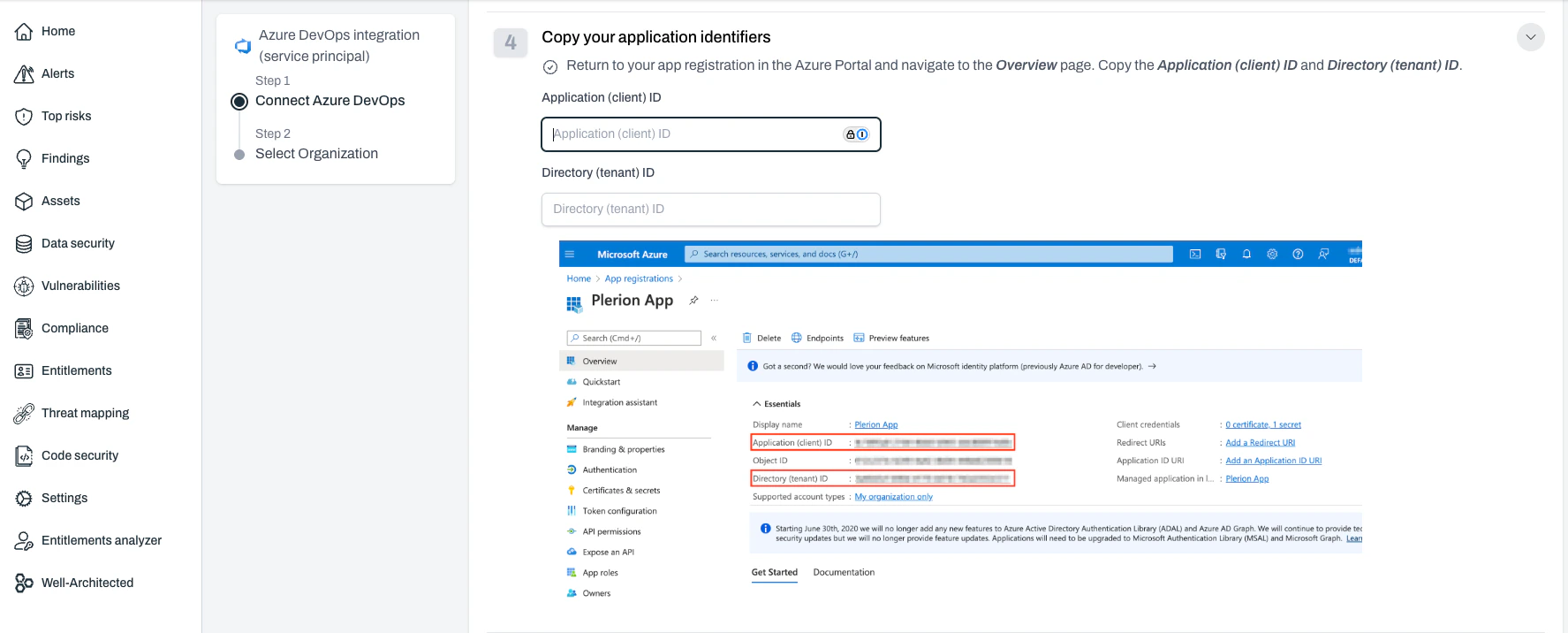
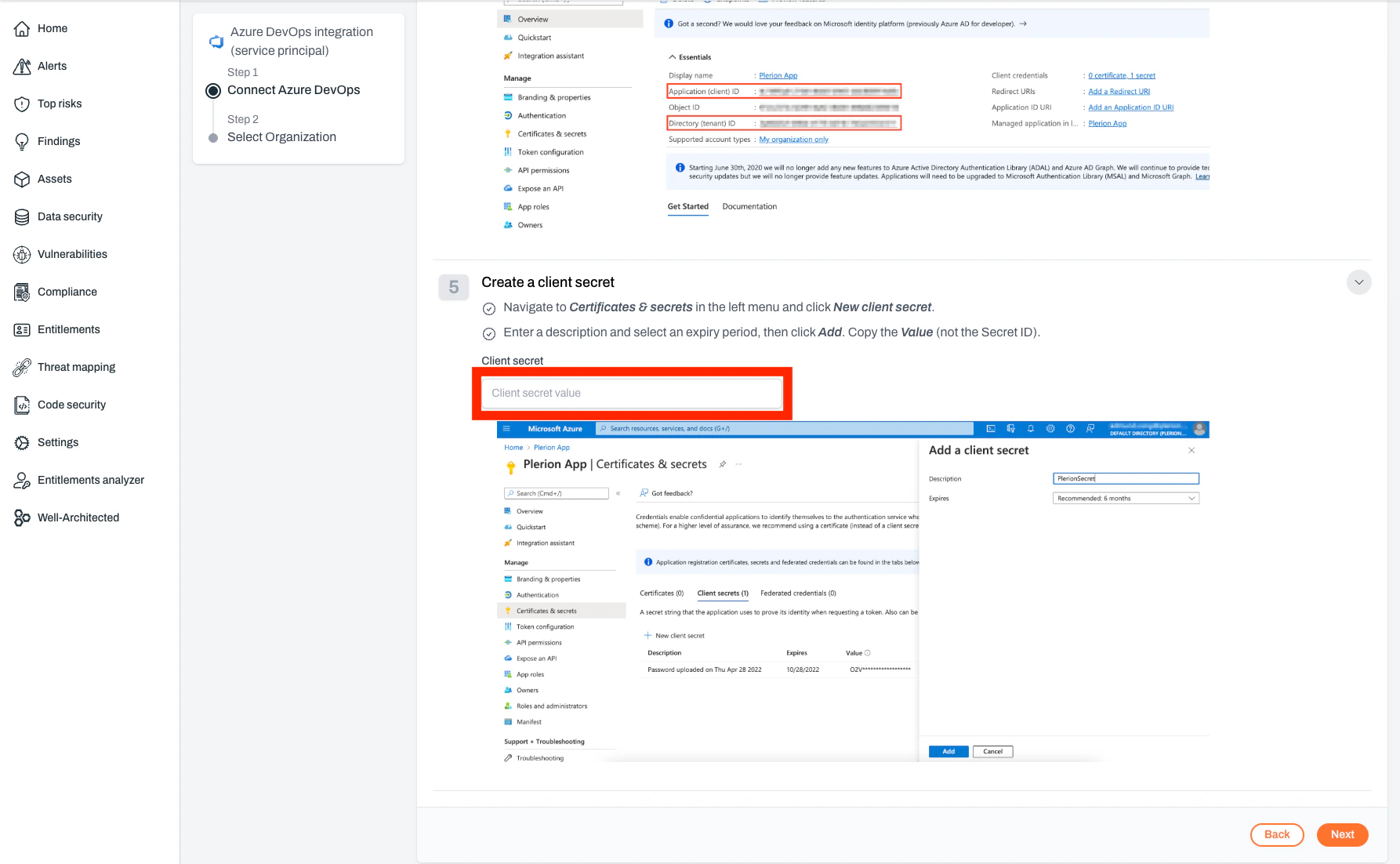
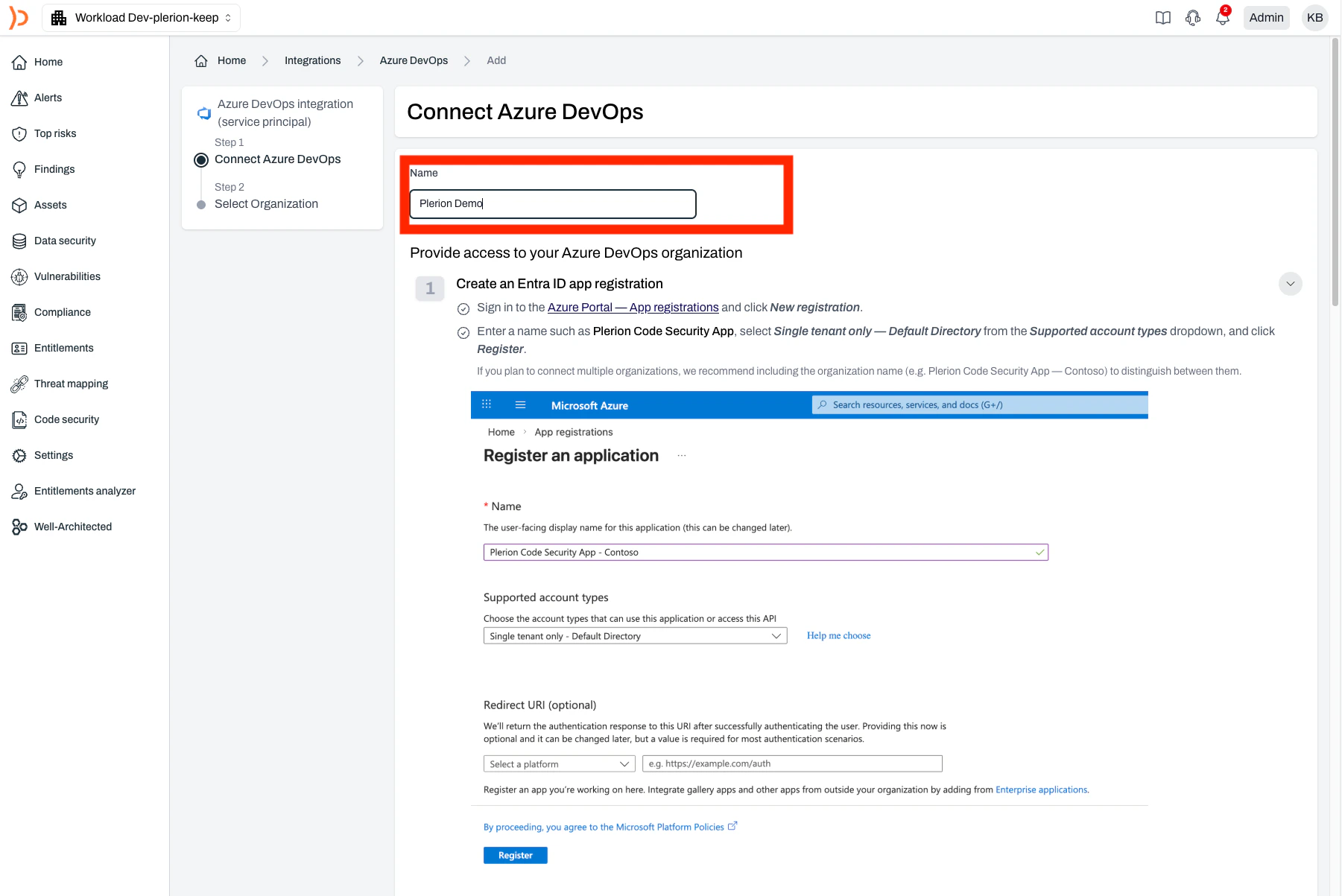 These values come from your Azure app registration.
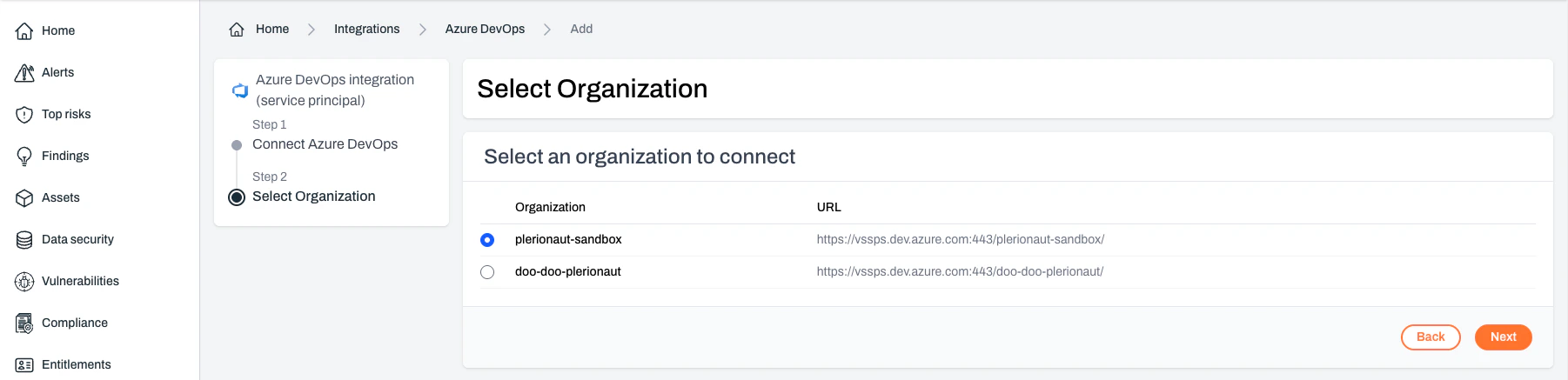
 If the Entra app has access to a single Azure DevOps organization, this step is skipped.
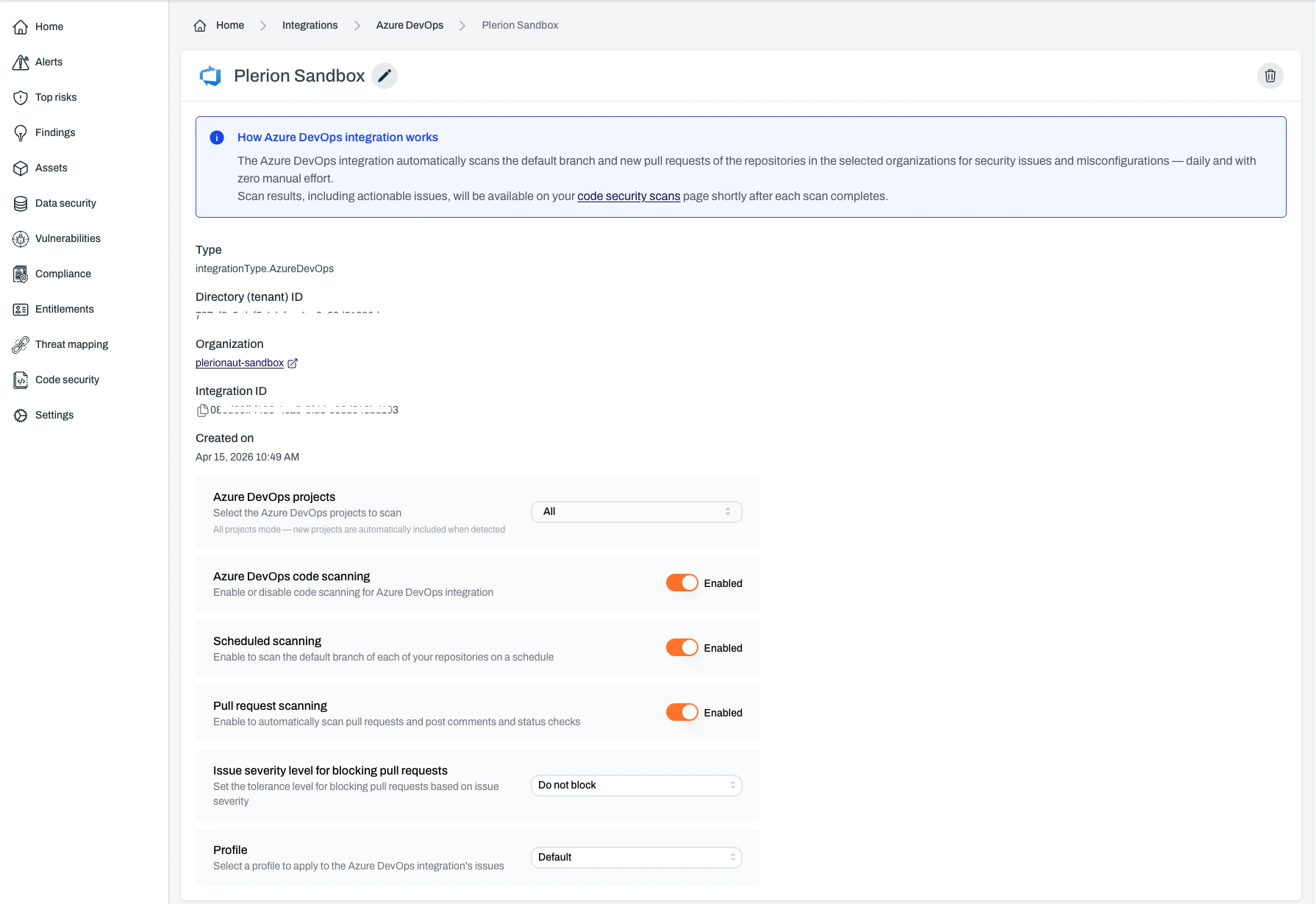
 Your Azure DevOps integration is now active and ready to configure.
 ***
## Configuring your Azure DevOps integration
Once installed, you can configure the Azure DevOps integration to suit your workflows. These options control when and how scans run, how findings are handled, and what rules apply.
### Integration status
Controls whether Plerion Code Security is active.
* **Default**: Enabled
* **When disabled**: Pauses all scanning activities, including scheduled and pull request scans
* **Recommendation**: Keep enabled unless there is a specific need to pause
***
## Configuring your Azure DevOps integration
Once installed, you can configure the Azure DevOps integration to suit your workflows. These options control when and how scans run, how findings are handled, and what rules apply.
### Integration status
Controls whether Plerion Code Security is active.
* **Default**: Enabled
* **When disabled**: Pauses all scanning activities, including scheduled and pull request scans
* **Recommendation**: Keep enabled unless there is a specific need to pause
 ### Scheduled scans
Runs automatic daily scans of your main branches.
* **Default**: Enabled
* **Purpose**: Ensures continuous monitoring of production-ready code
* **Key points**:
* No manual input required
* Helps identify risks over time
* Best for stable branches
### Scheduled scans
Runs automatic daily scans of your main branches.
* **Default**: Enabled
* **Purpose**: Ensures continuous monitoring of production-ready code
* **Key points**:
* No manual input required
* Helps identify risks over time
* Best for stable branches
 ### Pull request scanning
Scans code in new and updated pull requests.
* **Default**: Enabled
* **What it does**:
* Scans only changes in the pull request
* Posts findings as comments in Azure DevOps
* Uses Azure DevOps status checks to block insecure merges
* **Supported file types**: YAML, Terraform, JSON, and other IaC files
* **Why it matters**: Prevents findings from merging, encourages secure practices, and improves developer awareness
### Pull request scanning
Scans code in new and updated pull requests.
* **Default**: Enabled
* **What it does**:
* Scans only changes in the pull request
* Posts findings as comments in Azure DevOps
* Uses Azure DevOps status checks to block insecure merges
* **Supported file types**: YAML, Terraform, JSON, and other IaC files
* **Why it matters**: Prevents findings from merging, encourages secure practices, and improves developer awareness
 ### Dismiss behavior
Controls how Plerion handles existing pull request comments when new commits are pushed.
### Dismiss behavior
Controls how Plerion handles existing pull request comments when new commits are pushed.
 ### Tolerance for blocking pull requests
Controls when pull requests are blocked based on severity.
* **Default**: Do not block pull requests
* **Options**:
* Only block for critical findings
* Block for high and critical findings
* Block for medium and above findings
* Block for any finding
* Do not block pull requests
* **Best use**: Choose based on your team's risk tolerance, development velocity, and compliance needs
### Tolerance for blocking pull requests
Controls when pull requests are blocked based on severity.
* **Default**: Do not block pull requests
* **Options**:
* Only block for critical findings
* Block for high and critical findings
* Block for medium and above findings
* Block for any finding
* Do not block pull requests
* **Best use**: Choose based on your team's risk tolerance, development velocity, and compliance needs
 ### Profile
Defines which detection rules are used during scans.
* **Default**: Organization's default profile
* **Options**: Use an existing profile or create a new one
* **Where to manage**: Detection Settings
* **Best use**: Align with coding standards, risk tolerance, and compliance needs
### Profile
Defines which detection rules are used during scans.
* **Default**: Organization's default profile
* **Options**: Use an existing profile or create a new one
* **Where to manage**: Detection Settings
* **Best use**: Align with coding standards, risk tolerance, and compliance needs
 ***
## Best practices
* Keep the integration enabled for continuous coverage
* Use scheduled scans to secure long-term branches
* Enable PR scanning to prevent insecure code from merging
* Set PR blocking tolerance based on your security posture
* Select a detection profile that matches your organization's needs
***
## Best practices
* Keep the integration enabled for continuous coverage
* Use scheduled scans to secure long-term branches
* Enable PR scanning to prevent insecure code from merging
* Set PR blocking tolerance based on your security posture
* Select a detection profile that matches your organization's needs