> ## Documentation Index
> Fetch the complete documentation index at: https://docs.plerion.com/llms.txt
> Use this file to discover all available pages before exploring further.
# Getting started with an AWS service account
> Set up a dedicated AWS service account to simplify CWPP deployment, so you can centrally manage appliances, protect workloads across multiple accounts, and gain complete visibility with less effort.
Setting up an AWS service account involves two main steps:
1. Setting up the permissions required to run Plerion infrastructure
2. Installing the infrastructure in the regions where you want to run workload scans
***
## Step 1: Set up permissions
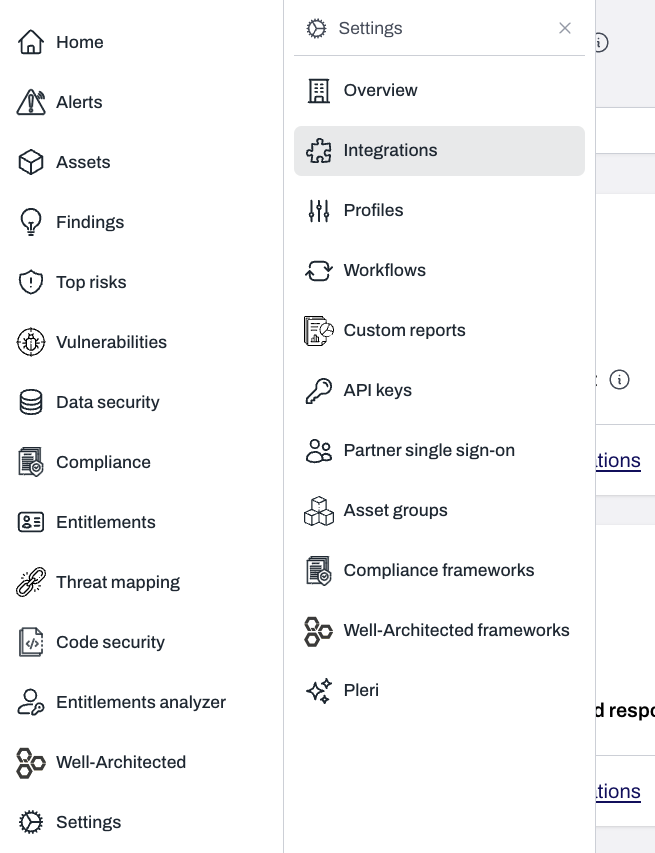
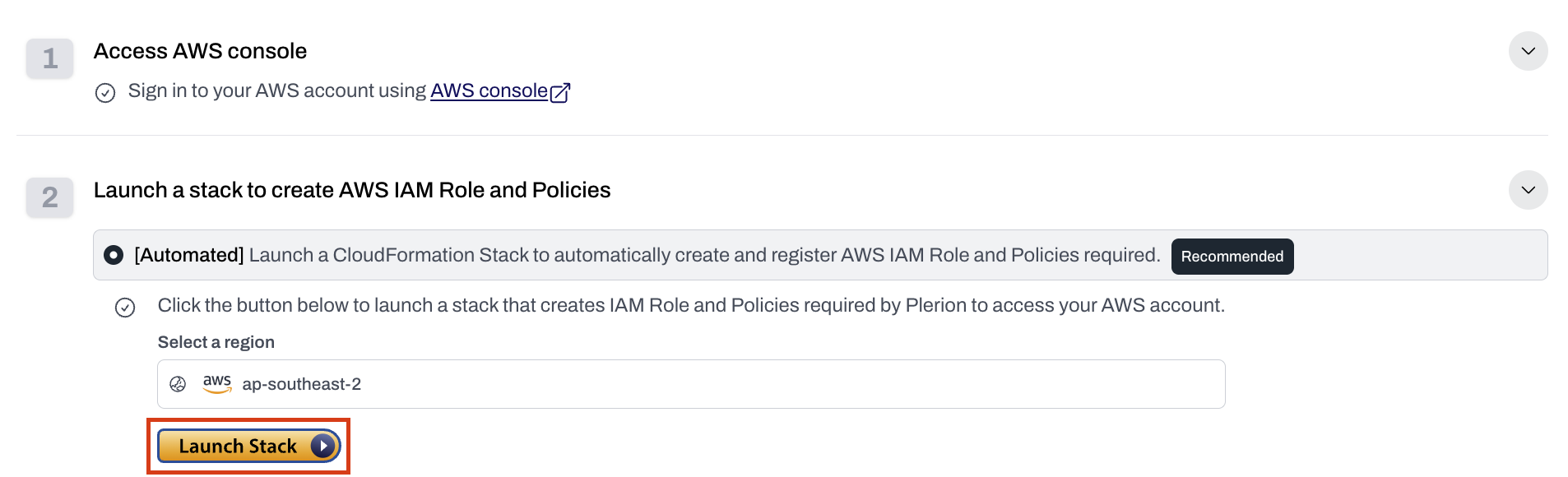
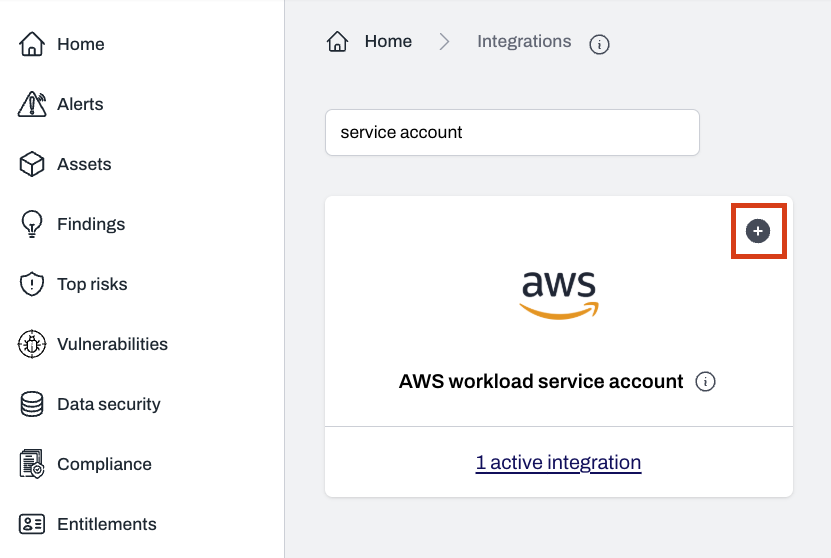 Click `Launch stack` to open the **Quick create stack** page in AWS CloudFormation.
 * After the CloudFormation stack completes, the service account will be created automatically.
* You will see it listed on the **Service Accounts** page in Plerion.
* After the CloudFormation stack completes, the service account will be created automatically.
* You will see it listed on the **Service Accounts** page in Plerion.

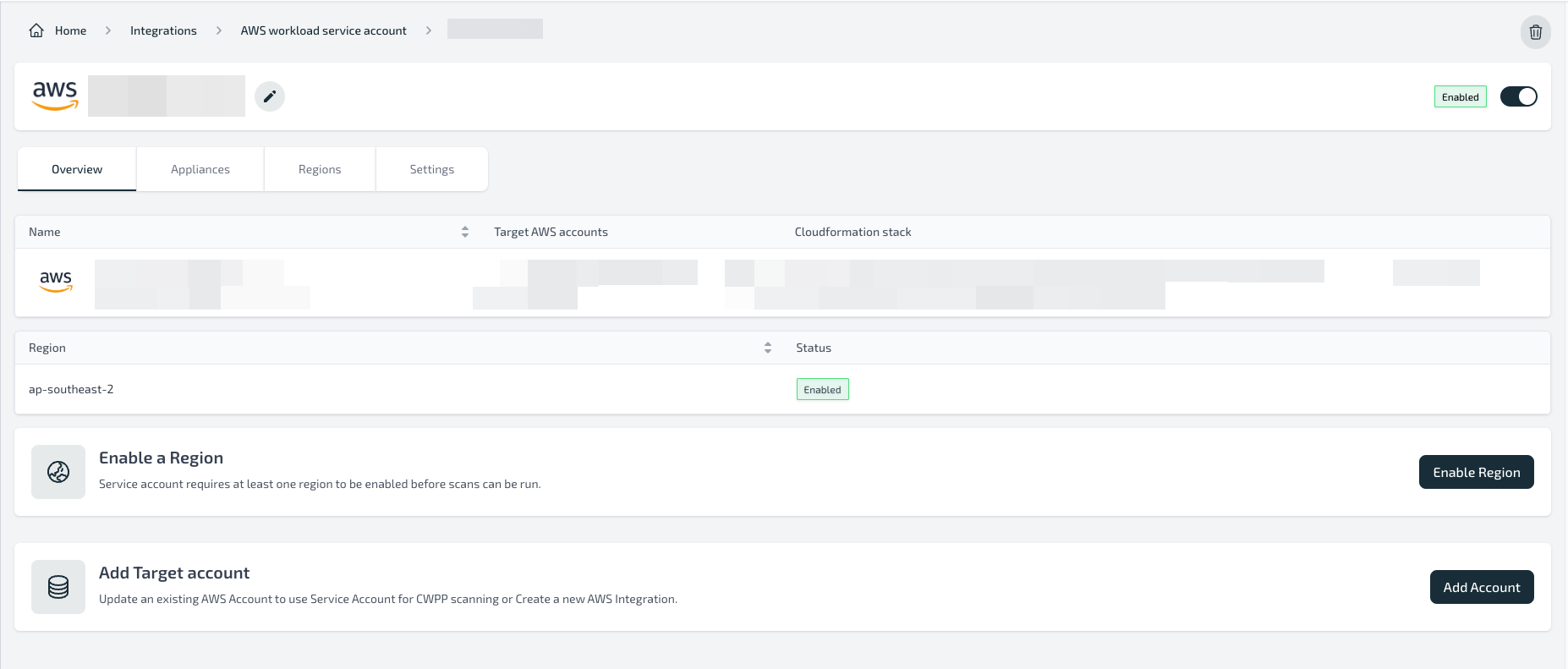 * From the service account details page, configure the regions where you want to install the Plerion infrastructure.
* See [Step 2: Install infrastructure in regions](/guides/integrations/aws/service-account/getting-started-with-aws-service-account#step-2%3A-install-infrastructure-in-regions).
### Limitations
* An AWS account can only be associated with **one service account**.
* Service accounts cannot be shared across tenants or organizations.
* A maximum of **10 service accounts** can be created in a tenant.
### Resources created
Creating the CloudFormation stack will deploy:
| Resource | Resource type | Description |
| ----------------------------- | ------------------------- | ---------------------------------------------------------------------------------------------------- |
| PlerionWorkloadAccessRole | AWS::IAM::Role | Role assumed by the Plerion Control Plane to manage the service account. |
| PlerionWorkloadAccessPolicy | AWS::IAM::ManagedPolicy | Policy attached to the role above, granting permissions to manage appliances and clean up resources. |
| PlerionInstanceProfileRole | AWS::IAM::Role | Role attached to appliance instances, allowing them to assume target account roles. |
| PlerionInstanceProfile | AWS::IAM::InstanceProfile | Instance profile using the appliance role. |
| PlerionAPICallFunction | AWS::Lambda::Function | Calls the Plerion API to create the service account automatically. |
| PlerionAPILambdaExecutionRole | AWS::IAM::Role | Role attached to the Lambda function, allowing it to call the Plerion API. |
| PlerionAPICall | Custom::PlerionAPICall | Custom resource for creating the service account through the API. |
### Troubleshooting
**Error:** `PlerionInstanceProfileRole already exists in the stack`\
**Cause:** This indicates the AWS account is already being used as a service account in another Plerion organization.\
**Fix:** Remove the existing service account and stack, or use a different AWS account.
***
## Step 2: Install infrastructure in regions
* From the service account details page, configure the regions where you want to install the Plerion infrastructure.
* See [Step 2: Install infrastructure in regions](/guides/integrations/aws/service-account/getting-started-with-aws-service-account#step-2%3A-install-infrastructure-in-regions).
### Limitations
* An AWS account can only be associated with **one service account**.
* Service accounts cannot be shared across tenants or organizations.
* A maximum of **10 service accounts** can be created in a tenant.
### Resources created
Creating the CloudFormation stack will deploy:
| Resource | Resource type | Description |
| ----------------------------- | ------------------------- | ---------------------------------------------------------------------------------------------------- |
| PlerionWorkloadAccessRole | AWS::IAM::Role | Role assumed by the Plerion Control Plane to manage the service account. |
| PlerionWorkloadAccessPolicy | AWS::IAM::ManagedPolicy | Policy attached to the role above, granting permissions to manage appliances and clean up resources. |
| PlerionInstanceProfileRole | AWS::IAM::Role | Role attached to appliance instances, allowing them to assume target account roles. |
| PlerionInstanceProfile | AWS::IAM::InstanceProfile | Instance profile using the appliance role. |
| PlerionAPICallFunction | AWS::Lambda::Function | Calls the Plerion API to create the service account automatically. |
| PlerionAPILambdaExecutionRole | AWS::IAM::Role | Role attached to the Lambda function, allowing it to call the Plerion API. |
| PlerionAPICall | Custom::PlerionAPICall | Custom resource for creating the service account through the API. |
### Troubleshooting
**Error:** `PlerionInstanceProfileRole already exists in the stack`\
**Cause:** This indicates the AWS account is already being used as a service account in another Plerion organization.\
**Fix:** Remove the existing service account and stack, or use a different AWS account.
***
## Step 2: Install infrastructure in regions
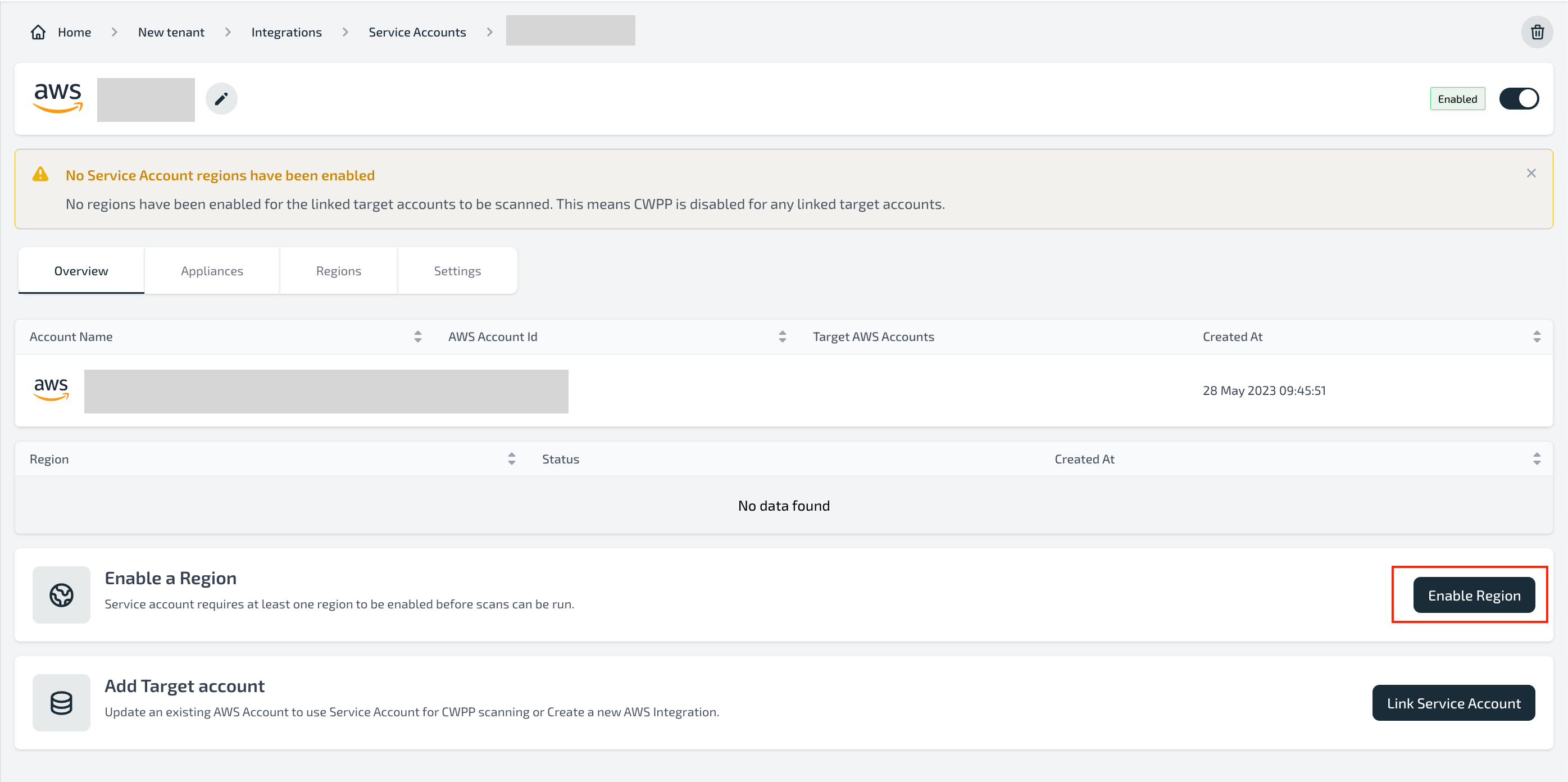 Select the region where you want to install the Plerion infrastructure and click `Launch Stack`.
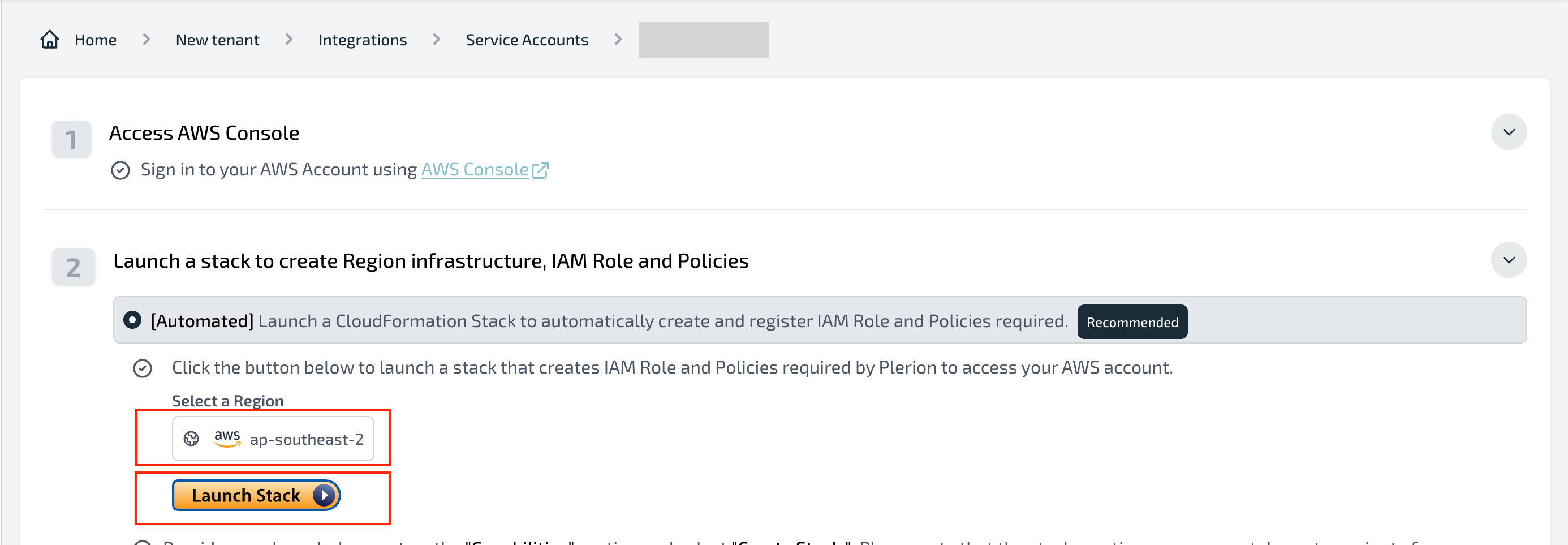 Follow the on-screen steps in AWS CloudFormation to deploy the infrastructure.
* After the stack finishes, the region will appear as enabled in the service account dashboard.
* Enable and install infrastructure in all regions where you want to run workload scans.
Follow the on-screen steps in AWS CloudFormation to deploy the infrastructure.
* After the stack finishes, the region will appear as enabled in the service account dashboard.
* Enable and install infrastructure in all regions where you want to run workload scans.
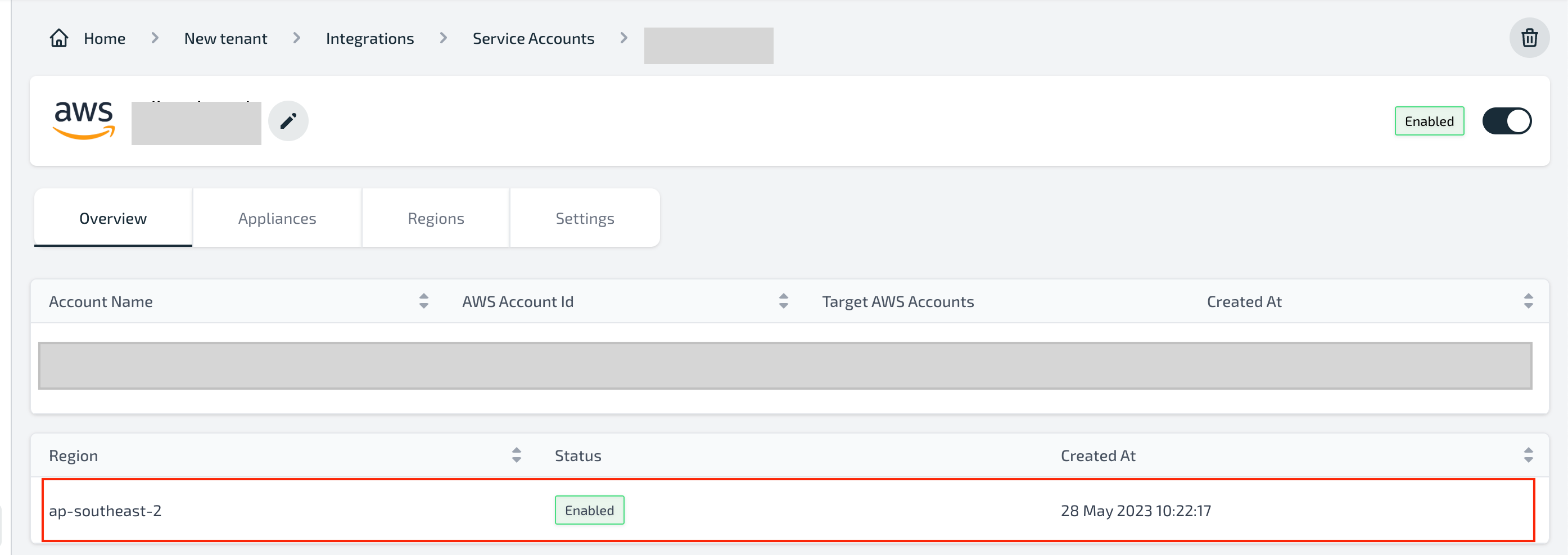 * After installing infrastructure in all required regions, link target accounts.
* See [Linking target accounts to a service account](/guides/integrations/aws/service-account/linking-target-accounts-to-service-account).
### Resources created
Installing the CloudFormation template will create the following resources in each region:
| Resource | Resource type | Description |
| -------------------------------------------------- | -------------------------------------- | ----------------------------------------------------------------------------------------------------------------------------------------------------------------- |
| ElasticIpAZ1 | AWS::EC2::EIP | The Elastic IP address for the NAT Gateway. |
| InternetGateway | AWS::EC2::InternetGateway | Allow the VPC to access the internet. |
| NatGatewayAZ1 | AWS::EC2::NatGateway | The NAT Gateway allows the private subnet to access the internet securely |
| PlerionAPICall | Custom::PlerionAPICall | Custom resource to call the Plerion API to create the service account automatically. |
| PlerionAPICallFunction | AWS::Lambda::Function | The Lambda function will be used to call the Plerion API to create the service account automatically. |
| PlerionAPILambdaExecutionRole | AWS::IAM::Role | The role that will be attached to the PlerionAPICallFunction to allow the function to call the Plerion API. |
| PlerionApplianceAutoScalingGroup | AWS::AutoScaling::AutoScalingGroup | The AutoScaling group that will be used to manage the appliance instances. |
| PlerionApplianceLaunchLifecycleHook | AWS::AutoScaling::LifecycleHook | The lifecycle hook that will be used to manage the appliance instances. |
| PlerionApplianceLaunchTemplate | AWS::EC2::LaunchTemplate | The launch template that will be used to launch the appliance instances. |
| PlerionApplianceQueueBacklogNoInstances | AWS::CloudWatch::Alarm | The alarm that will be used to scale out the appliance instances. |
| PlerionApplianceQueueBacklogPerInstanceScaleIn | AWS::CloudWatch::Alarm | The alarm that will be used to terminate appliances when the queue has a smaller backlog |
| PlerionApplianceQueueBacklogPerInstanceScaleOut | AWS::CloudWatch::Alarm | The alarm that will be used to scale out the appliance instances when the workload scan queue has a backlog. |
| PlerionApplianceQueueNoBacklogWithInstancesScaleIn | AWS::CloudWatch::Alarm | The alarm that will be used to terminate appliances when the queue has no backlog. |
| PlerionApplianceScanQueue | AWS::SQS::Queue | The queue that will be used to manage the workload scan queue. |
| PlerionApplianceSecurityGroup | AWS::EC2::SecurityGroup | The security group that will be used to manage the appliance instances. The security group allows outbound access to allow the appliance to scan and send results |
| PlerionApplianceSubnetAZ1Private | AWS::EC2::Subnet | The private subnet that will be used to launch the appliance instances. |
| PlerionApplianceTerminationLifecycleHook | AWS::AutoScaling::LifecycleHook | The lifecycle hook that will be used to manage the appliance instances. |
| PlerionApplianceVPC | AWS::EC2::VPC | The VPC that will be used to launch the appliance instances. |
| PlerionKmsKey | AWS::KMS::Key | The KMS key that will be used to encrypt the resources being copied from the target accounts. |
| PlerionScaleInPolicy | AWS::AutoScaling::ScalingPolicy | The policy that will be used to terminate appliances when the queue has no backlog. |
| PlerionScaleOutPolicy | AWS::AutoScaling::ScalingPolicy | The policy that will be used to scale out the appliance instances when the workload scan queue has a backlog. |
| PlerionSubnetAZ1Public | AWS::EC2::Subnet | The public subnet that will be used to host the NAT Gateway. |
| RouteTableAssociationAZ1Private | AWS::EC2::SubnetRouteTableAssociation | The association between the private subnet and the private route table. |
| RouteTableAZ1PrivateCommon | AWS::EC2::RouteTable | The private route table that will be used to route traffic to the NAT Gateway. |
| RouteTableAZ1Public | AWS::EC2::RouteTable | The public route table that will be used to route traffic to the internet. |
| RouteTableAZ1PublicSubnetAssociation | AWS::EC2::SubnetRouteTableAssociation | The association between the public subnet and the public route table. |
| RouteTablePrivateCommonAZ1InternetRoute | AWS::EC2::Route | The route that will be used to route traffic to the internet via NAT Gateway. |
| RouteTablePublicAZ1InternetRoute | AWS::EC2::Route | The route that will be used to route traffic to the internet. |
| ServiceAccountOrganization | Custom::RetrieveOrganizationIdFunction | Custom resource to retrieve the organization ID from the current AWS account. |
| ServiceAccountOrganizationFunction | AWS::Lambda::Function | The Lambda function will be used to retrieve the organization ID from the current AWS account. |
| ServiceAccountOrganizationFunctionExecutionRole | AWS::IAM::Role | The role that will be attached to the ServiceAccountOrganizationFunction to allow the function to retrieve the organization ID from the current AWS account. |
| VPCGatewayAttachment | AWS::EC2::VPCGatewayAttachment | The attachment between the VPC and the Internet Gateway. |
### Troubleshooting
**Error:** `AWS::SQS::Queue` with identifier `plerion-appliance-scan-queue` already exists\
**Cause**: This occurs if Plerion infrastructure is already installed in that region.\
**Fix:**
* Delete the existing infrastructure and retry; or
* Choose a different region
If the duplicate was accidental, delete the failed stack.
***
## Next step
* [Linking target accounts to a service account](/guides/integrations/aws/service-account/linking-target-accounts-to-service-account)
* After installing infrastructure in all required regions, link target accounts.
* See [Linking target accounts to a service account](/guides/integrations/aws/service-account/linking-target-accounts-to-service-account).
### Resources created
Installing the CloudFormation template will create the following resources in each region:
| Resource | Resource type | Description |
| -------------------------------------------------- | -------------------------------------- | ----------------------------------------------------------------------------------------------------------------------------------------------------------------- |
| ElasticIpAZ1 | AWS::EC2::EIP | The Elastic IP address for the NAT Gateway. |
| InternetGateway | AWS::EC2::InternetGateway | Allow the VPC to access the internet. |
| NatGatewayAZ1 | AWS::EC2::NatGateway | The NAT Gateway allows the private subnet to access the internet securely |
| PlerionAPICall | Custom::PlerionAPICall | Custom resource to call the Plerion API to create the service account automatically. |
| PlerionAPICallFunction | AWS::Lambda::Function | The Lambda function will be used to call the Plerion API to create the service account automatically. |
| PlerionAPILambdaExecutionRole | AWS::IAM::Role | The role that will be attached to the PlerionAPICallFunction to allow the function to call the Plerion API. |
| PlerionApplianceAutoScalingGroup | AWS::AutoScaling::AutoScalingGroup | The AutoScaling group that will be used to manage the appliance instances. |
| PlerionApplianceLaunchLifecycleHook | AWS::AutoScaling::LifecycleHook | The lifecycle hook that will be used to manage the appliance instances. |
| PlerionApplianceLaunchTemplate | AWS::EC2::LaunchTemplate | The launch template that will be used to launch the appliance instances. |
| PlerionApplianceQueueBacklogNoInstances | AWS::CloudWatch::Alarm | The alarm that will be used to scale out the appliance instances. |
| PlerionApplianceQueueBacklogPerInstanceScaleIn | AWS::CloudWatch::Alarm | The alarm that will be used to terminate appliances when the queue has a smaller backlog |
| PlerionApplianceQueueBacklogPerInstanceScaleOut | AWS::CloudWatch::Alarm | The alarm that will be used to scale out the appliance instances when the workload scan queue has a backlog. |
| PlerionApplianceQueueNoBacklogWithInstancesScaleIn | AWS::CloudWatch::Alarm | The alarm that will be used to terminate appliances when the queue has no backlog. |
| PlerionApplianceScanQueue | AWS::SQS::Queue | The queue that will be used to manage the workload scan queue. |
| PlerionApplianceSecurityGroup | AWS::EC2::SecurityGroup | The security group that will be used to manage the appliance instances. The security group allows outbound access to allow the appliance to scan and send results |
| PlerionApplianceSubnetAZ1Private | AWS::EC2::Subnet | The private subnet that will be used to launch the appliance instances. |
| PlerionApplianceTerminationLifecycleHook | AWS::AutoScaling::LifecycleHook | The lifecycle hook that will be used to manage the appliance instances. |
| PlerionApplianceVPC | AWS::EC2::VPC | The VPC that will be used to launch the appliance instances. |
| PlerionKmsKey | AWS::KMS::Key | The KMS key that will be used to encrypt the resources being copied from the target accounts. |
| PlerionScaleInPolicy | AWS::AutoScaling::ScalingPolicy | The policy that will be used to terminate appliances when the queue has no backlog. |
| PlerionScaleOutPolicy | AWS::AutoScaling::ScalingPolicy | The policy that will be used to scale out the appliance instances when the workload scan queue has a backlog. |
| PlerionSubnetAZ1Public | AWS::EC2::Subnet | The public subnet that will be used to host the NAT Gateway. |
| RouteTableAssociationAZ1Private | AWS::EC2::SubnetRouteTableAssociation | The association between the private subnet and the private route table. |
| RouteTableAZ1PrivateCommon | AWS::EC2::RouteTable | The private route table that will be used to route traffic to the NAT Gateway. |
| RouteTableAZ1Public | AWS::EC2::RouteTable | The public route table that will be used to route traffic to the internet. |
| RouteTableAZ1PublicSubnetAssociation | AWS::EC2::SubnetRouteTableAssociation | The association between the public subnet and the public route table. |
| RouteTablePrivateCommonAZ1InternetRoute | AWS::EC2::Route | The route that will be used to route traffic to the internet via NAT Gateway. |
| RouteTablePublicAZ1InternetRoute | AWS::EC2::Route | The route that will be used to route traffic to the internet. |
| ServiceAccountOrganization | Custom::RetrieveOrganizationIdFunction | Custom resource to retrieve the organization ID from the current AWS account. |
| ServiceAccountOrganizationFunction | AWS::Lambda::Function | The Lambda function will be used to retrieve the organization ID from the current AWS account. |
| ServiceAccountOrganizationFunctionExecutionRole | AWS::IAM::Role | The role that will be attached to the ServiceAccountOrganizationFunction to allow the function to retrieve the organization ID from the current AWS account. |
| VPCGatewayAttachment | AWS::EC2::VPCGatewayAttachment | The attachment between the VPC and the Internet Gateway. |
### Troubleshooting
**Error:** `AWS::SQS::Queue` with identifier `plerion-appliance-scan-queue` already exists\
**Cause**: This occurs if Plerion infrastructure is already installed in that region.\
**Fix:**
* Delete the existing infrastructure and retry; or
* Choose a different region
If the duplicate was accidental, delete the failed stack.
***
## Next step
* [Linking target accounts to a service account](/guides/integrations/aws/service-account/linking-target-accounts-to-service-account)