> ## Documentation Index
> Fetch the complete documentation index at: https://docs.plerion.com/llms.txt
> Use this file to discover all available pages before exploring further.
# Getting started with Plerion-managed scanning
> Enable CWPP for an AWS account using Plerion-managed scanning, where Plerion runs the scanning infrastructure in its own accounts and you only grant access
With **Plerion-managed scanning**, you can enable Cloud Workload Protection Platform (CWPP) for an AWS account by granting a single cross-account role. Plerion runs the scanning appliances in its own accounts, so there is no VPC or networking to configure. For background on the model, see the [Plerion-managed scanning overview](/guides/integrations/aws/managed-scanning/overview).
For a smoother onboarding experience, log in to your **target AWS account** in the AWS Management Console before starting the setup in Plerion.
***
## Steps to enable Plerion-managed scanning
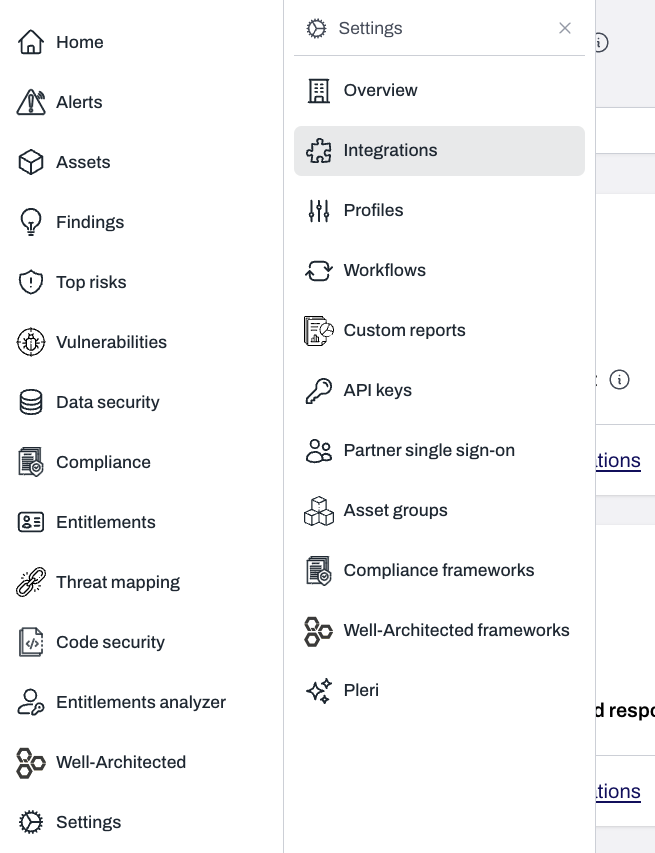
On the Plerion dashboard, go to `Settings` > `Integrations`.
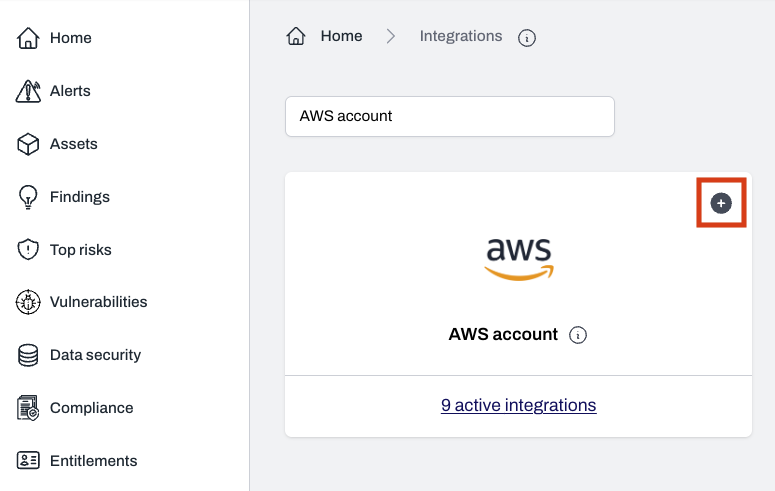
 Find **AWS account** and click the `+` button, then click `Add single AWS account`.
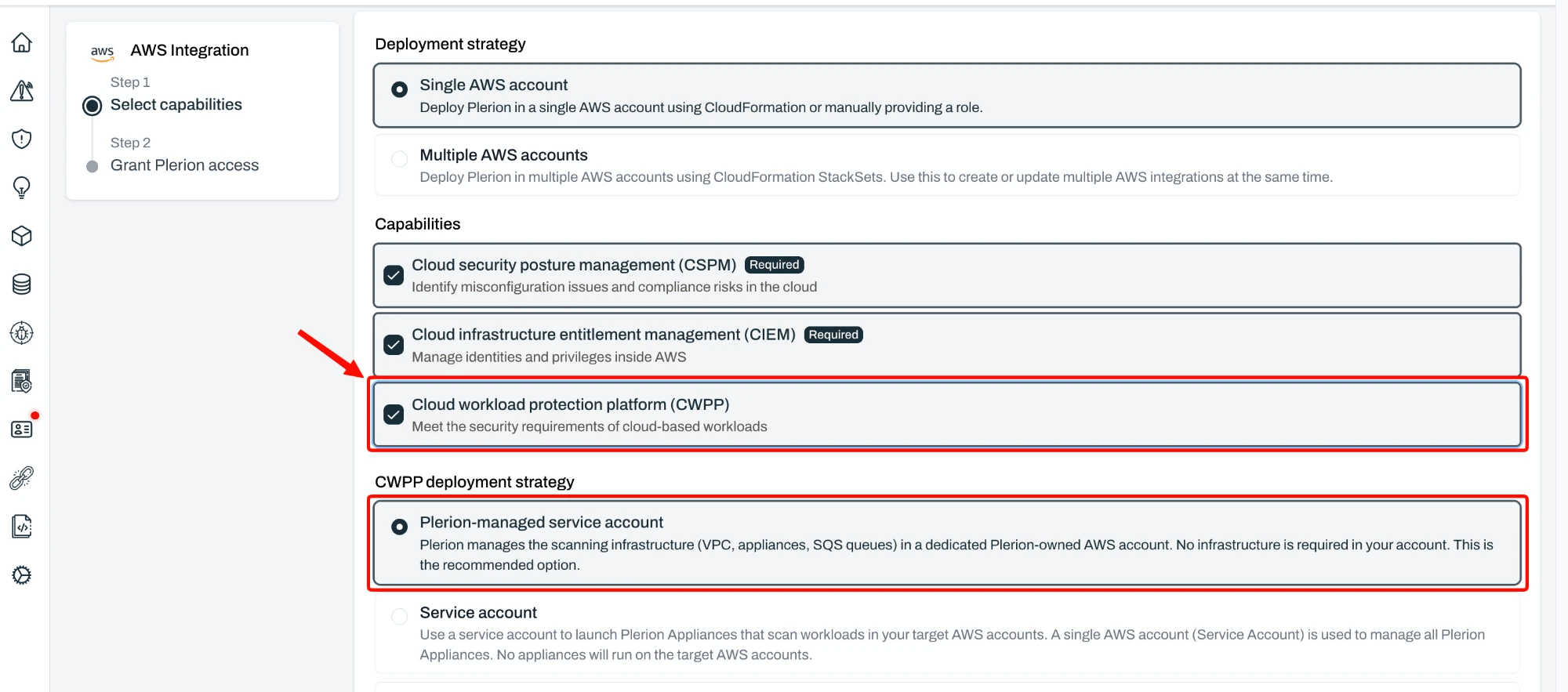
 On the **Select capabilities** page:
* **CSPM** and **CIEM** are required and selected by default. Also select **Cloud workload protection platform (CWPP)**.
* When CWPP is selected, the **CWPP deployment strategy** section appears with **Plerion-managed service account** already selected as the default and recommended option. Keep it selected.
On the **Select capabilities** page:
* **CSPM** and **CIEM** are required and selected by default. Also select **Cloud workload protection platform (CWPP)**.
* When CWPP is selected, the **CWPP deployment strategy** section appears with **Plerion-managed service account** already selected as the default and recommended option. Keep it selected.
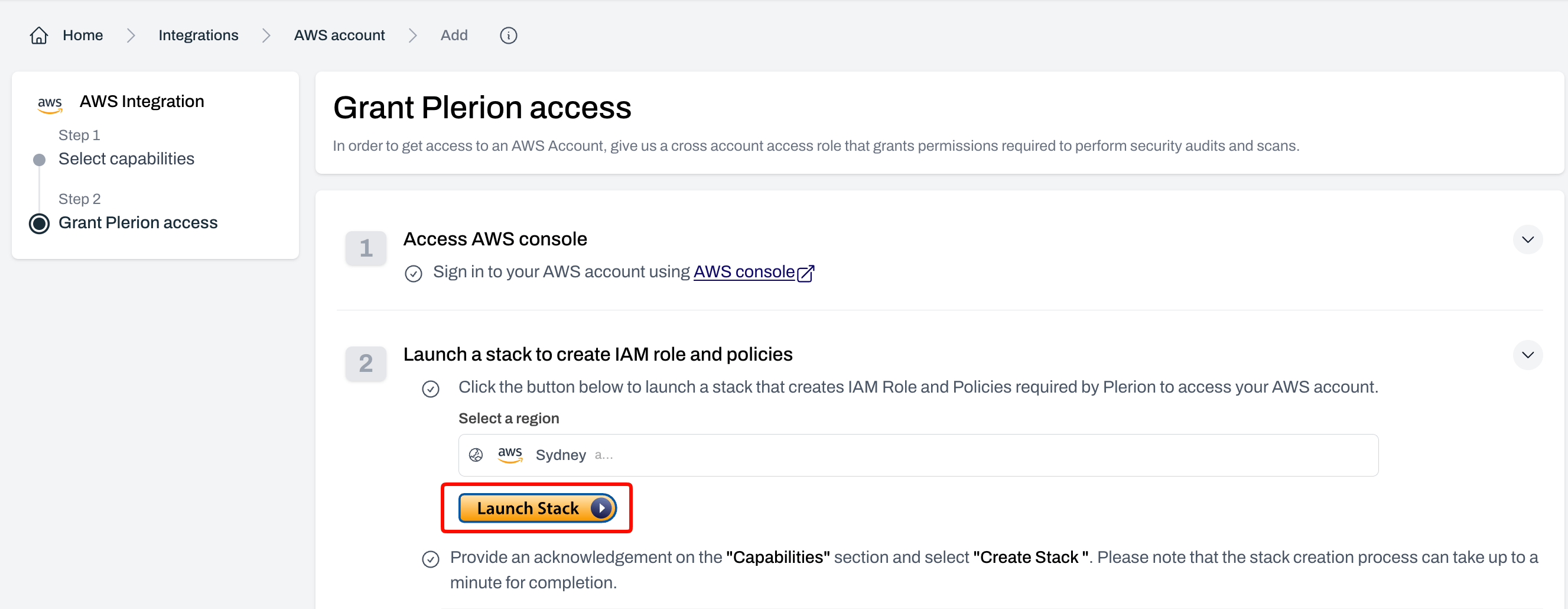
 Grant Plerion a cross-account role so it can read your AWS account.
* Click `Launch stack` to open the **Quick create stack** page in AWS CloudFormation.
Grant Plerion a cross-account role so it can read your AWS account.
* Click `Launch stack` to open the **Quick create stack** page in AWS CloudFormation.
 * Keep the default parameters and acknowledge the required capabilities, then click `Create stack`.
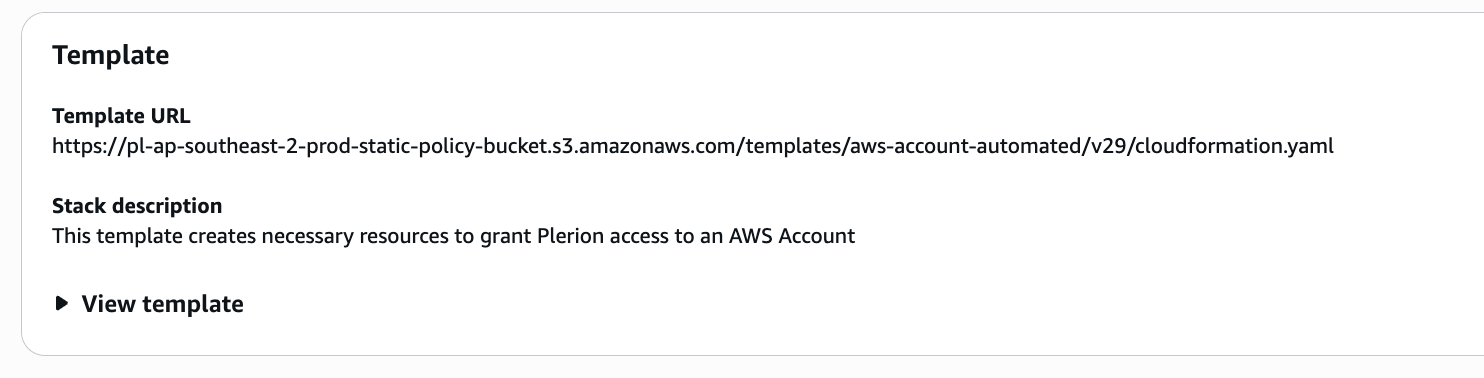
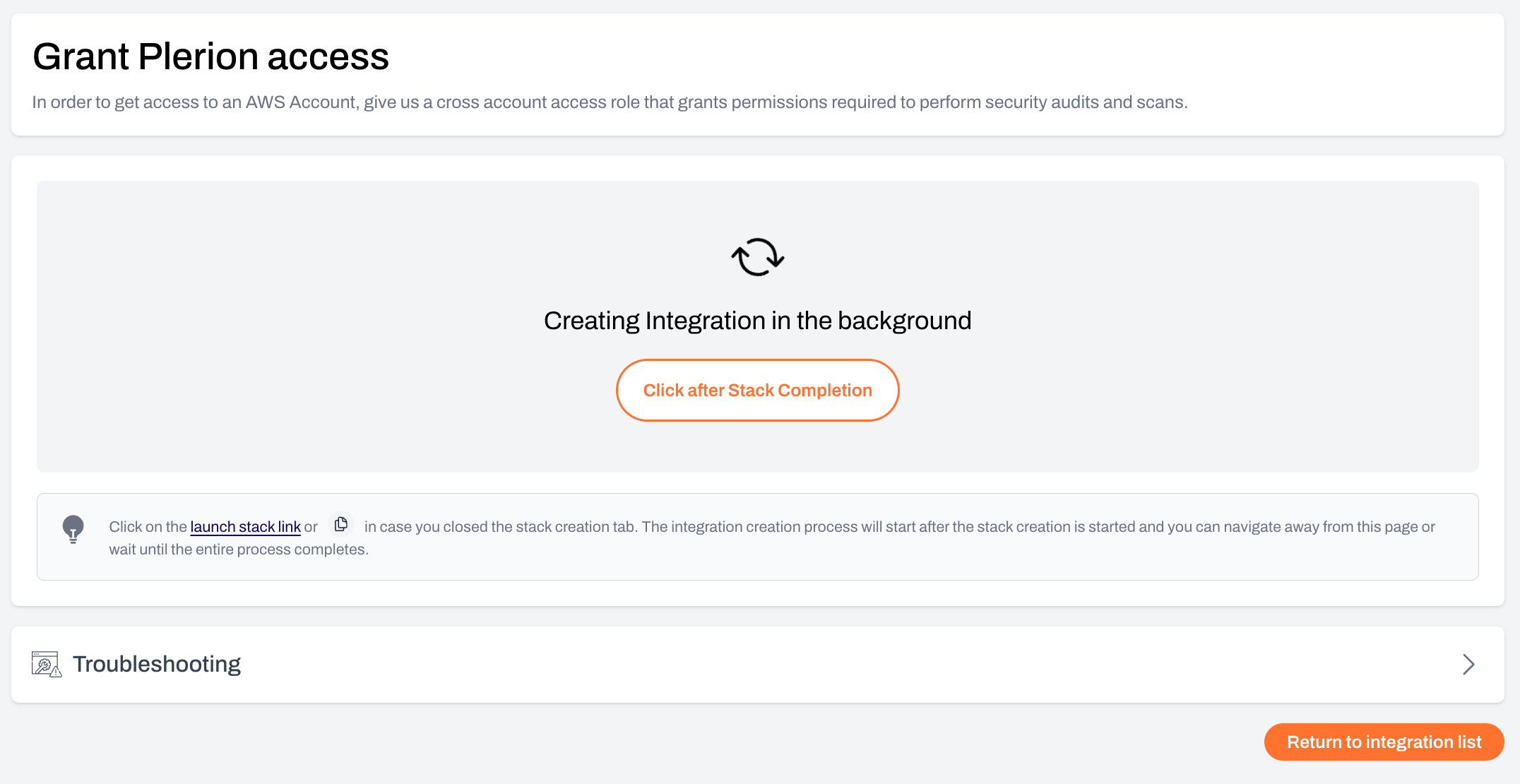
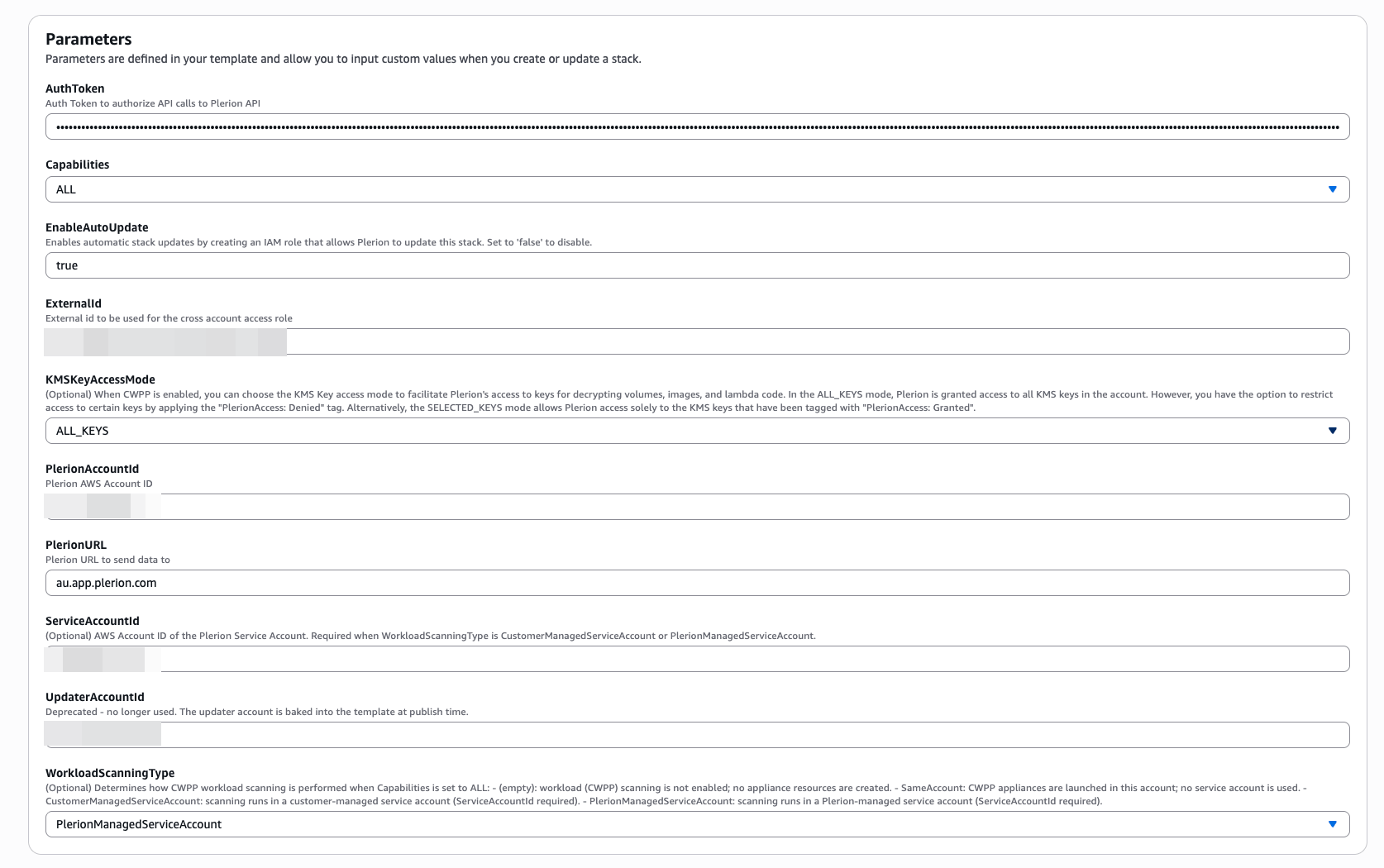 * Return to Plerion. While the stack is being created, you will see a loader screen. Once it completes, the integration is added.
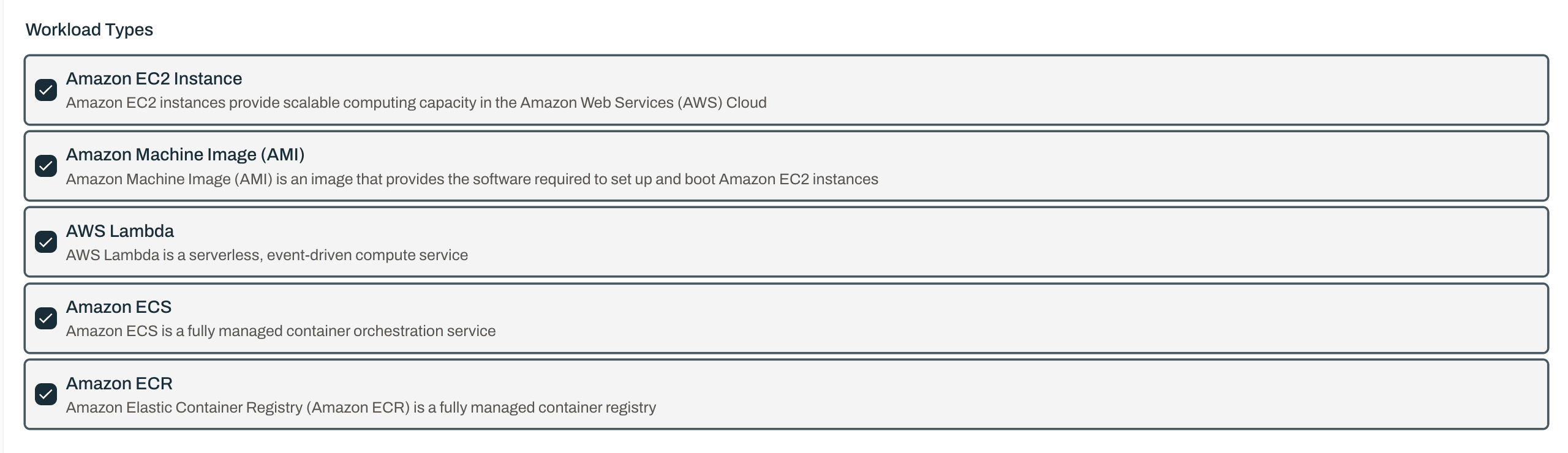
 Under **Workload Types**, select the workloads to scan. The available types are **Amazon EC2 Instance**, **Amazon Machine Image (AMI)**, **AWS Lambda**, **Amazon ECS**, and **Amazon ECR**. All are selected by default.
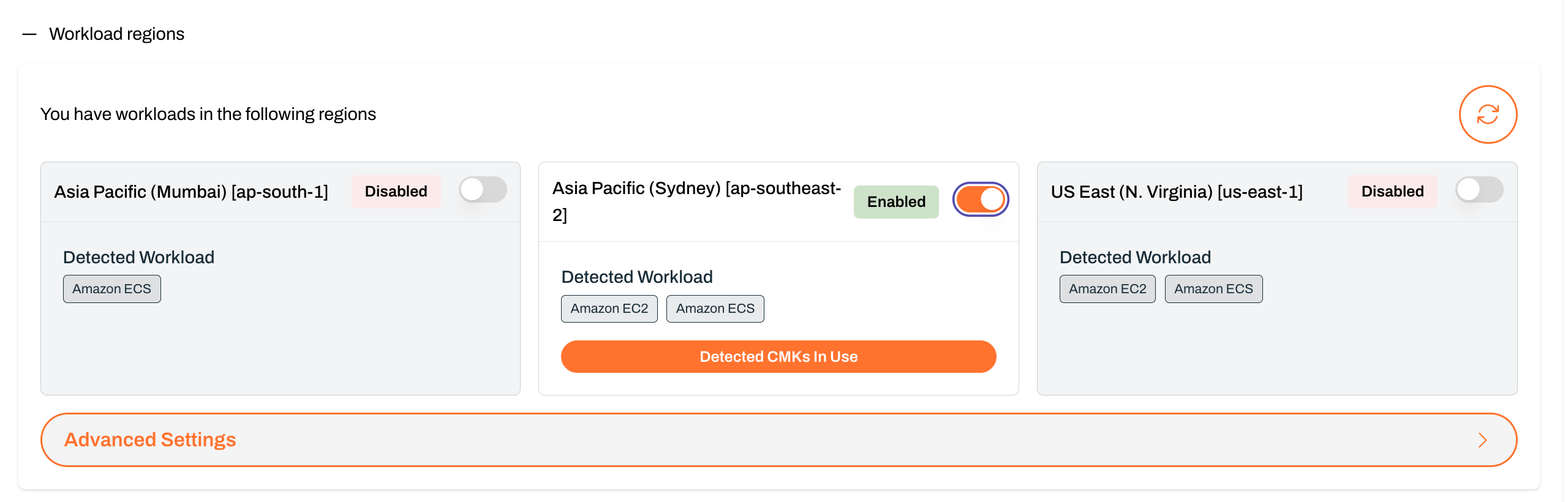
 Under **Workload regions**, Plerion lists the regions where it detected workloads, along with the **Detected Workload** types in each. Use each region's toggle to set it to **Enabled** or **Disabled**. Use **Advanced Settings** to enable regions that do not currently have detected workloads.
 Plerion triggers the first scan, which runs in Plerion-owned accounts.
* Track progress under `Settings` > `Integrations` > `Scans`.
* View results in the **Findings** dashboard once the scan completes.
Plerion triggers the first scan, which runs in Plerion-owned accounts.
* Track progress under `Settings` > `Integrations` > `Scans`.
* View results in the **Findings** dashboard once the scan completes.
 ***
## Resources created in your account
Plerion-managed scanning is enabled through the standard AWS account access stack, which grants Plerion access for CSPM, CIEM, and CWPP.
The CloudFormation stack creates the following resources:
| Resource | Resource type | Description |
| --------------------------------- | ----------------------- | ----------------------------------------------------------------------------------------------------------------------------------------------------------------------- |
| PlerionAccessRole | AWS::IAM::Role | Cross-account role Plerion assumes to read your AWS resource metadata. |
| PlerionPermissionsBoundary | AWS::IAM::ManagedPolicy | Permissions boundary that caps the permissions of all Plerion roles and prevents privilege escalation. |
| PlerionInstanceProfileRole | AWS::IAM::Role | Role granting permission to scan the selected workloads. The Plerion-managed appliances assume this role to read your workloads; only scan results are sent to Plerion. |
| PlerionCSPMAccessPolicy | AWS::IAM::ManagedPolicy | Read-only permissions Plerion CSPM uses to query your account. |
| PlerionCSPMDenyPolicy | AWS::IAM::ManagedPolicy | Explicit denies that bound what Plerion can read. |
| PlerionWellArchitectedWritePolicy | AWS::IAM::ManagedPolicy | Write permissions for Plerion to manage Well-Architected workloads. |
| PlerionAutoUpdateRole | AWS::IAM::Role | Role that lets Plerion update only Plerion-managed CloudFormation stacks. See [Auto stack update](/guides/platform/auto-stack-update). |
| PlerionAPILambdaExecutionRole | AWS::IAM::Role | Execution role for the onboarding Lambda function. |
| PlerionAPICallFunction | AWS::Lambda::Function | Lambda function that calls the Plerion API to finalize the integration. |
| PlerionAPICall | Custom::PlerionAPICall | Custom resource that triggers the onboarding API call. |
***
## Next steps
* [Plerion-managed scanning overview](/guides/integrations/aws/managed-scanning/overview)
* [Workload security (CWPP) overview](/guides/platform/cwpp/overview)
***
## Resources created in your account
Plerion-managed scanning is enabled through the standard AWS account access stack, which grants Plerion access for CSPM, CIEM, and CWPP.
The CloudFormation stack creates the following resources:
| Resource | Resource type | Description |
| --------------------------------- | ----------------------- | ----------------------------------------------------------------------------------------------------------------------------------------------------------------------- |
| PlerionAccessRole | AWS::IAM::Role | Cross-account role Plerion assumes to read your AWS resource metadata. |
| PlerionPermissionsBoundary | AWS::IAM::ManagedPolicy | Permissions boundary that caps the permissions of all Plerion roles and prevents privilege escalation. |
| PlerionInstanceProfileRole | AWS::IAM::Role | Role granting permission to scan the selected workloads. The Plerion-managed appliances assume this role to read your workloads; only scan results are sent to Plerion. |
| PlerionCSPMAccessPolicy | AWS::IAM::ManagedPolicy | Read-only permissions Plerion CSPM uses to query your account. |
| PlerionCSPMDenyPolicy | AWS::IAM::ManagedPolicy | Explicit denies that bound what Plerion can read. |
| PlerionWellArchitectedWritePolicy | AWS::IAM::ManagedPolicy | Write permissions for Plerion to manage Well-Architected workloads. |
| PlerionAutoUpdateRole | AWS::IAM::Role | Role that lets Plerion update only Plerion-managed CloudFormation stacks. See [Auto stack update](/guides/platform/auto-stack-update). |
| PlerionAPILambdaExecutionRole | AWS::IAM::Role | Execution role for the onboarding Lambda function. |
| PlerionAPICallFunction | AWS::Lambda::Function | Lambda function that calls the Plerion API to finalize the integration. |
| PlerionAPICall | Custom::PlerionAPICall | Custom resource that triggers the onboarding API call. |
***
## Next steps
* [Plerion-managed scanning overview](/guides/integrations/aws/managed-scanning/overview)
* [Workload security (CWPP) overview](/guides/platform/cwpp/overview)