> ## Documentation Index
> Fetch the complete documentation index at: https://docs.plerion.com/llms.txt
> Use this file to discover all available pages before exploring further.
# Link existing Plerion organization to AWS Marketplace
> Link your existing Plerion organization to an AWS Marketplace subscription for billing and subscription management.
With this option, you can connect your existing Plerion organization to an AWS Marketplace subscription for centralized billing and subscription management.
***
## Prerequisites
Before linking, ensure the following conditions are met:
1. You have **Organization Admin** access to the Plerion organization.
2. You have either **AdministratorAccess** or **AWSMarketplaceFullAccess** to the AWS account with the Marketplace subscription.
3. The Plerion organization has an active subscription or free trial.
4. The Plerion organization does not already have an AWS Marketplace subscription.
5. The AWS Marketplace account is not linked to another Plerion organization.
***
## Steps to link your Plerion organization to AWS Marketplace
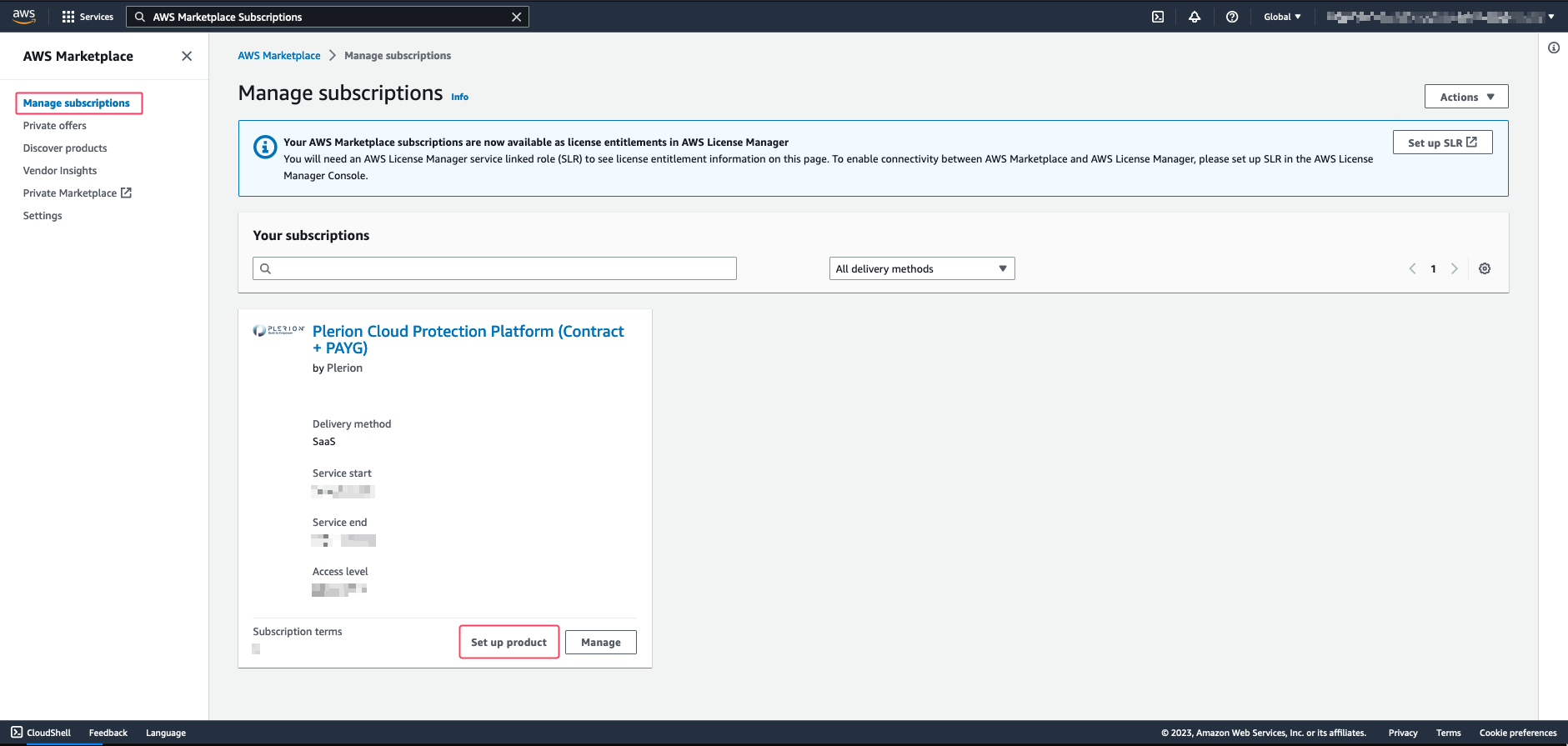
* In the AWS Console, go to **AWS Marketplace Subscriptions** and click the `Manage subscriptions` tab.
* Locate the Plerion subscription and click `Set up product`.
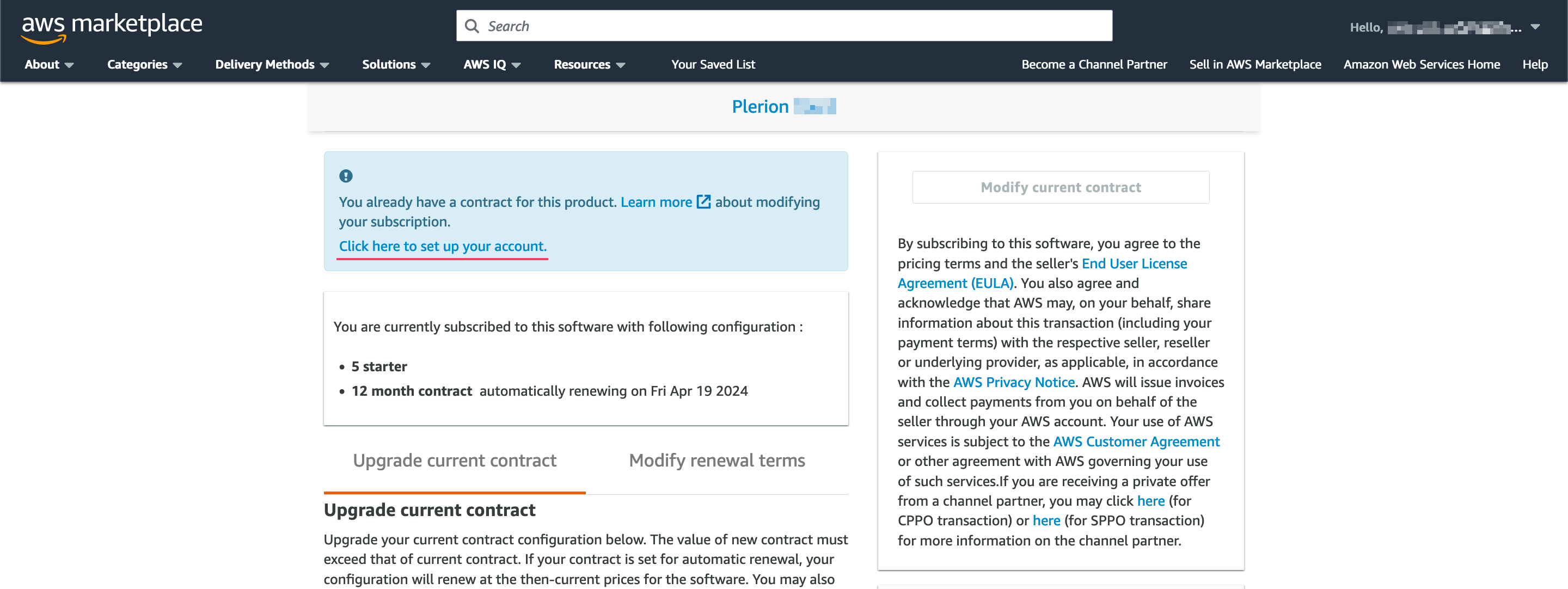
 * On the AWS product setup page, click `Click here to set up your account`.
* This redirects you to the Plerion Marketplace onboarding page.
* On the AWS product setup page, click `Click here to set up your account`.
* This redirects you to the Plerion Marketplace onboarding page.
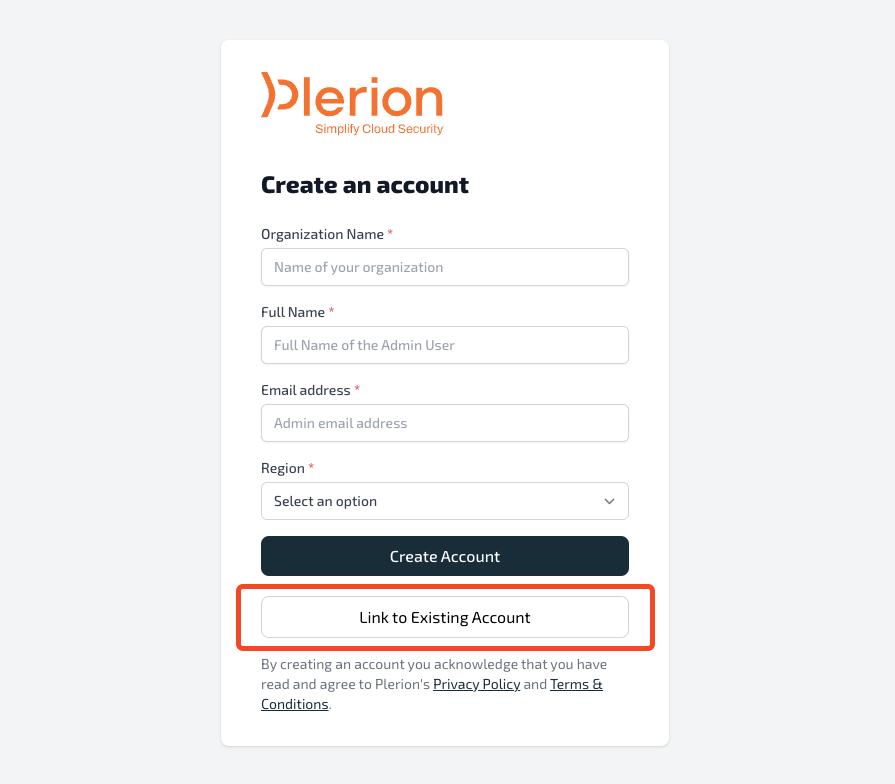 * On the onboarding page, click `Link to existing account`.
* You will be redirected to the Plerion sign-in page. Log in with your normal credentials.
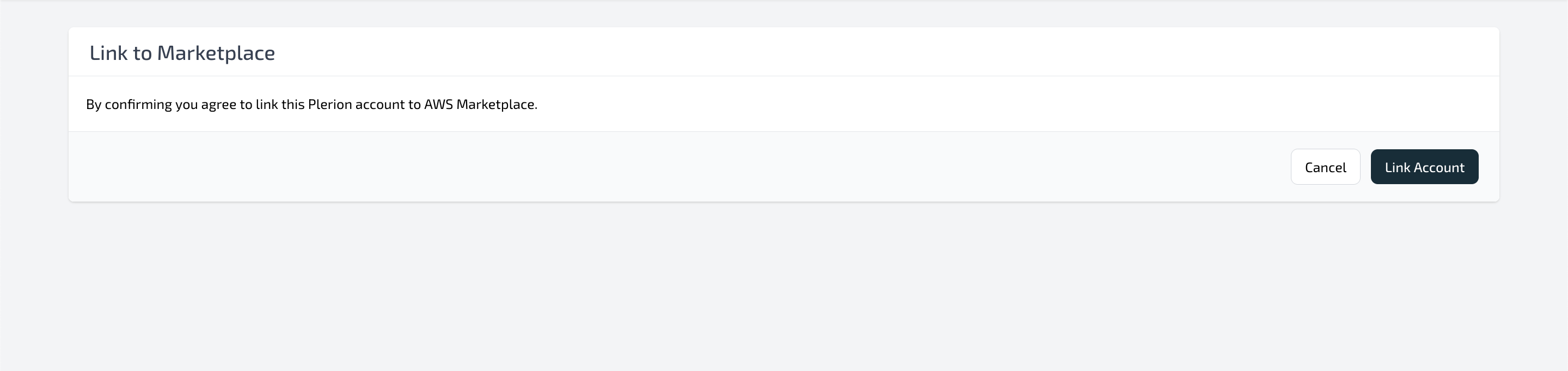
After signing in, you will be prompted to authorize linking your Plerion organization to the AWS Marketplace subscription.
* On the onboarding page, click `Link to existing account`.
* You will be redirected to the Plerion sign-in page. Log in with your normal credentials.
After signing in, you will be prompted to authorize linking your Plerion organization to the AWS Marketplace subscription.
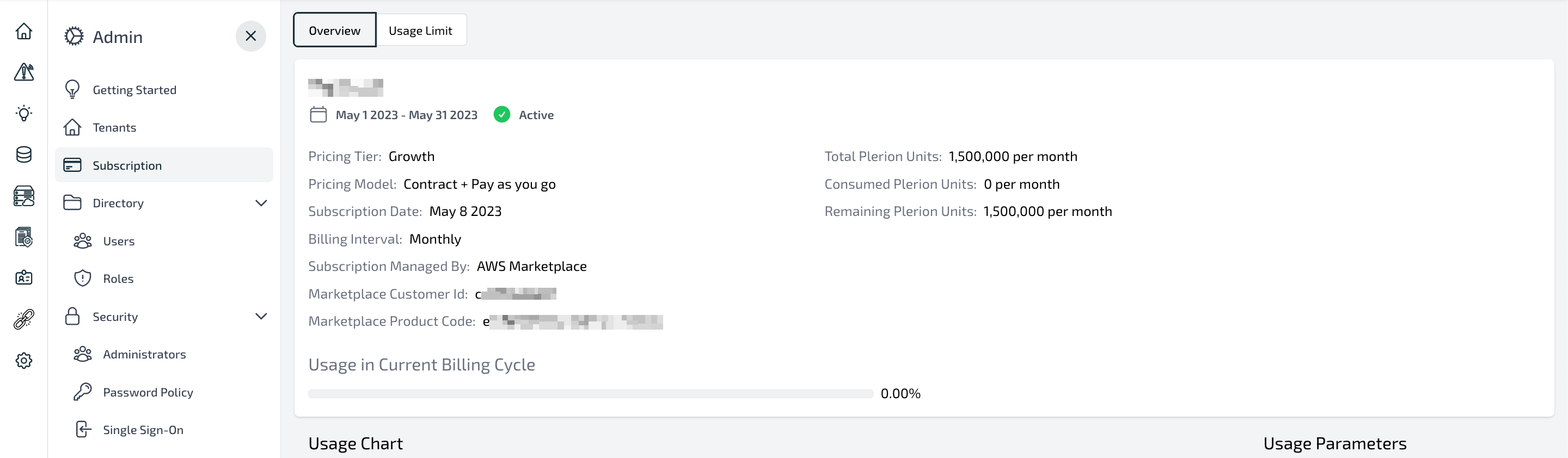
 Once linked, you are redirected to the **Subscription** page in Plerion, where your subscription details are displayed.
 ***
## Possible errors
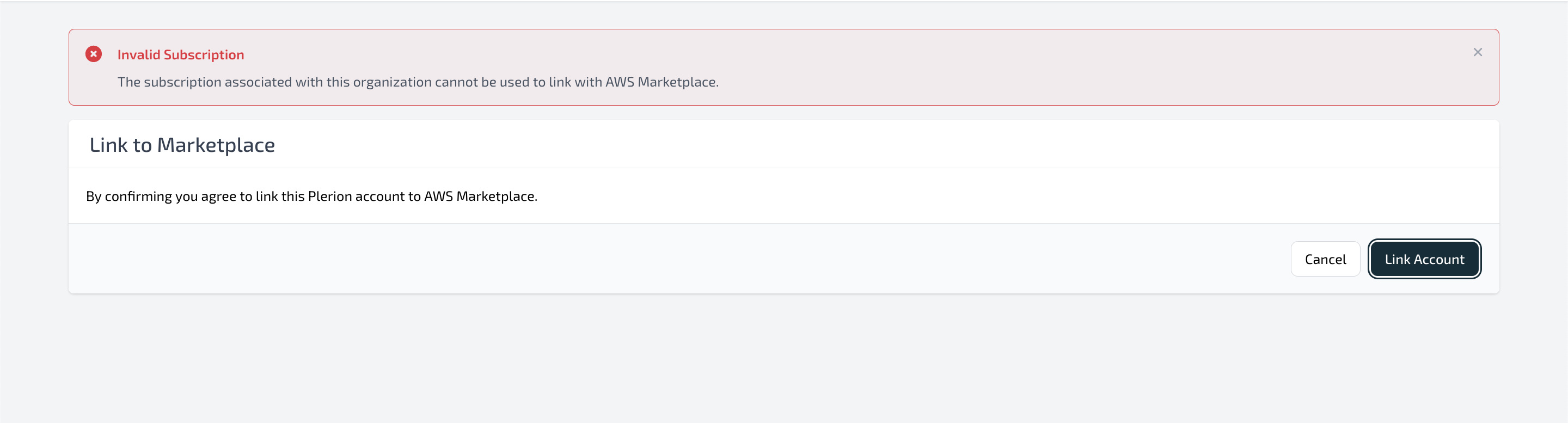
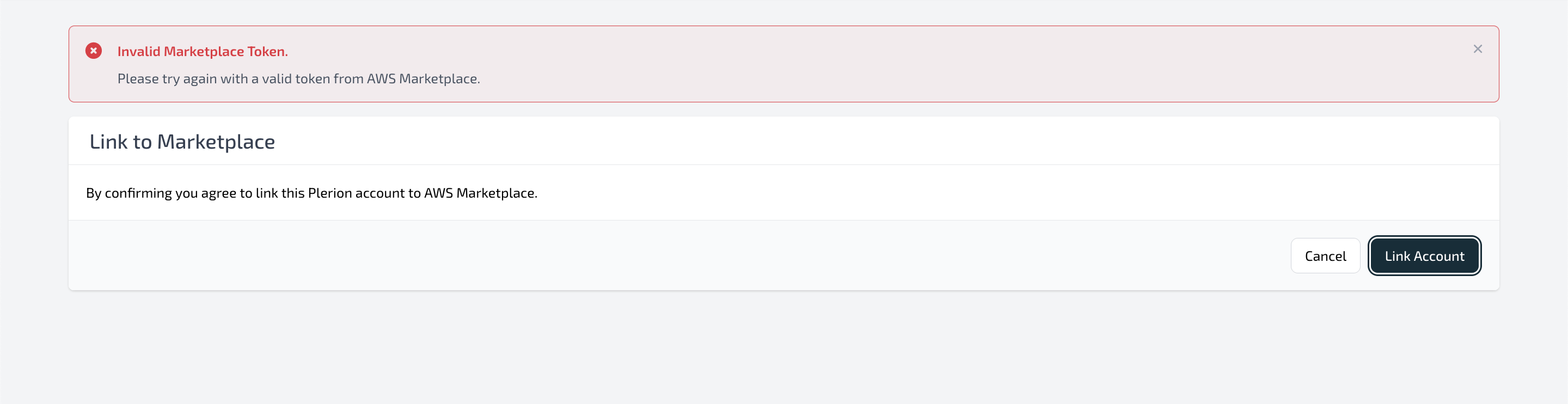
* **Invalid or expired token**\
If the Marketplace token has expired, an error appears. Retry linking your account from the AWS Marketplace console.
***
## Possible errors
* **Invalid or expired token**\
If the Marketplace token has expired, an error appears. Retry linking your account from the AWS Marketplace console.
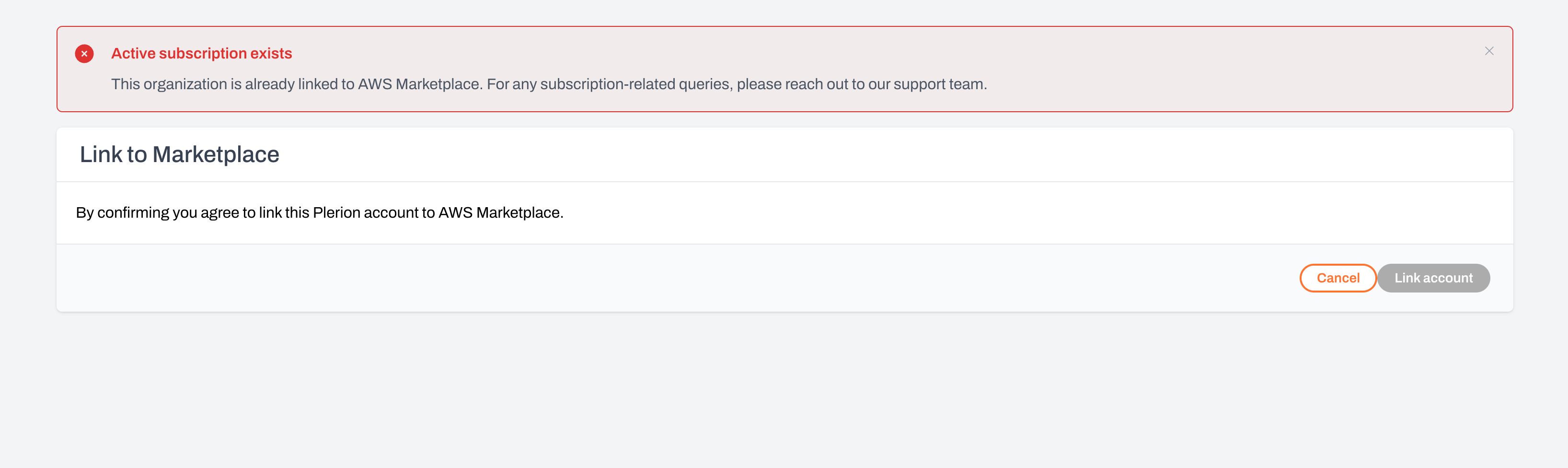
 * **Marketplace account already linked**\
The AWS Marketplace account is already linked to another Plerion organization.
* **Marketplace account already linked**\
The AWS Marketplace account is already linked to another Plerion organization.
 * **No active Plerion subscription**\
The Plerion organization does not have an active or trial subscription.
* **No active Plerion subscription**\
The Plerion organization does not have an active or trial subscription.