> ## Documentation Index
> Fetch the complete documentation index at: https://docs.plerion.com/llms.txt
> Use this file to discover all available pages before exploring further.
# Cloud Detection and Response integration
> Detect and respond to cloud events in near real-time with Plerion CDR, and trigger alerts through Workflows.
With [Cloud Detection and Response (CDR)](https://au.app.plerion.com/settings/integrations/add/AWS/CdrAws), you can ingest event-driven detections from your AWS environment into Plerion. These detections generate findings that you can route to **[workflows](/guides/platform/workflows)** to notify teams or open tickets in third party tools like Email, Slack, Jira, or PagerDuty.
***
## Prerequisites
* You are logged in to a **tenant** that already has at least one **AWS Account integration**.
* You have permissions to deploy CloudFormation **StackSets** in AWS.
***
## Steps to enable the CDR integration
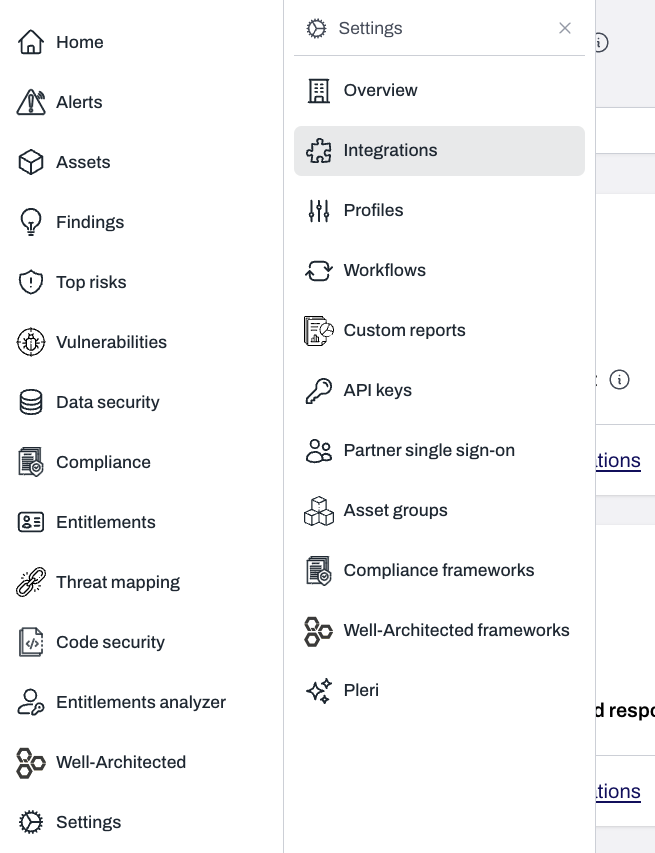
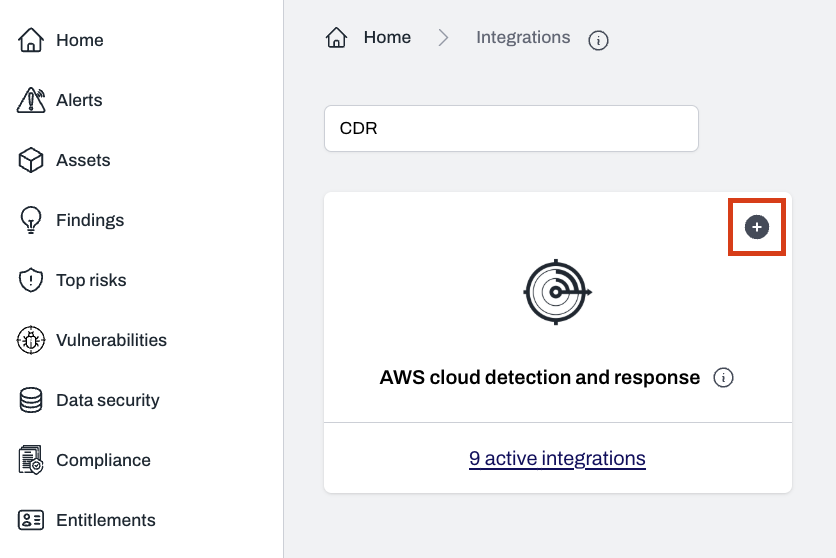 From the list of integrated AWS accounts, select one or more accounts and click **Add integration(s)**.
After adding your AWS account(s), Plerion provides instructions to deploy CDR using **CloudFormation StackSets** in AWS.\
You can choose between:
* **Single account, multi-region**
* **Multi-account, multi-region**
***
### Single account, multi-region onboarding
Before creating the StackSet, ensure the following **self-managed** roles exist (per AWS guidance): `AWSCloudFormationStackSetAdministrationRole` and `AWSCloudFormationStackSetExecutionRole`.
* Sign in to the target AWS account.
* Navigate to **CloudFormation > StackSets** and click `Create`.
* For reference, see the [AWS StackSets getting started guide](https://docs.aws.amazon.com/AWSCloudFormation/latest/UserGuide/stacksets-getting-started.html).
* **Permissions**:
* **IAM admin role ARN**: Select `IAM role name` and choose `AWSCloudFormationStackSetAdministrationRole`
* **IAM execution role name**: `AWSCloudFormationStackSetExecutionRole`
* **Prerequisite - Prepare template**: Template is ready
* **Specify template - Template source**: Amazon S3 URL
* Paste the S3 URL provided by Plerion
* Enter the **StackSet name** provided by Plerion.
* Optionally add a description.
* Optionally add **tags**.
* Set **Execution configuration** to **Active** (recommended) to allow concurrent, non-conflicting operations.
* **Add stacks to stack set**: Deploy new stacks
* **Accounts**: Select \`Deploy stacks in account and enter the current account ID
* **Regions**: Select all regions where you want to enable CDR
* **Deployment options (optional)**:
* Maximum concurrent accounts: 1
* Failure tolerance: 0
* Region concurrency: Parallel
* Review the configuration.
* Check **I acknowledge that AWS CloudFormation might create IAM resources**.
* Click `Submit`.
* When all stacks complete successfully, resources will begin sending events to Plerion.
***
### Multi-account, multi-region onboarding
Currently, CDR **does not** support multi-account onboarding when your **AWS management account** is included. Contact **[support@plerion.com](mailto:support@plerion.com)** if you need to onboard the management account.
* Sign in to the target AWS account.
* Navigate to **CloudFormation > StackSets** and click `Create`.
* For reference, see the [AWS StackSets getting started guide](https://docs.aws.amazon.com/AWSCloudFormation/latest/UserGuide/stacksets-getting-started.html).
* **Permissions**: Service-managed permissions
* **Prerequisite - Prepare template**: Template is ready
* **Specify template - Template source**: Amazon S3 URL
* * Paste the S3 URL provided by Plerion
* Enter the **StackSet name** provided by Plerion.
* Optionally add a description.
* Optionally add **tags**.
* Set **Execution configuration** to **Active** (recommended) to allow concurrent, non-conflicting operations.
* **Add stacks to stack set**: Deploy new stacks
* **Deployment targets**: Deploy to organizational units (OUs)
* **AWS OU ID**: Provide one or more OUs (or **Root**) that contain all target accounts
* **Account filter type (optional)**: **Intersection**
* **Account numbers**: paste the account IDs provided
* **Auto-deployment**: Deactivated
* **Regions**: Select all regions where you want to enable CDR
* Optionally specify **deployment options**
* Review the configuration.
* Check **I acknowledge that AWS CloudFormation might create IAM resources**.
* Click `Submit`.
* When all stacks complete successfully, resources will begin sending events to Plerion.
***
## Configure workflows for CDR findings
From the list of integrated AWS accounts, select one or more accounts and click **Add integration(s)**.
After adding your AWS account(s), Plerion provides instructions to deploy CDR using **CloudFormation StackSets** in AWS.\
You can choose between:
* **Single account, multi-region**
* **Multi-account, multi-region**
***
### Single account, multi-region onboarding
Before creating the StackSet, ensure the following **self-managed** roles exist (per AWS guidance): `AWSCloudFormationStackSetAdministrationRole` and `AWSCloudFormationStackSetExecutionRole`.
* Sign in to the target AWS account.
* Navigate to **CloudFormation > StackSets** and click `Create`.
* For reference, see the [AWS StackSets getting started guide](https://docs.aws.amazon.com/AWSCloudFormation/latest/UserGuide/stacksets-getting-started.html).
* **Permissions**:
* **IAM admin role ARN**: Select `IAM role name` and choose `AWSCloudFormationStackSetAdministrationRole`
* **IAM execution role name**: `AWSCloudFormationStackSetExecutionRole`
* **Prerequisite - Prepare template**: Template is ready
* **Specify template - Template source**: Amazon S3 URL
* Paste the S3 URL provided by Plerion
* Enter the **StackSet name** provided by Plerion.
* Optionally add a description.
* Optionally add **tags**.
* Set **Execution configuration** to **Active** (recommended) to allow concurrent, non-conflicting operations.
* **Add stacks to stack set**: Deploy new stacks
* **Accounts**: Select \`Deploy stacks in account and enter the current account ID
* **Regions**: Select all regions where you want to enable CDR
* **Deployment options (optional)**:
* Maximum concurrent accounts: 1
* Failure tolerance: 0
* Region concurrency: Parallel
* Review the configuration.
* Check **I acknowledge that AWS CloudFormation might create IAM resources**.
* Click `Submit`.
* When all stacks complete successfully, resources will begin sending events to Plerion.
***
### Multi-account, multi-region onboarding
Currently, CDR **does not** support multi-account onboarding when your **AWS management account** is included. Contact **[support@plerion.com](mailto:support@plerion.com)** if you need to onboard the management account.
* Sign in to the target AWS account.
* Navigate to **CloudFormation > StackSets** and click `Create`.
* For reference, see the [AWS StackSets getting started guide](https://docs.aws.amazon.com/AWSCloudFormation/latest/UserGuide/stacksets-getting-started.html).
* **Permissions**: Service-managed permissions
* **Prerequisite - Prepare template**: Template is ready
* **Specify template - Template source**: Amazon S3 URL
* * Paste the S3 URL provided by Plerion
* Enter the **StackSet name** provided by Plerion.
* Optionally add a description.
* Optionally add **tags**.
* Set **Execution configuration** to **Active** (recommended) to allow concurrent, non-conflicting operations.
* **Add stacks to stack set**: Deploy new stacks
* **Deployment targets**: Deploy to organizational units (OUs)
* **AWS OU ID**: Provide one or more OUs (or **Root**) that contain all target accounts
* **Account filter type (optional)**: **Intersection**
* **Account numbers**: paste the account IDs provided
* **Auto-deployment**: Deactivated
* **Regions**: Select all regions where you want to enable CDR
* Optionally specify **deployment options**
* Review the configuration.
* Check **I acknowledge that AWS CloudFormation might create IAM resources**.
* Click `Submit`.
* When all stacks complete successfully, resources will begin sending events to Plerion.
***
## Configure workflows for CDR findings
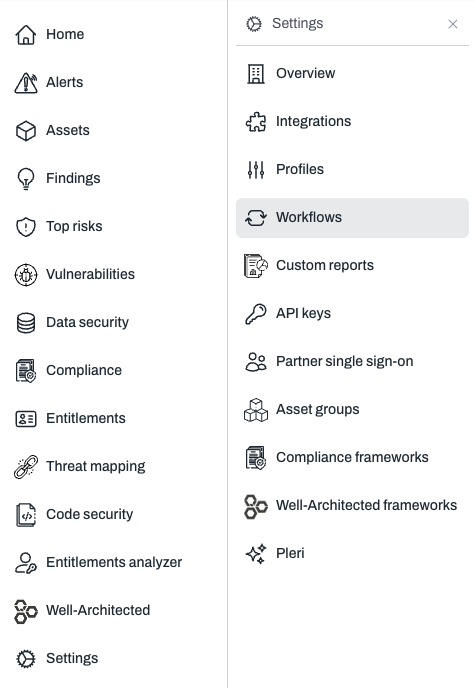
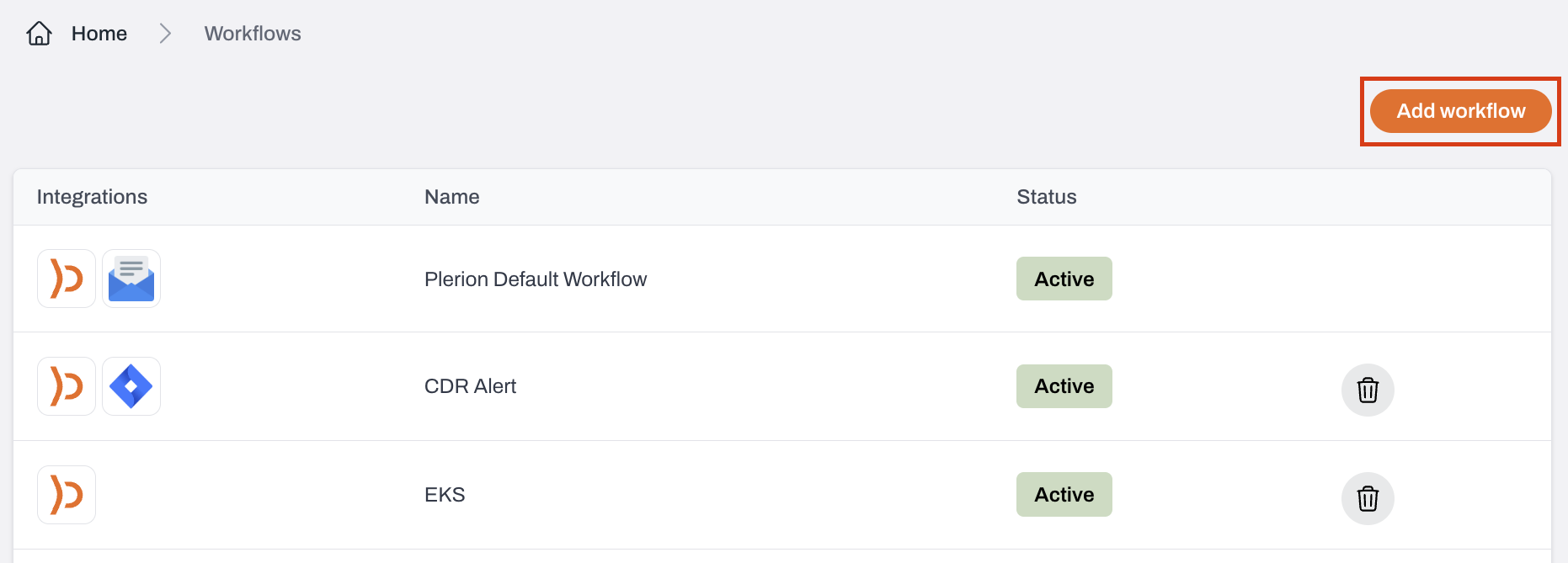 Turn on the **Enabled** toggle to activate the workflow and start receiving alerts.
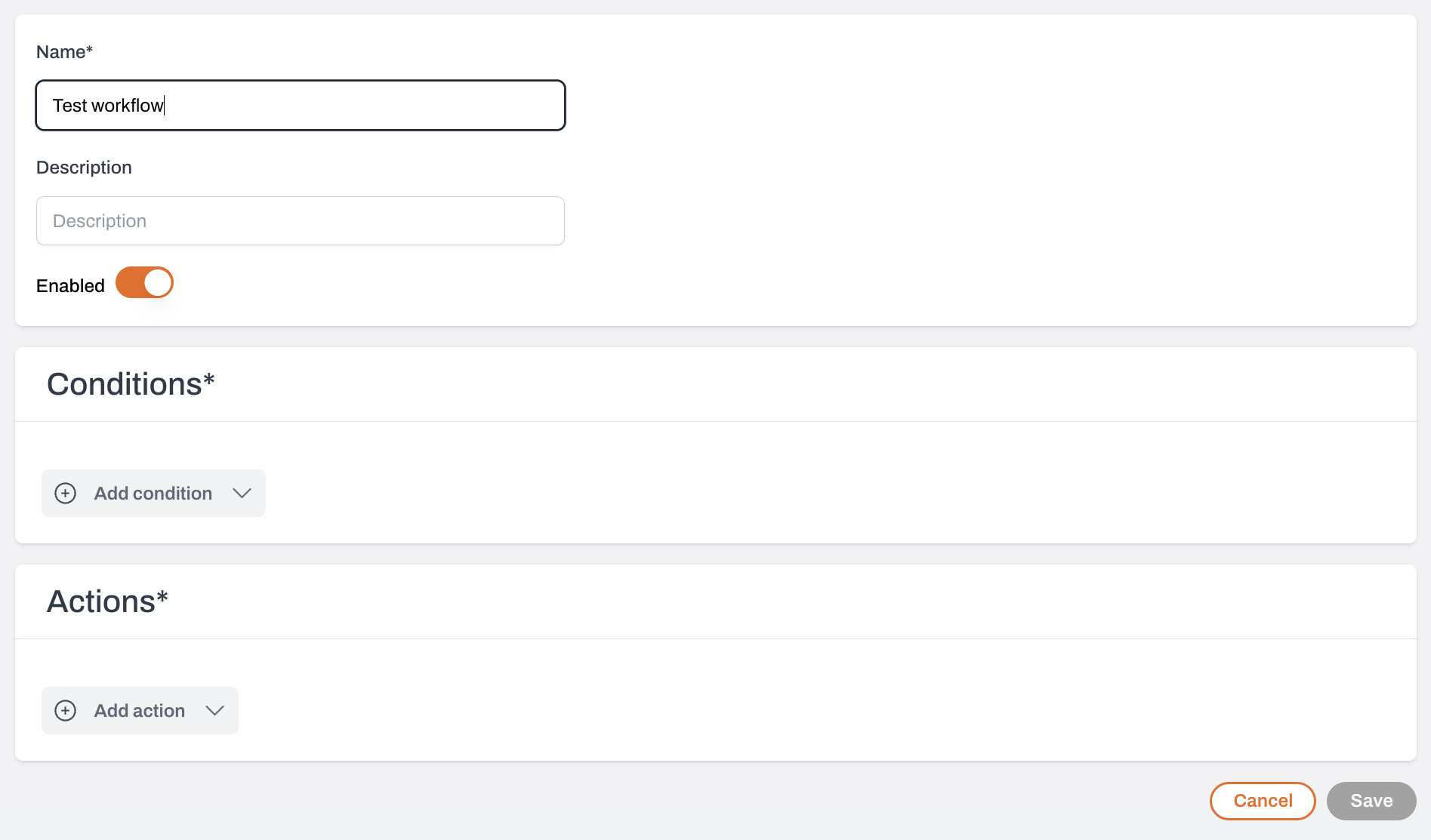 * Add a **Finding** condition.
* CDR findings are identified by detection IDs such as `PLERION-CLOUDTRAIL-`, `PLERION-GUARDDUTY-1`, `PLERION-MACIE-1`, or `PLERION-ACCESSANALYZER-1`.
* [View the full list of CDR findings here](/guides/integrations/aws/additional-aws-configurations/cdr-integration#list-of-cdr-findings)
* Select one or more detection IDs to include in the workflow.
* Add a **Finding** condition.
* CDR findings are identified by detection IDs such as `PLERION-CLOUDTRAIL-`, `PLERION-GUARDDUTY-1`, `PLERION-MACIE-1`, or `PLERION-ACCESSANALYZER-1`.
* [View the full list of CDR findings here](/guides/integrations/aws/additional-aws-configurations/cdr-integration#list-of-cdr-findings)
* Select one or more detection IDs to include in the workflow.
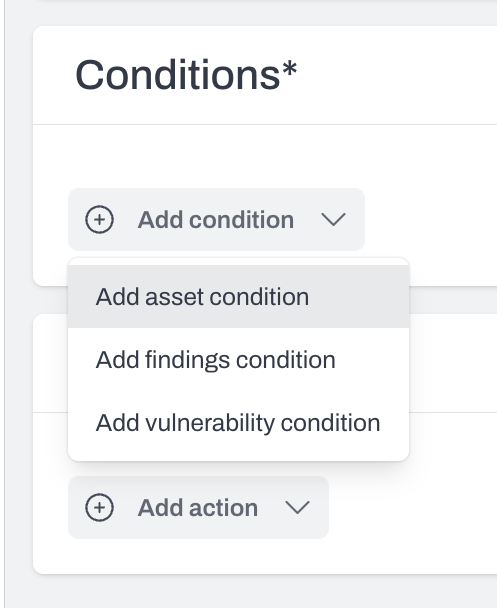 Alerts that match the defined conditions will appear in your Plerion alerts dashboard and can also be sent to configured third-party integrations.
***
## Suppressing CDR findings
CDR findings and alerts stay active until you manually suppress them. Follow these steps:
* Go to the [Findings dashboard](https://app.plerion.com/findings/list?status=FAILED\&suppressed=false).
* Filter by **Detection** using `PLERION-CLOUDTRAIL-` (or other CDR prefixes).
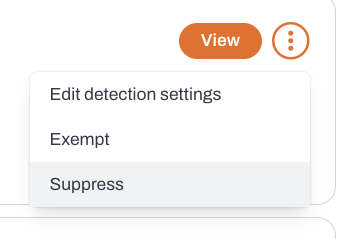
* Click the kebab menu (`⋮`) and select `Suppress`.
* To view suppressed findings later, set the **Suppressed** filter to `True`.
Alerts that match the defined conditions will appear in your Plerion alerts dashboard and can also be sent to configured third-party integrations.
***
## Suppressing CDR findings
CDR findings and alerts stay active until you manually suppress them. Follow these steps:
* Go to the [Findings dashboard](https://app.plerion.com/findings/list?status=FAILED\&suppressed=false).
* Filter by **Detection** using `PLERION-CLOUDTRAIL-` (or other CDR prefixes).
* Click the kebab menu (`⋮`) and select `Suppress`.
* To view suppressed findings later, set the **Suppressed** filter to `True`.
 ***
## Disabling CDR
Delete or modify any workflows that run on CDR findings.
Go to `Settings` > `Integrations`, click **{X} active integration(s)** on the CDR panel, select your desired integration, and click the **trash** icon to remove it.
In each linked AWS account, open **CloudFormation**, search for `CDR`, and delete the Plerion CDR stack(s).
***
## CDR data lifecycle
* **Findings**: CDR findings (e.g. `PLERION-CLOUDTRAIL-X`) are permanently deleted **90 days** after the **first observed** date.
* **Event history**: Principal history events associated with a CDR finding are permanently deleted once they are older than **90 days**.
***
## How CDR selects a principal
When a new event is received by a CDR integration, part of the process determines which **principal** created the event. Selecting principals consistently is important to ensure:
* Event history is associated with the correct principal
* Exclusions are applied accurately
### Source of events
Most events processed by a CDR integration originate from **AWS CloudTrail management events**.
The [AWS CloudTrail user identity reference](https://docs.aws.amazon.com/awscloudtrail/latest/userguide/cloudtrail-event-reference-user-identity.html) is used to determine the principal for each event.
Pass-through detections from **GuardDuty, Macie,** and **Access Analyzer** do not involve principal selection.
### Selection criteria
The principal is selected based on the `userIdentity.type` field in the event. The following mappings apply:
* **Root** → `Root`
* **IAMUser** → `userName`
* **AssumedRole** → `principalId`
* **Role** → `userName`
* **FederatedUser** → `sessionContext.sessionIssuer.userName`
* **Directory** → `userName`
* **AWSAccount** → `accountId`
* **AWSService** → `invokedBy`
* **IdentityCenterUser** → `onBehalfOf.userId`
* **Unknown** → `userName`
* **SAMLUser** → `userName`
* **WebIdentityUser** → `userName`
If no value is available for the selected field, the principal is set to `Unknown`, with the `userIdentity.type` value appended.
***
## List of CDR findings
* **PLERION-CLOUDTRAIL-3** — Detect a successful login to the AWS Management Console by the Root user
* **PLERION-CLOUDTRAIL-5** — Detect a successful AWS console login
* **PLERION-CLOUDTRAIL-7** — Detect an AWS Config rule deletion
* **PLERION-CLOUDTRAIL-8** — Detect an AWS Config change to stop recording
* **PLERION-CLOUDTRAIL-9** — Detect the deletion of an AWS CloudTrail trail
* **PLERION-CLOUDTRAIL-10** — Detect suspending the recording of AWS API calls and log file delivery
* **PLERION-CLOUDTRAIL-12** — Detect an update to a CloudTrail setting that specifies log delivery
* **PLERION-CLOUDTRAIL-15** — Detect an unauthorized AWS API call
* **PLERION-CLOUDTRAIL-25** — Detect the deletion of an Amazon GuardDuty detector
* **PLERION-CLOUDTRAIL-32** — Detect the deletion of flow logs
* **PLERION-CLOUDTRAIL-33** — Detect the deletion of a WAFv2 web ACL
* **PLERION-CLOUDTRAIL-34** — Detect the deletion of a WAFv2 rule or rule group
* **PLERION-CLOUDTRAIL-59** — Detect the deletion of a WAFv1 web ACL
* **PLERION-CLOUDTRAIL-60** — Detect the deletion of a WAFv1 rule or rule group
* **PLERION-CLOUDTRAIL-61** — Detect detaching a WAF from CloudFront
* **PLERION-CLOUDTRAIL-62** — Detect detaching a WAF from API Gateway
* **PLERION-CLOUDTRAIL-63** — Detect detaching a WAF from ALB
* **PLERION-GUARDDUTY-1** — Amazon GuardDuty finding created
* **PLERION-MACIE-1** — Amazon Macie finding created
* **PLERION-ACCESSANALYZER-1** — AWS IAM Access Analyzer finding created
* **PLERION-CLOUDTRAIL-68** — Detect attempts to remove event selectors in CloudTrail
* **PLERION-CLOUDTRAIL-70** — Detect attempts to leave the AWS Organization
* **PLERION-CLOUDTRAIL-71** — Detect attempts to update EC2 user data
* **PLERION-CLOUDTRAIL-72** — Detect attempts to exfiltrate an AMI by sharing it
* **PLERION-CLOUDTRAIL-73** — Detect attempts to exfiltrate an EBS snapshot by sharing it
* **PLERION-CLOUDTRAIL-74** — Detect attempts to exfiltrate an RDS snapshot by sharing it
* **PLERION-CLOUDTRAIL-75** — Detect attempts to change MFA settings for an IAM user
* **PLERION-CLOUDTRAIL-76** — Detect creation of new IAM user access keys
* **PLERION-CLOUDTRAIL-77** — Detect attempts to disable Amazon Macie
* **PLERION-CLOUDTRAIL-78** — Detect attempts to delete IAM Access Analyzer
* **PLERION-CLOUDTRAIL-79** — Detect attempts to export an EC2 instance
* **PLERION-CLOUDTRAIL-80** — Detect attempts to export an RDS Aurora database snapshot
* **PLERION-CLOUDTRAIL-81** — Detect attempts to remove transfer lock from a Route 53 domain
* **PLERION-CLOUDTRAIL-82** — Detect attempts to transfer a Route 53 domain to another account
* **PLERION-CLOUDTRAIL-83** — Detect IAM password recovery requests
***
## Disabling CDR
Delete or modify any workflows that run on CDR findings.
Go to `Settings` > `Integrations`, click **{X} active integration(s)** on the CDR panel, select your desired integration, and click the **trash** icon to remove it.
In each linked AWS account, open **CloudFormation**, search for `CDR`, and delete the Plerion CDR stack(s).
***
## CDR data lifecycle
* **Findings**: CDR findings (e.g. `PLERION-CLOUDTRAIL-X`) are permanently deleted **90 days** after the **first observed** date.
* **Event history**: Principal history events associated with a CDR finding are permanently deleted once they are older than **90 days**.
***
## How CDR selects a principal
When a new event is received by a CDR integration, part of the process determines which **principal** created the event. Selecting principals consistently is important to ensure:
* Event history is associated with the correct principal
* Exclusions are applied accurately
### Source of events
Most events processed by a CDR integration originate from **AWS CloudTrail management events**.
The [AWS CloudTrail user identity reference](https://docs.aws.amazon.com/awscloudtrail/latest/userguide/cloudtrail-event-reference-user-identity.html) is used to determine the principal for each event.
Pass-through detections from **GuardDuty, Macie,** and **Access Analyzer** do not involve principal selection.
### Selection criteria
The principal is selected based on the `userIdentity.type` field in the event. The following mappings apply:
* **Root** → `Root`
* **IAMUser** → `userName`
* **AssumedRole** → `principalId`
* **Role** → `userName`
* **FederatedUser** → `sessionContext.sessionIssuer.userName`
* **Directory** → `userName`
* **AWSAccount** → `accountId`
* **AWSService** → `invokedBy`
* **IdentityCenterUser** → `onBehalfOf.userId`
* **Unknown** → `userName`
* **SAMLUser** → `userName`
* **WebIdentityUser** → `userName`
If no value is available for the selected field, the principal is set to `Unknown`, with the `userIdentity.type` value appended.
***
## List of CDR findings
* **PLERION-CLOUDTRAIL-3** — Detect a successful login to the AWS Management Console by the Root user
* **PLERION-CLOUDTRAIL-5** — Detect a successful AWS console login
* **PLERION-CLOUDTRAIL-7** — Detect an AWS Config rule deletion
* **PLERION-CLOUDTRAIL-8** — Detect an AWS Config change to stop recording
* **PLERION-CLOUDTRAIL-9** — Detect the deletion of an AWS CloudTrail trail
* **PLERION-CLOUDTRAIL-10** — Detect suspending the recording of AWS API calls and log file delivery
* **PLERION-CLOUDTRAIL-12** — Detect an update to a CloudTrail setting that specifies log delivery
* **PLERION-CLOUDTRAIL-15** — Detect an unauthorized AWS API call
* **PLERION-CLOUDTRAIL-25** — Detect the deletion of an Amazon GuardDuty detector
* **PLERION-CLOUDTRAIL-32** — Detect the deletion of flow logs
* **PLERION-CLOUDTRAIL-33** — Detect the deletion of a WAFv2 web ACL
* **PLERION-CLOUDTRAIL-34** — Detect the deletion of a WAFv2 rule or rule group
* **PLERION-CLOUDTRAIL-59** — Detect the deletion of a WAFv1 web ACL
* **PLERION-CLOUDTRAIL-60** — Detect the deletion of a WAFv1 rule or rule group
* **PLERION-CLOUDTRAIL-61** — Detect detaching a WAF from CloudFront
* **PLERION-CLOUDTRAIL-62** — Detect detaching a WAF from API Gateway
* **PLERION-CLOUDTRAIL-63** — Detect detaching a WAF from ALB
* **PLERION-GUARDDUTY-1** — Amazon GuardDuty finding created
* **PLERION-MACIE-1** — Amazon Macie finding created
* **PLERION-ACCESSANALYZER-1** — AWS IAM Access Analyzer finding created
* **PLERION-CLOUDTRAIL-68** — Detect attempts to remove event selectors in CloudTrail
* **PLERION-CLOUDTRAIL-70** — Detect attempts to leave the AWS Organization
* **PLERION-CLOUDTRAIL-71** — Detect attempts to update EC2 user data
* **PLERION-CLOUDTRAIL-72** — Detect attempts to exfiltrate an AMI by sharing it
* **PLERION-CLOUDTRAIL-73** — Detect attempts to exfiltrate an EBS snapshot by sharing it
* **PLERION-CLOUDTRAIL-74** — Detect attempts to exfiltrate an RDS snapshot by sharing it
* **PLERION-CLOUDTRAIL-75** — Detect attempts to change MFA settings for an IAM user
* **PLERION-CLOUDTRAIL-76** — Detect creation of new IAM user access keys
* **PLERION-CLOUDTRAIL-77** — Detect attempts to disable Amazon Macie
* **PLERION-CLOUDTRAIL-78** — Detect attempts to delete IAM Access Analyzer
* **PLERION-CLOUDTRAIL-79** — Detect attempts to export an EC2 instance
* **PLERION-CLOUDTRAIL-80** — Detect attempts to export an RDS Aurora database snapshot
* **PLERION-CLOUDTRAIL-81** — Detect attempts to remove transfer lock from a Route 53 domain
* **PLERION-CLOUDTRAIL-82** — Detect attempts to transfer a Route 53 domain to another account
* **PLERION-CLOUDTRAIL-83** — Detect IAM password recovery requests