> ## Documentation Index
> Fetch the complete documentation index at: https://docs.plerion.com/llms.txt
> Use this file to discover all available pages before exploring further.

# User management

> Control user access in Plerion with role-based permissions across Organization and Tenant levels.

Plerion offers flexible access controls, enabling administrators to assign roles and permissions that align with organizational and tenant-specific needs.

* **Organization-level roles** grant users either **Admin** or **Read-only** access to manage settings such as user management, tenant creation, and detection configuration. Users with these roles can also view all dashboards across the platform.
* **Tenant-level roles** grant users either **Admin** or **Read-only** access to one or more tenants. These users cannot access Organization-level features such as the Admin settings dashboard.

<Info>
  Max tenants per organization: **10**, but only for free trial organizations. **No limit** for paid organizations.\
  Max users per tenant: **No limit.**
</Info>

***

## Inviting Users

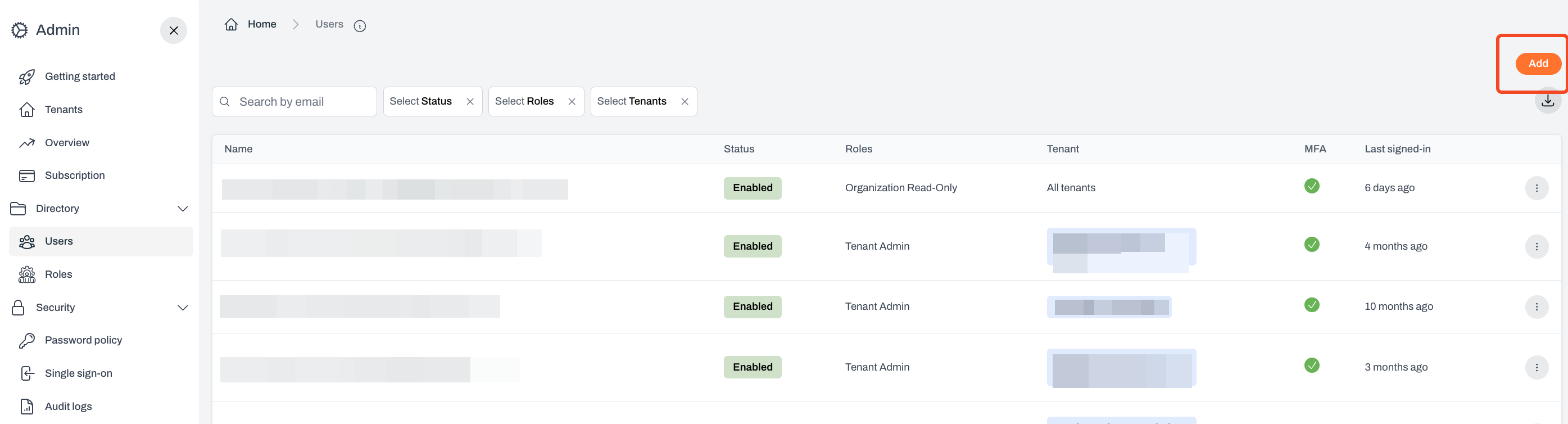
Only **Organization Admins** can invite new users to the platform.
<Steps>
  <Step title="Navigate to Admin > Directory > Users and select 'Add'">
    <Frame>
      <img src="https://mintcdn.com/pleriondocs/rUKExsSzIxUC775q/images/administration/user-management.png?fit=max&auto=format&n=rUKExsSzIxUC775q&q=85&s=0f03c61c6fd990579de194b57c0b4717" alt="User management" width="2790" height="754" data-path="images/administration/user-management.png" />
    </Frame>
  </Step>

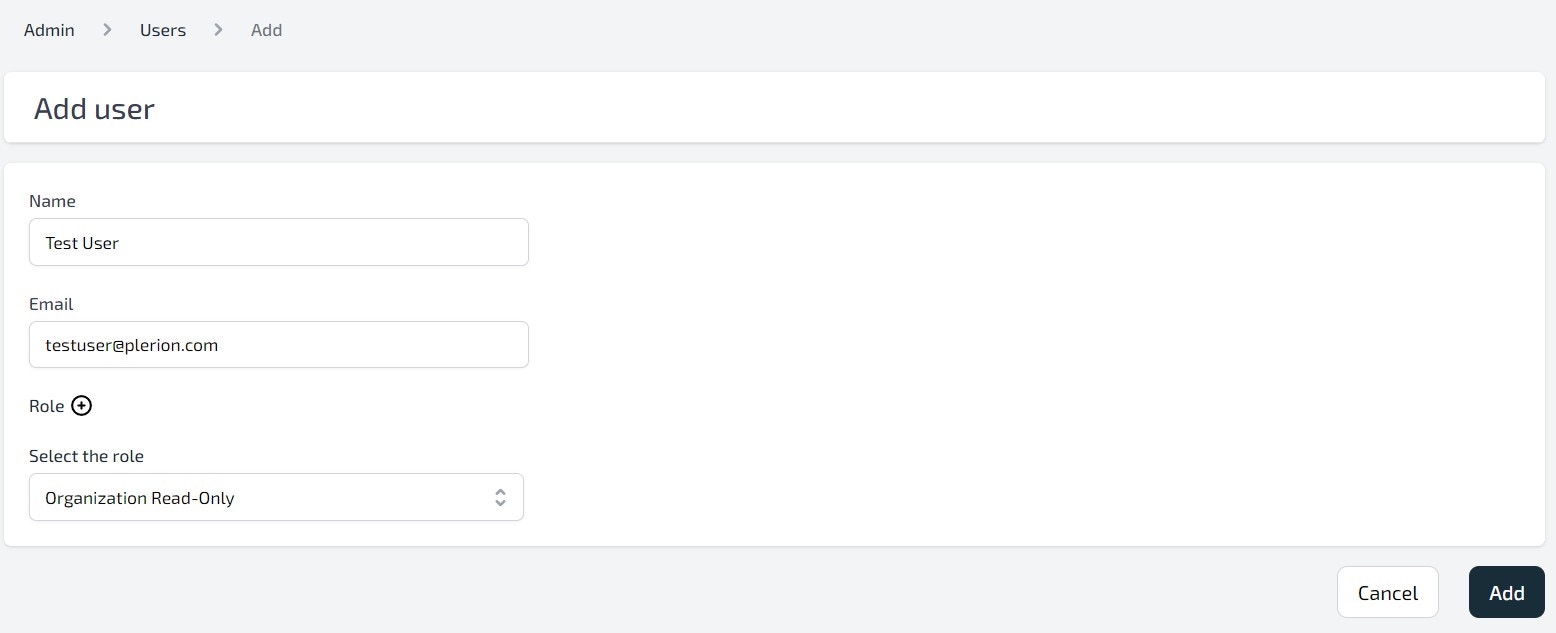
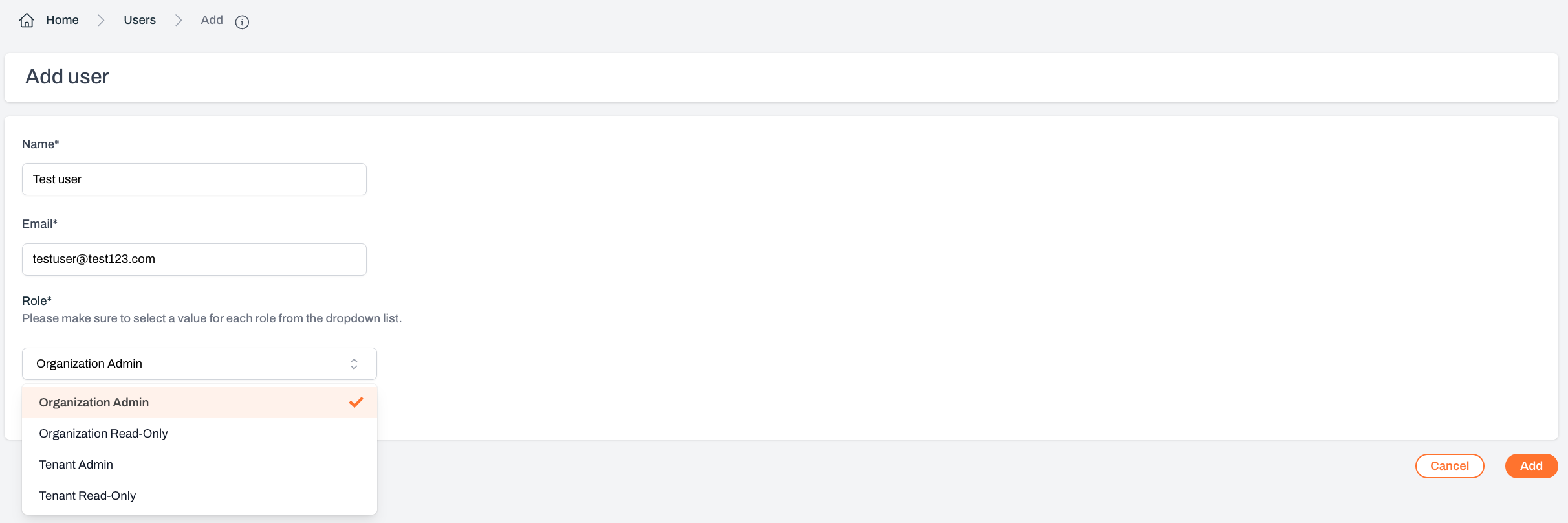
  <Step title="Enter the user's details - provide user's name and email address">
    <Frame>
      <img src="https://mintcdn.com/pleriondocs/rUKExsSzIxUC775q/images/administration/add-user.jpeg?fit=max&auto=format&n=rUKExsSzIxUC775q&q=85&s=e2b040b9d1745dcd378a9bc6986d63a6" alt="Add User" width="1556" height="633" data-path="images/administration/add-user.jpeg" />
    </Frame>
  </Step>

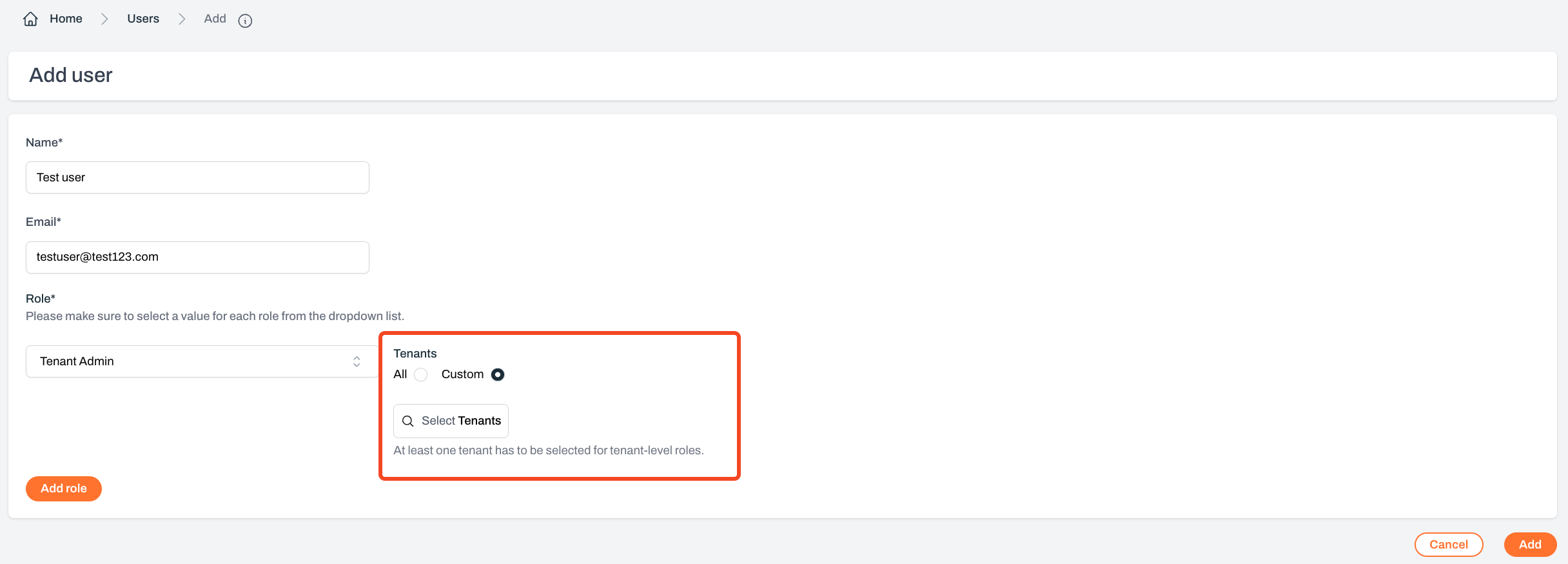
  <Step title="Assign roles to the user">
    * Choose one or more **roles** for the user
    * For Tenant-level roles, specify the tenants the user should have access to
    * Selecting **All** grants Tenant-level permissions across all current and future tenants
    <Frame>
      <img src="https://mintcdn.com/pleriondocs/rUKExsSzIxUC775q/images/administration/user-roles.png?fit=max&auto=format&n=rUKExsSzIxUC775q&q=85&s=606bf36df59d46ed4ced0c02e95ca50f" alt="User roles" width="2424" height="808" data-path="images/administration/user-roles.png" />
    </Frame>

    <br />

    <Frame>
      <img src="https://mintcdn.com/pleriondocs/rUKExsSzIxUC775q/images/administration/add-user-roles.png?fit=max&auto=format&n=rUKExsSzIxUC775q&q=85&s=d647bc944c077c63a7a9664899bfdc8a" alt="Tenant roles configuration" width="2432" height="874" data-path="images/administration/add-user-roles.png" />
    </Frame>
  </Step>
</Steps>

## Disabling and Deleting Users

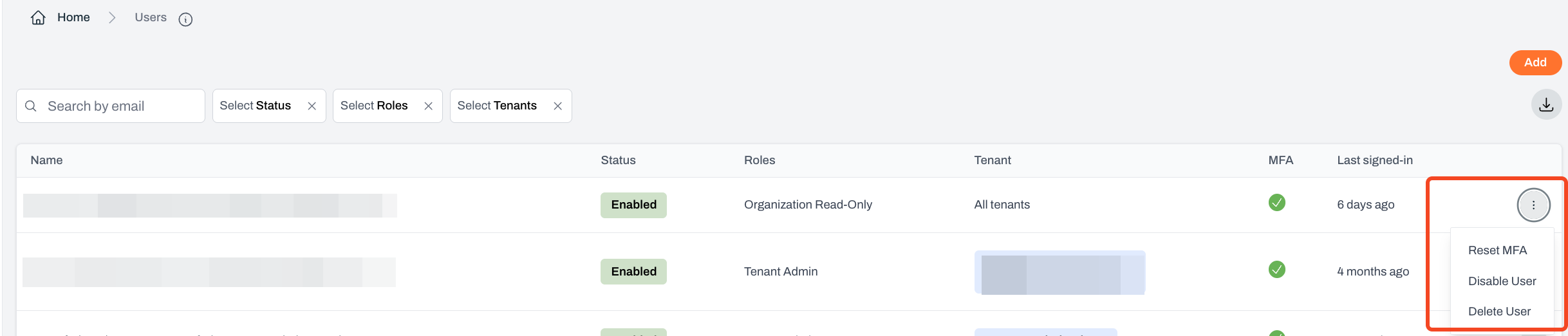
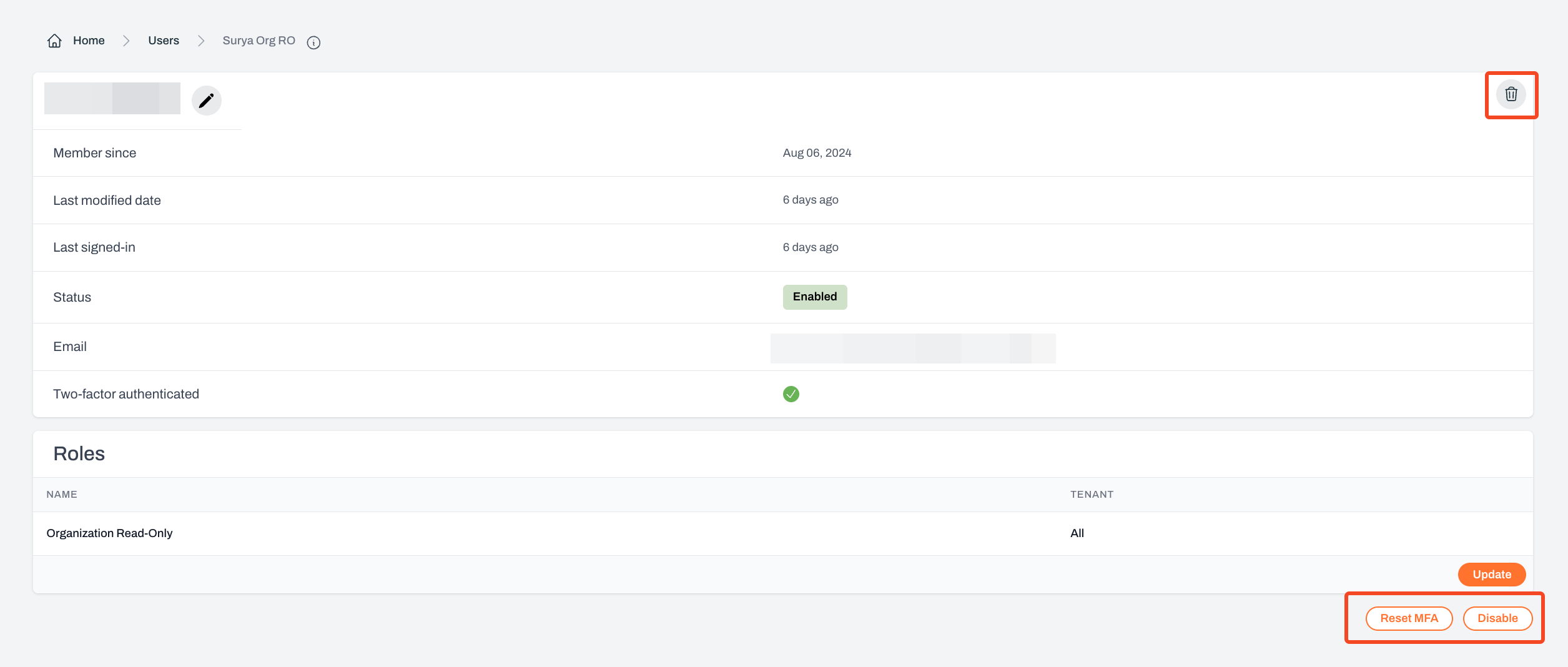
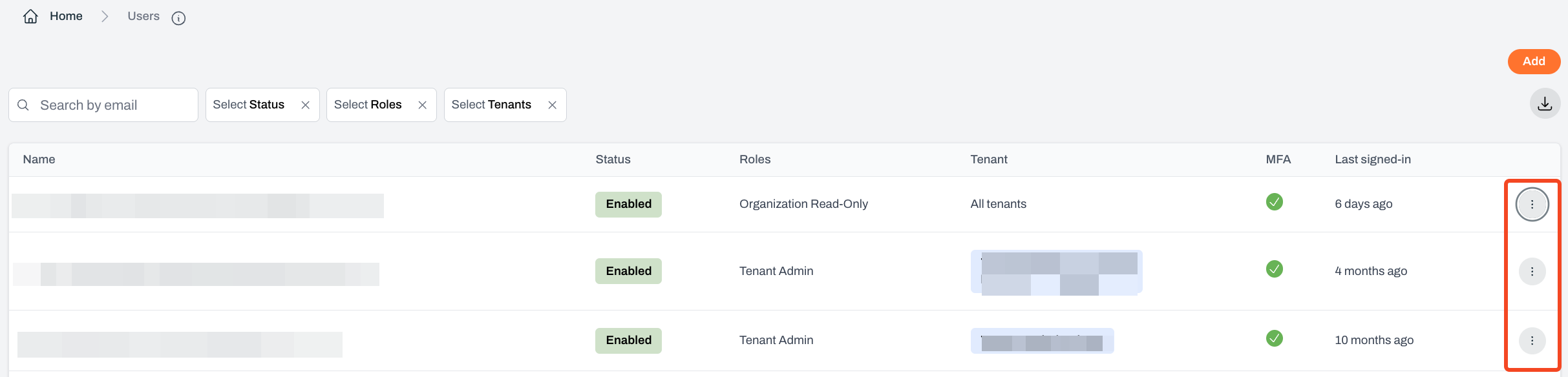
Only **Organization Admins** can disable and/or delete users on the platform.
<Steps>
  <Step title="Select any user and click on the 'more actions' button. Then select options to Disable/Delete users.">
    <Frame>
      <img src="https://mintcdn.com/pleriondocs/rUKExsSzIxUC775q/images/administration/user-more-actions.png?fit=max&auto=format&n=rUKExsSzIxUC775q&q=85&s=833acadfa856711905ae0fe195aa6d9e" alt="User more actions" width="2426" height="584" data-path="images/administration/user-more-actions.png" />
    </Frame>

    <br />

    <Frame>
      <img src="https://mintcdn.com/pleriondocs/rUKExsSzIxUC775q/images/administration/disable-delete-users.png?fit=max&auto=format&n=rUKExsSzIxUC775q&q=85&s=7034a776266615bc9cf33243ae2e86b4" alt="Disable or delete users" width="2436" height="522" data-path="images/administration/disable-delete-users.png" />
    </Frame>
  </Step>

  <Step title="Or navigate to any user and then select options to Disable/Delete users.">
    <Frame>
      <img src="https://mintcdn.com/pleriondocs/rUKExsSzIxUC775q/images/administration/user-details.png?fit=max&auto=format&n=rUKExsSzIxUC775q&q=85&s=c6528b682919c94c335e5fc223a0f8fc" alt="User more actions" width="2511" height="1068" data-path="images/administration/user-details.png" />
    </Frame>
  </Step>
</Steps>