> ## Documentation Index
> Fetch the complete documentation index at: https://docs.plerion.com/llms.txt
> Use this file to discover all available pages before exploring further.
# Partner SSO
> Enable partners to provide single sign-on (SSO) access to their customers through their own SaaS portal using JWT-based authentication.
#### Partner
A Partner is an MSSP (Managed Security Service Provider) that manages multiple customers inside Plerion. Partners have the option to create any number of tenants within their Plerion Organization.
#### Partner SSO
**Partner SSO** is a single sign-on feature that allows Partners to authorize their customers to access their Plerion Tenant through their own SaaS portal, eliminating the need for a separate sign-up process.
**Key points:**
* *Partner SSO* uses JWT based authentication (Refer to [JWT Payload and Signature](#jwt-payload-and-signature) for payload format)
* *Partner SSO* only allows access at tenant level. i.e. Users can be granted only two levels of access **Tenant Admin** and **Tenant Read-only**
* Only **Organization Admin** can set the [public-key](#uploading-the-public-key) needed to enable Partner SSO
* Currently, only tokens signed with `RS256` algorithm are supported
* Existing users (who are not authenticated using Partner SSO) can't sign in using Partner SSO
* To enable existing user to sign in via Partner SSO refer to [onboarding existing user](#onboarding-existing-user)
* Partner SSO users have access to only a single tenant
* If you wish to change the tenant associated with the user, you can delete the user and have them sign in again with a new tenant. Refer to [onboarding existing user](#onboarding-existing-user)
* Roles for Partner SSO users can be changed by passing a different role in the JWT Payload
## Implementing partner SSO
### Uploading the public key
To upload the public key you need to have **Organization Admin** access. You can then upload the associated public key by navigating to `Settings` > `Partner single sign-on` and clicking on `Add Public Key`.
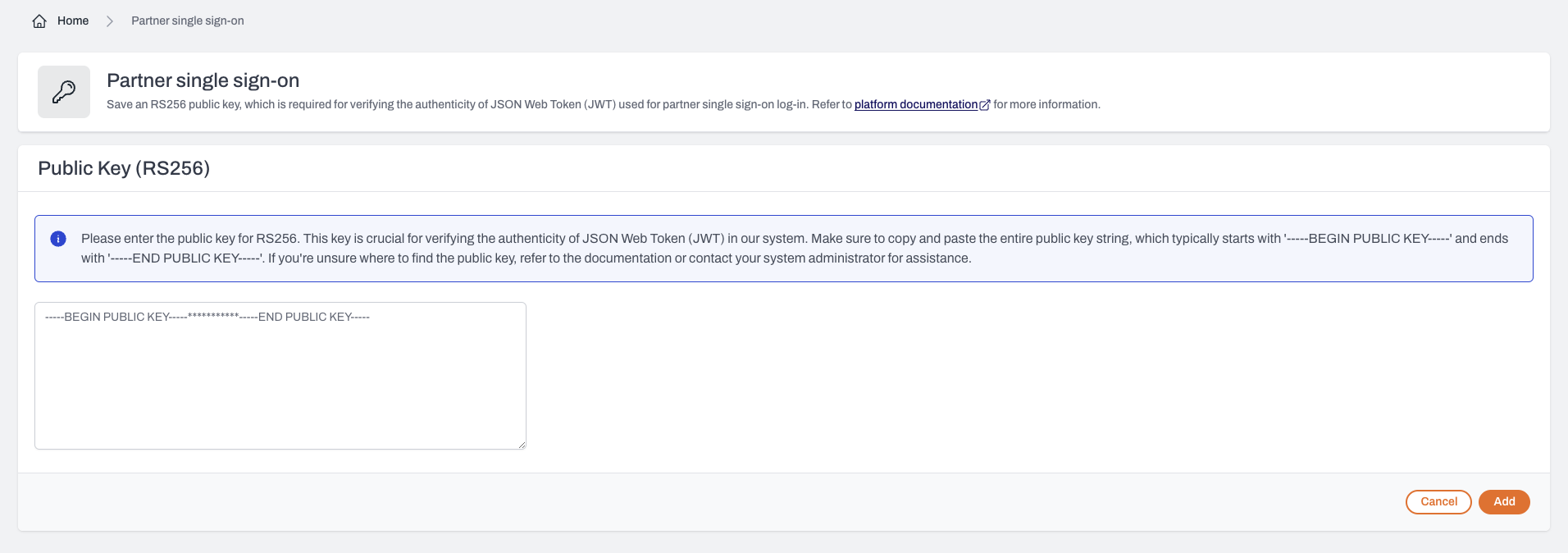 Make sure to copy and paste the entire public key string, which typically starts with *'-----BEGIN PUBLIC KEY-----'* and ends with *'-----END PUBLIC KEY-----'*.
### JWT payload and signature
The JWT payload should contain following properties:
```ts theme={"system"}
{
"organizationId" : "",
"tenantId" : "",
"role" : 'admin' | 'readOnly',
"email" : "",
"exp":
"name" : ""
}
```
* `organizationId`
\*
: The ID of the Plerion Organization
* `tenantId`
\*
: The ID of Plerion Tenant. Once a user is bound to a `tenantId`, it cannot be updated.
* `role`
\*
: Role to assign to user. Can only be `admin` or `readOnly`. User roles can be updated by passing different role in the parameter
* `email`
\*
: Email of the user. Each user needs to have a unique email address.
* `exp`
\*
: A JSON numeric value representing the number of seconds from epoch (1970-01-01T00:00:00Z UTC). Refer to [RFC7519#Section-4.1.4](https://www.rfc-editor.org/rfc/rfc7519#section-4.1.4) for more information.
* `name` : Name of the user
*Fields marked as `*` are required.*
To find the details of the organization like organizationId and tenant Id, navigate to `Settings` > `Overview` and get the values.
You should sign the JWT token with the `RS256` private-key associated with the public-key uploaded in the [Plerion Platform](#uploading-the-public-key).
### Endpoint for authentication
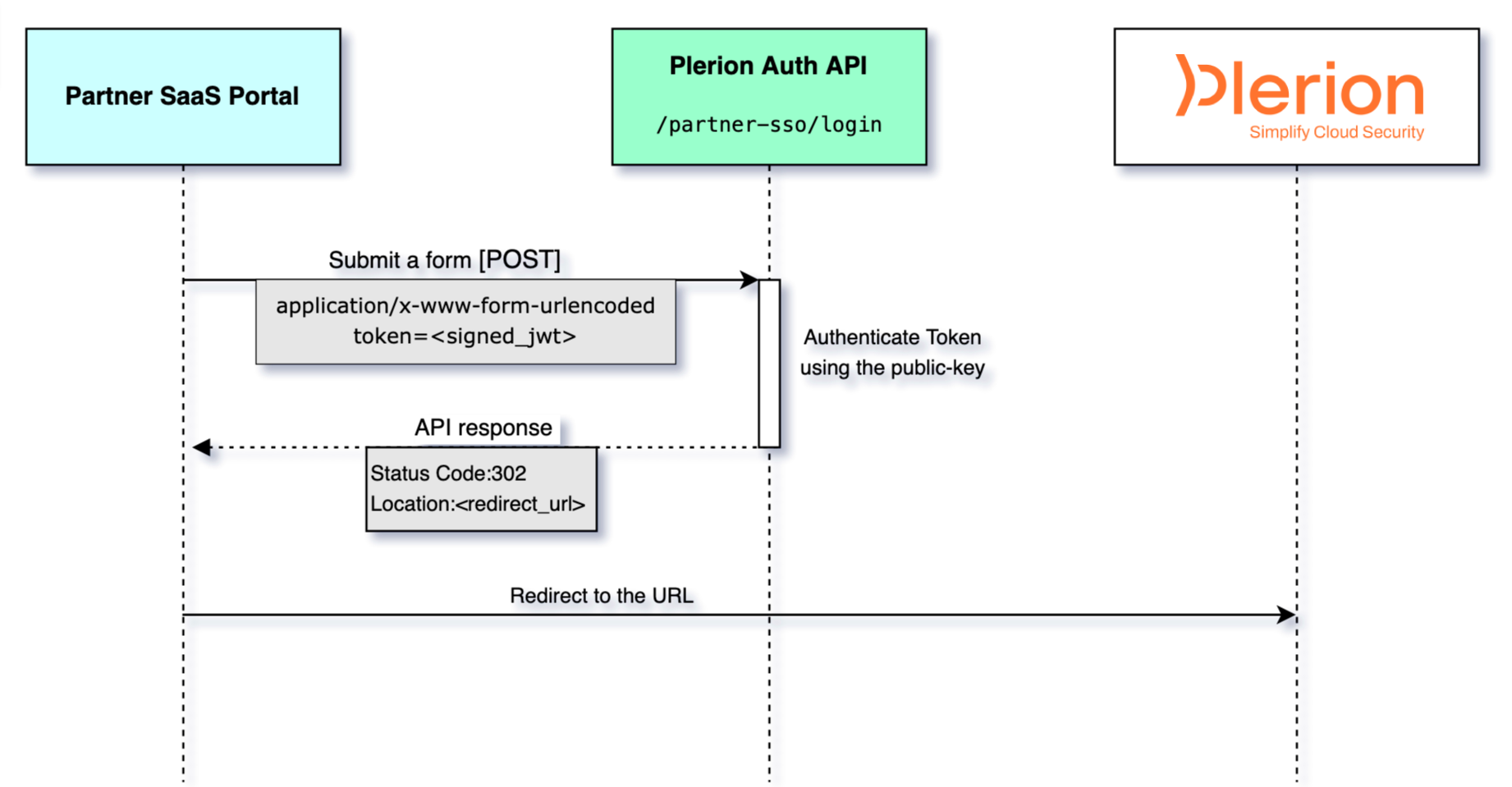
You can submit a form to the following endpoint by including the `token` parameter, with the value being the JWT token.
```
POST https://au.app.plerion.com/api/base/auth/partner-sso/login
```
**Headers:**
```
Content-Type: application/x-www-form-urlencoded
```
**Parameters:**
```ts application/x-www-form-urlencoded theme={"system"}
token=
```
Please provide the signed JWT in the `token` property in the body.
**Response:**
*Status Code*
`302`
*Headers:*
`Location: `
#### Login flow
Illustrated below is the basic login flow when user tries to sign in via Partner SSO.
Make sure to copy and paste the entire public key string, which typically starts with *'-----BEGIN PUBLIC KEY-----'* and ends with *'-----END PUBLIC KEY-----'*.
### JWT payload and signature
The JWT payload should contain following properties:
```ts theme={"system"}
{
"organizationId" : "",
"tenantId" : "",
"role" : 'admin' | 'readOnly',
"email" : "",
"exp":
"name" : ""
}
```
* `organizationId`
\*
: The ID of the Plerion Organization
* `tenantId`
\*
: The ID of Plerion Tenant. Once a user is bound to a `tenantId`, it cannot be updated.
* `role`
\*
: Role to assign to user. Can only be `admin` or `readOnly`. User roles can be updated by passing different role in the parameter
* `email`
\*
: Email of the user. Each user needs to have a unique email address.
* `exp`
\*
: A JSON numeric value representing the number of seconds from epoch (1970-01-01T00:00:00Z UTC). Refer to [RFC7519#Section-4.1.4](https://www.rfc-editor.org/rfc/rfc7519#section-4.1.4) for more information.
* `name` : Name of the user
*Fields marked as `*` are required.*
To find the details of the organization like organizationId and tenant Id, navigate to `Settings` > `Overview` and get the values.
You should sign the JWT token with the `RS256` private-key associated with the public-key uploaded in the [Plerion Platform](#uploading-the-public-key).
### Endpoint for authentication
You can submit a form to the following endpoint by including the `token` parameter, with the value being the JWT token.
```
POST https://au.app.plerion.com/api/base/auth/partner-sso/login
```
**Headers:**
```
Content-Type: application/x-www-form-urlencoded
```
**Parameters:**
```ts application/x-www-form-urlencoded theme={"system"}
token=
```
Please provide the signed JWT in the `token` property in the body.
**Response:**
*Status Code*
`302`
*Headers:*
`Location: `
#### Login flow
Illustrated below is the basic login flow when user tries to sign in via Partner SSO.
 ### Onboarding existing user
If a user already has a non-Partner SSO account in Plerion, they cannot sign in as a Partner SSO user.
To allow them to sign in as Partner SSO user, you can delete the existing account and follow the normal Partner SSO sign-in process.
Also, if you wish to change the tenant associated with an existing Partner SSO user, you need to delete the user and follow the normal Partner SSO sign-in process with the new `tenantId`.
##### Check if a user is Partner SSO user
* Navigate to `Admin` > `Users`
* Search for the user and click on the user to open their profile
* Check the `Partner SSO` field
### Onboarding existing user
If a user already has a non-Partner SSO account in Plerion, they cannot sign in as a Partner SSO user.
To allow them to sign in as Partner SSO user, you can delete the existing account and follow the normal Partner SSO sign-in process.
Also, if you wish to change the tenant associated with an existing Partner SSO user, you need to delete the user and follow the normal Partner SSO sign-in process with the new `tenantId`.
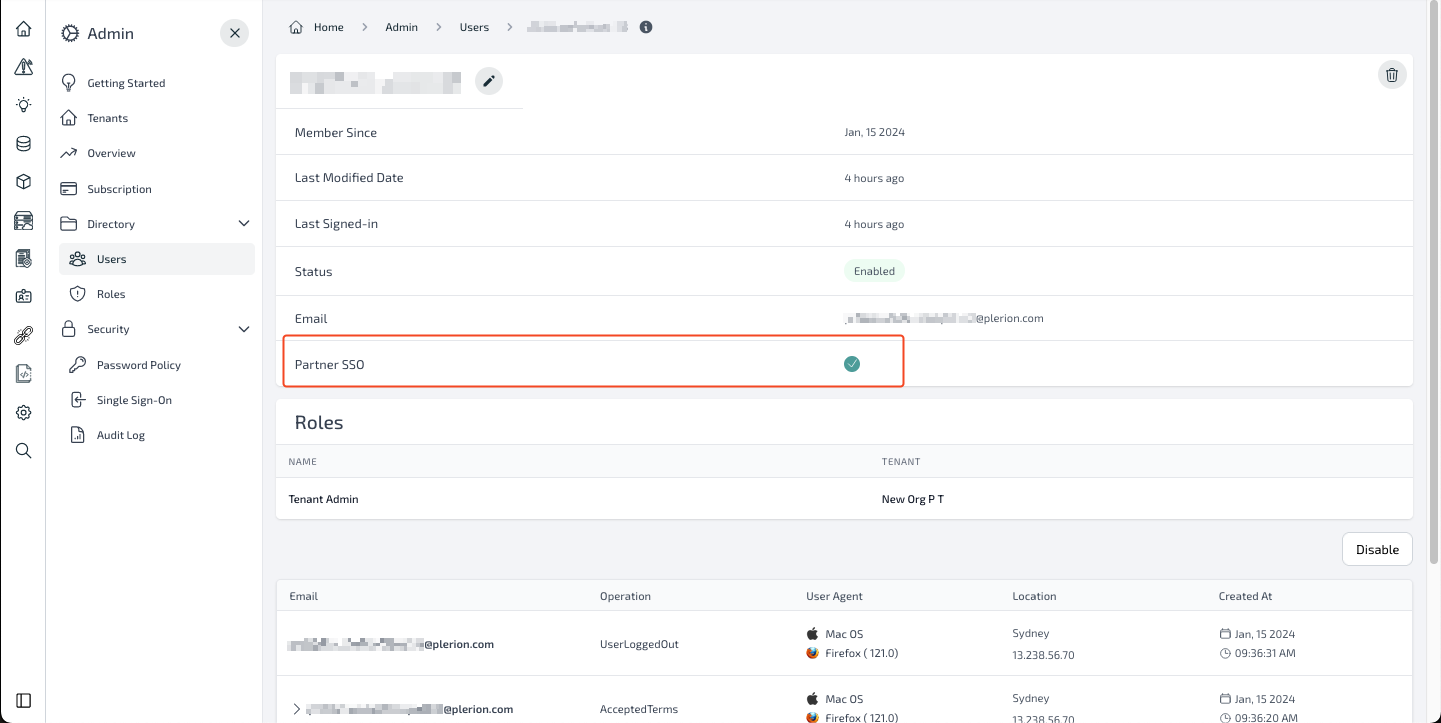
##### Check if a user is Partner SSO user
* Navigate to `Admin` > `Users`
* Search for the user and click on the user to open their profile
* Check the `Partner SSO` field
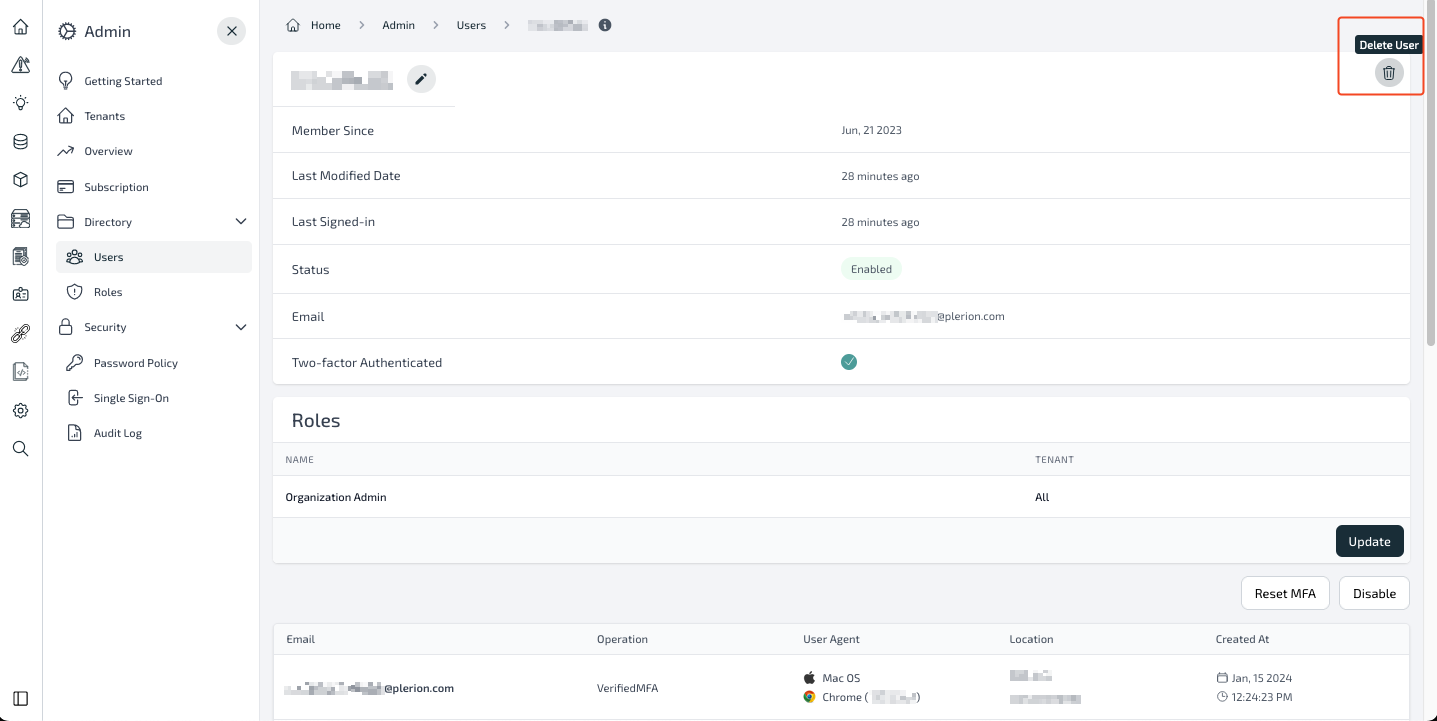
 ##### Delete a user:
* Navigate to `Admin` > `Users`
* Click on the action button and select Delete User.
##### Delete a user:
* Navigate to `Admin` > `Users`
* Click on the action button and select Delete User.
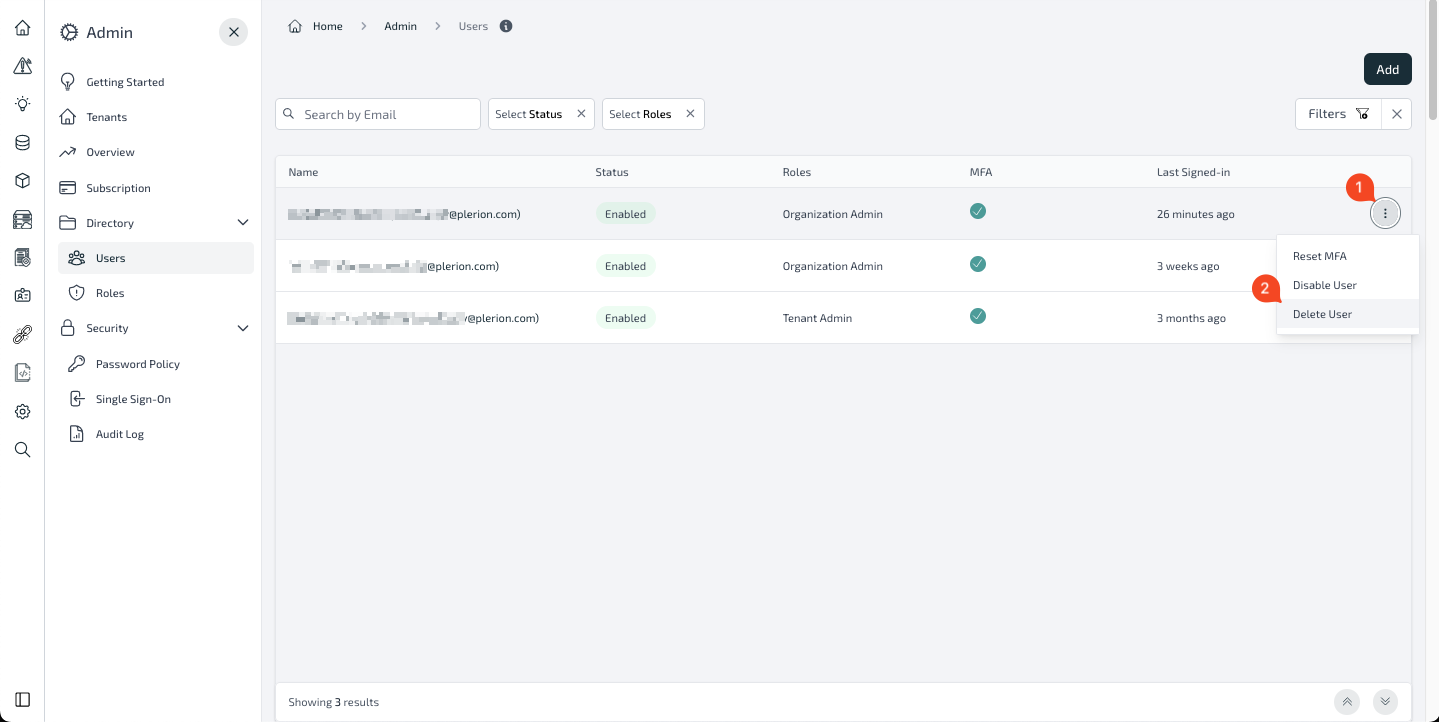 * OR, you can open the user profile by clicking on the user and clicking on the delete button
**Note**:
* After a user has been deleted, they can sign in using the normal Partner SSO login flow.
* Only Organization Admin can delete users.
### Possible errors
**Body:**
```ts application/json theme={"system"}
{
"errors": [
{
"code": ""
"message": ""
}
]
}
```
| Code | Message |
| :----------------- | :-------------------------------------------------- |
| InvalidToken | The provided token is invalid. |
| InvalidPayload | Relevant message regarding the payload |
| InvalidKeyOrTenant | Public Key not set for Tenant or Invalid `tenantId` |
| ExpiredToken | The token has expired |
| Code | Message |
| :------------------ | :---------------------------------------------------- |
| InactiveUser | User is disabled in the platform |
| UnauthorizedUser | User is not a PartnerSSO user |
| InvalidOrganization | The `organizationId` provided in the token is invalid |
| InvalidTenant | The `tenantId` provided in the token is invalid |