> ## Documentation Index
> Fetch the complete documentation index at: https://docs.plerion.com/llms.txt
> Use this file to discover all available pages before exploring further.
# Okta single sign-on
> Set up Okta single sign-on (SSO) with Plerion using SAML and role-based access control (RBAC).
With the **Okta single sign-on (SSO)** integration, you can enable secure authentication to Plerion through Okta. This setup uses SAML and role-based access control (RBAC) to map Okta users and groups to Plerion roles.
We recommend using two different browser sessions (or two separate browsers) while configuring Okta and Plerion. This prevents conflicts caused by sharing the same login session.
## Steps to configure Okta SSO
Sign in to your Okta account with the required roles and permissions.
* Go to `Applications` and click `Create App Integration`.
* Select `SAML 2.0` and click `Next`.
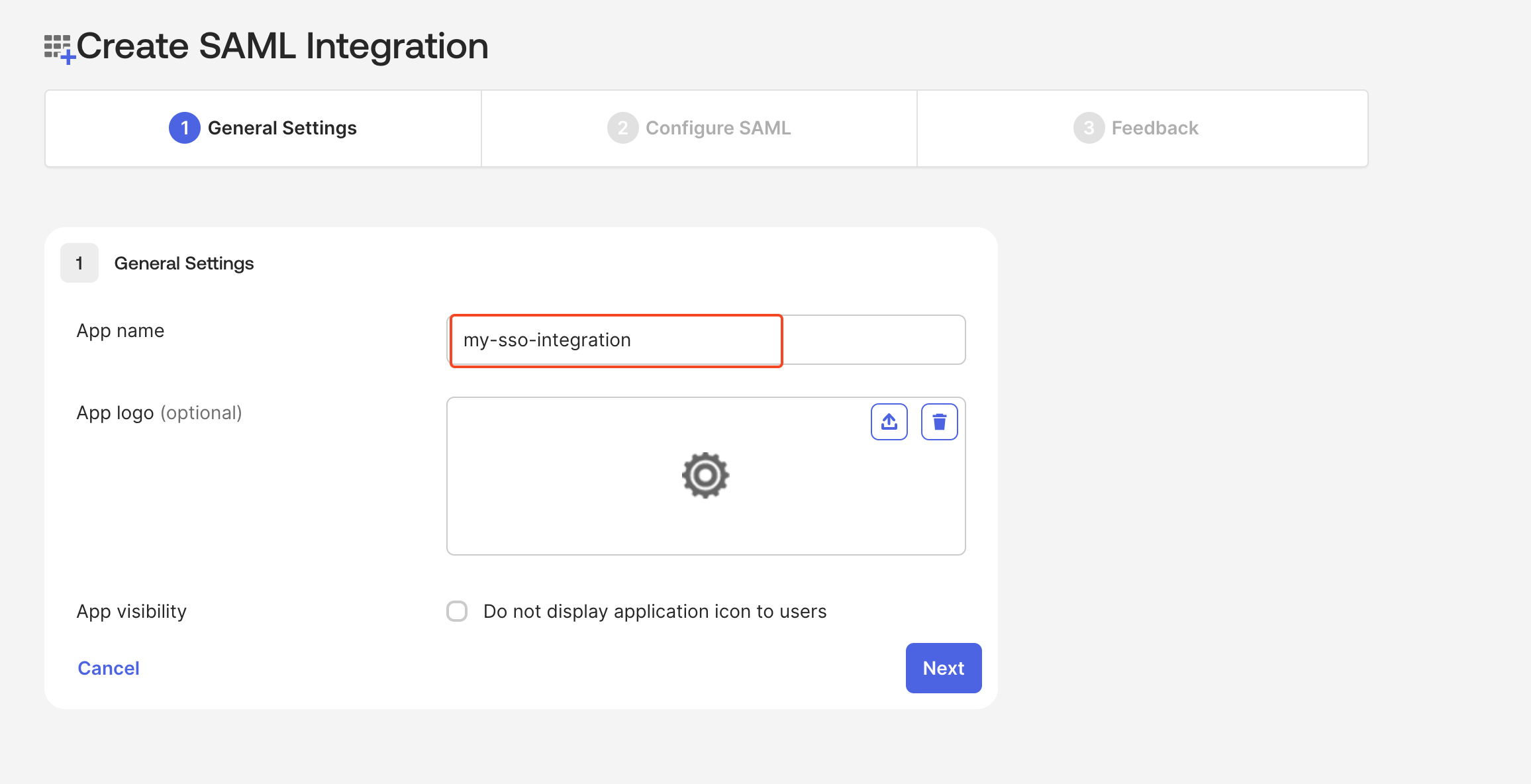
* Enter an app name and click `Next`.
 * In Plerion, go to `Admin` > `Security` > `Single sign-on` and copy the **SSO URL**.
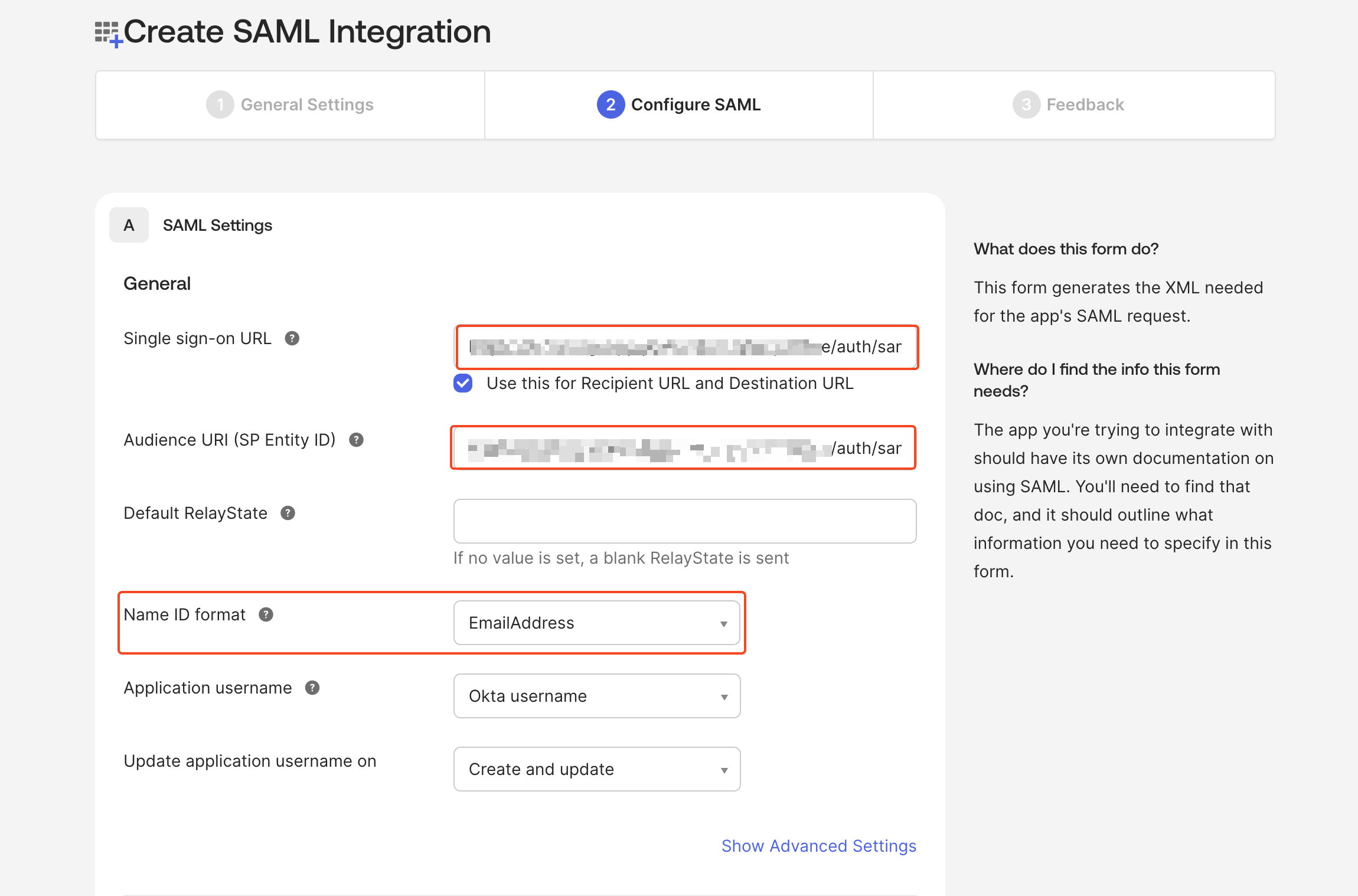
* In Okta, paste this URL into the **Single sign-on URL** and **Audience URI (SP Entity ID)** fields.
* Set `Name ID format` to `EmailAddress`.
* For `Attribute statements`, provide the required values and continue.
* In Plerion, go to `Admin` > `Security` > `Single sign-on` and copy the **SSO URL**.
* In Okta, paste this URL into the **Single sign-on URL** and **Audience URI (SP Entity ID)** fields.
* Set `Name ID format` to `EmailAddress`.
* For `Attribute statements`, provide the required values and continue.
 Review your settings, select your preferences, and click `Finish`.
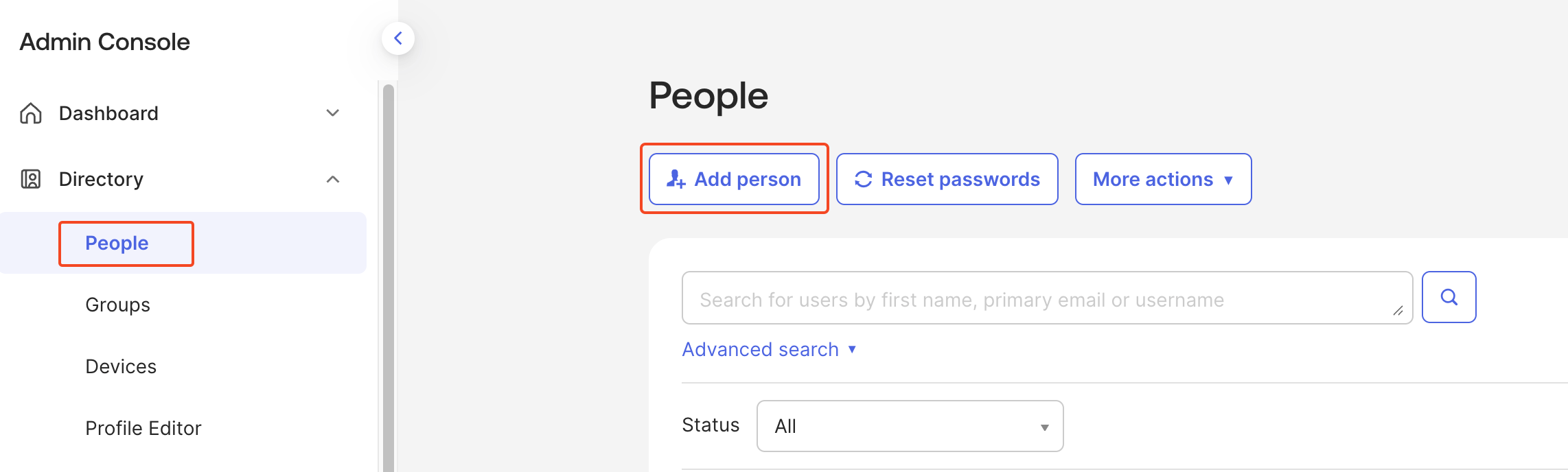
* In Okta, go to `Directory` > `People` and click `Add person`.
* Enter the user details and click `Save`.
* Open your application, go to the `Assignments` tab, click `Assign` > `Assign to people`, and assign the new user.
* Click `Done` to confirm.
Review your settings, select your preferences, and click `Finish`.
* In Okta, go to `Directory` > `People` and click `Add person`.
* Enter the user details and click `Save`.
* Open your application, go to the `Assignments` tab, click `Assign` > `Assign to people`, and assign the new user.
* Click `Done` to confirm.
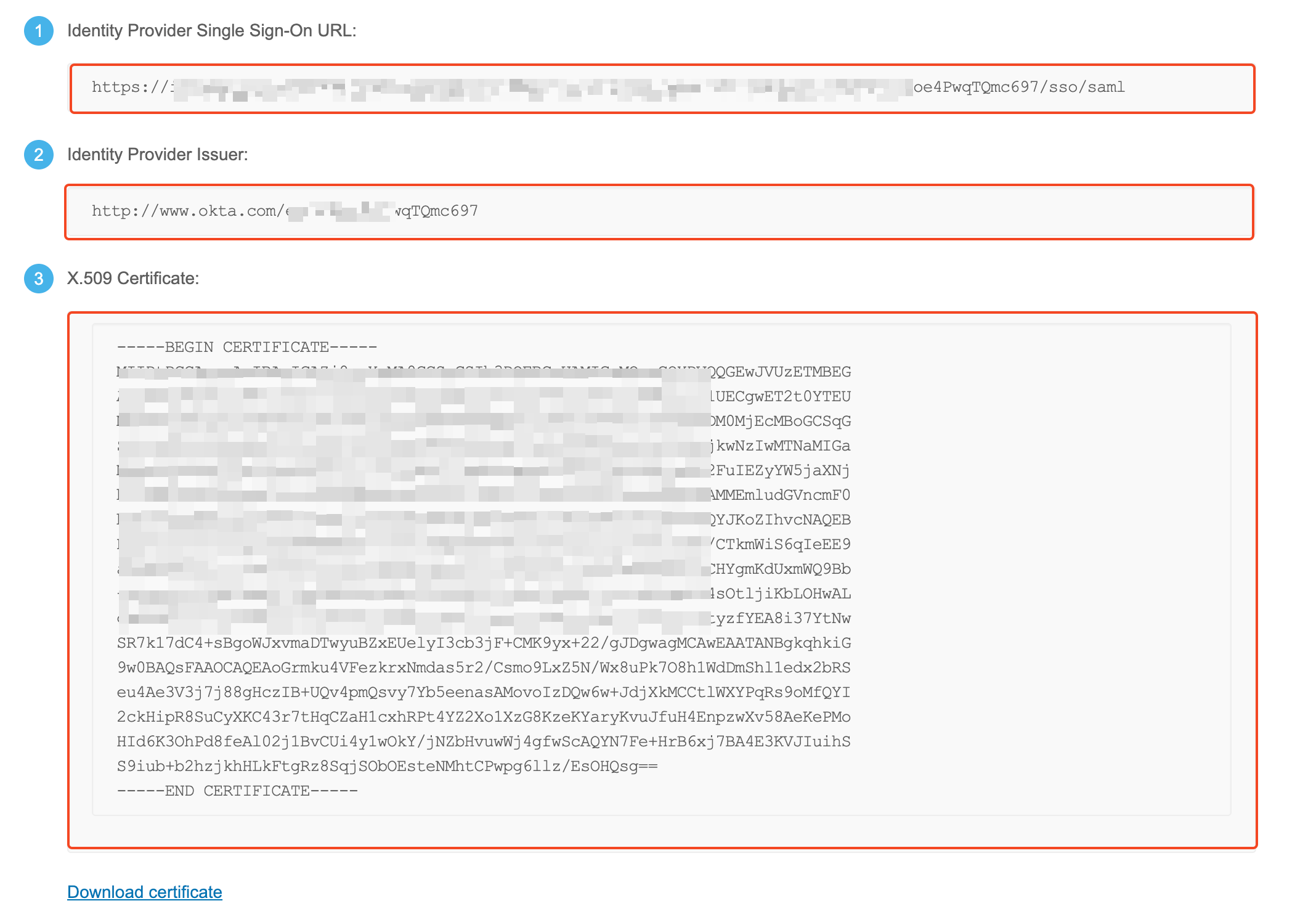
 * In your application, go to the `Sign-on` tab and click `View SAML setup instructions`.
* Copy the **Single sign-on URL**, **Identity provider issuer**, and **X.509 certificate**.
* In your application, go to the `Sign-on` tab and click `View SAML setup instructions`.
* Copy the **Single sign-on URL**, **Identity provider issuer**, and **X.509 certificate**.
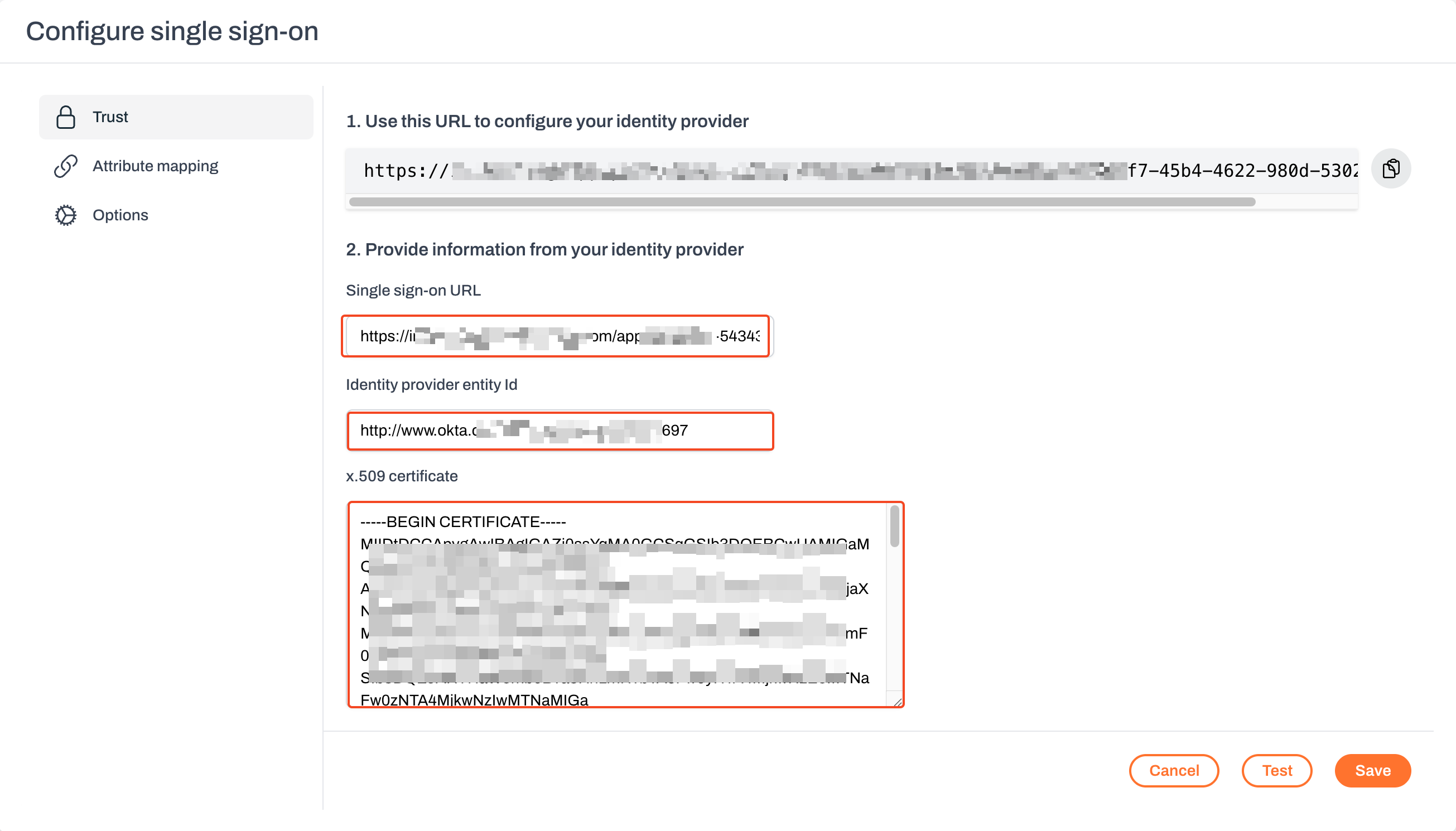
 * In Plerion, go to `Admin` > `Security` > `Single sign-on`.
* Paste the following values into the matching fields:
* **Single sign-on URL**
* **Identity provider issuer**
* **X.509 certificate**
* Save the configuration.
* In Plerion, go to `Admin` > `Security` > `Single sign-on`.
* Paste the following values into the matching fields:
* **Single sign-on URL**
* **Identity provider issuer**
* **X.509 certificate**
* Save the configuration.
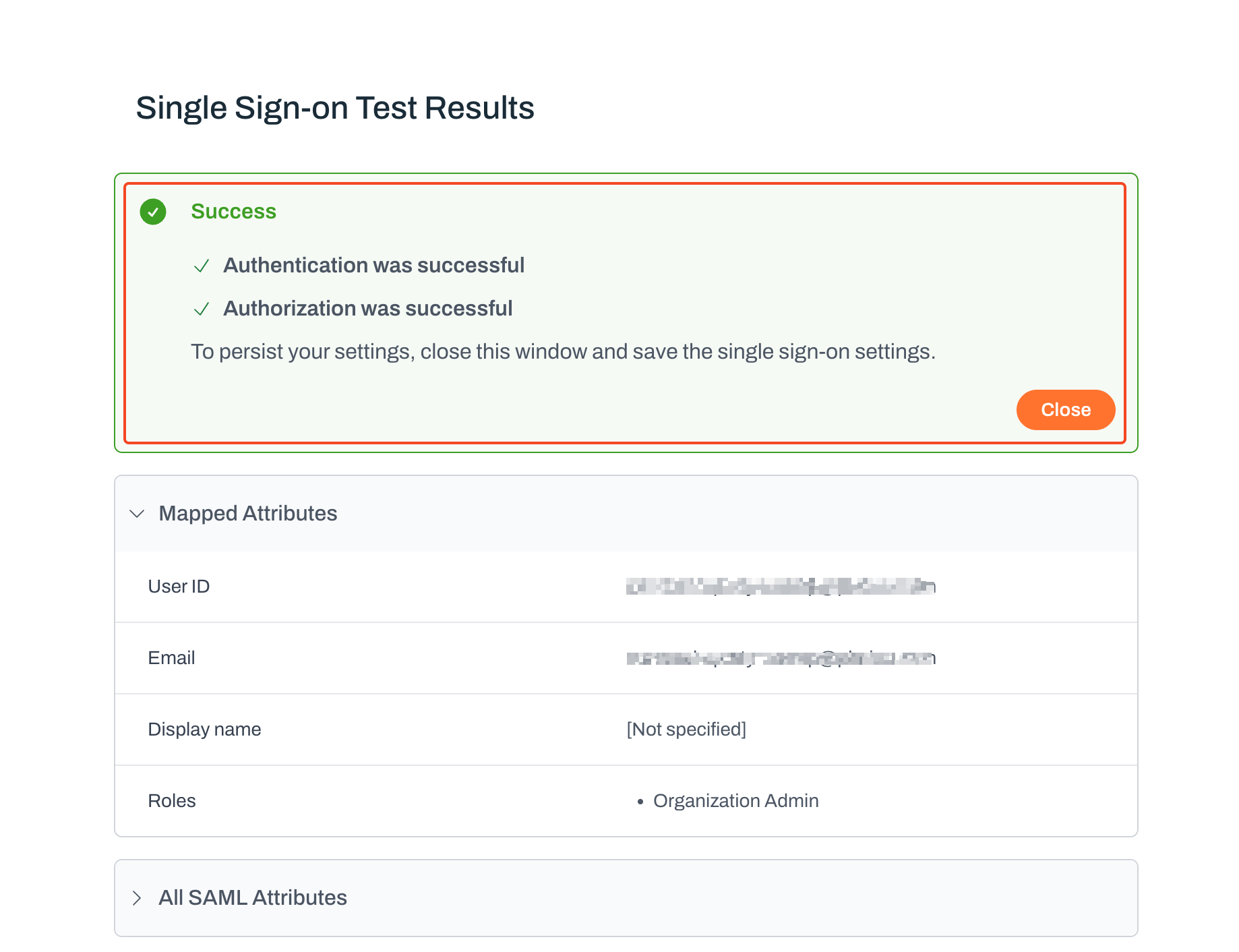
 * Click `Test` in Plerion. A new window will open where you can sign in with the user you added in Okta.
* Verify that you can log in to Plerion using Okta SSO.
* Click `Test` in Plerion. A new window will open where you can sign in with the user you added in Okta.
* Verify that you can log in to Plerion using Okta SSO.
 ## Attribute mapping and roles
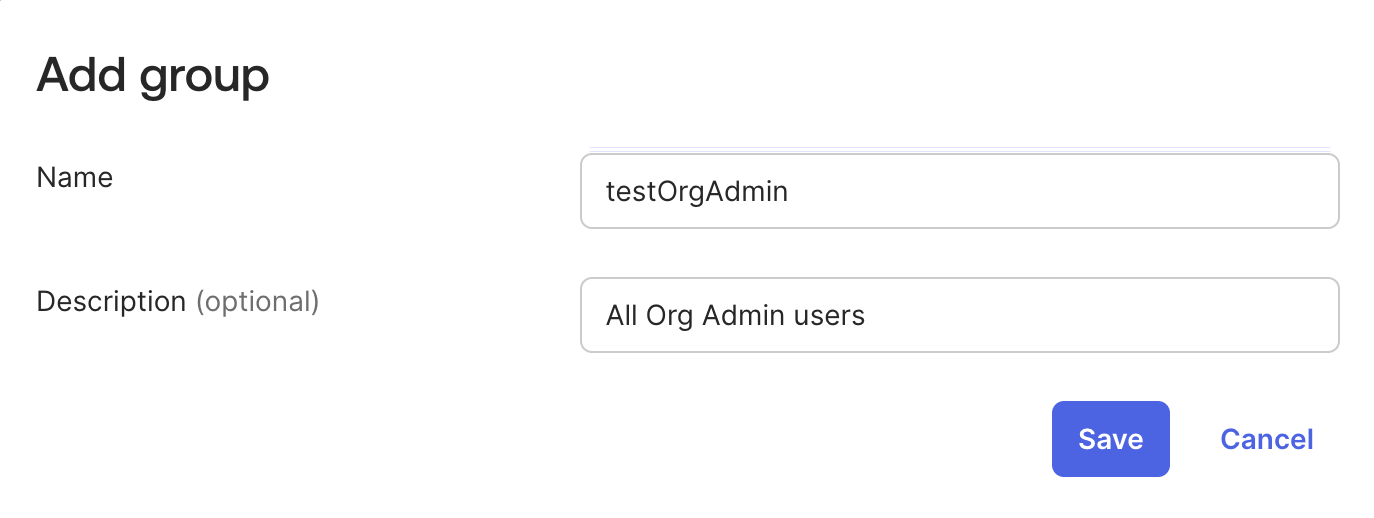
* In Okta, go to `Directory` > `Groups` and click `Add group`.
* Enter a name (for example, **testOrgAdmin**) and click `Save`.
* Open your application, go to the `Assignments` tab, click `Assign` > `Assign to groups`, and assign your new group.
* Add the previously created user to this group.
## Attribute mapping and roles
* In Okta, go to `Directory` > `Groups` and click `Add group`.
* Enter a name (for example, **testOrgAdmin**) and click `Save`.
* Open your application, go to the `Assignments` tab, click `Assign` > `Assign to groups`, and assign your new group.
* Add the previously created user to this group.
 * In your application, go to the `General` tab.
* Under `SAML settings`, click `Edit` and go to `Configure SAML`.
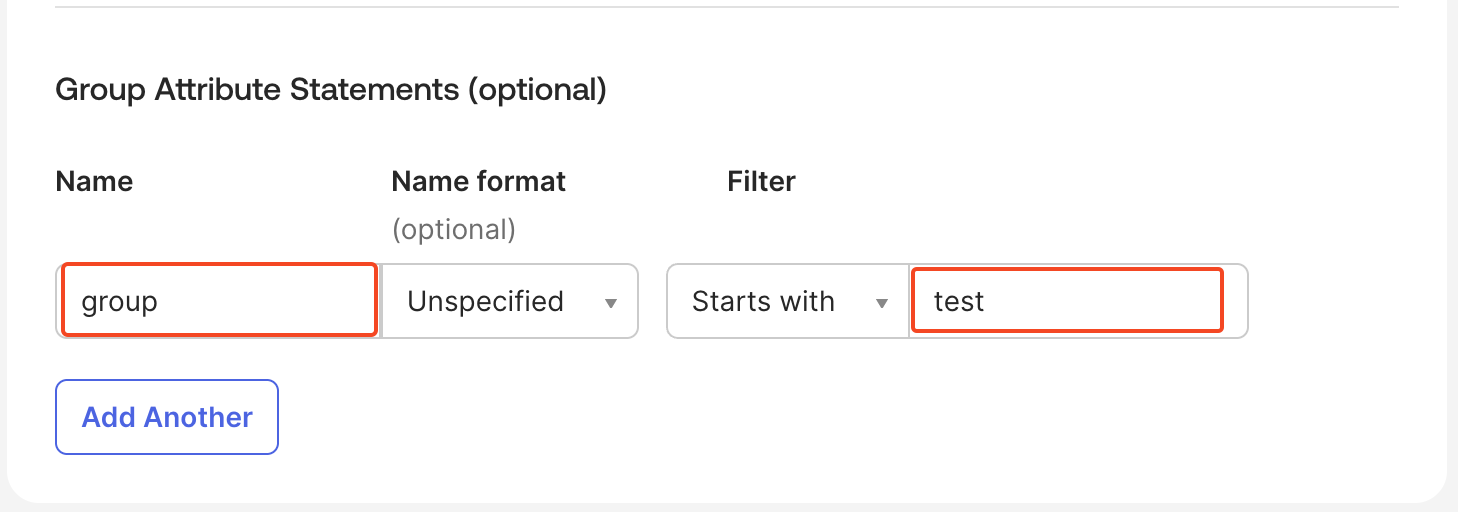
* Add a **Group attribute statement**.
Example: Set the attribute name to **group** and use your group name (**testOrgAdmin**) as the filter.
* In your application, go to the `General` tab.
* Under `SAML settings`, click `Edit` and go to `Configure SAML`.
* Add a **Group attribute statement**.
Example: Set the attribute name to **group** and use your group name (**testOrgAdmin**) as the filter.
 * In Plerion, go to `Admin` > `Security` > `Single sign-on` > `Attribute mapping`.
* For **Email**, select **Use SAML Name ID**.
* For **Display name**, leave unchecked to let users choose their own, or map the Okta user’s first and last name.
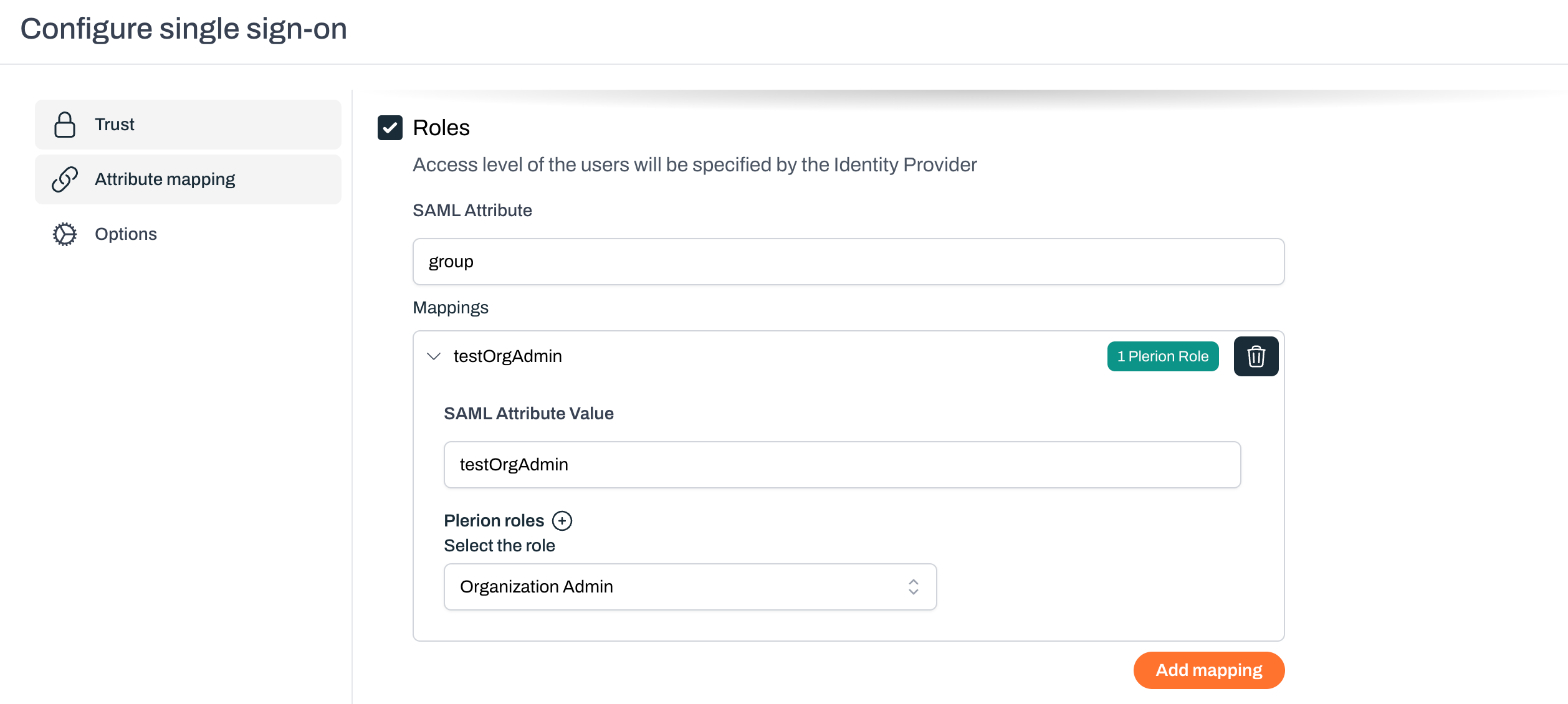
* For **Roles**, add a mapping with the SAML attribute name **group**.
* Map **testOrgAdmin** to the **Organization Admin** role.
* Save the configuration.
* In Plerion, go to `Admin` > `Security` > `Single sign-on` > `Attribute mapping`.
* For **Email**, select **Use SAML Name ID**.
* For **Display name**, leave unchecked to let users choose their own, or map the Okta user’s first and last name.
* For **Roles**, add a mapping with the SAML attribute name **group**.
* Map **testOrgAdmin** to the **Organization Admin** role.
* Save the configuration.
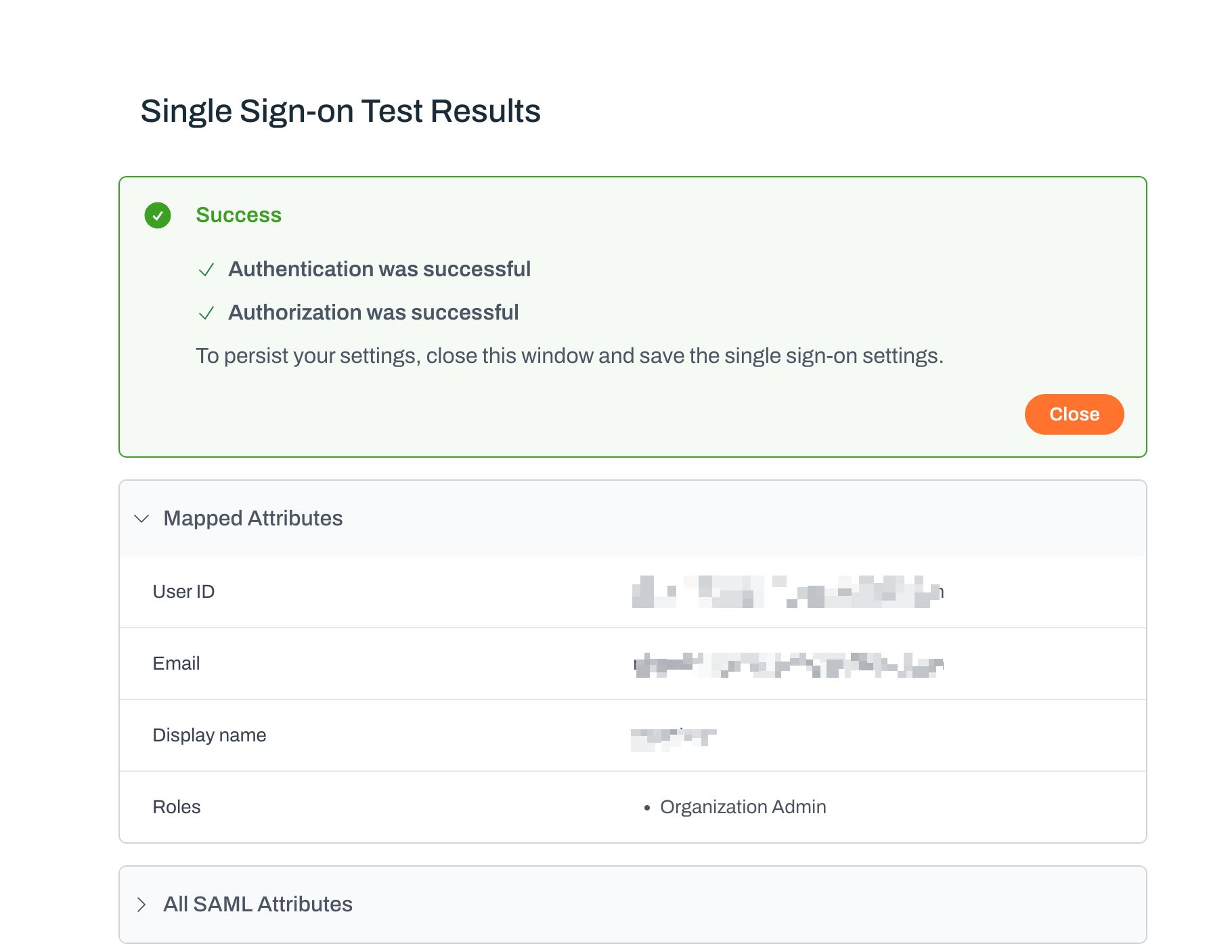
 * Click `Test` in Plerion.
* Verify that the attribute mapping works as expected.
* Click `Test` in Plerion.
* Verify that the attribute mapping works as expected.
 ## Accessing Plerion through Okta
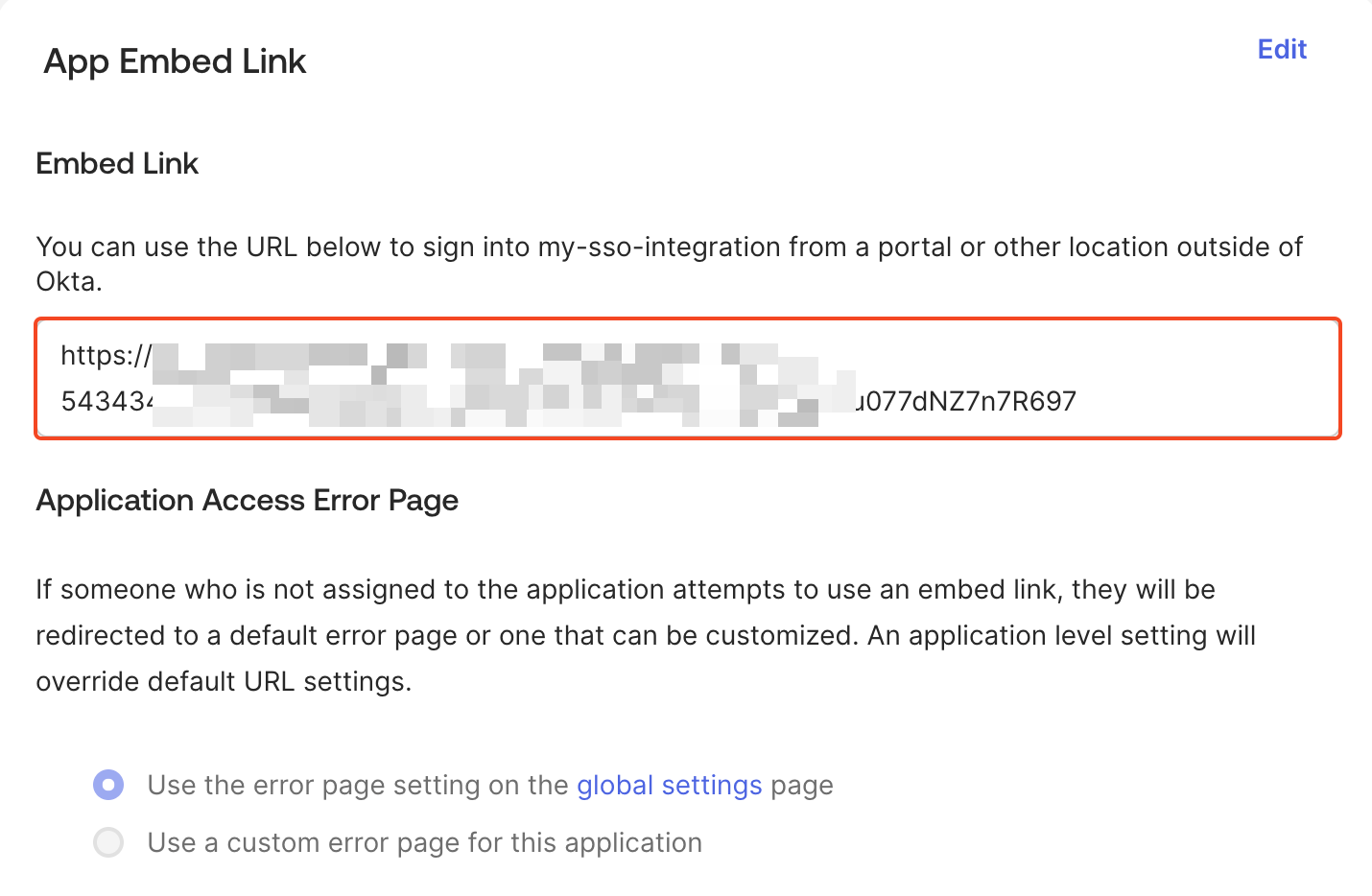
You can access Plerion using the **App Embed link** from your Okta application (`General` tab > `App embed link`).\
Log in with your Okta user credentials, and you will be signed in with the mapped Plerion role.
## Accessing Plerion through Okta
You can access Plerion using the **App Embed link** from your Okta application (`General` tab > `App embed link`).\
Log in with your Okta user credentials, and you will be signed in with the mapped Plerion role.