> ## Documentation Index
> Fetch the complete documentation index at: https://docs.plerion.com/llms.txt
> Use this file to discover all available pages before exploring further.
# GitHub single sign-on
> Sign in to Plerion using your GitHub account with OAuth-based single sign-on
With **\[GitHub single sign-on (SSO)]**, your team can sign in to Plerion using their existing GitHub accounts.
You must be a member of an existing Plerion organization to sign in with GitHub SSO.
***
## Steps to sign in with GitHub SSO
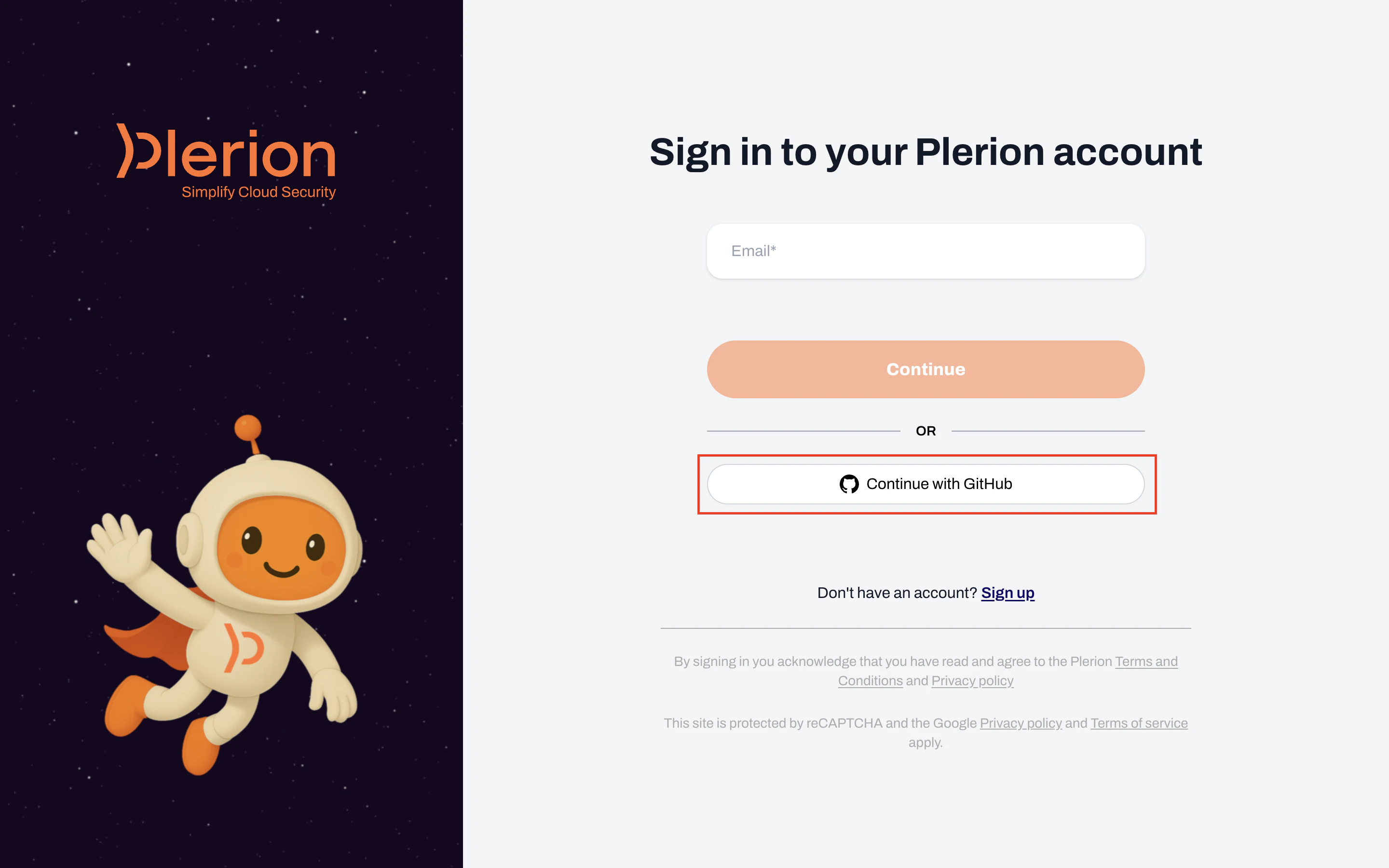 GitHub displays an authorization page for **Plerion authentication**. This page shows the permissions Plerion requests:
* **Organizations and teams**: Read-only access to your organization and team membership.
* \**Personal user data*: Read-only access to your email addresses and profile information.
Click `Authorize` to continue.
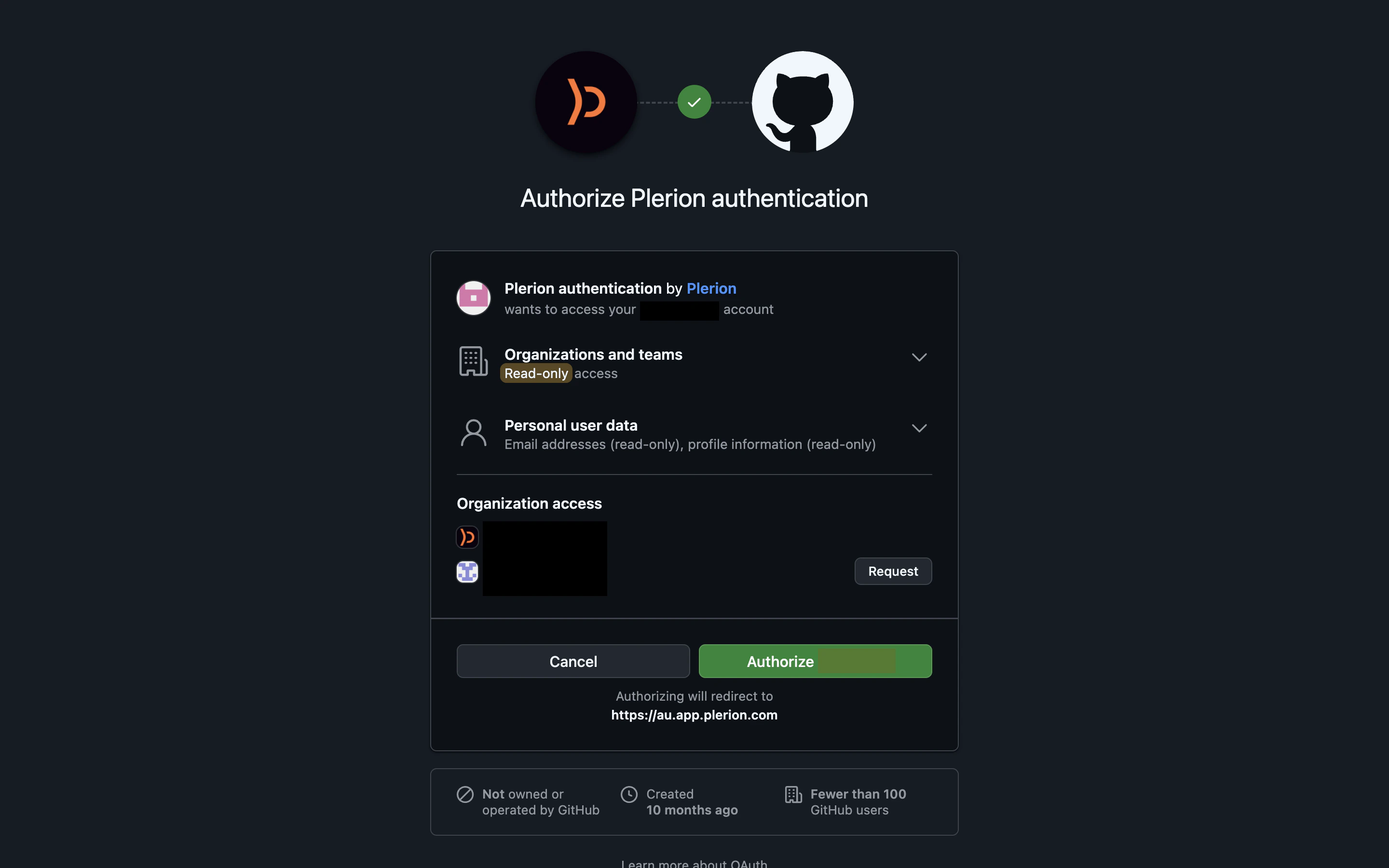
GitHub displays an authorization page for **Plerion authentication**. This page shows the permissions Plerion requests:
* **Organizations and teams**: Read-only access to your organization and team membership.
* \**Personal user data*: Read-only access to your email addresses and profile information.
Click `Authorize` to continue.
 After authorization, GitHub redirects you back to Plerion and you are signed in. On subsequent logins, you will not need to re-authorize unless the app's permissions change.