> ## Documentation Index
> Fetch the complete documentation index at: https://docs.plerion.com/llms.txt
> Use this file to discover all available pages before exploring further.
# Tenant API keys
> Create tenant API keys, give each one a role, and see exactly which API operations it can call
With **[Tenant API keys](https://app.plerion.com/settings/api-keys)**, you can call the [Plerion API](/api-reference/index) from scripts, pipelines, and other tools without a user signing in. Every key holds a role, so a key can do only what its role allows, on the integrations the role covers.
Treat an API key like a password. Plerion shows the key once, when it is created. Do not store it as plain text or commit it to a code repository.
***
## Roles for API keys
Each user can hold two keys per tenant. A key is created with one role and keeps it until you change it. The roles a key can hold are the tenant-level roles of its tenant:
* **Tenant admin** *(default)*: every operation of the API, on every integration in the tenant. Keys created before roles existed hold this role.
* **Tenant read-only**: reads within the tenant.
* **Custom roles**: any role an organization admin has created for this tenant. A custom role can hold a subset of permissions and can limit them to specific integrations or integration groups.
Organization-level roles do not apply, because a key lives in one tenant.
A role that grants `ApiKey:Modify` can create keys, including keys with Tenant admin access, and change what existing keys are allowed to do, so it is a path to full access on the tenant. The role editor says so whenever a role being saved includes it.
A request the assigned role does not allow is refused with `403 Forbidden`. A role change applies from the next request made with the key.
***
## Steps to create a key
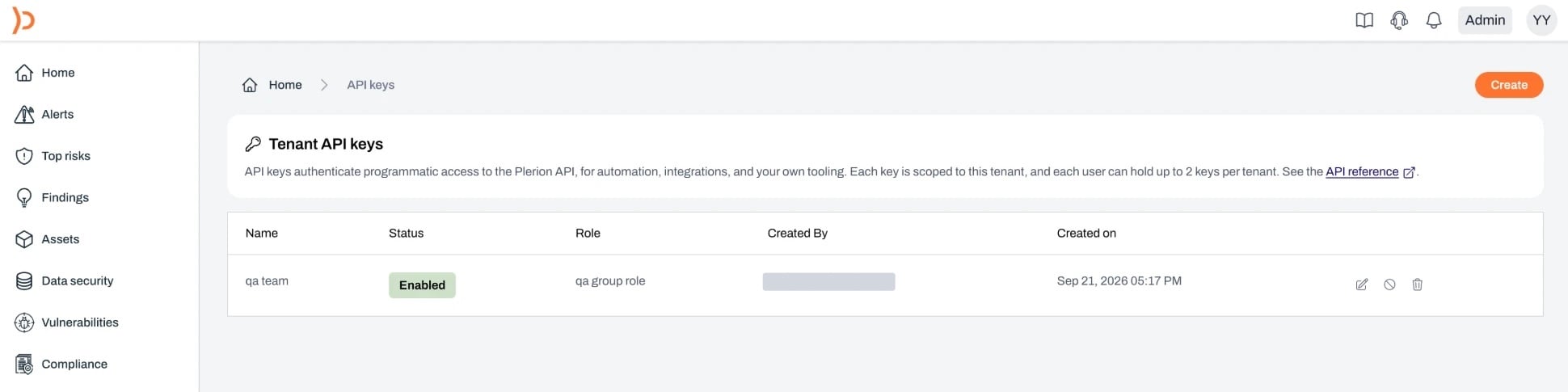 Enter an **API key name** of 2 to 64 characters that says what the key is for.
Use the **Role** dropdown. **Tenant admin** is selected by default.
Under the form, the **Permissions** panel shows the role's actions and the integrations they apply to, and the **Operations** panel lists every API operation the key can call. Tick **Show N operations this key cannot call** to list the refused ones too. Click a refused operation to see the permission it needs. You can click `Download OpenAPI spec` here too, which saves the API reference limited to the selected role.
Enter an **API key name** of 2 to 64 characters that says what the key is for.
Use the **Role** dropdown. **Tenant admin** is selected by default.
Under the form, the **Permissions** panel shows the role's actions and the integrations they apply to, and the **Operations** panel lists every API operation the key can call. Tick **Show N operations this key cannot call** to list the refused ones too. Click a refused operation to see the permission it needs. You can click `Download OpenAPI spec` here too, which saves the API reference limited to the selected role.
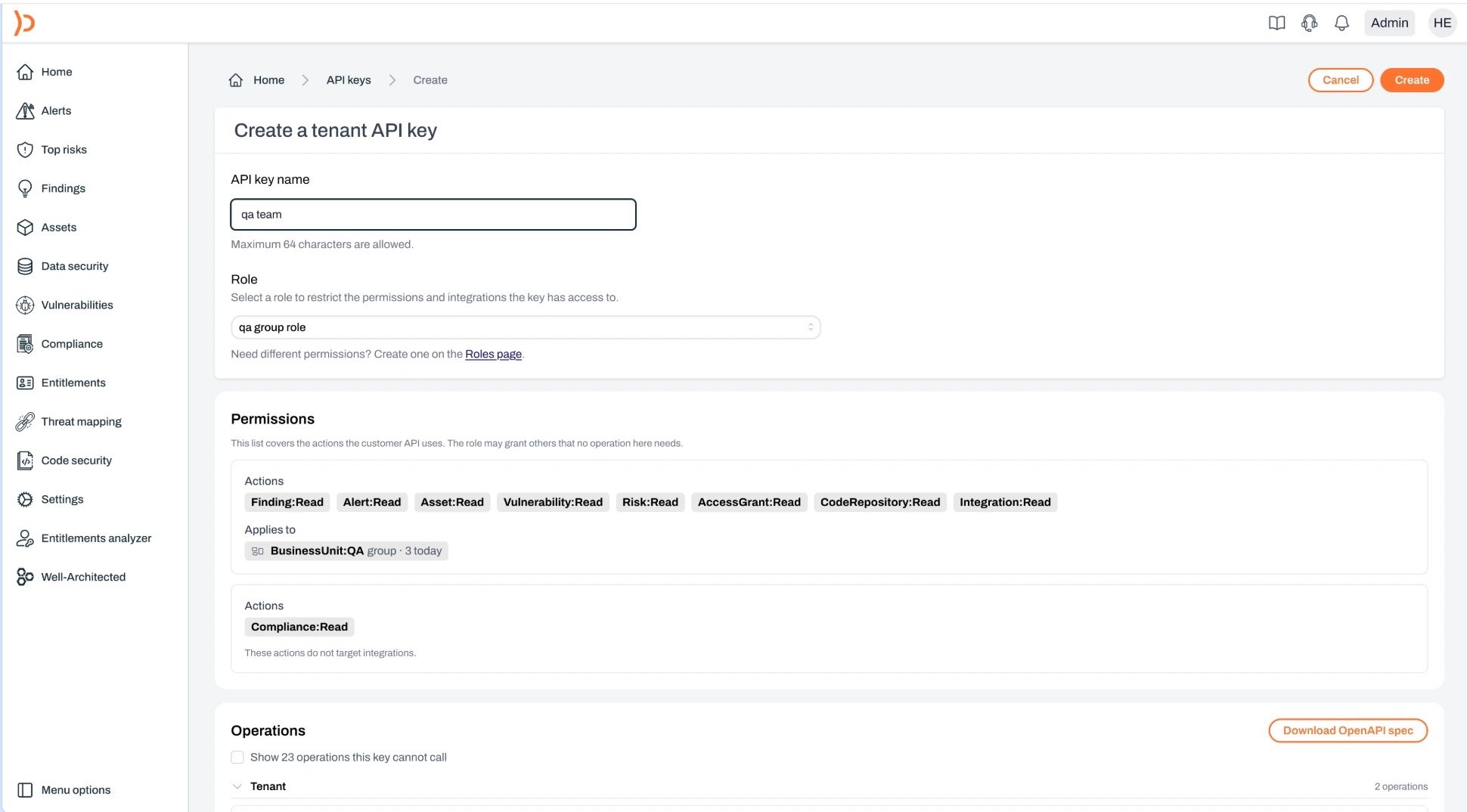 The key is shown once. Copy it and store it in your secrets manager.
Below the key, the same **Permissions** and **Operations** panels describe the key you just created. `Download OpenAPI spec` saves the API reference limited to this key as a JSON file.
The key is shown once. Copy it and store it in your secrets manager.
Below the key, the same **Permissions** and **Operations** panels describe the key you just created. `Download OpenAPI spec` saves the API reference limited to this key as a JSON file.
 ***
## Managing existing keys
The API keys list shows each key's **Name**, **Status**, **Role**, **Created By**, and **Created on**. If a key's role has been deleted, the **Role** column shows a warning, and the key's requests are refused until you give it another role.
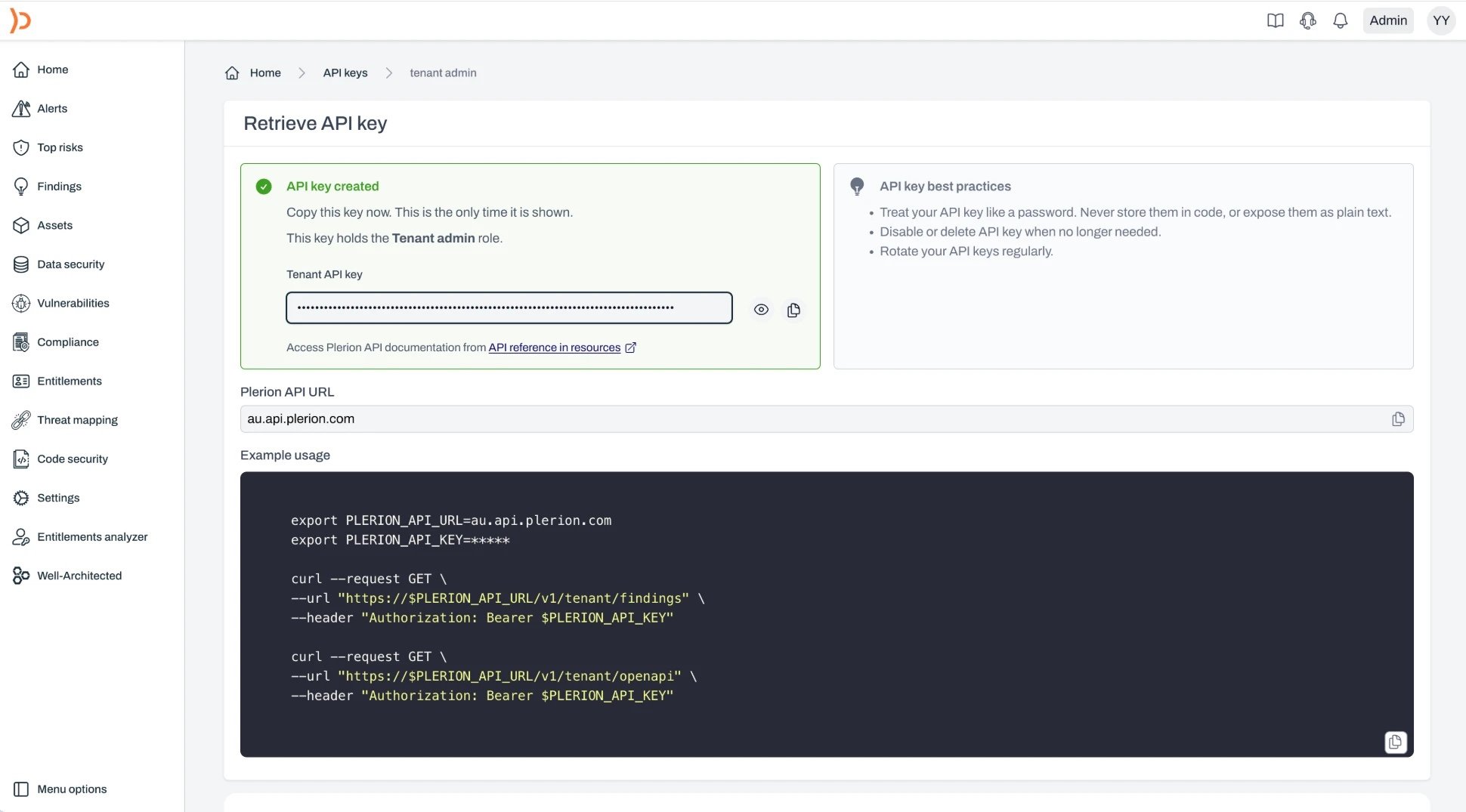
Click a key's row to open it. The key page shows its details, its **Role**, and the **Permissions** and **Operations** panels for the selected role. To change the role, pick another one from the dropdown. The panels update to what that role allows, and `Save changes` applies it. The key holds its current role until you save.
***
## Managing existing keys
The API keys list shows each key's **Name**, **Status**, **Role**, **Created By**, and **Created on**. If a key's role has been deleted, the **Role** column shows a warning, and the key's requests are refused until you give it another role.
Click a key's row to open it. The key page shows its details, its **Role**, and the **Permissions** and **Operations** panels for the selected role. To change the role, pick another one from the dropdown. The panels update to what that role allows, and `Save changes` applies it. The key holds its current role until you save.
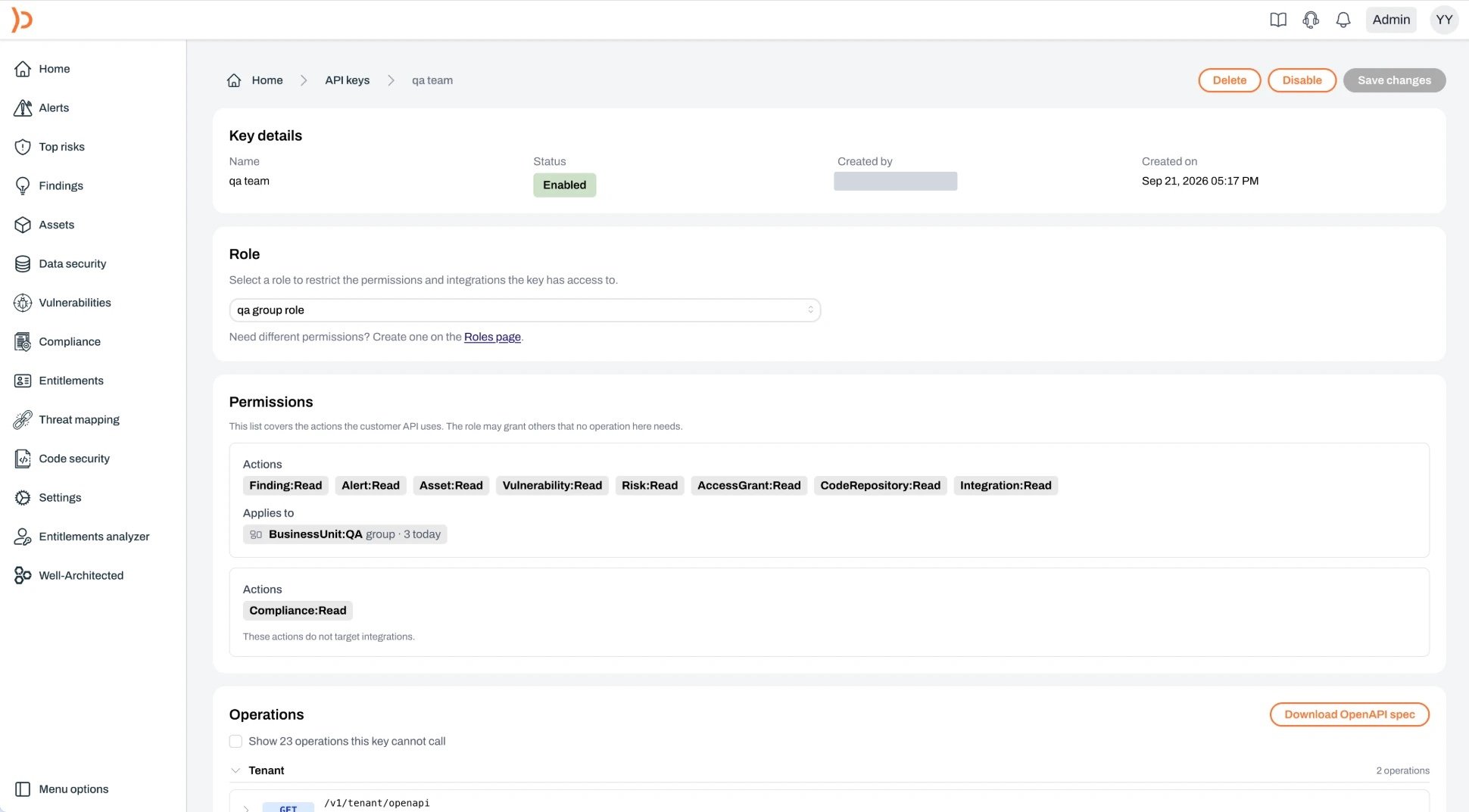 Each row has three buttons:
* **Edit**: opens the key page.
* **Disable** or **Enable**: a disabled key is refused until it is enabled again.
* **Delete**: removes the key permanently.
Each row has three buttons:
* **Edit**: opens the key page.
* **Disable** or **Enable**: a disabled key is refused until it is enabled again.
* **Delete**: removes the key permanently.
 ***
## Asking the API what a key can do
`GET /v1/tenant/openapi` returns the [API reference](/api-reference/index) as an OpenAPI 3.1 document limited to the calling key. Operations the role cannot call are left out. Each operation names the permission that authorizes it under `x-plerion-actions` and the integrations in scope under `x-plerion-integration-scope`. Send `Accept: application/yaml` to receive YAML instead of JSON.
```bash theme={"system"}
curl --request GET \
--url "https://$PLERION_API_URL/v1/tenant/openapi" \
--header "Authorization: Bearer $PLERION_API_KEY"
```
Use it to check a key before a pipeline runs, or to point an OpenAPI client at exactly the operations the key may call. See [Discover what an API key can call](/api-reference/tenant/discover) for the full response.
***
## Asking the API what a key can do
`GET /v1/tenant/openapi` returns the [API reference](/api-reference/index) as an OpenAPI 3.1 document limited to the calling key. Operations the role cannot call are left out. Each operation names the permission that authorizes it under `x-plerion-actions` and the integrations in scope under `x-plerion-integration-scope`. Send `Accept: application/yaml` to receive YAML instead of JSON.
```bash theme={"system"}
curl --request GET \
--url "https://$PLERION_API_URL/v1/tenant/openapi" \
--header "Authorization: Bearer $PLERION_API_KEY"
```
Use it to check a key before a pipeline runs, or to point an OpenAPI client at exactly the operations the key may call. See [Discover what an API key can call](/api-reference/tenant/discover) for the full response.